Program a DIRECTV remote to a Vizio TV by entering a Vizio code or using the remote’s automatic search mode.
Learning how to program DIRECTV remote to Vizio TV can save you from switching between two remotes every night. The steps vary slightly by remote model, such as the older universal remote, Genie remote, or DIRECTV STREAM remote. This guide covers the most reliable methods, common Vizio codes, troubleshooting tips, and setup advice so you can control power, volume, input, and other basic TV functions with ease.

Before You Program the DIRECTV Remote
Before learning how to program DIRECTV remote to Vizio TV, check the remote and TV. Your Vizio TV should be on, and the remote should have working batteries.


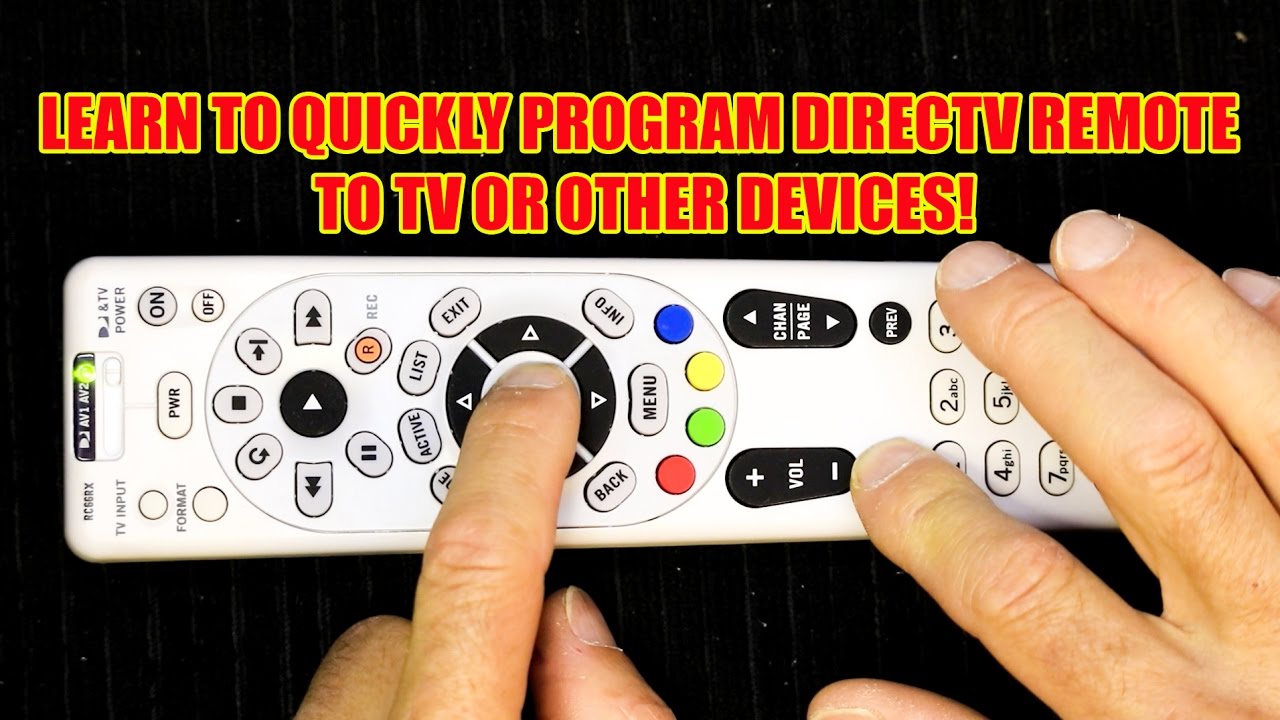
Look at the top of the remote for a mode switch or a button labeled TV. Older DIRECTV remotes often have a switch marked DIRECTV, AV1, AV2, and TV. Newer Genie remotes may use a MODE button or an on-screen setup menu instead.
You may also need the Vizio TV model number. It is usually printed on a label on the back of the TV or shown under the TV’s system information menu. The model number is useful if the first code does not work.
Make sure:
• The Vizio TV is powered on.
• The remote has fresh batteries.
• The remote can send an infrared signal if it is an older model.


• No object blocks the front of the remote from the TV.
• You know whether you have a standard DIRECTV remote, Genie remote, or DIRECTV STREAM remote.
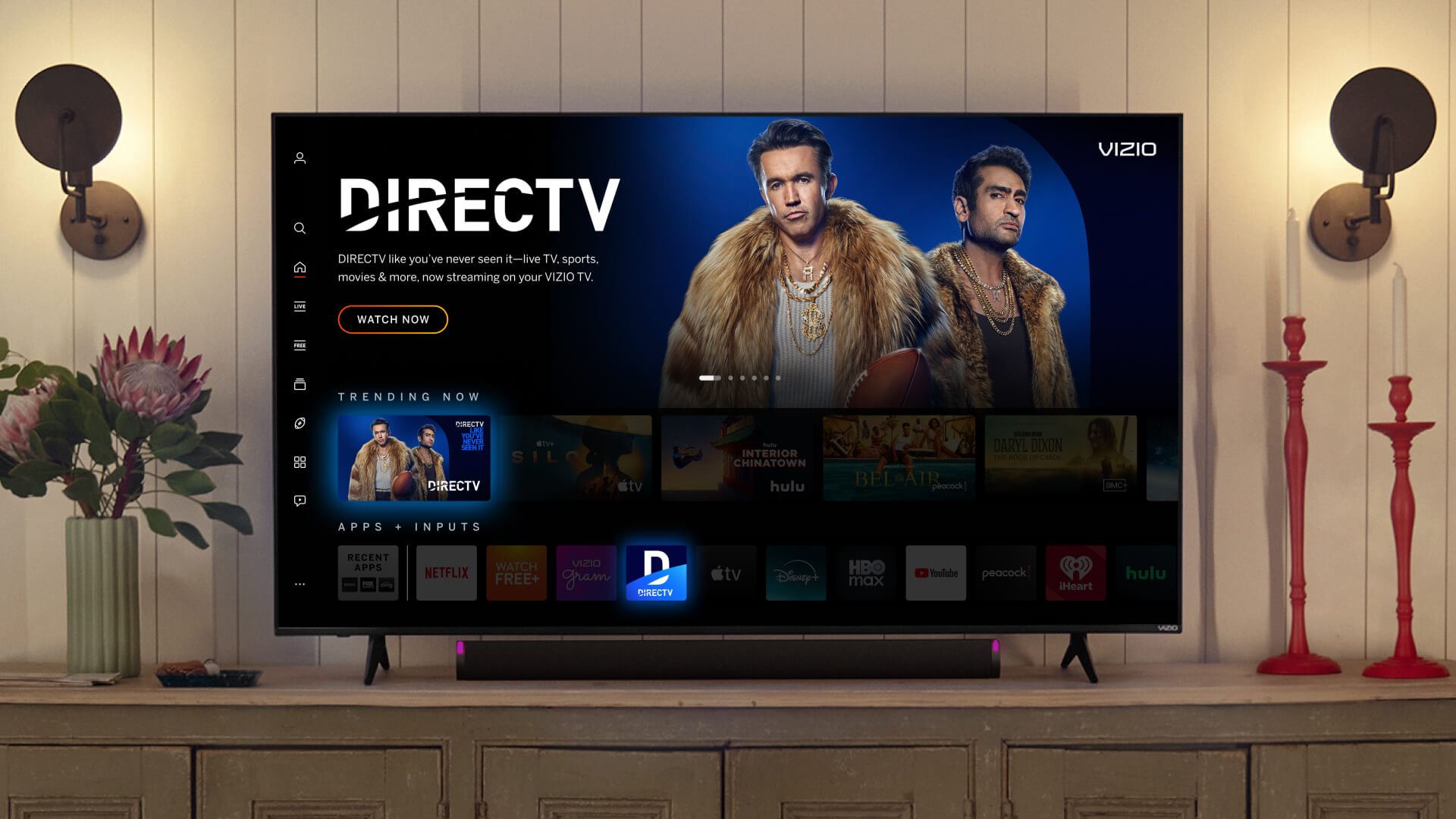
How to Program a Standard DIRECTV Remote to a Vizio TV
The standard manual code method is one of the fastest ways to program a DIRECTV remote to Vizio TV. It works with many older DIRECTV universal remotes, including common RC32, RC64, and RC66 models.
Step 1: Turn on the Vizio TV
Use the original Vizio remote or the power button on the TV. Leave the TV on during the setup.
Step 2: Move the switch to TV
On a remote with a mode switch, move the switch to TV. This tells the remote that you want to control the television rather than the DIRECTV receiver.
Step 3: Enter programming mode
Press and hold the MUTE and SELECT buttons at the same time. Keep holding them until the green light near the TV switch flashes twice.
If the light does not flash, release both buttons and try again. Pressing one button slightly before the other can prevent the remote from entering programming mode.
Step 4: Enter a Vizio code
Use the number pad to enter one of these commonly used Vizio codes:
• 11758
• 10864
• 10885
• 10879
• 11756
Remote codes can vary by remote version and Vizio model. Start with 11758, as it is commonly associated with Vizio televisions, then try the other codes if needed.


Step 5: Test the remote
Point the remote at the Vizio TV and press POWER. If the TV turns off, turn it back on and test these buttons:
• VOL+
• VOL−
• MUTE
• CHANNEL UP
• INPUT
• GUIDE
If several buttons work, the setup is likely successful. If only the power button works, try another code.
How to Program DIRECTV Remote to Vizio TV With Code Search
If you do not know the correct Vizio code, the automatic code search method can find one. This method is useful when the printed code list is missing or when a code works only partially.
Automatic search steps
-
Turn on the Vizio TV.
-
Move the remote’s mode switch to TV.
-
Press and hold MUTE and SELECT until the green light flashes twice.
-
Enter 9-9-1 using the number buttons.
-
Press the number 1 to search for TV codes.
-
Aim the remote at the Vizio TV.
-
Press CHANNEL UP slowly, one press at a time.
-
Stop when the TV turns off.
-
Press SELECT to save the code.
-
Turn the Vizio TV back on and test the main buttons.


The search may pass through many codes. Press CHANNEL UP only once every few seconds so you do not skip the correct code.
A common mistake is pressing SELECT too late. When the TV turns off, press SELECT right away. If you continue searching, the remote may move past the working code.

How to Program a Genie Remote to a Vizio TV
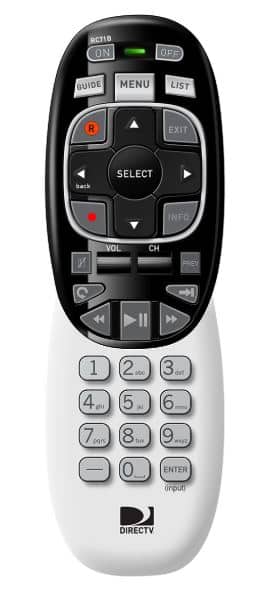
Genie remotes, such as the RC71, RC72, and RC73, may use a different setup process. If you want to know how to program DIRECTV remote to Vizio TV with a Genie remote, try the on-screen method first.
On-screen setup method
-
Press MENU on the Genie remote.
-
Select Settings & Help.
-
Choose Settings.
-
Select Remote Control.
-
Choose Program Remote.
-
Follow the instructions shown on the TV.
-
Select Vizio when asked for the TV brand.
-
Test the volume and power buttons.


The exact menu wording may differ based on your DIRECTV receiver and software version. If you do not see these options, use the manual setup method.
Manual Genie setup
-
Turn on the Vizio TV.
-
Slide the mode switch to TV, if your Genie remote has one.
-
Press and hold MUTE and ENTER.
-
Continue holding until the green light flashes twice.
-
Point the remote at the TV.
-
Follow the message displayed on the TV screen.
On some Genie remotes, the MUTE and ENTER method programs the remote through the receiver. Keep the remote aimed at the television during the setup.

How to Program DIRECTV STREAM Remote to a Vizio TV
A DIRECTV STREAM remote is different from many traditional satellite remotes. It usually connects through Bluetooth or another wireless method, so older numeric codes may not apply.
To program a DIRECTV STREAM remote to a Vizio TV, try these steps:
-
Turn on the Vizio TV.
-
Press the Home button on the DIRECTV STREAM remote.
-
Open Settings.
-
Select Remote Preferences or Remote Control.
-
Choose the option to pair or program the remote.
-
Select TV or Television.
-
Choose Vizio from the brand list.
-
Follow the on-screen instructions.
Some DIRECTV STREAM devices pair the remote with the streaming box first and then configure TV power and volume. If the remote controls the streaming box but not the TV, repeat the TV setup rather than pairing the entire remote again.
Check the batteries and keep the remote close to the streaming device during pairing. Bluetooth setup does not require pointing the remote directly at the TV, but the first pairing process may still need the remote near the receiver.
What to Do When the Vizio Code Does Not Work
Not every Vizio TV responds to every DIRECTV remote code. Vizio has released many television models over the years, and remote compatibility can depend on both the TV and the DIRECTV remote version.
Try these fixes:
• Test each listed Vizio code instead of stopping at the first one.
• Use the automatic code search method.
• Replace weak batteries.
• Aim the remote directly at the lower front area of the TV.
• Remove objects that may block the infrared sensor.
• Confirm that the remote is in TV mode.
• Restart the Vizio TV by unplugging it for 60 seconds.
• Reset the remote if it is stuck in the wrong programming mode.
When testing the remote, check more than the power button. A code may turn the TV on and off but fail to control volume or input. The best code is the one that controls the functions you use most.
In my experience troubleshooting home entertainment setups, the most common mistake is saving a code after testing only POWER. It is better to test volume, mute, input, and navigation before deciding that the setup is complete.
How to Reset a DIRECTV Remote
A reset can help when the remote was programmed for another TV or when buttons behave in an unusual way. The reset process depends on the remote model.
For many older DIRECTV universal remotes:
-
Move the mode switch to TV.
-
Press and hold MUTE and SELECT until the light flashes twice.
-
Enter 9-8-1.
-
Wait for the light to flash twice again.
This returns the remote to its default state on many models. You will need to program the remote again afterward.
For Genie remotes, the reset process may vary. A common method is to press and hold MUTE and SELECT until the light flashes twice, then enter the appropriate reset sequence listed for that remote model. If that does not work, use the receiver’s Remote Control settings or check the model-specific instructions.
Do not reset the remote unless necessary. A reset removes existing TV, receiver, or audio device settings.
How to Control Vizio Volume With a DIRECTV Remote
After you program a DIRECTV remote to Vizio TV, volume control may still be assigned to the DIRECTV receiver instead of the television. This often happens when the remote was set up for a soundbar or another audio device.
Test VOL+ and VOL− while the remote is set to TV. If the buttons work only in TV mode, the remote may not be programmed to control volume in DIRECTV mode.
If you use a Vizio soundbar, home theater receiver, or HDMI audio system, decide which device should control volume. Programming the remote for both the Vizio TV and an external sound system may require a separate audio setup.
HDMI-CEC can also affect volume behavior. Vizio may call this feature CEC or HDMI-CEC in the TV settings. If the TV and soundbar respond unpredictably, check the CEC settings and test each device separately.
Benefits and Limits of Using a DIRECTV Remote With Vizio
Programming one remote can make daily viewing much easier. You can reduce remote clutter and handle basic commands without searching through the couch cushions.
Key benefits include:
• One remote for power, volume, mute, and channel controls.
• Easier access to DIRECTV menus and the program guide.
• Less confusion for children and older family members.
• Faster switching between live TV and streaming devices.
However, a DIRECTV remote may not control every Vizio smart TV feature. It may not open apps, change advanced picture settings, browse smart TV menus, or control every soundbar function.
Keep the original Vizio remote nearby for advanced settings. Think of the DIRECTV remote as a convenient daily tool, not always a complete replacement for the manufacturer’s remote.
Tips for a Reliable Remote Setup
A few simple habits can make the setup last longer and prevent repeated programming.
• Write down the working Vizio code and store it with the TV manual.
• Replace both batteries at the same time.
• Avoid mixing old and new batteries.
• Keep the remote sensor clean.
• Do not press buttons rapidly during automatic code search.
• Test the setup from your normal seating position.
• Keep the original remote available for smart TV features.
• Use the exact remote model when searching for instructions.
Remote buttons can wear over time, especially POWER and volume buttons. If the light does not flash or the remote responds slowly even with fresh batteries, the remote itself may need replacement.
DIRECTV’s official remote support tools and Vizio’s product documentation are the best places to verify model-specific instructions. Code lists can change by remote revision, so treat generic code lists as a starting point rather than a guarantee.
Frequently Asked Questions
What is the most common Vizio code for a DIRECTV remote?
11758 is one of the most commonly used Vizio codes for DIRECTV universal remotes. If it does not work, try 10864, 10885, 10879, or 11756.
Why will my DIRECTV remote turn off the Vizio TV but not control volume?
The remote may have found a partial code or may be set to control another audio device. Try a different Vizio code and test the remote after each setup.
Can I program a DIRECTV Genie remote without a Vizio code?
Yes. Use the on-screen remote setup under Settings & Help, or try the Genie pairing process with the MUTE and ENTER buttons. The receiver can often identify the TV brand during setup.
How do I program DIRECTV remote to Vizio TV without the original Vizio remote?
Turn on the TV using its physical power button, then program the DIRECTV remote with a manual Vizio code or automatic code search. You do not need the original Vizio remote for basic programming.
Why does the DIRECTV remote not respond after I enter a code?
The remote may not be in the correct mode, the batteries may be weak, or the code may not match your TV model. Move the switch to TV, replace the batteries, and try another code.
Can a DIRECTV remote control Vizio smart TV apps?
Usually, it can control basic functions such as power, volume, input, and channel commands. It may not control every smart TV app or advanced menu, so keep the Vizio remote for those tasks.
Conclusion
Programming a DIRECTV remote to Vizio TV usually takes only a few minutes. Start with the manual code method, try the listed Vizio codes, and use automatic code search if the first option fails. Genie and DIRECTV STREAM remotes may use on-screen setup instead of traditional numeric codes.
Test more than the power button before finishing. Check volume, mute, input, and the functions you use every day. Once the remote works, save the successful code and keep the original Vizio remote nearby for advanced smart TV controls.
Try the method that matches your remote model, and share your working code or setup experience in the comments to help other Vizio and DIRECTV users.

Everett Ashford is a tech reviewer at mytechgrid.com specializing in SSDs, cameras, TVs, earbuds, headphones, and other consumer electronics. He provides honest, data-driven reviews based on hands-on testing and real-world performance analysis. Everett simplifies complex tech details to help readers make smart, confident buying decisions.