Find your Samsung TV’s MAC address through the Network Status or Support menu in just a few steps.
Knowing how to find the MAC address of Samsung TV models can help you connect the TV to Wi-Fi, set up router controls, register the device, or troubleshoot network errors. Samsung menus can differ by model year and software version, so this guide covers the main path, backup methods, common problems, and practical tips to help you find the correct address without guesswork.

What Is a MAC Address on a Samsung TV?
A MAC address is a unique identification code assigned to a network device. MAC stands for Media Access Control. Your Samsung TV may have one MAC address for Wi-Fi and another for a wired Ethernet connection.
A MAC address usually looks like this:
A4:5E:60:12:34:56
It contains six groups of letters and numbers. Your TV uses this address to identify itself on a home network.
You may need the MAC address when you:
• Add the TV to a router’s allowed-device list
• Set parental controls or device limits
• Connect to hotel, school, or workplace Wi-Fi
• Register the TV with an internet service
• Troubleshoot Wi-Fi or Ethernet problems
• Reserve a fixed IP address for the TV
The MAC address is not the same as your TV’s IP address. An IP address can change on your network, while the MAC address normally stays tied to the TV’s network hardware.
How to Find MAC Address of Samsung TV Through the Menu
The fastest method is to use the TV’s built-in settings. Keep your Samsung remote nearby and follow these steps.
-
Turn on the Samsung TV.
-
Press the Home button on the remote.
-
Open Settings.
-
Select All Settings if your TV shows that option.
-
Choose Connection or General Connection.
-
Select Network.
-
Open Network Status.
-
Choose IP Settings, Network Status, or View Network Details, depending on your model.
-
Look for Wi-Fi MAC Address, Wireless MAC Address, or MAC Address.
Write the address down carefully. It may use colons, dashes, or no spaces. When entering it into a router or registration page, copy the same characters in the same order.
On many newer Samsung smart TVs, the path looks similar to:
Home > Settings > All Settings > Connection > Network > Network Status
Older models may use:
Menu > Network > Network Status
The wording can change with the model year, Tizen software version, and connected network type. If you cannot see the address on the first screen, select IP Settings or Network Details.

How to Find MAC Address of Samsung TV From the Support Menu
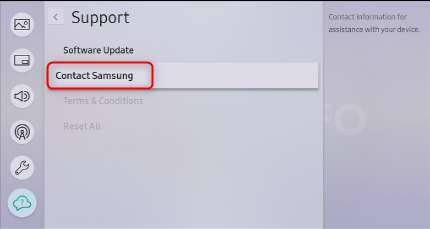
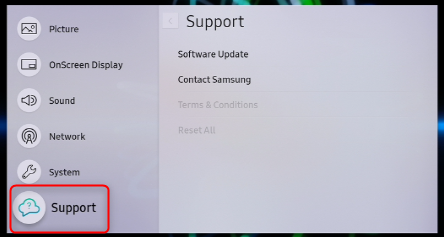
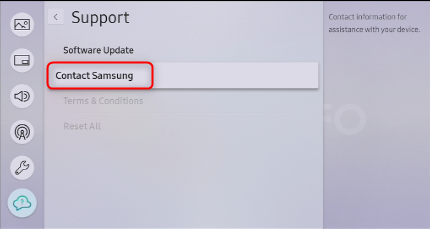
Some Samsung TVs show network information under the Support section instead of the main Network menu. This is useful when the TV is not connected to Wi-Fi.
Try these steps:
-
Press Home on the remote.
-
Open Settings.
-
Select Support.
-
Choose About TV or Contact Samsung.
-
Review the device information.
-
Look for a Wi-Fi MAC address, wired MAC address, or network address.
On certain models, you may need to open Self diagnosis first. The path may look like:
Settings > Support > Device Care > Self Diagnosis > Network Status
If the TV has separate entries, note which address you need. The wireless MAC address is used for Wi-Fi. The wired MAC address is used when the TV connects through an Ethernet cable.
This method is especially helpful when your TV shows a network error but still lets you open its settings. It also helps when the regular Network Status screen does not display all connection details.
How to Find MAC Address of Samsung TV Without Internet Access
Your Samsung TV does not always need an active internet connection to show its MAC address. The address belongs to the network hardware, so it may appear even when Wi-Fi setup has failed.
Try this offline method:
-
Open Settings from the Home screen.
-
Select Support.
-
Open About TV or Contact Samsung.
-
Check for network or device information.
-
If needed, open Network and then Network Status.
If the TV displays “Unable to connect,” look for an option such as IP Settings, Retry, or Network Details. Some models show the MAC address in that area even when the TV has no valid IP address.
If you still cannot find it, check the TV’s model number and search Samsung’s official support documentation for that model. The exact menu path often depends on the model series.

How to Find MAC Address of Samsung TV on the Router
Your router can often show the TV’s MAC address after the television joins your home network. This method is useful when the TV menu is hard to navigate.
First, connect the Samsung TV to your router. Then open the router’s control app or web page. Look for a section named:
• Connected Devices
• Client List
• Device List
• DHCP Clients
• Network Map
• Wireless Devices
The TV may appear as Samsung, Smart TV, or an unfamiliar device name. Select each likely device and compare its IP address with the IP address shown on the TV.
Router labels can be confusing. Some routers display a randomized or private Wi-Fi address instead of the hardware address you expected. For the most reliable result, compare the router entry with the MAC address shown in the Samsung TV menu.
A router may also list separate entries if the TV has connected through both Wi-Fi and Ethernet. Use the address linked to the connection you plan to manage.

How to Find MAC Address of Samsung TV Using the SmartThings App
The SmartThings app can help manage compatible Samsung TVs, but it may not always display the full MAC address. Still, it can confirm the TV name, model, and network connection.
To check:
-
Open the SmartThings app.
-
Select your Samsung TV.
-
Tap the device settings menu.
-
Review the available device information.
-
If no MAC address appears, use the TV’s Network Status menu or your router’s device list.
SmartThings features vary by TV model, app version, region, and account setup. Treat the app as a backup method rather than the main way to find the MAC address of Samsung TV devices.
Wi-Fi MAC Address vs. Wired MAC Address
Many Samsung TVs have two network interfaces. Each interface can have its own MAC address.
Wi-Fi MAC address
Use the Wi-Fi MAC address when the TV connects to your router wirelessly. It may be labeled Wireless MAC Address or Wi-Fi MAC Address.
Wired MAC address
Use the wired MAC address when an Ethernet cable connects the TV to the router. It may be labeled Ethernet MAC Address or Wired MAC Address.
Do not use the wrong address when setting a router reservation or access rule. A rule created for the wired address will not usually apply to the TV’s Wi-Fi connection.
A simple way to avoid mistakes is to check the connection type first. Open Network Settings and see whether the TV says Wi-Fi or Wired. Then record the matching MAC address.

What to Do If the MAC Address Is Not Showing
Sometimes the MAC address is hidden because the TV is still loading network details or has not completed its network setup. Try these fixes in order.
• Restart the TV by turning it off, unplugging it for 60 seconds, and plugging it back in.
• Restart the router and wait until the internet connection returns.
• Open Network Status again.
• Disconnect the Ethernet cable if you want to view the Wi-Fi address.
• Connect the Ethernet cable if you want to view the wired address.
• Update the TV software if an update is available.
• Reset the network settings and reconnect to Wi-Fi.
To reset network settings on many models, open:
Settings > General > Network > Reset Network
Some models use:
Settings > Connection > Network > Reset Network
A network reset removes saved Wi-Fi details. It does not normally erase apps, channels, or picture settings, but menu behavior can vary by model. Make sure you know your Wi-Fi password before using this option.
In my experience helping with smart TV setup, the most common mistake is recording the TV’s IP address instead of its MAC address. The IP address often looks like 192.168.1.25, while the MAC address uses six groups of letters and numbers.

How to Confirm You Found the Correct MAC Address
Before entering the address into a router or registration form, check it carefully.
Use these checks:
• Confirm that it has six groups of characters.
• Look for letters from A to F and numbers from 0 to 9.
• Check every character for mistakes.
• Confirm whether it belongs to Wi-Fi or Ethernet.
• Compare it with the router’s device list.
• Avoid adding spaces unless the form requires them.
For example, these formats usually represent the same MAC address:
A4:5E:60:12:34:56
A4-5E-60-12-34-56
A45E60123456
Some websites accept only one format. If the form rejects the address, try removing colons or replacing them with dashes.
You should also avoid confusing similar characters. The letter O and the number 0 can look alike. The letter I and the number 1 can also cause errors. Reading the address directly from the TV screen is safer than typing it from memory.
MAC Address Privacy and Randomization
Modern devices may use private or randomized MAC addresses on some Wi-Fi networks. This feature improves privacy by making it harder for networks to track a device over time.
Samsung TV behavior can vary by model and software version. Most users will see a stable network address in the TV’s network details, but the address shown by a router may not always match an address from another connection or setup screen.
If a school, hotel, apartment, or business network asks for a MAC address, ask whether it needs:
• The Wi-Fi MAC address
• The wired Ethernet MAC address
• The address shown by the router
• A specific format without punctuation
This small question can prevent repeated connection failures. Public networks may also require a browser sign-in page, device approval, or a separate registration step after the MAC address is added.
When You Need the MAC Address for Router Controls
A MAC address can help your router recognize the Samsung TV. You may use it for a DHCP reservation, access schedule, content filter, or device block.
A DHCP reservation gives the TV the same local IP address each time it connects. This can help with media servers, remote control apps, and some smart home setups.
Remember these limits:
• A MAC address does not increase internet speed.
• It does not repair a weak Wi-Fi signal.
• It cannot replace a Wi-Fi password.
• It does not reveal your exact physical location.
• It does not identify the owner of a TV by itself.
Only share the address with a trusted network administrator, internet provider, or support team. A MAC address is not usually secret, but unnecessary sharing is still best avoided.
Common Mistakes to Avoid
Finding the address is simple, but a few errors can create needless trouble.
Using the IP address instead
An IP address often contains four number groups separated by periods. A MAC address usually contains six groups separated by colons or dashes. Router settings that ask for a MAC address will not accept an IP address.
Choosing the wrong network adapter
A Samsung TV can show both wireless and wired addresses. Select the one that matches the connection you are using.
Reading the router entry incorrectly
The router may show a generic name, such as “unknown device.” Match the device by its local IP address, connection type, and time of connection.
Resetting the whole TV too soon
A factory reset is rarely needed to find a MAC address. Try the Network Status, Support, and router methods first.
Trusting an old saved address
If the TV was replaced, repaired, or connected through a different adapter, an old address may no longer apply. Always check the current TV.
Frequently Asked Questions About How to Find MAC Address of Samsung TV
Where can I find the MAC address on a Samsung Smart TV?
Open Settings, select Connection or Network, and then open Network Status or Network Details. Look for Wi-Fi MAC Address or Wired MAC Address.
Can I find the Samsung TV MAC address without Wi-Fi?
Yes. Many Samsung TVs show the address under Settings, Support, About TV, or Network Status even when the TV is offline. The exact menu name depends on the model.
Does a Samsung TV have more than one MAC address?
It can. A TV may have one MAC address for Wi-Fi and another for Ethernet. Use the address that matches the connection type you are using.
Is the MAC address the same as the IP address?
No. A MAC address identifies the network hardware, while an IP address identifies the device on a particular network. The IP address can change more often.
Why can’t my router find my Samsung TV?
The TV may be offline, listed under a generic device name, or connected through a different network band or adapter. Check the TV’s Network Status screen and compare its IP address with entries in the router’s device list.
Can I change the MAC address of a Samsung TV?
Most Samsung TVs do not provide a normal setting for changing the hardware MAC address. Network resets may change connection details, but they typically do not change the built-in address.
Should I give my TV’s MAC address to a hotel or school network?
Give it only to a trusted network administrator and confirm whether they need the Wi-Fi or wired address. Also ask which format the network system accepts.
Conclusion
The simplest way to find the MAC address of Samsung TV models is to open Settings, go to Network or Support, and check Network Status or device information. If the menu does not show it, your router’s connected-device list can provide a useful backup.
Always confirm whether you need the Wi-Fi or Ethernet address, and do not confuse the MAC address with the IP address. Follow the steps above, record the address carefully, and use it only with trusted network services. If this guide helped, explore more Samsung TV troubleshooting resources or share your model and menu path in the comments.

Everett Ashford is a tech reviewer at mytechgrid.com specializing in SSDs, cameras, TVs, earbuds, headphones, and other consumer electronics. He provides honest, data-driven reviews based on hands-on testing and real-world performance analysis. Everett simplifies complex tech details to help readers make smart, confident buying decisions.