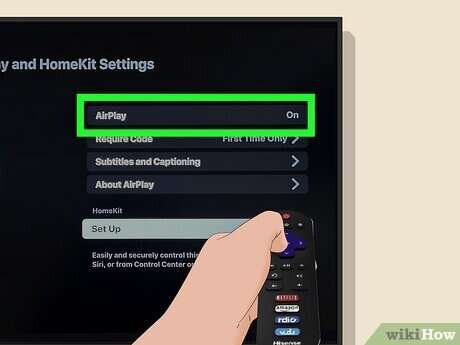
To get AirPlay on Roku TV, connect both devices to Wi-Fi, enable AirPlay, then select your Roku TV.
Learning how to get AirPlay on Roku TV is simple once your TV, Apple device, and network meet the right requirements. This guide explains the setup, common errors, device limits, and practical fixes so you can stream photos, music, apps, and video with less hassle.
What AirPlay Does on Roku TV
AirPlay lets you send content from an iPhone, iPad, or Mac to a compatible Roku TV. You can stream a video, mirror your screen, show vacation photos, or play music through the TV speakers.
Think of AirPlay as a wireless bridge. Your Apple device sends the content, while Roku TV displays it. Both devices usually need to be on the same Wi-Fi network for the bridge to work.
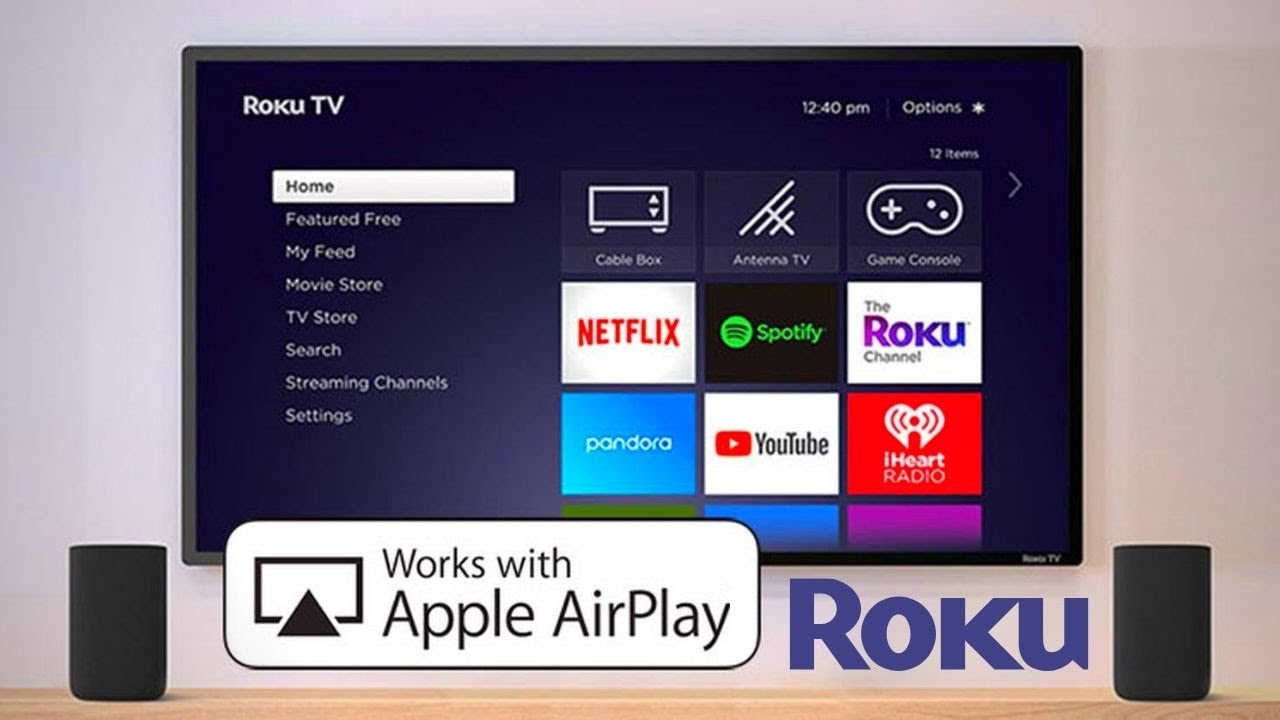
The feature is built into select Roku TVs and Roku streaming players. Support can vary by model, region, and Roku OS version. If AirPlay does not appear, your TV may need an update or may not support the feature.
Check Whether Your Roku TV Supports AirPlay
Before learning how to get AirPlay on Roku TV, check compatibility. Most newer Roku TV models support Apple AirPlay 2, but not every Roku device does.
Use these steps:
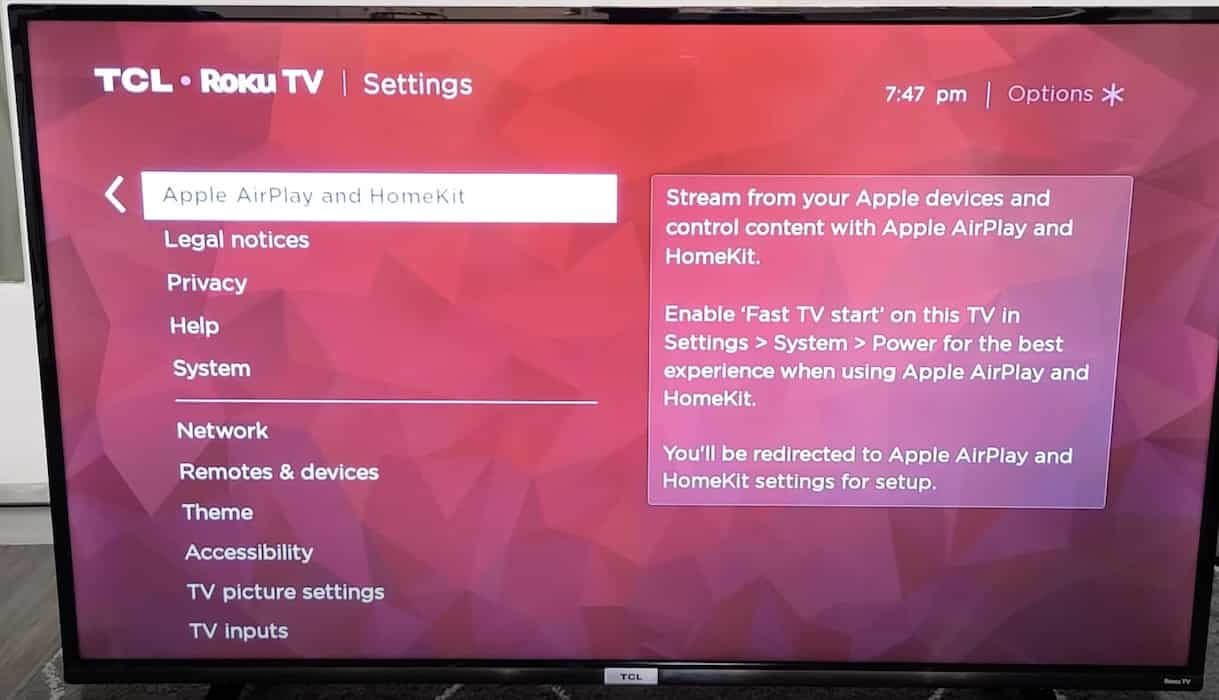
- Press the Home button on your Roku remote.
- Open Settings.
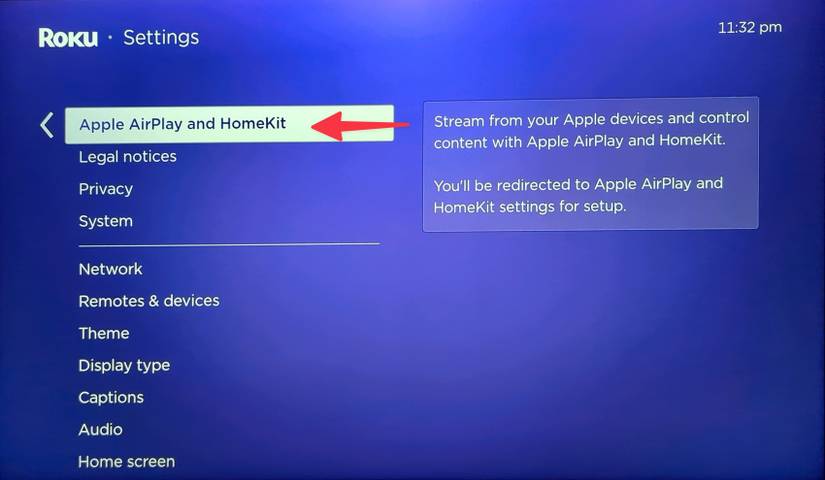
- Select Apple AirPlay and HomeKit.
- Look for AirPlay settings.
If you see this menu, your TV likely supports AirPlay. If you do not see it, update the Roku software first.
Go to Settings, choose System, select Software update, and then choose Check now. Allow the TV to install any available update and restart. Roku devices often add or improve features through software updates.
You should also check your exact Roku model. Some older Roku TVs and streaming sticks may not support AirPlay, even after an update. In that case, you can use an Apple TV, an HDMI adapter, or the app’s built-in casting option.
How to Get AirPlay on Roku TV: Step-by-Step Setup
The basic setup takes only a few minutes. Keep your Apple device close to the Roku TV during the first connection.
1. Connect both devices to the same Wi-Fi
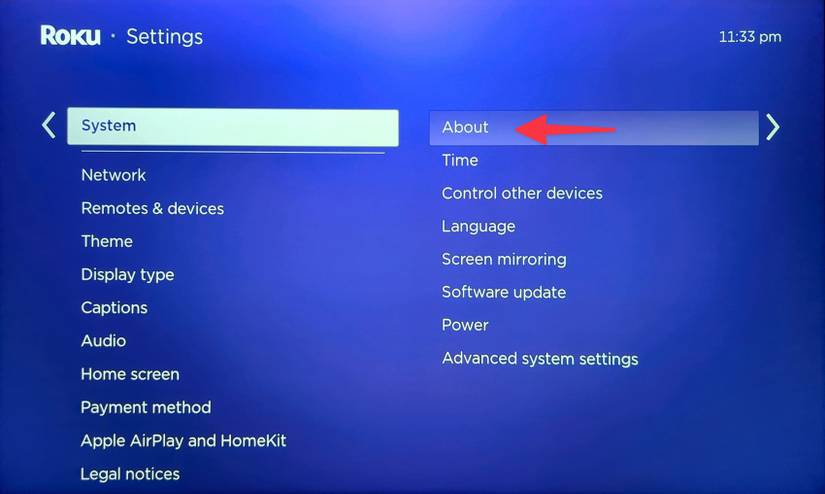
On your Roku TV, open Settings, choose Network, and select About to view the connected network.
On your iPhone or iPad, open Settings, tap Wi-Fi, and confirm the network name. On a Mac, select the Wi-Fi icon in the menu bar and check the connection.
The network names should match. A guest network, mobile hotspot, or separate 2.4 GHz and 5 GHz network can sometimes prevent discovery.
2. Turn on AirPlay on Roku
On the Roku TV, go to:
- Settings
- Apple AirPlay and HomeKit
- AirPlay
- On
You may also see options for requiring a code. Choose Ask for Code the first time or Every Time if you want more control.
3. Start AirPlay from an iPhone or iPad
For video:
- Open a compatible video app.
- Start playing a video.
- Tap the AirPlay icon.
- Select your Roku TV.
- Enter the code shown on the TV, if requested.
For screen mirroring:
- Open Control Center.
- Tap Screen Mirroring.
- Choose your Roku TV.
- Enter the AirPlay code when prompted.
To open Control Center, swipe down from the upper-right corner on newer iPhones. On older iPhones with a Home button, swipe up from the bottom edge.
4. Start AirPlay from a mac
select the Control Center icon in the Mac menu bar. Choose Screen Mirroring, then select your Roku TV.
You can mirror the full Mac screen or use AirPlay from a compatible video player. To stop, open Control Center again and disconnect from the Roku TV.
This is the most reliable answer to how to get AirPlay on Roku TV when you want to share content from Apple hardware.

How to Mirror an iPhone to Roku TV
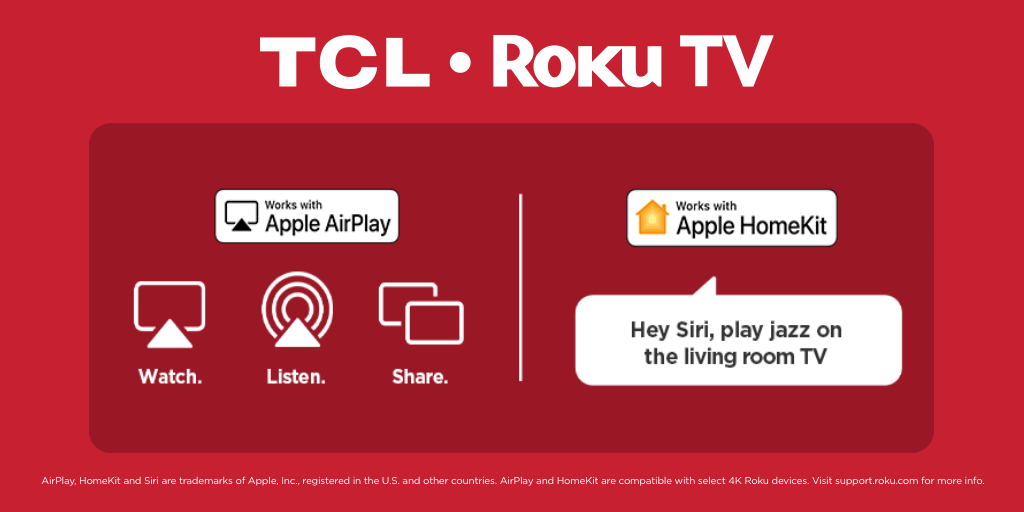
Screen mirroring shows your entire iPhone display on the television. It works well for photos, websites, presentations, and apps that do not include a separate AirPlay button.
Start by making sure AirPlay is enabled on the Roku TV. Then open Control Center on your iPhone and tap Screen Mirroring. Select the Roku TV from the list and enter the four-digit code shown on the screen.
Your phone screen should appear on the TV within a few seconds. Keep the phone unlocked during setup. If the connection drops, keep the phone near the router or Roku TV and close apps that use heavy network traffic.
Screen mirroring is not always ideal for video. It can show black bars, reduce image quality, or lag during fast scenes. When an app has its own AirPlay button, use that option instead. It usually sends the video more efficiently.
How to AirPlay Videos, Photos, and Music
AirPlay works in slightly different ways across content types.
Stream video
Open a supported app such as Photos, Safari, or a video service. Start the content, tap the AirPlay icon, and choose your Roku TV.
Some apps limit AirPlay because of licensing rules. A video may play on the iPhone but refuse to stream to Roku. In that case, install the same service directly on the Roku TV and sign in there.
Share photos
Open the Photos app and select one photo or a group of photos. Tap Share, choose AirPlay, and select the Roku TV.
This is useful for family gatherings, travel photos, and work presentations. Turn on Do Not Disturb if you do not want private notifications to appear while mirroring.
Play music
Open Apple Music or another compatible audio app. Tap the AirPlay icon and select your Roku TV.
The TV will play the sound through its speakers or connected soundbar. You can still use your iPhone as a remote, but avoid moving too far from the Wi-Fi network.
Knowing how to get AirPlay on Roku TV for each content type helps you choose the best method instead of mirroring everything.
How to Get AirPlay on Roku TV From a Mac
A Mac can use AirPlay in two main ways: screen mirroring and media streaming.
For full-screen mirroring, open Control Center, choose Screen Mirroring, and select the Roku TV. This copies your desktop to the television.
For supported video, open the content and select the AirPlay icon. This may produce better quality than mirroring the entire desktop.
If your Roku TV does not appear, check these items:
• The Mac and Roku TV use the same Wi-Fi network.
• AirPlay is turned on in Roku settings.
• The Mac runs a compatible version of macOS.
• The Roku TV has current software.
• A VPN or security tool is not blocking local network traffic.
Older Macs may have limited AirPlay support. An HDMI cable or compatible adapter remains a dependable backup for older hardware.

Common AirPlay Problems and Practical Fixes
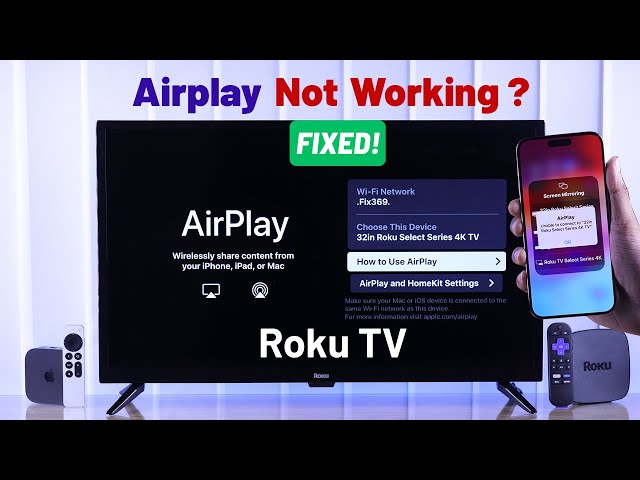
When people ask how to get AirPlay on Roku TV, the most common issue is that the TV does not appear in the AirPlay list. Most cases involve network settings, outdated software, or device compatibility.
Roku TV does not appear
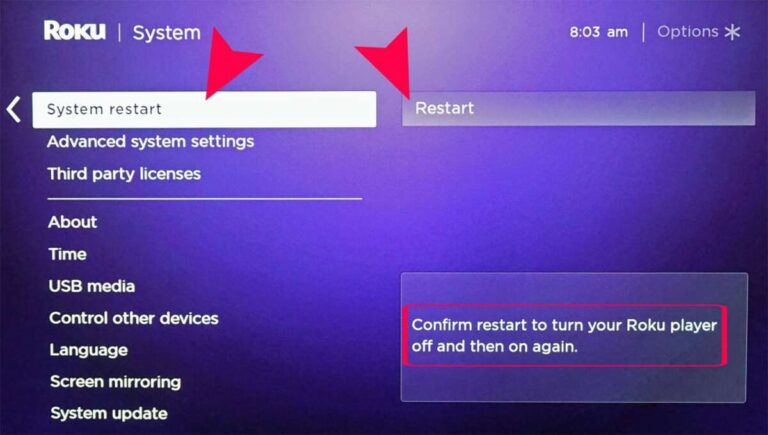
Restart the Roku TV, iPhone, iPad, or Mac. Then restart the router. This simple sequence clears many discovery problems.
Next, confirm that both devices use the same network name. Your phone may switch to cellular data or a different Wi-Fi network without making it obvious.
AirPlay connects but does not play
Check whether the app allows AirPlay. Some streaming services block wireless playback or require their Roku app.
Try AirPlaying a photo from the Photos app. If photos work but one video app does not, the app or its content rights are likely the cause.
The AirPlay code does not work
Wait for a new code and enter it carefully. If the code prompt repeats, set the Roku AirPlay requirement to Ask for Code or reset the paired devices.
You can also disable AirPlay, restart the TV, and enable it again.
The picture lags
Move the router closer to the TV, reduce network traffic, and stop large downloads. Wi-Fi congestion is common during busy evening hours.
A wired Ethernet connection can improve the Roku TV’s connection if your model supports Ethernet. It will not make the iPhone wired, but it can reduce one weak link.
The video shows a black screen
The app may restrict screen recording or AirPlay. Use the official Roku app for that service or connect an Apple device with an HDMI adapter.
This limitation is not always a Roku fault. Content owners can control how their video is displayed on external screens.
Roku AirPlay Settings You Should Know
Roku provides several settings that affect how AirPlay works.
The AirPlay setting turns the feature on or off. You may also control who can connect and whether a code is required.
Common access choices include:
• Ask for Code: The TV requests a code during connection.
• First Time Only: A code is needed when a device connects for the first time.
• Password Required: A password protects AirPlay access, depending on the Roku software version.
• Allow Nearby Devices: Compatible devices close to the TV may connect based on your selected security settings.
Use stronger access controls if the Roku TV is in a shared home, classroom, office, or public space. This helps prevent an unexpected device from appearing on the screen.
If you use Apple HomeKit, follow the on-screen setup steps to add the Roku TV to the Home app. HomeKit features can vary by Roku model and software version.
Can Android Phones Use AirPlay on Roku TV?
AirPlay is an Apple feature, so Android phones do not use it in the same native way. An Android phone may still connect through a Roku app, a supported casting method, or a third-party mirroring app.
Roku supports screen sharing options that depend on the Android phone brand and software. Some Android devices use Google Cast, while others use a manufacturer-specific system.
Check your phone’s quick settings for Cast, Smart View, Wireless Display, or Screen Share. Then check Roku’s screen mirroring settings under System.
Do not install random mirroring apps without checking permissions and reviews. Some apps collect more data than expected or add aggressive advertising. For sensitive content, use a trusted app or a wired connection.
AirPlay Versus Screen Mirroring
AirPlay and screen mirroring are related but not identical.
AirPlay from a video app sends the selected media to Roku TV. Your phone can often continue handling other tasks while the video plays.
Screen mirroring copies the whole display. Everything visible on your phone may appear on the TV, including alerts, messages, and app changes.
Use AirPlay when:
• You want better video playback.
• You want to keep using your phone.
• The app includes an AirPlay button.
Use screen mirroring when:
• You need to show a website.
• You want to display photos or documents.
• The app does not offer direct AirPlay.
This distinction is a key part of understanding how to get AirPlay on Roku TV without creating avoidable quality or privacy problems.
Tips for a Better AirPlay Experience
A few small changes can make AirPlay feel much more stable.
• Keep Roku TV software and Apple devices updated.
• Use one trusted home Wi-Fi network.
• Avoid guest Wi-Fi for AirPlay.
• Place the router in an open, central location.
• Close unused streaming and download apps.
• Turn off a VPN if the Roku TV is missing.
• Use the Roku app when a streaming service blocks AirPlay.
• Keep notifications private during screen mirroring.
• Use Ethernet for Roku TV when available.
In my own testing of wireless TV setups, restarting the router solved more connection issues than changing advanced settings. The best fix is often the least dramatic: update both devices, confirm the network, and restart everything in the right order.
Benefits and Limitations of AirPlay on Roku TV
AirPlay makes Roku TV more flexible for Apple households. You do not need to move photos to a USB drive or connect a cable for every short presentation.
Main benefits include:
• Wireless streaming from iPhone, iPad, and Mac.
• Easy photo and video sharing.
• Simple music playback through the TV.
• Screen mirroring for websites and presentations.
• Integration with supported Apple Home features.
There are limits as well. AirPlay needs a compatible Roku model, a working local network, and an app that permits external playback. It may also show delay during games, video calls, or fast action.
AirPlay is convenient, but it is not always the best tool for competitive gaming or professional presentations. A wired HDMI connection remains more stable when timing and reliability matter most.
Frequently Asked Questions About How to Get AirPlay on Roku TV
How do I turn on AirPlay on my Roku TV?
Open Settings, select Apple AirPlay and HomeKit, and turn AirPlay on. Then connect your iPhone, iPad, or Mac to the same Wi-Fi network and select the Roku TV.
Why is my Roku TV not showing up on AirPlay?
The devices may use different Wi-Fi networks, or AirPlay may be disabled. Restart both devices, update Roku software, and check whether your Roku model supports AirPlay.
Can I AirPlay from an iPhone to Roku TV without Wi-Fi?
Usually, no. AirPlay normally needs both devices on the same local Wi-Fi network, although a direct peer-to-peer connection may work in limited Apple setups and device combinations.
Does Roku TV support AirPlay from a Mac?
Yes, compatible Roku TVs can receive AirPlay from supported Macs. Use Control Center, select Screen Mirroring, and choose the Roku TV.
Can I mirror an Android phone to Roku TV?
Some Android phones can use Roku screen mirroring or another supported casting feature. The exact steps depend on the phone brand, Android version, and Roku model.
Why does AirPlay have sound but no picture?
The app may restrict video playback, or the connection may have a temporary software issue. Test with a photo, restart both devices, and use the service’s official Roku app if the problem continues.
Is AirPlay free on Roku TV?
AirPlay itself does not usually require a separate fee on a compatible Roku TV. However, streaming services may require a paid subscription, and some content may have playback restrictions.
Conclusion
Learning how to get AirPlay on Roku TV usually comes down to four steps: confirm compatibility, update Roku software, connect both devices to the same Wi-Fi, and enable AirPlay in Roku settings.
Use direct AirPlay for supported videos and music, and use screen mirroring for photos, websites, and presentations. If the TV does not appear, restart the devices, check the network, disable VPN interference, and test another app.
Try the setup today with a photo or short video. If you found another helpful Roku AirPlay fix, share it in the comments or explore more guides for improving your home streaming setup.

Everett Ashford is a tech reviewer at mytechgrid.com specializing in SSDs, cameras, TVs, earbuds, headphones, and other consumer electronics. He provides honest, data-driven reviews based on hands-on testing and real-world performance analysis. Everett simplifies complex tech details to help readers make smart, confident buying decisions.