To format an SSD for Windows 10, back up your files, choose the correct drive, and format it as NTFS.
Learning how to format SSD for Windows 10 is useful when installing Windows, fixing file system errors, preparing a second drive, or selling an old PC. The process is simple, but one wrong click can erase the wrong disk. This guide explains safe methods, drive formats, common mistakes, and the best option for each situation.
What Formatting an SSD Does
Formatting prepares an SSD to store files. It creates a file system, such as NTFS, and removes the existing file directory from the selected partition. In most cases, formatting does not physically damage the SSD, but it can make your files difficult or impossible to recover.


When you format an SSD for Windows 10, the result depends on the method you use:
• Quick format removes the file system index but does not check every sector.
• Full format checks the drive for errors and takes much longer.
• Deleting a partition removes its structure, but it does not always securely erase every piece of data.
• Secure erase uses the SSD’s built-in commands to reset storage cells more thoroughly.
A normal format is enough when you want to reinstall Windows or prepare a drive for everyday use. A secure erase is more suitable before selling an SSD, although you should use the manufacturer’s approved tool whenever possible.


Before You Format an SSD
Formatting is destructive. Before you format an SSD for Windows 10, take a few minutes to protect your files and confirm the drive you plan to erase.
Back up important files
Copy documents, photos, videos, browser bookmarks, game saves, and work files to another location. A second internal drive, external hard drive, network location, or trusted cloud service can work well.
Do not keep the only copy of your backup on the SSD you plan to format. If the backup is on the same physical drive, it will disappear with the original files.
Check the drive number and size
Windows may display several disks with similar names. Check each disk’s capacity and connection before selecting it.
For example, a 1 TB SSD may appear as a drive close to 931 GB in Windows. That difference is normal because manufacturers use decimal capacity while Windows reports usable capacity differently.
Save your Windows activation details
Windows 10 usually activates automatically when the computer connects to the internet. This is common when you reinstall the same edition on the same computer. Still, it is wise to check your activation status first:
- Open Settings.
- Select Update & Security.
- Choose Activation.
- Confirm that Windows is activated and linked to your Microsoft account when possible.
Prepare Windows installation media
If you are formatting the current Windows system drive, you cannot normally format it from inside the active Windows installation. You need a bootable Windows 10 USB drive or another working computer.
Microsoft’s Media Creation Tool can create Windows installation media. Use a USB drive with enough free space, and remember that creating installation media may erase the USB drive.
 system”
style=”max-width: 100%; height: auto; border: 2px solid black; border-radius: 10px; display: block; margin: 0 auto;”
loading=”lazy”
/>
Choose the Right File system
the file system controls how Windows stores and manages files. Choosing the right one is a key part of learning how to format SSD for Windows 10 correctly.
NTFS
NTFS is the best choice for a Windows system drive and most internal SSDs. It supports large files, file permissions, encryption features, compression, and Windows recovery tools.
Use NTFS when you plan to:
• Install Windows 10
• Store programs and games
• Use the SSD mainly with Windows computers


• Save files larger than 4 GB
exFAT
exFAT is useful for removable drives shared between Windows and macOS. It supports large files and avoids the 4 GB file limit found with FAT32.
It is not the preferred file system for a Windows 10 boot drive. It also lacks some advanced Windows features that NTFS supports.
FAT32
FAT32 works with many devices, including older computers, cameras, and game consoles. However, it cannot store a single file larger than 4 GB.
Use FAT32 only when a device specifically requires it. For most Windows 10 SSD tasks, NTFS is the better option.
GPT and MBR
GPT and MBR are partition styles, not file systems. Modern computers that use UEFI firmware should normally use GPT. Older systems using legacy BIOS may require MBR.
GPT supports more partitions and drives larger than 2 TB. MBR is older and has more limits, but it may be needed for older hardware.
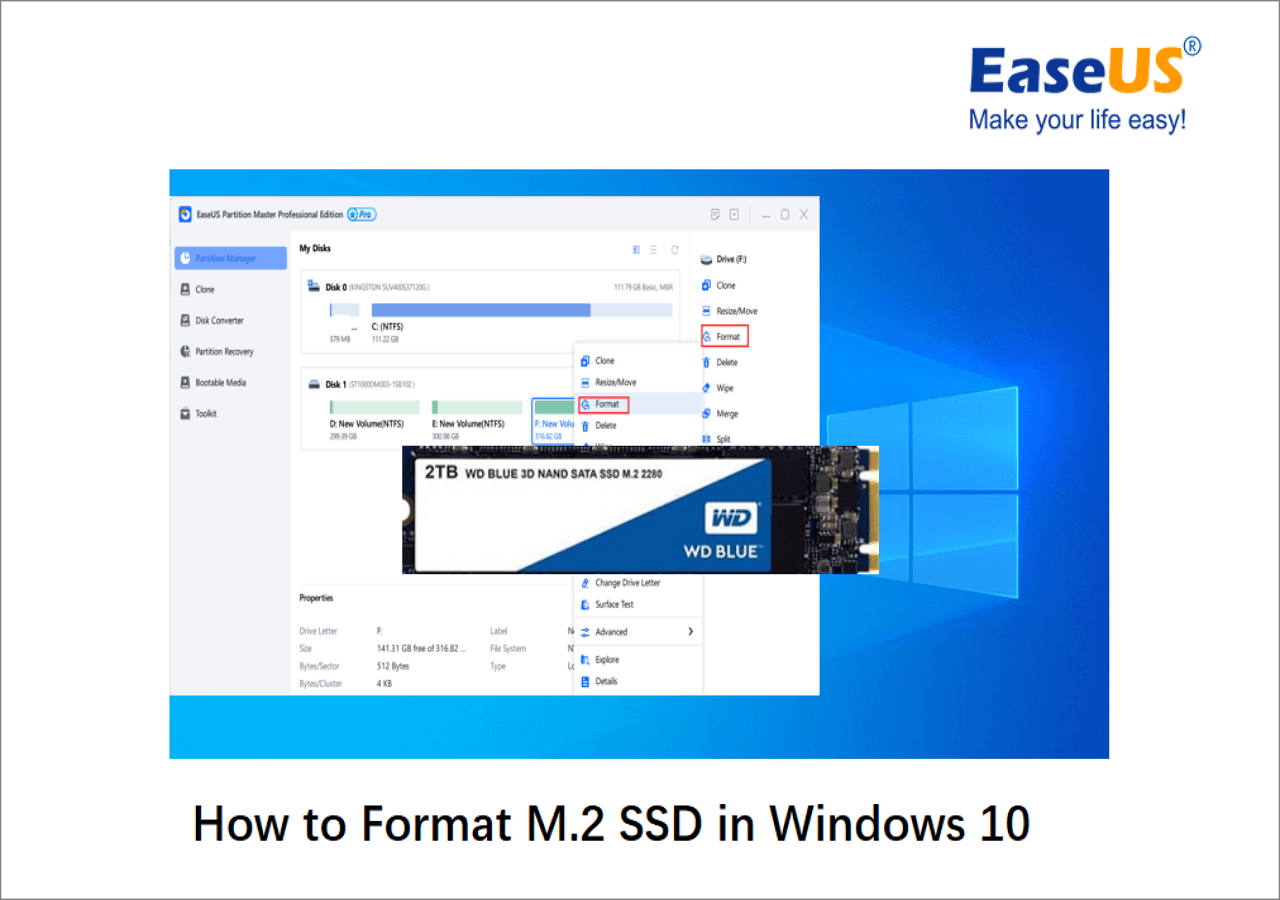
Format a Secondary SSD in Disk Management
Disk Management is the easiest built-in tool for formatting a secondary SSD. This method works when Windows is running from another drive and the SSD you want to format is not the active system partition.
Follow these steps:
- Press Windows key + X.
- Select Disk Management.
- Find the SSD by checking its disk number, size, and partitions.
- Right-click the partition you want to format.
- Select Format.
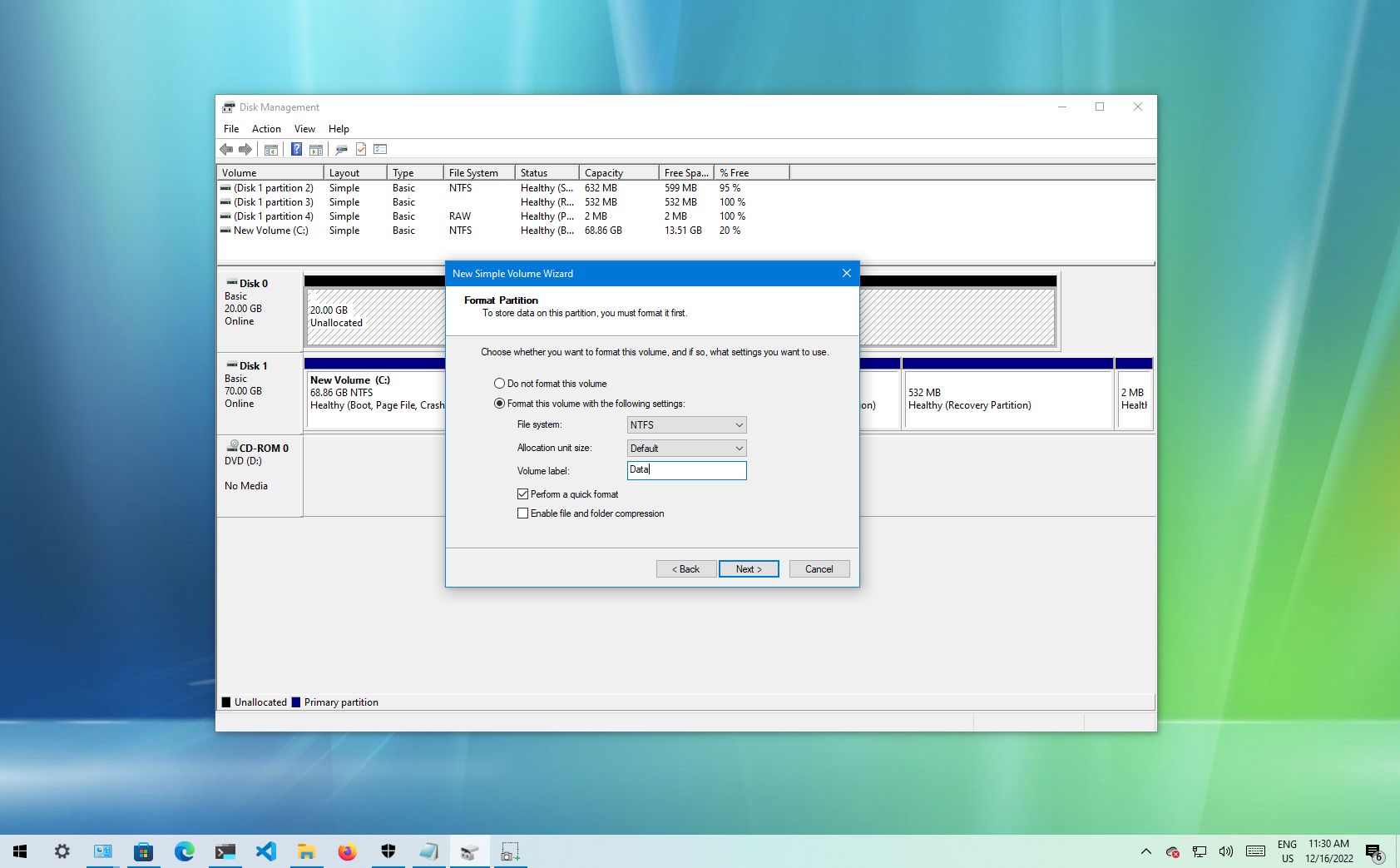
- Enter a volume label, such as “Storage.”
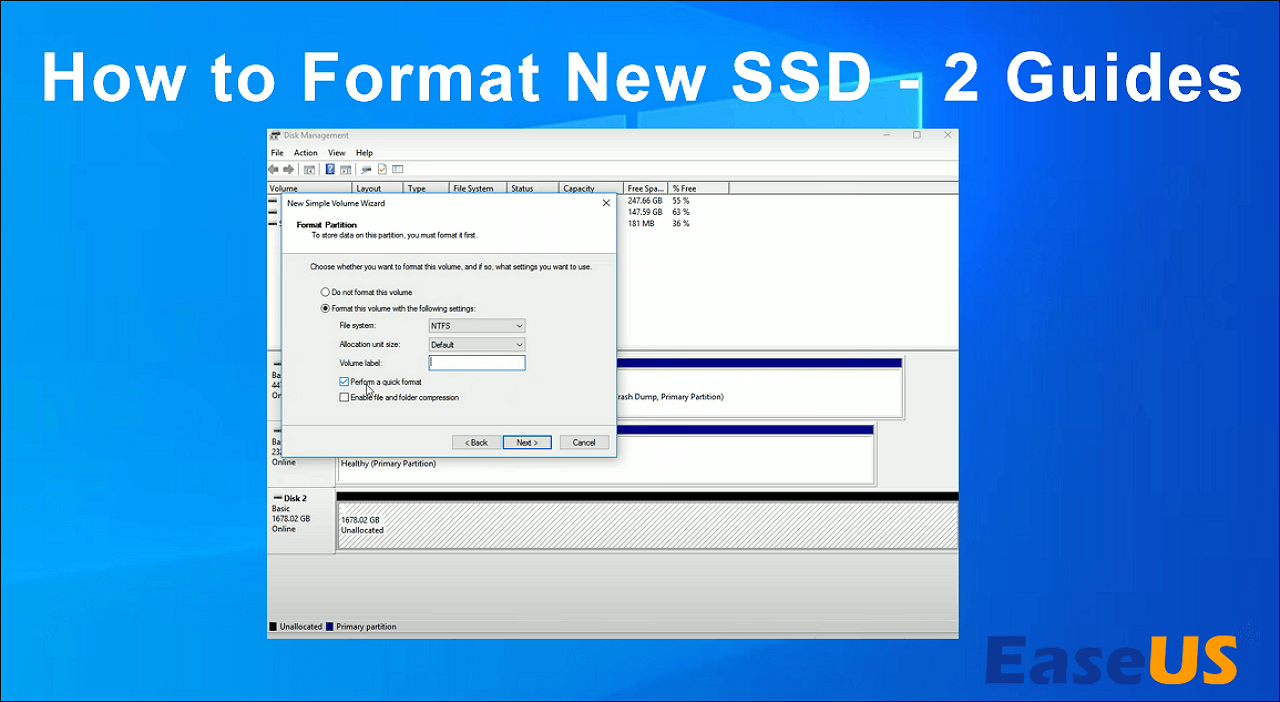
- Choose NTFS as the file system.
- Leave Allocation unit size set to Default.
- Select Perform a quick format.
- Click OK, then confirm the warning.
Windows will format the selected volume and assign it a drive letter. The SSD should then appear in File Explorer.
Take special care in Disk Management. The lower section lists physical disks, while the upper section lists volumes. Formatting the wrong volume can remove valuable files even if the drive name looks familiar.

Format an SSD Through File Explorer
File Explorer provides a fast way to format an SSD that already has a usable partition. It is suitable for a secondary internal SSD or an external SSD.
- Open File Explorer.
- Select This PC.
- Right-click the SSD under Devices and drives.
- Choose Format.
- Select NTFS for the file system.
- Choose a volume label.
- Keep Quick Format selected.
- Click Start.
- Confirm that you want to erase the drive.
This method may not work for the current Windows drive. Windows cannot format the partition it is actively using because system files are open.


File Explorer also shows only mounted volumes with drive letters. If the SSD is new, uninitialized, or missing a partition, use Disk Management instead.
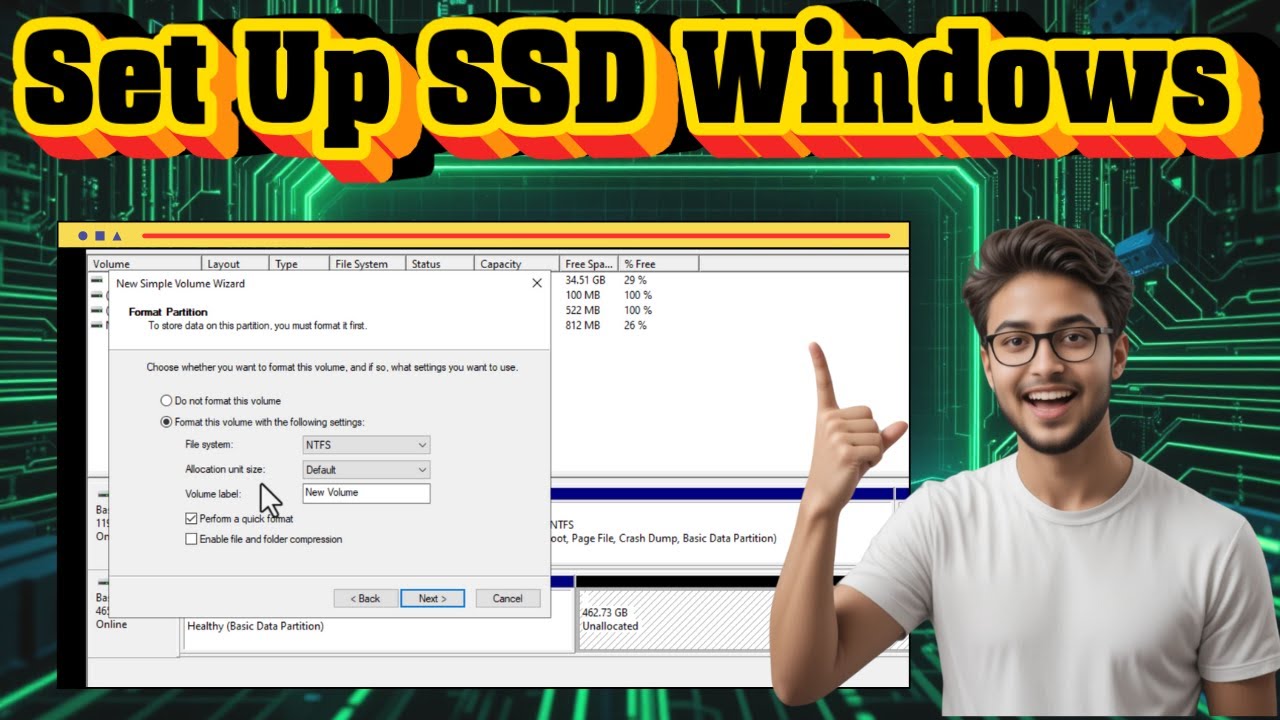
Format a New SSD in Disk Management
A new SSD may appear as unallocated space. Windows cannot store files on it until you initialize the disk and create a volume.
Here is how to prepare it:
- Open Disk Management.
- Locate the new SSD by its capacity.
- Right-click the disk name on the left side.
- Select Initialize Disk.
- Choose GPT for most modern Windows 10 computers.
- Right-click the unallocated space.
- Select New Simple Volume.
- Follow the wizard.
- Assign a drive letter.
- Choose NTFS and enable quick format.
If your computer uses older BIOS firmware, MBR may be necessary. When you are unsure, check whether the system uses UEFI in System Information. Most computers made in the last several years use UEFI and work best with GPT.

Format the Windows SSD During Installation
If you want to format the SSD that currently contains Windows 10, use Windows Setup from a bootable USB drive. This is the safest standard method for a clean installation.
Start Windows Setup
- Insert the Windows 10 installation USB.
- Restart the computer.
- Open the boot menu during startup.
- Select the USB drive.
- Choose your language, time, and keyboard settings.
- Select Install now.
- Enter a product key or choose I don’t have a product key if the computer has a digital license.
- Select the correct Windows edition.
- Accept the license terms.
- Choose Custom: Install Windows only.
Select and delete the old partitions
The setup screen will show disks and partitions. Identify the target SSD using its size.
If you want a completely clean installation, delete the partitions on the target SSD one at a time. The space will become Unallocated Space. Select that space and click Next.
Windows Setup will create the required partitions automatically. On a modern UEFI computer, these commonly include an EFI System Partition, Microsoft Reserved partition, Windows partition, and recovery partition.
Do not delete partitions on another disk unless you are certain they are not needed. If you have several drives connected, unplugging nonessential drives before installation can prevent mistakes.
This process is one of the most important ways to format SSD for Windows 10 because it removes the old Windows structure and builds a fresh one.

Format an SSD Using Command Prompt
Command Prompt gives you more control, but it also creates more risk. A wrong disk number in DiskPart can erase the wrong drive instantly.
Use this method only after confirming the target disk several times.


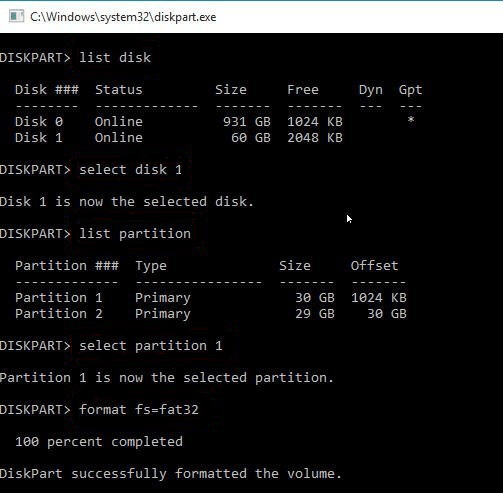
- Open Windows Terminal or Command Prompt as administrator.
- Type
diskpartand press Enter. - Type
list diskand press Enter. - Identify the SSD by its size.
- Type
select disk X, replacing X with the correct disk number. - Type
detail diskto verify the selection. - Type
cleanto remove the partition information. - Type
convert gptfor a modern UEFI computer. - Type
create partition primary. - Type
format fs=ntfs quick label=Storage. - Type
assign. - Type
exit.
The clean command removes partition information. It does not perform a secure erase of every storage cell. Avoid the clean all command unless you understand its effects, because it writes across the disk and can take a long time.
You can also use DiskPart during Windows Setup by pressing Shift + F10. This opens Command Prompt before installation.
How to Securely Erase an SSD
A standard format is not the same as a secure erase. On an SSD, data is managed through flash memory and a controller. Because of wear leveling, overwriting files repeatedly is not the best approach.
For a secure erase, use one of these options:
• The SSD manufacturer’s management software
• A motherboard firmware tool that supports NVMe secure erase
• A trusted bootable drive utility designed for SSD sanitization
Secure erase permanently removes data, so make certain that your backup works first. The process can also reset the drive to a clean factory-like state.
The National Institute of Standards and Technology recommends using storage sanitization methods suited to the device. SSDs need different handling from traditional hard disk drives because internal flash management can prevent normal overwriting from reaching every physical cell.
For routine Windows installation, you do not need secure erase. Deleting the old partitions and installing Windows again is usually enough.
What to Do If Windows Will Not Format the SSD
Sometimes Windows displays an error such as “Windows was unable to complete the format.” Several causes are possible.
The SSD is write-protected
Check for a physical lock switch if the drive is in an enclosure or adapter. Some software can also set a read-only attribute.
In DiskPart, you can inspect the drive with:
attributes disk
If the disk is marked read-only, use:
attributes disk clear readonly
Only do this after confirming that you selected the correct disk.
The partition is in use
Close File Explorer windows and programs that may use the SSD. If it is the system drive, boot from Windows installation media instead.
The partition table is damaged
Deleting all partitions and creating a new GPT partition table can fix partition errors. This erases the drive, so use DiskPart only after backing up your data.
The SSD is failing
Repeated format errors, disappearing drives, slow transfers, or incorrect capacity readings may indicate hardware failure. Check the SSD’s health with the manufacturer’s diagnostic software and review its SMART information.
No formatting method can repair worn-out flash memory. If the drive reports critical health warnings, replace it rather than trusting it with important files.
Common Mistakes to Avoid
Knowing what not to do is just as important as knowing how to format SSD for Windows 10.
• Do not format a drive before checking its capacity and disk number.
• Do not assume that formatting creates a backup.
• Do not use FAT32 for a Windows system drive unless a special device requires it.
• Do not disconnect an SSD while Windows is formatting it.
• Do not run clean in DiskPart without verifying the selected disk.
• Do not use repeated full overwrites as your main SSD sanitization method.
• Do not delete the recovery partition unless you understand how you will recover Windows later.
• Do not install Windows with several similar drives connected if you are unsure which one is the target.
One mistake I have seen often is a user choosing Disk 0 simply because it appears first. Disk numbers are not a reliable way to identify a drive. Capacity, model name, and physical connection are safer clues.
Tips for Better SSD Performance After Formatting
Formatting does not automatically make every SSD fast. After installing Windows 10, use a few basic maintenance steps.
• Install the latest chipset and storage drivers from your computer or motherboard maker.
• Enable TRIM. Windows normally manages TRIM automatically for supported SSDs.
• Keep some free space available for normal system operation and background maintenance.
• Install firmware updates only from the SSD manufacturer.
• Avoid third-party defragmentation tools that repeatedly write to the SSD.
• Use Optimize Drives in Windows to let the operating system manage the drive correctly.
Windows may display “Optimize” for an SSD. That does not mean it will perform the same traditional defragmentation used for a hard disk. Windows uses storage-aware maintenance, including TRIM on supported SSDs.
During my own Windows setups, the best results came from using GPT with UEFI, NTFS for the Windows partition, and the manufacturer’s driver or firmware tools only when needed. More tools do not always mean better performance.
Quick Troubleshooting Guide
Here are practical fixes for common problems after you format an SSD for Windows 10.
The SSD does not appear in File Explorer
Open Disk Management and check whether the SSD has a drive letter. If it does not, right-click the volume, select Change Drive Letter and Paths, and assign an unused letter.
The SSD appears as unallocated
Create a New Simple Volume, select GPT when initializing a modern system, and format the new volume as NTFS.
Windows Setup cannot install to the SSD
The system may be booted in Legacy BIOS mode while the disk uses GPT, or it may be booted in UEFI mode while the disk uses MBR. Match the partition style to the boot mode, with UEFI and GPT preferred on modern computers.
The SSD is slow after formatting
Check the connection, firmware, storage driver, temperature, and available free space. A SATA SSD connected to a slower port or adapter may also perform below its rated speed.
The SSD keeps disconnecting
Try another cable, port, enclosure, or power connection. If the issue continues, check drive health because repeated disconnections can signal a failing SSD.
Frequently Asked Questions About How to Format SSD for Windows 10
Can I format the SSD that Windows 10 is running on?
You cannot normally format the active Windows system partition from inside Windows. Boot from Windows installation media or another operating system, then delete or format the target partition.
Should I use NTFS when formatting an SSD for Windows 10?
Yes, NTFS is the standard choice for a Windows 10 system drive and most internal SSDs. Use exFAT when you need to share the drive with other operating systems or devices.
Does formatting an SSD erase everything?
Formatting removes the file system structure and makes existing files inaccessible, but a quick format may leave recoverable data behind. Use an approved secure erase tool when permanently removing sensitive data.
Should I choose GPT or MBR for Windows 10?
Choose GPT for most modern computers using UEFI firmware. Choose MBR only when older hardware or legacy BIOS compatibility requires it.
Is quick format safe for an SSD?
Quick format is safe for normal preparation, Windows installation, or reuse of a drive you control. It is not a complete data sanitization method for an SSD that you plan to sell or give away.
Why does my SSD show less space than advertised?
Manufacturers use decimal units, while Windows reports capacity in a different way. Some space is also used by partitions, formatting structures, and recovery tools.
Can formatting fix a failing SSD?
Formatting may fix a damaged file system, but it cannot repair failing flash memory, controller problems, or serious hardware faults. Check the SSD’s health and replace it if diagnostic tools report critical errors.
Conclusion
Formatting an SSD for Windows 10 is straightforward when you identify the correct drive, back up your data, and choose the right method. Use File Explorer or Disk Management for a secondary SSD, Windows Setup for the active system drive, and GPT with NTFS for most modern Windows computers.
A quick format is enough for normal use, while secure erase is better for permanent data removal. Take your time before clicking Delete, Format, or Clean. Apply these steps carefully, and explore more Windows storage guides or share your experience if you have questions.

Everett Ashford is a tech reviewer at mytechgrid.com specializing in SSDs, cameras, TVs, earbuds, headphones, and other consumer electronics. He provides honest, data-driven reviews based on hands-on testing and real-world performance analysis. Everett simplifies complex tech details to help readers make smart, confident buying decisions.