The best places to buy SSD drives are trusted electronics retailers, computer stores, manufacturer websites, and verified online marketplaces.
Choosing where to buy SSD drives can affect more than the price. The seller you choose can determine whether you receive a genuine product, a valid warranty, safe packaging, and helpful return support. This guide compares the best buying options, explains what to check before ordering, and shares practical tips to help you choose the right SSD with confidence.
Where to Buy SSD Drives Online
Online stores offer the widest selection of solid-state drives. You can compare storage capacity, speed, brand, interface, reviews, and price within minutes.
When deciding where to buy SSD drives online, focus on seller reputation rather than the lowest price alone. A slightly cheaper drive may come from an unknown seller, lack a local warranty, or be an older model with limited remaining stock.
Reliable online options include:
- Manufacturer websites that sell directly to customers
- Major electronics retailers
- Established computer hardware stores
- Large online marketplaces with verified sellers
- Online stores that specialize in PC components
Look for clear product details. The listing should show the exact model number, storage capacity, interface, form factor, warranty, and seller name.
A trusted listing should also include realistic specifications. For example, a PCIe 4.0 NVMe SSD should clearly state its read and write speeds, while a 2.5-inch SATA SSD should identify its SATA interface and thickness.
In my experience, the safest online purchase comes from a listing that is sold and shipped by a well-known retailer. Marketplace deals can be excellent, but I always check the seller’s feedback, return policy, and warranty terms before placing an order.
Best Places to Buy SSD Drives
Different sellers suit different buyers. A gaming enthusiast may want a high-speed NVMe drive, while a laptop owner may need a specific M.2 size or a 2.5-inch SATA model.
Manufacturer Websites
Buying directly from the manufacturer can provide strong warranty support and accurate product information. These websites are useful when you already know which model you want.
Advantages include:
- Genuine products from an authorized source
- Direct access to technical specifications
- Manufacturer warranty information
- Firmware downloads and support tools
- Fewer concerns about counterfeit products
The main limitation is price. Manufacturer websites do not always offer the lowest deal, and their shipping may be slower than that of large retailers.
Major Electronics Retailers
Large electronics chains are a practical choice when you want easy returns or same-day pickup. Many stores carry popular SATA and NVMe SSDs for laptops, desktops, gaming consoles, and external storage.
These retailers are often a good choice for first-time buyers. You can ask staff about compatibility, inspect the package, and return the drive locally if something goes wrong.
Computer Hardware Stores
Specialized computer stores often have staff who understand motherboard compatibility, PCIe generations, heatsinks, cloning, and laptop upgrades. This advice can be valuable if your system is older or unusual.
These stores may have a smaller selection than large websites. However, their technical support can save you from buying the wrong drive.
Verified Online Marketplaces
Marketplaces can offer competitive prices and frequent sales. They are useful for comparing several brands and checking customer feedback.
Use care when buying from third-party sellers. Confirm that the drive is new, sealed, and covered by a real warranty. Avoid listings with vague model numbers, poor photos, or specifications that seem too good to be true.

How to Choose the Right SSD Before You Buy
Knowing where to buy SSD drives is only half the job. You also need to choose a drive that fits your device and workload.
Check the Form Factor
The form factor describes the physical shape of the SSD.
Common types include:
- 2.5-inch SATA SSDs for older desktops and laptops
- M.2 SATA SSDs for systems that support M.2 SATA storage
- M.2 NVMe SSDs for modern laptops and desktops
- PCIe add-in card SSDs for some desktop workstations
- External SSDs that connect through USB
An M.2 drive may look like a small stick, but not every M.2 slot supports NVMe. Some support only SATA, while others support both. Check your computer manual or motherboard specifications before ordering.
Confirm the Interface
The interface affects how the SSD communicates with your computer.
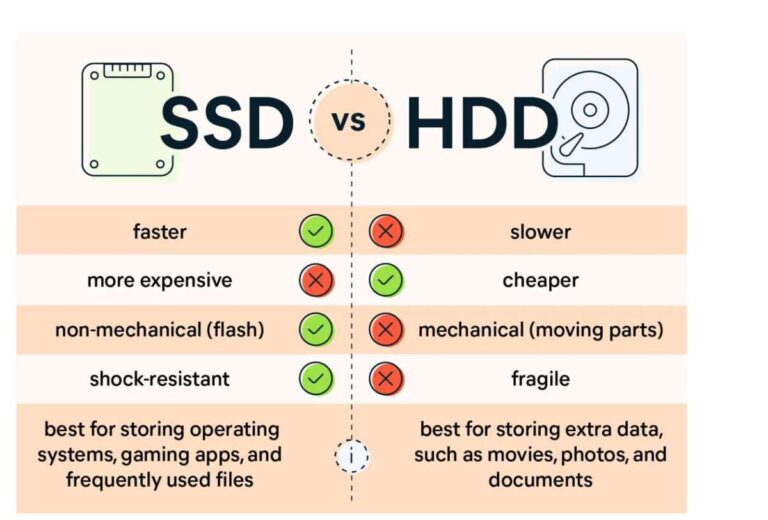
SATA SSDs are widely compatible and much faster than traditional hard disk drives. NVMe SSDs use PCI Express and can deliver much higher speeds, especially during large file transfers and demanding workloads.
A PCIe 4.0 SSD can work in many PCIe 3.0 systems, but it may run at the slower system speed. A PCIe 5.0 drive may also work in an older slot, but paying extra for unused performance may not make sense.
Select the Right Capacity
For most users, 1TB is a useful balance between price and space. A 500GB SSD can work well for office tasks and a few games, but it may fill quickly.
Typical capacity choices include:
- 250GB for basic systems and light office use
- 500GB for everyday computing
- 1TB for gaming, study, work, and general use
- 2TB or more for video, photography, large games, and professional projects
Try not to fill an SSD completely. Leaving some free space can help maintain performance and give the drive room for background management tasks.
Review Endurance Ratings
SSD endurance is often listed as TBW, or terabytes written. It estimates how much data can be written to the drive during its rated life.
For normal home use, most reputable SSDs provide enough endurance for many years. Heavy workloads, such as video editing, server use, and constant data logging, require closer attention to TBW and warranty terms.
Consider the Warranty
A strong warranty can show that the manufacturer stands behind the product. Many consumer SSDs include a limited warranty based on years of use or total data written, whichever comes first.
Read the actual terms. Warranty coverage may not include data recovery, physical damage, unauthorized modifications, or use outside the drive’s intended purpose.

SSD Prices and How to Spot a Good Deal
SSD prices change often. Sales may appear during major shopping events, product launches, or periods of high competition between brands.
When comparing where to buy SSD drives, compare the price per terabyte instead of looking only at the total price. A 2TB drive may cost more upfront but provide better value than buying two smaller drives.
Use this simple comparison:
- Divide the drive price by its capacity in terabytes.
- Compare drives with similar interfaces and performance.
- Check whether the drive includes a heatsink.
- Review the warranty and return period.
- Confirm that the seller is authorized or well established.
A very low price deserves extra attention. It may indicate an open-box item, refurbished hardware, old stock, a reduced warranty, or a counterfeit product.
I once saw a drive advertised at a price far below comparable models. The listing used a familiar brand name, but the model number did not match the manufacturer’s product database. That experience reinforced a simple lesson: verify the exact model before chasing a bargain.

How to Avoid Fake or Used SSD Drives
Counterfeit storage can report the wrong capacity or fail after a small amount of data is written. Used drives may also have more wear than the listing suggests.
Use these checks when deciding where to buy SSD drives:
- Buy from an authorized retailer when possible.
- Check the model number on the manufacturer’s website.
- Avoid listings with unclear photos or incomplete specifications.
- Read recent reviews, not only the overall rating.
- Confirm that the package has proper labels and seals.
- Test the drive soon after delivery.
- Keep the receipt and order information.
After installation, use a trusted health-monitoring tool to check the drive’s reported capacity, temperature, firmware, and total data written. You can also run a full capacity test on a new drive, but this process writes a large amount of data and may take several hours.
Do not store important files on a new SSD until you know it works properly. A short test can prevent a painful surprise later.
Buying an SSD for a Laptop
Laptop upgrades require extra care because space and compatibility vary by model.
Before choosing where to buy SSD drives for a laptop, check:
- The supported form factor
- The interface, such as SATA or NVMe
- The maximum supported capacity
- The physical length of the M.2 slot
- Whether a mounting screw is included
- Whether the laptop uses a removable storage panel
- Whether opening the device affects warranty coverage
Some slim laptops use a single-sided M.2 SSD because there is not enough room for memory chips on both sides. A thick drive or built-in heatsink may not fit.
Laptop users should also consider power use and heat. A high-performance SSD may be fast, but an efficient model can provide better battery life and lower temperatures for everyday work.

Buying an SSD for a Desktop PC
Desktop computers offer more flexibility. Many can support both 2.5-inch SATA drives and M.2 NVMe drives.
Before buying, inspect the motherboard manual. Check which M.2 slots share bandwidth with SATA ports or expansion slots. Some systems disable a SATA port when a certain M.2 slot is occupied.
For gaming, an NVMe SSD is usually a strong choice. It can reduce load times and make large file transfers feel quicker. However, game performance does not always improve in direct proportion to SSD speed, so an expensive flagship drive may not be necessary for every player.
Desktop buyers should also check:
- Whether the motherboard includes an M.2 screw
- Whether the slot has a heatsink
- Whether the case has a 2.5-inch mounting area
- Whether the power supply has the required cables
- Whether the operating system supports the drive
Internal SSD or External SSD?
An internal SSD installs inside a computer. It usually provides better performance and lower cost per gigabyte.
An external SSD connects through USB. It is easier to move between computers and works well for backups, media libraries, travel, and extra game storage.
Choose an internal SSD when you want:
- A system upgrade
- Faster boot and application loading
- A permanent storage solution
- Better value for large capacity
Choose an external SSD when you want:
- Portable file storage
- A simple backup drive
- Extra space without opening a computer
- A drive that works with several devices
Check the USB standard before buying an external SSD. The drive may support high speeds, but the computer, cable, and port must also support them. A fast SSD connected to a slow USB port will perform like a fast runner stuck on a narrow path.
Common Mistakes to Avoid When Buying an SSD
Even experienced buyers can overlook small details. These mistakes are easy to prevent.
- Buying an NVMe SSD for an M.2 slot that supports only SATA
- Choosing a capacity that is too small for future needs
- Assuming every M.2 SSD has the same physical size
- Ignoring the seller’s return policy
- Buying based only on advertised read speed
- Forgetting that a heatsink may not fit inside a laptop
- Failing to back up data before cloning a drive
- Treating customer reviews as a substitute for technical specifications
Advertised sequential speed is only one part of performance. Random performance, sustained write behavior, temperature, firmware quality, and workload all matter.
For everyday use, a reliable mid-range SSD is often a better purchase than a premium model with speeds you will rarely notice.
How to Install and Test a New SSD
After deciding where to buy SSD drives, prepare for installation before the package arrives.
- Back up important files to another drive or secure cloud storage.
- Confirm that the new SSD matches your computer.
- Shut down the computer and disconnect power.
- Install the SSD according to the device manual.
- Start the computer and check whether the drive appears in the firmware menu.
- Initialize and format the drive if required.
- Install the operating system or clone the old drive.
- Update firmware only through the manufacturer’s official tool.
- Test the drive and monitor its temperature.
When cloning a system drive, check that the new SSD has enough usable space for the data being copied. After cloning, change the boot order if the computer continues starting from the old drive.
Keep the old drive untouched until you confirm that the new installation works. It acts like a safety net during the move.
Frequently Asked Questions About Where to Buy SSD Drives
Where is the safest place to buy SSD drives?
The safest option is usually a manufacturer website, an authorized retailer, or a well-known electronics store. These sellers are more likely to provide genuine products, valid warranties, and clear return policies.
Is it safe to buy SSD drives from online marketplaces?
It can be safe when the seller has strong recent feedback and the listing clearly states the model, warranty, and condition. Prefer products sold or shipped directly by the marketplace or an established computer retailer.
Should I buy an SSD from a computer store or a large retailer?
A computer store may offer better technical advice, while a large retailer may provide more stock and easier returns. Choose the option that gives you reliable support and a clear compatibility policy.
How do I know whether an SSD is compatible with my computer?
Check your computer or motherboard manual for the supported form factor and interface. Confirm whether the system uses 2.5-inch SATA, M.2 SATA, or M.2 NVMe storage before ordering.
Is a cheap SSD worth buying?
A low price can be worthwhile if the drive comes from a trusted brand and seller. Avoid unusually cheap listings with unclear model numbers, missing warranty details, or specifications that do not match the manufacturer’s information.
How much should I spend on an SSD?
Your budget depends on capacity, speed, endurance, and intended use. For most people, a reliable 1TB SSD from a reputable brand offers a practical balance of price, performance, and storage space.
Conclusion
The best answer to where to buy SSD drives depends on your need for price, advice, warranty support, and convenience. Manufacturer websites and trusted retailers offer the lowest risk, while specialized computer stores can help with complex compatibility questions.
Before you buy, confirm the form factor, interface, capacity, endurance, warranty, and seller reputation. Choose a dependable SSD that fits your system rather than paying extra for specifications you may never use. Compare trusted listings today, check your computer’s manual, and make your upgrade with confidence.

Everett Ashford is a tech reviewer at mytechgrid.com specializing in SSDs, cameras, TVs, earbuds, headphones, and other consumer electronics. He provides honest, data-driven reviews based on hands-on testing and real-world performance analysis. Everett simplifies complex tech details to help readers make smart, confident buying decisions.