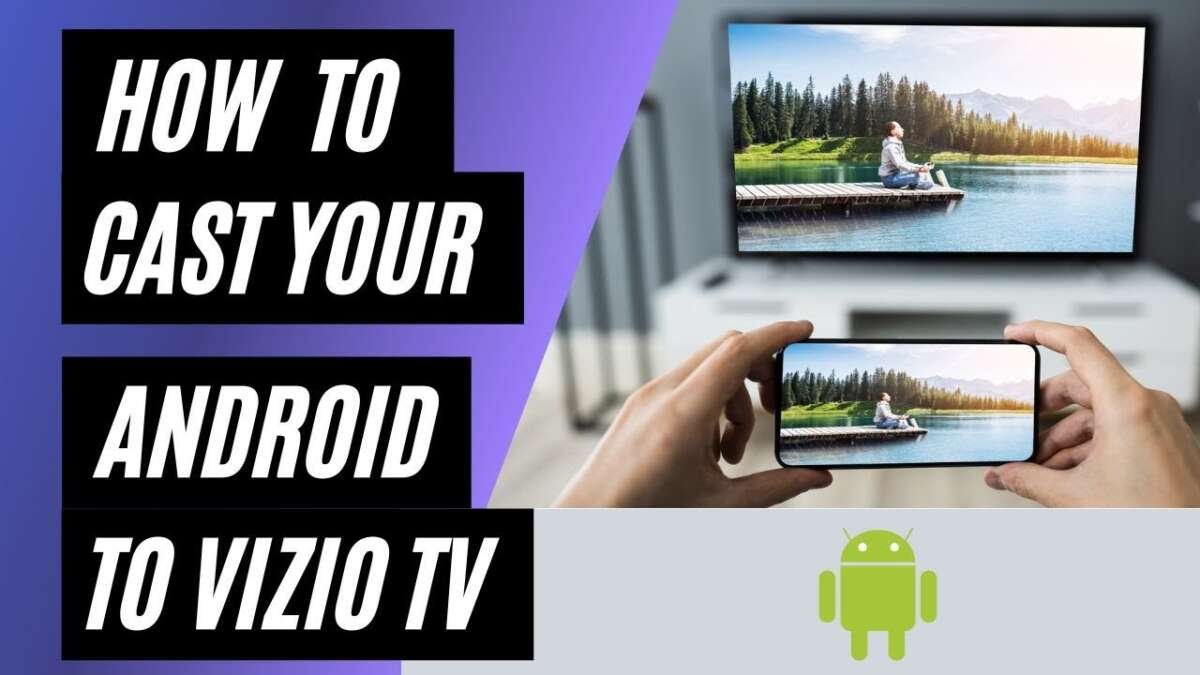
To cast to your Vizio TV, connect both devices to the same Wi-Fi network and tap the Cast or AirPlay icon.
Learning how do i cast to my vizio tv is simple once you know which wireless feature your Vizio model supports. Most newer Vizio Smart TVs work with Chromecast, AirPlay 2, or both, while older models may need a streaming device such as Chromecast, Roku, or Apple TV.
This guide explains how to cast from Android phones, iPhones, iPads, Windows PCs, and Macs. It also covers setup, common problems, sound delays, black screens, and the best fixes.

Check if your Vizio TV supports casting
Before you try to cast, check the features built into your Vizio TV. Vizio has used several smart TV platforms over the years, so the steps can differ by model and software version.
Most newer Vizio SmartCast TVs include Chromecast built in. Many models made in recent years also support Apple AirPlay 2 and HomeKit. Older Vizio TVs may support only certain features, or they may need an external streaming device.
Look for these signs:
• A SmartCast home screen when you press the Home button
• An AirPlay option under the TV’s Extras or Inputs menu
• A Chromecast or Cast icon inside supported apps
• A model number listed in the TV’s system information
To find your model number, open the TV menu and look under System Information, Admin & Privacy, or About. You can also check the label on the back of the TV.
If you are asking, “how do i cast to my vizio tv,” the first step is confirming that your TV and phone support the same casting method.

Prepare your Vizio TV and phone
Casting works best when both devices are on the same home network. Your TV does not usually need a special cable, but it must have a stable Wi-Fi connection.
Follow these steps before casting:
-
Turn on your Vizio TV.
-
Connect the TV to your home Wi-Fi network.
-
Connect your phone, tablet, or computer to the same Wi-Fi network.
-
Update the TV software if an update is available.
-
Update the app you want to use.
-
Turn off any VPN on your phone or computer.
-
Keep the casting device near the Wi-Fi router during setup.
A common mistake is connecting the phone to a guest Wi-Fi network while the TV uses the main network. Guest networks often block communication between devices. If your phone cannot find the TV, this is one of the first things to check.
Also make sure the TV is not in a power-saving mode that disables network features. Some Vizio models may appear to be off but remain connected to the network. If the TV fully disconnects after shutdown, turn it on before starting the cast.
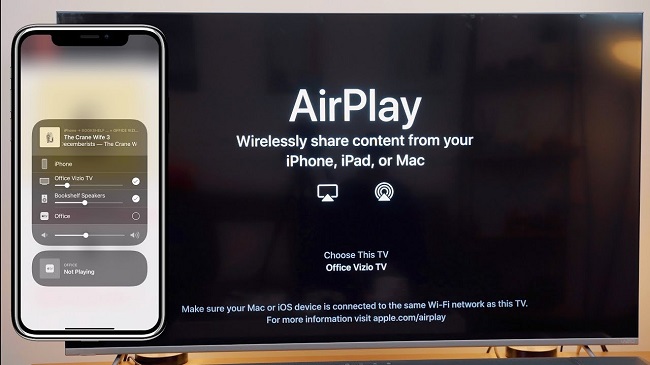
How do i cast to my Vizio TV from Android
Android phones usually cast to Vizio TVs through Chromecast. You can cast from apps such as YouTube, Netflix, Hulu, Spotify, and many other services.
Cast from a supported Android app
-
Open a supported app on your Android phone.
-
Start playing a video, song, or other media.
-
Tap the Cast icon. It looks like a small screen with Wi-Fi waves.
-
Choose your Vizio TV from the list.
-
Wait a few seconds for the content to appear on the TV.
-
Use your phone as a remote to pause, seek, or stop casting.
The Cast icon may appear at the top of the screen or inside the video player. Not every app supports casting. If you do not see the icon, update the app and check that both devices use the same Wi-Fi network.
You can also cast your entire Android screen on some phones:
-
Open the Google Home app.
-
Select your Vizio TV.
-
Tap Cast my screen.
-
Confirm the screen-casting request.
-
To stop, open Google Home again and tap Stop mirroring.
Screen mirroring can show almost anything on your phone, but it may use more battery. It can also look less smooth than casting from a supported app. For movies and shows, direct app casting usually gives better quality.
When people ask me how do i cast to my vizio tv from Android, I usually recommend starting with YouTube. It is a fast test because the app clearly shows whether the TV is available.
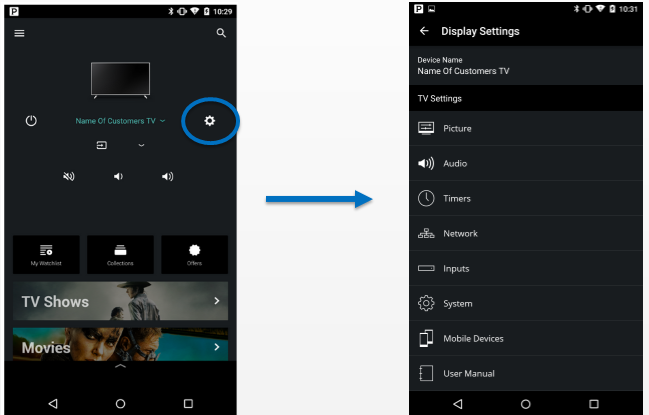
How do i cast to my Vizio TV from an iPhone or iPad
iPhones and iPads usually connect to Vizio TVs through Apple AirPlay 2. Your Vizio TV must support AirPlay, and the feature must be turned on.
Turn on AirPlay on your Vizio TV
The menu names may vary slightly, but the process is often similar:
-
Press the Home button on the Vizio remote.
-
Open Extras, Inputs, or SmartCast Home.
-
Select Apple AirPlay.
-
Set AirPlay to On.
-
Check that the TV and iPhone use the same Wi-Fi network.
AirPlay a video from an iPhone
-
Open an AirPlay-compatible app.
-
Play the video.
-
Tap the AirPlay icon or Share button.
-
Select AirPlay.
-
Choose your Vizio TV.
-
Enter the code shown on the TV if requested.
You can also mirror your iPhone screen:
-
Open Control Center.
-
On newer iPhones, swipe down from the top-right corner.
-
On older iPhones, swipe up from the bottom edge.
-
Tap Screen Mirroring.
-
Select your Vizio TV.
-
Enter the AirPlay code if one appears.
To stop mirroring, open Control Center, tap Screen Mirroring, and choose Stop Mirroring.
AirPlay and screen mirroring are not exactly the same. AirPlay sends supported media to the TV, while mirroring copies the whole phone screen. Direct AirPlay playback is often smoother and uses less phone battery.
This is another reliable answer to how do i cast to my vizio tv when you use Apple devices.

How do i cast to my Vizio TV from a Windows computer
A Windows computer can cast through the Google Chrome browser. This method works well for websites, browser videos, presentations, and photos.
Cast a Chrome tab
-
Open Google Chrome.
-
Visit the website you want to display.
-
Select the three-dot menu in the upper-right corner.
-
Choose Cast, save, and share.
-
Select Cast.
-
Choose your Vizio TV.
-
Select the current tab if you want to cast only that page.
You can also choose a desktop or file source if your version of Chrome offers those options. Desktop casting may be less smooth than tab casting, especially with games or high-resolution video.
For the best results, keep the computer and TV on the same Wi-Fi network. Close large downloads and unnecessary browser tabs if the video stutters.
Some streaming websites may block casting or require their own app. In that case, use the service’s official Cast button instead of casting the entire browser tab.
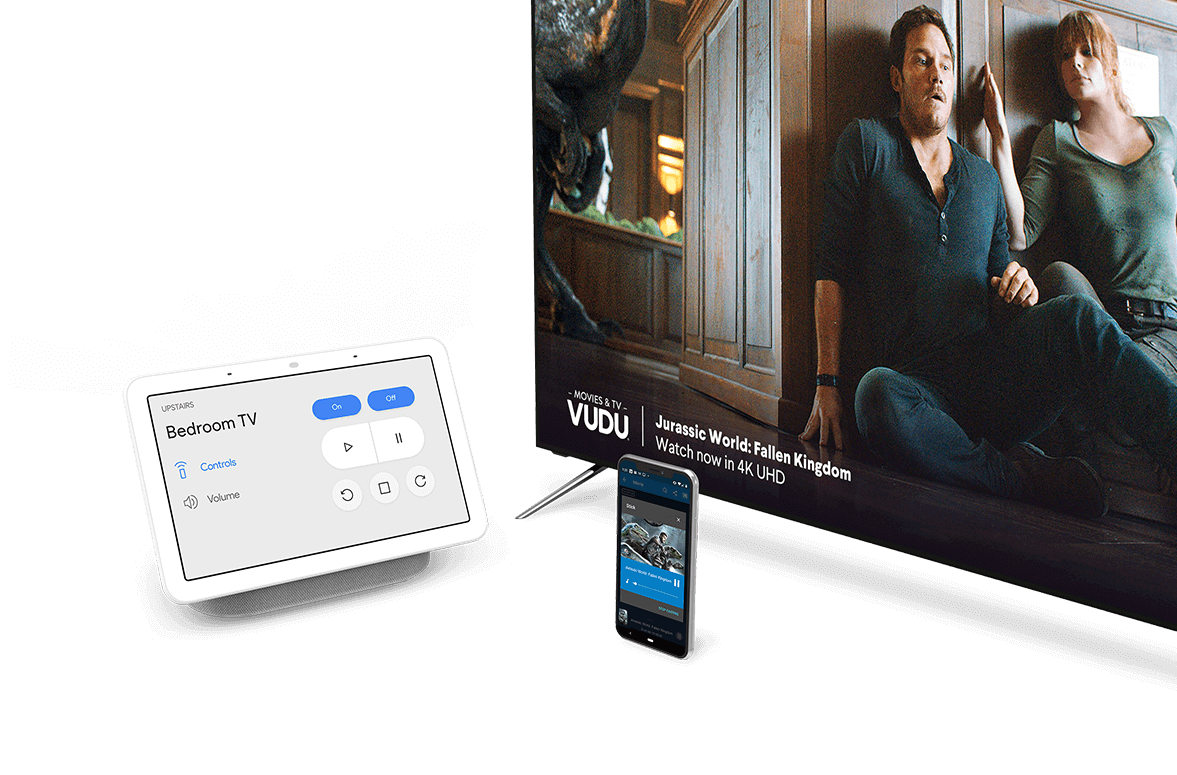
How do i cast to my Vizio TV from a Mac
Mac users can use AirPlay if both the Mac and Vizio TV support it. AirPlay works with many newer Vizio SmartCast models.
Mirror your Mac screen
-
Connect the Mac and Vizio TV to the same Wi-Fi network.
-
Select the Control Center icon in the Mac menu bar.
-
Choose Screen Mirroring.
-
Select your Vizio TV.
-
Enter the AirPlay code if the TV displays one.
-
Choose whether to mirror or extend the Mac display.
You may also find an AirPlay icon inside supported video players. Select the icon and choose the Vizio TV.
If the TV does not appear, open the TV’s AirPlay settings and confirm that AirPlay is enabled. Restarting both devices can also refresh the connection.
For work presentations, screen mirroring is useful. For movies, direct AirPlay from a supported website or app may provide better picture quality and fewer delays.

How do i cast to my Vizio TV without Wi-Fi
Most wireless casting methods require a working Wi-Fi network. Your phone and TV need a way to communicate, and mobile data alone usually cannot replace the home network.
You have a few alternatives:
• Use an HDMI cable with a suitable adapter.
• Connect a Chromecast, Roku, or Apple TV to the TV and use its supported setup.
• Use a wired laptop connection with an HDMI cable.
• Create a mobile hotspot, then connect both the phone and TV to it if your devices support this setup.
A hotspot may use a large amount of mobile data. It may also create a weaker connection than a home router. For long movies or live sports, a wired HDMI connection is often more stable.
If your Vizio TV does not support Chromecast or AirPlay, an external streaming device is usually the easiest upgrade. It adds modern casting features without replacing the TV.

Fix common Vizio casting problems
Casting problems are usually caused by network settings, outdated software, or unsupported apps. Work through these fixes in order.
The Vizio TV does not appear
Check the following:
• Confirm that both devices use the same Wi-Fi name.
• Turn off VPN services.
• Restart the phone, computer, TV, and router.
• Update the casting app.
• Update the Vizio TV software.
• Move the devices closer to the router.
• Check that Chromecast or AirPlay is enabled.
A full power cycle can help. Unplug the TV for about 60 seconds, plug it back in, and try again. This clears temporary network errors better than simply pressing the power button.
Casting starts but stops
A weak Wi-Fi signal may cause the stream to disconnect. Thick walls, crowded networks, and router placement can all affect performance.
Try these steps:
-
Pause other large downloads.
-
Move the router to an open area.
-
Use a 5 GHz Wi-Fi network when the TV is close to the router.
-
Use a 2.4 GHz network when the TV is far away or behind several walls.
-
Restart the router.
-
Lower the video quality in the streaming app.
The TV shows a black screen
A black screen may come from an app restriction, a protected video, or a failed connection. Stop casting, close the app, and start a new session.
If you are mirroring a computer, check that the correct screen or browser tab is selected. Some services do not allow browser mirroring because of digital rights protection. Use the service’s official app or Cast button instead.
The picture works but sound does not
First, raise the TV volume and check that the TV is not muted. If you use a soundbar, confirm that the correct audio input is selected.
On Windows or Mac, check the computer’s sound output settings. The system may still send sound to the computer speakers instead of the TV.
The video and audio are out of sync
Audio delay often comes from a weak wireless connection, Bluetooth speakers, or soundbar processing. Restart the stream and test the TV speakers first.
If the TV speakers work correctly but the soundbar does not, adjust the soundbar delay setting. A wired connection can also reduce delay during live events and games.
In my experience, restarting the TV and router solves more casting issues than changing advanced settings. People often jump to complex fixes when the real problem is a stale network connection.
Improve casting quality and privacy
A strong connection is only part of a good casting experience. Your TV software, app version, and network traffic also matter.
Use these practical tips:
• Keep the TV software and mobile apps updated.
• Use official streaming apps when possible.
• Place the router in a central, open location.
• Avoid casting over a busy public or guest network.
• Stop casting when you finish watching.
• Review AirPlay settings if you share a home with other people.
AirPlay settings may let you choose who can connect. You can require a code, allow devices on the same network, or restrict access. Choose the setting that fits your home.
Casting does not normally download the whole video to your phone. In many cases, the app tells the TV where to find the content, and the TV streams it directly. This is why your phone can act like a remote while the video continues playing.
Still, data use matters. High-definition and 4K video can use several gigabytes during long viewing sessions. If your internet plan has a data limit, monitor your usage.
When to use a streaming device
A separate streaming device can help when your Vizio TV is old, slow, or missing a needed feature. Chromecast, Roku, and Apple TV can provide newer software and broader app support.
Consider an external device when:
• Your TV cannot use Chromecast or AirPlay.
• The SmartCast interface loads slowly.
• Apps crash or stop receiving updates.
• Your TV struggles with 4K video.
• You want stronger voice control or smart-home support.
The TV itself may still display a good picture even when its built-in software feels outdated. A streaming device works like a new computer connected to the TV. It can extend the useful life of the screen without a full replacement.
However, an external device adds another remote, power cable, and account setup. If your Vizio TV already supports the apps and casting methods you need, the built-in tools may be enough.
Frequently Asked Questions About How Do I Cast to My Vizio TV
Can I cast to a Vizio TV from any phone?
Most modern Android phones can cast through Chromecast, and many iPhones can use AirPlay on compatible Vizio models. The phone and TV must support the same casting feature and use the same Wi-Fi network.
Why can’t I see my Vizio TV in the Cast list?
Make sure the TV and phone are on the same Wi-Fi network, then restart both devices. Also check for VPNs, guest networks, outdated apps, and disabled Chromecast or AirPlay settings.
Does a Vizio TV need Chromecast for casting?
Many Vizio SmartCast TVs have Chromecast built in, so a separate Chromecast device is not required. If your model lacks Chromecast, you can use AirPlay, an HDMI cable, or an external streaming player.
Can I cast Netflix from my phone to a Vizio TV?
Yes, if the Vizio TV and Netflix app support the same casting method. Open Netflix, tap the Cast or AirPlay icon, select the TV, and begin playback.
Can I mirror my iPhone to a Vizio TV?
Yes, but the Vizio TV must support AirPlay 2. Turn on AirPlay in the TV settings, open Control Center on the iPhone, tap Screen Mirroring, and select the TV.
Why is my Vizio TV casting but showing no sound?
Check the TV volume, mute setting, soundbar input, and computer audio output. Restarting the cast session often restores sound, especially after switching between Bluetooth and TV speakers.
Can I cast without an internet connection?
Standard casting normally needs a Wi-Fi network. You can use an HDMI adapter or connect both devices through a compatible mobile hotspot, but hotspot casting may use significant mobile data.
Conclusion
Casting to a Vizio TV is usually easy: connect both devices to the same Wi-Fi network, enable Chromecast or AirPlay, and choose the TV from a supported app. Android users typically use Chromecast, while iPhone, iPad, and Mac users often use AirPlay.
If casting fails, check the network first, then restart the TV, router, and casting device. Keep your software updated, use official apps, and consider an external streaming device if your Vizio model lacks modern casting features.
Try the method that matches your phone or computer today, and share your Vizio model and device type if you need help finding the exact steps.

Everett Ashford is a tech reviewer at mytechgrid.com specializing in SSDs, cameras, TVs, earbuds, headphones, and other consumer electronics. He provides honest, data-driven reviews based on hands-on testing and real-world performance analysis. Everett simplifies complex tech details to help readers make smart, confident buying decisions.