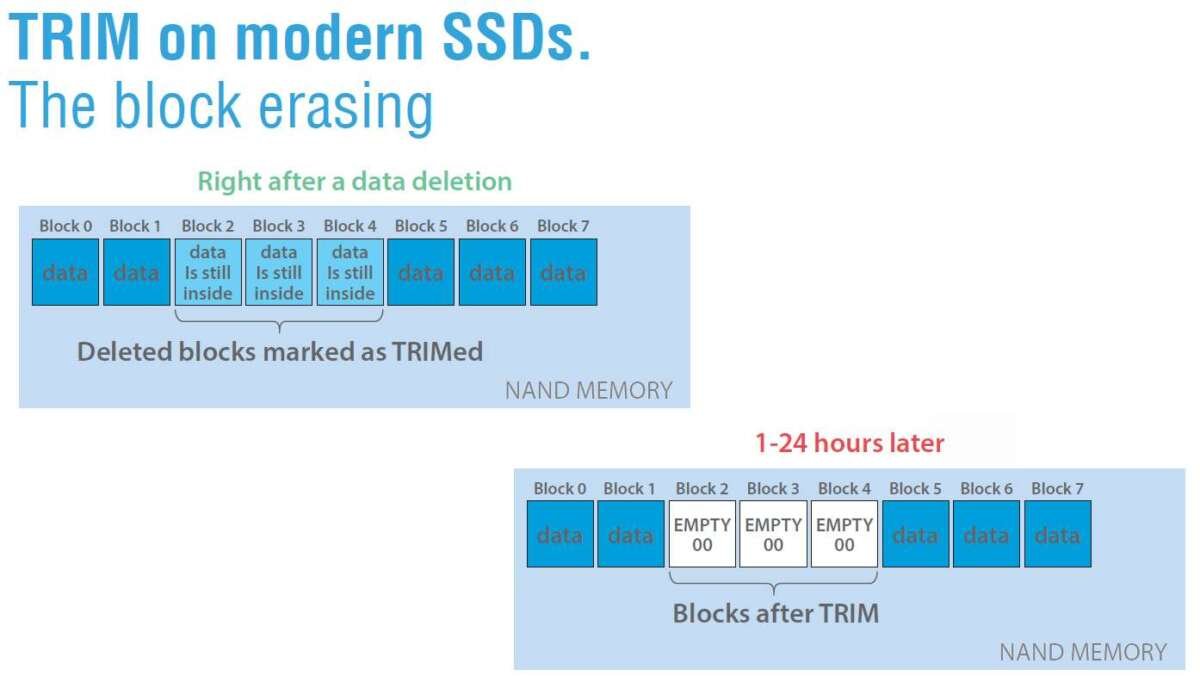
TRIM tells an SSD which deleted data blocks it can erase before future writes.
If you have ever wondered what is TRIM on SSD, you are looking at a small feature with a big effect on storage health. TRIM helps an operating system and solid state drive work together, so the SSD can manage deleted data before new files arrive. In this guide, you will learn how TRIM works, why it matters, how to check it, and what to do when it is disabled.
What Is TRIM on SSD?
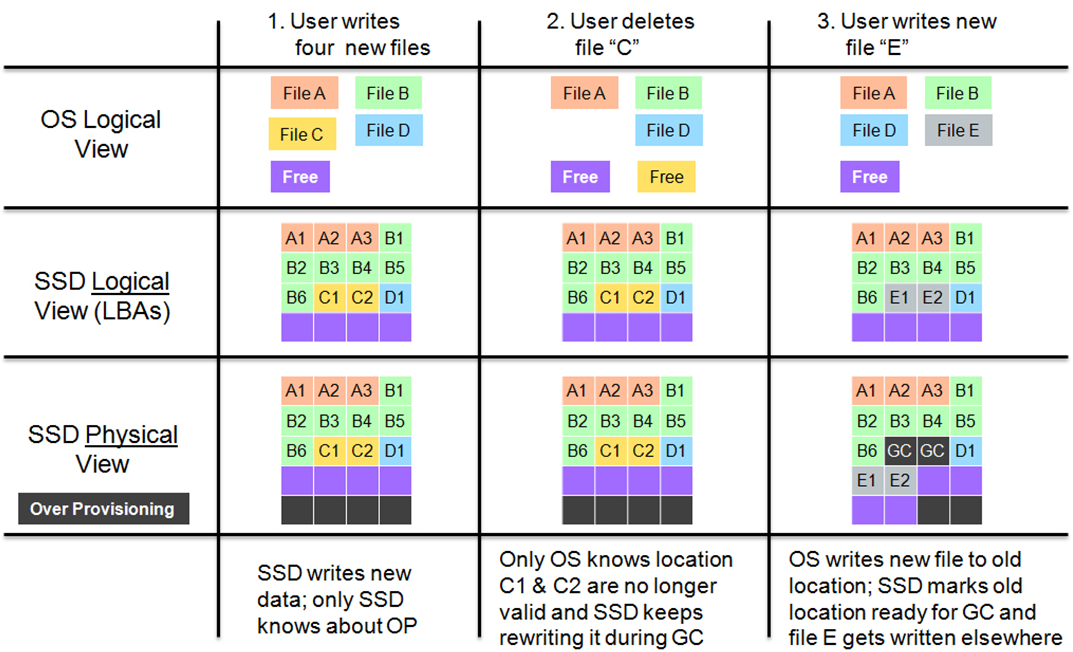
TRIM is a command that tells an SSD which data blocks are no longer needed. When you delete a file, the operating system usually removes its reference rather than erasing every stored bit at once. TRIM informs the drive that these blocks are free.
This answer explains what is TRIM on SSD in simple terms: TRIM is like a cleanup list for your drive. It marks old data so the SSD can clear it during internal maintenance.
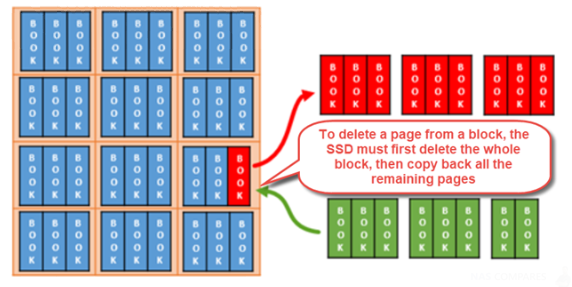
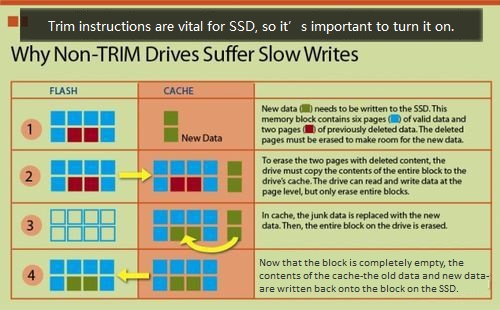
A hard disk drive can often overwrite old data directly. An SSD works differently. It must erase entire flash blocks before it can write new data to them, even when only part of that block contains useful information.
Without TRIM, the SSD may need to move valid data, erase a full block, and then write new data. This extra work can increase write time and cause more internal activity.
How Does TRIM Work?
To understand what is TRIM on SSD, it helps to follow the path of a deleted file.
- You delete a file from your computer.
- The operating system marks the file’s space as available.
- The operating system sends a TRIM command to the SSD.
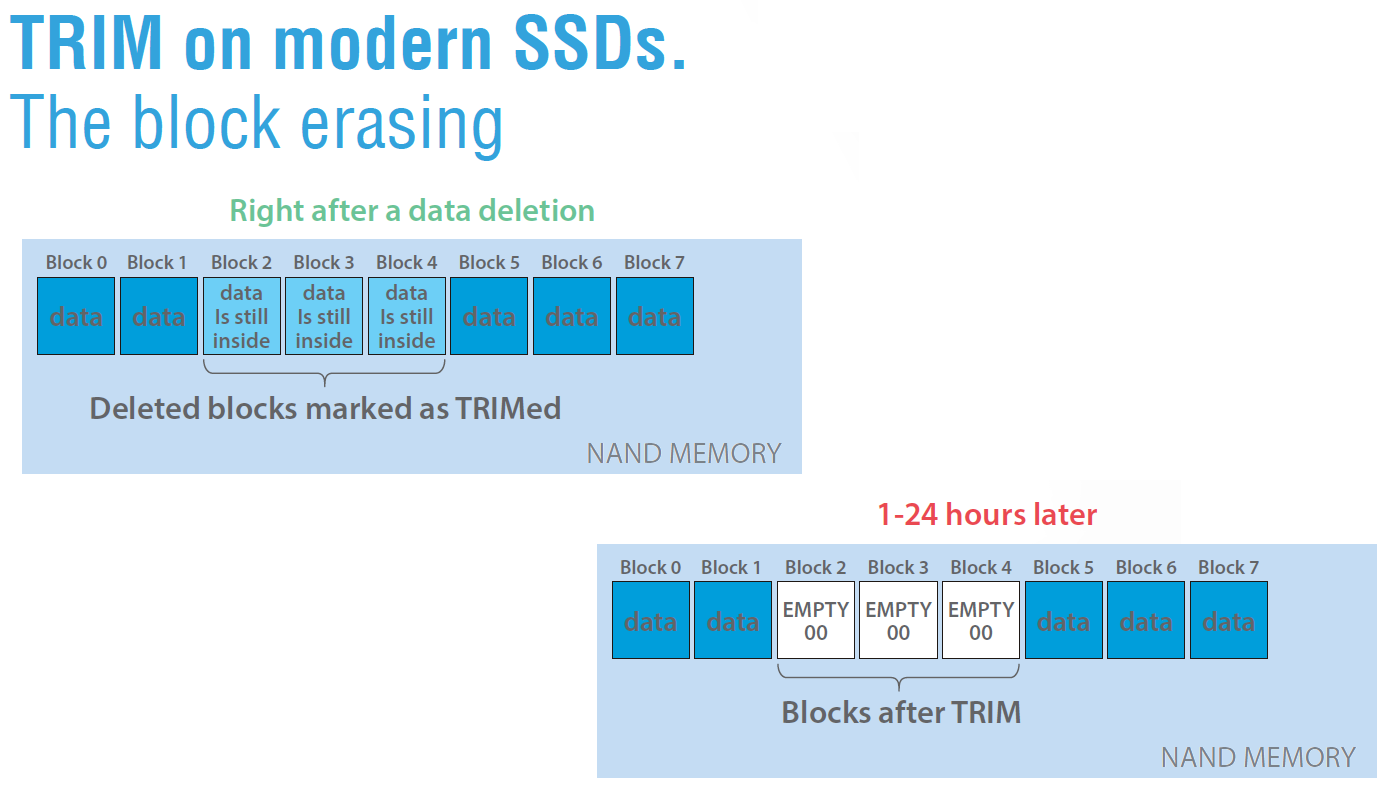
- The SSD records which pages no longer contain useful data.
- During garbage collection, the SSD erases and prepares those pages for future writes.
The SSD does not always erase the data at the exact moment you delete a file. Instead, it may wait until the drive is idle or until it needs more free space. This approach helps balance speed, power use, and flash memory wear.
Many people compare TRIM to a hotel cleaning staff. A guest checks out, but the room is not always cleaned during checkout. The staff marks the room for cleaning, then prepares it before the next guest arrives.
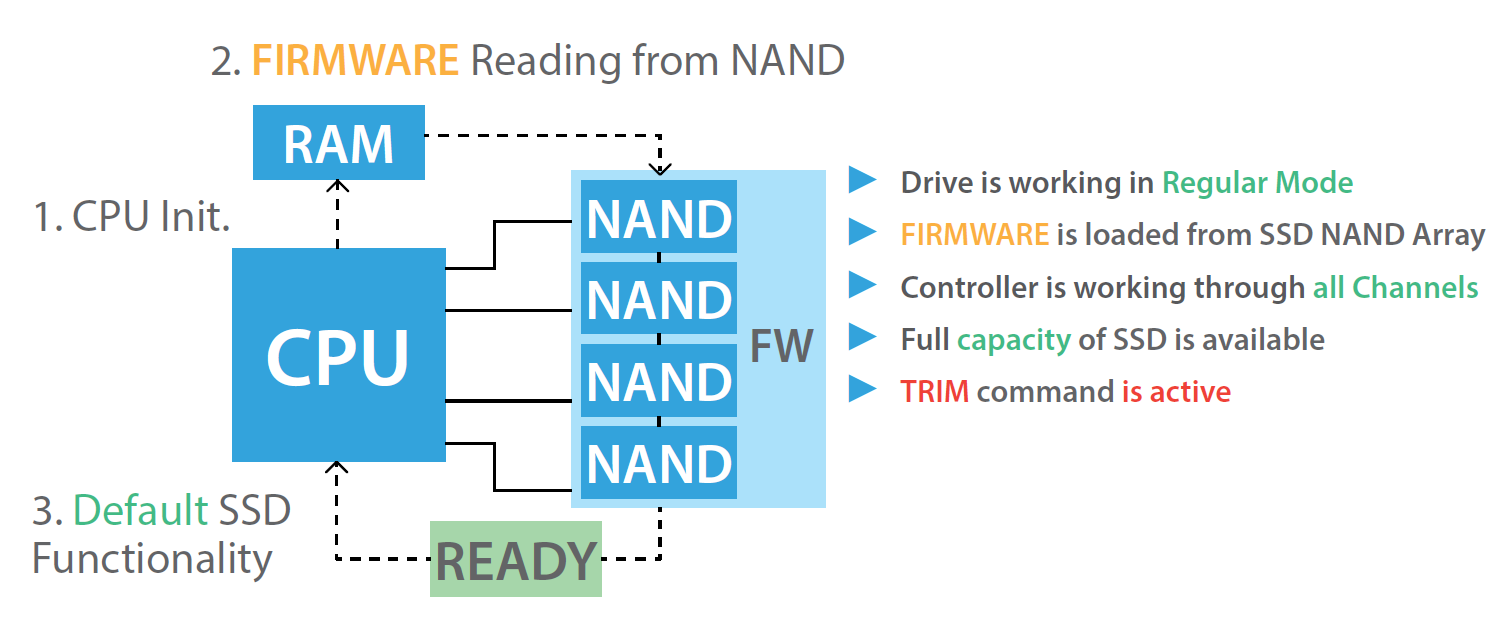
TRIM works with the SSD controller and a process called garbage collection. The controller decides when to move useful data, erase unused blocks, and organize available space.
This process is one reason modern SSDs can maintain strong performance even after months or years of regular use. Still, TRIM is only one part of the drive’s storage management system.
Why Is TRIM Important for SSD Performance?
The main benefit of TRIM is reduced write work. When the SSD already knows which pages are unused, it can prepare free space before a new write arrives.
Here are the main benefits of TRIM:
• Better sustained write performance because the drive spends less time preparing blocks
• Faster response during heavy file activity
• More efficient garbage collection
• Lower write amplification in many workloads
• Better long term performance consistency
Write amplification happens when an SSD writes more data internally than the amount requested by the operating system. For example, your computer may ask the drive to write 10 MB, but the SSD may need to move and rewrite much more data internally.
TRIM can reduce this extra work by identifying data that does not need to be preserved. Lower write amplification may also reduce unnecessary program and erase cycles on NAND flash memory.
In my own storage testing and troubleshooting, a drive with healthy TRIM support tends to feel more consistent during large file transfers. The difference may not be obvious during light web browsing, but it can become clear when installing games, editing video, or moving large folders.
TRIM does not turn a slow SSD into a fast one. It also cannot repair worn flash memory, a weak controller, or a drive that is nearly full. It simply helps the drive manage free space more effectively.
TRIM Compared With Garbage Collection
TRIM and garbage collection work together, but they are not the same thing.
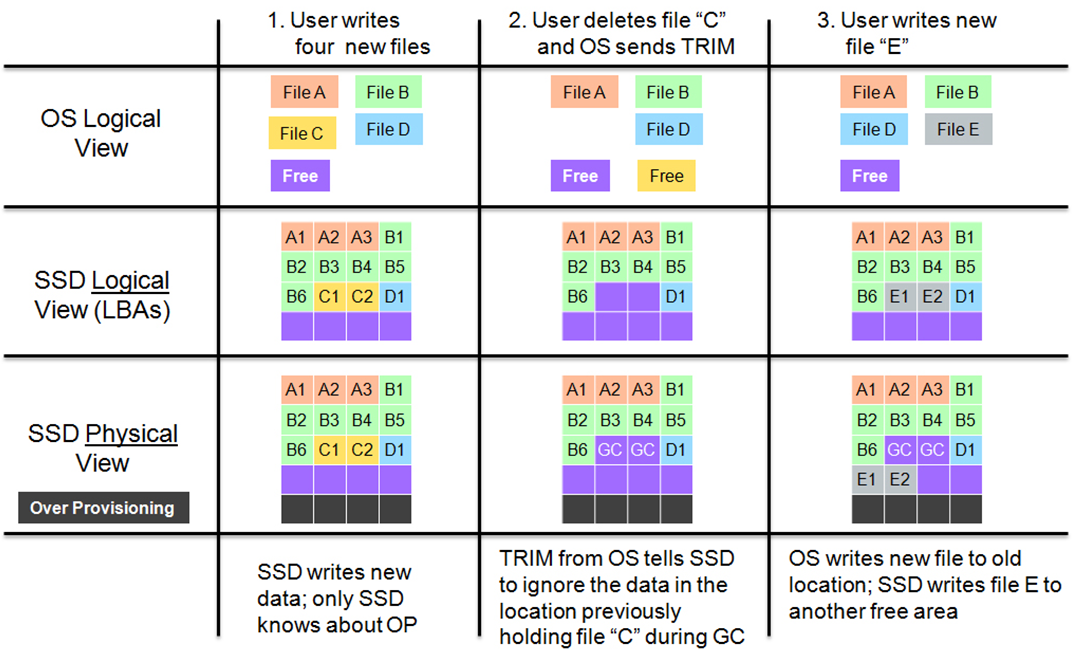
TRIM is a command from the operating system. It tells the SSD which logical blocks no longer contain useful files. Garbage collection is an internal SSD process that reorganizes valid data and erases old blocks.
Think of TRIM as a message from the office manager and garbage collection as the cleaning crew. The message identifies which rooms are no longer in use. The crew decides how and when to clean them.
An SSD can perform garbage collection without TRIM, but it has less information about which data is truly obsolete. The drive may treat deleted data as valid and move it during block cleanup.
This difference helps explain what is TRIM on SSD and why the feature improves efficiency. TRIM gives the controller better information, while garbage collection performs the physical cleanup.
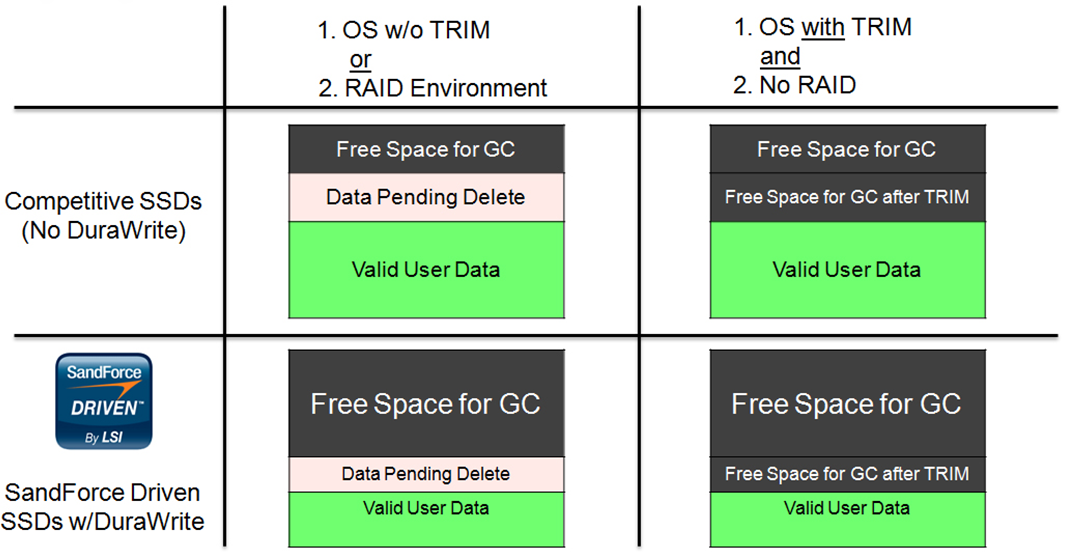
SSDs also use overprovisioning. This means some flash capacity is reserved for internal work and is not shown as normal user storage. Overprovisioning gives garbage collection more room to operate, especially during heavy workloads.
Does TRIM Delete Your Files Permanently?
TRIM can make deleted file recovery more difficult, but the exact result depends on the SSD, operating system, file system, and timing.
When TRIM marks a block as unused, the SSD may later erase it during garbage collection. Once the original data is physically erased, common recovery software may not be able to restore it.
This matters when selling or recycling an SSD. Deleting files normally is not the same as securely erasing the entire drive. For sensitive data, use the secure erase or sanitize feature supported by the SSD manufacturer and operating system.
TRIM is not a security tool by itself. It does not encrypt files, prevent malware, or protect data while the drive is running. It mainly supports storage management and performance.
If you need strong data protection, use full disk encryption and follow a recognized secure erase process. Always back up important files before performing any erase command.
How to Check Whether TRIM Is Enabled
The steps depend on your operating system. Modern versions of Windows, macOS, and Linux usually support TRIM, but the feature may not work correctly with every controller, adapter, or file system.
Check TRIM in Windows
Open Command Prompt as an administrator and run:
fsutil behavior query DisableDeleteNotify
The result usually means:
• DisableDeleteNotify = 0 means TRIM notifications are enabled
• DisableDeleteNotify = 1 means TRIM notifications are disabled
Windows may display separate values for different file systems. A zero value generally means the operating system is allowed to send TRIM commands.
You can also open the Windows drive optimization tool. For an SSD, the tool may show an option such as “Optimize.” Windows uses this process to send a TRIM operation rather than perform a traditional hard drive defragmentation.
Check TRIM in Linux
On many Linux systems, you can run:
lsblk --discard
This command can show whether the storage path reports discard support. You may also use a periodic TRIM service, often managed through the system’s timer settings.
Some Linux systems use continuous discard, while others run TRIM once a week. Both approaches can work, but periodic TRIM is often preferred because it avoids sending a discard command after every deletion.
Check TRIM on macOS
macOS normally manages TRIM automatically for Apple supplied storage. Third party SSD support can depend on the Mac model, connection type, firmware, and macOS version.
You can review storage details through System Information. If you use an external SSD, TRIM support may depend on the USB or Thunderbolt enclosure. Many USB adapters do not pass TRIM commands correctly.
How to Enable TRIM Safely
Most users should not need to enable TRIM manually. The operating system usually handles it when the SSD, driver, and storage connection support the command.
Before making changes, follow these steps:
- Back up important files.
- Confirm that the drive is an SSD.
- Install current operating system and SSD firmware updates.
- Check whether the storage controller supports TRIM or discard.
- Avoid random registry edits or unknown optimization tools.
- Test the system after making changes.
On Windows, the built in drive optimization tool is usually the safest option. On Linux, a scheduled fstrim service is often a practical choice. On macOS, automatic management is generally best unless the manufacturer provides a specific tool.
A common mistake is to run traditional defragmentation on an SSD. Modern Windows versions normally identify SSDs and use an appropriate optimization process, but third party utilities may not. Do not use old hard drive tools unless they clearly support solid state drives.
Another mistake is assuming that a disabled TRIM setting always causes immediate damage. Your SSD may still operate normally, especially if it has strong garbage collection and plenty of free space. The main risk is reduced performance consistency over time.
TRIM on External SSDs and USB Drives
TRIM support is less predictable on external SSDs. The SSD itself may support TRIM, but the USB enclosure, bridge chip, operating system, or cable connection may block the command.
USB Attached SCSI Protocol, often called UASP, can improve storage communication. However, UASP support alone does not guarantee that TRIM commands will pass through the enclosure.
If you use an external SSD, check these points:
• The SSD firmware supports TRIM
• The enclosure supports discard or TRIM passthrough
• The computer uses a current operating system
• The connection uses a suitable USB or Thunderbolt mode
• The drive is formatted with a compatible file system
External drives may also have different power behavior. If the enclosure disconnects during idle periods, scheduled maintenance may not run as expected. This does not always create a serious problem, but it can affect long term performance.
When I troubleshoot external SSDs, I test the drive inside the computer first when possible. This separates an SSD problem from an enclosure problem and often saves hours of guesswork.
TRIM, SSD Lifespan, and Drive Health
TRIM can support SSD health by reducing unnecessary internal writes, but it does not guarantee a longer lifespan. NAND flash wears through program and erase cycles, and every SSD has a limited endurance rating.
Drive health also depends on:
• Total data written
• Drive capacity
• Controller quality
• NAND type
• Operating temperature
• Firmware quality
• Amount of free space
• Workload type
Keeping some free space available gives the SSD room for garbage collection and wear leveling. A drive filled to 99 percent may have less flexibility, even when TRIM works correctly.
Many SSD monitoring tools report health using SMART data. Look for values such as percentage used, total host writes, media errors, and unsafe shutdowns. These readings vary by manufacturer, so treat them as useful indicators rather than perfect predictions.
Do not panic if a health tool shows a changing percentage. SSD health ratings are estimates based on the manufacturer’s endurance model. A drive can continue working past its rated endurance, but it should not be trusted without backups.
Common TRIM Problems and Mistakes
Understanding what is TRIM on SSD also means knowing its limits. TRIM may not work when a storage path does not support discard commands or when an operating system driver blocks them.
Common problems include:
• Using an old operating system
• Connecting an SSD through an adapter that blocks TRIM
• Filling the drive almost completely
• Using outdated SSD firmware
• Running unsupported optimization software
• Confusing TRIM with secure erase
• Assuming TRIM fixes an already slow or failing drive
If an SSD suddenly becomes slow, check more than TRIM. Review free space, temperature, firmware, background tasks, drive health, and connection speed. A faulty cable or thermal throttling can create symptoms that look like a storage management issue.
TRIM also does not improve every benchmark. Short tests may finish before garbage collection becomes important. Real world performance often gives a better picture than one synthetic score.
The safest approach is simple: keep backups, update supported software, leave free space, and allow the operating system to manage the drive.
Frequently Asked Questions About What Is TRIM on SSD
Is TRIM good for an SSD?
Yes. TRIM helps an SSD identify deleted data and prepare free space more efficiently. It can improve long term performance consistency and reduce unnecessary internal work.
Should I enable TRIM manually?
Usually, no. Current operating systems normally enable and manage TRIM automatically when the SSD and storage connection support it.
Does TRIM erase deleted files?
TRIM tells the SSD that deleted data is no longer needed, and garbage collection may later erase it. This can make file recovery harder, but TRIM is not a complete secure erase method.
Does TRIM improve SSD speed?
TRIM can help maintain performance, especially during sustained writing and heavy file activity. It will not make a low quality, damaged, overheated, or nearly full SSD perform like a newer model.
Does every SSD support TRIM?
Most modern SATA and NVMe SSDs support TRIM or a related discard command. Support can still depend on the operating system, firmware, controller, file system, and external enclosure.
Can TRIM damage an SSD?
Normal TRIM operation should not damage a compatible SSD. Problems are more likely when users run unsafe third party tools, interrupt firmware updates, or use commands without understanding their effect.
Is TRIM the same as defragmentation?
No. TRIM tells an SSD which blocks are no longer needed, while defragmentation rearranges file pieces. Traditional defragmentation is designed for hard drives and should not be forced on SSDs with old third party tools.
Conclusion
TRIM is a communication command that helps your operating system and SSD manage deleted data. It supports garbage collection, reduces unnecessary write work, and helps maintain steady performance over time.
Now that you understand what is TRIM on SSD, check that your operating system and storage connection support it. Keep backups, maintain free space, use current firmware, and avoid untrusted disk utilities. For more storage guides and practical SSD tips, explore additional resources or share your experience in the comments.

Everett Ashford is a tech reviewer at mytechgrid.com specializing in SSDs, cameras, TVs, earbuds, headphones, and other consumer electronics. He provides honest, data-driven reviews based on hands-on testing and real-world performance analysis. Everett simplifies complex tech details to help readers make smart, confident buying decisions.