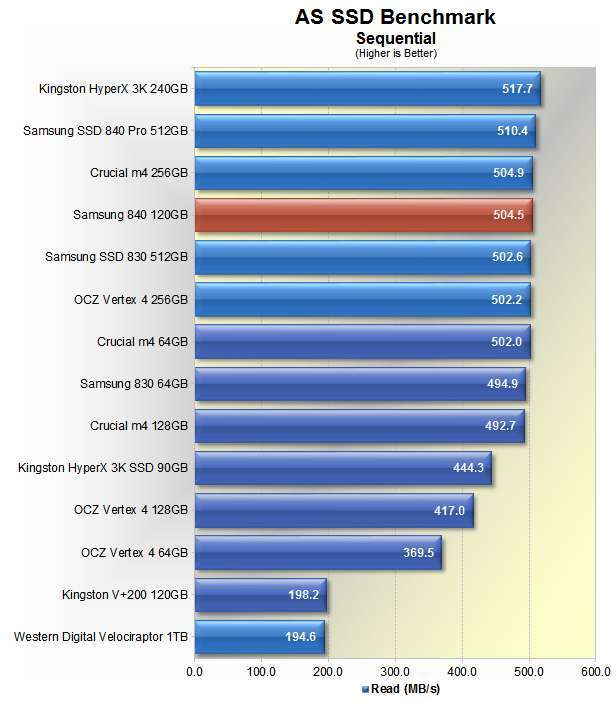
The best SSD for most people is a fast PCIe 4.0 NVMe drive with TLC NAND, strong endurance, and a solid warranty.
Choosing what is the best SSD is not only about finding the highest speed on the box. The right drive must match your computer, workload, budget, and storage needs. After comparing interface limits, real-world performance, heat, endurance, software, and value, this guide will help you choose with confidence.
What Is the Best SSD for Most People?
For most desktop and laptop users, a high-quality PCIe 4.0 NVMe SSD is the best choice. It offers excellent loading times, fast file transfers, broad compatibility, and better value than newer PCIe 5.0 models.
The Samsung 990 Pro, WD Black SN850X, Crucial T500, and SK hynix Platinum P41 are strong examples of premium PCIe 4.0 drives. The best SSD among them depends on price, capacity, laptop support, and whether you need heavy write performance.
For everyday use, you do not need the drive with the biggest speed number. A good 1TB or 2TB TLC NVMe SSD will make Windows feel quick, games load faster, and apps open with little delay.
Best SSD picks by user type
• Best overall: Samsung 990 Pro or WD Black SN850X
• Best value: Crucial P3 Plus, WD Blue SN580, or TeamGroup MP44, depending on price
• Best for laptops: SK hynix Platinum P41 or Samsung 990 Pro
• Best for gaming: WD Black SN850X or Samsung 990 Pro
• Best for creative work: Crucial T500, Samsung 990 Pro, or a high-end PCIe 5.0 model
• Best SATA SSD: Samsung 870 EVO or Crucial MX500
• Best large game library: A reliable 2TB or 4TB TLC NVMe SSD
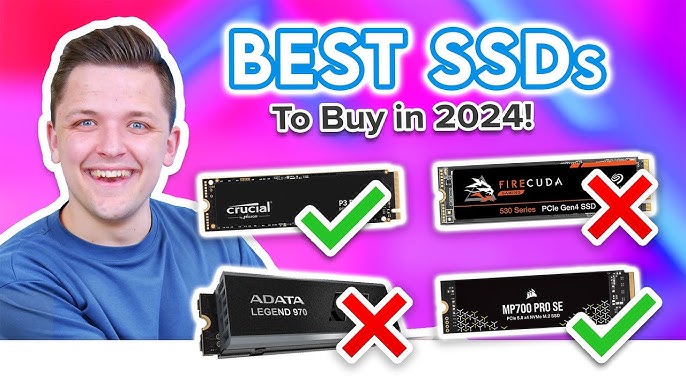
The Best SSD Options Compared
The SSD market changes often. Prices can shift each week, so value matters as much as specifications. The following drives are good starting points because they have strong performance, mature firmware, and useful support tools.
Samsung 990 Pro
The Samsung 990 Pro is one of the best SSD choices for users who want excellent all-around performance. It uses PCIe 4.0, TLC NAND, and a dedicated controller with DRAM cache.
It performs well in operating system tasks, game loading, application work, and large file transfers. Samsung also provides management software for firmware updates, health checks, secure erase, and drive monitoring.
The main drawback is price. It is often more expensive than competing drives, and its performance advantage may be small during normal web browsing or office work.
WD Black SN850X
The WD Black SN850X is a strong gaming SSD and a great alternative to the 990 Pro. It offers high sequential speeds, good random performance, and optional gaming software features.
It works especially well in a desktop with an M.2 heatsink. Some versions include a heatsink, while others do not, so check the exact model before buying.
The SN850X can run warm under long workloads. That is normal for a high-performance NVMe drive, but good airflow still matters.
Crucial T500
The Crucial T500 is a fast PCIe 4.0 SSD that often provides excellent value. It is a good fit for gaming PCs, workstations, and users who move large files.
Its performance is strong without requiring the higher cost of many PCIe 5.0 drives. It also comes in versions with and without a heatsink.
For many buyers, the T500 is the best SSD when it is clearly cheaper than the Samsung 990 Pro and WD Black SN850X.
SK hynix Platinum P41
The SK hynix Platinum P41 is known for efficient performance and strong laptop behavior. It delivers fast response times while using less power than some competing high-end drives.
That lower power use can help laptops run cooler and preserve battery life. It is also a quiet choice because it does not need an active fan.
Availability and sale prices can vary. If you find it at a good price, it is one of the best SSD options for a laptop or compact PC.
WD Blue SN580
The WD Blue SN580 is a practical midrange drive for everyday computing. It is not designed to beat premium drives in every benchmark, but it feels fast for Windows, school work, office apps, and gaming.
It is a good choice for users who want an affordable NVMe SSD from a recognized brand. Its lower price makes it attractive for a second drive or a budget gaming build.
Samsung 870 EVO and Crucial MX500
A SATA SSD remains useful for older desktops, laptops, and systems without an M.2 slot. The Samsung 870 EVO and Crucial MX500 are well-known SATA choices.
They are much faster than hard drives but slower than modern NVMe SSDs. If your computer only supports SATA, the best SSD is usually a reliable 2.5-inch SATA model rather than an expensive NVMe drive you cannot install.
NVMe vs. SATA: Which SSD Type Should You Buy?
The two main consumer SSD types are SATA and NVMe. They use different connections and offer different levels of performance.
SATA SSDs connect through the same basic interface used by many 2.5-inch hard drives. Their real-world speed usually reaches about 500 to 560 MB/s.
NVMe SSDs use the PCI Express bus. Modern PCIe 3.0, PCIe 4.0, and PCIe 5.0 drives can be much faster than SATA models. They usually come in a small M.2 2280 shape that fits directly into a motherboard slot.
SATA SSD advantages
• Works with many older laptops and desktops
• Runs cool and uses little power
• Offers a large improvement over a hard drive
• Often costs less per gigabyte
• Easy to use as secondary storage
NVMe SSD advantages
• Much higher sequential speeds
• Better performance during heavy multitasking
• Small M.2 form factor
• Excellent for modern gaming and creative work
• Better long-term choice for new computers
For a new PC, NVMe is usually the best SSD type. For an older system, confirm the available slot before ordering. An M.2 slot may support SATA, NVMe, or both.

PCIe 3.0, PCIe 4.0, or PCIe 5.0?
PCIe describes the connection between the SSD and the rest of the computer. Each generation increases available bandwidth.
PCIe 3.0 NVMe SSDs can reach roughly 3,000 to 3,500 MB/s in ideal sequential tests. PCIe 4.0 models can approach 7,000 to 7,500 MB/s. PCIe 5.0 drives can exceed 10,000 MB/s in some specifications.
These numbers look dramatic, but daily use is different. Windows startup, web browsing, and most game loading tasks do not double in speed every time the interface doubles.
PCIe 3.0
PCIe 3.0 is still good for office work, school tasks, older gaming PCs, and affordable upgrades. It is also often cooler and cheaper.
PCIe 4.0
PCIe 4.0 is the current sweet spot for most buyers. It offers excellent speed, broad support, and a large selection of reliable drives.
PCIe 5.0
PCIe 5.0 is best for users who move very large files, edit high-resolution video, run demanding professional workloads, or want the newest technology. These drives can cost more and produce more heat.
A PCIe 5.0 SSD will usually work in a PCIe 4.0 slot, but it will run at the older slot’s speed. Compatibility works backward, but performance does not exceed the system limit.
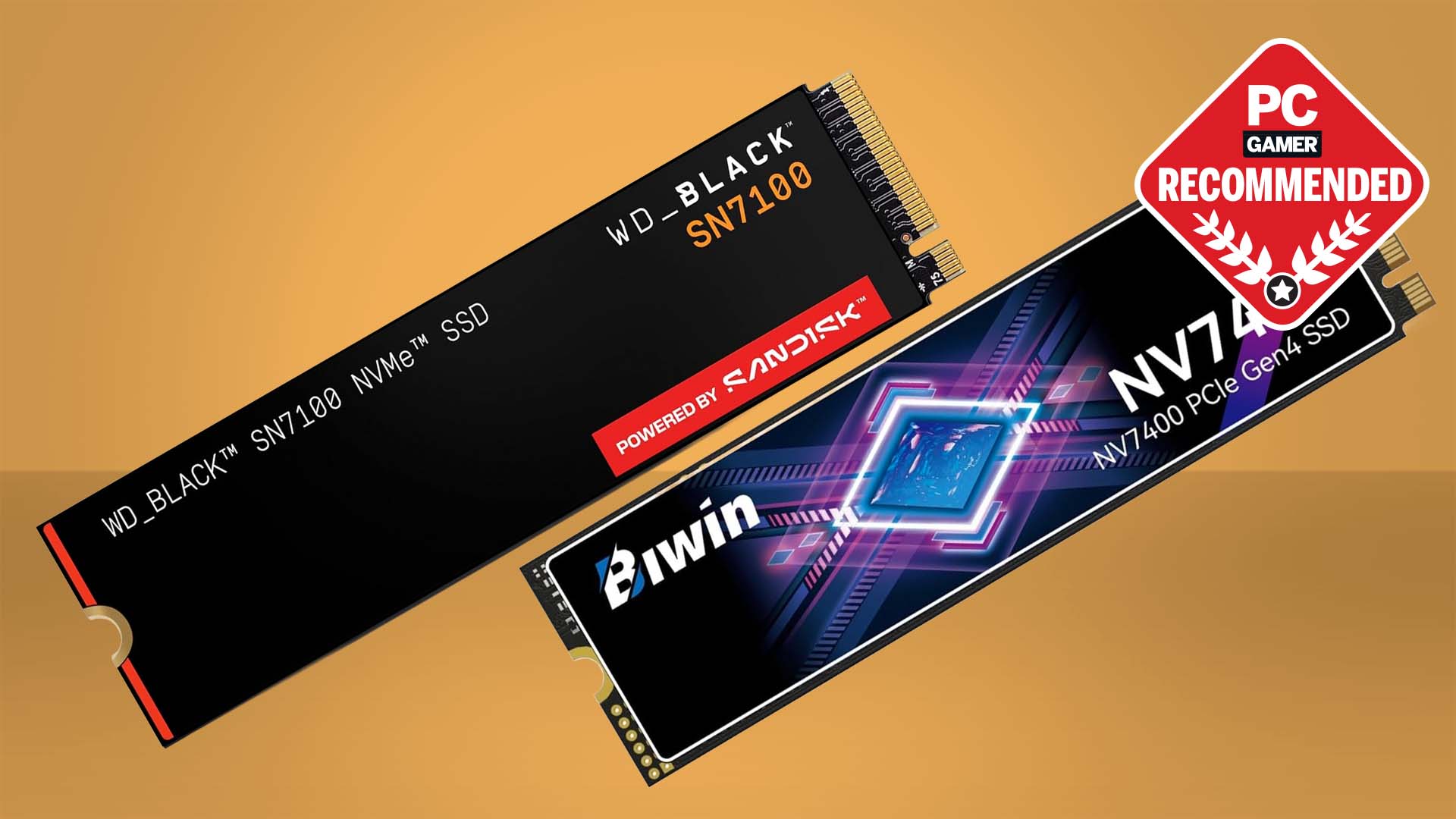
What SSD Specifications Matter Most?
SSD product pages can feel like a wall of numbers. Some specifications matter a lot. Others matter mainly in benchmarks.
NAND type
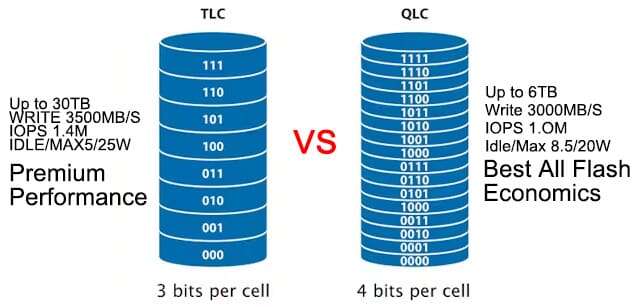
TLC NAND stores three bits per cell. It usually offers a strong balance of speed, endurance, and price.
QLC NAND stores four bits per cell. It allows higher capacity at a lower cost, but sustained write speed and endurance may be lower.
For a main system drive, TLC is often the best SSD choice. QLC can still work well for games, media, backups, and light everyday use.
DRAM cache
Some SSDs include dedicated DRAM. Others use Host Memory Buffer, or HMB, to borrow a small amount of system memory.
DRAM can help with mapping data and sustained workloads. A DRAM-less SSD is not automatically bad, but it may slow down more during long writes or when the drive becomes nearly full.
Sequential speed
Sequential speed measures large, continuous transfers. It matters when you copy large videos, disk images, or project folders.
It matters less when opening small apps or browsing the web. A drive with a lower advertised speed can still feel very fast in normal use.
Random performance
Random read and write performance measures many small operations. This is closer to how an operating system and applications use storage.
High random performance can improve responsiveness, but benchmark results do not always create a visible difference between two good NVMe drives.
Endurance
Endurance is often listed as TBW, or terabytes written. It estimates how much data a drive can write during its rated life.
A typical home user may write far less data than expected. Gaming, browsing, and office use usually do not create extreme write loads. Video production, virtual machines, databases, and scratch disks can write much more.
Warranty
A five-year warranty is common among premium SSDs. Check both the warranty period and the TBW limit because some warranties end when either limit is reached.
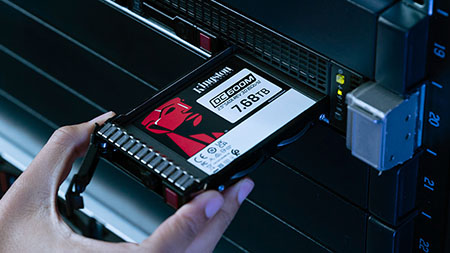
How Much SSD Storage Do You Need?
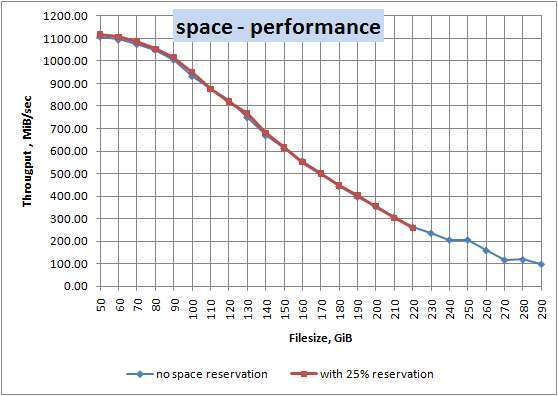
Capacity affects comfort more than many buyers expect. A nearly full SSD can become slower, harder to manage, and less useful for updates.
500GB
A 500GB SSD works for basic office use, school work, and a small number of games. After formatting and system files, the usable space will be lower than the number on the box.
1TB
A 1TB SSD is the best starting point for most people. It provides room for the operating system, applications, documents, and several large games.
2TB
A 2TB SSD is ideal for gaming, photography, video editing, and users who want fewer storage upgrades. It often offers better value per gigabyte than a 1TB model.
4TB and larger
Large SSDs suit professionals and people with extensive game or media libraries. Before buying, compare the total cost with a smaller SSD plus a hard drive or external backup.
Try to keep at least 10% to 20% of the drive free. Free space gives the controller room to manage data and can help maintain performance.