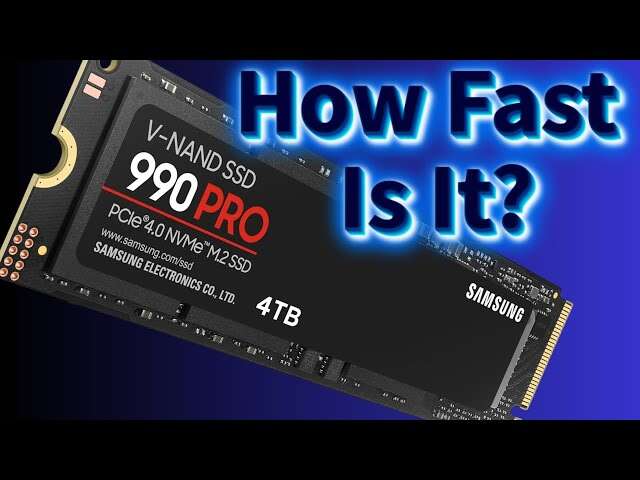
An SSD can read data from about 500 MB/s to more than 14,000 MB/s, depending on its type and interface.
How fast is an SSD in daily use? The answer depends on more than the number on the box. SATA, NVMe, PCIe generation, drive capacity, workload, temperature, and even your computer’s motherboard all affect real speed. This guide explains SSD speed in simple terms, compares common drive types, and shows what performance you can expect in real life.
How Fast Is an SSD?
A modern SSD can be anywhere from 500 MB/s to over 14,000 MB/s for sequential read speed. SATA SSDs sit near the lower end, while high-end PCIe 5.0 NVMe SSDs sit near the top.
Here is a simple comparison:
| SSD type | Typical sequential read speed | Common use |
|---|---|---|
| SATA SSD | 450–550 MB/s | Older laptops, desktops, upgrades |
| PCIe 3.0 NVMe SSD | 2,000–3,500 MB/s | General computing and gaming |
| PCIe 4.0 NVMe SSD | 5,000–7,500 MB/s | Fast gaming and professional work |
| PCIe 5.0 NVMe SSD | 10,000–14,500 MB/s | High-end systems and heavy workloads |
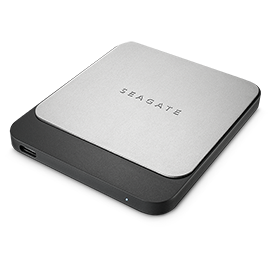
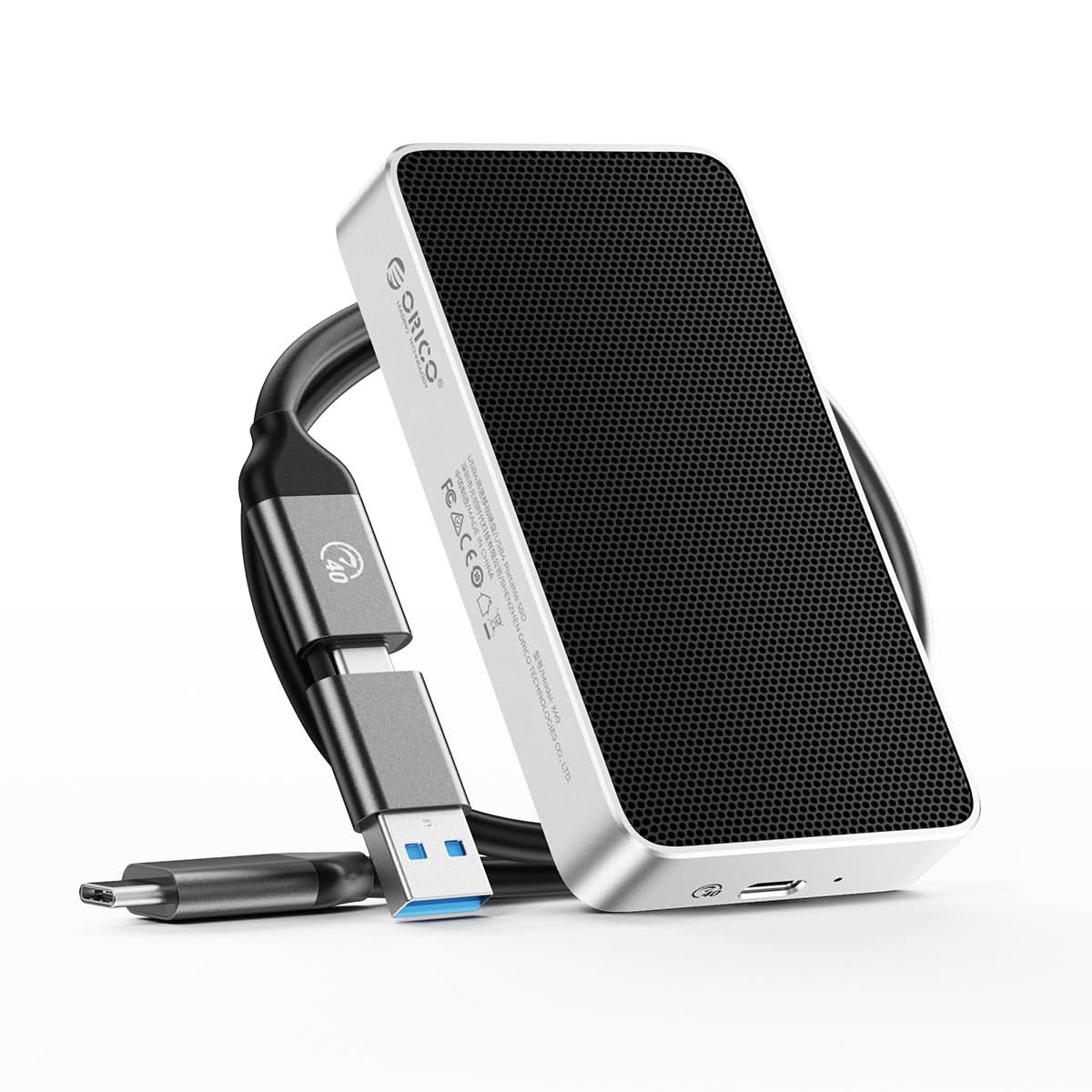
| External USB SSD | 400–2,000 MB/s | Portable storage and backups |
These figures describe sequential performance. That means reading or writing large blocks of data in order, such as a large video file. Small file performance uses random read and write tests, which often matter more for booting Windows, opening apps, and loading game files.
In everyday use, even a basic SATA SSD feels much faster than a hard disk drive. A good NVMe SSD is faster in benchmarks, but the difference between SATA and NVMe may feel small when you browse the web or open office files.

SSD Speed Explained: MB/s, GB/s, and IOPS
SSD speed is usually shown in megabytes per second, or MB/s. Some newer product pages use gigabytes per second, or GB/s.
The conversion is simple:
• 1 GB/s equals about 1,000 MB/s.
• 3,500 MB/s equals about 3.5 GB/s.
• 7,000 MB/s equals about 7 GB/s.
Manufacturers often list the best possible sequential read speed. Your real result may be lower because of the operating system, drive temperature, available space, and the type of files being moved.
IOPS means input/output operations per second. It measures how many small read or write tasks an SSD can handle. High IOPS can improve system responsiveness, especially when many programs access files at the same time.
Latency is another key measure. It describes how long the drive takes to respond to a request. An SSD has much lower latency than a hard drive because it has no spinning platters or moving heads.
A useful way to think about it is this:
• Sequential speed is like the speed of a delivery truck on a highway.
• Random performance is like how quickly a courier can deliver many small packages around a city.
• Latency is the time before the courier starts moving.
SATA SSD vs. NVMe SSD Speed
The main difference between SATA and NVMe SSDs is the connection they use.
SATA SSDs communicate through the Serial ATA interface. SATA III has a link speed of 6 gigabits per second, but protocol overhead limits real-world performance to roughly 500–550 MB/s.
NVMe SSDs use the PCI Express bus. This gives them far more bandwidth and much lower command overhead. A PCIe 3.0 NVMe drive can reach around 3,500 MB/s, while PCIe 4.0 models can reach about 7,000 MB/s.
Here is what the difference often feels like:
• A SATA SSD can boot Windows quickly and make an old computer feel new.
• A PCIe 3.0 NVMe SSD can load large projects and games faster.
• A PCIe 4.0 NVMe SSD can move very large files in much less time.
• A PCIe 5.0 NVMe SSD can deliver extreme benchmark results, but it may not feel twice as fast for normal desktop tasks.
In my experience with SSD upgrades, moving from a hard drive to any good SATA SSD creates the biggest improvement. Moving from SATA to NVMe is still useful, but the benefit is clearer when you copy large files, edit video, compile software, or use virtual machines.
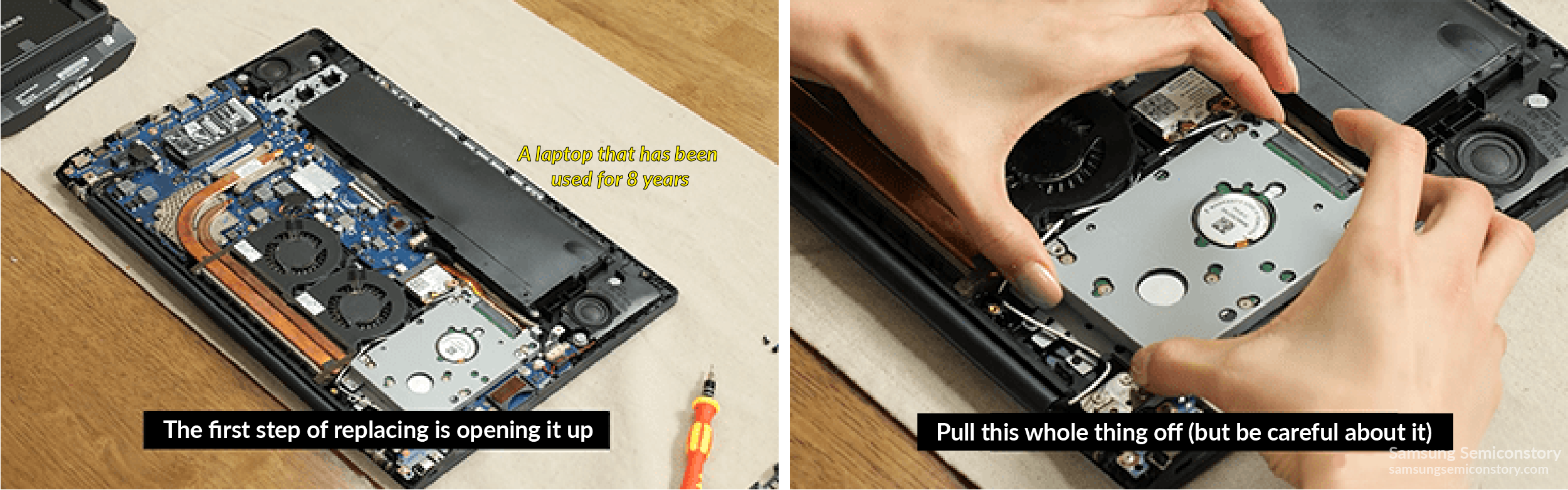
Compatibility matters too. An M.2 drive is not automatically an NVMe drive. Some M.2 SSDs use SATA, while others use NVMe over PCIe. Check your computer’s manual before buying.

PCIe 3.0, PCIe 4.0, and PCIe 5.0 SSD Speeds
PCIe generation has a major effect on NVMe SSD performance.
A PCIe 3.0 x4 SSD can usually reach about 3,000–3,500 MB/s in sequential reads. PCIe 4.0 x4 drives commonly reach 5,000–7,500 MB/s. PCIe 5.0 x4 drives can exceed 10,000 MB/s, with some models reaching around 14,000 MB/s.
The “x4” means the SSD uses four PCIe lanes. More lanes provide more bandwidth, although the drive, controller, and motherboard must all support the required speed.
Your system must support the same PCIe generation for full performance. A PCIe 4.0 SSD can work in a PCIe 3.0 slot, but it will usually operate close to PCIe 3.0 limits. The drive will not become damaged, but you will not receive its advertised top speed.
PCIe 5.0 SSDs also create more heat. Many need a large heatsink or motherboard cooling cover. If the controller becomes too hot, the drive reduces its speed to protect itself. This behavior is called thermal throttling.
A fast SSD with poor cooling can become slower than a well-cooled model during a long file transfer. That is why sustained performance is often more important than the highest peak number.
What Affects Real-World SSD Speed?
Several factors can make an SSD faster or slower than its product specifications suggest.
Drive capacity
Larger SSDs often perform better than smaller versions of the same model. They have more NAND flash memory channels available for parallel work. A 1TB model may also have better sustained write performance than a 500GB version.
Free storage space
An SSD needs spare space to manage data and maintain performance. When a drive becomes nearly full, its write speed can drop and background cleanup can increase.
Try to keep at least 10% to 20% of the drive free. The exact amount varies by model, but leaving room usually helps long-term performance.
SLC cache
Many consumer SSDs use a portion of their flash memory as a faster SLC cache. Short file transfers may look extremely fast because they fit inside this cache.
Once the cache fills, the drive may switch to slower TLC or QLC write speeds. This explains why a drive rated at 7,000 MB/s may fall to several hundred or a few thousand MB/s during a long transfer.
NAND type
TLC NAND stores three bits per cell and usually offers a good balance of speed, endurance, and price. QLC NAND stores four bits per cell, which allows lower prices and higher capacities but can reduce sustained write speed.
QLC SSDs can still be excellent for games, documents, photos, and normal home use. They are less ideal for constant heavy writing, such as professional video capture or large database work.
Temperature
Heat affects SSD speed. When the controller reaches its thermal limit, firmware lowers performance. Use the motherboard heatsink when available, and make sure airflow reaches the drive.
Computer limitations
The SSD is only one part of the system. A slow USB port, older PCIe slot, weak processor, limited memory, or slow source drive can become the bottleneck.
How Fast Is an SSD for Gaming?
An SSD makes games load much faster than a hard drive. It can reduce long loading screens, speed up level transitions, and improve the launch time of large games.
However, a faster SSD does not always increase frame rate. Frames per second depend mainly on the graphics card, processor, game engine, and settings.
A PCIe 3.0 NVMe SSD is already fast enough for most gaming PCs. A PCIe 4.0 drive may reduce some load times, but the difference is not always large. PCIe 5.0 SSDs offer impressive benchmark numbers, yet most games do not use their full sequential speed.
Newer games that use technologies such as DirectStorage may benefit more from fast storage. Even then, the game, processor, graphics card, and software must support the feature.
For most gamers, these features matter more than the highest advertised speed:
• Low random read latency
• Stable performance during long sessions
• Good thermal control
• Enough free space
• Reliable firmware
• A strong warranty
A reasonably priced 1TB or 2TB NVMe SSD is often a better gaming choice than an expensive flagship model with speed you will rarely use.

How Fast Is an SSD for File Transfers?
File transfer speed depends on both the SSD and the other drive involved. If you copy files from a slow hard drive to a fast NVMe SSD, the hard drive limits the transfer.
Large files usually transfer faster than many small files. A single 50GB video may copy near the drive’s sequential rating for part of the transfer. A folder containing thousands of small photos may move much more slowly.
Theoretical transfer time is easy to estimate:
-
Convert the file size to megabytes.
-
Divide the file size by the SSD’s real transfer speed.
-
Add extra time for file system work and performance changes.
For example, copying a 100GB file at a steady 1,000 MB/s would take about 100 seconds. In practice, the transfer may take longer because of cache limits, the source drive, temperature, and background tasks.
USB also changes the result. A portable SSD connected to USB 3.2 Gen 2 may reach around 900–1,050 MB/s. USB 3.2 Gen 2×2 can approach 2,000 MB/s, while USB4 systems may support even more, depending on the enclosure and host device.
The cable matters too. A fast external SSD connected with the wrong cable or port may run at a much lower speed.
How Fast Is an SSD Compared With a Hard Drive?
A hard drive often reaches about 80–200 MB/s for sequential transfers. Its random performance is far lower because the read and write head must physically move across spinning platters.
A SATA SSD can deliver roughly 500 MB/s and responds much faster to small file requests. This makes the computer feel quicker even when the difference in sequential speed seems modest.
Here is a general comparison:
• Hard drive: 80–200 MB/s sequential speed
• SATA SSD: 450–550 MB/s
• PCIe 3.0 NVMe SSD: 2,000–3,500 MB/s
• PCIe 4.0 NVMe SSD: 5,000–7,500 MB/s
The most noticeable benefits of an SSD include:
• Faster operating system startup
• Quicker application launches
• Less waiting when opening folders
• Faster game loading
• Smoother multitasking
• Lower noise and power use
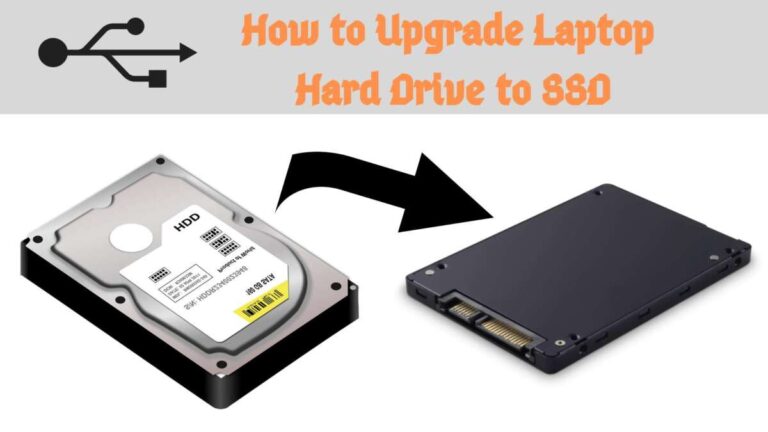
In practical upgrades, replacing a hard drive with a SATA SSD usually produces a dramatic improvement. The computer may feel several years newer without changing the processor or memory.

How to Test SSD Speed Correctly
You can test SSD speed with a trusted benchmark tool, but read the results carefully. A benchmark shows performance under specific conditions, not every task you perform.
Before testing, close large programs and allow the system to sit for a few minutes. Make sure the SSD has free space and is not already hot from a long transfer.
Use these steps:
-
Identify the SSD model and interface.
-
Check whether it runs through SATA, PCIe 3.0, PCIe 4.0, or PCIe 5.0.
-
Run both sequential and random tests.
-
Repeat the test after a short rest.
-
Compare the result with reviews of the same model.
-
Test sustained writes if you move large files often.
Popular benchmark programs report sequential MB/s, random IOPS, and access time. Do not worry if your result is slightly below the box rating. Manufacturers test under controlled conditions, and your computer may use different hardware or software.
One common mistake is testing a nearly empty drive and assuming it will keep the same write speed forever. For a realistic result, test with the drive partly full and include a large transfer.
How to Choose the Right SSD Speed
The fastest SSD is not always the best SSD. Choose based on your workload, computer, budget, and capacity needs.
For basic home and office use
A SATA SSD or affordable PCIe 3.0 NVMe SSD is enough. Web browsing, email, documents, and streaming do not need extreme bandwidth.
For gaming
Choose a reliable NVMe SSD with at least 1TB of capacity. PCIe 4.0 is a strong choice for a new gaming PC, but PCIe 3.0 still works well in many systems.
For photo and video editing
Look for high sustained write speed, good cooling, and enough capacity. A TLC NVMe SSD is often a safer choice than a small QLC drive if you regularly work with large media files.
For professional workloads
Developers, engineers, and creators may benefit from high random performance, strong endurance, and consistent writes. Check the drive’s total bytes written rating, warranty, and independent sustained-performance tests.
For older computers
First check whether the system supports M.2 NVMe drives. If not, a 2.5-inch SATA SSD may be the simplest and most effective upgrade.
During hands-on upgrades, I have seen people spend extra on a top-end SSD while using an old motherboard that could not support its interface. Checking compatibility first is one of the easiest ways to avoid wasted money.
SSD Speed, Endurance, and Reliability
Speed is important, but it should not be the only buying factor. SSD endurance describes how much data the drive is designed to write over its useful life.
Manufacturers often list endurance as TBW, or terabytes written. A higher TBW rating can matter for systems that write large amounts of data every day.
Other details worth checking include:
• Warranty length
• NAND type
• Controller reputation
• Power-loss protection
• Firmware support
• Sustained write behavior
• Temperature limits
Consumer SSDs usually manage wear automatically. This process is called wear leveling. The controller spreads writes across memory cells so that one area does not wear out too quickly.
Still, backups remain essential. No SSD is immune to failure, corruption, accidental deletion, or theft. Keep important files in at least two separate locations, with one backup stored away from the computer.
A fast SSD is valuable, but dependable storage is even more valuable when the files cannot be replaced.
Common Mistakes That Reduce SSD Performance
Many slow SSD problems come from setup errors rather than defective hardware.
Avoid these mistakes:
• Installing an NVMe SSD in a slot that supports only SATA
• Using a PCIe 4.0 drive in a slower slot and expecting full speed
• Filling the drive to nearly 100% capacity
• Ignoring motherboard heatsinks
• Testing with a slow source drive
• Using a low-speed USB port
• Choosing a drive based only on peak read speed
• Skipping firmware updates when a known issue exists
• Placing the SSD next to a hot graphics card without airflow
You should also check whether the drive shares PCIe lanes with another device. Some motherboards reduce or disable certain ports when specific M.2 slots are used.
If an SSD suddenly becomes slow, check free space, temperature, drive health, background tasks, and connection mode before replacing it. A simple cooling or configuration issue may be the cause.
Frequently Asked Questions About How Fast Is an SSD
How fast is a SATA SSD?
A SATA SSD usually reaches about 450–550 MB/s for sequential reads and writes. It is much faster and more responsive than a hard drive, even though it is slower than an NVMe SSD.
How fast is an NVMe SSD?
An NVMe SSD can range from about 2,000 MB/s on PCIe 3.0 to more than 14,000 MB/s on high-end PCIe 5.0 models. Real speed depends on the PCIe generation, drive capacity, cooling, and workload.
Is an SSD faster than a hard drive?
Yes, an SSD is much faster for startup, app launches, random file access, and most daily tasks. A SATA SSD can also deliver several times the sequential speed of a typical hard drive.
Is a PCIe 4.0 SSD worth it for gaming?
A PCIe 4.0 SSD is a good choice for a new gaming computer, but it may not produce a major frame rate increase over a PCIe 3.0 model. Its benefits are clearer during large file transfers and some game loading tasks.
Does a faster SSD make a computer faster?
A faster SSD can reduce load times and improve file transfers, but it cannot fix a weak processor, limited memory, or slow graphics card. The biggest improvement usually comes from replacing a hard drive with any quality SSD.
Why does my SSD slow down during a large transfer?
The drive may have exhausted its fast SLC cache, reached a high temperature, or run low on free space. The source drive, USB connection, and background programs can also limit transfer speed.
How much free space should an SSD have?
Keeping about 10% to 20% free is a useful general rule. Extra space helps the SSD manage deleted data, wear leveling, and background maintenance.
Conclusion
So, how fast is an SSD? SATA models usually reach around 500 MB/s, PCIe 3.0 NVMe drives can reach 3,500 MB/s, PCIe 4.0 models approach 7,000 MB/s, and high-end PCIe 5.0 drives can exceed 10,000 MB/s.
The best choice depends on your computer and workload. For most people, capacity, reliability, cooling, and sustained performance matter more than the highest peak number on the product box. Check your motherboard, leave free space, and choose an SSD that matches the work you actually do. Share your SSD model and benchmark results in the comments, or explore more storage guides to plan your next upgrade.

Everett Ashford is a tech reviewer at mytechgrid.com specializing in SSDs, cameras, TVs, earbuds, headphones, and other consumer electronics. He provides honest, data-driven reviews based on hands-on testing and real-world performance analysis. Everett simplifies complex tech details to help readers make smart, confident buying decisions.