Yes, NVMe drives are usually faster than SATA SSDs because they use PCIe for much higher data speeds.
The question “is NVMe faster than SSD” needs one small clarification: NVMe is a storage protocol, while SSD is a broad type of storage device. Most people compare an NVMe SSD with a SATA SSD, and that comparison shows clear gains in speed, latency, and performance in demanding tasks. This guide explains the real-world difference, the limits, the costs, and which drive makes sense for your computer.
Is NVMe faster than SSD?
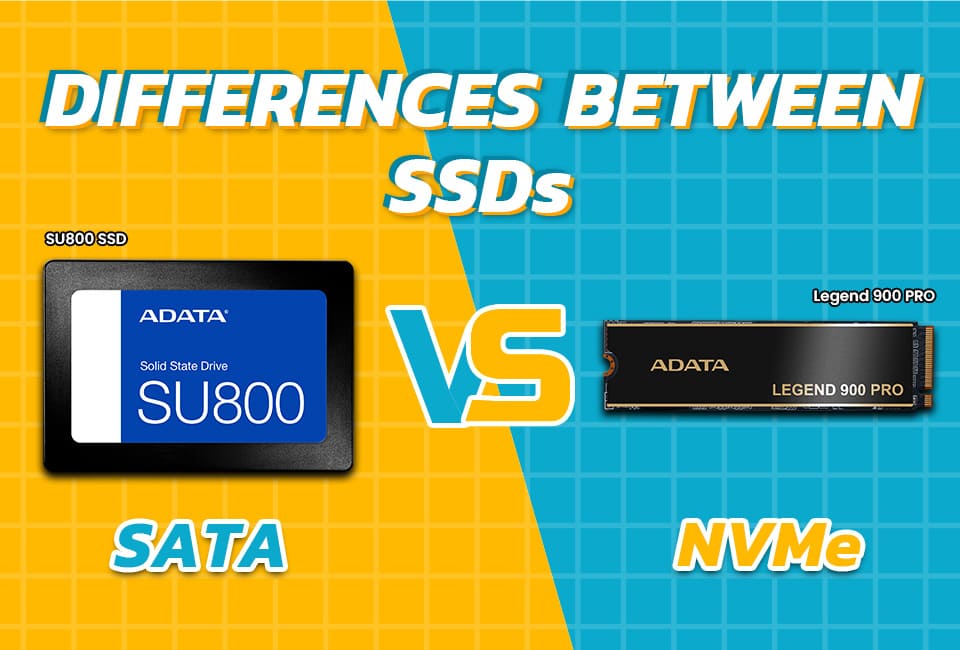
Yes, an NVMe SSD is generally faster than a SATA SSD. NVMe drives connect through PCIe lanes, while most SATA SSDs use the older SATA interface.
The difference can be large on paper:
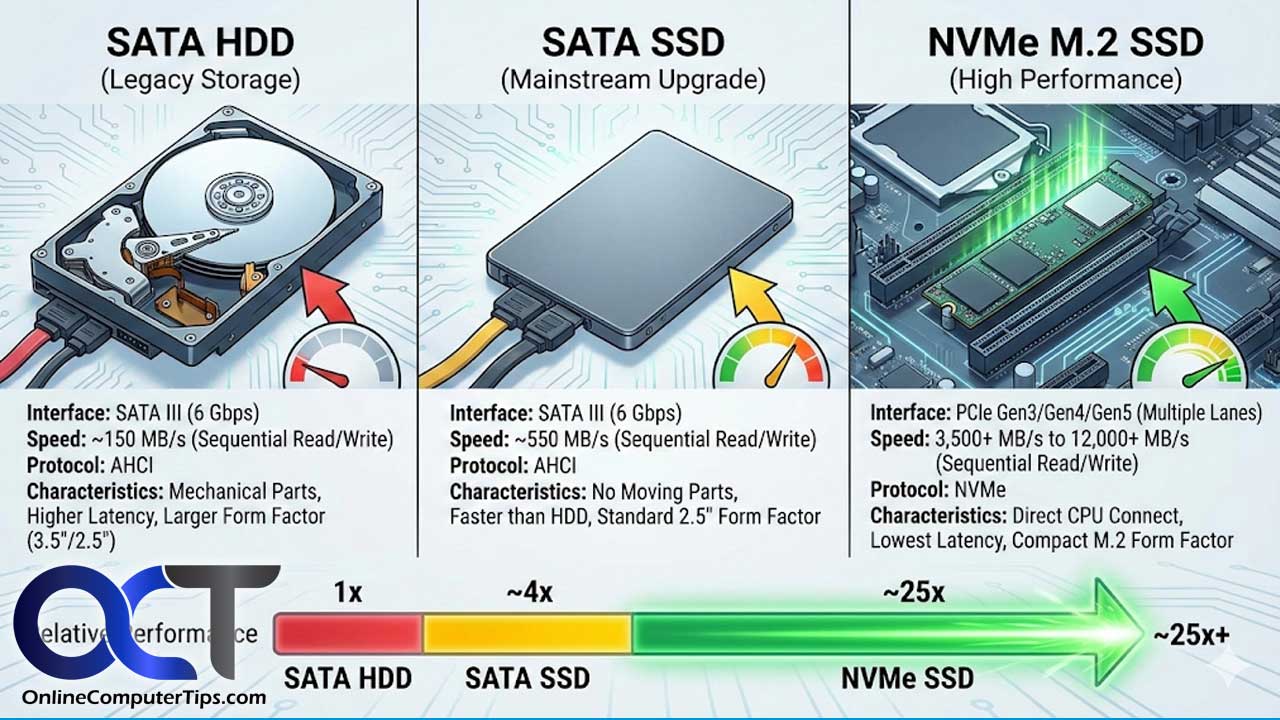
• A SATA SSD usually reaches about 500 to 550 MB/s.
• A PCIe 3.0 NVMe SSD can reach around 3,000 to 3,500 MB/s.
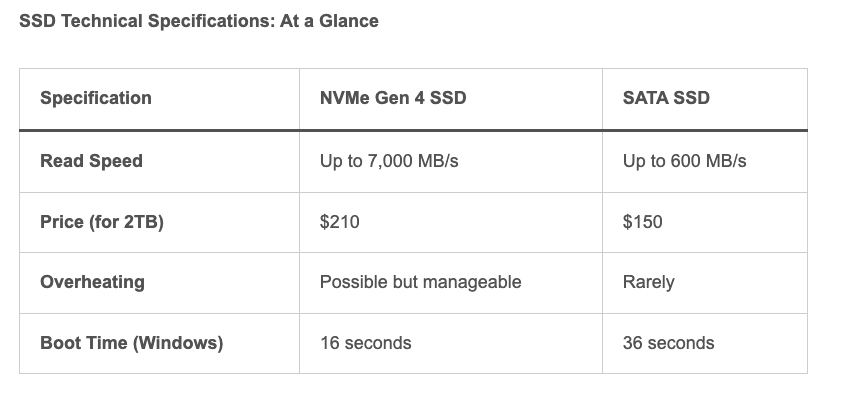
• A PCIe 4.0 NVMe SSD can often reach 5,000 to 7,400 MB/s.
• Some PCIe 5.0 NVMe SSDs can exceed 10,000 MB/s under ideal conditions.
These figures describe sequential read and write speeds. They are useful for copying large files, editing video, and moving game libraries. They do not always show how fast your computer will feel during normal tasks.
For everyday work, both drives are already much faster than a hard disk drive. Windows can boot quickly from either one. Apps can open in seconds, and files can load without the long pauses common with hard drives.
So, is NVMe faster than SSD? It depends on what you mean by “SSD.” NVMe drives are SSDs. The more accurate comparison is NVMe SSD versus SATA SSD.
What is an NVMe SSD?
NVMe stands for Non-Volatile Memory Express. It is a communication protocol built for flash storage, such as modern solid-state drives.
Older SATA SSDs use the AHCI protocol. AHCI was designed for hard drives, which rely on moving parts and mechanical heads. NVMe was designed from the start for flash memory, so it can handle many more commands with lower delay.
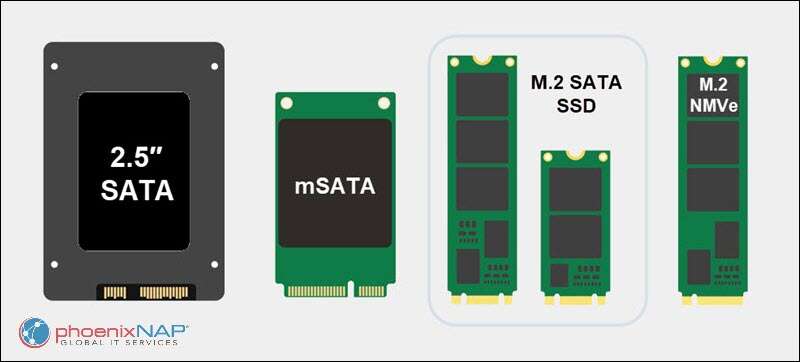
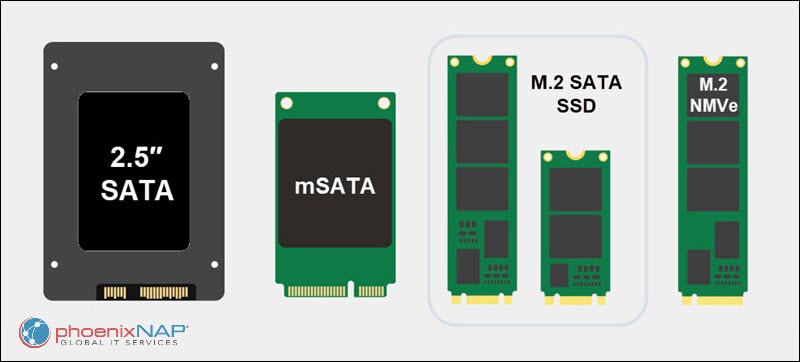
An NVMe SSD usually connects through an M.2 slot on the motherboard. However, M.2 describes the shape and connector, not the speed. Some M.2 drives use SATA, while others use NVMe over PCIe.
That detail causes many buying mistakes. An M.2 SATA SSD may look just like an M.2 NVMe drive, but it will not offer the same performance. Always check the drive type and the motherboard manual before buying.
The simplest way to remember it is this:
• SSD describes the storage device.
• NVMe describes the protocol used to communicate with the storage device.
• PCIe describes the connection used by most NVMe drives.
• M.2 describes a common physical form factor.
.png?format\u003dwebp)
How NVMe and SATA SSD speeds compare
The main reason people ask “is NVMe faster than SSD” is the large difference in interface bandwidth.
SATA III is limited to about 6 gigabits per second. After overhead, a SATA SSD usually tops out near 550 MB/s. This limit affects even high-quality SATA drives.
NVMe drives use PCIe. A PCIe lane can carry far more data than SATA. Newer PCIe generations add more bandwidth, which allows faster NVMe SSDs.
Here is a simple comparison:
| Drive type | Typical sequential read speed | Common use |
|---|---|---|
| Hard disk drive | 80 to 200 MB/s | Bulk storage |
| SATA SSD | 450 to 550 MB/s | Everyday computing |
| PCIe 3.0 NVMe SSD | 2,000 to 3,500 MB/s | General use and gaming |
| PCIe 4.0 NVMe SSD | 5,000 to 7,400 MB/s | High-performance PCs |
| PCIe 5.0 NVMe SSD | 10,000 MB/s or more | Advanced workstations |
These numbers are maximum ratings. Actual performance depends on the computer, file size, temperature, storage capacity, controller, NAND type, and remaining free space.
A drive may also slow down after its cache fills. This is common during very large transfers. For example, an NVMe SSD may write at several thousand MB/s at first, then drop to a lower sustained speed after its dynamic cache is exhausted.
NVMe versus SSD: real-world performance
Raw speed is only part of the story. The practical benefit depends on the task.
Boot time and app loading
An NVMe SSD can be faster than a SATA SSD when starting Windows or launching large programs. However, the difference may be small because these tasks also depend on the processor, memory, drivers, and software design.
A computer that boots in 15 seconds with a SATA SSD may boot in 12 seconds with an NVMe SSD. That is an improvement, but it may not feel dramatic.
The jump from a hard drive to any SSD is much more noticeable. If you are still using a hard drive as your main system drive, replacing it should be your first upgrade.
Gaming
Modern games can benefit from NVMe storage, especially when they stream large game worlds and detailed textures. Newer game technologies are designed to move assets from storage to memory more efficiently.
Still, an NVMe SSD does not usually double your frame rate. Frame rate depends mostly on the graphics card, processor, game settings, and display resolution.
In many games, loading times may improve by only a few seconds compared with a good SATA SSD. The difference can become more important with large open-world games and future titles that rely heavily on fast asset streaming.
Video editing
NVMe drives are more useful for video editors. Large video files require high sustained read and write speeds, especially when working with 4K, 6K, or 8K footage.
An NVMe SSD can help with:
• Importing large video files
• Creating proxy files
• Scrubbing through high-resolution footage
• Rendering temporary files
• Moving project folders
For a basic 1080p project, a SATA SSD may be enough. For professional work, a fast NVMe SSD can reduce waiting time and make the editing process smoother.
File transfers
Large file transfers are where the answer to “is NVMe faster than SSD” becomes most obvious. Copying a 100 GB video archive can be much faster with NVMe, assuming both the source and destination drive are fast enough.
If you copy files from a SATA SSD to an NVMe SSD, the SATA drive may become the bottleneck. The same problem occurs when transferring files through a slow USB port or a network connection.
Productivity and office work
For email, web browsing, documents, and spreadsheets, the difference is usually modest. Both SATA and NVMe SSDs provide quick response times.
If your budget is limited, more memory or a stronger processor may improve office multitasking more than moving from SATA to NVMe.
Why NVMe is faster than SATA SSDs
NVMe has several technical advantages over the SATA and AHCI design.
More parallel commands
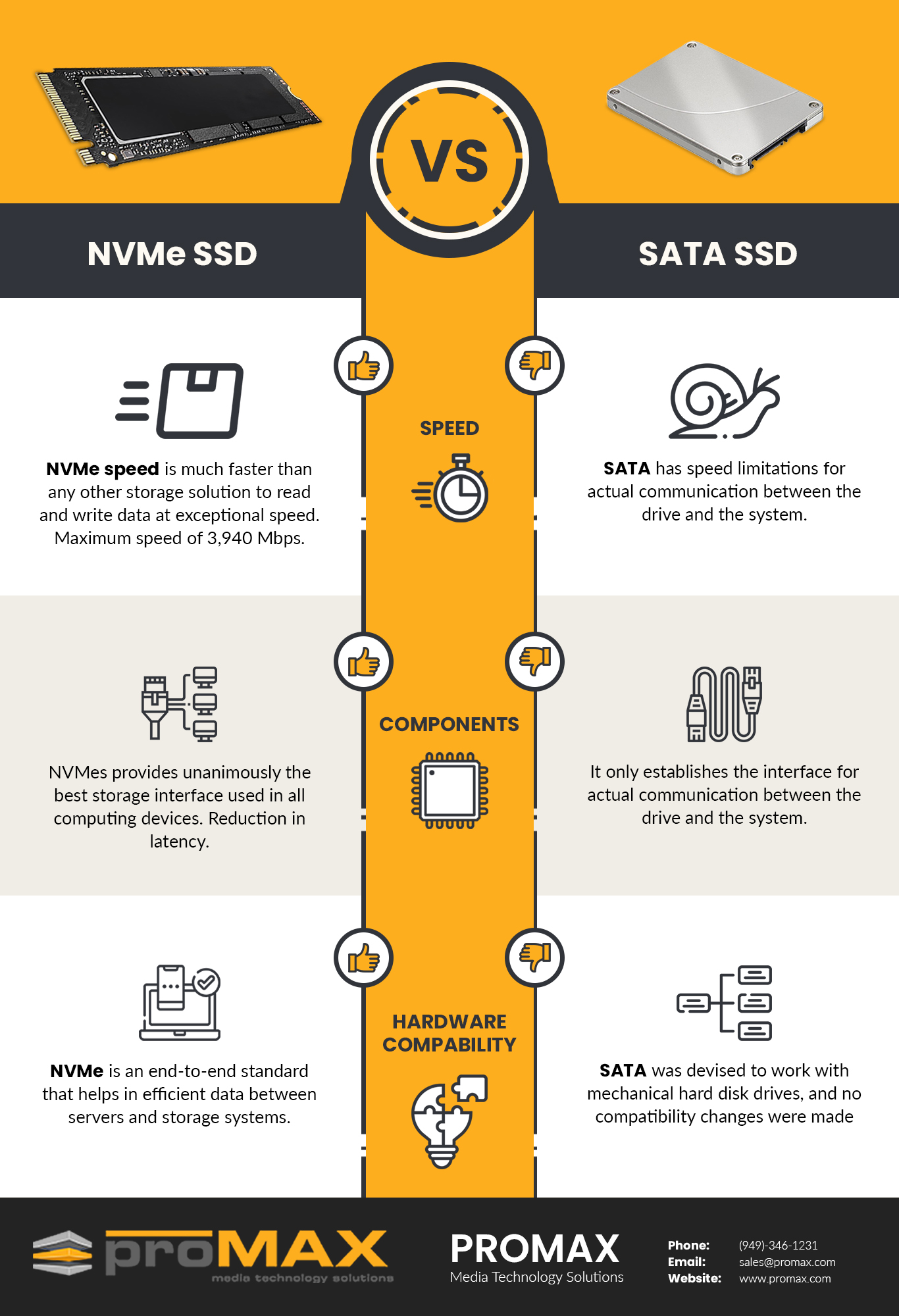
SATA and AHCI support a small command queue. NVMe supports many more queues and commands per queue. This allows the drive to manage heavy workloads with less delay.
Think of SATA as a single checkout lane. NVMe is more like a large store with many lanes. For one small purchase, both may be quick. During a rush, the larger system handles more customers at once.
Lower latency
Latency is the time between requesting data and receiving it. NVMe reduces this delay through a simpler storage path and direct use of PCIe.
Lower latency helps with workloads that make many small requests. These include databases, software development, virtual machines, and professional applications.
Direct PCIe connection
NVMe drives communicate through PCIe, which offers more bandwidth than SATA. PCIe 4.0 and PCIe 5.0 provide even more capacity than PCIe 3.0.
The drive and motherboard must support the same PCIe generation for the best result. A PCIe 4.0 drive can work in many PCIe 3.0 systems, but it will run at the older system’s limit.
When an NVMe SSD may not feel faster
The answer to “is NVMe faster than SSD” is not always obvious during daily use.
Many tasks do not transfer enough data to use the full speed of an NVMe drive. Opening a small document may take nearly the same time on a good SATA SSD because the operation is limited by software and system response.
An NVMe SSD may also provide little benefit when:
• The computer has an older processor.
• The system has too little RAM.
• The work involves light web browsing.
• The storage is connected through a slow adapter.
• The files are stored on a slow external device.
• The software does not use high-speed storage well.
This is why benchmark results and personal experience can differ. A synthetic test may show 7,000 MB/s, while your daily workload may use only a small part of that bandwidth.
There is also a point of diminishing returns. The jump from a hard drive to SATA SSD is huge. The jump from SATA SSD to PCIe 3.0 NVMe is noticeable in some tasks. The jump from PCIe 4.0 to PCIe 5.0 is much harder to notice for many home users.

NVMe SSD advantages and disadvantages
NVMe is not automatically the best choice for every computer. It offers strong performance, but it also has trade-offs.
Advantages of NVMe
• Much higher sequential read and write speeds
• Lower latency than SATA SSDs
• Better performance during heavy multitasking
• Excellent results in video editing and large file transfers
• Small M.2 design that reduces cable clutter
• Strong performance for modern games and professional software
Disadvantages of NVMe
• Some models run hotter than SATA SSDs
• High temperatures can cause thermal throttling
• Older motherboards may not support NVMe boot drives
• Premium models can cost more
• Performance may drop during long writes
• M.2 slots can share bandwidth with other devices
Thermal management matters most with PCIe 4.0 and PCIe 5.0 drives. Some high-speed models work best with a motherboard heatsink or a dedicated M.2 cooler.
Do not cover an NVMe drive with an incompatible heatsink or force it into a slot. Check the motherboard guide, especially if the system has multiple M.2 slots. One slot may support PCIe 4.0, while another may support only PCIe 3.0 or SATA.
Which is better for gaming: NVMe or SATA SSD?
For most gaming PCs, both NVMe and SATA SSDs are good choices. An NVMe SSD is usually better for new builds because it offers higher speed and often costs only slightly more.
Game loading times do not always match the drive’s advertised speed. A game may be limited by its engine, processor, decompression process, or online connection.
Choose NVMe when:
• You are building a new gaming PC.
• The price difference is small.
• You install large modern games.
• You plan to keep the drive for several years.
• Your motherboard has a suitable M.2 PCIe slot.
Choose SATA SSD when:
• You are upgrading an older computer.
• Your motherboard has no NVMe support.
• You need affordable extra storage.
• You already have a good SATA SSD.
• You want a 2.5-inch drive for a laptop or desktop bay.
In a gaming system with a limited budget, prioritize the graphics card first. A faster storage drive cannot replace a capable GPU.
Is NVMe worth it for laptops?
An NVMe SSD can be worth it for a laptop, but compatibility and heat need careful attention.
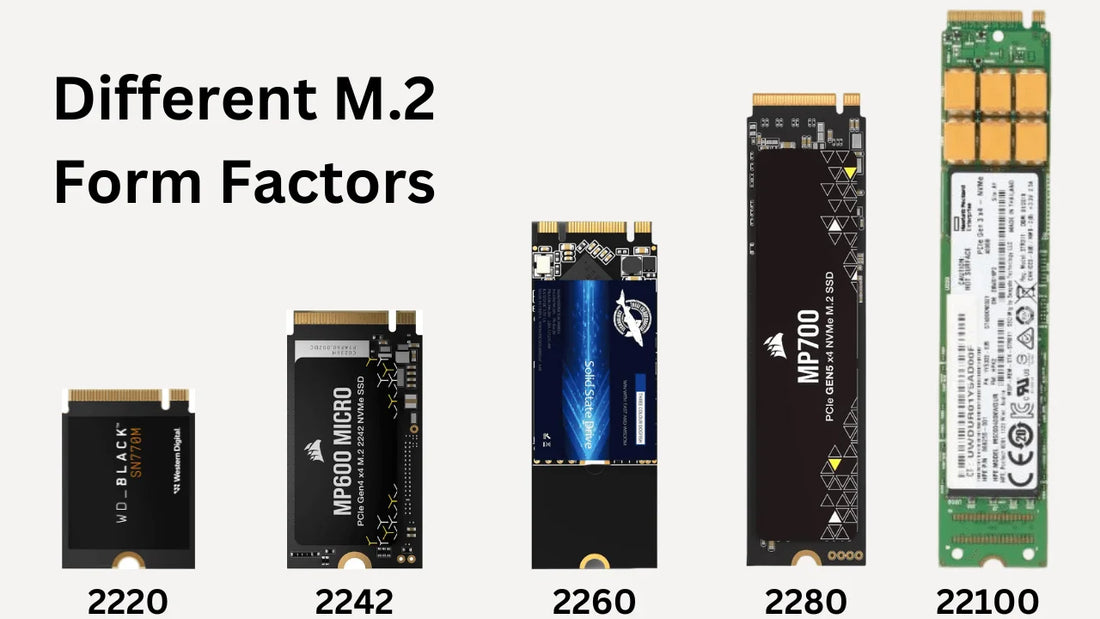
Many modern laptops use an M.2 NVMe slot. Some have only one slot, while others use a custom storage layout. The laptop may also support only certain drive lengths, such as 2280 or 2230.
NVMe drives can use more power during heavy work than SATA SSDs. This may affect battery life and temperature, though the real impact varies by model and workload.
Before upgrading, check:
• The laptop service manual
• The supported M.2 length
• NVMe and PCIe compatibility
• Maximum supported drive capacity
• Whether the laptop has a single-sided drive requirement
A cooler, efficient NVMe model is often a smart choice for a thin laptop. The fastest drive available may not be the best option if it runs hot or uses more power.
How to choose the right NVMe SSD
If you decide that NVMe is right for you, do not choose only by the largest speed number on the box.
Look at the following features:
PCIe generation
PCIe 3.0 drives are still useful for many systems. PCIe 4.0 is a strong choice for most new desktop computers. PCIe 5.0 offers extreme speed but may require better cooling and a newer platform.
A PCIe 5.0 drive will not reach PCIe 5.0 speeds in a PCIe 3.0 slot.
Storage capacity
Larger drives often deliver better performance and endurance than smaller versions of the same model. They also give your computer more room for updates, temporary files, and games.
For a main system drive, 1 TB is a practical starting point for many users. A 2 TB model is useful for large game collections or media projects.
NAND type
TLC NAND often provides a good balance of speed, endurance, and price. QLC NAND can offer more capacity at a lower cost, but sustained write performance may be lower after the cache fills.
Endurance rating
Drive endurance is often listed as TBW, or terabytes written. A higher TBW rating can be useful for video editing, server work, and other write-heavy tasks.
Most home users will not reach the rated limit during normal use. Still, endurance is worth comparing when two drives have similar prices.
Warranty and support
A longer warranty can add peace of mind. Check the warranty period, endurance limit, firmware tools, and the company’s support policy.
Common mistakes when buying an NVMe drive
Many storage upgrades go wrong because buyers focus only on speed.
Avoid these mistakes:
• Confusing M.2 SATA with M.2 NVMe
• Buying a PCIe 5.0 drive for a system that supports only PCIe 3.0
• Ignoring the motherboard’s M.2 slot layout
• Choosing too little storage space
• Forgetting to update the motherboard firmware
• Installing the drive without removing its protective film
• Using a heatsink that does not fit correctly
• Expecting faster storage to improve graphics performance
• Filling the drive nearly to its full capacity
Leaving free space helps many SSDs maintain performance. A drive filled to 95% capacity may have less room for background management and temporary writes.
One practical lesson from storage upgrades is simple: compatibility comes before benchmark speed. A slightly slower drive that works coolly and reliably is better than a faster drive that does not fit, overheats, or runs at reduced speed.
How to install and optimize an NVMe SSD
Installing an NVMe SSD is usually simple, but careful steps prevent problems.
-
Shut down the computer and unplug the power cable.
-
Read the motherboard or laptop manual.
-
Locate the correct M.2 slot.
-
Insert the drive at a slight angle.
-
Press it down gently and secure it with the small screw or latch.
-
Reassemble the computer.
-
Enter the firmware settings and confirm that the drive is detected.
-
Install the operating system or initialize the drive in Windows.
-
Update the SSD firmware when a trusted manufacturer tool recommends it.
-
Keep enough free space for normal operation.
Enable the correct boot mode before installing Windows. Modern systems usually use UEFI. If the drive is not detected, check the slot, firmware settings, motherboard support, and physical installation.
Do not defragment an SSD like a traditional hard drive. Modern operating systems manage SSD optimization through commands such as TRIM. Windows may show this under the Optimize Drives tool.
Is NVMe faster than SSD for external storage?
An external NVMe SSD can be faster than an external SATA SSD, but the connection often limits performance.
A USB 3.2 Gen 2 connection may support around 1,000 MB/s in ideal conditions. USB 3.2 Gen 2×2 can reach around 2,000 MB/s, while Thunderbolt and USB4 systems may offer higher performance.
The enclosure must support the drive and the connection standard. A fast internal NVMe drive inside a slow USB enclosure will not perform like a fast internal drive.
For external storage, check:
• The USB or Thunderbolt standard
• The enclosure controller
• Cable quality
• Heat control
• Power delivery
• Computer port compatibility
This is another reason the answer to “is NVMe faster than SSD” depends on the full system. The slowest part of the storage path sets the practical limit.
NVMe SSD maintenance tips
NVMe drives need little daily maintenance, but a few habits can help them stay reliable.
• Keep the operating system updated.
• Install firmware updates from trusted tools.
• Leave some free storage space.
• Keep the drive within a safe temperature range.
• Maintain regular backups.
• Use a surge protector for desktop systems.
• Avoid interrupting firmware updates.
• Monitor drive health with a reputable utility.
No SSD lasts forever. Flash memory has a limited number of program and erase cycles, though modern drives include wear leveling and spare capacity to manage this process.
Backups matter more than drive type. An NVMe SSD can fail suddenly, just like a SATA SSD or hard drive. Keep at least one separate copy of important photos, work files, and personal records.
Frequently Asked Questions About Is NVMe Faster Than SSD
Is NVMe always faster than a SATA SSD?
NVMe is usually faster, especially for sequential transfers and heavy workloads. However, a high-quality SATA SSD can feel almost as fast during basic tasks such as web browsing, office work, and light app use.
Is an NVMe SSD better for gaming?
An NVMe SSD can reduce some game loading times and may help with modern asset streaming. It will not usually increase frame rates, so the graphics card and processor remain more important for gaming performance.
Can I use an NVMe SSD in any computer?
No. The computer must have an M.2 slot with NVMe and PCIe support, or a compatible PCIe adapter. Always check the motherboard or laptop manual before purchasing a drive.
Is PCIe 4.0 NVMe faster than PCIe 3.0 NVMe?
Yes, PCIe 4.0 NVMe drives can reach much higher speeds than PCIe 3.0 models. The computer must support PCIe 4.0, or the drive will operate at the lower generation’s speed.
Does NVMe improve boot time?
NVMe can improve boot time, but the difference from a SATA SSD is often modest. The largest boot-time improvement comes from replacing a mechanical hard drive with any modern SSD.
Does NVMe use more power than SATA SSD?
Some high-performance NVMe drives use more power during heavy workloads and may run hotter. Efficient NVMe models can still provide good battery life, especially when the workload is light.
Is a SATA SSD still worth buying?
Yes. SATA SSDs are affordable, reliable, and fast enough for many computers. They are especially useful for older systems, large secondary storage, and upgrades where NVMe support is unavailable.
Conclusion
So, is NVMe faster than SSD? Yes, when the comparison is between an NVMe SSD and a SATA SSD, NVMe usually wins in speed, latency, and demanding workloads. It is especially useful for large file transfers, video editing, professional software, modern games, and new computer builds.
The difference is smaller during basic tasks, and both types are far better than a mechanical hard drive. Choose NVMe when your system supports it and the price fits your budget. Choose SATA when compatibility, capacity, or low cost matters more.
Check your motherboard or laptop manual before buying, compare sustained performance instead of headline speed, and keep reliable backups. If this guide helped, explore more storage upgrade resources and share your own NVMe or SATA SSD experience in the comments.

Everett Ashford is a tech reviewer at mytechgrid.com specializing in SSDs, cameras, TVs, earbuds, headphones, and other consumer electronics. He provides honest, data-driven reviews based on hands-on testing and real-world performance analysis. Everett simplifies complex tech details to help readers make smart, confident buying decisions.