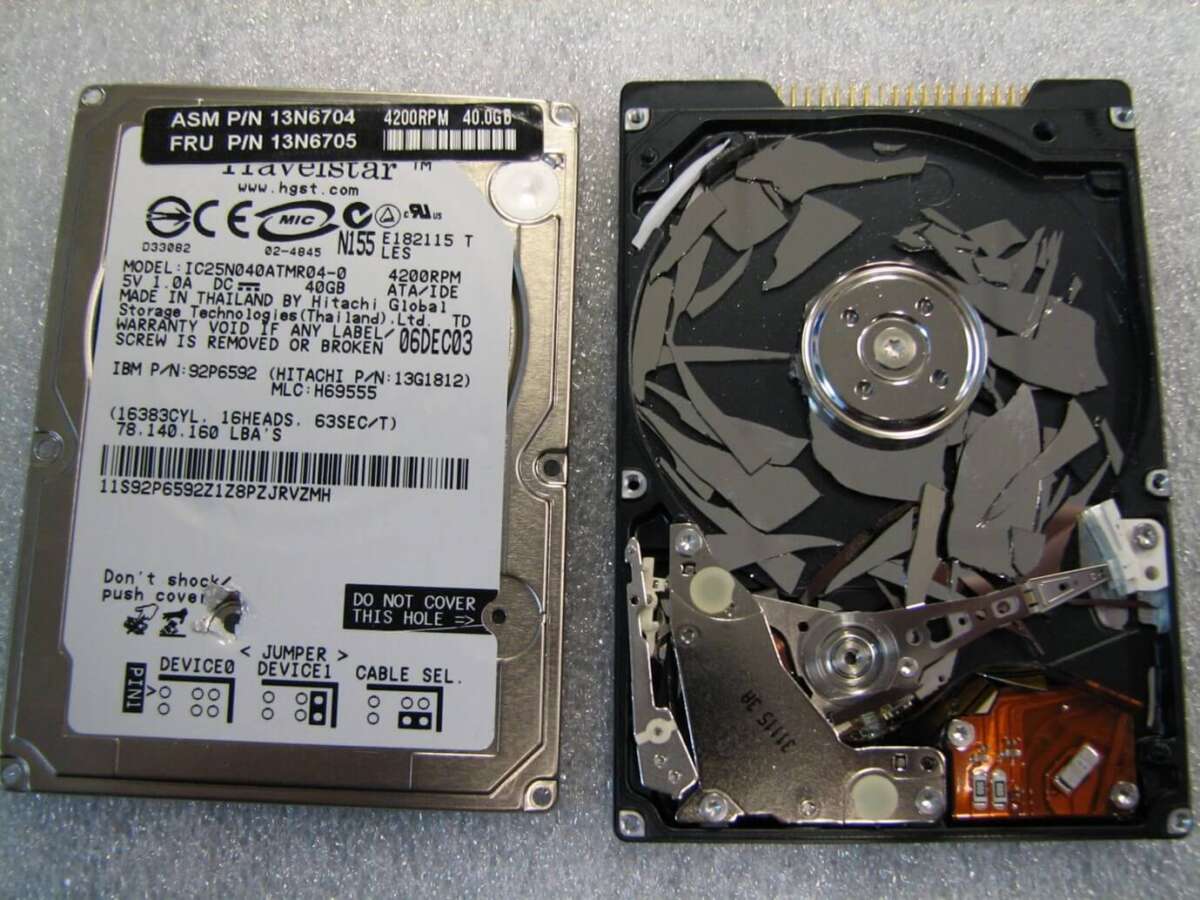
To destroy an SSD safely, erase its data first, then use certified physical destruction or electronic recycling.
Learning how to destroy an SSD is not only about breaking the hardware. The real goal is to make stored data impossible to recover while avoiding fires, toxic fumes, injury, and improper disposal. This guide explains secure SSD erasure, physical destruction options, common mistakes, and responsible recycling based on recognized data sanitization practices.
What “destroy an SSD” really means
People often use the phrase “destroy an SSD” to mean two different things:
- Remove personal or business data permanently.
- Damage the drive so it cannot operate again.
These goals are related, but they are not identical. A broken SSD may still contain readable memory chips. Likewise, a properly erased SSD may still work perfectly, which is useful if you plan to sell, donate, or reuse it.
When deciding how to destroy an SSD, start with the data. Ask whether the drive contains passwords, customer records, financial files, health information, work documents, or private photos. If the answer is yes, secure erasure must come before physical disposal.
The National Institute of Standards and Technology recommends selecting a sanitization method based on the sensitivity of the data, the type of storage device, and the final destination of the drive.

Choose the right SSD destruction method
The best method depends on whether you want to reuse the SSD or make it permanently unusable.
If you want to reuse the SSD
Use a trusted sanitization feature supplied by the SSD maker or computer manufacturer. Look for options such as:
• Secure Erase
• Sanitize
• Cryptographic Erase
• PSID revert
• NVMe Format or sanitize functions
These tools are designed for flash storage. They are usually safer and more reliable than manually deleting files or running a basic format.
If you do not need to reuse the SSD
Use a professional destruction service or an approved electronics recycler. The provider may shred, disintegrate, or otherwise render the storage media unusable under controlled conditions.
For highly sensitive data, ask for:
• A documented chain of custody
• A certificate of destruction
• The destruction method used
• The date and serial number of the destroyed drive
• Confirmation that the device was recycled properly
If the SSD is encrypted
Encryption can make disposal much easier. If the entire drive was encrypted and the encryption keys are securely destroyed, the stored data becomes unreadable even if the memory chips remain intact.
This approach is known as cryptographic erasure. It is useful, but it depends on strong encryption, correct key management, and no unencrypted copies elsewhere.
How to erase an SSD securely before disposal
Secure erasure is the safest first step when learning how to destroy an SSD. Do not rely on dragging files to the Recycle Bin, emptying the Trash, or using a quick format.
SSDs manage data differently from hard disk drives. A feature called wear leveling moves data among flash cells. The operating system may not know where every old copy exists. This is why ordinary overwrite tools can provide uncertain results on modern SSDs.
Follow this general process:
- Back up any files you still need.
- Sign out of accounts and remove the device from online services.
- Record the SSD model and serial number if you need disposal records.
- Check whether full-disk encryption is enabled.
- Use the manufacturer’s official management software or a trusted system utility.
- Select Secure Erase, Sanitize, or the equivalent approved option.
- Confirm that the process completed successfully.
- Shut down the computer and remove the drive if it will not be reused.
- Recycle the SSD through an approved electronics program.
The exact menu names vary between SATA SSDs, M.2 drives, and NVMe drives. Read the official instructions for the specific model. Never interrupt a firmware-level erase unless the manufacturer says it is safe to do so.
Why deleting files or formatting is not enough
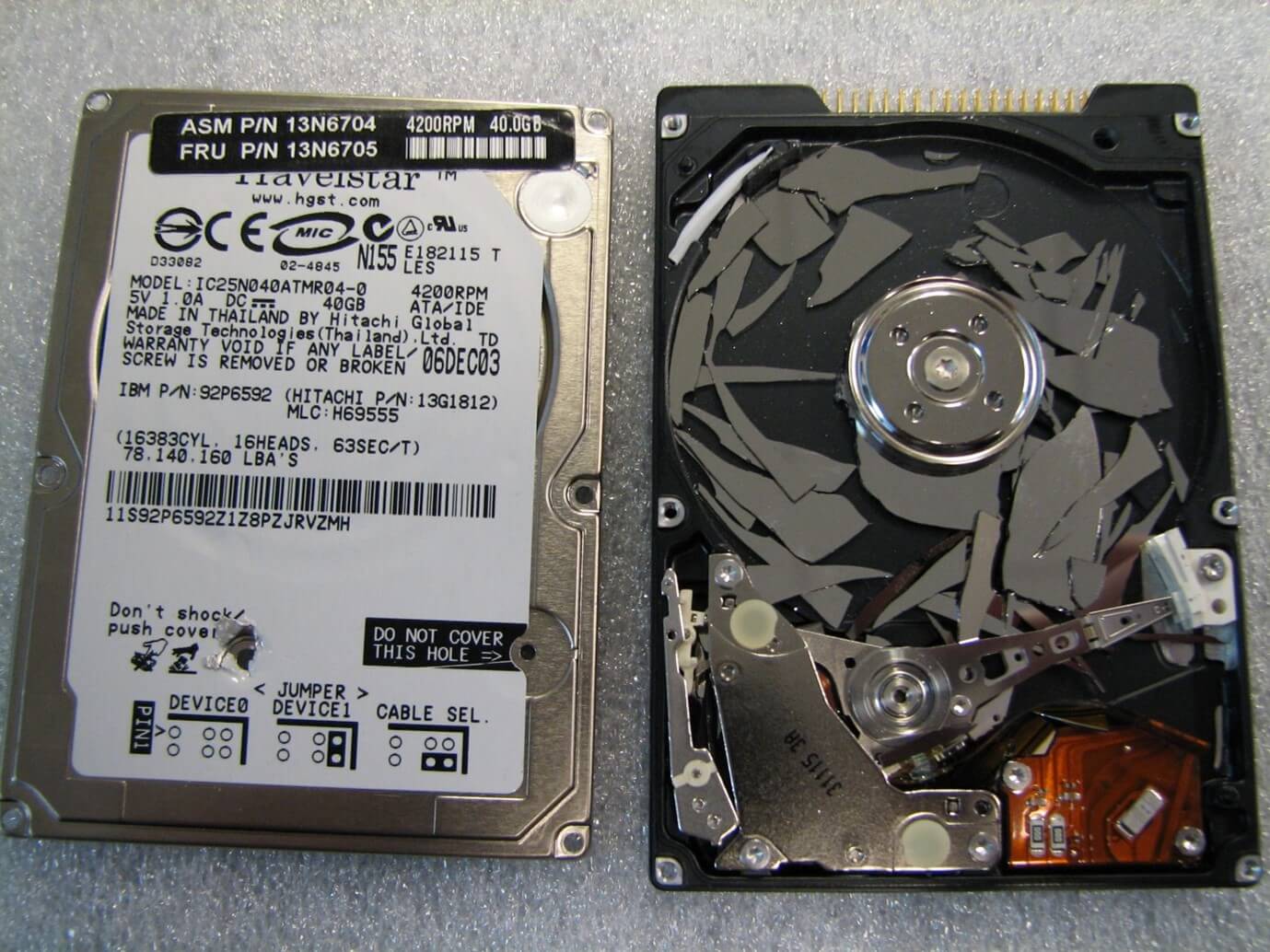
Deleting a file usually removes its reference from the file system. It does not necessarily remove every underlying flash cell that once held the data.
A quick format is even less useful for secure disposal. It may rebuild the file system structure while leaving old information in memory. A standard overwrite may also miss remapped or over-provisioned areas managed by the SSD controller.
This is one of the most important lessons in SSD disposal: visible file removal is not the same as data sanitization.
Secure erase and sanitize commands work at the device level. They are designed to address the way the controller manages flash memory. Even then, no method should be treated casually. Verify the result, keep records, and use physical destruction for data with very high confidentiality requirements.
How to physically destroy an SSD safely
Physical destruction is appropriate when the SSD must never be used again or when the data is extremely sensitive. The safest choice is a certified data destruction provider with equipment made for solid-state media.
Professional facilities may use:
• Industrial shredding
• Disintegration
• Crushing
• Specialized media destruction equipment
• Controlled recycling after destruction
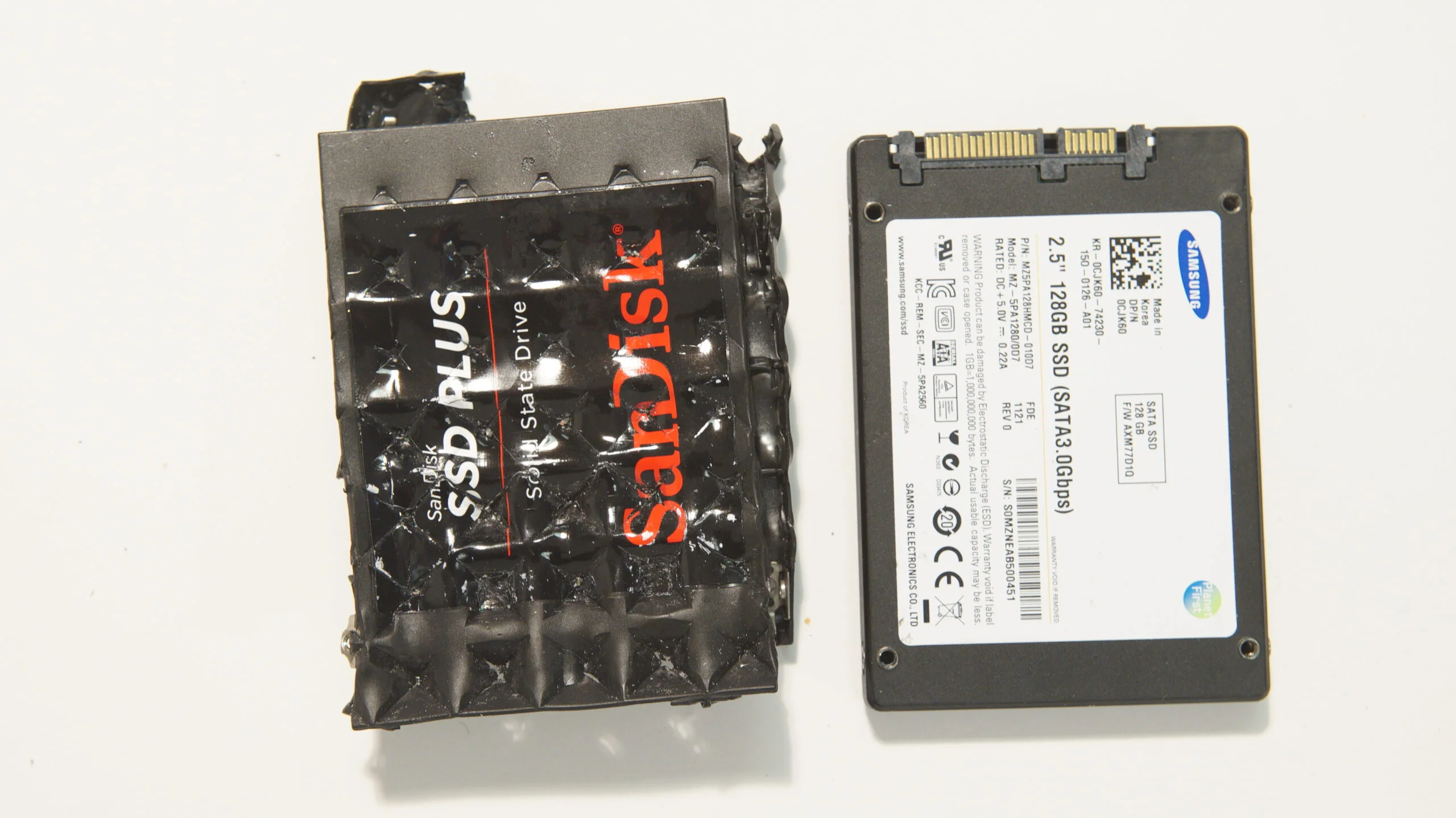
Avoid burning an SSD. Electronics can release harmful smoke and residues when heated. Do not place an SSD in water, microwave it, or use chemicals. These methods are dangerous, unreliable, and may damage nearby property.
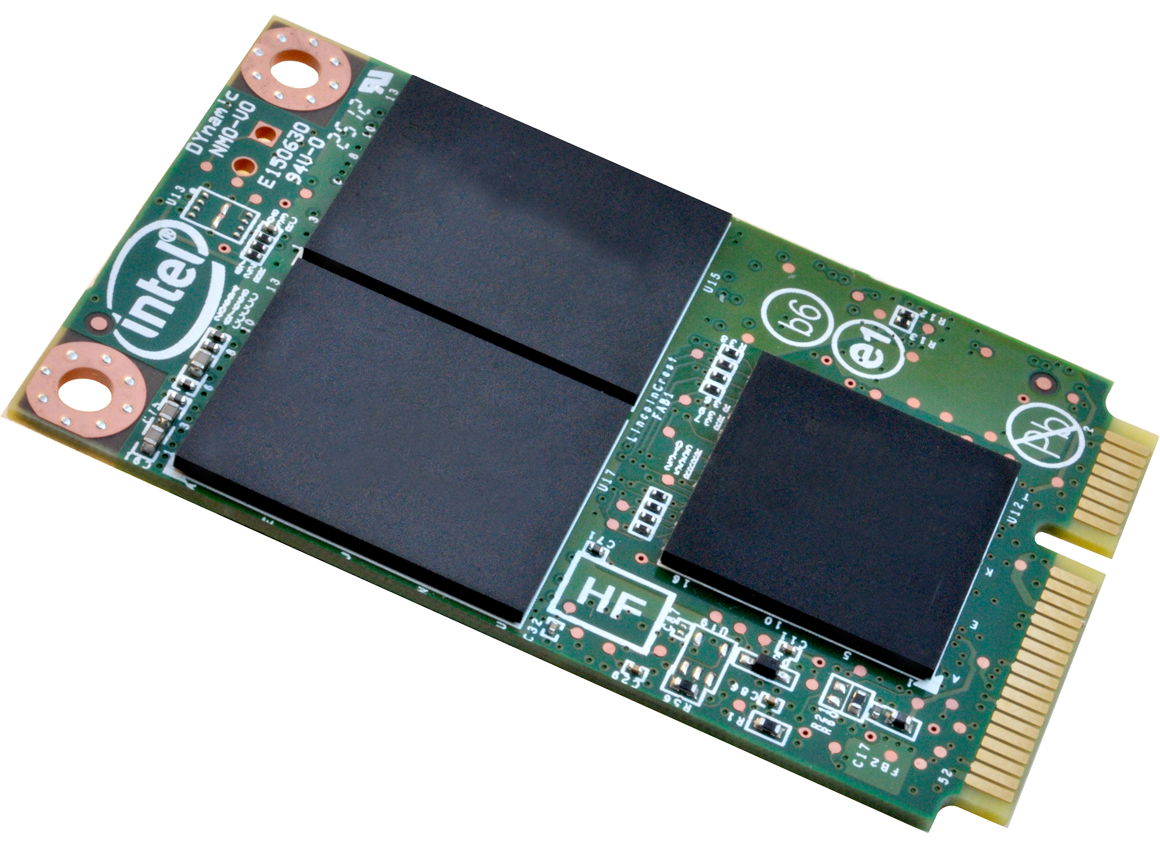
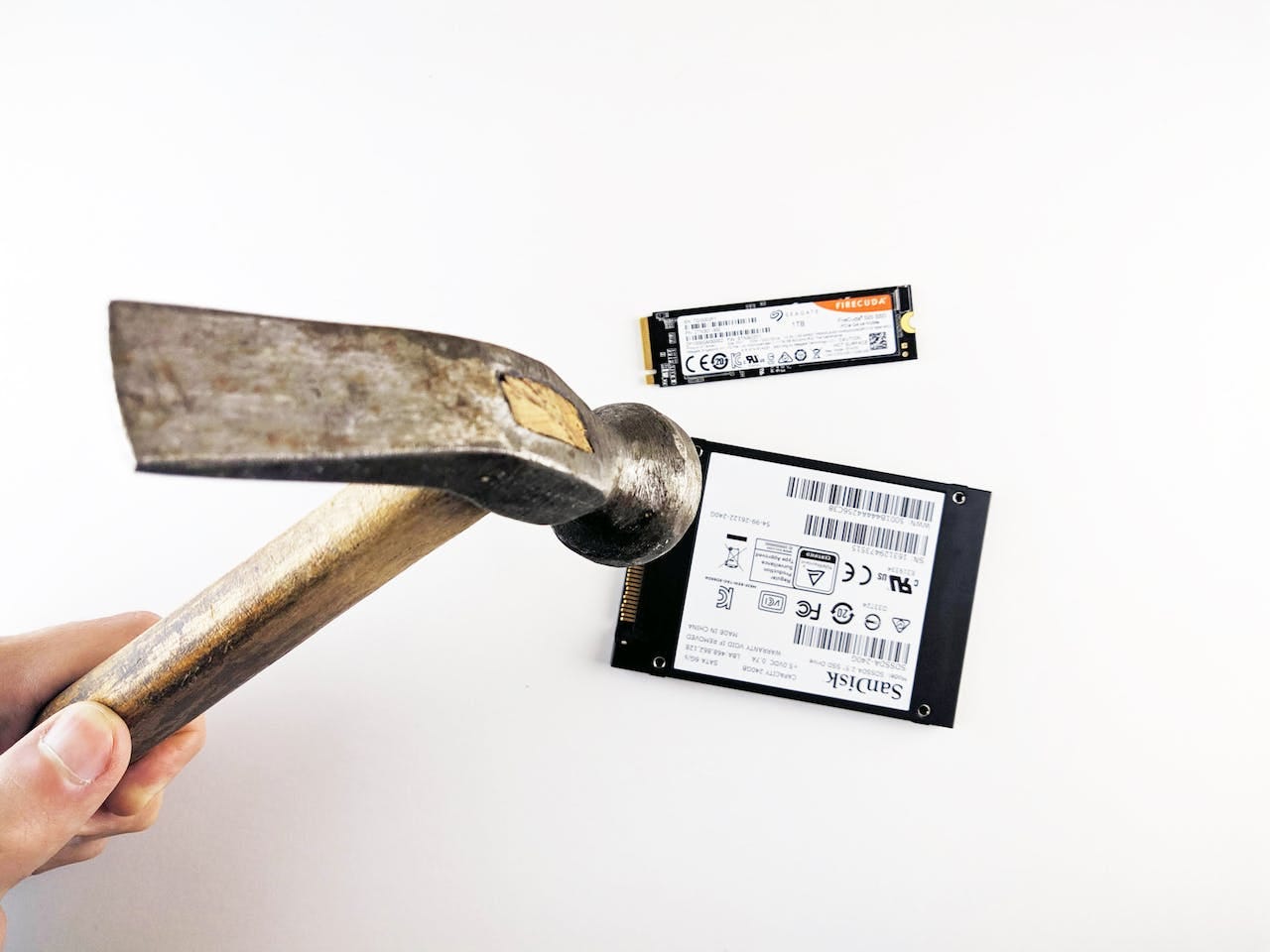
Do-it-yourself drilling or smashing can also be misleading. Damaging the circuit board may stop the drive from working, but the NAND flash packages can remain readable. Some SSDs store data across several memory chips, so damaging one area may not destroy all information.
If you must make a low-risk consumer drive unusable, first use a trusted secure erase or encryption-key destruction method. Then send it to a reputable electronics recycler and request physical destruction if the data requires it. This approach is safer than attempting industrial destruction at home.
SSD disposal and environmental safety
An SSD should not go in regular household trash. Electronic waste can contain materials that require controlled handling, and improper disposal may expose workers or the environment to unnecessary risks.
Before recycling, check:
• Your city or county electronics program
• The SSD manufacturer’s take-back service
• A certified electronics recycler
• A business IT asset disposal provider
• Local rules for commercial or regulated data
Businesses should maintain an asset record from removal through final destruction. Include the device serial number, assigned user, date removed, sanitization method, and recycling or destruction certificate.
Personal users should also remove labels that reveal passwords, usernames, addresses, or internal asset numbers. Keep proof of disposal when the drive contained tax records, client data, or work information.

Common mistakes when destroying an SSD
Many disposal mistakes happen because people treat an SSD like an old mechanical hard drive.
Mistake 1: Using only file deletion
Deleting folders does not prove that the underlying data is gone. Use a device-level sanitize function instead.
Mistake 2: Using a quick format
A quick format mainly rebuilds file system information. It is not a reliable sanitization method.
Mistake 3: Assuming a broken SSD is safe
A damaged connector or cracked circuit board does not guarantee that the flash chips are unreadable.
Mistake 4: Destroying the drive before backing up
Physical destruction is permanent. Check backups before starting, especially for encryption keys, recovery codes, and business records.
Mistake 5: Ignoring cloud and backup copies
Destroying the SSD does not remove files stored in cloud accounts, email, external drives, system backups, or network storage. Review every copy connected to the same data.
Mistake 6: Choosing an unverified disposal company
A low price is not proof of secure handling. Ask for documented procedures and a certificate of destruction.
A practical rule is simple: sanitize first, verify second, destroy or recycle third.
A safe decision guide for different situations
The following approach works for most home and business cases.
Reusing the SSD
Use the official Secure Erase or Sanitize function. Confirm that the drive is empty, then reinstall the operating system if needed.
Selling or donating the computer
Enable full-disk encryption before storing sensitive files. After backing up, use the manufacturer’s secure erase process and remove the computer from your accounts.
Disposing of a failed SSD
If the drive still responds, attempt an approved sanitize process. If it does not respond, use a professional destruction service, especially if the data is confidential.
Disposing of a company SSD
Follow the organization’s media sanitization policy. Record the serial number and use a provider that offers a certificate of destruction.
Handling regulated information
Use a documented process based on the sensitivity of the records. A certified service is usually better than an informal home method.
When deciding how to destroy an SSD, think like a custodian of information. The device is only one part of the data trail.

Personal lessons from real-world device disposal
A common IT lesson is that the easiest-looking option is often the least reliable. A drive can appear empty in a file browser while still holding recoverable information in areas the operating system does not display.
Another practical lesson is to plan disposal before a device fails. If encryption is enabled from the beginning and recovery keys are managed correctly, the final disposal process becomes much simpler.
I also recommend recording the drive serial number before sending it away. That small step prevents confusion when several similar SSDs are being processed at once. For organizations, it also creates a clear audit trail.
The biggest mistake to avoid is confusing physical damage with secure data removal. A drive that will not boot is not automatically a drive that contains no readable data.
Frequently Asked Questions About How to Destroy an SSD
Is deleting files enough to destroy an SSD?
No. Deleting files usually removes their file system references but may leave data in flash memory. Use a manufacturer-approved Secure Erase, Sanitize, or Cryptographic Erase process.
Does formatting an SSD erase everything?
A quick format does not reliably erase every memory area. It mainly prepares the file system for new use, so it should not be your only method for sensitive data.
Should I drill a hole through an SSD?
Drilling may damage the controller or circuit board without destroying every NAND flash chip. For sensitive information, use secure sanitization followed by certified physical destruction.
Can I burn an SSD to destroy the data?
No. Burning electronics can create hazardous smoke and residues, and it may still fail to destroy all flash memory. Use a professional destruction provider instead.
Is encryption enough when disposing of an SSD?
Strong full-disk encryption can make the data unreadable after the keys are securely destroyed. However, confirm that no unencrypted copies exist in backups, cloud storage, or other devices.
What is the safest way to destroy an SSD at home?
Use the manufacturer’s secure erase or sanitize function, then take the drive to an approved electronics recycler. Do not use fire, chemicals, microwaves, or improvised crushing methods.
Can a professional recover data from a destroyed SSD?
Recovery depends on the destruction method and the condition of the flash chips. Proper industrial destruction makes recovery impractical, while minor physical damage may not.
Conclusion
The safest way to destroy an SSD is to protect the data first, not simply damage the hardware. Use Secure Erase, Sanitize, or Cryptographic Erase when reuse is possible, and choose certified physical destruction when the drive must never be recovered.
Avoid fire, chemicals, microwaves, and unreliable home methods. Back up important files, check cloud copies, document the drive, and recycle it through a trusted provider. Use this process for your next SSD disposal, and explore your manufacturer’s sanitization guide before taking action.

Everett Ashford is a tech reviewer at mytechgrid.com specializing in SSDs, cameras, TVs, earbuds, headphones, and other consumer electronics. He provides honest, data-driven reviews based on hands-on testing and real-world performance analysis. Everett simplifies complex tech details to help readers make smart, confident buying decisions.