Yes, you can upgrade a MacBook Pro SSD, but the answer depends on its model and release year.
Whether you can upgrade a MacBook Pro SSD depends mainly on whether Apple used a removable drive or soldered storage. Older MacBook Pro models often allow an SSD replacement, while most Retina, Touch Bar, and Apple silicon models have storage that cannot be removed in a normal upgrade. This guide explains how to identify your MacBook Pro, choose the right SSD, avoid data loss, and decide whether an upgrade is worth the cost.
Can You Upgrade a MacBook Pro SSD?
Yes, you can upgrade a MacBook Pro SSD on some models. The key issue is the MacBook Pro’s year and design.
Older MacBook Pro models use standard SATA drives or removable Apple blade SSDs. Newer models often use storage chips soldered directly to the logic board. A soldered SSD cannot be replaced like a normal computer drive.
Here is the basic rule:
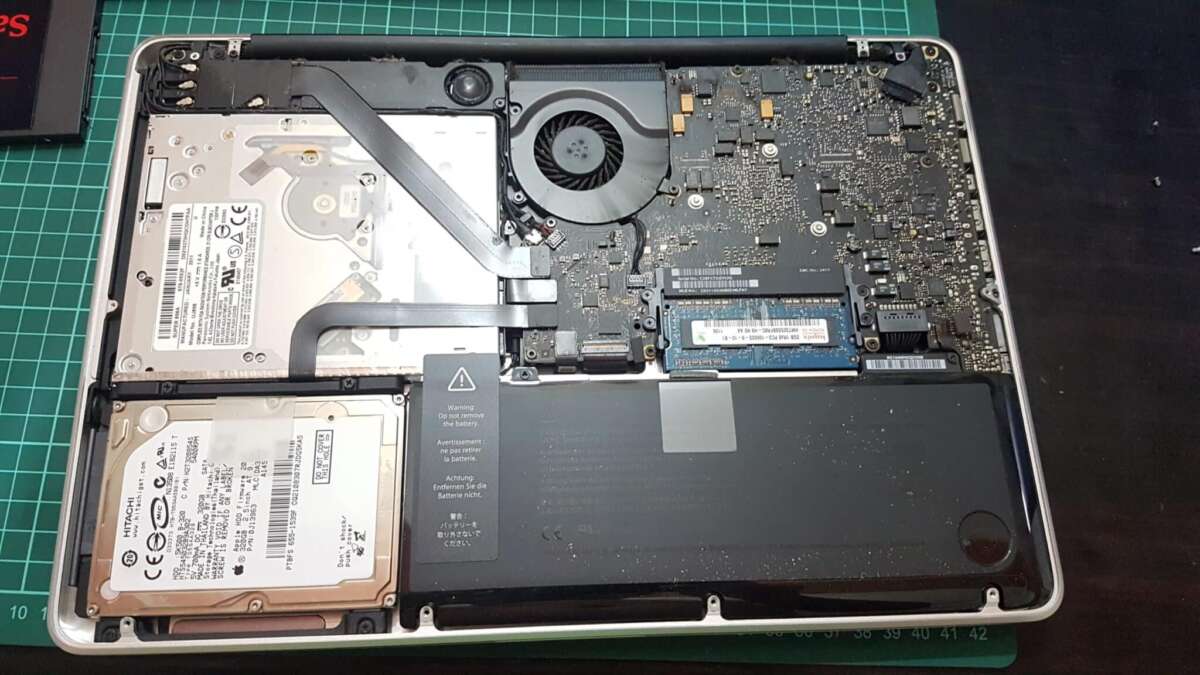
• MacBook Pro models from 2012 and earlier usually have the easiest storage upgrades.
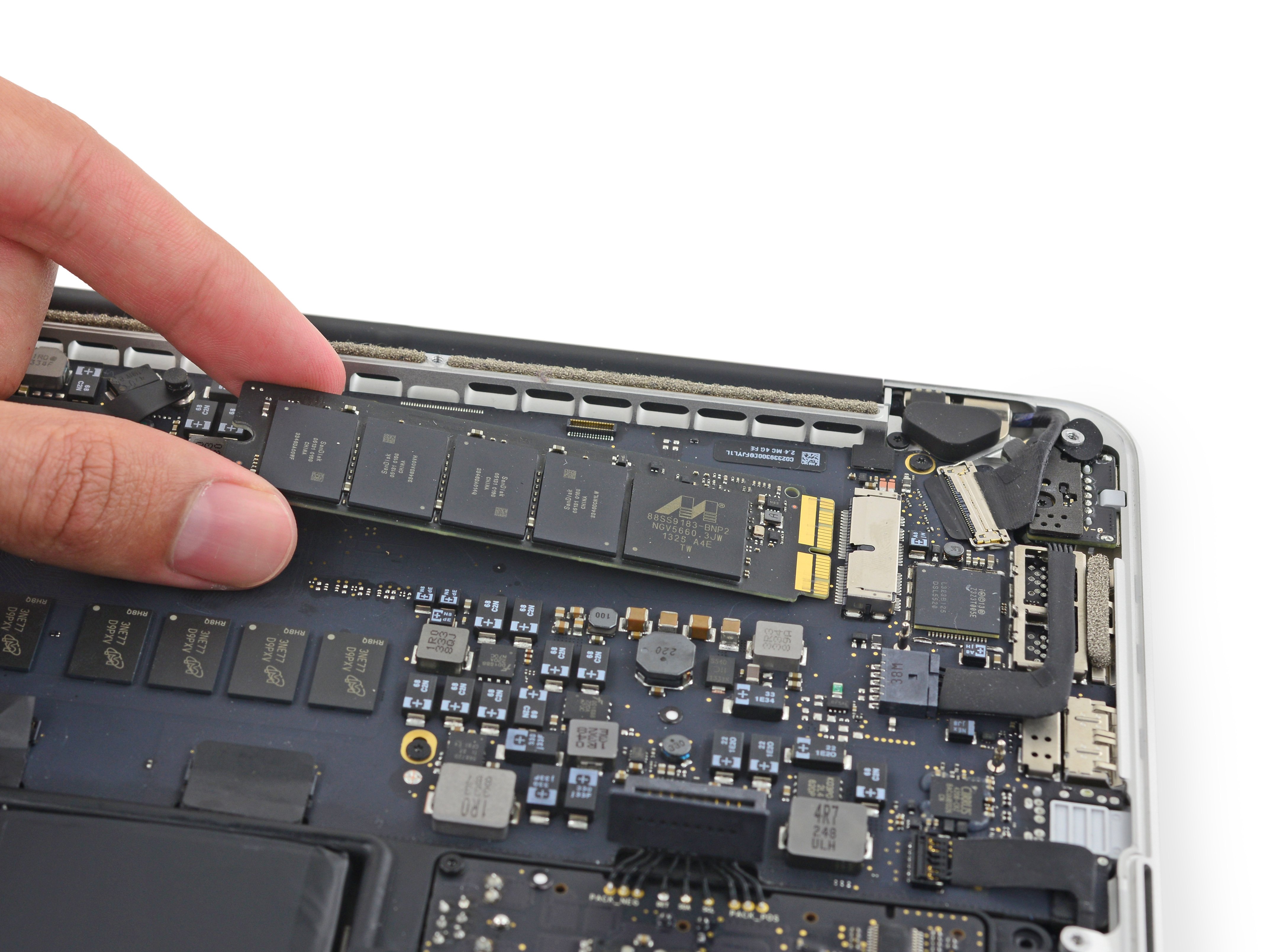
• Many 2013 to 2015 Retina models have removable SSD modules, but they use Apple-specific connectors.
• Most 2016 and newer MacBook Pro models have soldered storage.
• All Apple silicon MacBook Pro models, including M1, M2, M3, and M4 versions, use integrated storage that is not designed for user replacement.
So, can you upgrade a MacBook Pro SSD? In many older models, yes. In most newer models, no.
MacBook Pro Models With Upgradeable SSDs
The first step is to identify your exact MacBook Pro model. The model year alone is helpful, but the screen type, processor, and model identifier also matter.
2009 to 2012 non-Retina MacBook Pro
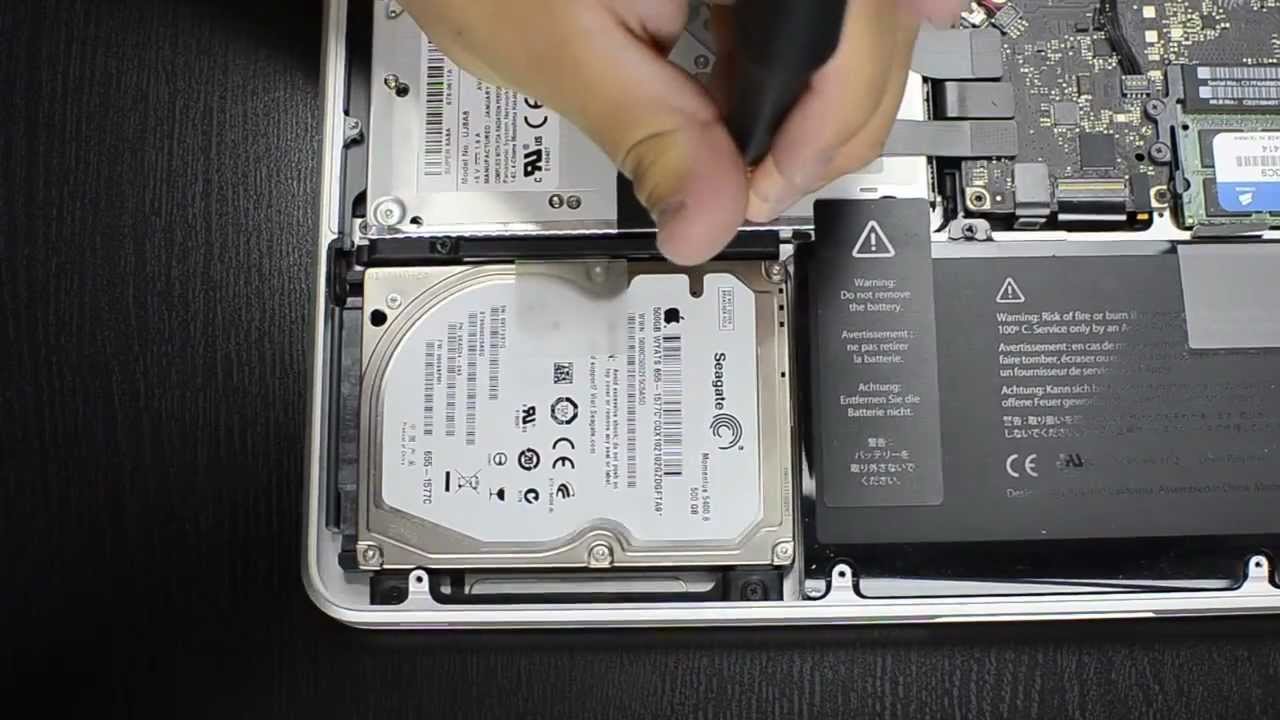
These models are usually the simplest to upgrade. They commonly use a 2.5-inch SATA hard drive, which can be replaced with a 2.5-inch SATA SSD.
Compatible examples include:
• MacBook Pro 13-inch Mid 2009 through Mid 2012
• MacBook Pro 15-inch Mid 2009 through Mid 2012
• MacBook Pro 17-inch models from 2009 through 2011
A SATA SSD can make one of these older Macs feel much faster. Apps open sooner, macOS starts faster, and file searches become more responsive.
Many users also replace the optical drive with a second drive. However, this can affect sleep behavior, battery use, and physical fit. A normal SSD replacement in the main drive bay is usually the safer choice.
2012 to 2015 Retina MacBook Pro
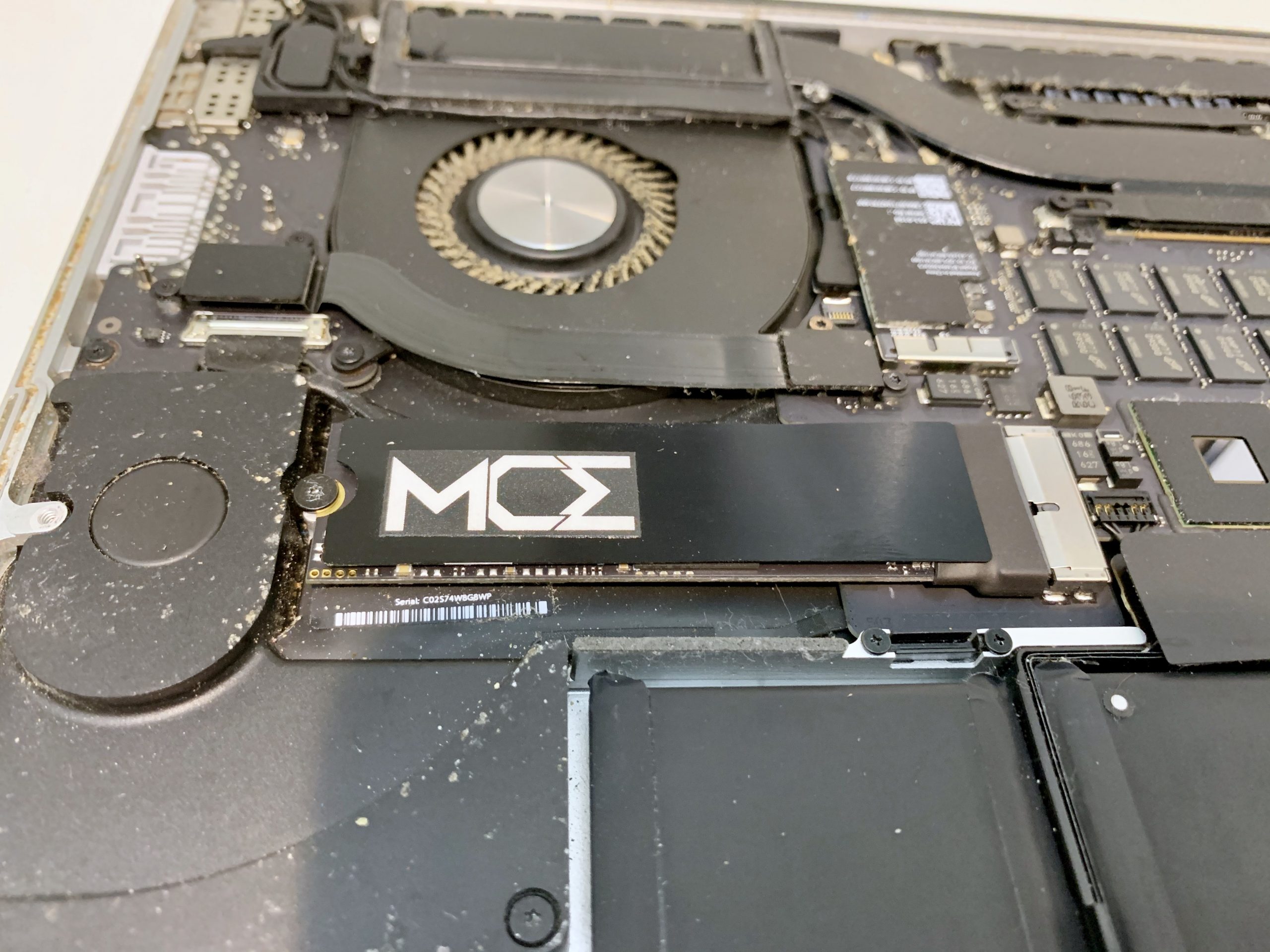
Retina models do not use standard 2.5-inch SATA drives. Instead, many use a removable blade-style SSD with a special Apple connector.
Examples include:
• MacBook Pro Retina 13-inch Late 2012 through Early 2015
• MacBook Pro Retina 15-inch Mid 2012 through Mid 2015
These SSDs are smaller than standard laptop drives. They may look like circuit boards with memory chips rather than traditional rectangular drives.
Third-party replacement modules are available for some of these models. Compatibility varies by year, screen size, and macOS version. Always confirm the exact model before buying a replacement.
2015 MacBook Pro models
The 2015 MacBook Pro generation is often considered one of the best choices for repair and upgrades. Many models have removable SSD modules, a more serviceable design, and fewer restrictions than later MacBooks.
The SSD is still not a standard M.2 drive. An ordinary PC NVMe SSD will not fit without a special adapter, and even then, compatibility may depend on firmware and macOS support.
If you own a 2015 MacBook Pro, can you upgrade a MacBook Pro SSD? Often, yes. It is one of the more practical MacBook Pro SSD upgrade candidates.
MacBook Pro Models That Usually Cannot Be Upgraded
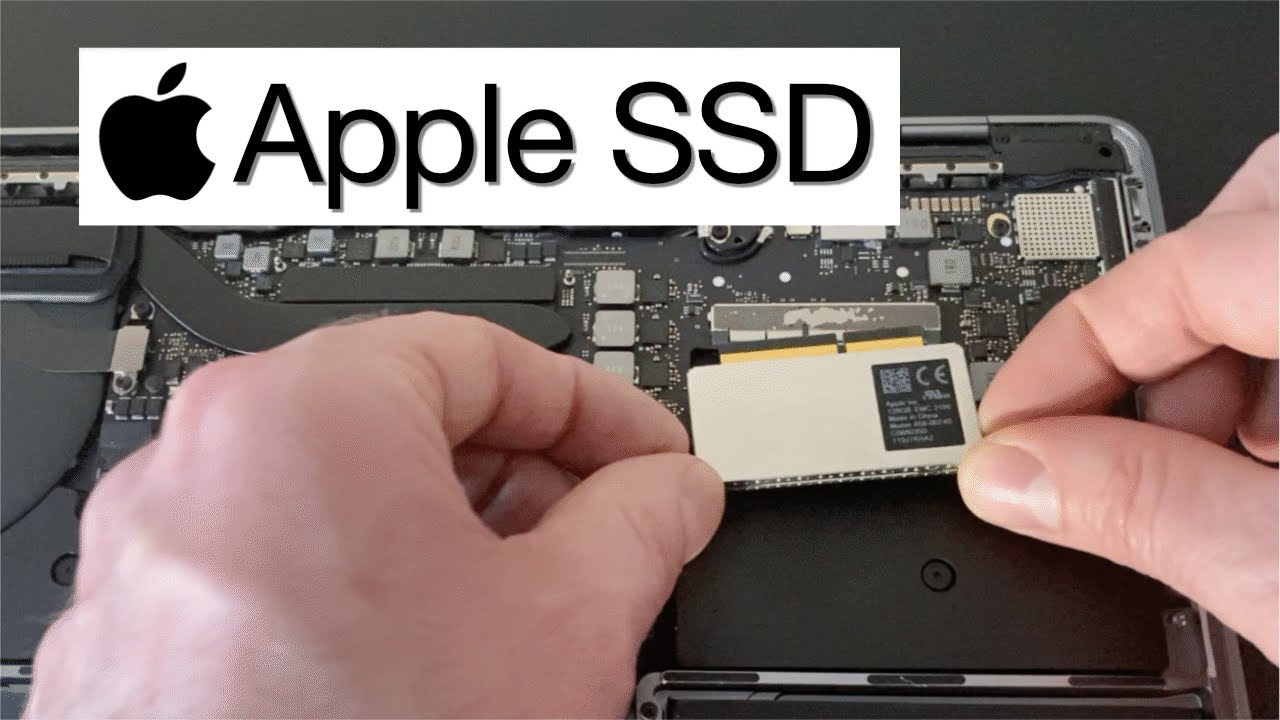
Most newer MacBook Pro models have storage chips soldered to the logic board. This design saves space and can improve power efficiency, but it prevents a simple drive replacement.
2016 to 2020 Intel MacBook Pro
Many MacBook Pro models released from 2016 through 2020 have soldered storage. This includes models with:
• USB-C ports
• Touch Bar
• Butterfly keyboard
• Intel processors
The SSD storage is part of the logic board assembly. Replacing it requires advanced microsoldering work, specialized parts, and data recovery knowledge. It is not a normal home repair.
Even if a specialist can replace the storage chips, the process can be expensive and risky. The repair may also require board-level programming or component matching.
M1, M2, M3, and M4 MacBook Pro
Apple silicon MacBook Pro models use integrated storage. The storage chips are soldered to the logic board and work closely with the system architecture.
This means you generally cannot upgrade the internal SSD after purchase. You cannot open the bottom case and install a larger drive as you would in an older MacBook.
For these models, the practical options are:
• Buy the desired storage capacity at the time of purchase.
• Use a fast external USB-C or Thunderbolt SSD.
• Store large media files on external storage.
• Use network or cloud storage for archives.
So, can you upgrade a MacBook Pro SSD after buying an Apple silicon model? In normal use, no. The internal storage capacity is fixed.

How to Check Your MacBook Pro Model
Before buying an SSD, confirm the exact MacBook Pro model. Guessing can lead to buying the wrong connector, wrong size, or an incompatible drive.
Check in macOS
Follow these steps:
-
Select the Apple menu in the upper-left corner.
-
Choose About This Mac.
-
Note the model name and year.
-
Open System Information for more detail.
-
Select Storage or Hardware and record the drive details.
You can also find the serial number in About This Mac. Apple’s official coverage page can help identify the model, but a trusted Mac model database may provide more repair details.
Check the model identifier
The model identifier looks similar to MacBookPro11,5 or MacBookPro14,1. This information is useful because one release year can include several different internal designs.
You can find it in:
• System Information
• The original box
• The Mac’s purchase record
• The serial number lookup page
The model identifier is more reliable than simply searching for “2015 MacBook Pro SSD.” It helps you match the exact replacement part.
Inspect the current storage
Open Disk Utility and select the internal drive. This will show whether the Mac is using a SATA drive, Apple blade SSD, or another storage type.
Do not rely only on the storage size. Two MacBook Pro models may both have 256GB of storage while using completely different physical drives.

What SSD Should You Buy?
The correct SSD depends on the MacBook Pro model. There is no single SSD that works in every MacBook Pro.
SATA SSD for older models
For a non-Retina MacBook Pro with a hard drive, choose a 2.5-inch SATA SSD. A 7mm drive is normally the safest size.
Look for:
• SATA III support
• A reputable manufacturer
• A capacity that matches your needs
• A strong warranty
• Good customer reviews
A SATA SSD is often enough to transform an older MacBook. The computer may still have an older processor, but it will feel far more responsive during everyday tasks.
Proprietary blade SSD for Retina models
For Retina MacBook Pro models, choose a replacement made for your exact model. These drives may use a proprietary Apple connector or a compatible third-party design.
Check for:
• Exact model compatibility
• macOS support
• Sleep and hibernation support
• Firmware compatibility
• Installation instructions
Some third-party SSDs require a macOS update before installation. Others may create problems with sleep, battery reporting, or recovery mode.
External SSD for newer MacBook Pro models
If the internal SSD is soldered, an external SSD is the simplest solution. A USB-C SSD is suitable for most users. A Thunderbolt SSD can offer much faster performance, but it usually costs more.
An external SSD works well for:
• Photos and video libraries
• Music collections
• Backups
• Game files
• Virtual machines
• Large project folders
For video editing or other demanding work, use a short, high-quality cable and avoid placing the drive where it can overheat.

How to Upgrade a MacBook Pro SSD
The installation process depends on the type of MacBook Pro.
Replacing a 2.5-inch SATA drive
A typical process looks like this:
-
Create a full backup with Time Machine or another trusted backup tool.
-
Shut down the Mac and disconnect the charger.
-
Remove the bottom case with the correct screwdriver.
-
Disconnect the battery if the design allows it.
-
Remove the drive bracket and connector.
-
Transfer any mounting parts to the new SSD.
-
Install the SSD.
-
Reassemble the Mac.
-
Start macOS Recovery.
-
Format the drive and reinstall macOS or restore your backup.
The screws in a MacBook can be very small and easy to lose. Keep them organized because some screws have different lengths.
Replacing a removable blade SSD
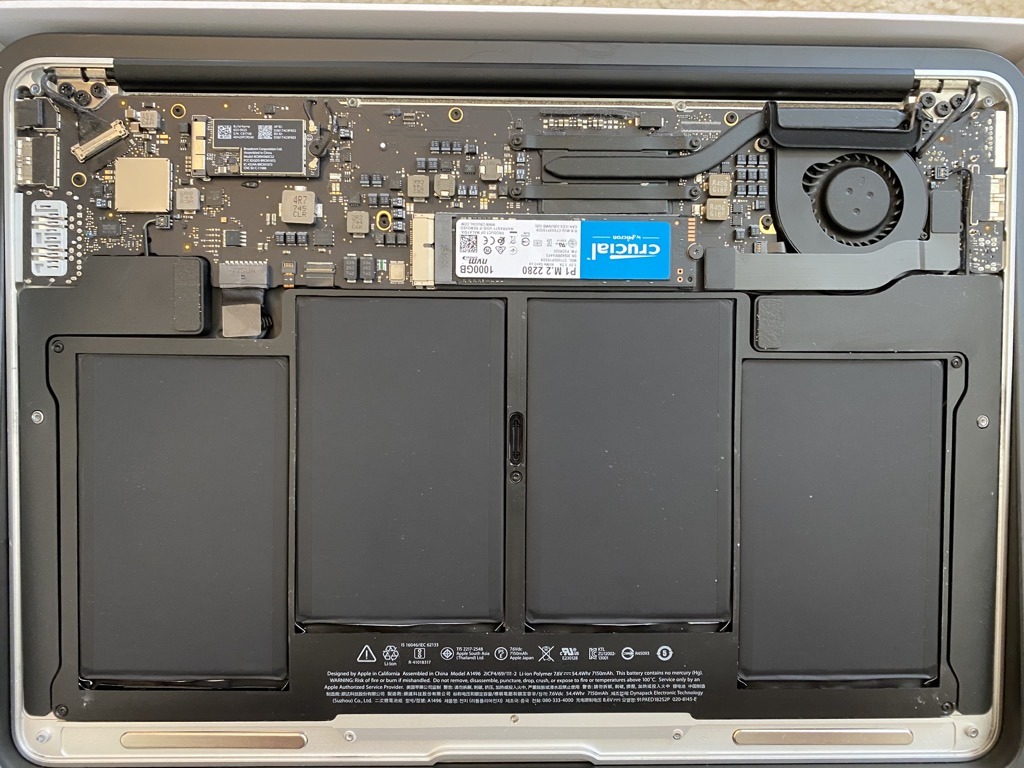
A blade SSD replacement requires more care. The module is usually secured by a small screw and connected directly to the logic board.
The general steps are:
-
Back up all important files.
-
Shut down the Mac completely.
-
Remove the bottom case.
-
Disconnect the battery when possible.
-
Remove the SSD retaining screw.
-
Lift the module gently from its connector.
-
Insert the replacement SSD at the correct angle.
-
Secure the retaining screw.
-
Format the drive through macOS Recovery.
-
Restore your files.
Do not force the connector. A damaged logic board socket can turn a simple upgrade into a costly repair.
Using an external SSD
An external upgrade is much easier:
-
Connect the SSD to the Mac.
-
Open Disk Utility.
-
Select the external drive.
-
Choose Erase.
-
Select APFS for modern macOS use.
-
Give the drive a clear name.
-
Move files or install supported apps.
If you want to boot from the external SSD, check your Mac’s security settings and macOS version first. Some models require changes in Startup Security Utility.
Back Up Your Mac Before an SSD Upgrade
A backup is not optional. SSD upgrades can fail, and one mistake during installation can make the original drive unreadable.
Use at least one complete backup. A stronger plan uses two copies in different places.
Good options include:
• Time Machine on an external drive
• A bootable or clone-style backup when supported
• Cloud storage for important documents
• A second external drive for irreplaceable files
Before opening the Mac, test the backup. Make sure you can open photos, documents, and other important files.
A common mistake is assuming that files stored in iCloud are fully available offline. iCloud may synchronize some files while keeping others optimized in the cloud. Confirm that essential files are downloaded before you begin.
In hands-on Mac repair, one lesson comes up again and again: people remember to buy the SSD but forget to verify the backup. The drive is rarely the most valuable thing in the room. The data is.
How to Move macOS to the New SSD
After installing a new SSD, you have several ways to move your system and files.
Restore from Time Machine
This is often the easiest method for most users.
-
Start the Mac in macOS Recovery.
-
Open Disk Utility.
-
Erase and format the new drive.
-
Choose Restore from Time Machine Backup.
-
Select the latest backup.
-
Follow the on-screen instructions.
This method can restore applications, documents, settings, and user accounts.
Perform a clean macOS installation
A clean installation gives you a fresh start. It can also remove old files and software that slow down an older Mac.
Choose this method if:
• The old system has errors.
• You want to remove years of unused apps.
• You suspect malware or corrupted files.
• You are giving the Mac to another person.
After installation, copy your personal files from the backup. Reinstall apps from trusted sources instead of copying unknown system files.
Use Migration Assistant
Migration Assistant can transfer information from another Mac, a backup, or a startup disk. It is useful when you want a fresh macOS installation but still want your user account and documents.
Migration can take several hours if the old drive contains many files. Keep both computers connected to power during the process.
Benefits of a MacBook Pro SSD Upgrade
A compatible MacBook Pro SSD upgrade can provide a major improvement, especially when replacing an older hard drive.
Faster everyday performance
An SSD has no moving parts. It can read and write data much faster than a traditional hard disk.
You may notice:
• Faster startup
• Quicker app launches
• Less waiting when opening files
• Better performance when swapping memory
• Faster system updates
The improvement is most dramatic on MacBook Pro models that still use a mechanical hard drive.
More storage space
A larger SSD gives you room for photos, documents, creative projects, and applications. This can also reduce the need to constantly delete files.
Try to keep some free space available. A nearly full drive may reduce performance and make updates harder to install.
Better reliability
Because SSDs have no spinning platters, they are less sensitive to movement and physical shocks. They are not indestructible, though. SSDs can still fail without warning.
That is why an SSD upgrade should always be paired with a backup plan.

Limitations and Risks to Consider
An SSD upgrade is not always the best choice.
Compatibility problems
The wrong SSD may not fit or work correctly. Problems can include:
• The Mac not recognizing the drive
• Sleep or wake failures
• Battery drain
• Recovery mode errors
• Random kernel panics
• Installation problems
Research the exact model before ordering parts.
Warranty and repair concerns
Opening an older Mac may not affect an existing warranty, but damage caused during repair may not be covered. Newer MacBook Pro models can be difficult to open and service.
If the computer is still covered by AppleCare or another service plan, ask about repair options first.
Cost compared with a newer Mac
A replacement SSD may be affordable, but labor can change the calculation. On a soldered-storage model, a board-level repair may cost more than the Mac is worth.
Before spending money, compare:
• SSD price
• Repair labor
• Battery condition
• Processor age
• macOS compatibility
• Current resale value
Sometimes an external SSD is the smarter choice. Sometimes buying a newer Mac with enough built-in storage is more practical.
Practical Tips From Real-World Mac Repairs
A few small habits can prevent large problems.
• Confirm the model identifier before buying any part.
• Buy from a seller with a clear return policy.
• Save the original SSD until the new drive works properly.
• Use the correct screwdrivers and avoid stripped screws.
• Disconnect the battery before touching internal parts when possible.
• Do not touch exposed contacts with your fingers.
• Keep the old drive in an antistatic bag.
• Update firmware and macOS before installing a third-party SSD when recommended.
• Keep the Mac connected to power during migration.
• Test Wi-Fi, sleep, sound, charging, and startup after the repair.
One mistake I have seen more than once is throwing away the old drive immediately. Keep it until the new SSD has passed several days of normal use. It can serve as a fallback or help recover files if the migration missed something.
Should You Upgrade the SSD or Buy a New MacBook?
The answer depends on the Mac’s age and your needs.
An SSD upgrade is usually worthwhile when:
• The Mac is otherwise reliable.
• It uses a slow hard drive.
• The battery is still in good condition.
• You need more storage at a low cost.
• Your apps still support the installed macOS version.
Buying a newer Mac may be better when:
• The Mac has soldered storage.
• The battery is worn out.
• The keyboard, display, or logic board has problems.
• Your software requires a newer processor.
• You need better graphics or video performance.
A larger SSD cannot fix an old processor, limited memory, or a failing battery. Storage is only one part of the computer.
Frequently Asked Questions About Can You Upgrade a MacBook Pro SSD?
Can you upgrade a MacBook Pro SSD on an M1 model?
No, the internal SSD in an M1 MacBook Pro is soldered to the logic board. You can expand storage with a USB-C or Thunderbolt external SSD.
Can you upgrade a 2015 MacBook Pro SSD?
Often, yes. Many 2015 MacBook Pro models use a removable blade SSD, but you must buy a module designed for the exact model.
Can you upgrade a 2017 MacBook Pro SSD?
Usually, no. Most 2017 MacBook Pro models have soldered storage, so a normal internal SSD replacement is not possible.
Can you install an NVMe SSD in an older MacBook Pro?
Some Retina models can use a compatible NVMe-based replacement with the correct adapter or module. Compatibility depends on the Mac model, firmware, macOS version, and the specific SSD.
Will upgrading the SSD make my MacBook Pro faster?
Yes, especially if you replace a mechanical hard drive with a SATA SSD. On a Mac that already has a fast soldered SSD, external storage will improve capacity but may not make the system itself much faster.
Is it safe to upgrade a MacBook Pro SSD yourself?
It can be safe on supported older models if you use the right tools and follow a repair guide. Always back up your data first, and consider professional service if the storage is soldered or the Mac is valuable.
Conclusion
You can upgrade a MacBook Pro SSD on many older models, especially non-Retina MacBooks with SATA drives and selected Retina models from 2012 through 2015. Most 2016 and newer models use soldered storage, making an internal upgrade impractical. Apple silicon MacBook Pro models require an external SSD or a higher-capacity configuration at purchase.
Start by checking the exact model identifier. Back up your files, confirm drive compatibility, and compare the repair cost with the value of the Mac. With the right information, you can choose between an internal upgrade, external storage, or a newer computer with confidence. Share your MacBook model and storage needs in the comments to help others make the right upgrade decision.

Everett Ashford is a tech reviewer at mytechgrid.com specializing in SSDs, cameras, TVs, earbuds, headphones, and other consumer electronics. He provides honest, data-driven reviews based on hands-on testing and real-world performance analysis. Everett simplifies complex tech details to help readers make smart, confident buying decisions.