Introduction
For laptop shoppers in the United States, the choice between integrated and dedicated graphics affects much more than gaming. It can change battery life, heat, fan noise, video-editing speed, and the price of the computer.
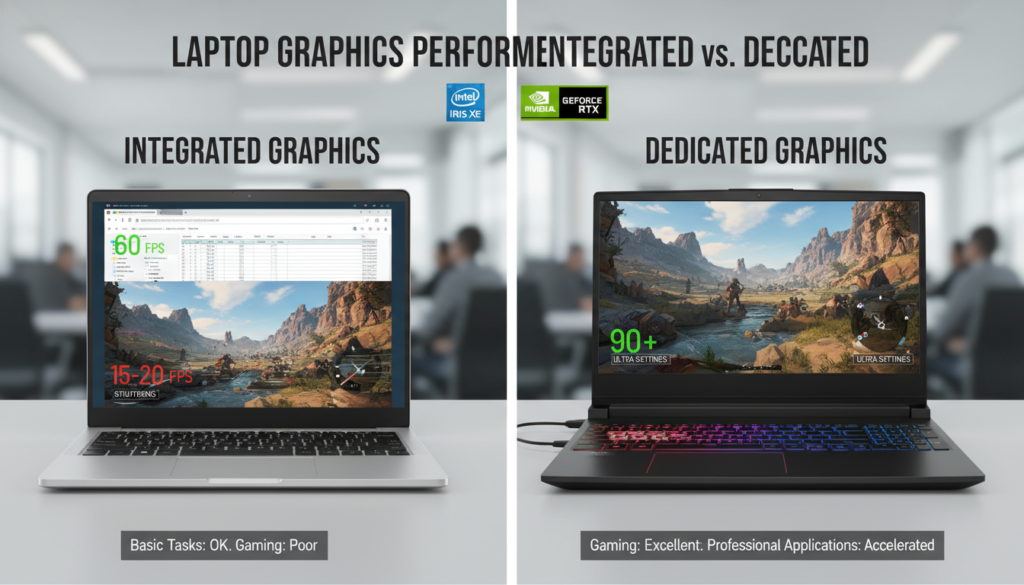
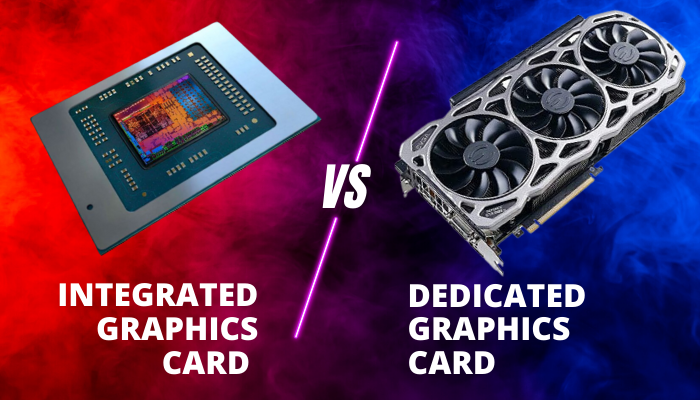
Integrated graphics are built into the processor and share memory with the rest of the laptop. Dedicated graphics use a separate graphics processor and usually have their own video memory. Integrated graphics suit web work, school, office apps, streaming, and many light games. Dedicated graphics are better for modern games, 3D work, large video projects, and other tasks that need high graphics power.
The right choice depends on what you do, not just on the graphics brand or model name.
What Are Integrated and Dedicated Graphics?
Integrated and dedicated graphics both create the images shown on your laptop screen. The main difference is where the graphics processor lives and how it gets memory.
Integrated graphics
Integrated graphics are part of the laptop’s main processor, often called the CPU. They do not have a separate graphics card in the usual sense.
An integrated GPU uses part of the laptop’s main memory, known as RAM. That memory also serves Windows, apps, browser tabs, and background tasks. Because the GPU and CPU share resources, integrated graphics use less space and often less power.
Examples include:
- Intel Iris Xe Graphics
- Intel UHD Graphics
- AMD Radeon integrated graphics
- Apple integrated GPU designs that use unified memory
The exact performance varies by processor, memory speed, cooling, and laptop design. Two laptops with the same graphics name may not perform the same way.
Dedicated graphics
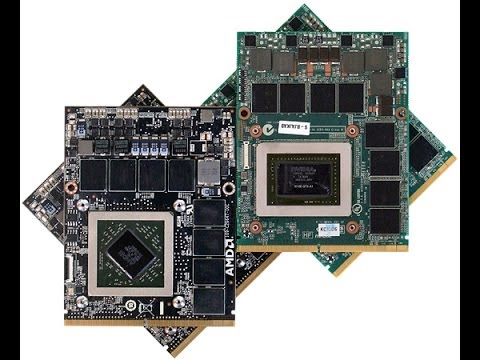
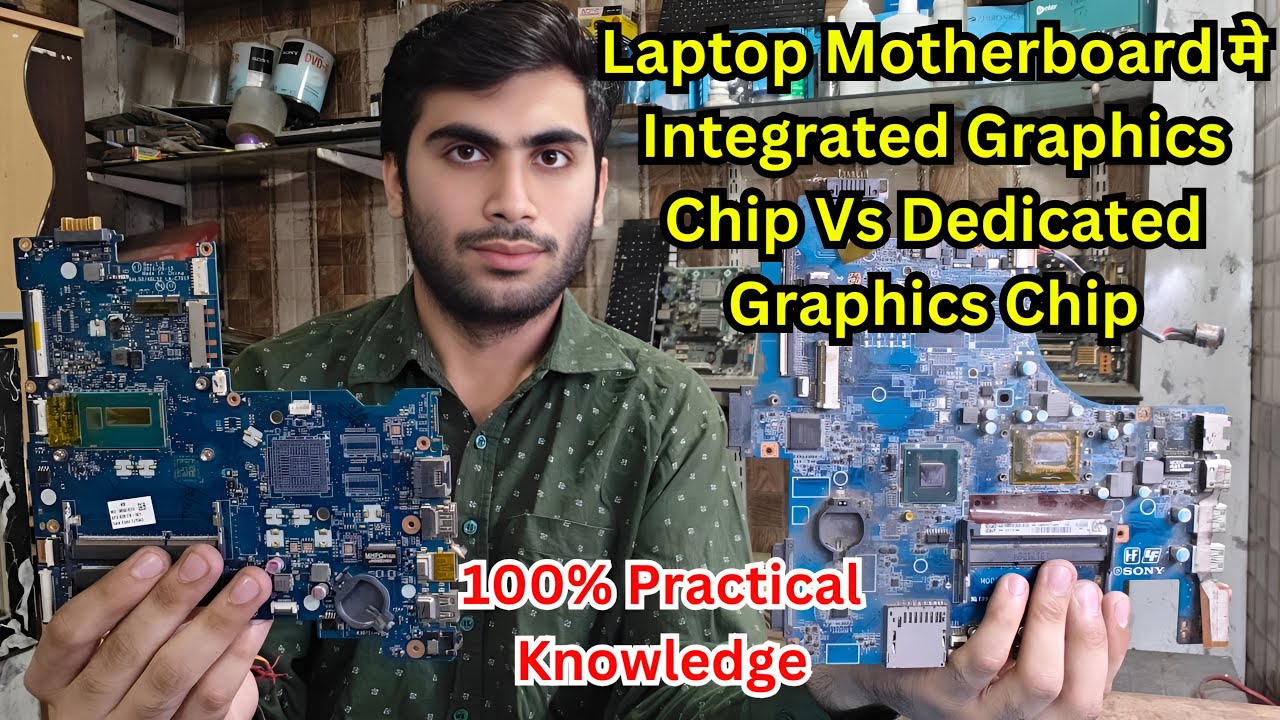
Dedicated graphics use a separate graphics processor, often called a discrete GPU. The chip may be soldered to the laptop’s motherboard, but it is still separate from the CPU.
A dedicated GPU usually has its own high-speed memory, called VRAM. This gives it more room for textures, 3D models, video frames, and other graphics data.
Common laptop GPU families include:
- NVIDIA GeForce RTX and older GTX models
- AMD Radeon RX mobile graphics
- Professional workstation GPUs such as NVIDIA RTX professional models
“Dedicated graphics” and “discrete graphics” usually mean the same thing in laptop specifications.
The main difference at a glance
| Feature | Integrated graphics | Dedicated graphics |
|---|---|---|
| Location | Built into the CPU or processor package | Separate GPU chip |
| Memory | Shares system RAM or unified memory | Usually has dedicated VRAM |
| Power use | Usually lower | Usually higher |
| Heat and fan noise | Usually lower | Often higher under load |
| Battery life | Often better | Often shorter during demanding work |
| Gaming and 3D power | Basic to moderate | Moderate to very high |
| Laptop cost | Often lower | Often higher |
| Upgrade potential | Not upgradeable | Usually not upgradeable in a laptop |

How Integrated Graphics Work
Integrated graphics borrow memory and power from the laptop’s main system. This design keeps the laptop compact and efficient.
When an integrated GPU needs space for game textures or video frames, it reserves part of the system RAM. For example, a laptop with 16 GB of RAM may have less memory available to Windows while the GPU is active. The exact amount can change based on the laptop, operating system, and workload.
This shared design has several benefits:
- It reduces the number of chips inside the laptop.
- It can lower power use.
- It can help laptops stay thin and light.
- It usually costs less to manufacture.
- It can improve battery life during light work.
The trade-off is that system RAM is not designed only for graphics. The CPU, GPU, and apps must share it. Integrated graphics also tend to have fewer resources than a powerful dedicated GPU.
Modern integrated graphics are much faster than older basic graphics solutions. A current integrated GPU can handle:
- Web browsing and office software
- 1080p and 4K video playback
- Video calls
- Photo editing
- Light creative work
- Many esports and older games
- Some newer games at reduced settings
Still, an integrated GPU does not automatically make a laptop a gaming computer. Performance depends on the game, resolution, graphics settings, processor, RAM configuration, and cooling system.
Why RAM configuration matters
Integrated graphics can benefit from fast, dual-channel memory. A laptop with two memory channels may give the GPU more bandwidth than a similar model with one memory channel.
This means an integrated GPU may perform poorly if:
- The laptop has too little RAM.
- The memory runs at a low speed.
- One memory channel is active instead of two.
- Many background apps consume the shared memory.
For an integrated-graphics laptop, 16 GB of RAM is often a more comfortable starting point than 8 GB for current multitasking. The right amount still depends on the apps you use.

How Dedicated Graphics Work
A dedicated GPU has its own processing resources and usually its own VRAM. This design lets the GPU handle demanding graphics work without relying as heavily on the CPU’s shared memory.
Dedicated graphics can process more pixels, effects, textures, and 3D calculations at the same time. That makes them useful for:
- Modern PC games
- 3D modeling and rendering
- CAD and engineering software
- Video editing with high-resolution footage
- Motion graphics
- AI and machine-learning workloads that support GPU acceleration
- Multiple high-resolution external displays
VRAM is not the same as ordinary laptop RAM. VRAM is built for fast access to graphics data. More VRAM can help with large textures, high resolutions, complex scenes, and some professional workloads.
However, more VRAM does not guarantee a faster laptop. GPU architecture, power limits, cooling, driver support, and clock speeds also matter.
Dedicated graphics still use system resources
A dedicated GPU does not make the CPU or system RAM irrelevant. The laptop still needs enough CPU power and memory for the operating system and the application.
Some laptops can also use system memory when the dedicated GPU runs out of VRAM. This may prevent an immediate failure, but it is usually slower than using the GPU’s own VRAM.
Laptop GPU names need careful reading
A laptop GPU with a familiar name may not match the performance of a desktop GPU with a similar name. Laptop manufacturers set different power limits, and thin laptops may run a GPU at a lower power level to control heat.
For this reason, compare:
- The exact GPU model
- Its power range or thermal design
- The laptop’s cooling system
- Independent benchmark results for the exact laptop
- The screen resolution you plan to use
A dedicated GPU is a strong sign of higher graphics capability, but the name alone is not enough.

Integrated vs. Dedicated Graphics: Which Is Faster?
Dedicated graphics are usually faster for demanding 3D work. Integrated graphics are usually more efficient for everyday computing.
The performance gap depends on the workload. A dedicated GPU may provide a large advantage in a modern game or 3D renderer. In a word processor or web browser, the difference may be hard to notice.
Gaming
Choose integrated graphics for casual gaming, indie games, older titles, and many esports games at moderate settings. A dedicated GPU is the safer choice for current AAA games, high refresh rates, ray tracing, and higher resolutions.
Gaming performance depends on more than the GPU. Check:
- Game resolution
- Target frame rate
- Graphics quality settings
- Ray tracing use
- Upscaling features
- CPU performance
- Laptop cooling
- Screen refresh rate
A 1080p gaming laptop may need far less graphics power than a laptop intended for 1440p or 4K gaming.
Video editing
Integrated graphics can handle basic editing, short projects, and common export tasks. Dedicated graphics can help with supported effects, color work, timeline playback, and faster rendering.
The improvement varies by editing program and codec. Some video tasks rely more on the CPU, while others use GPU acceleration. Before buying, check the hardware requirements for the specific version of Adobe Premiere Pro, DaVinci Resolve, Final Cut Pro, or another editor you plan to use.
Photo editing
Most photo editors do not require a powerful dedicated GPU for normal work. Integrated graphics are often enough for organizing photos, adjusting exposure, and editing standard-resolution images.
A dedicated GPU becomes more useful with very large files, complex effects, 3D tools, AI features, or many high-resolution displays.
3D design and CAD
A dedicated GPU is usually the better option for 3D modeling, animation, simulation, and rendering. Professional software may also require certified drivers or specific GPU features.
Do not assume that a gaming GPU is ideal for every professional program. Check the software maker’s supported hardware list if stability or certification matters.
AI and compute workloads
Some AI tools use the GPU for parallel calculations. Dedicated GPUs often have more memory and specialized hardware for these workloads.
Compatibility matters as much as raw speed. A GPU may be powerful but still work poorly with a tool that does not support its software platform, drivers, or acceleration framework.

Integrated or Dedicated Graphics: Which Should You Choose?
Choose integrated graphics if you mainly use your laptop for school, office work, browsing, streaming, communication, and light creative tasks.
Choose dedicated graphics if you regularly play demanding games, edit high-resolution video, work in 3D, or use software that requires a discrete GPU.
Use this decision guide:
| Your main use | Better fit | Why |
|---|---|---|
| Email, documents, and web browsing | Integrated | Lower cost and power use |
| Streaming and video calls | Integrated | Current integrated GPUs can handle these tasks |
| School and general work | Integrated | Sufficient for most common apps |
| Casual or older games | Integrated | Often adequate at modest settings |
| Competitive gaming at high frame rates | Dedicated | More graphics headroom |
| New AAA games | Dedicated | Better performance and settings support |
| Basic photo editing | Integrated | Usually enough for standard projects |
| 4K video editing | Dedicated | More support for demanding effects and timelines |
| 3D modeling and rendering | Dedicated | More graphics resources and VRAM |
| Local AI workloads | Usually dedicated | More compute power and graphics memory |
Consider the whole laptop
A strong GPU cannot fix every weakness. Look at the full system:
- Processor: A weak CPU can limit some games and creative apps.
- RAM: Check capacity and whether it can be upgraded.
- Storage: An SSD improves app loading and project handling.
- Display: Match the GPU to the screen resolution and refresh rate.
- Cooling: Sustained workloads create heat.
- Battery: Dedicated graphics can reduce unplugged runtime.
- Ports: Check support for your monitor, dock, or other devices.
- Weight: Powerful graphics often require a larger cooling system.
- Operating system: Confirm that your software supports the laptop’s GPU.
- Repair options: Many modern laptops solder the RAM, storage, or GPU.
The best choice is not always the most powerful GPU. It is the GPU that meets your workload without adding cost, heat, and weight you do not need.
Can a Laptop Have Both Integrated and Dedicated Graphics?
Yes. Many Windows laptops include both types of graphics.
The laptop may use integrated graphics for light work and switch to the dedicated GPU for games or demanding apps. This is often called hybrid graphics or switchable graphics. NVIDIA Optimus and AMD graphics-switching systems are examples of this approach, though the exact behavior depends on the laptop.
This design can improve battery life because the dedicated GPU does not need to run all the time. When a program needs more power, the laptop can activate the dedicated GPU.
There can be exceptions:
- An app may use the wrong GPU.
- A monitor connected to a certain port may be wired to one GPU.
- Battery mode may limit dedicated GPU performance.
- Driver or firmware settings may affect switching.
- External displays may change which GPU handles the workload.
On Windows, you can often select a preferred GPU for an app in the system graphics settings. Some laptop makers also provide a performance mode or GPU mode in their control software.
A laptop with both GPUs does not combine their power into one simple total. The operating system usually assigns a workload to one GPU, rather than adding the two together.
Common Mistakes When Comparing Laptop Graphics
Mistake 1: Comparing only the graphics brand
“Intel,” “AMD,” or “NVIDIA” does not tell you enough. Each company makes graphics processors with different performance levels.
Compare the exact model and the laptop’s power setting.
Mistake 2: Assuming more VRAM always means better performance
VRAM capacity matters, but it is only one part of the GPU. A slower GPU with more memory may still perform worse than a faster GPU with less memory for a particular task.
Mistake 3: Treating desktop and laptop GPUs as identical
Laptop versions often have lower power limits and different cooling conditions. Use laptop-specific benchmarks when possible.
Mistake 4: Ignoring the display
A high-resolution or high-refresh-rate screen asks more from the GPU. A dedicated GPU may be unnecessary for a 60 Hz office display but useful for a 165 Hz gaming panel.
Mistake 5: Buying for an occasional task
If you edit one short video every few months, a dedicated GPU may not be worth the added cost and weight. If video editing is part of your weekly work, the calculation changes.
Mistake 6: Forgetting memory limits
A laptop with integrated graphics may need enough RAM for both the GPU and your apps. A laptop with dedicated graphics still needs enough system memory for the operating system and software.
Mistake 7: Expecting to upgrade the GPU later
Laptop GPUs are usually soldered to the motherboard. Unlike a desktop graphics card, they normally cannot be replaced with a faster internal model.
Some laptops support an external GPU enclosure through a suitable high-speed port, but compatibility, cost, bandwidth, and power limits make this a specialized option. Verify support from the laptop maker before buying an enclosure.
How to Check Which Graphics Your Laptop Has
On a Windows laptop:
- Right-click the Start button.
- Select Device Manager.
- Open Display adapters.
- Read the listed GPU names.
You may see one integrated GPU and one dedicated GPU.
You can also press Ctrl + Shift + Esc to open Task Manager, select Performance, and view GPU activity. This can show which GPU is working during a game or creative app.
On a Mac:
- Open the Apple menu.
- Select About This Mac.
- Review the chip or graphics information.
Apple silicon Macs use an integrated GPU design with unified memory. That memory is shared by the CPU, GPU, and other parts of the system. Because of this design, compare the complete chip and memory configuration rather than looking for a traditional dedicated VRAM number.
For any laptop, the manufacturer’s technical specifications provide the most reliable starting point. The exact model number matters because one laptop family may be sold with several different processors and graphics options.

Frequently Asked Questions
Are integrated graphics good enough for a laptop?
Yes, integrated graphics are good enough for most office work, school tasks, web use, streaming, video calls, and light photo editing. They can also run many games at reduced settings. They are less suitable for demanding 3D games, advanced rendering, and heavy video production.
Do dedicated graphics use more battery?
Usually, yes. A dedicated GPU uses more power when active, especially during games and rendering. A laptop with hybrid graphics can reduce this effect by using integrated graphics for light tasks.
Is 16 GB of RAM enough for integrated graphics?
For many users, 16 GB is a practical amount for general work and light creative tasks. Because integrated graphics share system memory, more RAM can help when you run large projects or many apps. The exact need depends on your software and workload.
Can integrated graphics run modern games?
Some can. Performance depends on the specific integrated GPU, game, resolution, settings, memory configuration, and cooling. Newer integrated graphics may handle some modern games at low or medium settings, but demanding titles may need a dedicated GPU.
Can I add a dedicated GPU to my laptop later?
Usually not internally. Most laptop GPUs are soldered to the motherboard. A compatible external GPU may be possible on some systems, but the laptop must support the required connection and software.
Conclusion
Integrated graphics are built into the processor, share system or unified memory, and usually provide better efficiency, lower cost, and longer battery life. Dedicated graphics use a separate GPU and usually dedicated VRAM, giving them an advantage in gaming, 3D work, high-resolution editing, and other demanding tasks.
For everyday laptop use, integrated graphics are often the sensible choice. For demanding graphics work, choose a dedicated GPU and compare the exact laptop’s power limit, cooling, RAM, display, and software support. The most useful question is not “Which graphics type is better?” but “Which graphics type matches the work I actually do?”
Sources for further checking
- Intel: Integrated graphics and processor graphics information
- NVIDIA: Laptop GPU technology and graphics features
- AMD: Radeon graphics for laptops
- Microsoft Support: Change graphics performance preference in Windows
- Apple: Mac technical specifications

Everett Ashford is a tech reviewer at mytechgrid.com specializing in SSDs, cameras, TVs, earbuds, headphones, and other consumer electronics. He provides honest, data-driven reviews based on hands-on testing and real-world performance analysis. Everett simplifies complex tech details to help readers make smart, confident buying decisions.