For laptop owners in the United States, the main difference between an NVMe SSD and a SATA SSD is how the drive connects to the computer. SATA SSDs use the older SATA interface and usually reach about 500–550 MB/s in real use. NVMe SSDs use the PCIe interface and can deliver much higher speeds, often several times faster.
That speed gap matters most when you copy large files, edit video, run virtual machines, or load large games and software. For web browsing, email, office work, and normal startup times, both types of SSDs feel much faster than a traditional hard drive.
The most important point is compatibility: an M.2 drive is not automatically an NVMe drive. M.2 describes the shape of the drive. NVMe and SATA describe how the drive communicates with the laptop.
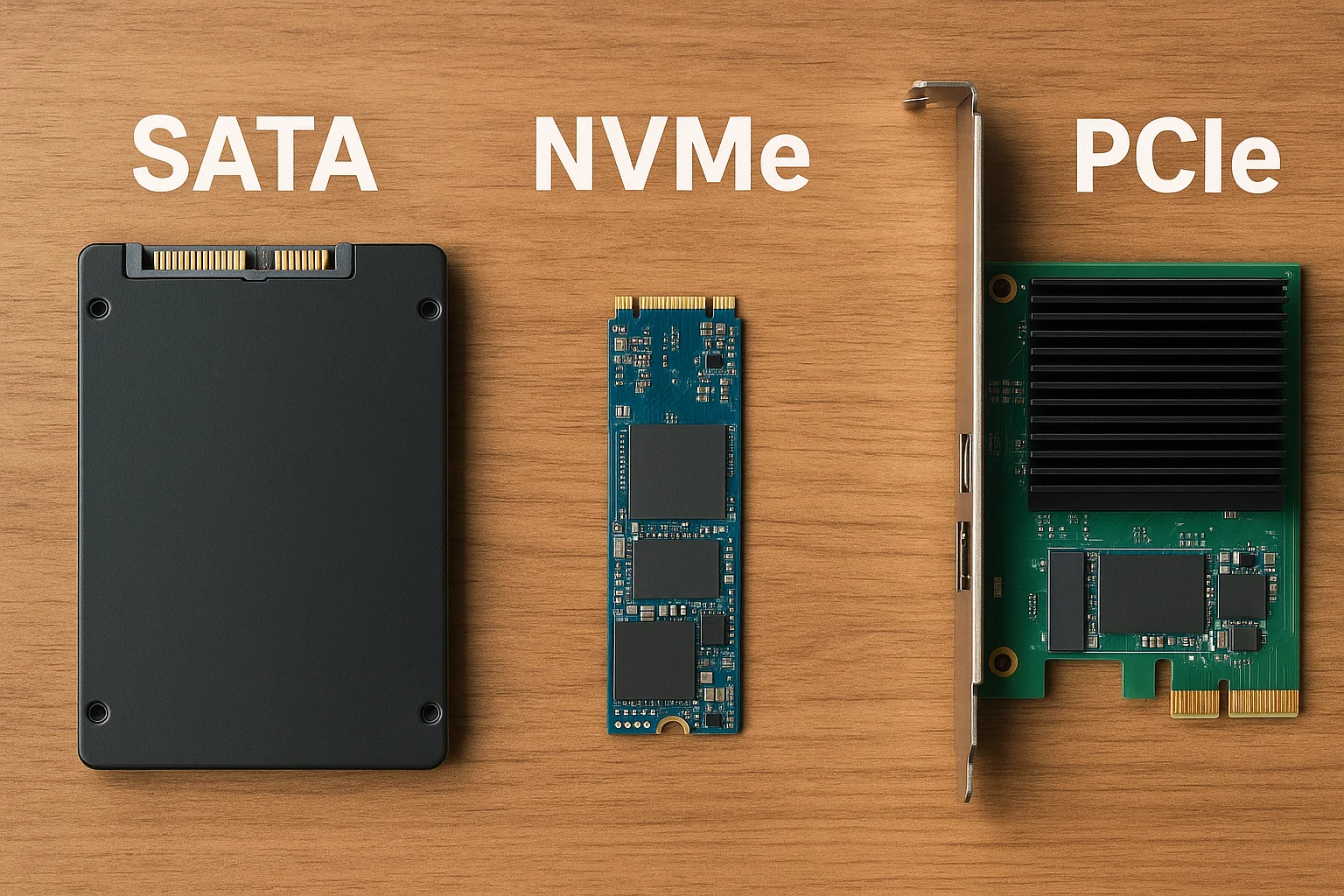
NVMe vs. SATA SSD: Quick Comparison
An NVMe SSD is usually the better choice for a compatible modern laptop, but a SATA SSD can still be a sensible and affordable upgrade.
| Feature | SATA SSD | NVMe SSD |
|---|---|---|
| Main interface | SATA III | PCIe |
| Communication protocol | AHCI | NVMe |
| Common form factors | 2.5-inch and M.2 | Mostly M.2 |
| Typical sequential read speed | About 500–550 MB/s | About 1,500–14,000+ MB/s, depending on PCIe version and drive |
| Random performance | Much faster than a hard drive | Usually higher than SATA |
| Best use | General upgrades and older laptops | Newer laptops, demanding work, and fast storage |
| Heat output | Usually low | Can be higher under heavy workloads |
| Compatibility | Depends on SATA support and connector | Depends on PCIe and NVMe support |
| Upgrade difficulty | Often simple in a 2.5-inch bay | Can require a specific M.2 slot |
| Typical bottleneck | SATA interface | PCIe generation, thermal limits, or laptop design |
The quoted speeds are maximum or advertised figures. Your laptop, drive capacity, temperature, file size, operating system, and workload all affect actual results.
A SATA SSD can make an old laptop feel dramatically faster because it removes the mechanical delay of a hard drive. An NVMe SSD can be much faster in storage benchmarks, but the difference may be small during simple daily tasks.
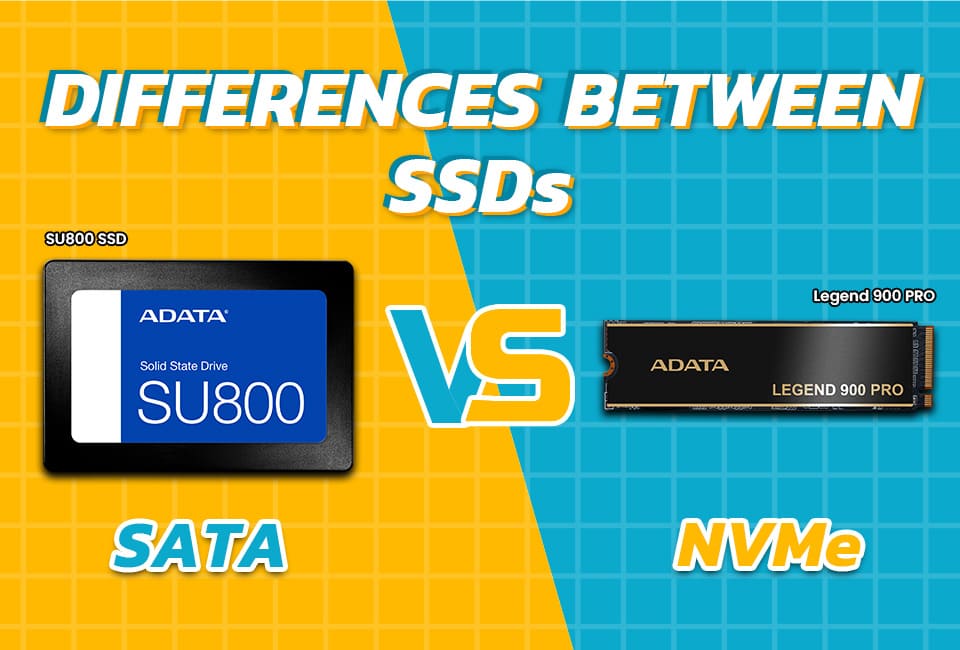
What Is a SATA SSD?
A SATA SSD is a solid-state drive that uses the Serial ATA interface. SATA was designed for storage devices such as hard disk drives and optical drives. Most modern SATA SSDs use the SATA III standard, which has a link speed of 6 gigabits per second.
Because of protocol overhead and system limits, SATA III SSDs usually top out at roughly 500 to 550 MB/s for sequential transfers. This is far faster than a hard disk drive, but it limits the maximum speed of even the fastest SATA SSD.
SATA SSDs do not contain moving parts. They store data in NAND flash memory and use a controller to manage that data. This makes them quieter, more resistant to movement, and much faster at starting programs than a mechanical hard drive.
Common SATA SSD formats
sata SSDs commonly appear in two forms:
- 2.5-inch SATA SSD: Uses a SATA data connection and a separate SATA power connection. Many older laptops use this format.
- M.2 SATA SSD: Uses the small M.2 card shape but still communicates through SATA. It may look like an NVMe drive, even though its technology is different.
A 2.5-inch SATA drive usually cannot replace an M.2 NVMe drive without the right bay, cable, and mounting hardware. Likewise, an M.2 SATA drive may not work in an M.2 slot designed only for PCIe NVMe storage.
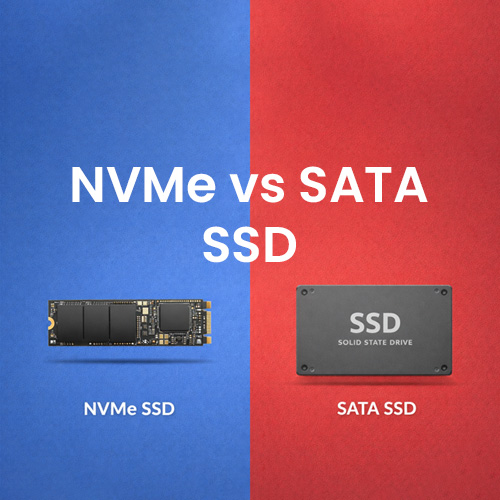
What Is an NVMe SSD?
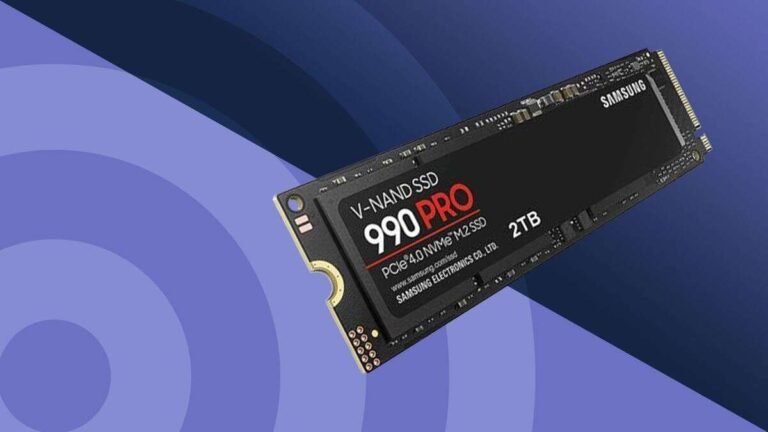
NVMe stands for Non-Volatile Memory Express. It is a storage protocol built for flash memory and connected through the PCI Express, or PCIe, bus.
Older storage devices often used the AHCI protocol, which was created with spinning hard drives in mind. NVMe is designed to handle the parallel nature and low latency of modern flash storage. It can manage many commands at once and reduce communication delays between the processor and the storage device.
Most laptop NVMe drives use the M.2 2280 format. The number 2280 means the drive is about 22 millimeters wide and 80 millimeters long. However, size alone does not prove that a drive is NVMe.
PCIe generation affects NVMe speed
NVMe performance depends heavily on the PCIe generation supported by both the laptop and the SSD.
- PCIe 3.0 NVMe: Often reaches around 3,000–3,500 MB/s for sequential reads.
- PCIe 4.0 NVMe: Some drives can exceed 7,000 MB/s.
- PCIe 5.0 NVMe: Certain drives can reach more than 10,000 MB/s, but they may need more cooling and are less common in thin laptops.
These figures describe sequential transfers under suitable test conditions. A laptop with a PCIe 3.0 slot will not gain PCIe 4.0 performance simply by installing a PCIe 4.0 drive. The drive may work at the lower supported link speed, but the system determines the connection.

What Is the Actual Speed Difference?
The biggest measurable difference is sequential transfer speed. A SATA SSD usually reaches the limit of the SATA interface, while an NVMe SSD can use multiple PCIe lanes for much higher throughput.
For example, a hypothetical file-copy test might look like this:
| Task | SATA SSD | PCIe 3.0 NVMe SSD | PCIe 4.0 NVMe SSD |
|---|---|---|---|
| Large sequential read | 500–550 MB/s | 3,000–3,500 MB/s | 5,000–7,400 MB/s |
| Large sequential write | 450–550 MB/s | 2,000–3,500 MB/s | 4,000–7,000 MB/s |
| Small-file work | Fast | Usually faster | Usually faster, but not always dramatically |
| Laptop startup | Fast | Often slightly faster | Often similar to PCIe 3.0 in daily use |
These numbers are examples of common performance ranges, not guaranteed results for every model.
Why the fastest SSD may not feel much faster
Opening a browser does not require several gigabytes per second of storage throughput. The laptop must also process the request, load software, check files, and connect to the internet. Those steps can make the difference between SATA and NVMe feel modest.
NVMe has a clearer advantage in tasks such as:
- Copying large video files
- Editing high-resolution video
- Working with large image catalogs
- Compiling large software projects
- Running virtual machines
- Loading large game files
- Processing large data sets
- Moving many files at once
For ordinary office work, the improvement from a hard drive to any SSD is usually more noticeable than the improvement from SATA SSD to NVMe SSD.

Does NVMe Make a Laptop Boot Faster?
NVMe can reduce storage-related delays, but it does not guarantee a dramatically faster boot time. Laptop startup also depends on firmware checks, memory training, background programs, encryption, drivers, and the operating system.
If a laptop currently uses a hard drive, replacing it with either a SATA SSD or an NVMe SSD can produce a major improvement. If the laptop already has a SATA SSD, moving to NVMe may shorten some load times, but the everyday difference may be limited.
The same principle applies to applications. A program that reads a large amount of data may open faster with NVMe. A program that spends most of its time using the processor, graphics chip, or internet connection may show little change.
Which SSD Uses Less Power?
Power use depends on the specific drive and workload. It is not accurate to say that every SATA SSD uses less power than every NVMe SSD.
NVMe drives can use more power during heavy transfers, especially high-performance PCIe 4.0 and PCIe 5.0 models. They may also produce more heat. SATA SSDs often have lower peak power use, but the total battery effect depends on how long the drive stays busy and how the laptop manages power.
A fast NVMe drive may finish a task sooner, which can reduce the time spent under load. A laptop with poor cooling may instead reduce drive performance through thermal throttling. For a thin laptop, a low-power NVMe model may be a better fit than a high-end desktop-oriented drive.
Check the laptop manufacturer’s service manual and the SSD maker’s power specifications when battery life and temperature matter.
Is NVMe More Reliable Than SATA?
The NVMe protocol itself does not make an SSD automatically more reliable than a SATA SSD. Reliability depends on the NAND flash type, controller, firmware, operating temperature, workload, power management, and manufacturing quality.
Useful specifications include:
- Warranty period
- TBW, or terabytes written
- Drive capacity
- NAND type
- Presence or absence of a DRAM cache
- Power-loss protection
- Manufacturer support and firmware tools
TBW is a manufacturer endurance rating. It is not a promise that the drive will fail immediately after reaching that number, nor is it a guarantee that the drive will last forever below it. Typical laptop use usually writes far less data than heavy server or professional video workloads.
A drive with a higher TBW rating is not automatically the right choice. Compatibility, temperature, warranty support, and price also matter.
What Does M.2 Mean?
M.2 is a physical form factor. It describes the size and edge connector used by a small expansion card. An M.2 drive can use SATA or PCIe NVMe, depending on its design and the laptop slot.
This is one of the most common upgrade mistakes. A buyer sees an M.2 slot and assumes any M.2 SSD will work. That assumption can lead to a drive that does not fit electrically, even when it fits physically.
M.2 keying and compatibility
M.2 drives use different connector key arrangements. The notch can provide a clue, but it is not enough by itself to confirm compatibility.
Before buying, check:
- The laptop’s service manual.
- The exact laptop model and configuration.
- Whether the slot supports SATA, PCIe NVMe, or both.
- The supported PCIe generation.
- The supported drive length, such as 2242 or 2280.
- Whether a mounting screw or bracket is included.
- Whether the laptop supports single-sided or double-sided drives.
Use the laptop maker’s documentation rather than relying only on a retailer’s compatibility filter. Different configurations of the same laptop family can support different storage options.

How to Check Which SSD Your Laptop Supports
Check compatibility before purchasing the drive. A few minutes of research can prevent a return, installation problem, or operating-system migration failure.
Method 1: Read the service manual
Search the laptop manufacturer’s US support site for the exact model number and terms such as:
- “service manual”
- “maintenance manual”
- “storage upgrade”
- “M.2 SSD support”
Look for statements about SATA, PCIe, NVMe, drive size, and supported capacity.
Method 2: Check the existing drive
In Windows, you can identify the current storage device through Task Manager, Device Manager, or a trusted system-information tool. The model number is often the most useful detail.
Search the exact model number on the manufacturer’s website. Do not rely on the words “solid-state drive” alone, because that does not identify whether the drive is SATA or NVMe.
Method 3: Inspect the laptop carefully
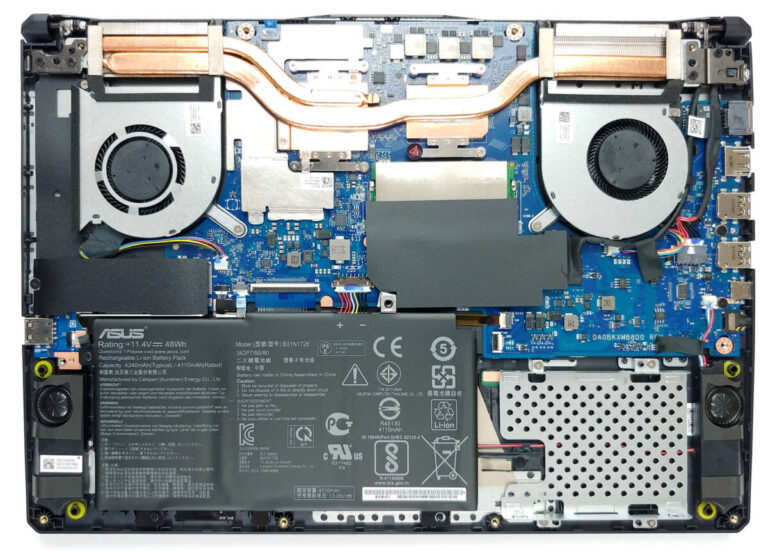
If you open the laptop, first shut it down, disconnect the charger, and follow the manufacturer’s instructions. Some laptops have an internal battery disconnect option.
Do not force a drive into a slot. Note the drive length, screw position, connector type, and any heat shield. If the laptop is under warranty, check the warranty terms before opening the case.

How to Choose Between NVMe and SATA SSD
Choose based on the laptop’s supported interface and your workload, not on the largest speed number printed on the box.
Choose NVMe when:
- The laptop supports PCIe NVMe.
- You transfer large files often.
- You edit video or large photo libraries.
- You use virtual machines or development tools.
- You want the highest storage performance available for the system.
- The NVMe drive has suitable power and thermal characteristics.
Choose SATA when:
- The laptop supports only SATA storage.
- You are replacing a 2.5-inch hard drive.
- You need a compatible M.2 SATA drive.
- Your main tasks are browsing, email, schoolwork, or office work.
- The price and capacity are more important than peak speed.
- You want a simple upgrade for an older laptop.
A practical decision rule
If a laptop supports both types and the price difference is small, NVMe is usually the more flexible performance choice. If the laptop supports only SATA, a good SATA SSD is still a major upgrade over a hard drive.
Do not pay for a high-end PCIe 5.0 drive if the laptop supports only PCIe 3.0. The laptop will limit the connection, and the extra cost may provide little or no practical benefit.

Can You Replace a SATA SSD With an NVMe SSD?
Sometimes, but not always. The answer depends on the laptop’s slot and motherboard support.
A laptop with a 2.5-inch SATA bay generally cannot accept an M.2 NVMe drive without major hardware changes. A laptop with an M.2 SATA slot may also fail to recognize an NVMe drive if the slot does not support PCIe.
Some laptops have an M.2 slot that supports both SATA and NVMe. Others have separate storage options. The laptop’s manual is the safest source for this detail.
A passive adapter does not convert a SATA-only connection into NVMe. An adapter can change the physical shape, but it cannot add PCIe support that the motherboard does not provide.
Common Upgrade Problems and Fixes
The laptop does not detect the new NVMe drive
Possible causes include:
- The M.2 slot supports SATA only.
- The drive is not fully inserted.
- The drive is not secured correctly.
- The firmware needs an update.
- The storage mode or boot settings need review.
- The drive is not initialized in the operating system.
First, shut the laptop down and reseat the drive. Then check whether the drive appears in the firmware storage menu. If the firmware cannot see it, Windows cannot use it until the hardware or compatibility problem is fixed.
The drive appears but Windows will not boot
The operating system may not have been cloned correctly, or the laptop may be trying to boot from the wrong device. Check the boot order and confirm that the original system partitions were copied.
If the old drive is still available, keep it untouched until the new installation starts properly. Create a current backup before cloning or changing partitions.
The new SSD runs slower than expected
Check the following:
- The laptop’s PCIe generation.
- Whether the drive is nearly full.
- Drive temperature.
- Whether the test uses sequential or random data.
- Whether the laptop has a power-saving mode enabled.
- Whether the drive is connected through a slower interface.
A PCIe 4.0 SSD installed in a PCIe 3.0 laptop may work correctly while delivering PCIe 3.0-level performance. That is a compatibility limit, not necessarily a defective drive.
The SSD becomes very hot
High-performance NVMe drives can generate significant heat during long transfers. A laptop may reduce performance to protect the drive, a process called thermal throttling.
Make sure the drive’s heat spreader fits inside the laptop. Do not install a thick desktop heatsink if it presses against the bottom cover or nearby components. Use the laptop’s original thermal pad or a replacement with the correct thickness when the service manual specifies one.

SATA SSD vs. NVMe SSD: Common Mistakes to Avoid
Avoid these errors when planning a laptop storage upgrade:
- Assuming every M.2 slot supports NVMe. M.2 is a shape, not a guarantee of protocol support.
- Comparing advertised speeds without checking the laptop. The computer may limit the drive to a lower PCIe generation.
- Ignoring drive length. A 2280 drive may not fit a slot designed for a shorter 2242 drive.
- Forgetting a mounting screw. An unsecured M.2 drive can move or lose contact.
- Cloning without a backup. A failed clone can leave you without a working system.
- Using a desktop heatsink in a thin laptop. It may prevent the bottom cover from closing or damage nearby parts.
- Expecting NVMe to fix every slow-laptop problem. Low memory, overheating, malware, or an aging processor may be the real cause.
- Buying based only on peak read speed. Warranty, endurance, power use, and sustained performance also matter.

Frequently Asked Questions
Is NVMe better than SATA SSD for a laptop?
NVMe is faster when the laptop supports it, especially for large file transfers and demanding workloads. SATA SSDs remain useful for older laptops and everyday tasks. The best option is the fastest compatible drive that fits your budget and thermal limits.
Is a SATA SSD good enough for gaming?
Yes. A SATA SSD can reduce game loading times substantially compared with a hard drive. NVMe may load some games faster, but the difference varies by game and system. Graphics performance, processor speed, memory, and game design also affect loading time.
Can I use an NVMe SSD in a SATA M.2 slot?
Usually not. An M.2 SATA slot may not provide the PCIe connection required by an NVMe drive. Confirm the slot’s supported protocols in the laptop’s service manual.
Does NVMe improve battery life?
Not automatically. Some NVMe drives use more power during heavy activity, while others finish tasks quickly and return to a low-power state. The result depends on the drive, laptop firmware, workload, and cooling system.
Do I need to format a new SSD before using it?
A new drive may need to be initialized, partitioned, and formatted before Windows can store files on it. If you are cloning an existing system, follow the cloning software’s instructions instead. Formatting erases data on the selected drive, so verify the drive name and back up important files first.
Final Answer: Which One Should You Get?
The difference between NVMe and SATA SSD in a laptop is mainly the connection technology and resulting performance. SATA SSDs use the SATA interface and usually reach around 500–550 MB/s. NVMe SSDs use PCIe and can be several times faster, but only when the laptop supports NVMe and the workload benefits from that speed.
For a compatible newer laptop, choose NVMe when the price, power use, and heat are reasonable. For an older laptop or a system with a SATA-only slot, choose a SATA SSD. In either case, confirm the exact laptop model, M.2 type, drive length, and supported interface before buying.
Your next step is to find the laptop’s service manual and verify whether its storage slot supports 2.5-inch SATA, M.2 SATA, M.2 NVMe, or more than one option.

Everett Ashford is a tech reviewer at mytechgrid.com specializing in SSDs, cameras, TVs, earbuds, headphones, and other consumer electronics. He provides honest, data-driven reviews based on hands-on testing and real-world performance analysis. Everett simplifies complex tech details to help readers make smart, confident buying decisions.