

A good budget laptop delivers reliable daily performance, a clear display, solid battery life, and fair value.
Knowing what is a good budget laptop means looking beyond the lowest price. The right model should handle work, school, web browsing, video calls, streaming, and light creative tasks without feeling slow or poorly built. This guide explains the key features, trade-offs, buying mistakes, and practical checks that help you choose with confidence.

What Is a Good Budget Laptop?
A good budget laptop is an affordable computer that offers dependable performance, useful battery life, a comfortable keyboard, and enough storage for everyday needs. In the United States, the best choices often cost between $350 and $700, although sales can push strong models below or above that range.
The exact price matters less than the balance of features. A $300 laptop with weak storage and poor support may offer less value than a $450 laptop with a faster processor, better screen, and longer useful life.
For most people, a good budget laptop should provide:
• Smooth web browsing with many tabs open
• Reliable performance in Microsoft Office, Google Workspace, Zoom, and similar apps
• At least 8GB of RAM
• A solid-state drive, also called an SSD
• A Full HD display with a resolution of 1920 by 1080
• Comfortable typing and a responsive trackpad
• Battery life that lasts through several hours of normal use
• A current operating system and regular security updates
The best budget laptop is not always the fastest one. It is the model that fits your daily work without forcing you to pay for features you will never use.
How Much Should You Spend on a Budget Laptop?
Your budget should match the type of work you plan to do. Basic tasks need far less power than video editing, gaming, or professional design.
Under $300
Laptops under $300 can work for simple tasks. They are often suitable for:
• Email and web browsing
• Online classes
• Word processing
• Streaming video
• Basic cloud apps
At this price, expect compromises. Many models use entry-level processors, 4GB of RAM, small storage drives, dim displays, or plastic cases. A Chromebook may offer better value than a Windows laptop in this range because ChromeOS needs fewer system resources.
Avoid buying a very cheap laptop with only 4GB of RAM if you expect to keep it for several years. It may feel acceptable at first but struggle as websites and apps become more demanding.
$350 to $500
This is often the sweet spot for a good budget laptop. Models in this range commonly include 8GB of RAM, 128GB to 512GB of SSD storage, and a Full HD screen.
This price range is well suited to students, home users, office workers, and families. You can usually find a laptop with a modern Intel Core i3, Intel Core 3, AMD Ryzen 3, AMD Ryzen 5, or comparable processor.
$500 to $700
A laptop in this range may offer a stronger processor, 16GB of RAM, a larger SSD, a better display, or a more durable body. It can be a smart choice if you want to keep the laptop for four or five years.
This range also includes entry-level gaming laptops and affordable creator laptops. However, powerful graphics hardware often reduces battery life and increases weight, so check whether you really need it.

Key Features to Look For
Understanding laptop specifications can feel like reading a foreign language. The good news is that you only need to understand a few important parts.
Processor
The processor, or CPU, handles most computing tasks. A newer mid-range processor usually delivers a better experience than an older high-end chip.
Look for:
• Intel Core i3, Core 5, or newer equivalent chips
• AMD Ryzen 3 or Ryzen 5 processors
• Apple silicon in lower-cost MacBook models when available on sale
• Qualcomm Snapdragon processors for long battery life and light work
Avoid very old processors or chips designed only for basic tablets unless your needs are extremely simple. Processor names can be confusing, so check the release generation as well as the model name.
For everyday work, a modern Ryzen 5 or Core 5 processor gives you useful extra room. It can handle many browser tabs, spreadsheets, video calls, and background updates without constant pauses.
RAM
RAM helps your laptop manage several open apps at once. It is different from storage.
• 4GB is suitable only for very basic use
• 8GB is the practical minimum for most buyers
• 16GB is better for multitasking, coding, photo editing, and long-term use
A laptop with 8GB of RAM may feel fine today. A 16GB model gives you more breathing room as software becomes heavier.
Storage
Choose an SSD rather than an older hard disk drive. An SSD makes the laptop start faster, open apps sooner, and feel more responsive.
Storage guidelines include:
• 128GB works for light cloud-based use
• 256GB is a sensible minimum for many people
• 512GB is better for photos, files, apps, and offline media
Cloud storage can reduce the need for a large drive, but it should not be your only backup. Keep important files in at least two places.
Display
The screen affects your comfort more than many buyers expect. A Full HD display gives text and images sharper detail than a 1366 by 768 panel.
Look for:
• 1920 by 1080 resolution
• An IPS or similar wide-viewing-angle panel
• At least 250 nits of brightness for indoor use
• A matte coating if you work near windows
• A 14-inch or 15.6-inch size based on your travel needs
Touchscreens are convenient, but they often cost more and may reduce battery life. Do not choose one unless you expect to use it.
Battery Life
Manufacturers often measure battery life under controlled conditions. Real use can be lower, especially with high brightness, video calls, and demanding apps.
A good budget laptop should ideally provide six or more hours of practical use. Chromebooks and laptops with efficient processors may last longer, while gaming laptops usually last less when unplugged.
Keyboard and Trackpad
A laptop can have excellent specifications and still feel unpleasant if the keyboard is cramped. If possible, test the keys before buying.
Pay attention to:
• Key travel and firmness
• Full-size arrow keys
• A precise trackpad
• Backlighting
• A number pad if you work with financial data
A sturdy hinge also matters. A loose hinge is an early warning sign of weak construction.

Windows, ChromeOS, or macOS?
The operating system affects your apps, settings, security, and overall experience. There is no single best choice for everyone.
Windows
Windows laptops offer the widest range of hardware and software. They are a strong choice for:
• Microsoft Office
• Business software
• Specialized school programs
• PC gaming
• External devices and accessories
A Windows laptop can provide excellent value, but low-cost models may include unwanted trial software. Remove apps you do not need to improve storage and reduce background activity.
ChromeOS
Chromebooks run ChromeOS and focus on web apps, Android apps, and cloud storage. They are often fast and simple at lower prices.
A Chromebook may be ideal for:
• Students using Google Workspace
• Web browsing and email
• Streaming
• Light office work
• People who want simple maintenance
Check app compatibility before buying. Some Windows programs, professional tools, and advanced games may not work properly on ChromeOS.
macOS
MacBook models usually cost more than typical budget laptops. However, an older or discounted MacBook with Apple silicon may offer strong battery life and long software support.
macOS is a good fit for people already using Apple devices or software designed for Mac. It is less suitable if you depend on Windows-only programs or want the lowest possible purchase price.
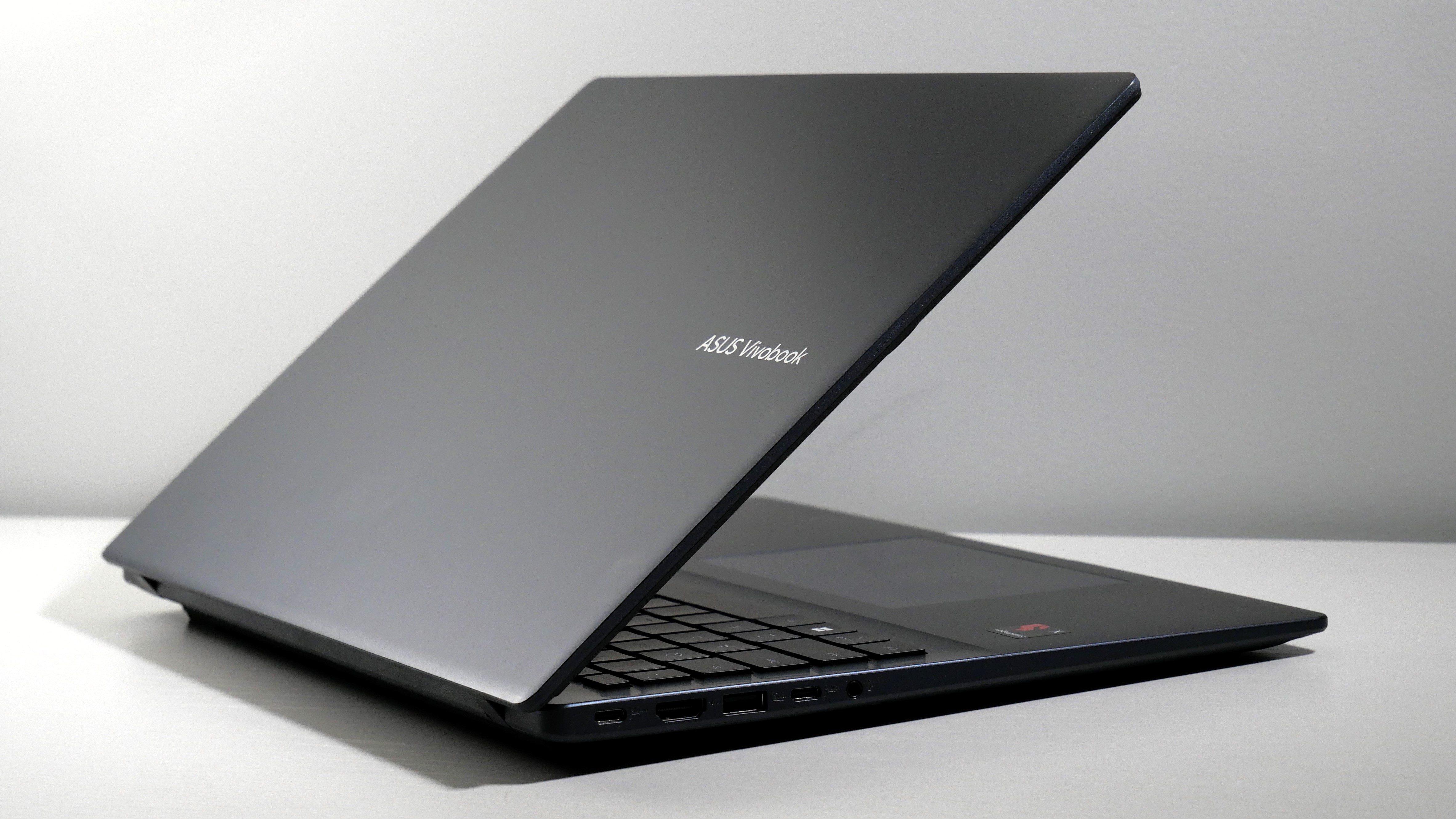
Best Budget Laptop Types for Different Users
The answer to what is a good budget laptop changes based on your routine. A student has different needs from a photographer or a remote worker.
For Students
Students should prioritize low weight, battery life, a comfortable keyboard, and reliable video calls. A 13-inch or 14-inch model is often easier to carry across campus.
A good student laptop usually includes:
• 8GB of RAM
• At least 256GB of SSD storage
• A 1080p webcam if possible
• Wi-Fi 5 or Wi-Fi 6
• A battery that lasts through several classes
A Chromebook can be an excellent student choice if the school uses web-based tools. For engineering, nursing, architecture, or media courses, confirm that the required software works first.
For Remote Work
Remote workers need a good webcam, microphone, stable Wi-Fi, and a comfortable keyboard. Video meetings can also expose weak processors and poor cooling.
Look for a 14-inch or 15-inch laptop with:
• 8GB or 16GB of RAM
• A modern Core 5 or Ryzen 5 processor
• A Full HD webcam when possible
• USB-C charging or useful docking support
• A bright, non-glare display
For Older Adults
Simplicity is often more important than raw performance. A bright screen, clear speakers, large text support, and a responsive keyboard can make daily use much easier.
A 15.6-inch display may be more comfortable than a smaller model. Windows and ChromeOS both offer accessibility tools such as magnification, larger text, voice typing, and screen readers.
For Light Photo Editing
Basic photo editing works on many affordable laptops. Choose at least 16GB of RAM if you use large image files or edit often.
Prioritize a display with good color accuracy. A laptop may look sharp but still show inaccurate colors, so check professional reviews when color work matters.
For Gaming
Most budget laptops are not built for demanding modern games. If gaming is important, look for a dedicated graphics processor, such as an entry-level GeForce or Radeon chip.
Expect trade-offs:
• More weight
• Louder fans
• Shorter battery life
• A higher price
• More heat during play
For casual games, cloud gaming, or older titles, integrated graphics may be enough.

Important Ports and Wireless Features
Ports determine how easily you can connect monitors, drives, headphones, phones, and other devices.
A practical laptop should include some combination of:
• USB-A for older accessories
• USB-C for modern devices and charging
• HDMI for an external display
• A headphone jack
• A microSD or SD card slot if you use cameras
USB-C does not always support the same features on every laptop. One port may handle charging and data but not video output. Read the technical specifications carefully if you plan to use a dock or multiple monitors.
Wi-Fi 6 is helpful in busy homes and offices, but Wi-Fi 5 can still work well. Bluetooth 5 or newer is useful for wireless mice, keyboards, earbuds, and game controllers.

Build Quality, Support, and Repairability
A good budget laptop should survive daily movement between a desk, backpack, classroom, and kitchen table. A metal body is not essential, but the frame should resist flexing and the screen hinge should feel firm.
Before buying, check:
• The warranty length
• The return period
• Repair options
• Replacement battery availability
• Customer support quality
• Whether the RAM and SSD can be upgraded
Some thin laptops have soldered memory. That can reduce repair and upgrade options. If you cannot upgrade the RAM later, buy enough at the start.
Software support also matters. A laptop that receives security updates for many years is often a better value than a cheaper model with uncertain support.
My own buying lesson is simple: I once focused too much on processor speed and ignored the keyboard and screen. After several weeks of daily writing, the shallow keys and dim panel became more frustrating than the slower processor would have been. Comfort is not a luxury when you use a laptop for hours every day.

Common Mistakes to Avoid
Many poor laptop purchases happen because buyers focus on one impressive specification.
Avoid these mistakes:
- Buying the cheapest model without checking RAM and storage
A low price may hide 4GB of RAM or a tiny storage drive. Check the full specification, not just the processor name.
- Choosing an old processor because the name sounds powerful
A five-year-old chip may perform worse than a newer entry-level processor. Look at the generation and real-world reviews.
- Ignoring the display
A low-resolution or dim screen can make reading, spreadsheets, and video calls tiring.
- Assuming advertised battery life is realistic
Treat battery claims as estimates. Look for independent testing that uses web browsing, video playback, and normal screen brightness.
- Buying a gaming laptop for office work
Gaming laptops can be fast, but they are often heavy and noisy. You may pay for graphics power that you never use.
- Forgetting the charger
Some affordable laptops use large or proprietary chargers. USB-C charging can be more convenient, especially for travel.
- Ignoring return policies
Online specifications cannot reveal everything. A generous return window gives you time to test the keyboard, screen, battery, speakers, and webcam.

How to Compare Budget Laptops
Use a simple comparison process instead of chasing every specification.
Step 1: List Your Daily Tasks
Write down the apps and activities you use most. Include school software, work tools, games, photo apps, and video meeting platforms.
Step 2: Set a Realistic Price
Include the cost of a mouse, case, external drive, Office subscription, or extended warranty if needed.
Step 3: Filter the Basic Features
Start with:
• 8GB of RAM
• 256GB SSD storage
• A modern processor
• Full HD resolution
• A usable warranty
Step 4: Read Independent Tests
Look for tests of battery life, keyboard quality, screen brightness, fan noise, and performance. Manufacturer specifications rarely tell the whole story.
Step 5: Check Long-Term Value
Ask whether the laptop can receive updates, whether parts can be repaired, and whether it has enough power for your needs two years from now.
Step 6: Test It During the Return Period
Open several browser tabs. Join a video call. Type a page of text. Stream a video. Plug in your accessories. These simple tests reveal more than a quick first impression.
How to Get the Best Deal
Laptop prices change often. Patience can save you money, especially during back-to-school sales, holiday promotions, and clearance events.
Use these practical tips:
• Compare the exact model number, not only the brand
• Check whether the listed price includes a coupon
• Compare refurbished units with a clear warranty
• Avoid suspiciously cheap listings from unknown sellers
• Look for open-box products sold directly by trusted retailers
• Confirm that the keyboard layout and charger match your region
• Check whether the laptop is new, refurbished, or used
A discount is not a bargain if the model is outdated or missing essential features. The best deal is a laptop that meets your needs and remains useful for years.
Is a Refurbished Laptop Worth Buying?
A refurbished laptop can offer strong value, particularly when the seller tests, cleans, and warranties the device. Business-class laptops often age well because they use stronger hinges, better keyboards, and more repairable designs.
Before buying refurbished, confirm:
• The warranty period
• The battery health policy
• The return window
• The condition grade
• The included charger
• The seller’s reputation
A refurbished model may have cosmetic marks. That is usually less important than battery condition, screen quality, and reliable internal hardware.
I have found that a well-refurbished business laptop can beat a brand-new ultra-cheap model in keyboard quality and durability. The key is buying from a seller that clearly explains testing and return terms.
How Long Should a Budget Laptop Last?
A good budget laptop can last about three to five years, depending on its build quality, workload, care, and software support. A basic Chromebook may have a different update schedule, so check its stated automatic update date before purchase.
You can extend its life by:
• Keeping the operating system updated
• Leaving free storage space
• Cleaning dust from vents
• Using a padded case
• Avoiding heat and moisture
• Replacing the battery when practical
• Backing up important files
Do not expect a low-cost laptop to perform demanding tasks forever. The goal is to choose enough capacity now so that normal software growth does not make it feel outdated too soon.
Frequently Asked Questions About What Is a Good Budget Laptop
What is a good budget laptop for everyday use?
A good budget laptop for everyday use usually has 8GB of RAM, a 256GB SSD, a modern processor, and a Full HD display. It should handle browsing, documents, streaming, email, and video calls without frequent slowdowns.
Is $300 enough for a good laptop?
Yes, but choices are limited at this price. A Chromebook may offer better speed and battery life than a Windows laptop, while buyers needing desktop software should consider saving closer to $400 or $500.
Is 8GB of RAM enough for a budget laptop?
Eight gigabytes is enough for web browsing, office work, streaming, and school tasks. Choose 16GB if you use demanding apps, keep many programs open, or want more long-term flexibility.
Should I buy a Chromebook or a Windows laptop?
Choose a Chromebook for simple web-based work, easy maintenance, and low cost. Choose Windows if you need specialized programs, PC games, advanced file control, or broad hardware compatibility.
What processor is best for a budget laptop?
A current Intel Core 3, Core 5, AMD Ryzen 3, or Ryzen 5 processor is suitable for most budget users. The newest generation is not always required, but avoid very old chips unless the price is exceptionally low.
How much storage should a budget laptop have?
A 256GB SSD is a practical starting point for most people. Choose 512GB if you store photos, videos, games, or large software locally.
Are budget laptops good for students?
Yes. Many budget laptops work well for research, writing, online classes, presentations, and video meetings. Students should check required course software before choosing a Chromebook.
Conclusion
A good budget laptop balances price, speed, comfort, battery life, screen quality, and long-term support. For most buyers, the safest target is a modern processor, 8GB or more of RAM, a 256GB SSD, a Full HD display, and a reliable warranty.
Start by listing your real tasks, then compare complete laptop models rather than isolated specifications. Take time to check reviews, return policies, and upgrade options before you buy. Use this guide to narrow your choices, explore trusted retailers, and share your laptop needs or questions in the comments.

Everett Ashford is a tech reviewer at mytechgrid.com specializing in SSDs, cameras, TVs, earbuds, headphones, and other consumer electronics. He provides honest, data-driven reviews based on hands-on testing and real-world performance analysis. Everett simplifies complex tech details to help readers make smart, confident buying decisions.
