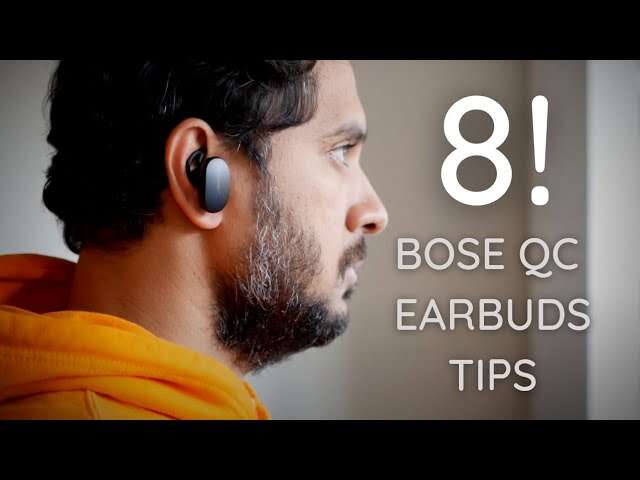
Turn on Bluetooth on your iPhone, put your Bose earbuds in pairing mode, then select them in Settings.
I’ve paired dozens of headphones and earbuds with iPhones, and this guide explains exactly how to connect Bose earbuds to iPhone. You’ll get clear, step-by-step pairing instructions, model-specific tips, troubleshooting advice, and real-world tips from my experience. Read on to pair quickly and keep your earbuds working smoothly.
Prepare your iPhone and Bose earbuds
Before you start, make sure both devices are ready. On your iPhone, open Settings and confirm Bluetooth is on. Charge your Bose earbuds to at least 30 percent to avoid interruptions. Close other Bluetooth devices or move away from crowded wireless areas for a cleaner pairing.

Step-by-step: How to connect Bose earbuds to iPhone (standard Bluetooth pairing)
Follow these short steps to pair most Bose earbuds with an iPhone.
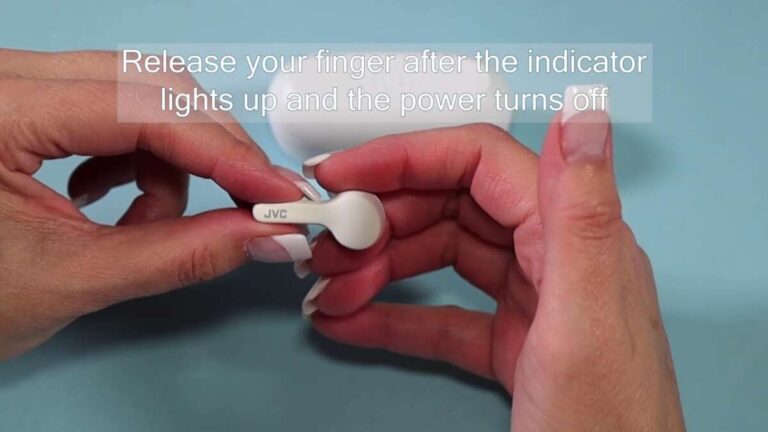
- Turn on the earbuds and enter pairing mode. For many Bose models, press and hold the power or Bluetooth button until you hear a voice prompt or see flashing LED.
- On the iPhone, open Settings > Bluetooth and wait for the device list to populate.
- Look for your Bose earbuds name (for example, "Bose QuietComfort Earbuds" or "Bose Sport Earbuds") in Available Devices.
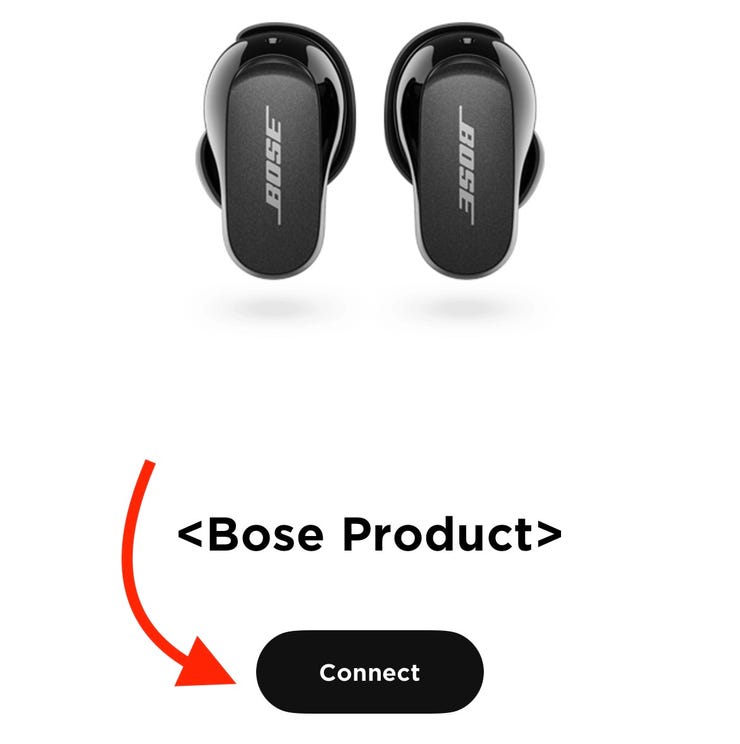
- Tap the Bose entry to connect. Wait for the status to change to Connected.
- Test sound by playing audio and adjusting volume on the iPhone.
If your iPhone asks to pair or confirms a code, accept or confirm. After the first successful pairing, your iPhone will usually reconnect automatically when Bluetooth and the earbuds are on.
Pairing specific Bose models
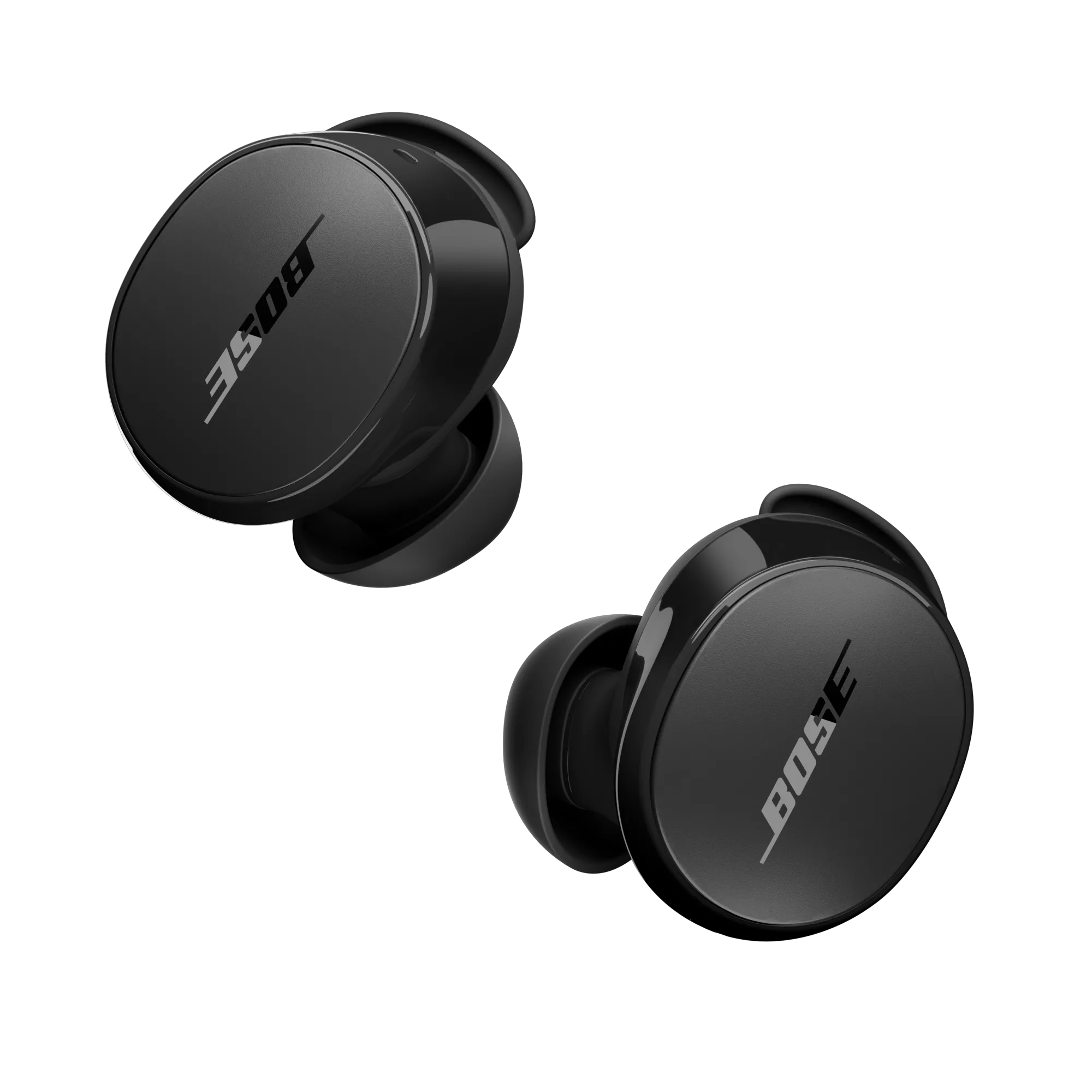
Some Bose earbuds have unique steps. Here are concise model-focused notes on how to connect Bose earbuds to iPhone.
- QuietComfort Earbuds and QuietComfort Earbuds II
- Hold the power/Bluetooth button until the LED flashes blue. Use the Bose Music app for firmware updates and settings.
- Sport Earbuds
- Removing and returning the earbuds to the charging case often triggers pairing mode on first use. Open the case near the iPhone and follow the prompt in Settings > Bluetooth.
- Noise Cancelling Earbuds (older models)
- Press and hold the power button for about 5 seconds to enter pairing mode. Then select from the iPhone Bluetooth list.
- When a model uses the Bose Music app
- Install the Bose Music app, follow the in-app pairing flow, and allow Bluetooth permissions on the iPhone.
I recommend using the Bose Music app for firmware updates and sound profiles. That app often resolves quirks and improves stability.
:max_bytes(150000):strip_icc()/001-how-to-connect-bose-headphones-to-iphone-4767807-01d0cf9dea7b4e2a9c9cef4a8619a322.jpg)
Troubleshooting common pairing issues when connecting Bose earbuds to iPhone
If the earbuds don’t appear or won’t connect, try these steps.
- Restart Bluetooth on the iPhone
- Toggle Settings > Bluetooth off, wait a few seconds, then turn it back on.
- Forget the device and re-pair
- In Settings > Bluetooth, tap the info icon next to the Bose entry and choose Forget This Device. Then repeat pairing steps.
- Reset the earbuds
- Many Bose models have a reset sequence: power off, hold the power button for 10 seconds until a light flashes, then try pairing again. Check your model’s quick start guide for exact steps.
- Reboot the iPhone
- A restart clears Bluetooth stack issues. Power the iPhone off and on, then try pairing.
- Move closer and remove interference
- Keep earbuds and iPhone within a few feet and away from crowded Wi‑Fi or Bluetooth fields.
If problems persist, update the earbuds via the Bose Music app or check iOS updates. I’ve found firmware updates fix many stubborn pairing bugs.

Tips for better audio, calls, and battery life after you connect Bose earbuds to iPhone
Small habits improve long-term use and performance.
- Use the Bose Music app for EQ and noise-cancel settings. It makes sound tuning easier.
- Keep iOS and earbud firmware up to date for stability and features.
- For calls, ensure the iPhone microphone settings default to the earbuds during calls. Tap Audio on the call screen if needed.
- Save battery by enabling automatic ear detection (if supported) or turning off features like onboard voice prompts.
- Store earbuds in the case when not in use and partially charge the case regularly.
From my experience, keeping firmware current avoids the majority of odd audio issues.

Frequently Asked Questions of how to connect bose earbuds to iphone
How do I put my Bose earbuds in pairing mode?
Most Bose earbuds enter pairing mode by holding the power or Bluetooth button for about 5–10 seconds until an LED flashes or you hear a voice prompt. Then open Settings > Bluetooth on the iPhone and select the earbuds.
Why won’t my iPhone find my Bose earbuds?
Interference, dead earbuds battery, or the earbuds not truly in pairing mode are common causes. Try charging the earbuds, toggling Bluetooth on the iPhone, and moving away from other wireless devices.
Do I need the Bose Music app to connect to an iPhone?
No, you can pair most Bose earbuds via iPhone Bluetooth without the app. The Bose Music app is helpful for firmware updates, EQ, and extra features but is not strictly required for basic pairing.
My earbuds connect but audio stutters. What should I do?
First, move closer to the iPhone and remove obstacles. Then forget and re-pair the device, update firmware, and restart the iPhone. Also check for nearby Wi‑Fi or Bluetooth congestion.
Can I connect Bose earbuds to multiple devices at once?
Some Bose models support multipoint pairing with two devices, but behavior varies by model. Check your earbuds’ specs in the Bose Music app or manual to confirm multipoint support.
Conclusion
You now have a clear, practical plan for how to connect Bose earbuds to iPhone. Follow the steps, use the Bose Music app where helpful, and apply the troubleshooting tips if you hit a snag. Try pairing once right after a firmware and iOS update to reduce issues. If this guide helped, leave a comment, subscribe for more tips, or try the steps with your earbuds now.

Everett Ashford is a tech reviewer at mytechgrid.com specializing in SSDs, cameras, TVs, earbuds, headphones, and other consumer electronics. He provides honest, data-driven reviews based on hands-on testing and real-world performance analysis. Everett simplifies complex tech details to help readers make smart, confident buying decisions.