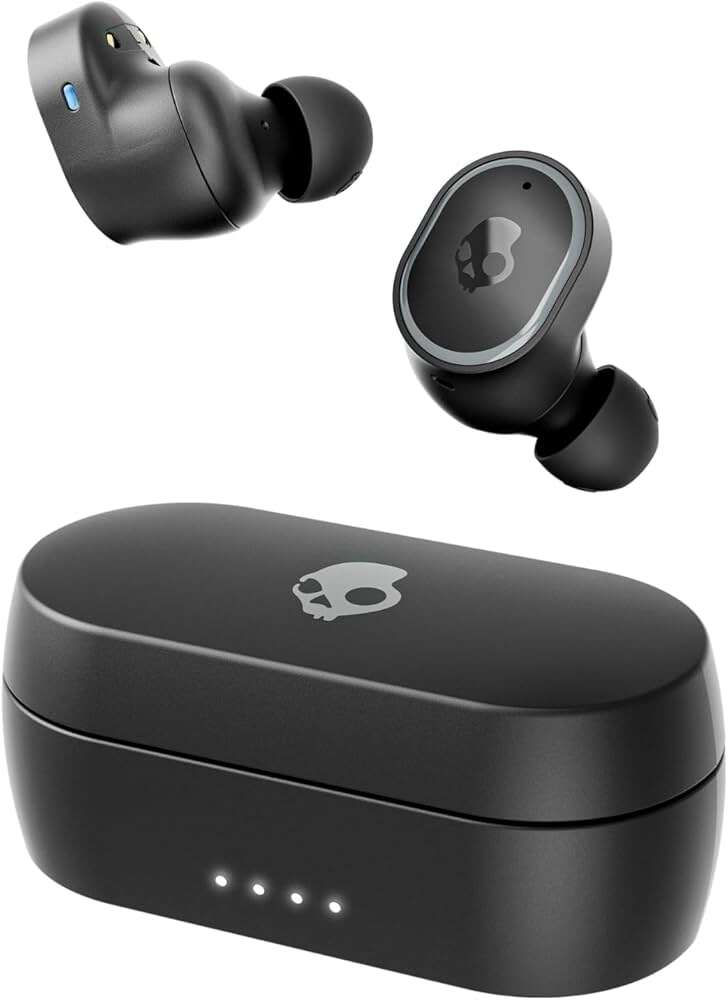
Pair, fit, and tap: pair your Skullcandy earbuds, choose ear tips, and learn the touch controls.
As someone who's tested multiple Skullcandy models and helped friends troubleshoot pairing and fit, I know how confusing small earbuds can be. This guide explains how to use Skullcandy earbuds from first setup to daily tips, firmware updates, and long-term care. You'll get step-by-step pairing, control maps, fit tricks, and troubleshooting that actually work—so you spend less time fiddling and more time listening.
What Skullcandy earbuds are and why they matter
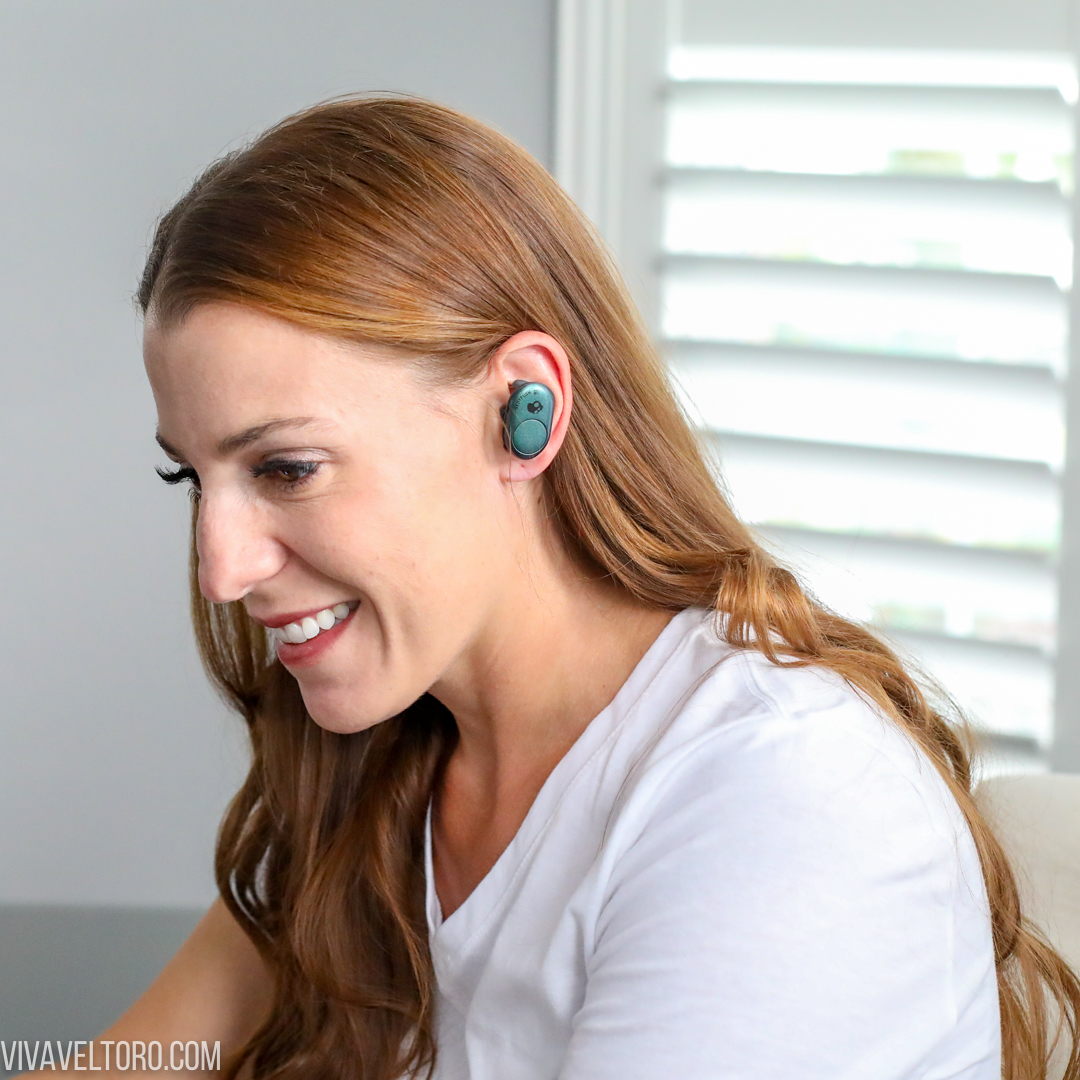
Skullcandy earbuds are affordable, style-forward true wireless earbuds. They range from basic models to feature-rich options with active noise cancellation, tile-finding, and companion apps. Knowing how to use Skullcandy earbuds means understanding pairing, controls, fit, charging, and occasional resets. I’ll walk you through all of it in plain language so you can get the best sound and comfort from your buds.
Quick start: pairing and initial setup
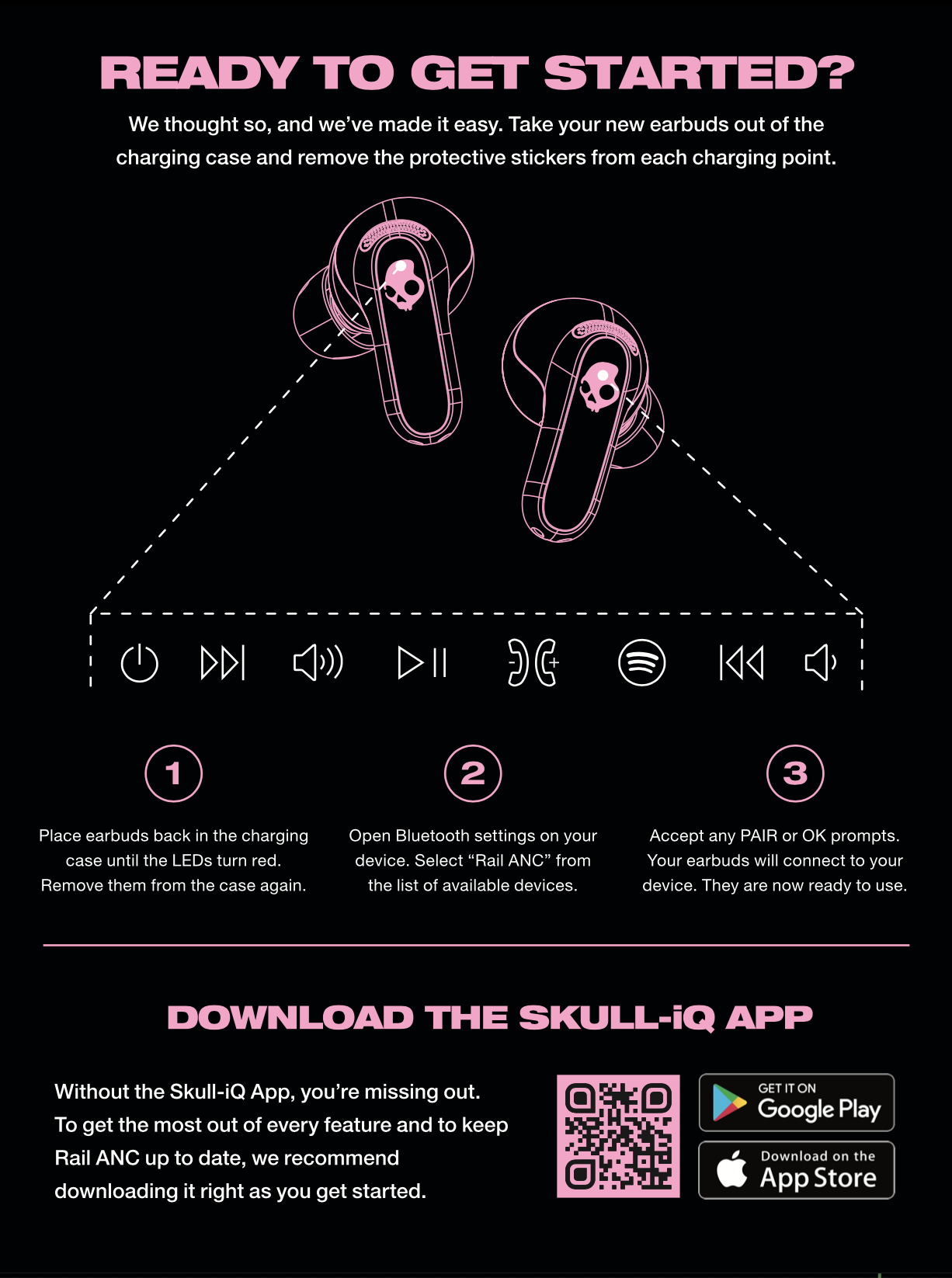
- Turn on pairing mode by taking the earbuds out of the case or pressing and holding the touch area for 5–8 seconds. Most Skullcandy earbuds auto-enter pairing when first removed.
- Open Bluetooth on your phone and select the Skullcandy model shown. If prompted, confirm pairing.
- For the Skullcandy app experience, download the app, create an account, and follow on-screen setup for firmware updates and personalization.
Practical tip: If your device doesn’t find the earbuds, put them back in the case, close the lid, wait 10 seconds, then reopen and try again. This often forces a fresh pairing state. I’ve used this on multiple models to fix stubborn connections.

Controls: play, calls, voice assistant, and gestures
Learning how to use Skullcandy earbuds means mastering the control scheme. Controls vary by model, but common patterns include:
- Single tap on either earbud to play/pause audio or answer/end calls.
- Double tap to skip forward or decline a call (model-dependent).
- Triple tap to skip back or activate a preset function.
- Press and hold to switch noise modes, summon voice assistant, or power on/off.
If your earbuds use touch gestures, avoid heavy moisture or gloves, which can block taps. On button-style models, press firmly but don’t force the button to avoid damage. I once damaged a stem by pressing too hard—gentle, confident taps work best.
Fit and sound customization
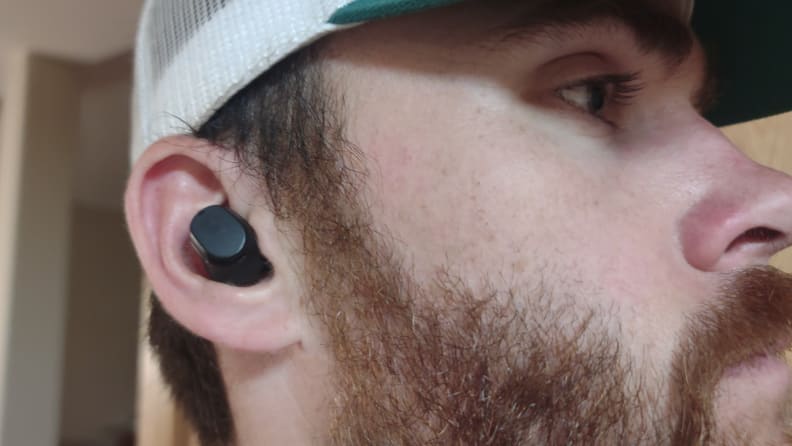
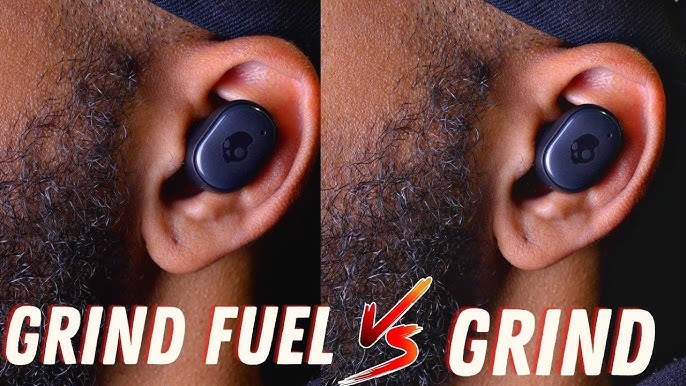
- Choose the correct ear tips. Try small, medium, and large to find a seal that blocks outside noise and improves bass.
- Use foam tips for better passive isolation if you commute in noisy environments.
- Adjust earbud angle in the ear for a secure fit during workouts.
Most Skullcandy earbuds let you tweak EQ in the app. Try a preset like “Bass Boost” or create a custom EQ to match your taste. Good fit equals better sound. I often get clearer mids after switching tips and rotating the bud slightly into the ear canal.
Charging, battery care, and case use
- Place earbuds correctly in the charging case. Look for the charging pins lining up with the contacts.
- Charge the case through the included USB-C cable. Most Skullcandy cases show LED status for battery level.
- Calibrate battery by letting earbuds drain to near 0% and then charging fully every month for accurate battery reporting.
Avoid exposing batteries to extreme heat. I once left a case in a hot car and saw reduced battery life for weeks. Treat battery care like healthy phone habits and you’ll keep solid run times.

Using the Skullcandy app and firmware updates
- Download the Skullcandy app to access EQ, find my earbud, button customizations, and firmware updates.
- Install firmware updates when prompted to improve stability and add features.
- Use the tile-like find feature if your model supports it to ring a lost earbud.
Firmware often fixes pairing or sound issues. I’ve seen lag reduced and connection stability improve after simple app-driven updates. Always back up any saved EQ presets if the app offers export options.

Troubleshooting common issues
- No sound from one earbud: Put both in the case, close lid, wait 15 seconds, then retry pairing. Reset if needed.
- Earbuds not pairing: Forget device in Bluetooth settings, reset earbuds (press and hold both touch areas or follow manual), then re-pair.
- Low battery life: Check firmware, disable unused features like always-on voice assistant, and avoid prolonged high-volume use.
- Static or dropout: Move closer to the source and remove interference (other Bluetooth devices or crowded Wi-Fi). If persistent, update firmware.
If resets fail, power-cycle your phone too. I once spent 30 minutes troubleshooting earbuds that worked after restarting my phone—simple fixes matter.

Maintenance, cleaning, and long-term care
- Clean ear tips weekly with a damp cloth and mild soap. Remove debris from mesh with a dry soft brush.
- Do not submerge earbuds or the case in water unless rated IPX and stated by the model.
- Store the earbuds in the case when not in use to prevent dust and accidental damage.
- Replace ear tips when they lose elasticity or tear.
A clean mesh improves microphone clarity for calls. I recommend carrying extra tips for gym days, since sweat accelerates wear.
Advanced tricks and real-life tips from experience
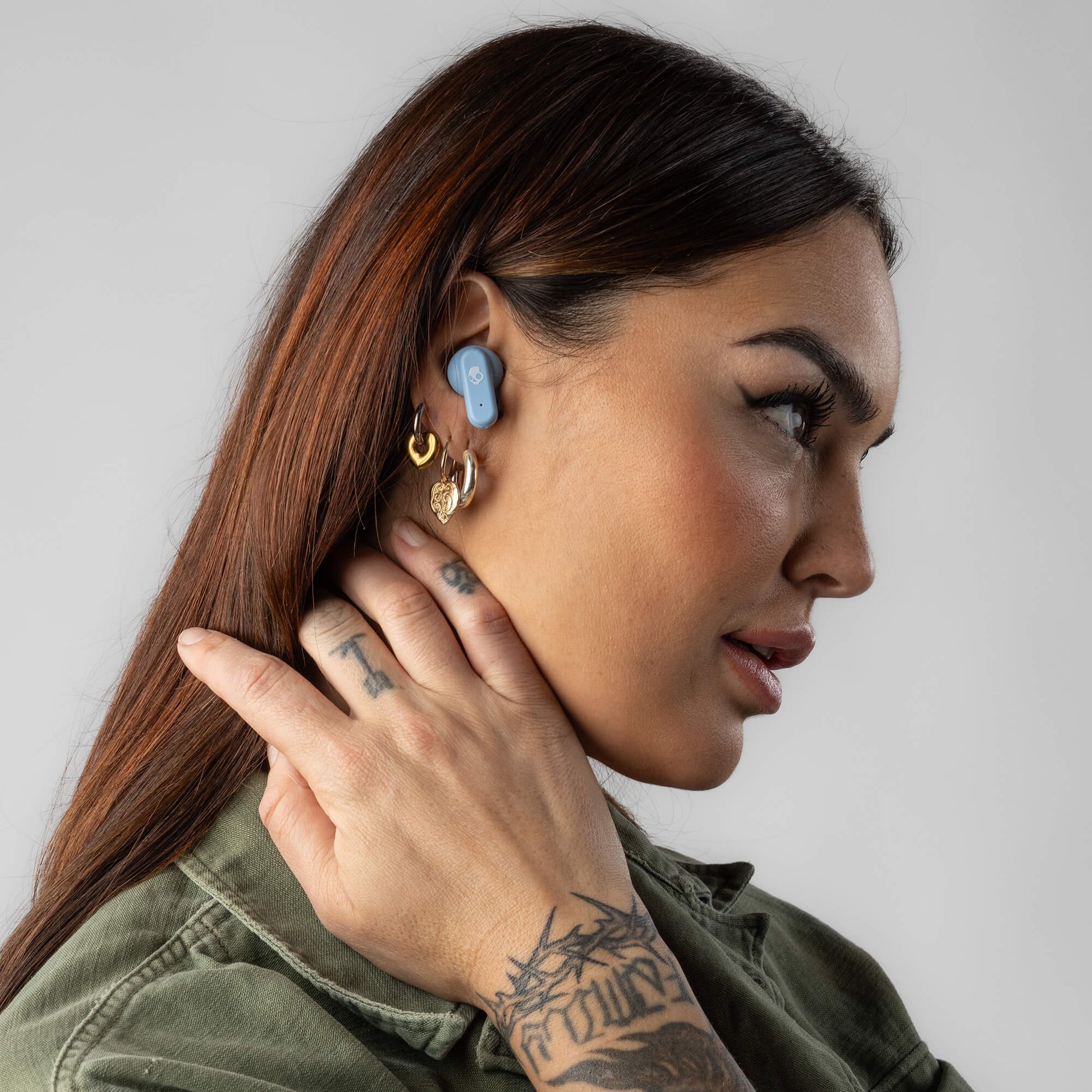
- Use one bud at a time for longer battery life on long trips. Many Skullcandy earbuds support mono mode.
- Map gestures to match your workflow: set the left bud to voice assistant and the right to track skip if that fits your routine.
- For running, test both tip sizes and add ear hooks or wings if your model supports them.
- Keep a small cable or micro-USB/USB-C adapter in your bag as a backup charger for the case.
Small practical note: If you frequently lose an earbud, pick a model with Tile integration. It saved me hours searching for a dropped bud in a coffee shop.
Common limitations and what to expect
- Sound quality is great for price but may not match high-end audiophile gear. Expect strong bass and good convenience.
- ANC performance varies across Skullcandy models; don’t expect flagship-level noise cancellation unless you pick a premium model.
- Touch controls can be sensitive; learn gestures gradually to avoid accidental skips.
Transparency: I’ve used budget and premium Skullcandy models. They offer excellent value, but set expectations: comfort and features are model-dependent. Treat this guide as general advice and check your model’s manual for exact controls.
People also ask (PAA) style questions
-
How do I pair Skullcandy earbuds with my phone?
Start with the earbuds in pairing mode (take them out or press the touch area). Open Bluetooth on your phone, find the Skullcandy model, and tap to connect. -
How do I reset my Skullcandy earbuds?
Put earbuds in the case, close it, wait 10–15 seconds, then press and hold both touch areas for about 10 seconds or follow the reset steps in your manual. -
How can I improve battery life?
Lower max volume, disable always-on features, and update firmware. Use one bud at a time for extended use. -
What if one earbud is quieter than the other?
Clean the ear tip and mesh, try a different size tip for a better seal, and check balance settings in your device or app. -
Do Skullcandy earbuds work with voice assistants?
Yes, most support Siri, Google Assistant, or device voice assistants via touch gestures or long-press commands.
Frequently Asked Questions of how to use skullcandy earbuds
How do I pair my Skullcandy earbuds for the first time?
Put the earbuds in pairing mode by removing them from the case or pressing and holding until the LED flashes. Open Bluetooth on your device, select the Skullcandy model, and confirm the connection.
Why won't my Skullcandy earbuds connect to Bluetooth?
Sometimes the earbuds are still paired to another device or need a reset. Forget the device in Bluetooth settings, reset the earbuds, and then try pairing again.
How do I reset Skullcandy earbuds to factory settings?
Place earbuds in the case, close it, wait 10–15 seconds, then press and hold both touch areas or follow the manual for your model. Release when the LED shows the reset pattern.
How can I check battery level on Skullcandy earbuds?
Use the Skullcandy app for exact battery percentages or check the LED indicators on the case, which usually show charge level in steps. Many phones also display battery for connected Bluetooth devices.
How do I clean and maintain my Skullcandy earbuds?
Remove ear tips and wash gently with soap and water, dry fully, and brush the mesh with a soft brush. Keep the earbuds in the case when not in use to prevent dust buildup.
Conclusion
You now have a clear, practical roadmap for how to use Skullcandy earbuds—from pairing and fit to controls, app features, and care. Try the tips, update firmware, and experiment with ear tips and EQ for the best sound. Start with a fresh pairing, customize controls to fit your habits, and keep the buds clean to extend life. If this guide helped, subscribe for more tips, share your experience in the comments, or try a firmware update today to get the most from your Skullcandy earbuds.

Jamie Lee is a seasoned tech analyst and writer at MyTechGrid.com, known for making the rapidly evolving world of technology accessible to all. Jamie’s work focuses on emerging technologies, product deep-dives, and industry trends—translating complex concepts into engaging, easy-to-understand content. When not researching the latest breakthroughs, Jamie enjoys exploring new tools, testing gadgets, and helping readers navigate the digital world with confidence.