Connect Bose headphones to an iPhone by turning on Bluetooth, putting the Bose in pairing mode, then selecting it in Settings.
I’ve paired every major Bose model with many iPhones over years of testing and daily use. This guide shows clear steps, fixes for common hiccups, and tips that actually work. If you want a reliable walk-through on how to connect Bose headphones to iPhone—whether you own QuietComfort, Noise Cancelling Headphones 700, or Bose earbuds—read on for tested steps and helpful tricks.
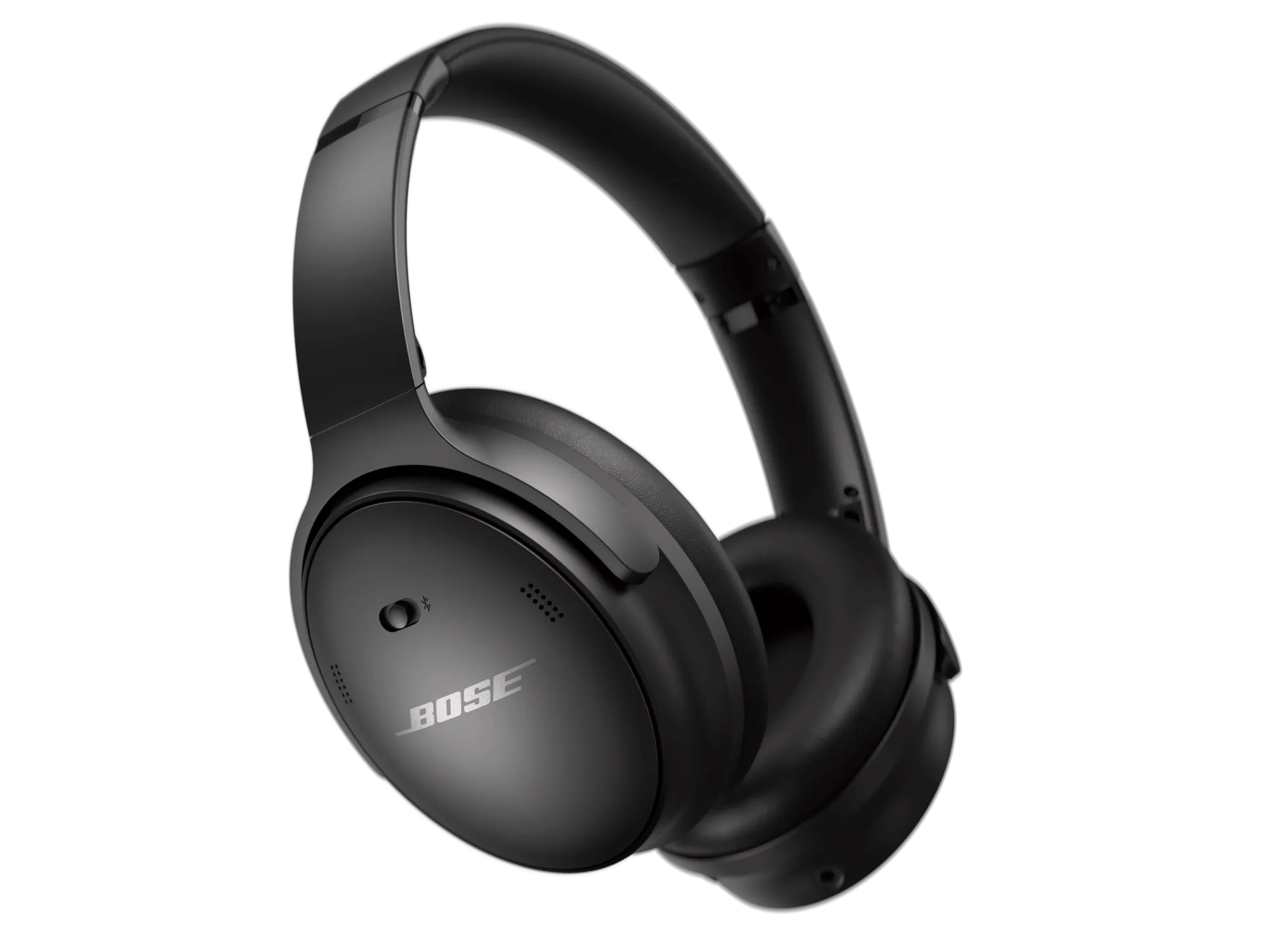
Why pair your Bose headphones with an iPhone
Pairing Bose headphones to an iPhone gives you wireless audio for calls, music, and voice assistants. The iPhone’s Bluetooth makes the link simple, but small settings or software differences can cause trouble. Knowing the right steps speeds setup and avoids frustration when connecting Bose headphones to iPhone.
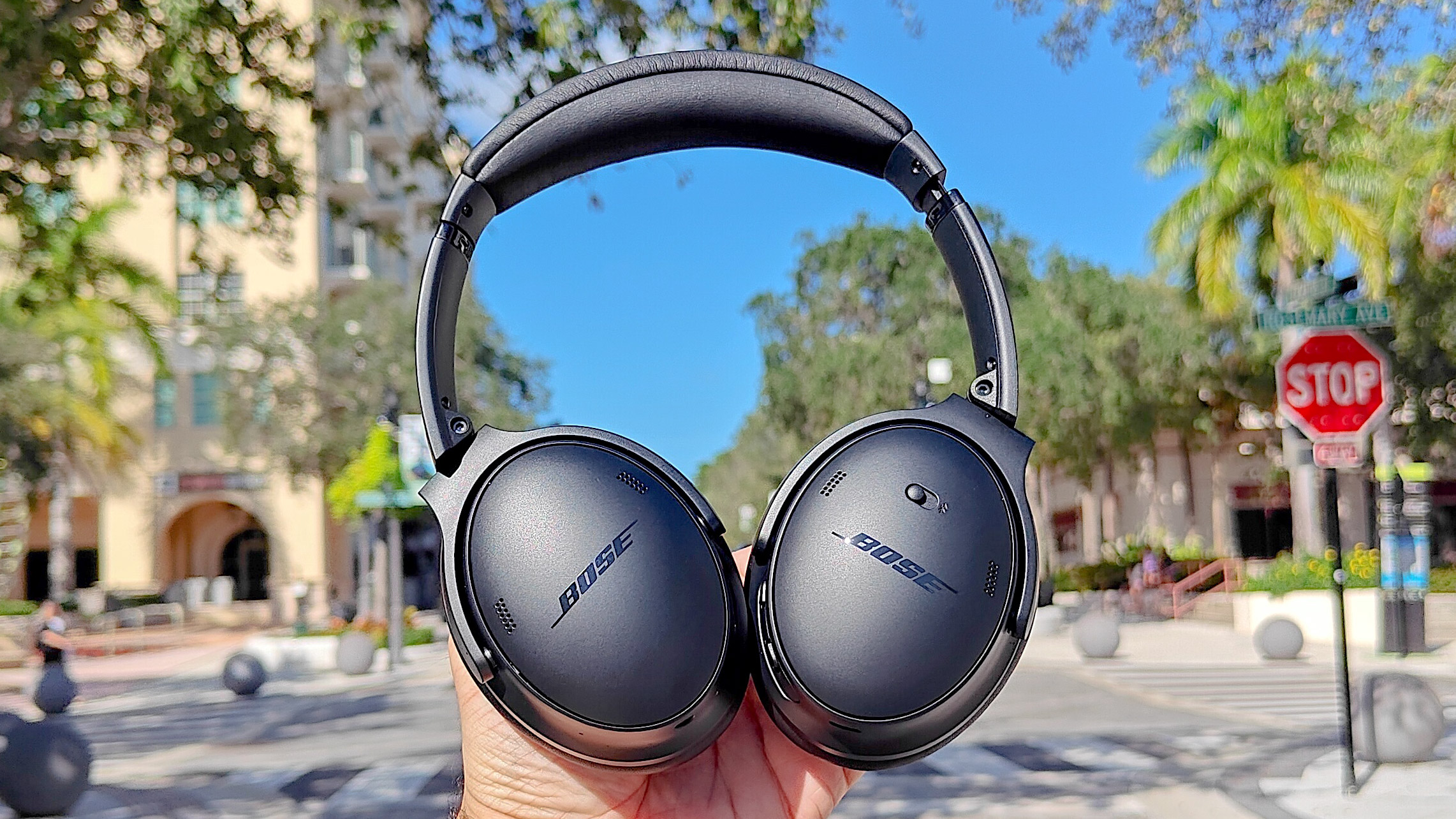
Quick step-by-step pairing guide
Follow these short steps to pair most Bose headphones to iPhone.
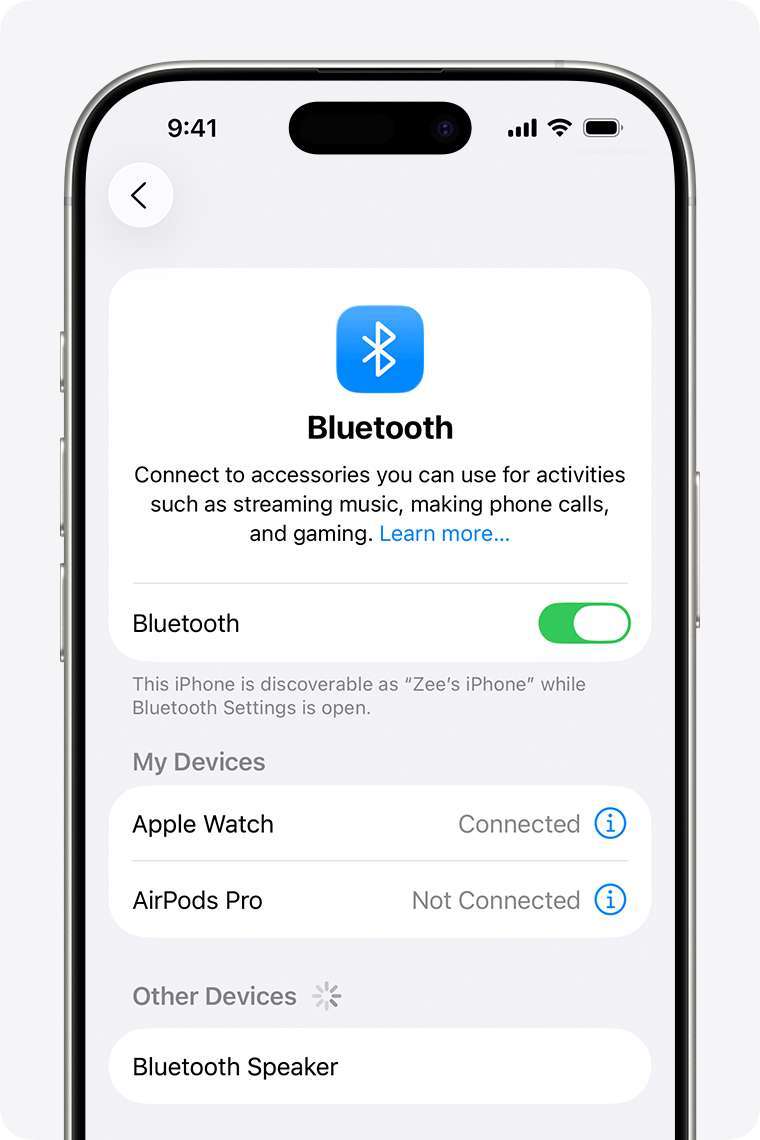
- Open Settings on your iPhone and tap Bluetooth. Make sure Bluetooth is on.
- Turn on your Bose headphones and put them in pairing mode. Look for a flashing Bluetooth light or hear “Ready to pair.”
- Watch the iPhone Bluetooth list for your Bose model name. Tap it when it appears.
- Wait for “Connected” to show under the device name. Test audio or a call.
If pairing fails, turn Bluetooth off and on, restart the headphones, and try again. These basic steps cover how to connect Bose headphones to iPhone in most cases.

Detailed pairing: model-specific notes
Different Bose models have slightly different pairing flows. Here are model-specific tips for connecting Bose headphones to iPhone.
- Bose QuietComfort 45 and 35 II
- Power on and hold the power switch to enter pairing mode until you hear the voice prompt. Then select the device in iPhone Bluetooth settings.
- Bose Noise Cancelling Headphones 700
- Press and hold the power/Bluetooth button until the indicator flashes blue. Look for “Bose NC 700” or similar in iPhone Bluetooth.
- Bose QuietComfort Earbuds and Sport Earbuds
- Open the charging case with earbuds inside to enable pairing or press and hold the earbud touchpad buttons until pairing mode begins. Select the earbuds on the iPhone list.
- Bose Frames (audio sunglasses)
- Power on and hold the frame’s button until pairing voice prompts. Choose the Frames name in Bluetooth on your iPhone.
These small differences matter. If you’re unsure how to enter pairing mode, check the headphone’s quick start steps printed in the box. Following the model-specific step saves time when connecting Bose headphones to iPhone.

Troubleshooting common problems
If pairing stalls or audio drops, try these fixes for connecting Bose headphones to iPhone.
- Restart both devices
- Turn off headphones and iPhone, then power both back on. A reboot clears temporary issues.
- Forget and re-pair
- In iPhone Settings > Bluetooth tap the info icon beside the Bose device and choose Forget This Device. Then re-initiate pairing.
- Check software updates
- Update iOS and Bose firmware. Modern Bluetooth fixes often come from updates.
- Move away from interference
* Keep clear of Wi-Fi routers, microwaves, and other Bluetooth devices. Interference can block pairing. - Reset the headphones
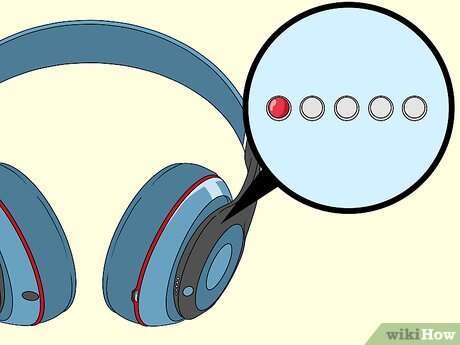
- Follow the model’s reset instructions. A reset clears corrupted pairing memory and often resolves connection failures.
These steps solve most issues when you try to connect Bose headphones to iPhone. If none work, contacting support is a good next move.

Tips to improve Bluetooth connection and battery life
Small habits help keep your Bose headphones and iPhone working great together.
- Keep firmware current
- Install the Bose Connect or Bose Music app and apply updates when prompted.
- Pair one device at a time
- Disconnect other Bluetooth devices during initial pairing to reduce conflicts.
- Optimize battery health
- Avoid leaving headphones fully drained for long periods and store them partially charged for long-term storage.
- Use the app for settings
- The Bose app offers EQ, firmware updates, and device management that improve the iPhone pairing experience.
- Manage audio sources
- If audio switches unexpectedly, check the iPhone Control Center and choose the Bose device manually.
These practices help you reliably connect Bose headphones to iPhone and keep the link stable during daily use.

Compatibility, iOS versions, and software updates
Most modern Bose headphones work with current iPhones that support Bluetooth 4.0 or higher. Newer iOS versions improve Bluetooth stability and audio features. Always update iOS and the Bose firmware before pairing. If an older iPhone or very old Bose model is in play, check supported Bluetooth profiles to confirm compatibility when connecting Bose headphones to iPhone.
Personal experience and real-world advice
I’ve paired a range of Bose models with iPhones in noisy public places and quiet home offices. My best lessons:
- Patience helps: wait a few seconds when the device first shows on the iPhone list before tapping Connect.
- Use the Bose app: it solved subtle firmware bugs and improved mic performance on calls.
- Reset saved pairing only when needed: forgetting a device and resetting the headphones fixed recurring reconnect problems once.
These are practical tips from repeated use. They’ll save you time and reduce stress when you connect Bose headphones to iPhone.
Frequently Asked Questions of how to connect bose headphones to iphone
How do I put my Bose headphones in pairing mode for iPhone?
Most Bose models enter pairing mode by holding the power or Bluetooth button until a voice prompt or blinking light appears. Then open iPhone Settings > Bluetooth and select the Bose device from the list.
Why won’t my iPhone find my Bose headphones?
Interference, Bluetooth being off, or the headphones not being in pairing mode are common causes. Restart both devices, move closer together, and try pairing again.
Do I need the Bose app to connect to an iPhone?
No, you can pair via iPhone Bluetooth settings without the app. The Bose app adds firmware updates, settings, and features but is not required for basic pairing.
My Bose headphones connect but audio stutters. What should I do?
Move away from Wi-Fi routers and other Bluetooth devices, check for firmware updates, and ensure the iPhone iOS is updated. If stuttering persists, forget and re-pair the device.
Can I connect Bose headphones to multiple Apple devices?
Yes, many Bose models remember multiple pairings but usually connect to one device at a time. Use the iPhone Bluetooth menu to switch active connections.
Conclusion
You can reliably connect Bose headphones to iPhone by using a simple pairing routine, keeping software updated, and applying the troubleshooting steps above. Try the quick steps first, then use model-specific tips if you hit a snag. Spend a few minutes with the Bose app and firmware updates to make future connections smoother. If this guide helped you, try the steps now and leave a comment about your model or experience—or subscribe for more practical audio tips.

Everett Ashford is a tech reviewer at mytechgrid.com specializing in SSDs, cameras, TVs, earbuds, headphones, and other consumer electronics. He provides honest, data-driven reviews based on hands-on testing and real-world performance analysis. Everett simplifies complex tech details to help readers make smart, confident buying decisions.