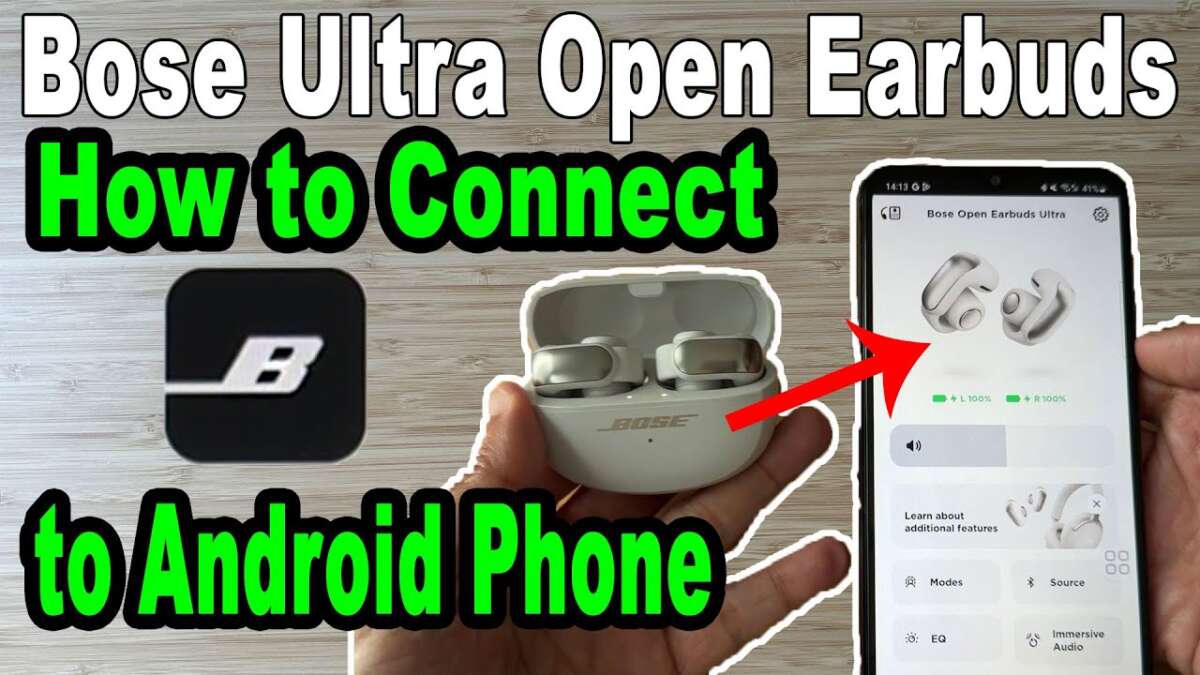
Turn on the earbuds, enable Bluetooth on your device, then select Bose Open Earbuds from the pairing list.
I’ve guided hundreds of users through wireless audio setups and tested Bose gear hands-on. This guide explains how to connect Bose Open Earbuds clearly, step by step, with real tips, common fixes, and the exact settings you need to get reliable audio fast. Read on to master pairing, troubleshooting, and best practices so your earbuds work every time.

Why proper pairing matters
Good pairing gives clear sound, low latency, and reliable call performance. Poor pairing causes dropouts, one-ear sound, or no audio at all. Learning how to connect Bose Open Earbuds prevents frustration and saves time.

Quick step-by-step pairing guide
-
- Charge and power the earbuds: Place them in the case, then take them out. The earbuds should power on automatically.
-
- Enter Bluetooth pairing mode: If they don’t enter pairing, press and hold the case button until the LED flashes white. This is the pairing indicator.
-
- Enable Bluetooth on your device: Open Settings > Bluetooth and make your device discoverable.
-
- Select Bose Open Earbuds: Look for “Bose Open Earbuds” in the list and tap to connect. You should hear a confirmation chime.
-
- Confirm audio and mic: Play audio and test the mic in a call app to ensure both work. If only one ear plays, reinsert the earbuds and repeat pairing.
Mastering these steps makes how to connect Bose Open Earbuds fast and predictable. If your device asks to allow contacts or location for Bluetooth, accept to improve device discovery.

Pairing with iPhone and iPad
- Turn on Bluetooth from Settings or Control Center.
- Open the case near the device and follow the on-screen prompt if iOS shows a popup. If no popup appears, tap Bose Open Earbuds under Bluetooth devices.
- If pairing fails, toggle Bluetooth off and on, then retry.
Apple devices often show an interactive prompt for new accessories. Use it for a smoother experience when learning how to connect Bose Open Earbuds.
Pairing with Android and Windows
- On Android, open Settings > Connections > Bluetooth, then tap Scan. Pick Bose Open Earbuds.
- On Windows 10/11, go to Settings > Bluetooth & devices > Add device > Bluetooth, then select Bose Open Earbuds.
- If the earbuds aren’t visible, reset Bluetooth on your phone or PC and move closer to the case.
Different Android skins may place Bluetooth controls in different menus, but the core flow for how to connect Bose Open Earbuds remains the same.
 firmware, multiple devices, and reset”
style=”max-width: 100%; height: auto; border: 2px solid black; border-radius: 10px; display: block; margin: 0 auto;”
loading=”lazy”
/>
Advanced tips: firmware, multiple devices, and reset
- Keep firmware updated: Open the Bose Music app and check for firmware updates. Updates fix bugs and improve pairing.
- Switch between devices: Unpair from one device or use the device’s Bluetooth menu to reconnect another. Some devices remember the earbuds, which speeds reconnection.
- Reset the earbuds: Place earbuds in the case, close the lid, wait 30 seconds, then remove them. If needed, press and hold the case button for 10–15 seconds to factory reset.
Understanding firmware and reset steps helps when basic methods fail, and it clarifies how to connect Bose Open Earbuds to new devices safely.

Troubleshooting common issues
- No sound from one ear: Re-seat the earbuds in your ears and check the Bluetooth audio balance on your device. If problem persists, re-pair both earbuds together.
- Earbuds not appearing in Bluetooth list: Ensure the case is in pairing mode and try moving away from other active Bluetooth devices. Restart your phone if needed.
- Intermittent audio dropouts: Reduce distance to the source and avoid bodies or obstacles between device and earbuds. Turn off Wi‑Fi or other nearby wireless devices to test interference.
- Microphone issues on calls: Check app permissions for microphone access. Test calls in another app to isolate the problem.
What if the earbuds won’t enter pairing mode?
Try fully charging the earbuds and case, then press and hold the case button for 15 seconds. If that fails, update firmware via the Bose app and retry.
Can I pair with two devices at once?
Bose Open Earbuds support quick switching, not full simultaneous audio from two sources. To switch, select the earbuds in the other device’s Bluetooth menu.

Personal experience and best practices
I once set up a pair for a friend in a busy café and saw two issues: interference and a drained case battery. My tips from that day:
- Always charge the case overnight before long use. Low case battery can stop pairing.
- Start pairing in a quiet area to avoid Wi‑Fi and Bluetooth noise.
- Use the Bose Music app once to check firmware and settings; it reduces future problems.
Avoid these common mistakes: pairing from too far away, skipping a firmware update, and forgetting to allow microphone permission. Those small fixes make learning how to connect Bose Open Earbuds painless.

Frequently Asked Questions of how to connect bose open earbuds
How do I reset my Bose Open Earbuds if pairing fails?
Place the earbuds in the case, close the lid, wait 30 seconds, then open the case and hold the case button for 15 seconds. Re-pair after the LED flashes to confirm reset.
Why won’t my phone find Bose Open Earbuds?
Ensure the earbuds are in pairing mode with the LED flashing and the case nearby. Toggle Bluetooth on your phone and remove any old Bose entries before scanning again.
Can I use the Bose Music app when learning how to connect Bose Open Earbuds?
Yes. The Bose Music app helps with firmware updates and device detection. It can simplify initial pairing and show battery status.
How do I switch the earbuds between phone and laptop?
Disconnect from one device using its Bluetooth settings and then select Bose Open Earbuds on the other device’s Bluetooth list. Some devices reconnect automatically if previously paired.
What should I do if only one earbud connects?
Remove both from the case and place them back in for a full restart. If that fails, reset the earbuds and re-pair both together.
Conclusion
You now have a clear path for how to connect Bose Open Earbuds, from basic pairing to fixes and pro tips. Try the step-by-step guide, keep firmware up to date, and use the Bose app for added control. If you run into trouble, use the reset steps and the troubleshooting checklist above, then come back and share your experience or questions — I’d be glad to help.

Everett Ashford is a tech reviewer at mytechgrid.com specializing in SSDs, cameras, TVs, earbuds, headphones, and other consumer electronics. He provides honest, data-driven reviews based on hands-on testing and real-world performance analysis. Everett simplifies complex tech details to help readers make smart, confident buying decisions.