Unpair Bose headphones by turning them off, removing from your device’s Bluetooth list, or factory resetting.
I’ve unpaired dozens of headphones in my career as an audio tech and writer. This guide explains exactly how to unpair Bose headphones across popular models, why unpairing helps, and what to try when things go wrong. You’ll get step-by-step instructions, model-specific tips, troubleshooting help, and real-world advice so you can unpair quickly and confidently. Read on to master how to unpair bose headphones without frustration.

Why unpair your Bose headphones?
Unpairing frees the headphones from a device. It stops automatic connects and clears Bluetooth pairings. Knowing how to unpair bose headphones helps when you sell, lend, or pair to a new gadget. I recommend unpairing before giving headphones to someone else to avoid connection conflicts.
When should you unpair Bose headphones?
You should unpair when you want to connect to a new phone or laptop. Unpair if your headphones auto-connect to the wrong device. Unpair before factory resetting or troubleshooting persistent audio issues. From my experience, unpairing often fixes pairing loops and improves reconnection reliability.
Quick, universal steps to unpair Bose headphones
These steps cover most Bose models. They explain how to unpair bose headphones in a few simple moves.
- Turn off the headphones
- Power off the headphones and wait 10 seconds. This stops active Bluetooth sessions.
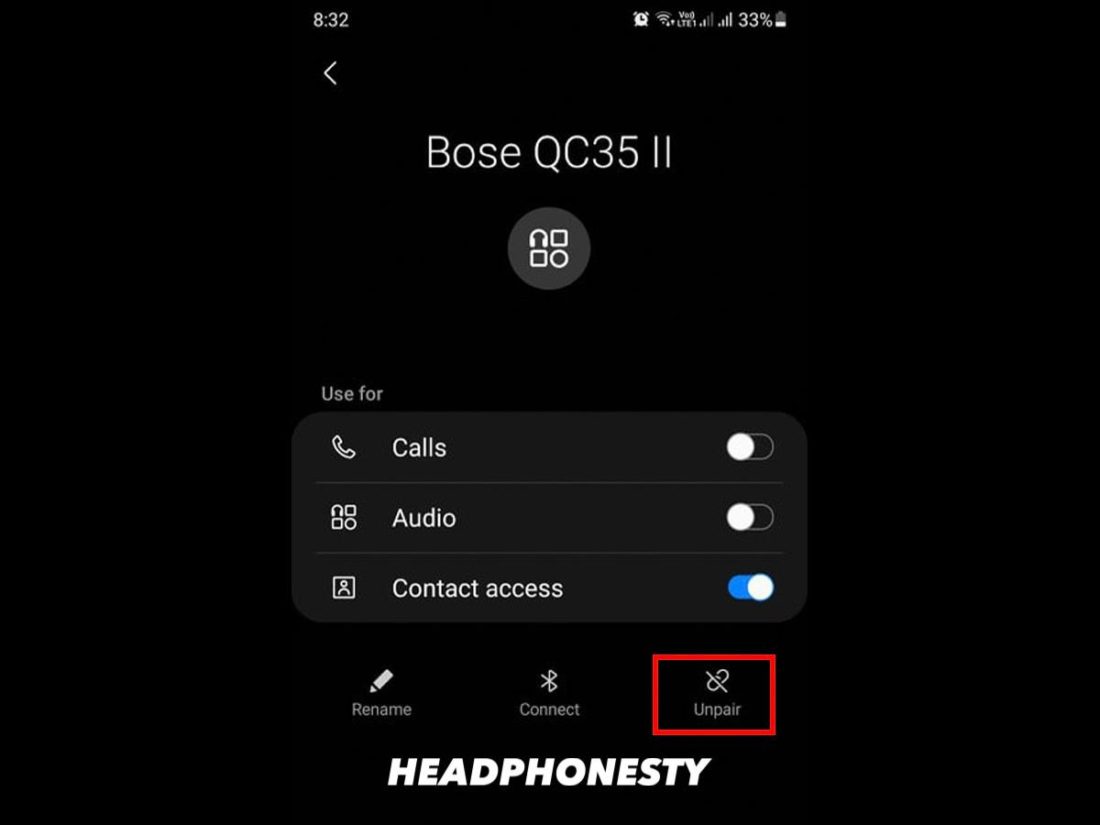
- Remove from your device’s Bluetooth list
- On iPhone: Settings > Bluetooth > tap info icon > Forget This Device.
- On Android: Settings > Connections > Bluetooth > tap gear icon > Unpair or Forget.
- Turn on headphones and check pairing list
- Power on and use the headphones’ Bluetooth menu to see saved devices. Many models show paired devices while powered.
- If needed, factory reset (see next section)
- Use reset only if removing from device doesn’t help.
These steps explain the basic how to unpair bose headphones process. They work for most day-to-day unpairing tasks.

Model-specific unpairing: step-by-step
Different Bose models have slightly different menus and reset methods. Here are clear steps for common models to help you unpair faster.
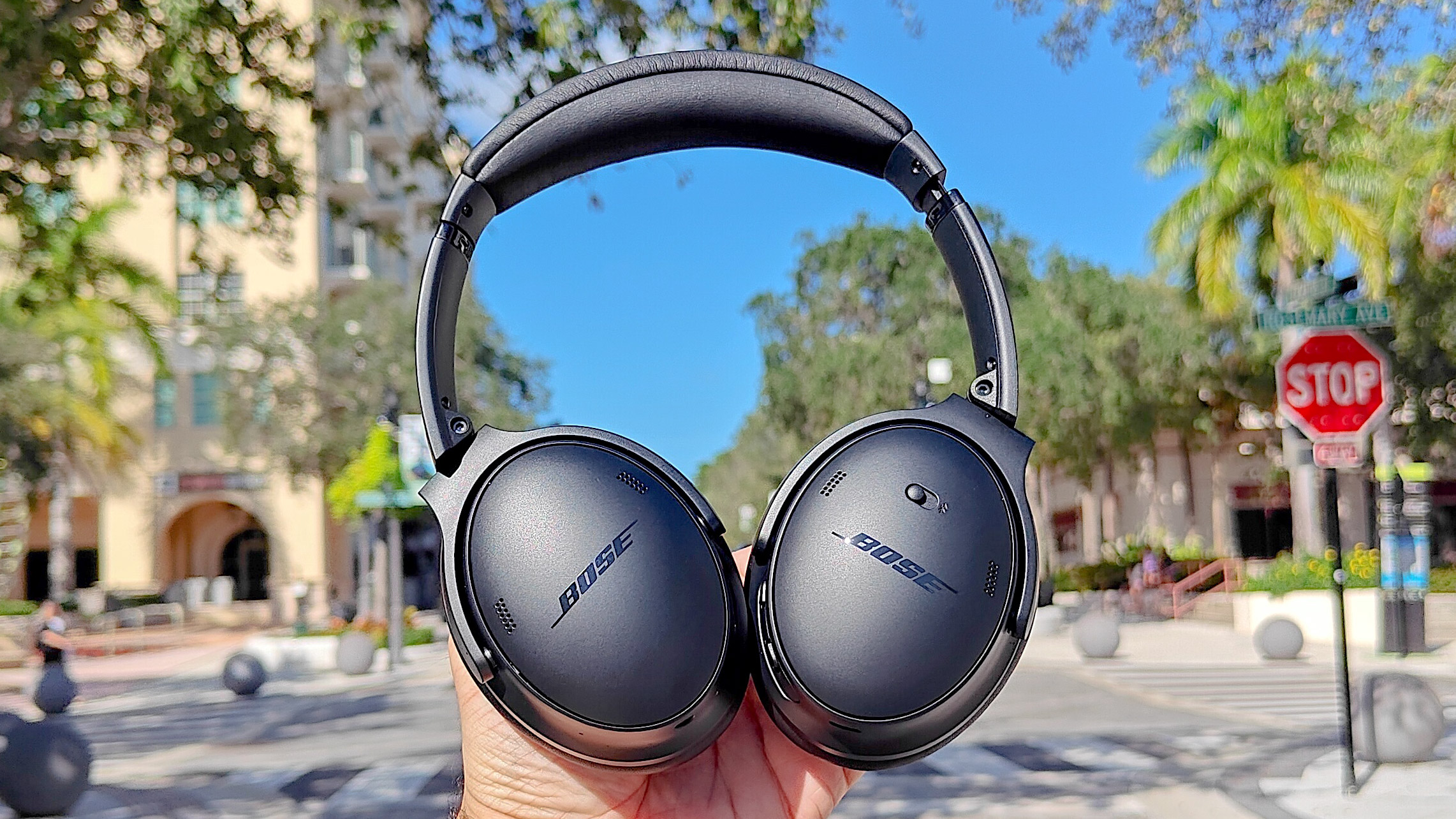
Bose QuietComfort (QC35, QC45)
- Turn off the headphones.
- On your phone, remove the device from Bluetooth settings.
- On the QC series, press and hold the Power/Bluetooth switch until you hear "Bluetooth device list cleared" (some firmware versions).
- If that voice prompt isn’t present, perform a factory reset per the manual.
Bose Noise Cancelling Headphones 700
- Power off the headset.
- Forget the device on your phone’s Bluetooth menu.
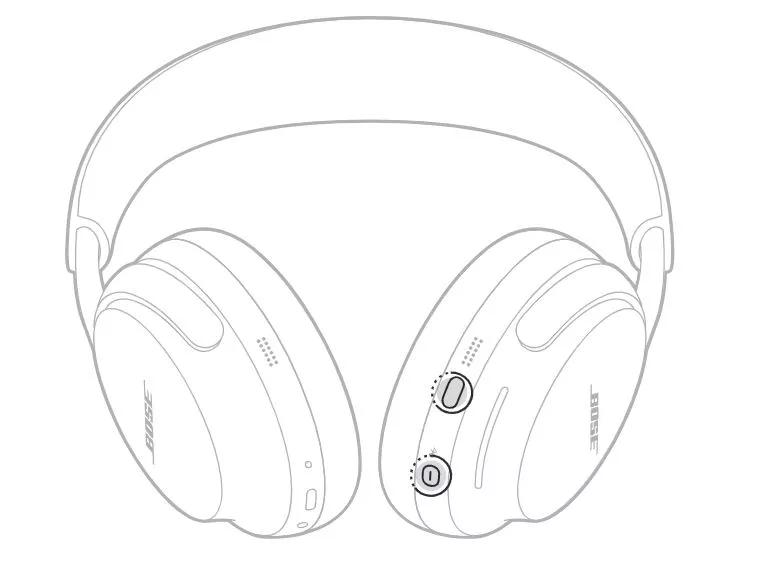
- Press and hold the Power/Bluetooth button for about 10 seconds to clear Bluetooth memory.
- If pairing persists, complete the factory reset steps below.
Bose SoundLink series (around-ear and on-ear)
- Power off the headphones.
- On your source device, choose Forget/Unpair for the Bose SoundLink entry.
- Some SoundLink models have a Bluetooth reset: hold Power and Bluetooth buttons together until LED blinks. This clears pairings.
Bose Sport Earbuds and QuietComfort Earbuds
- Open the case and remove the earbuds from paired devices in Bluetooth settings.
- For earbuds, you may need to unplug or reset from the Bose app.
- If the earbuds auto-connect, fully reset the earbuds in the app or via the manufacturer reset method.
Each of these model-specific routes shows how to unpair bose headphones for popular lines. If you’re unsure of your model’s exact reset wording, follow the generic remove-from-device step first and proceed to factory reset if needed.
Factory reset when unpairing fails
A factory reset clears all saved pairings and often solves stubborn pairing issues. Use this when simple unpairing doesn’t stop reconnects or when you plan to hand the device to someone else.
General factory reset steps
- Charge the headphones to at least 50 percent to avoid interruptions.
- Remove the device entry from your phone or computer Bluetooth list first.
- Follow your model’s reset sequence:
- For many Bose headphones, press and hold Power for 10 seconds or press a specific combo like Power + Bluetooth until LEDs change.
- For earbuds, use the case and follow the app or button sequence to restore factory settings.
- After reset, pair again only if desired.
Factory resets solve most how to unpair bose headphones problems. Note that a reset erases settings such as EQ or saved modes. If you reset, recheck firmware in the Bose app afterward.
Troubleshooting common unpairing problems
If unpairing didn’t work, try these fixes I use in the field.
- Reboot your phone or computer
- Sometimes the device-side Bluetooth cache keeps the old pairing alive. Rebooting clears it.
- Toggle Bluetooth off and on
- Turn Bluetooth off for 30 seconds, then on. Check if the headphones still appear.
- Update firmware and the Bose app
- Outdated firmware can cause pairing bugs. Updating helps resolve many issues.
- Clear Bluetooth cache (Android)
- Android phones can store stale pairing info. Clear Bluetooth app data in system settings.
- Use a different device to confirm
- Try pairing with another phone to ensure the headphones truly lost paired devices.
These steps cover most real-world cases where people ask how to unpair bose headphones but still see reconnections.
Best practices and tips from experience
I’ve unpaired and reset headphones many times while troubleshooting customer devices. These habits save time and headaches.
- Always forget the device on your phone first. It prevents auto-reconnect.
- Use a factory reset only when simpler steps fail. Resetting erases settings and saved preferences.
- Keep firmware current via the Bose app to avoid pairing bugs.
- If lending headphones, tell the recipient to confirm they can pair before you walk away.
- Note the model number on the earcup or pack. Different models use different reset methods.
Following these practices simplifies how to unpair bose headphones in real situations.
Frequently Asked Questions of how to unpair bose headphones
How do I unpair Bose headphones from my iPhone?
Open Settings > Bluetooth, find your Bose headphone entry, tap the info icon, and choose Forget This Device. Power off the headphones to ensure they stop auto-connecting.
Can I unpair Bose headphones without the original phone?
Yes. You can remove the headphones from the phone’s Bluetooth list on any device paired to them, or perform a factory reset on the headphones to clear saved pairings.
Will a factory reset fix pairing problems?
A factory reset often fixes persistent pairing issues by clearing all saved connections and restoring defaults. Remember that it will erase customized settings and saved device history.
How long does it take to unpair Bose headphones?
Removing the device from Bluetooth settings takes seconds. A factory reset can take a minute or two, including power cycles and firmware checks.
Do I need the Bose app to unpair my headphones?
No, the Bose app is helpful for firmware updates and some reset flows, but basic unpairing can be done from your device’s Bluetooth menu or by using hardware reset commands.
Conclusion
You now have clear, practical steps for how to unpair bose headphones across models and situations. Start by forgetting the device on your phone, then try a hardware reset if needed, and use factory reset only as a last resort. Put these tips into practice today to avoid pairing headaches and to keep your Bluetooth tidy. If this guide helped, subscribe for more device tips, leave a comment with your model and issue, or share this article with someone who needs to unpair their Bose headphones.

Everett Ashford is a tech reviewer at mytechgrid.com specializing in SSDs, cameras, TVs, earbuds, headphones, and other consumer electronics. He provides honest, data-driven reviews based on hands-on testing and real-world performance analysis. Everett simplifies complex tech details to help readers make smart, confident buying decisions.