Put earbuds in pairing mode, enable Bluetooth on your device, and select Jaybird from the list.
I’ve paired Jaybird earbuds with phones, tablets, and watches for years. This guide shows exactly how to pair Jaybird earbuds step by step. You will get model-specific instructions, simple troubleshooting, and pro tips from real use. Read on to pair your earbuds quickly and keep them connected reliably.

Quick checklist before pairing
Before you start pairing, follow a short checklist. This saves time and prevents common errors. Check battery levels on both earbuds and your device. Make sure Bluetooth is on and that your phone is not already connected to another headset. Turn off airplane mode and close any apps that might block Bluetooth scans.

How to pair Jaybird earbuds — step-by-step
This section shows a clear process to pair Jaybird earbuds with most devices.
-
Turn on the earbuds
- Remove earbuds from the case or press the power button.
- Watch for a blinking LED or audible cue that indicates pairing mode.
-
Put earbuds in pairing mode if needed
- For many Jaybird models, hold the multi-function button for 3–5 seconds.
- The LED will flash red and white or blue, or you’ll hear a voice prompt.
-
Open Bluetooth settings on your device
- Go to Settings > Bluetooth and toggle it on.
- Wait for the device to scan for new devices.
-
Select the Jaybird device name
- Tap the listed Jaybird name when it appears.
- Confirm pairing if prompted. You may see a "Connected" status.
-
Test audio and controls
- Play a song or video to verify audio.
- Try volume and track controls to ensure both earbuds work.
I recommend repeating these steps if the earbuds do not appear or do not connect. In my experience, a quick reset often fixes pairing issues.

Model-specific pairing tips
Different Jaybird models have small pairing variations. Use the model steps below if the general method doesn’t work.
Jaybird Vista and Vista 2
- Remove both earbuds from the case to power them on.
- If not in pairing mode, press and hold either earbud button for 3 seconds.
- Look for "Jaybird Vista" in Bluetooth settings and select it.
Jaybird RUN
- Press and hold the button on both earbuds until LEDs flash.
- Wait for the RUN to show as available on your device.
- Select it and allow any prompts.
Jaybird X4 and Freedom
- With the earbuds off, press and hold the power button on both units.
- The lights will blink to show pairing mode.
- Choose the X4 or Freedom name on your phone.
Jaybird Tarah and Tarah Pro
- Take the earbuds out of the case to power on.
- Press and hold the button on either bud to enter pairing mode.
- Tap the Tarah device name when it appears.
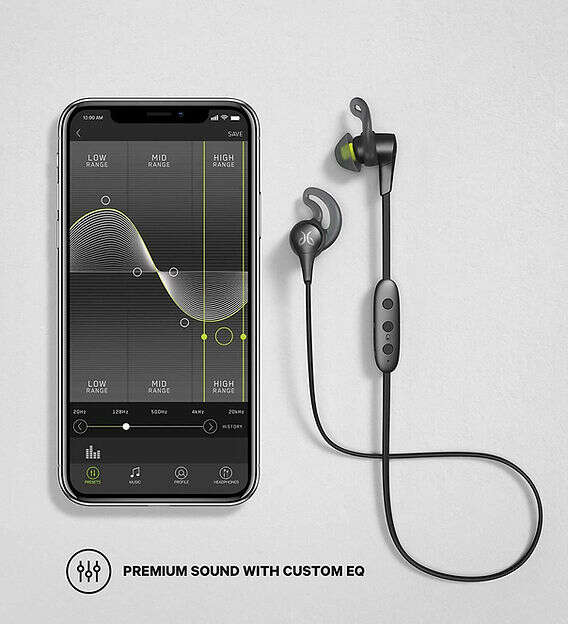
If your model uses a companion app, installing the app can streamline pairing and firmware updates. I often use the app to check firmware and battery.

Troubleshooting common pairing issues
If pairing fails, try these fixes in order. They are quick and usually work.
-
Restart earbuds and device
- Turn both off, wait 10 seconds, then turn them back on.
-
Forget and re-pair the device
- In Bluetooth settings, remove the Jaybird device and scan again.
-
Fully reset the earbuds
- Hold the power button for 10–15 seconds or follow model reset steps. This clears stuck pairings.
-
Charge earbuds and case
- Low battery can block pairing. Charge for at least 15 minutes.
-
Update firmware and app
- Use the Jaybird app to update firmware. Updates often fix connection bugs.
-
Try a different device
- Pair with another phone or tablet to isolate the issue.
I once spent half an hour troubleshooting only to find one earbud had a nearly dead battery. Charging solved it instantly.

Tips for best Bluetooth performance and battery life
Small habits improve pairing success and battery life.
-
Keep firmware up to date
- Firmware fixes bugs and improves stability. Check the Jaybird app regularly.
-
Avoid crowded Bluetooth environments
- Too many devices can cause interference. Move to a less busy spot.
-
Charge regularly and store in the case
- Storing earbuds in their case keeps them charged and ready.
-
Use only one active device when pairing
- Disable Bluetooth on nearby devices to avoid accidental connections.
-
Clean contacts and earbuds
- Dirty contacts may prevent charging or cause poor connections. Wipe them gently.
From personal use, I learned that keeping the app installed makes pairing faster. The app tells you battery levels and device status in real time.

Frequently Asked Questions of how to pair jaybird earbuds
How do I reset my Jaybird earbuds if they won’t pair?
Hold the power button on each earbud for about 10–15 seconds or follow the model-specific reset steps in the manual. After the reset, remove the device from Bluetooth settings and try pairing again.
Why won’t my phone find my Jaybird earbuds?
Your earbuds might not be in pairing mode or their battery may be low. Put the earbuds into pairing mode, charge them if needed, and refresh Bluetooth scanning on your phone.
Can I pair Jaybird earbuds with multiple devices at once?
Most Jaybird models support connection to one device at a time. Some models remember multiple pairings, but only one will play audio at once.
Do I need the Jaybird app to pair the earbuds?
The app is not required, but it helps with firmware updates and device name recognition. The earbuds can pair via standard Bluetooth without the app.
What if only one earbud connects or plays audio?
Try forgetting the Jaybird device on your phone and re-pairing. If the problem persists, reset the earbuds and ensure both are charged before pairing again.
Conclusion
Pairing Jaybird earbuds is usually quick when you follow simple steps. Start with the checklist, use the step-by-step pairing method, and consult the model-specific notes when needed. If problems occur, reset, update firmware, and try another device to isolate the issue. Take a moment to update firmware and keep the case charged to avoid future pairing hassles. Try these tips now, leave a comment with your model and issue, or subscribe for more practical guides.

Everett Ashford is a tech reviewer at mytechgrid.com specializing in SSDs, cameras, TVs, earbuds, headphones, and other consumer electronics. He provides honest, data-driven reviews based on hands-on testing and real-world performance analysis. Everett simplifies complex tech details to help readers make smart, confident buying decisions.