Your camera may not flip because the app, permissions, settings, or device software is blocking the camera switch.
When you ask, “why won’t my camera flip,” you are usually dealing with a small settings issue, not a broken camera. The front and rear cameras are separate hardware units, and apps must have permission to switch between them. This guide explains the most common causes, simple fixes, device-specific steps, and signs that you may need professional repair.

What “camera flip” usually means
“Flip camera” can mean two different things. You may want to switch from the front-facing camera to the rear camera, or you may want to mirror the image so text and movement look reversed.
Most people asking, “why won’t my camera flip,” mean the first option. They press the camera switch icon, but nothing happens, the icon is missing, or the app stays on the same camera.
A camera flip button usually looks like:
• Two curved arrows around a camera
• A camera with a circular arrow
• Two arrows forming a loop
• A button labeled “Switch camera” or “Change camera”
The exact button depends on the phone, computer, operating system, and app. Some apps also hide the button until a video call starts.

Why won’t my camera flip?
Several issues can stop a camera from switching. The most common causes are simple and safe to fix.
The app does not support camera switching
Some apps only use one camera. For example, a barcode scanner, banking app, or security app may lock itself to the rear camera. Other apps may use only the front camera for identity checks.
If the flip button is missing, the app may not support camera switching. This is different from a faulty camera.
Camera permission is limited
An app needs camera access to control your camera. If permission is denied or limited, the camera may show a black screen or refuse to switch.
On Android and iPhone, check the app’s camera permission in system settings. On Windows and macOS, check camera access under privacy settings.
Another app is using the camera
Only one app may control the camera at a time on many devices. A video meeting app running in the background can block your browser or messaging app.
Close apps such as:
• Zoom
• Google Meet
• FaceTime
• Snapchat
• TikTok
Then reopen the app you want to use.
The camera app has frozen
A frozen app may still show a picture, but its controls will not work. This can happen after a long video call, a system update, or low available memory.
Force-close the app, wait a few seconds, and open it again. This simple step often fixes camera switching without changing any settings.
The phone or computer has a software bug
Temporary software errors can affect camera controls. An operating system update may also introduce a bug that affects certain apps or camera drivers.
Restart the device first. If the problem continues, install available system and app updates.
The rear or front camera has a hardware fault
If one camera is damaged, the device may fail when you try to switch to it. A dropped phone, water exposure, cracked lens, or failed camera module can cause this problem.
A useful test is to open the built-in camera app. If the front camera works but the rear camera shows a black screen everywhere, the issue may be hardware.

Quick fixes when your camera will not switch
Try these fixes in order. Start with the easy steps before changing advanced settings.
-
Close and reopen the camera app.
-
Tap the camera switch icon more than once.
-
Remove any case or accessory that covers the camera area.
-
Restart your phone, tablet, or computer.
-
Close all other apps that may use the camera.
-
Check camera permissions.
-
Update the app.
-
Update the operating system.
-
Test the camera in another trusted app.
-
Reset the app if the problem remains.
Do not tap the screen repeatedly or press hard around the lens. The issue is usually software-related, and extra pressure will not repair a camera module.
If the camera switches after a restart, the problem was likely temporary. If it fails in every app, you should focus on the device, permissions, or hardware.
How to fix the camera flip on an iPhone
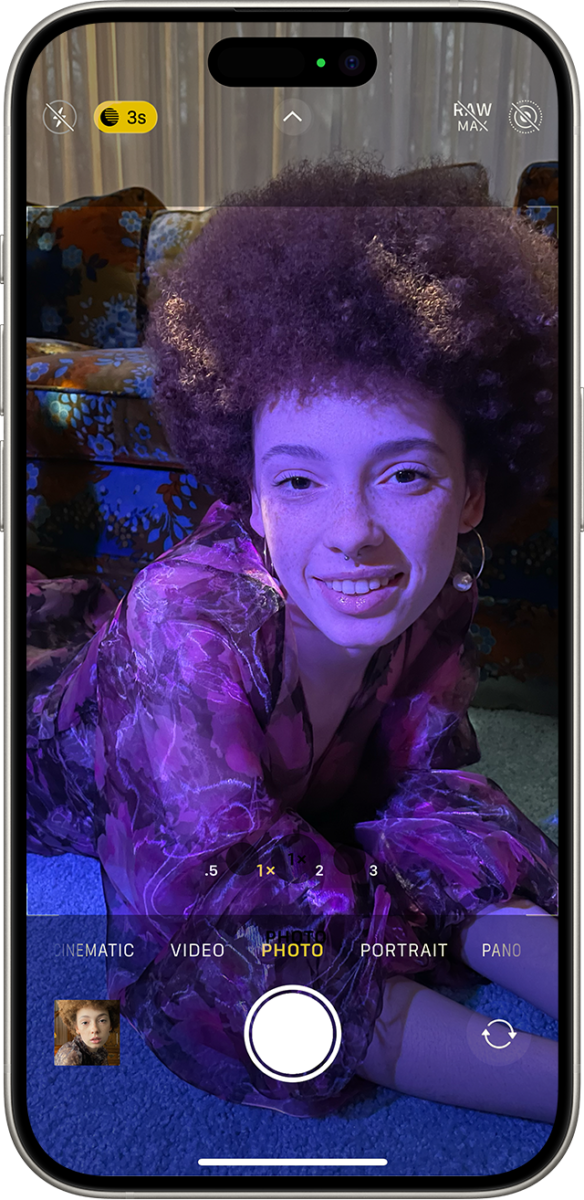
If you are wondering, “why won’t my camera flip” on an iPhone, begin with the built-in Camera app. Open it and tap the camera switch icon in the lower-right corner.
If the icon does nothing, follow these steps:
Check camera access
Open:
Settings > Privacy & Security > Camera
Make sure camera access is enabled for the app. If the app is not listed, open the app again and allow access when prompted.
Close the app completely
Swipe up from the bottom of the screen, or double-click the Home button on older models. Swipe the camera or video app away, then open it again.
Restart the iPhone
Press and hold the side button with a volume button. Slide to power off, wait briefly, and turn the phone on again.
Update iOS and the app
Go to:
Settings > General > Software Update
Then open the App Store and check for app updates. App makers often release fixes for camera and video problems after operating system changes.
Test both cameras
Open the Camera app and test:
• Photo mode
• Video mode
• Front camera
• Rear camera
• Flash
If one camera remains black in every mode, the phone may have a hardware problem. Apple’s official troubleshooting guidance also recommends restarting, updating, and checking for physical damage before seeking service.

How to fix the camera flip on Android
Android menus vary by brand. Samsung Galaxy, Google Pixel, Motorola, OnePlus, and other phones may use different names, but the main steps are similar.
Open the default Camera app and tap the camera switch icon. If you still ask, “why won’t my camera flip,” try the steps below.
Check camera permission
Open:
Settings > Apps > Your app > Permissions > Camera
Choose “Allow only while using the app” or the closest available option. The wording may differ by Android version.
Clear the camera app cache
On many Android phones, go to:
Settings > Apps > Camera > Storage > Clear cache
Clearing the cache removes temporary files. It does not normally delete your photos. Avoid choosing “Clear data” unless you know what it will remove, because that option may reset app settings.
Restart the phone
A restart can release the camera from a background process. It can also clear a temporary driver or memory error.
Try safe mode
Safe mode disables most third-party apps. If the camera flips normally in safe mode, another installed app may be causing the conflict.
Apps that add filters, screen overlays, parental controls, security tools, or video effects are common suspects. Remove or disable recently installed apps one at a time.
Check for physical damage
Inspect both lenses for cracks, fog, or dirt. Clean the lens with a soft microfiber cloth. Never use household glass cleaner or rough paper, as these can damage coatings.
Fixing camera switching in video call apps
If the camera works in the built-in camera app but will not flip during a call, the problem is likely inside the video app.
Zoom
During a meeting, select the arrow next to the camera icon. Choose a different camera from the list.
On a phone, tap the screen to show controls, then look for the camera switch icon. If it is missing, update Zoom and check its camera permission.
Google Meet
During a meeting, open the menu or tap the camera switch control. On a computer, select the correct camera under video settings before or during the call.
If Meet uses the wrong camera, close other browser tabs and apps that may control the camera.
Microsoft Teams
Open device settings in Teams and select the camera you want. On mobile, tap the screen during a call and use the switch camera button if available.
A work or school administrator may restrict camera settings. In that case, you may need help from the organization’s IT team.
FaceTime
During a FaceTime call, tap the screen and select the camera switch button. If the button is missing, update iOS and confirm that FaceTime has camera access.
Instagram, Snapchat, and TikTok
Social apps may use camera effects that interfere with switching. Close filters, exit the recording screen, and restart the app.
If the problem occurs only in one social app, test another app before assuming the phone camera is broken.
:max_bytes(150000):strip_icc()/002_2000283-5b9afd8246e0fb0050564f16.jpg)
Fixing a camera that will not flip on Windows
On Windows, camera switching can involve both the operating system and the app. A laptop may have a built-in webcam, while a monitor or USB device may provide another camera.
Check Windows camera privacy
Open:
Settings > Privacy & security > Camera
Turn on:
• Camera access
• Let apps access your camera
• Let desktop apps access your camera
Desktop apps include browsers and video meeting software. If this setting is off, an app may not see any camera.
Select the correct camera
In Zoom, Teams, Meet, or another app, open video settings. Choose the built-in webcam, external webcam, or virtual camera you want.
If you are trying to switch between front and rear cameras on a Windows tablet, the app may not support that function. Try the built-in Windows Camera app first.
Update the camera driver
Open Device Manager and expand “Cameras” or “Imaging devices.” Right-click the camera and select the update option.
Only download drivers from your computer maker or a trusted hardware provider. Avoid random driver websites, which may provide unsafe or incorrect files.

Fixing a camera that will not flip on a Mac
Mac computers usually switch between available cameras rather than front and rear phone cameras. A MacBook normally has one built-in webcam, while an iPhone or external webcam may provide another option.
If your Mac does not switch cameras:
• Open the video app’s settings.
• Select the camera menu.
• Choose the desired camera.
• Close other camera apps.
• Restart the Mac.
• Update macOS and the video app.
For browser-based calls, check the browser’s camera permission. In Safari, Chrome, and Firefox, camera access can be controlled separately for each website.
If an external camera does not appear, disconnect it and reconnect it directly to the Mac. Some hubs and adapters do not provide enough power or may not support the camera correctly.

When the camera flip button is missing
A missing button does not always mean something is wrong. The app may hide camera controls until a call or recording begins.
Look for these possibilities:
• Tap the video preview to reveal controls.
• Tap the three-dot menu.
• Rotate the phone from portrait to landscape.
• Exit a filter or special recording mode.
• Start a video call before searching for the button.
• Check whether the app supports both cameras.
• Update the app from the official app store.
Some apps intentionally restrict camera switching for privacy or security. A financial app may require the rear camera for document scanning, while a verification app may require the front camera for face matching.
When the camera flips but the image is mirrored
A mirrored preview can look like a camera problem. Your face may appear reversed, or words on a shirt may look backward.
Many front-facing cameras mirror the preview because it feels more natural, like looking in a mirror. The saved photo may or may not remain mirrored, depending on the device and setting.
Look for settings named:
• Mirror front camera
• Save selfies as previewed
• Flip selfies
• Mirror my video
This setting changes the image orientation. It does not switch from the front camera to the rear camera.
For video calls, a mirrored preview may affect only what you see. Other people may receive a normal, unmirrored image. Test this with a trusted contact before changing the setting.
Advanced troubleshooting steps
If basic fixes do not work, use these steps carefully.
Test the camera in another app
Open the built-in camera app, a video call app, and a browser camera test from a trusted site. Do not grant camera access to unknown websites.
If the camera works in one app but not another, the issue is likely app permission or app compatibility. If neither camera works anywhere, the issue may involve the operating system or hardware.
Reset app permissions
Some phones allow you to reset permissions for unused or misbehaving apps. After the reset, reopen the app and grant camera access again.
This can fix a hidden permission error. It may also reset microphone, location, or storage permissions for that app.
Disable camera effects
Turn off beauty filters, virtual backgrounds, augmented reality effects, and virtual camera tools. These features can crash or lock the camera feed.
This step is especially useful in social media and meeting apps.
Check storage space
Very low storage can cause camera apps to freeze or fail to save photos. Delete unwanted files or move videos to secure cloud storage.
Storage problems usually affect saving images, but they can also make camera apps unstable.
Reset network settings only when needed
Network settings will not usually fix a camera switch problem. They may help only when the issue is limited to a video call connection.
Use this reset carefully because it can remove saved Wi-Fi networks and Bluetooth connections.
Signs that your camera needs repair
Software fixes cannot solve a damaged camera module. Consider professional service if:
• One camera shows a black screen in every app.
• The phone was dropped before the issue began.
• The camera vibrates, clicks, or will not focus.
• The lens is cracked or fogged inside.
• The camera app closes whenever you switch cameras.
• The device shows a camera hardware error.
• The issue remains after a factory reset.
Back up your photos and important files before repair. If the device is under warranty, contact the manufacturer or an authorized service provider first.
Avoid opening a phone yourself unless you have proper tools and experience. Camera modules are delicate, and an incorrect repair can affect water resistance, focus, or biometric features.
Mistakes to avoid when your camera will not flip
Troubleshooting is easier when you avoid steps that create new problems.
• Do not install unknown camera repair apps.
• Do not grant camera access to suspicious websites.
• Do not clear app data before backing up important settings.
• Do not perform a factory reset as your first step.
• Do not use sharp tools to clean the lens.
• Do not assume a black screen always means a broken camera.
• Do not download random drivers from unofficial websites.
A practical lesson from common device repairs is that testing matters more than guessing. First identify whether the issue affects one app, one camera, or the entire device. That result points you toward the correct fix.
How to prevent camera switching problems
You can reduce future camera problems with a few simple habits.
• Keep your operating system updated.
• Update video and social media apps.
• Close camera apps after long calls.
• Keep several gigabytes of free storage.
• Use a soft cloth to clean the lens.
• Protect the phone from drops and moisture.
• Review camera permissions after major updates.
• Remove apps that create virtual cameras or screen overlays if they cause conflicts.
Also, test your camera before an important meeting, class, interview, or livestream. A 30-second test can prevent a stressful last-minute problem.
Frequently Asked Questions
Why won’t my camera flip from front to back?
The app may not support camera switching, or another app may already control the camera. Restart the app, check permissions, and test both cameras in the built-in camera app.
Why won’t my camera flip during a video call?
The video app may have selected the wrong camera or hidden its controls. Tap the video preview, open the app’s camera settings, and close other apps that use the camera.
Why is my camera flip button missing?
Some apps show the button only during a call or recording session. The app may also support only one camera, especially for scanning, banking, or identity checks.
Why won’t my iPhone camera flip?
A frozen Camera app, blocked permission, outdated iOS version, or damaged camera module can cause the problem. Restart the iPhone, update iOS, and test the front and rear cameras in the built-in Camera app.
Why won’t my Android camera flip?
Android camera switching may fail because of app cache, permission settings, software conflicts, or hardware damage. Check permissions, clear the camera cache, restart the phone, and test another camera app.
Why does my camera flip but show a black screen?
The camera you selected may be blocked, damaged, or unavailable to the app. If the black screen appears in every app, seek device support or repair.
Does flipping the camera mean mirroring the image?
Not usually. Flipping the camera normally means switching between the front and rear cameras, while mirroring changes the direction of the image.
Conclusion
When you ask, “why won’t my camera flip,” start by checking the app, camera permissions, and whether another app is using the camera. Then restart the device, update the software, and test both cameras in the built-in camera app.
If only one app fails, focus on that app’s settings. If one camera fails everywhere, physical damage or a hardware fault is more likely. Work through the steps in order, protect your data, and contact authorized support when basic troubleshooting does not help.
Try these fixes before your next call or recording, and share this guide with someone facing the same camera problem.

Everett Ashford is a tech reviewer at mytechgrid.com specializing in SSDs, cameras, TVs, earbuds, headphones, and other consumer electronics. He provides honest, data-driven reviews based on hands-on testing and real-world performance analysis. Everett simplifies complex tech details to help readers make smart, confident buying decisions.