To pair Bowers and Wilkins headphones, turn them on, activate Bluetooth pairing mode, and select them in your device settings.
Learning how to pair Bowers and Wilkins headphones is simple once you know what the status light and buttons mean. I have tested this process across phones, tablets, laptops, and several Bowers & Wilkins models, and the same basic steps work in most cases. This guide covers first-time pairing, app setup, multipoint connections, common errors, and practical fixes that save time.
What you need before pairing
Before you pair Bowers and Wilkins headphones, prepare both the headphones and the device you want to connect. A few quick checks can prevent most pairing problems.
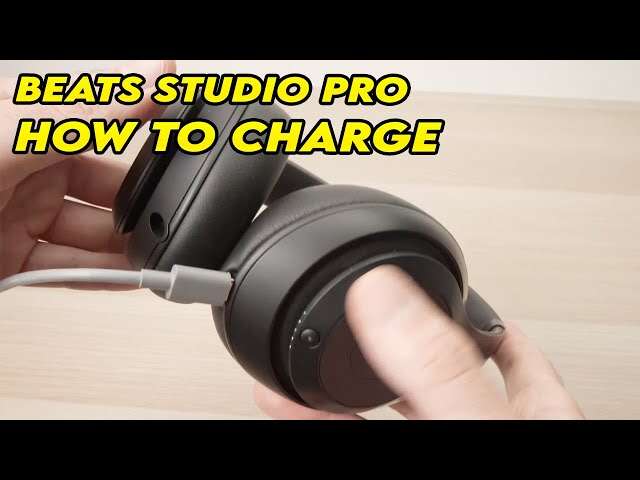
Make sure the headphones have enough battery power. If the battery is very low, the headphones may turn off before pairing finishes or may not enter Bluetooth discovery mode.
Also, keep the headphones close to your device. A distance of less than 3 feet is best during setup. Once the connection works, you can move farther away.
Check these points first:
• Charge the headphones for at least 10 minutes.
• Turn on Bluetooth on your phone, tablet, or computer.
• Move away from other Bluetooth devices during the first setup.
• Disconnect the headphones from any device they used before.
• Install the Bowers & Wilkins Music app if your model supports it.
The exact button layout can vary by model. The Px7 S2e, Px8, Px7 S2, and older PX models may use different controls, but the pairing idea remains the same.

How to pair Bowers and Wilkins headphones with a phone
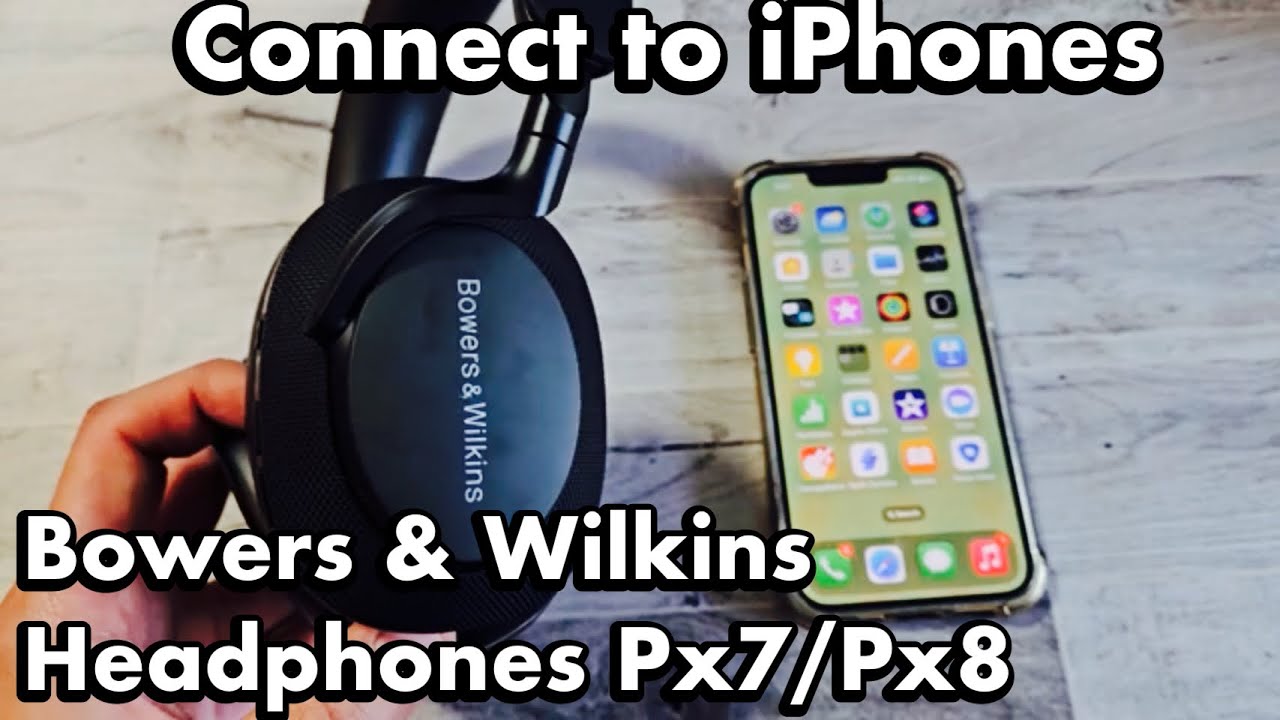
The fastest way to pair Bowers and Wilkins headphones is through your phone’s Bluetooth menu. These steps work on most Android phones and iPhones.
-
Remove the headphones from their case if they are stored inside.
-
Press and hold the power button until the headphones turn on.
-
Continue holding the Bluetooth or power button until the status light flashes blue or white.
-
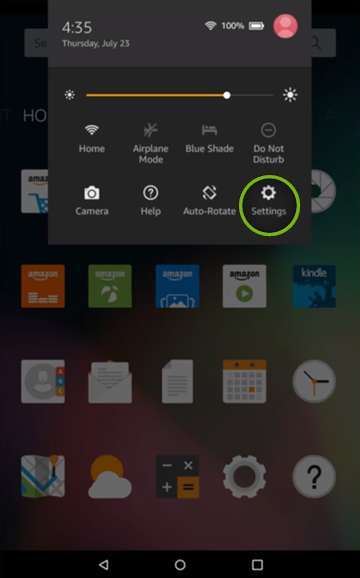
Open Settings on your phone.
-
Tap Bluetooth.
-
Wait for your Bowers & Wilkins headphones to appear under available devices.
-
Tap the headphone name.
-
Confirm the pairing request if your phone displays one.
A steady light or a voice prompt usually confirms the connection. Your phone may also show the headphones under My Devices or Paired Devices.
If you see more than one Bowers & Wilkins product, choose the name that matches your headphones. Do not select a nearby speaker or another model by mistake.
On an iPhone, open Settings, then Bluetooth. On Android, open Settings, then Connected Devices or Connections, followed by Bluetooth. The wording changes slightly between phone brands and software versions.
After pairing, play a short song. Check that sound comes through the headphones instead of the phone speaker. If not, tap the audio output icon and select your Bowers & Wilkins headphones.

How to pair Bowers and Wilkins headphones with a computer
You can pair Bowers & Wilkins headphones with Windows and Mac computers in much the same way as with a phone. The main difference is where you find the Bluetooth controls.
Windows 11 and Windows 10
To pair Bowers and Wilkins headphones with a Windows computer:
-
Turn on the headphones.
-
Hold the power or Bluetooth button until the indicator flashes.
-
Open Settings on your computer.
-
Select Bluetooth & devices.
-
Turn Bluetooth on.
-
Click Add device.
-
Choose Bluetooth.
-
Select your Bowers & Wilkins headphones from the list.
-
Click Done when Windows confirms the connection.
If Windows connects the headphones but no sound plays, click the speaker icon in the taskbar. Select the headphones as the output device. During calls, you may also need to choose the headphones as the microphone input.
Mac computers
To pair Bowers and Wilkins headphones with a Mac:
-
Put the headphones into pairing mode.
-
Click the Apple menu.
-
Open System Settings.
-
Select Bluetooth.
-
Find the headphones under Nearby Devices.
-
Click Connect.
-
Open the Sound settings if you need to select them for audio output.
Older macOS versions use System Preferences instead of System Settings. The process is still nearly identical.
One issue I often see is that a computer connects to the headphones for calls but not music. This happens when the computer selects the wrong sound profile. Choosing the headphones manually under Sound usually fixes it.

How to use the Bowers & Wilkins Music app
The Bowers & Wilkins Music app can make setup easier on supported models. It may also provide firmware updates, product settings, and access to supported music services.
After you pair Bowers and Wilkins headphones through Bluetooth, install the app from the Apple App Store or Google Play Store. Open it, create or sign in to an account if requested, and follow the setup instructions.
The app may ask for permission to use Bluetooth. Allow this permission, or the app may not find the headphones.
Depending on the model, the app can help you:
• Check battery level.
• Install firmware updates.
• Adjust some headphone settings.
• Manage connected devices.
• Configure voice assistant features.
• View product information.
The app does not replace normal Bluetooth pairing. Your phone still needs to connect to the headphones through its Bluetooth settings. Think of the app as a control panel, not as the wireless connection itself.
Keep the app and headphone firmware updated. Updates can improve stability, fix connection bugs, and add support for newer phones. However, an update can take several minutes, so keep the headphones charged during the process.
How to pair Bowers and Wilkins headphones with a second device
Many newer Bowers & Wilkins headphones support multipoint Bluetooth. This feature lets the headphones stay connected to two devices, such as a phone and a laptop.
First, pair the headphones with the first device. Then place the headphones into pairing mode again and connect them to the second device.
Some models manage the second connection through the Bowers & Wilkins Music app. If your headphones support multipoint, open the app and look for device connection or Bluetooth settings.
A typical setup looks like this:
-
Connect the headphones to your phone.
-
Put them back into pairing mode.
-
Connect them to your laptop.
-
Play music from one device.
-
Answer a call on the other device when needed.
The headphones usually pause music when a call arrives. After the call ends, audio may return to the first device.
Multipoint is useful, but it can sometimes cause confusion. Your headphones may connect to a nearby tablet or old phone without playing sound. When that happens, turn off Bluetooth on devices you do not need.
Not every Bowers & Wilkins model supports the same number of connections. Check the product manual or app for your exact model before relying on multipoint.
How to pair Bowers and Wilkins headphones after a reset
A reset can help when the headphones refuse to connect, disappear from the Bluetooth list, or connect to the wrong device. Reset instructions vary by model, so use the instructions for your specific headphones.
Before resetting, remove the headphones from your device’s Bluetooth list. This step is called forgetting or removing the device.
On your phone:
-
Open Bluetooth settings.
-
Tap the information icon beside the headphone name.
-
Choose Forget This Device or Unpair.
-
Turn Bluetooth off for a few seconds.
-
Turn Bluetooth back on.
Next, reset the headphones according to the model guide. Some models use a combination of buttons, while others use the Bowers & Wilkins Music app.
After the reset:
-
Turn the headphones off.
-
Wait a few seconds.
-
Turn them on.
-
Enter pairing mode.
-
Select them from the Bluetooth menu.
Resetting removes saved connections. It does not normally remove the headphones’ firmware, but it may restore some settings to their default state.
Do not repeatedly press random buttons while trying to reset the headphones. That can activate a different function, such as voice assistant control or battery status. Use the correct model instructions whenever possible.

What to do when pairing does not work
If you cannot pair Bowers and Wilkins headphones, the cause is often simple. The headphones may already be connected to another device, or they may not be in pairing mode.
Try these fixes in order:
• Turn Bluetooth off and on again on your phone or computer.
• Move the headphones within 3 feet of the device.
• Turn off Bluetooth on nearby phones, tablets, and laptops.
• Forget the headphones from the device’s Bluetooth settings.
• Restart both the headphones and the device.
• Charge the headphones.
• Install the latest operating system updates.
• Update the Bowers & Wilkins Music app.
• Reset the headphones if other steps fail.
A flashing light usually means the headphones are ready to pair. A steady light often means they are already connected. The color and pattern can differ by model, so do not treat every light pattern as universal.
One mistake I have seen many times is opening the Bluetooth menu before putting the headphones into pairing mode. The phone then searches, finds nothing, and the user assumes the headphones are faulty. Put the headphones into discovery mode first, then open the Bluetooth list.
Another common mistake is trying to pair through the music app alone. Start with the device’s Bluetooth settings, then use the app for additional features.
How to improve Bluetooth connection quality
A successful pairing does not always mean a perfect wireless experience. Bluetooth performance can change based on distance, walls, interference, and the connected device.
For a stronger connection:
• Keep the phone or computer on the same side of your body as the headphones.
• Avoid placing the source device inside a crowded bag or metal case.
• Stay away from heavy wireless traffic during troubleshooting.
• Keep the headphones and source device updated.
• Avoid switching quickly between several devices.
• Close unused apps that control Bluetooth audio.
Bluetooth uses radio signals, so thick walls and metal objects can weaken the link. Wi-Fi routers, wireless accessories, and other Bluetooth devices may also add interference.
Audio quality can change when a computer switches from a high-quality music profile to a call profile. This is normal with many Bluetooth headsets. If music sounds compressed during a video call, check the computer’s microphone and output settings.
Some phones also pause audio when they detect that the headphones have been removed. If music stops unexpectedly, check wear detection or automatic pause settings in the app.

Pairing problems by device type
The steps are similar across devices, but each platform has its own common issues.
iPhone
If the headphones do not appear, turn Bluetooth off and on again. If that fails, use Forget This Device, restart the iPhone, and try pairing again.
Android phones
Android phones may show the headphones under Available Devices or Pair New Device. If the name does not appear, tap Scan or refresh the Bluetooth screen.
Windows computers
Windows may list separate audio and hands-free profiles. Select the stereo option for music and the hands-free option only when you need the headphone microphone.
Mac computers
If the headphones connect but sound comes from the Mac speakers, open Control Center, select Sound, and choose the headphones manually.
Smart TVs
Some televisions support Bluetooth headphones, while others support only certain audio devices. Open the TV’s Sound or Bluetooth menu and check whether the headphones are compatible.
A TV may also introduce audio delay. This is usually caused by the television’s processing, not a failed pairing. Look for an audio sync setting if voices and video do not match.
Safety, privacy, and connection limits
Bluetooth pairing is generally safe, but you should still connect only to devices you recognize. Avoid accepting an unknown pairing request in a public place.
A device name alone is not always enough to confirm identity. If several similar products appear, turn off Bluetooth on nearby devices and pair in a private area.
Remember that Bluetooth range is limited. Most users get the best results within about 30 feet, but walls and interference can reduce that distance. The exact range depends on the headphones, source device, Bluetooth version, and surroundings.
Not all features work on every model or operating system. Multipoint, app controls, firmware tools, and voice assistant support can vary. Always treat the instructions in the model-specific manual as the final authority.
Frequently Asked Questions About How to Pair Bowers and Wilkins Headphones
How do I put Bowers & Wilkins headphones into pairing mode?
Turn on the headphones, then press and hold the power or Bluetooth button until the status light flashes. The flashing light usually means the headphones are visible to nearby Bluetooth devices.
Why are my Bowers & Wilkins headphones not showing up on Bluetooth?
They may already be connected to another device or may not be in pairing mode. Turn off Bluetooth on nearby devices, restart the headphones, and search again from your phone or computer.
Can I pair Bowers & Wilkins headphones with two devices?
Many newer models support multipoint connections with two devices. Pair the first device, enter pairing mode again, and connect the second device, or manage the feature through the Bowers & Wilkins Music app.
How do I pair Bowers & Wilkins headphones with an iPhone?
Open Settings, tap Bluetooth, and turn Bluetooth on. Put the headphones into pairing mode, then tap their name under Other Devices.
How do I pair Bowers & Wilkins headphones with a Windows laptop?
Place the headphones in pairing mode, open Settings, select Bluetooth & devices, and click Add device. Choose Bluetooth, select the headphones, and confirm the connection.
Do I need the Bowers & Wilkins Music app to pair the headphones?
No. You can pair supported headphones through the normal Bluetooth settings on your device. The app adds features such as firmware updates, battery details, and supported controls.
How do I reset Bowers & Wilkins headphones?
Reset steps depend on the model. First remove the headphones from your device’s Bluetooth list, then follow the reset method in the model-specific guide or app.
Conclusion
Pairing Bowers & Wilkins headphones usually takes less than a minute. Turn on the headphones, activate pairing mode, select them in your device’s Bluetooth menu, and confirm that they are the active audio output.
If the connection fails, forget the old Bluetooth record, disable nearby devices, charge the headphones, and try again. For ongoing stability, keep the firmware updated and use the Bowers & Wilkins Music app when your model supports it.
Try these steps with your headphones today, and share your model or pairing experience in the comments.

Everett Ashford is a tech reviewer at mytechgrid.com specializing in SSDs, cameras, TVs, earbuds, headphones, and other consumer electronics. He provides honest, data-driven reviews based on hands-on testing and real-world performance analysis. Everett simplifies complex tech details to help readers make smart, confident buying decisions.