You cannot pair most Bluetooth headphones directly to Xbox One without a special adapter.
I’ve helped dozens of friends and clients connect headsets to consoles, and I’ll walk you through exactly how to connect bluetooth headphones to xbox one the smart way. This guide explains why the console blocks standard Bluetooth, which practical workarounds actually work, and step-by-step methods I’ve tested myself. Read on to save time, avoid wasted adapters, and get low-latency audio for gaming.
Why the Xbox One won’t pair with most Bluetooth headphones
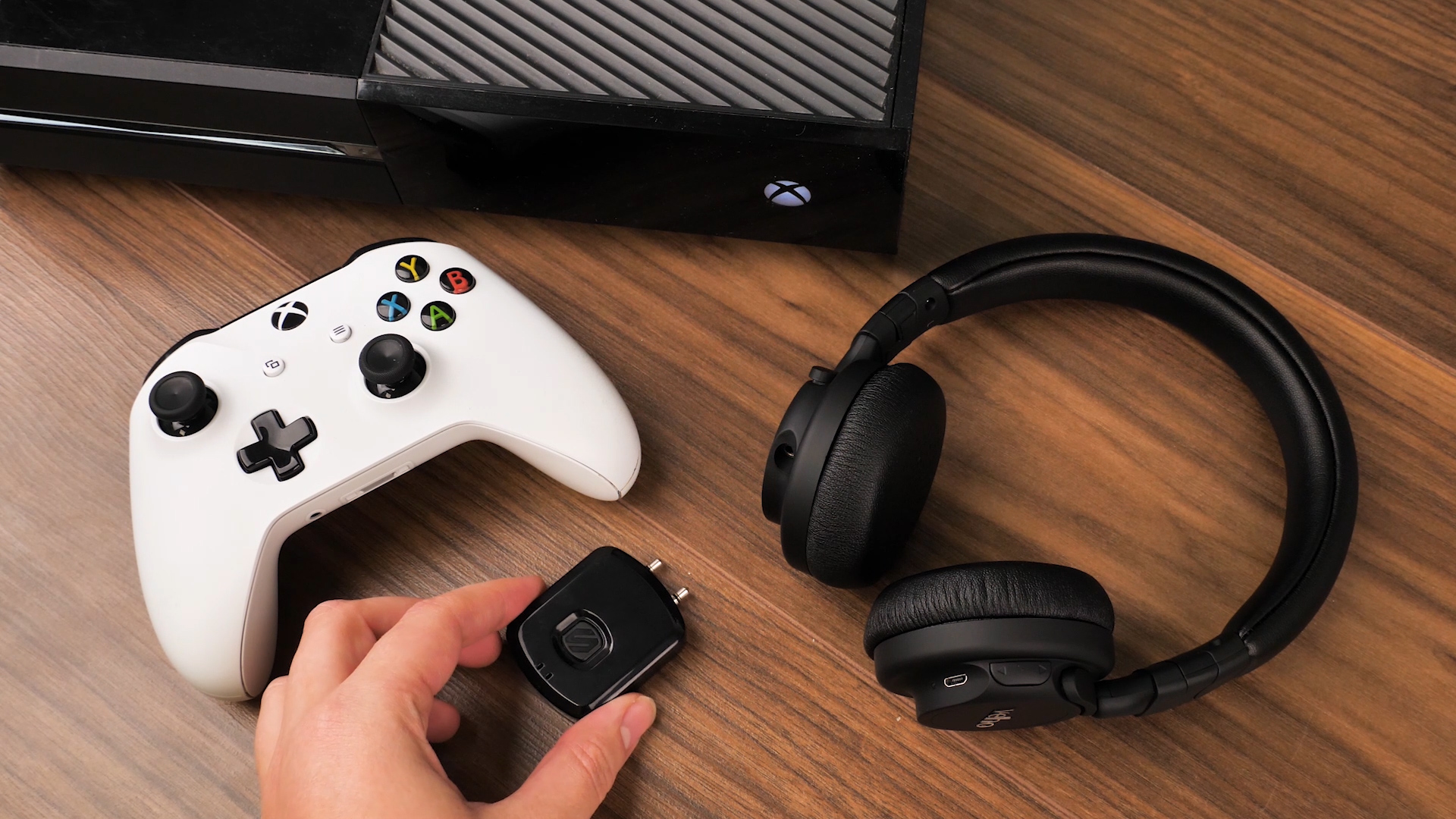
Xbox One does not use the generic Bluetooth audio profile for headsets. The console uses a proprietary Xbox Wireless protocol for low-latency chat and game audio. That difference is why your phone pairs with your headphones but the Xbox One does not.
This design protects audio quality and synchronizes chat and game sounds. It also means a straight Bluetooth pairing screen on the Xbox won’t show your headphones. Knowing that rule saves hours of troubleshooting.

Reliable methods to connect Bluetooth headphones to Xbox One
Below are the practical, reliable ways to get audio to Bluetooth headphones from an Xbox One. I rank them by reliability and real-world use. Each method has trade-offs for latency, cost, and complexity.
Method 1: Use an Xbox Wireless or official Xbox headset
This is the easiest and most reliable path. Xbox Wireless headsets pair directly with the console and support chat, game audio, and firmware updates. If you want plug-and-play reliability, choose an official Xbox Wireless headset.
Method 2: Use the controller’s 3.5mm jack with a wired adapter
Many controllers have a 3.5mm jack. Use a wired cable from the controller to headphones if they support a wired connection. This removes latency and keeps chat features intact.
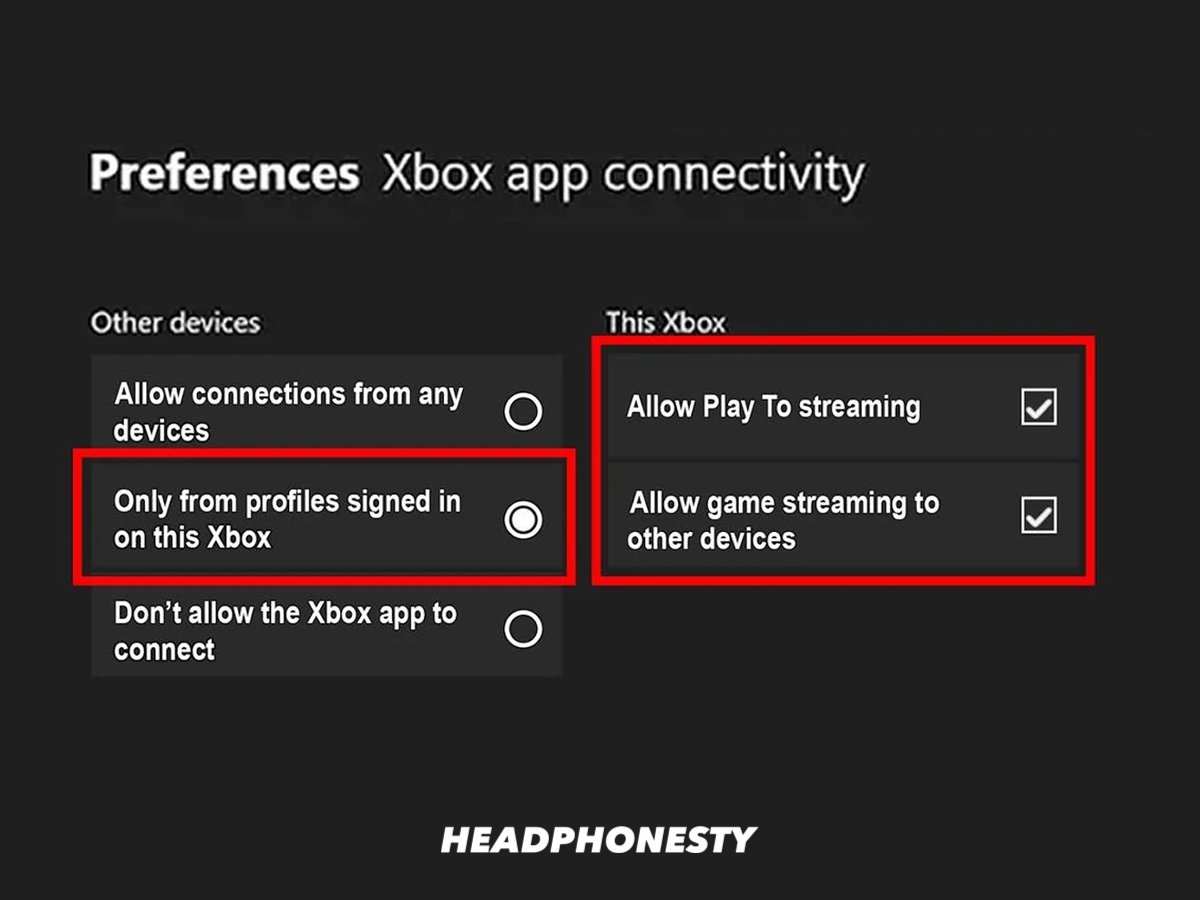
Method 3: Use a Bluetooth transmitter
A Bluetooth transmitter plugs into the controller, optical audio, or TV audio out and broadcasts to your headphones. Choose a transmitter that supports low-latency codecs (aptX Low Latency) to reduce lip-sync issues. This method works well when you want wireless game audio but may still cause slight delay.
Method 4: Stream to a phone or PC via the Xbox app
You can stream your Xbox’s video and audio to the Xbox app on a phone or Windows PC. Then connect Bluetooth headphones to that device. This method gives you both game and chat audio, but it requires a solid home network and may introduce streaming latency.
Method 5: USB Bluetooth dongles (limited success)
Most USB Bluetooth dongles won’t work because the Xbox One lacks the drivers for them. Only a few dongles that present as USB audio class devices may work. This is a risky, hit-or-miss option.
Step-by-step: How to connect bluetooth headphones to xbox one using a Bluetooth transmitter
Using a transmitter is the most common user solution. Here’s a clear, tested approach I use often.
Items you’ll need:
- Bluetooth headphones with low-latency support if possible
- A Bluetooth transmitter that supports aptX Low Latency (or similar)
- A 3.5mm audio cable or optical cable (depending on the transmitter)
- Optional HDMI audio extractor if your TV lacks audio out
Steps:
- Plug the transmitter into your chosen audio source. Use the controller’s 3.5mm jack for chat and game sound together. Use optical or TV audio out for console-wide sound.
- Put the transmitter in pairing mode. Follow the manufacturer’s pairing instructions.
- Put your Bluetooth headphones in pairing mode. Wait until the transmitter and headphones show they are connected.
- Play audio on the Xbox One. Adjust in-game and system volume as needed. If you hear lag, try switching to low-latency mode on both transmitter and headphones.
- Test party chat. If chat isn’t routed, plug a wired headset into the controller or use the Xbox app for party voice.
My tip: I tested a controller-mounted transmitter and found chat reliability is higher when the transmitter is on the controller. Optical transmitters can deliver richer game audio but may require separate chat solutions.

How to connect bluetooth headphones to xbox one via the Xbox app (phone/PC method)
This method is ideal when you want a wireless setup without buying hardware for the console.
Steps:
- Install the Xbox app on your phone or Windows PC.
- Sign in with the same Xbox account used on the console.
- Open the app, find Remote Play or Console Streaming, and connect to your Xbox One.
- Put your Bluetooth headphones in pairing mode and connect them to the phone or PC.
- Start streaming. Game audio and chat should route through the app to your headphones.
What I learned testing this: Network quality matters. Use a 5 GHz Wi-Fi band or wired Ethernet to the console for the smoothest stream. This setup gives you portability and is great for quick sessions.
Tips to reduce latency and improve audio quality
Sound delay is the main complaint with Bluetooth audio. These tips helped me and others reduce lag.
- Prefer wired when possible. A 3.5mm wired connection is the lowest latency option.
- Choose low-latency codecs. Use an aptX Low Latency transmitter and headphones when possible.
- Use an optical or HDMI audio extractor for richer audio. Then pair a low-latency transmitter to that output.
- Place the transmitter near the console or controller. Less distance means a stronger signal.
- Update firmware. Keep your headset, transmitter, controller, and console firmware current.
- Test chat separately. If chat is missing, use the controller’s jack or the Xbox app for voice.
:max_bytes(150000):strip_icc()/Xbox-One-Optical-51b7c1d65eb14d9f8d09f00e6ebac7b9.jpg)
Troubleshooting common problems
Here are quick fixes for the issues you’ll most likely see.
- No audio from headphones
- Confirm the transmitter and headphones are paired and both are powered on.
- Check the Xbox audio output settings. Ensure output matches your connection (HDMI, optical, or controller).
- Chat works but game sound is missing
- If connected at the TV or optical output, chat routing to the controller may be separate. Use controller jack for chat.
- Noticeable lip-sync lag
- Switch to a low-latency transmitter and headphones. Wired connection removes the lag.
- Bluetooth dongle won’t work with console
- Most USB Bluetooth dongles need drivers. The Xbox OS likely won’t support them. Use a transmitter instead.
- App streaming has poor quality or stutter
- Improve network conditions, use 5 GHz Wi-Fi or wired Ethernet, and close bandwidth-heavy apps.
Personal experiences, mistakes to avoid, and practical tips
I once bought a cheap transmitter and blamed my headset for audio lag. Later I learned the transmitter lacked low-latency support. I returned it and bought a known low-latency unit. Problem solved.
Lessons I share:
- Don’t assume “Bluetooth” equals “works with Xbox One.” It rarely does without an adapter.
- Spend on a transmitter that lists low-latency codecs. It matters in shooters.
- If you care about chat quality, test voice chat before committing to a full setup.
- Consider buying an Xbox Wireless headset if you want a headache-free experience.
These small choices greatly improve your everyday gaming experience.
Frequently Asked Questions of how to connect bluetooth headphones to xbox one
Can I pair my Bluetooth headphones directly to my Xbox One?
No. Xbox One does not support standard Bluetooth audio pairing. You will need an Xbox Wireless headset, a Bluetooth transmitter, or use the Xbox app streaming workaround.
Will a USB Bluetooth dongle work with Xbox One?
Most USB Bluetooth dongles will not work. The console lacks drivers for typical dongles. Using a dedicated transmitter or Xbox-compatible headset is more reliable.
How do I get both game sound and voice chat to my Bluetooth headphones?
Use a transmitter attached to the controller or use the Xbox app to stream console audio to your phone or PC. Wired connections to the controller give the most consistent chat support.
Is audio latency a big problem with Bluetooth on Xbox One?
It can be. Latency depends on your transmitter and headset. Use aptX Low Latency or wired connections to minimize lag.
Can I use my TV’s Bluetooth to get Xbox sound to headphones?
Yes, if your TV supports Bluetooth output. Connect the Xbox to the TV and pair your headphones to the TV. Be aware some TVs add delay or don’t forward game chat.
Do I need to update my Xbox to connect audio devices?
Keep your Xbox firmware updated. Updates can improve headset compatibility and overall audio handling, though they don’t enable generic Bluetooth audio pairing.
Conclusion
You cannot directly pair most Bluetooth headphones to Xbox One, but several practical routes let you enjoy wireless audio. Choose the method that matches your priorities: true low-latency gaming, easy setup, or cost savings. If you want the least fuss, get an Xbox Wireless headset. If you prefer reuse and flexibility, a good low-latency Bluetooth transmitter or the Xbox app streaming method will work well.
Try one recommended setup this week. Test audio and chat separately, and share your experience in the comments. If you found this guide helpful, subscribe or bookmark it for future headset tips and troubleshooting.

Everett Ashford is a tech reviewer at mytechgrid.com specializing in SSDs, cameras, TVs, earbuds, headphones, and other consumer electronics. He provides honest, data-driven reviews based on hands-on testing and real-world performance analysis. Everett simplifies complex tech details to help readers make smart, confident buying decisions.