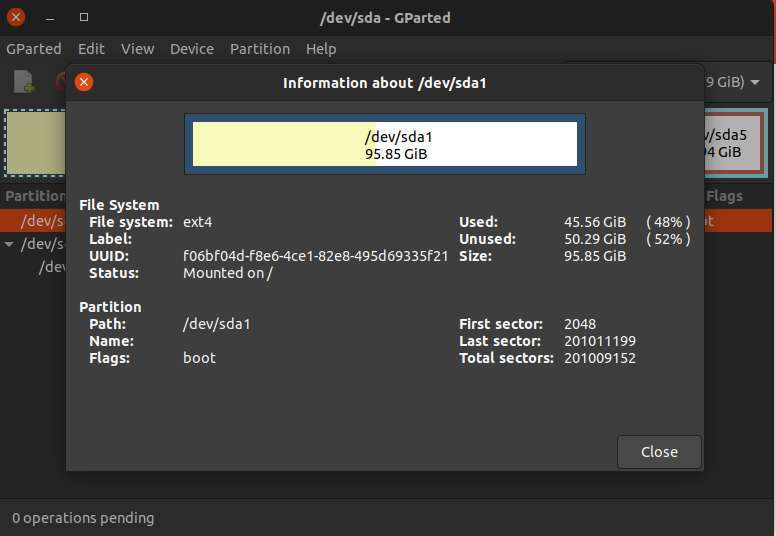
Use Windows MBR2GPT, gdisk, or trusted tools to convert an SSD from MBR to GPT without data loss.
I’ve converted many system and data SSDs from MBR to GPT while keeping files intact. This guide explains why you might convert, what to check first, and step-by-step methods using Windows built-in tools, Linux gdisk, and reliable third-party software. You’ll get clear commands, real-world tips, and troubleshooting steps so you can convert MBR to GPT on SSD without losing data with confidence.
What are MBR and GPT — and why convert?
MBR and GPT are partition table styles. MBR is older and limits disks to 2 TB and four primary partitions. GPT supports larger drives, more partitions, and UEFI booting.
You may want to convert MBR to GPT on SSD without losing data to enable UEFI, use drives over 2 TB, or modernize boot for features like Secure Boot. Converting keeps your files if done correctly and with proper checks.

Before you start: checklist and precautions
Always prepare before you attempt to convert MBR to GPT on SSD without losing data. Follow this checklist:
- Back up important data to an external drive or cloud. Even safe methods can fail.
- Verify UEFI support on your motherboard. GPT needs UEFI to boot Windows.
- Check disk type. Convert only basic disks, not dynamic volumes or software RAID.
- Disable BitLocker, encryption, or hibernation. Suspend or decrypt before converting.
- Ensure disk health. Run a quick SMART check to avoid failing mid-process.
- Free up a small amount of unallocated space if a tool requires it (some tools can convert without this).
- Note the disk number for commands and confirm the target SSD is selected.
- Create Windows installation or recovery media for repair if boot issues occur.
These steps make converting MBR to GPT on SSD without losing data much safer. I always make a full file backup before any partition-table change.
Method 1 — Using Windows built-in MBR2GPT (safe, no data loss)
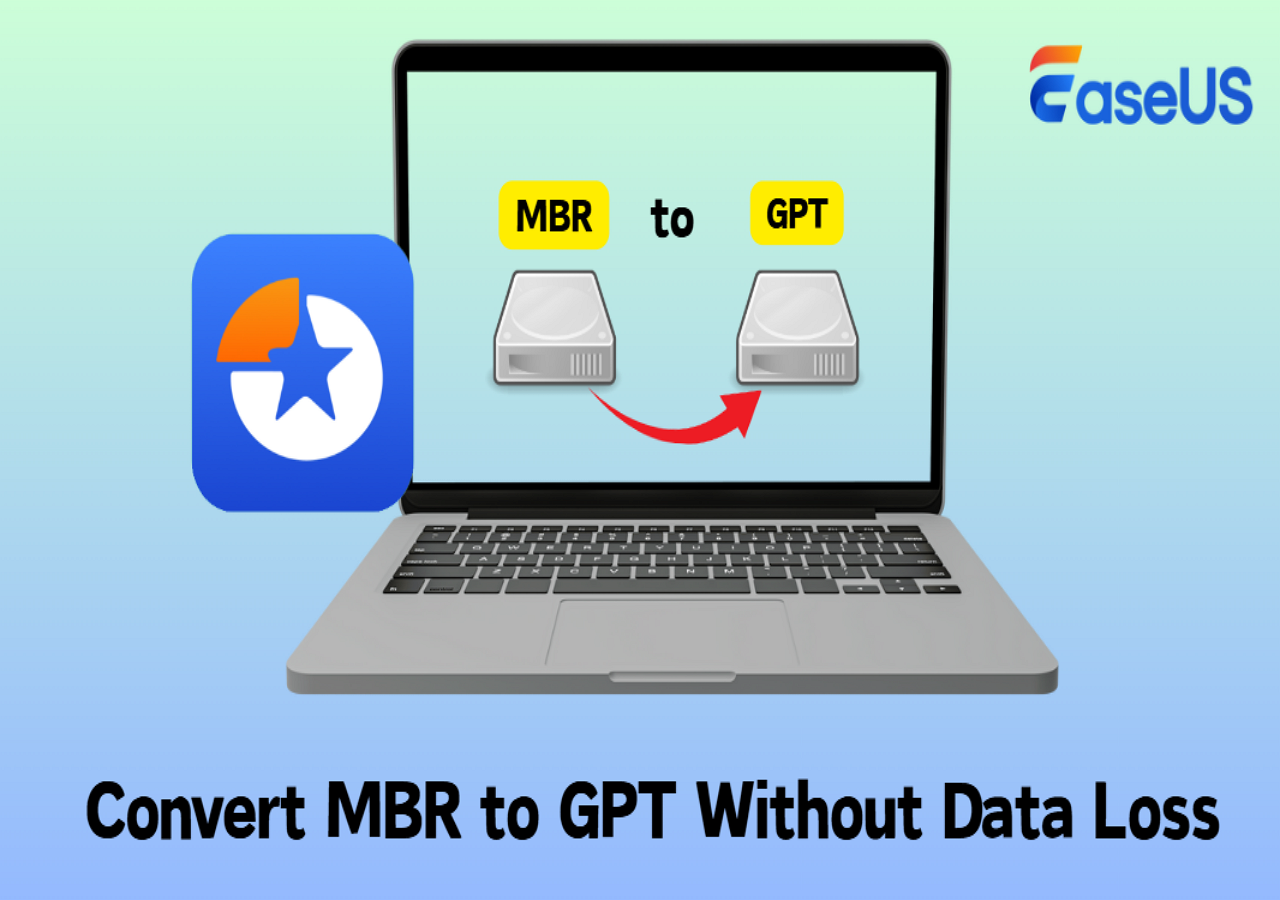
MBR2GPT is a Microsoft utility included with Windows 10 (1703+) and later. It converts a system disk from MBR to GPT without moving or deleting partitions when used correctly.
Steps to convert using MBR2GPT:
- Open an elevated Command Prompt (run as Administrator).
- Identify the disk number:
- Type diskpart
- Type list disk
- Note the disk number of your SSD, then type exit.
- Validate the disk:
- Type mbr2gpt /validate /disk:X /allowFullOS
- Replace X with your SSD disk number.
- Convert the disk:
- Type mbr2gpt /convert /disk:X /allowFullOS
- Reboot and enter UEFI/BIOS. Change boot mode from Legacy/CSM to UEFI if needed.
- Save and boot. Windows should start using GPT partition table.
Notes and tips:
- Use /allowFullOS when running from the full Windows environment. For maximum safety, boot into Windows PE and run without that flag.
- If validation fails, read the validation error and fix issues (like too many partitions or unsupported configurations) before converting.
- mbr2gpt is designed to convert system disks, but it can also be used for data disks with different workflows.
This method is one of the cleanest ways to convert MBR to GPT on SSD without losing data on Windows systems.

Method 2 — Using gdisk on Linux (powerful and non-destructive)
gdisk (GPT fdisk) runs on Linux and Windows (via WSL or native builds). It can safely convert an MBR partition table to GPT without moving data, when used correctly.
Steps with gdisk:
- Boot a Linux live USB or open a safe environment where the SSD is not the live root.
- Install gdisk if needed: apt install gdisk (or use your distro’s package manager).
- Identify the disk device name, e.g., /dev/sda or /dev/nvme0n1.
- Run gdisk: sudo gdisk /dev/sdX
- When gdisk detects MBR, it will offer to convert. Use the following interactive commands:
- p to print the partition table and verify partitions.
- w to write the new GPT partition table to disk.
- Exit and reboot to your OS, then switch firmware to UEFI if you converted a system disk.
Important cautions:
- Confirm the partition layout shown by gdisk matches your expectations before writing.
- If you have Windows system partitions, you may need to repair the Windows boot using a recovery USB (bcdboot or automated repair).
- gdisk is widely used and reliable. I’ve used it for mixed Linux/Windows environments with success.
This is a strong option to convert MBR to GPT on SSD without losing data especially when you prefer command-line control.
Method 3 — Third-party Windows tools (GUI options)
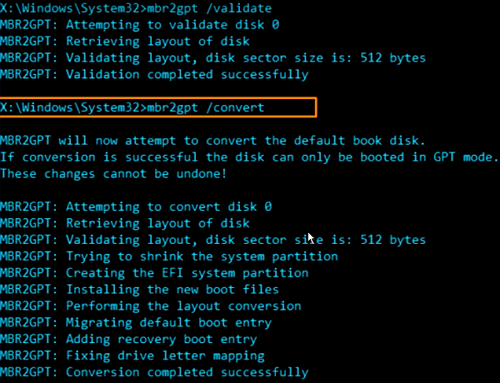
If you prefer a graphical interface, several trusted partition managers can convert MBR to GPT on SSD without losing data. Popular options include EaseUS Partition Master, AOMEI Partition Assistant, and MiniTool Partition Wizard.
Typical GUI workflow:
- Install the chosen tool and run as Administrator.
- Select the target SSD from the disk list.
- Choose the option Convert MBR to GPT.
- Apply or execute pending operations and follow on-screen prompts.
- Reboot and switch BIOS to UEFI if converting a system disk.
Things to keep in mind:
- Some features require a paid version for system disk conversion.
- Read operation notes and let the tool complete all pending tasks before reboot.
- Keep backups in case of unexpected power loss or errors.
Third-party tools are user-friendly and often helpful for mixed users who prefer visual guidance to convert MBR to GPT on SSD without losing data.
Troubleshooting and common pitfalls
Even safe conversions can hit hiccups. Here are common problems and fixes when you convert MBR to GPT on SSD without losing data:
- System won’t boot after conversion:
- Ensure firmware set to UEFI. If still failing, boot recovery media and run automatic repair or use bcdboot to rebuild Windows boot files.
- Validation errors with MBR2GPT:
- Check partition count, hidden OEM partitions, and free space. Resolve conflicts or run from WinPE.
- Disk is dynamic or in software RAID:
- Convert dynamic disks back to basic or break software RAID before converting.
- BitLocker or encryption enabled:
- Suspend or decrypt before converting and re-enable after a successful conversion.
- Four-primary-partition limit:
- MBR has a limit of four primary partitions. Some tools may need to convert an extended partition. Review partitions and consolidate if needed.
If you’re unsure, pause and get help. I once attempted a conversion without suspending BitLocker and triggered a recovery prompt. Suspending encryption first avoided the issue.

Personal experience and tips from the field
I’ve converted many SSDs for clients and personal rigs. Here are lessons that helped me avoid data loss:
- Always backup first. Even the safest tools can fail due to hardware issues.
- Validate with mbr2gpt before converting. The validation step often catches small issues early.
- For laptops, enable UEFI before conversion if possible to reduce post-conversion steps.
- Keep a recovery USB handy. A quick repair from media saved me from reinstalling Windows twice.
- If converting multiple drives, label them in Disk Management first to avoid selecting the wrong disk.
My advice: treat conversion as a small project. Plan, validate, convert, and test. That approach made converting MBR to GPT on SSD without losing data reliable in my experience.

Frequently Asked Questions of how to convert mbr to gpt on ssd without losing data
How long does it take to convert MBR to GPT on an SSD without losing data?
Conversion typically takes a few minutes for the partition-table update itself. Backup and validation steps add extra time, so plan for 30–60 minutes total.
Will converting MBR to GPT erase my SSD data?
Most modern tools, like MBR2GPT and gdisk, can convert without erasing data. However, always back up first because failures and unexpected errors can cause data loss.
Can I convert a system disk from MBR to GPT without reinstalling Windows?
Yes. Using tools like Windows MBR2GPT or gdisk allows converting a system disk without reinstalling Windows, but you must switch BIOS to UEFI boot mode afterward.
What if my PC does not support UEFI?
If your PC lacks UEFI firmware, you cannot boot a GPT system disk. You can still convert a data-only SSD to GPT, but system disks require UEFI to boot.
Is it safe to convert a large SSD (>2 TB) from MBR to GPT?
Yes. GPT was designed for large drives and is the recommended layout for disks larger than 2 TB. Conversion enables full capacity without data loss when done correctly.
Conclusion
Converting MBR to GPT on SSD without losing data is very achievable when you plan, validate, and use the right tool. Back up your files, check UEFI support, and choose between Windows MBR2GPT, gdisk, or a trusted GUI tool depending on your comfort level. Take small, careful steps: validate, convert, then test booting.
Take action today: back up your SSD, review the steps in this guide, and try a safe conversion on a non-critical drive first. If this helped you, subscribe for more hands-on guides or leave a comment with your setup and questions.

Everett Ashford is a tech reviewer at mytechgrid.com specializing in SSDs, cameras, TVs, earbuds, headphones, and other consumer electronics. He provides honest, data-driven reviews based on hands-on testing and real-world performance analysis. Everett simplifies complex tech details to help readers make smart, confident buying decisions.