You can often recover deleted SSD files quickly if you stop using the drive and act fast.
I’ve worked with storage tech and data recovery for years, and I’ll walk you through how to recover deleted files from SSD drive using clear steps, real tools, and practical tips. This guide covers why SSD recovery is different, what to do first, the best software and hardware options, advanced methods, and how to prevent future loss. Read on to get a reliable, step-by-step plan that helps you recover files safely and with confidence.

Understanding SSDs and data deletion
Solid-state drives store data very differently than hard drives. When you delete a file on an SSD, the OS often marks the space free and the SSD controller may issue a TRIM command to erase the cells. TRIM helps maintain speed but can remove the raw data that recovery tools rely on.
Knowing these basics helps you set the right expectations for how to recover deleted files from SSD drive. If TRIM has run, full recovery may be impossible; if not, chances improve. My experience shows that acting within hours and avoiding writes gives you the best shot.
Why recovering deleted files from SSD drive is different
On HDDs, deleted data often stays on disk until overwritten. On SSDs, controllers and firmware manage blocks actively and use wear leveling, garbage collection, and TRIM. These processes can erase deleted content quickly and unpredictably.
That’s why the same recovery tricks for HDDs don’t always work on SSDs. You must understand the drive’s behavior, stop any writes, and choose tools that account for SSD quirks. In many real cases I’ve handled, timely action made the difference between full and no recovery.
First steps after accidental deletion
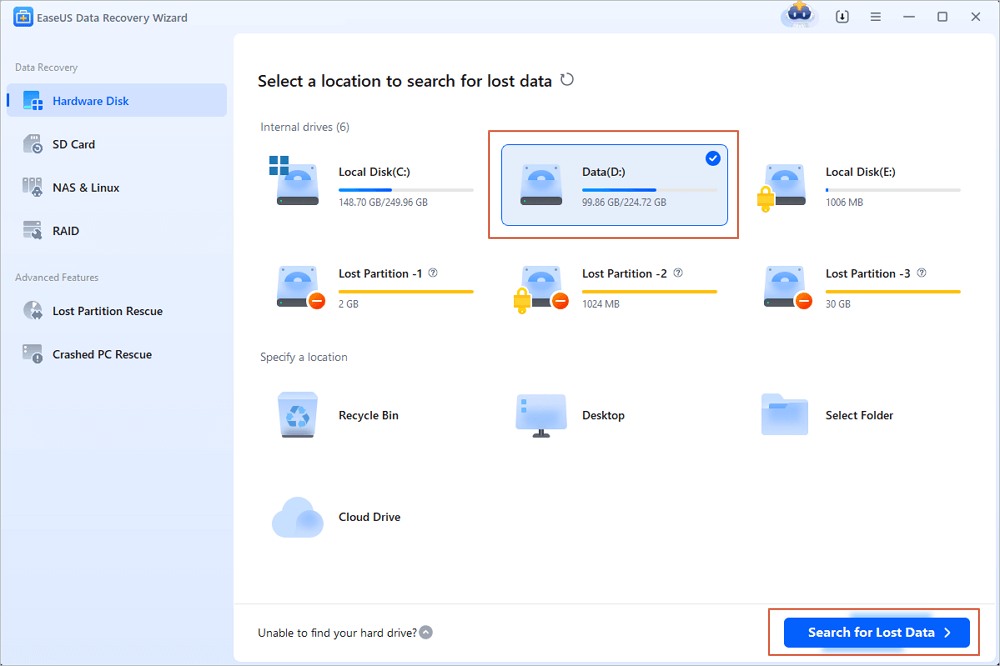
Stop using the SSD right away. Continued use risks overwriting deleted data and triggering garbage collection or TRIM, which can erase recoverable content.
Follow these quick steps:
- Power down the system or unmount the SSD to prevent writes.
- Remove the drive and connect it to a secondary machine as read-only if possible.
- Avoid installing recovery software onto the same SSD; use a different drive for tools and recovered files.
These simple steps often determine whether you can recover deleted files from SSD drive. I once recovered a client’s work by shutting their laptop immediately and imaging the SSD before any repair attempt.

Tools and software to recover deleted files from SSD drive
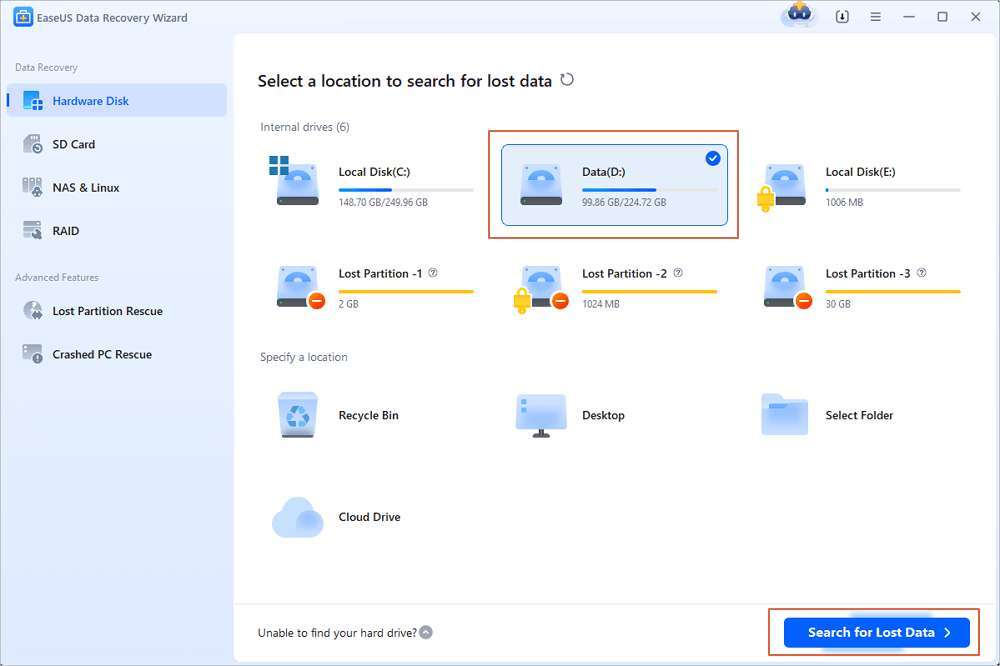
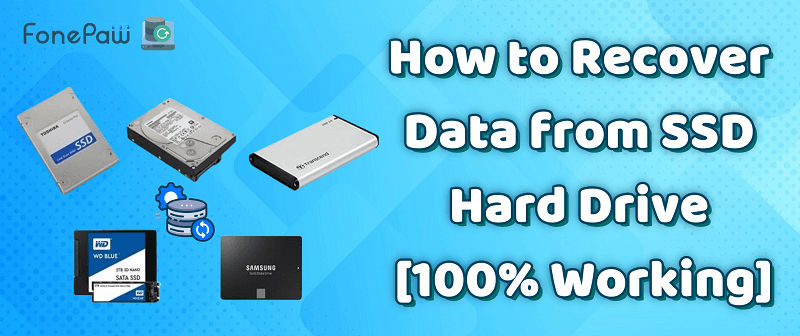
Not all recovery tools are equal for SSDs. Look for software that supports SSDs and can work with disk images and raw scans.
Common tool features to seek:
- Read-only imaging support so you can create a full image first.
- Deep scan and file carving that can find file signatures.
- Support for modern filesystems like NTFS, exFAT, APFS, and ext4.
Examples of workflows I use:
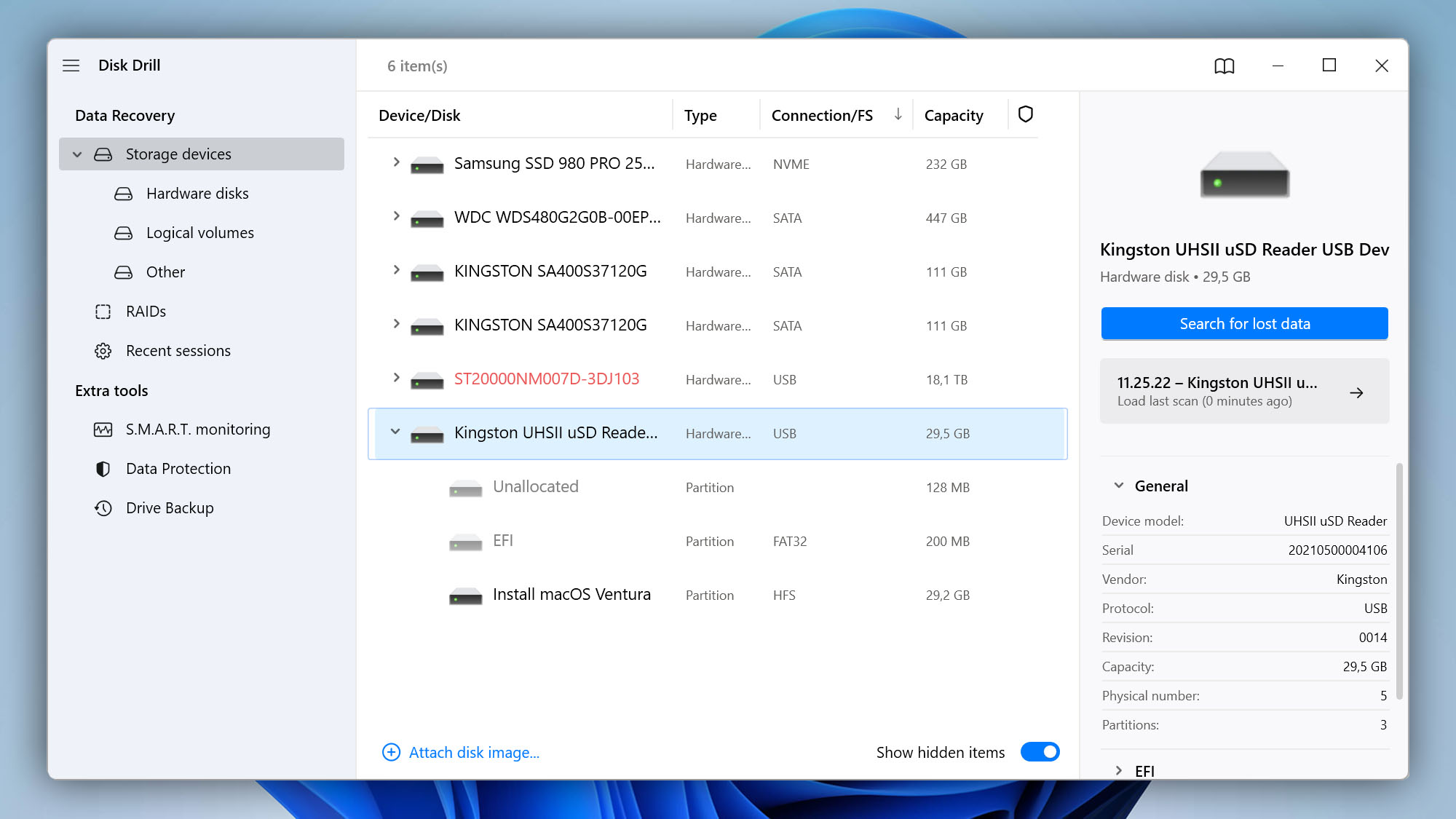
- Create an exact image of the SSD on a separate drive using a forensic imager.
- Run recovery scans against the image, not the original drive.
- Export recovered files to a safe secondary disk.
Using imaging first is vital when you try to recover deleted files from SSD drive. It preserves the original and gives you repeatable recovery attempts.
Advanced recovery methods and hardware options
When software fails, hardware tools and advanced techniques may help. Techniques vary by the SSD type and whether TRIM or garbage collection erased data.
Options include:
- Controller-level recovery by specialists who can read NAND chips directly.
- Chip-off recovery, where NAND flash is removed and read on specialized rigs.
- Firmware repair when the SSD’s controller is corrupt but data remains.
These methods are costly and not guaranteed. I recommend them only for high-value data. If your SSD may require chip-off work, stop trying DIY fixes to avoid further damage.

When recovery may fail: limitations and realistic expectations
Understand the limits. If TRIM or garbage collection has permanently cleared the NAND cells, recovery is unlikely. Modern SSDs aim to erase unused blocks to keep performance high.
Other factors that reduce success:
- Ongoing writes after deletion.
- Encryption without available keys.
- Physical damage to NAND chips or controller.
Being honest about limits helps you choose the right response. In many cases, partial recovery is possible, while full restoration is not. Preparing for both outcomes reduces stress and wasted cost.
Prevention and backup strategies
The best recovery is prevention. Regular backups remove the pressure and help you recover quickly without specialist help.
Practical steps to protect data:
- Use 3-2-1 backup: three copies, two formats, one offsite.
- Enable versioning in cloud backup or local backup tools.
- Turn on automatic backups and test restores periodically.
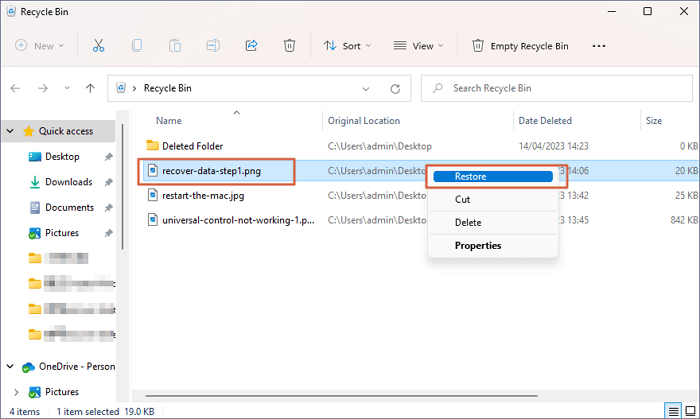
- Avoid relying on recycle bins or a single drive for critical files.
From my experience, clients who used scheduled backups rarely needed complex recovery. It’s far cheaper and less stressful to plan ahead.

Step-by-step checklist to recover deleted files from SSD drive
This short checklist helps you act fast and smart:
- Stop using the SSD immediately to prevent overwrites.
- Remove or unmount the drive and connect it to a stable recovery machine.
- Create a full, read-only image of the SSD on another drive.
- Run reputable recovery software against the image using deep scans.
- Save recovered files to a different drive and verify integrity.
- If software fails, consult a professional data recovery service.
Following these steps improves your odds when you need to recover deleted files from SSD drive. I’ve used this checklist in many recoveries with good results.
Frequently Asked Questions of how to recover deleted files from ssd drive
How soon should I act to recover deleted files from SSD drive?
Act immediately. The longer you use the SSD after deletion, the higher the chance that TRIM or garbage collection will permanently erase data.
Can recovery software always restore files from an SSD?
No. Recovery software can succeed if TRIM hasn’t erased the data and the blocks remain. If NAND cells were cleared or the drive is encrypted, software recovery may fail.
Does TRIM make it impossible to recover deleted files?
TRIM can make recovery impossible because it instructs the SSD to clear blocks. If TRIM executed before you stop using the drive, recovery chances fall significantly.
Should I install recovery tools on the affected SSD?
Never install recovery tools on the same SSD you want to recover. Installing software writes data and risks overwriting deleted files. Use a different drive for tools and recovered files.
When should I contact a professional to recover deleted files from SSD drive?
Contact a professional when the data is critical, recovery software fails, or the SSD shows physical or firmware issues. Professionals have hardware and techniques beyond consumer tools.
Can encrypted SSDs be recovered without the key?
No. If the SSD used full-disk encryption and you lack the key, recovery services generally cannot decrypt the data. The key is essential for access.
Is creating an image really necessary for recovery?
Yes. Creating an image preserves the original drive and lets you run multiple recovery attempts without risk. Imaging is a standard best practice in data recovery.
Conclusion
Recovering deleted files from SSD drive demands speed, care, and the right tools. Stop using the SSD, image the drive, run trusted recovery software on the image, and seek professional help for tough cases. Backups and simple habits make future loss avoidable.
Take action now: implement a backup plan, save this checklist, and if you face a loss, follow the steps above. If you found this guide useful, subscribe, leave a comment with your situation, or share your recovery story.

Everett Ashford is a tech reviewer at mytechgrid.com specializing in SSDs, cameras, TVs, earbuds, headphones, and other consumer electronics. He provides honest, data-driven reviews based on hands-on testing and real-world performance analysis. Everett simplifies complex tech details to help readers make smart, confident buying decisions.