Use Bluetooth pairing, a wired jack, or a Bluetooth transmitter to connect earbuds to TV.
Connecting earbuds to your TV is easier than it sounds. I’ve spent years helping friends and clients set up home audio, testing earbuds, adapters, and TV settings. In this guide you’ll get clear, step-by-step instructions for how to connect earbuds to TV—Bluetooth and wired—plus real-world tips, common fixes, and device recommendations. Read on to save time, avoid mistakes, and get reliable private listening from your TV tonight.
Why connect earbuds to TV?
Connecting earbuds to TV gives private listening, late-night viewing without waking others, and sharper dialogue in noisy homes. It helps people with hearing needs focus on dialogue and enjoy shows without cranking the TV volume. Knowing how to connect earbuds to TV saves time and avoids expensive gear.

Understand your TV and earbuds
Before you try to connect earbuds to TV, check the ports and wireless features on both devices. Many modern TVs have built-in Bluetooth. Older TVs often have a 3.5mm headphone jack, RCA outputs, or only optical (Toslink) audio out. Earbuds can be Bluetooth wireless or wired with a 3.5mm plug.
Key terms to know
- Bluetooth pairing: Wireless link between earbuds and TV.
- 3.5mm jack: Standard headphone plug for wired earbuds.
- Optical/Toslink: Digital audio out that may need a converter for analog earbuds.
- Bluetooth transmitter: External adapter that adds Bluetooth to TVs without it.
Check your TV menu for Bluetooth, headphone, or audio output settings. If in doubt, find the TV model online and scan the specs. This saves trial and error when you try to connect earbuds to TV.
How to connect Bluetooth earbuds to TV (step-by-step)
If your TV supports Bluetooth natively, this is usually the fastest route to connect earbuds to TV.
Steps
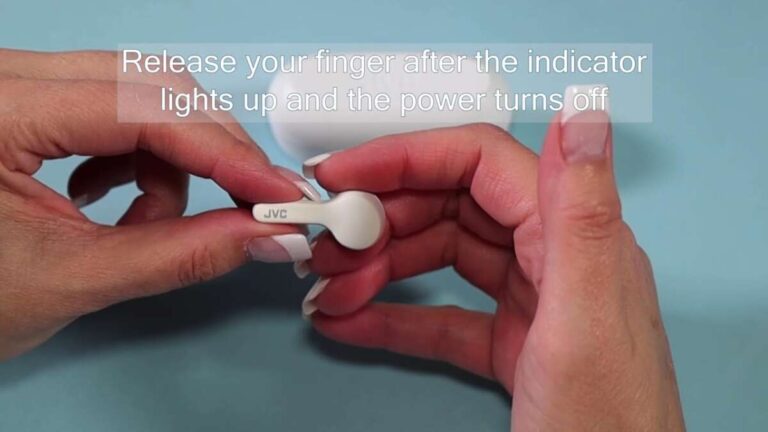
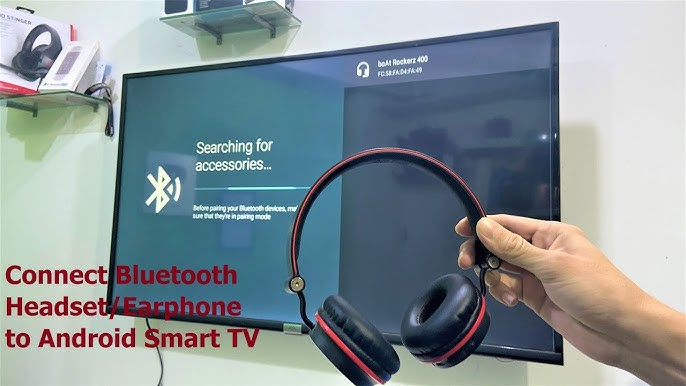
- Put your earbuds in pairing mode. Follow the earbuds’ instructions to enter pairing mode. Most have a long press on the power button.
- Open the TV’s settings menu. Go to Sound, Audio, or Connections and find Bluetooth or Wireless Audio.
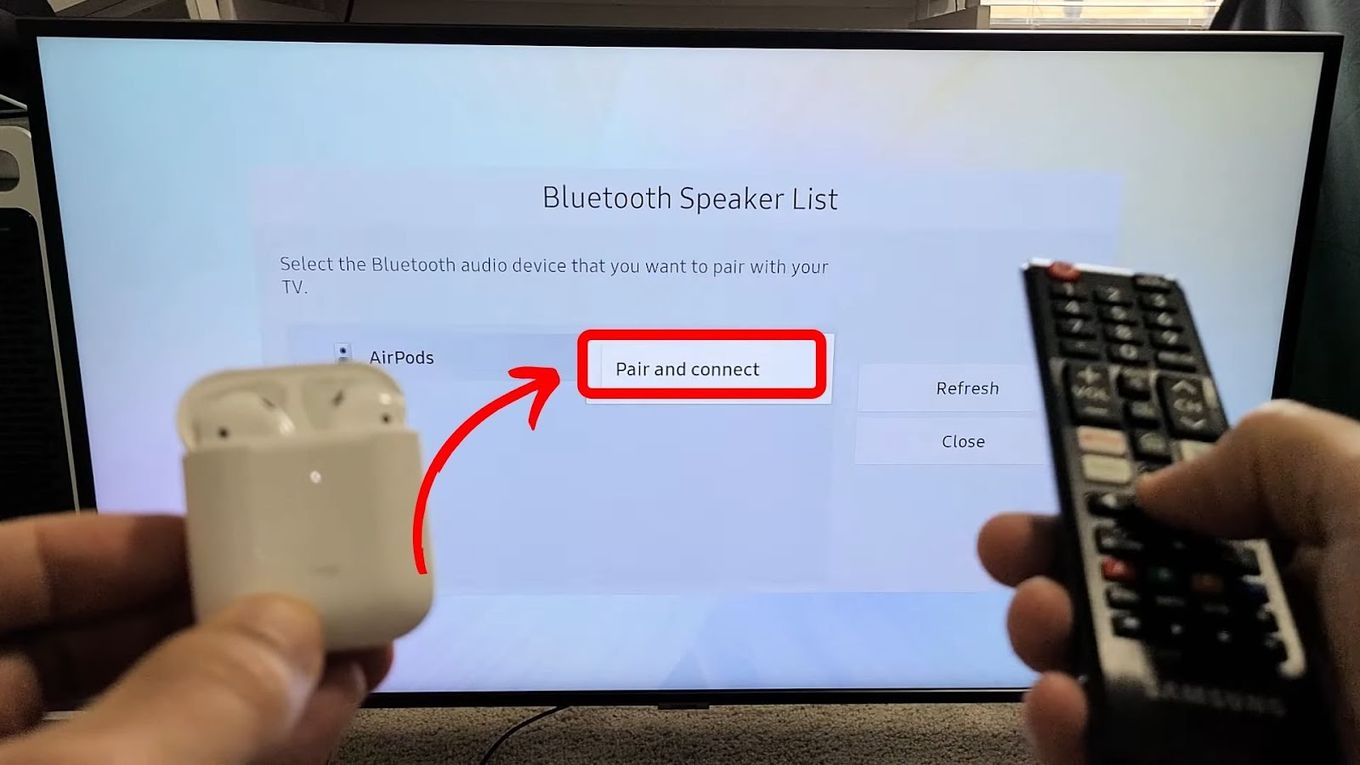
- Select “Pair new device” or “Add device.” Wait for the TV to scan. Your earbuds should appear.
- Choose the earbuds on the TV list. Confirm pairing on both devices if prompted.
- Test sound, adjust TV or earbud volume, and check for audio delay.
Tips for success
- Keep earbuds close to the TV while pairing.
- Turn off other nearby Bluetooth devices to avoid interference.
- If the TV lists “Headphones” but not the brand name, try pairing anyway.
If pairing fails, restart the TV and earbuds, then try again. Following these steps repeatedly will help you master how to connect earbuds to TV with Bluetooth.
How to connect wired earbuds to TV
Wired earbuds often give zero-latency sound and work with many TVs, but you may need adapters.
Common wired setups
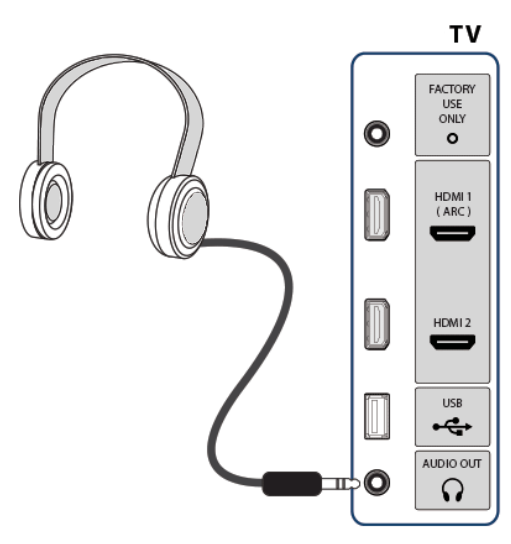
- Direct 3.5mm headphone jack: Plug earbuds into the TV’s headphone jack. The TV may mute its speakers or continue outputting audio—check settings.
- RCA to 3.5mm adapter: Use if your TV has red/white RCA outputs. Plug the adapter into RCA and the earbud plug into the adapter.
- Optical (Toslink) or HDMI-only TV: Use a digital-to-analog (DAC) converter. Connect the TV’s optical out to the DAC, then plug your earbuds into the DAC’s 3.5mm output.
Steps for a DAC
- Buy a quality optical-to-3.5mm DAC with its own power or USB power.
- Connect the TV’s optical out to the DAC with a Toslink cable.
- Plug your earbuds into the DAC. Set TV audio output to “External” or “Optical” if needed.
Wired is simple and reliable. Learning how to connect earbuds to TV with wires is useful when Bluetooth is not available or when you want zero audio lag.

Using Bluetooth transmitters and adapters
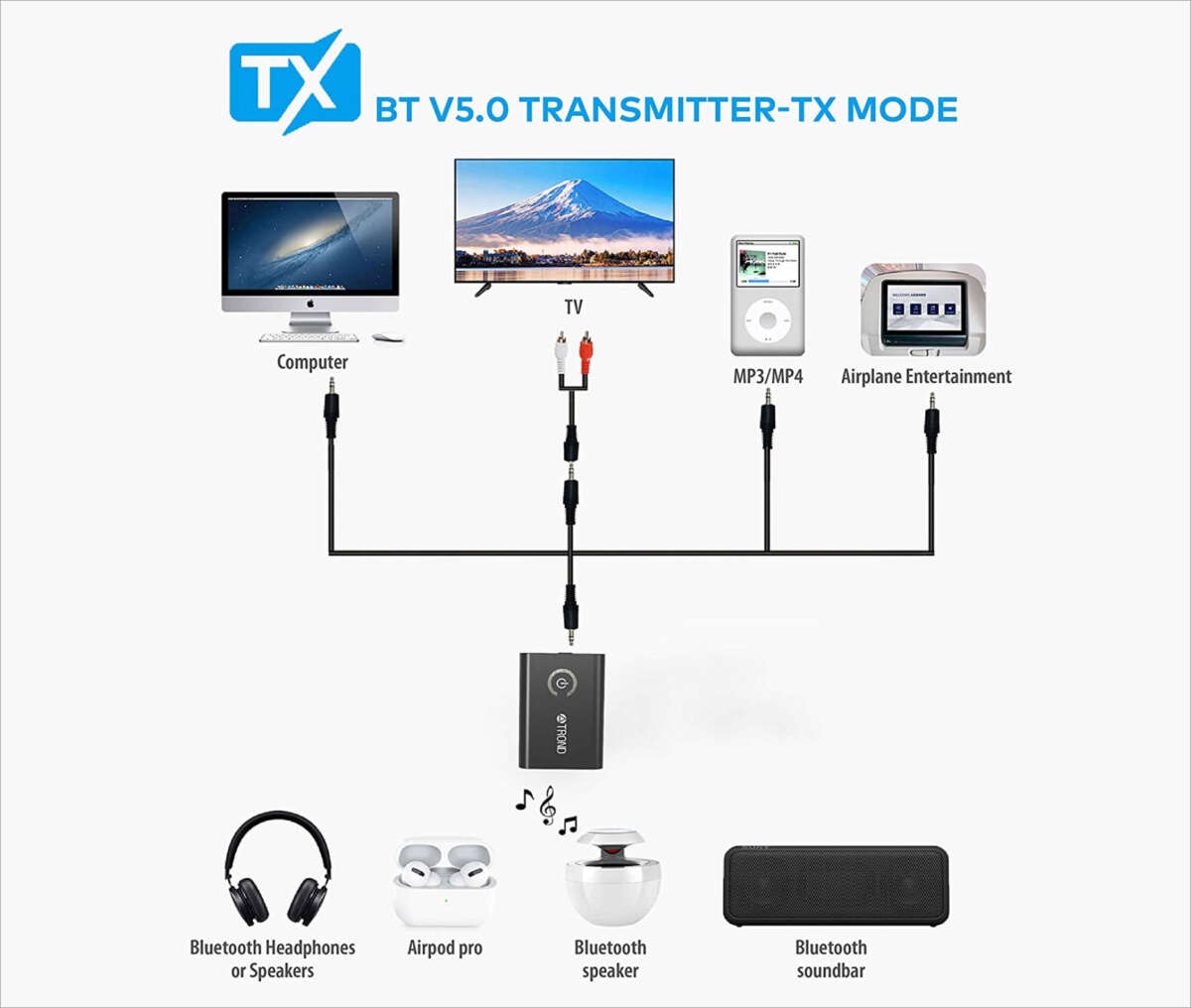
A Bluetooth transmitter fixes TVs without Bluetooth. They plug into 3.5mm, RCA, or optical outputs and broadcast audio to earbuds.
What to look for
- Low-latency support (aptX Low Latency) to reduce lip-sync lag.
- Dual-link capability if you want to pair two earbuds or a headphone and earbuds.
- Input type: 3.5mm, RCA, or optical—choose based on your TV outputs.
How to set one up
- Plug the transmitter into the TV audio out (3.5mm, RCA, or optical).
- Power the transmitter (USB or battery).
- Put the transmitter in pairing mode and your earbuds in pairing mode.
- Wait until both devices pair. Adjust TV audio output to the external source if needed.
A transmitter is a practical way to connect earbuds to TV without opening the TV or buying a new model. It’s my go-to when helping someone add Bluetooth to an older TV.
Troubleshooting and common problems
Audio delay, no sound, or pairing issues are common. Here’s how to solve them fast.
Audio lag or lip-sync issue
- Use a low-latency transmitter and earbuds that support aptX Low Latency.
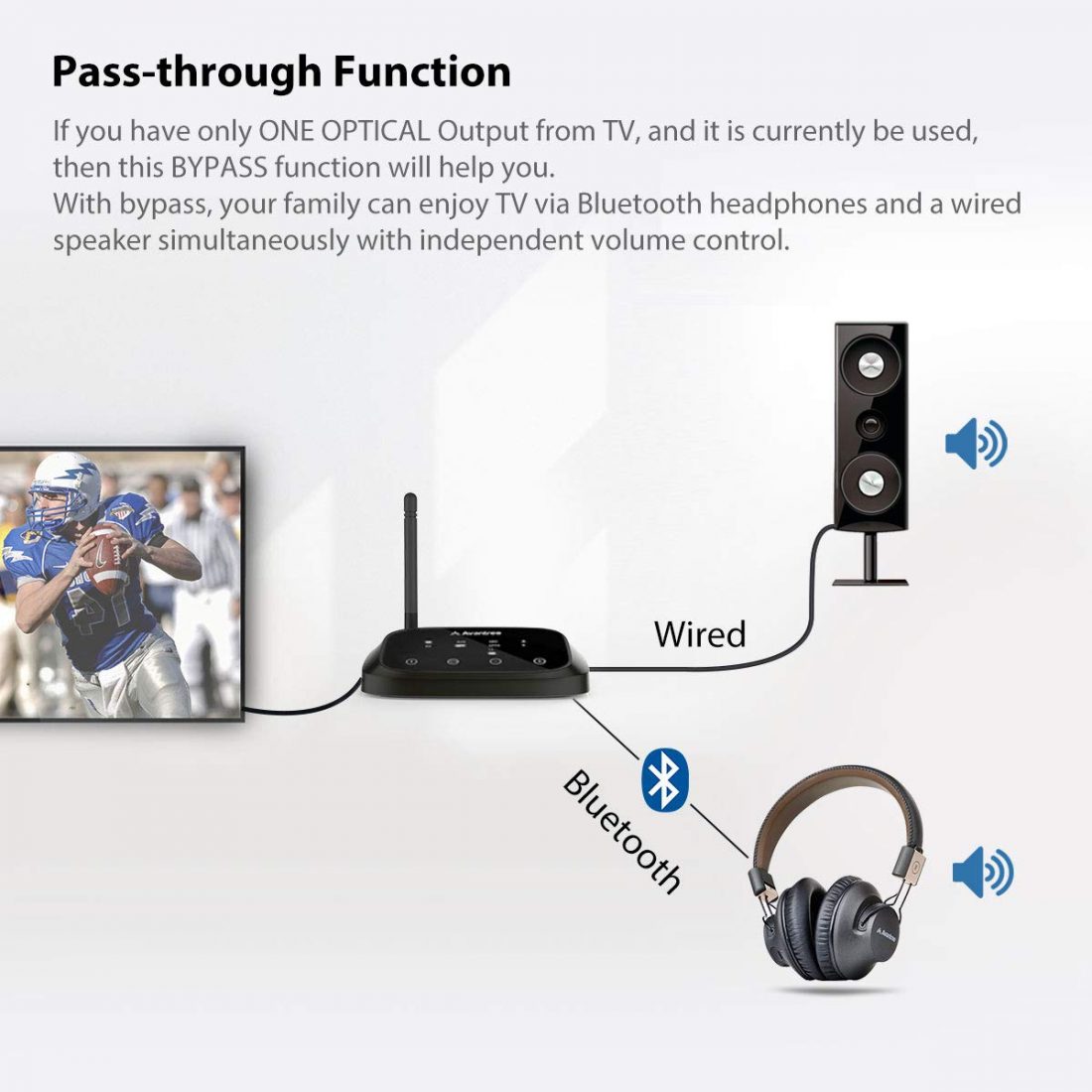
- Switch TV audio settings to reduce processing (set to “Game” or “Pass Through”).
No sound from earbuds
- Make sure TV audio is set to external or Bluetooth device.
- Check earbud battery and volume. Some TVs cap headphone volume separately.
Pairing fails or disconnects
- Turn off other Bluetooth devices nearby.
- Remove previous pairings from the TV and earbud memory, then try pairing again.
- Update TV firmware if available.
TV routes sound to TV speakers only
- Look for “Audio Output” or “Speaker” settings and change to headphones or Bluetooth device.
- Some TVs require plugging in headphones to disable TV speakers.
PAA-style quick answers
Can any Bluetooth earbuds pair with a TV?
- Most modern Bluetooth earbuds pair with TVs that support Bluetooth audio, but older TVs or proprietary codecs may block pairing.
Why does audio feel delayed with Bluetooth earbuds?
- Bluetooth introduces processing delay. Using low-latency codecs or wired connections reduces this delay.
Will a Bluetooth transmitter allow two earbuds at once?
- Many transmitters support dual-link. Check the transmitter specs to confirm.
These steps help you quickly diagnose issues when trying to connect earbuds to TV.

Personal experience, mistakes to avoid, and best practices
I once tried to pair two different-brand earbuds directly to a smart TV. They wouldn’t work together. I learned to use a dual-link transmitter for multi-listening. Here are practical lessons from real use.
What I do and recommend
- Start simple: try native TV Bluetooth before buying gear.
- Buy a reliable transmitter with aptX LL if watching live shows or sports.
- Label the TV audio menu options by writing them down if they’re buried in menus.
Common mistakes
- Buying a cheap transmitter without low-latency support and blaming the earbuds.
- Forgetting to set TV audio output to external or Bluetooth.
- Ignoring earbud firmware updates that fix pairing bugs.
Best setup for minimal fuss
- New smart TV with Bluetooth + quality earbuds = simplest setup.
- Older TV + optical out + DAC for best wired sound and no delay.
- Older TV + optical-to-Bluetooth low-latency transmitter for wireless listening.
These tips come from setup work in real homes and help you avoid common traps when you try to connect earbuds to TV.

Benefits and limitations
Benefits
- Private listening without disturbing others.
- Better clarity at lower volumes.
- Portable and simple setup.
Limitations
- Bluetooth may add audio lag.
- Not all TVs support Bluetooth pairing.
- Wired setups need adapters for digital outputs.
Knowing both sides helps you pick the right method to connect earbuds to TV for your needs.

Frequently Asked Questions about how to connect earbuds to tv
Can I use any wireless earbuds with my TV?
Most Bluetooth earbuds work with TVs that support standard Bluetooth audio. If the TV uses a proprietary Bluetooth implementation, you may need a transmitter.
Why is there a delay between picture and sound with Bluetooth earbuds?
Bluetooth audio can introduce latency. Use aptX Low Latency earbuds and a compatible transmitter or switch to a wired connection for no delay.
How do I connect two earbuds to one TV?
If the TV supports dual Bluetooth outputs, you can pair two earbuds directly. Otherwise, use a dual-link Bluetooth transmitter to connect two earbuds.
My TV has only optical output. How do I use wired earbuds?
Use an optical-to-analog DAC. Connect the Toslink cable to the TV and plug your earbuds into the DAC’s 3.5mm jack.
What if my earbuds won’t pair with the TV?
Turn off other Bluetooth devices, restart both devices, remove old pairings, and try again. Update firmware on the TV and earbuds if available.
Conclusion
You now have clear options to connect earbuds to TV: native Bluetooth pairing, wired connections with adapters, or a Bluetooth transmitter for wireless on older sets. Try the simple steps first, then move to adapters if needed. If you value zero lag, choose a wired route or low-latency hardware. Take action tonight: check your TV ports, pick the right adapter if needed, and enjoy private, crisp sound. Leave a comment with your TV model or earbuds if you want tailored setup help.

Everett Ashford is a tech reviewer at mytechgrid.com specializing in SSDs, cameras, TVs, earbuds, headphones, and other consumer electronics. He provides honest, data-driven reviews based on hands-on testing and real-world performance analysis. Everett simplifies complex tech details to help readers make smart, confident buying decisions.