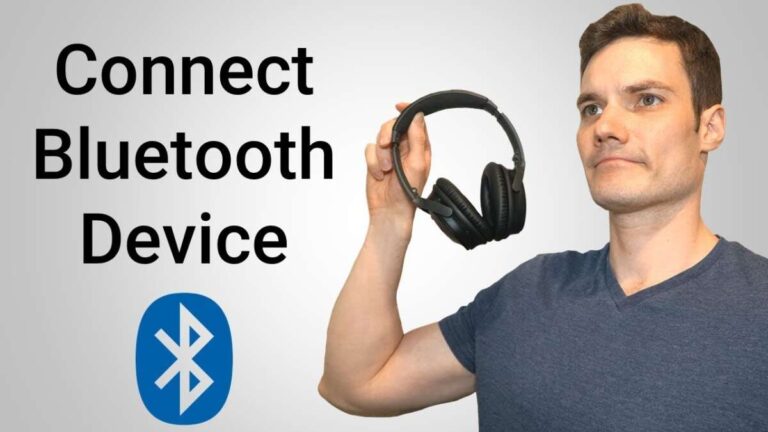
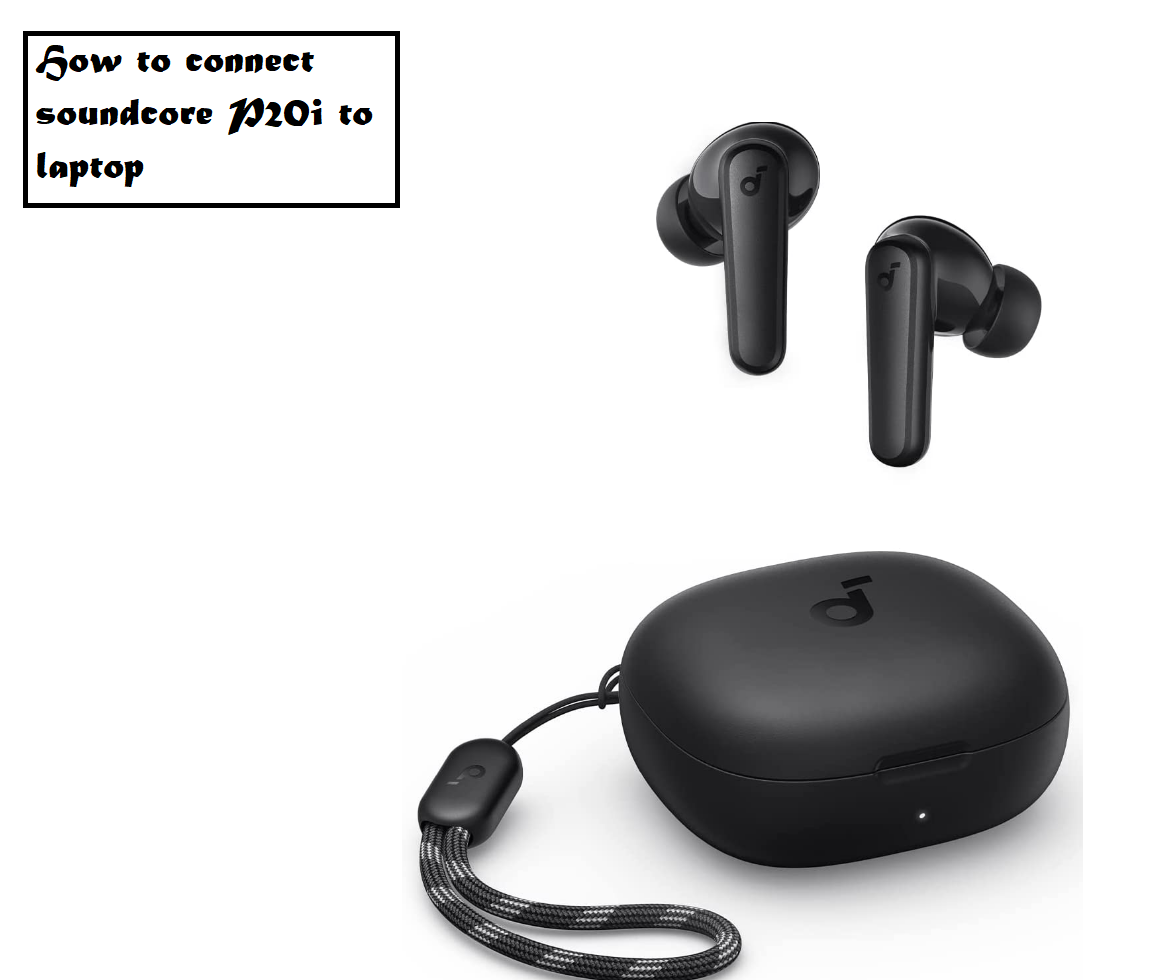
turn on bluetooth on your laptop, put soundcore headphones in pairing mode, then select and connect.
I’ve helped dozens of people pair wireless headphones to laptops, including many Soundcore models. This guide walks you through every method—Bluetooth, wired, USB—and shows fixes for common pairing headaches. Read on to get your soundcore headphones working cleanly with Windows or macOS, with real tips I use myself.
Why connect soundcore headphones to a laptop?
Connecting soundcore headphones to a laptop gives you private listening, clearer voice calls, and often better battery life than phone streaming. Many modern laptops have good Bluetooth stacks, so pairing is quick. If you want low-latency audio for video or gaming, some Soundcore models offer codecs that help reduce lag.

Before you start: quick checklist
- Make sure the laptop Bluetooth is turned on.
- Charge your soundcore headphones to at least 20 percent.
- Remove other nearby Bluetooth devices or turn them off.
- Update your laptop’s Bluetooth drivers or macOS to the latest version.
- Know the model name of your soundcore headphones for easier pairing.

How to connect soundcore headphones to a Windows laptop (Bluetooth)
- Turn on your laptop and sign in.
- Open Settings > Devices > Bluetooth & other devices.
- Toggle Bluetooth to On.
- Put your soundcore headphones into pairing mode. Usually, press and hold the power or Bluetooth button until an LED flashes or you hear a voice prompt that says “pairing.”
- On the laptop, click Add Bluetooth or other device > Bluetooth.
- Select your soundcore headphones from the list. Wait for “Connected” confirmation.
- Test audio by playing a short clip or checking Sound settings > Output.
If your laptop doesn’t show the headphones, try these steps:
- Restart the laptop and the headphones.
- Remove previous pairings on the headphones by following the model’s reset steps.
- Update or reinstall the Bluetooth driver via Device Manager.
- Move closer to the laptop and remove obstacles like metal objects.

Troubleshooting Bluetooth pairing on Windows
- If audio is low or stutters, right-click the speaker icon > Open Sound settings, and select your soundcore headphones as the output device.
- For headset microphone problems, go to Sound Control Panel > Recording, and set the headphones’ mic as default.
- If the device pairs but won’t reconnect, remove it from Bluetooth devices and pair again from scratch.

How to connect soundcore headphones to a Mac (Bluetooth)
- Open System Settings (or System Preferences) and choose Bluetooth.
- Turn Bluetooth On.
- Put the soundcore headphones in pairing mode until they flash or speak “pairing.”
- Click Connect next to your headphones on the Mac.
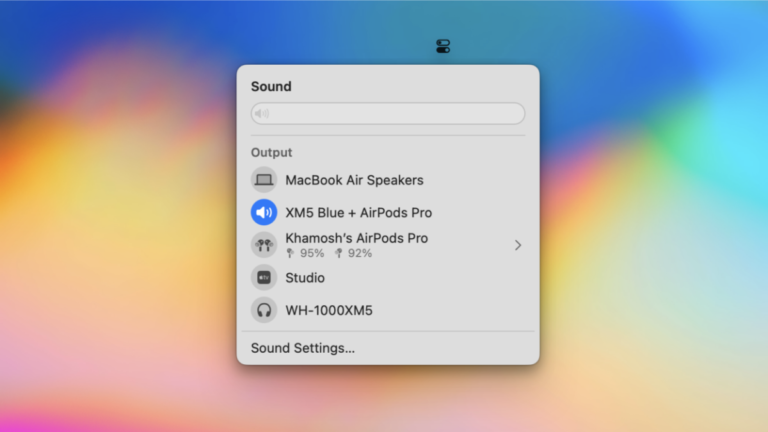
- Confirm audio output via Control Center > Sound or System Settings > Sound.
If the Mac won’t detect the headphones:
- Turn Bluetooth off and on again.
- Reset the soundcore headphones per the manual.
- Restart the Mac and retry pairing.
- Remove old Bluetooth devices from the Mac that may interfere.
Wired, USB, and alternative connection methods
Wired connection
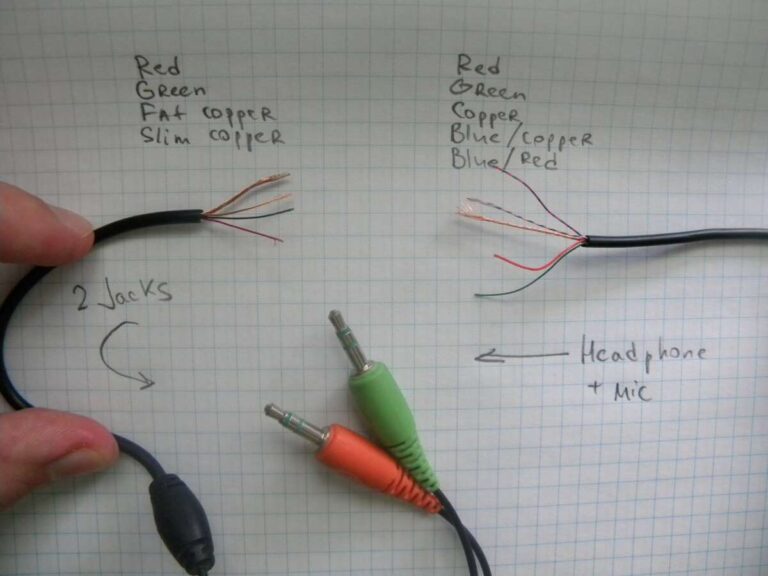
- Many soundcore headphones include a 3.5mm cable or support a wired mode.
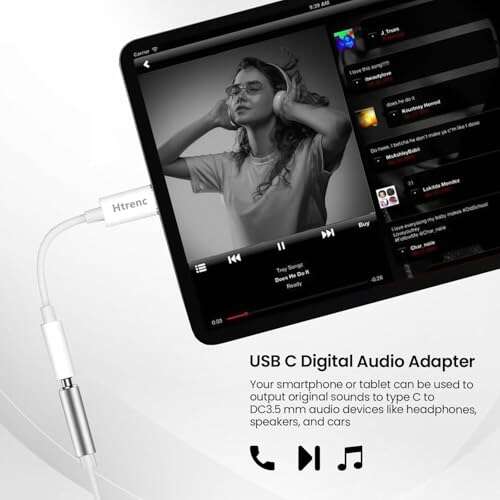
- Plug the cable into the headphone jack on your laptop. If your laptop lacks a headphone jack, use a USB adapter.
USB connection
- Some newer soundcore models support USB-C audio or come with a USB dongle.
- Plug the USB cable or dongle into the laptop. Select the device in Sound settings.
- USB can reduce latency and provide stable audio for calls and streaming.
Limitations
- Wired mode drains battery if headphones rely on internal DACs.
- USB audio may require drivers on Windows for full functionality.

Using a Bluetooth adapter or dongle
When laptop Bluetooth is older or unreliable, a Bluetooth USB adapter can help. Choose a dongle that supports Bluetooth 4.2+ and aptX or AAC if you need better codec support.
How to use it
- Plug the dongle into a free USB port.
- Install drivers if required.
- Put your soundcore headphones in pairing mode.
- Use the adapter’s software or Windows Bluetooth settings to pair.
Using a dongle often reduces dropouts and improves range. I carry a compact dongle when traveling to avoid inconsistent laptop Bluetooth.

Tips to improve audio quality, latency, and battery life
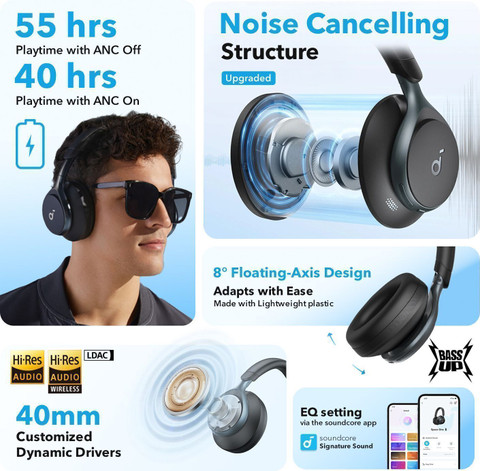
- Use the right codec: switch to aptX, AAC, or SBC according to your laptop and headphone support.
- Keep firmware updated on the soundcore headphones for stability and codec improvements.
- Reduce background Wi-Fi interference by moving routers or changing channels.
- Lower volume a bit and use an equalizer to avoid clipping and conserve battery.
- Turn off features you don’t need, like active noise cancellation, to extend runtime.
Common causes of connection problems and quick fixes
- Cause: Headphones not in pairing mode. Fix: Hold the dedicated Bluetooth button until pairing clue.
- Cause: Too many paired devices saved. Fix: Clear pairing memory on the headphones.
- Cause: Outdated drivers or OS. Fix: Update Windows drivers or macOS.
- Cause: Interference from other gadgets. Fix: Move away from other wireless devices.
- Cause: Hardware issues. Fix: Test headphones with a phone to isolate laptop vs. headphone problem.
People also ask
- Q: Why won’t my laptop find my soundcore headphones? A: Often the headphones aren’t in pairing mode or the laptop Bluetooth needs a restart.
- Q: Do soundcore headphones need an app? A: Some models offer an app for firmware updates and EQ, but basic pairing works without it.
- Q: Can I use soundcore headphones for gaming on a laptop? A: Yes, but for minimal lag prefer USB or low-latency codecs when available.
Personal experience and practical advice
I once paired a pair of soundcore headphones to a work laptop that had old Bluetooth drivers. Updating the driver fixed repeated dropouts. I also learned to reset headphones before reselling or passing them on. My best tip: always check the firmware and carry a short 3.5mm or USB cable for instant wired backup.
Frequently Asked Questions of how to connect soundcore headphones to laptop
How do I put my soundcore headphones into pairing mode?
Press and hold the power or Bluetooth button for about 5–7 seconds until a light flashes or you hear a voice prompt saying “pairing.” Consult the model guide if the pattern is different.
Why do my soundcore headphones connect but have no sound?
Check the laptop’s audio output and set the soundcore headphones as the default playback device. Also verify volume levels on both devices.
Can I use the soundcore headphones microphone for calls on a laptop?
Yes. Make sure the headphones are chosen as the input device in the laptop’s sound settings or app you are using for calls.
What if my laptop doesn’t have Bluetooth?
Use a Bluetooth USB adapter or connect the soundcore headphones with a wired cable or USB connection if the model supports it.
How do I update firmware on my soundcore headphones?
Install the official companion app on your phone or follow Soundcore update instructions. Firmware updates often fix bugs and improve compatibility.
Will firmware updates change sound quality or features?
Yes. Firmware updates can add codec support, improve noise canceling, or fix bugs that affect audio. Always read release notes before updating.
My headphones disconnect randomly. What should I do?
Restart both devices, remove and re-pair the headphones, update drivers/firmware, and remove nearby wireless interference to reduce dropouts.
Conclusion
You can connect soundcore headphones to a laptop quickly with Bluetooth, wired, USB, or a dongle. Start with a charged headset, enable pairing mode, and pick the device in your laptop’s sound or Bluetooth settings. If you hit trouble, update drivers, reset the headset, or use a USB dongle for stability. Try these steps now, and comment with your model if you need hands-on help. If this helped, subscribe or bookmark for more practical guides.

Everett Ashford is a tech reviewer at mytechgrid.com specializing in SSDs, cameras, TVs, earbuds, headphones, and other consumer electronics. He provides honest, data-driven reviews based on hands-on testing and real-world performance analysis. Everett simplifies complex tech details to help readers make smart, confident buying decisions.