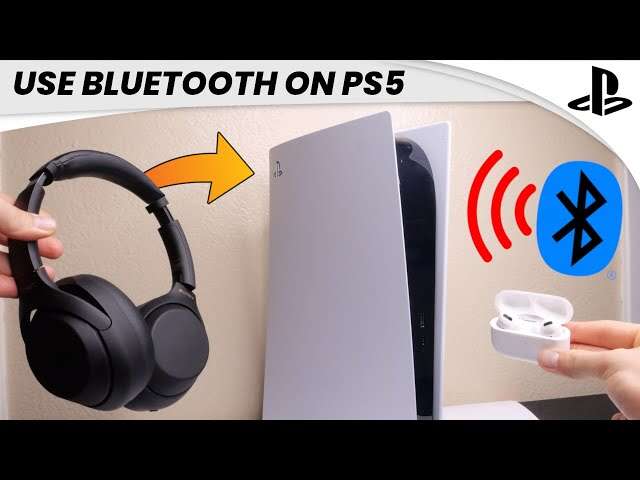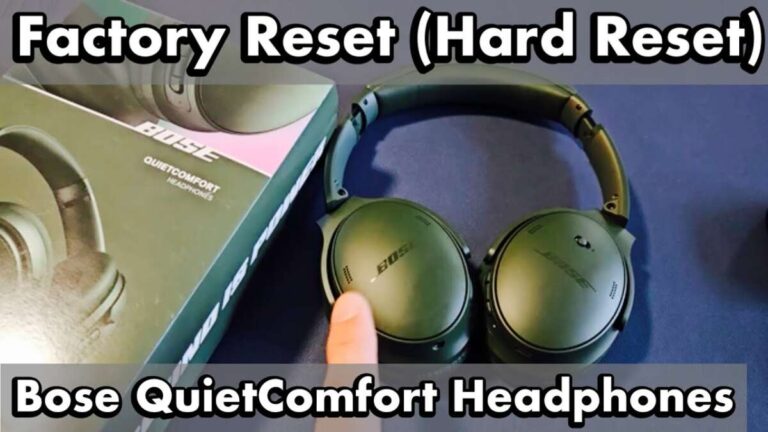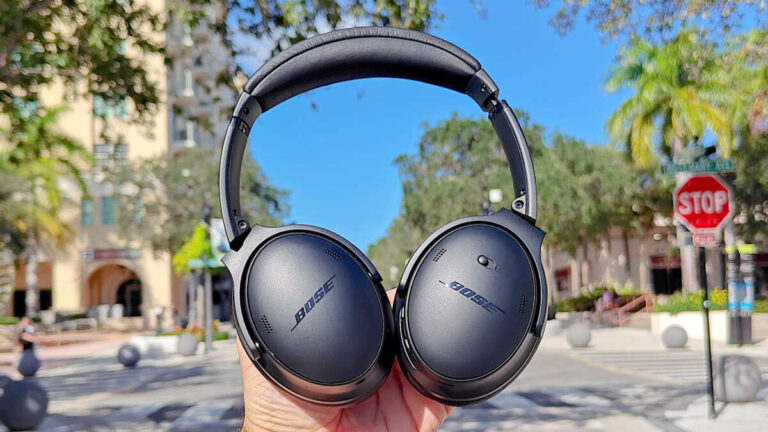
Put your headphones into pairing mode, then open your Mac's Bluetooth menu and connect.
I've helped dozens of people and tested many headphones to explain exactly how to pair bluetooth headphones with mac. This guide walks you through each step, covers common problems, offers advanced tips, and shares real-world lessons so you can get clear audio fast and stay connected.
Why pairing Bluetooth headphones with Mac matters
Pairing Bluetooth headphones with Mac gives you a wireless audio setup for music, calls, and video. A solid pairing process means fewer dropouts, better battery life, and the right audio quality for work or play.
Bluetooth on a Mac is usually smooth, but small settings or device quirks can block pairing. Knowing how to pair bluetooth headphones with mac saves time and frustration, especially when you switch devices often.
Preparation: what you need before pairing
Make sure both devices are ready. This helps pairing go smoothly and avoids annoying delays.
- Charge your headphones to at least 20 percent to avoid auto-shutdown during pairing.
- Put your headphones into pairing mode following their manual — often by holding a power or Bluetooth button.
- Turn on Bluetooth on your Mac: click the Bluetooth icon in the menu bar or open System Settings > Bluetooth.
- Close other nearby Bluetooth audio devices to avoid accidental connections.
If your Mac is running an older macOS, update it for better compatibility. If you’re unsure how to pair bluetooth headphones with mac, updating often fixes bugs and adds device support.

How to pair bluetooth headphones with mac — step-by-step guide
Follow these steps for a clean pairing session.
- Open System Settings on macOS Ventura or later, or System Preferences on older macOS versions.
- Select Bluetooth. Make sure Bluetooth is turned on.
- Put your headphones in pairing mode. A blinking light or voice prompt usually confirms this.
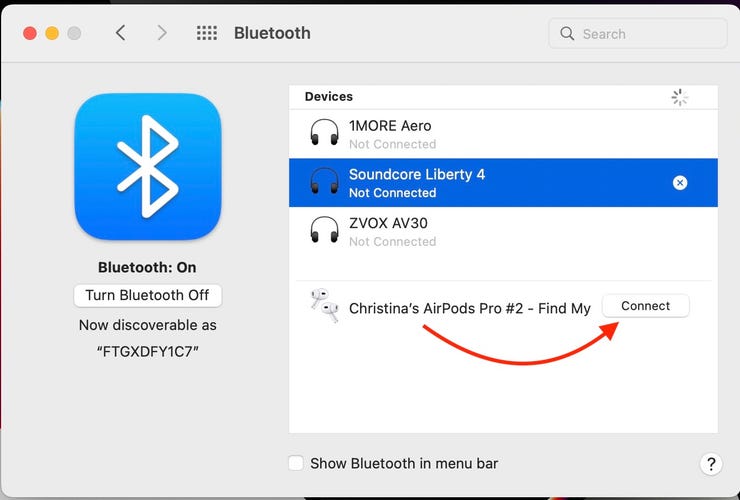
- Wait for your headphones to appear in the Bluetooth device list on your Mac.
- Click Connect next to the headphone name. If prompted, confirm any PIN or pairing code.
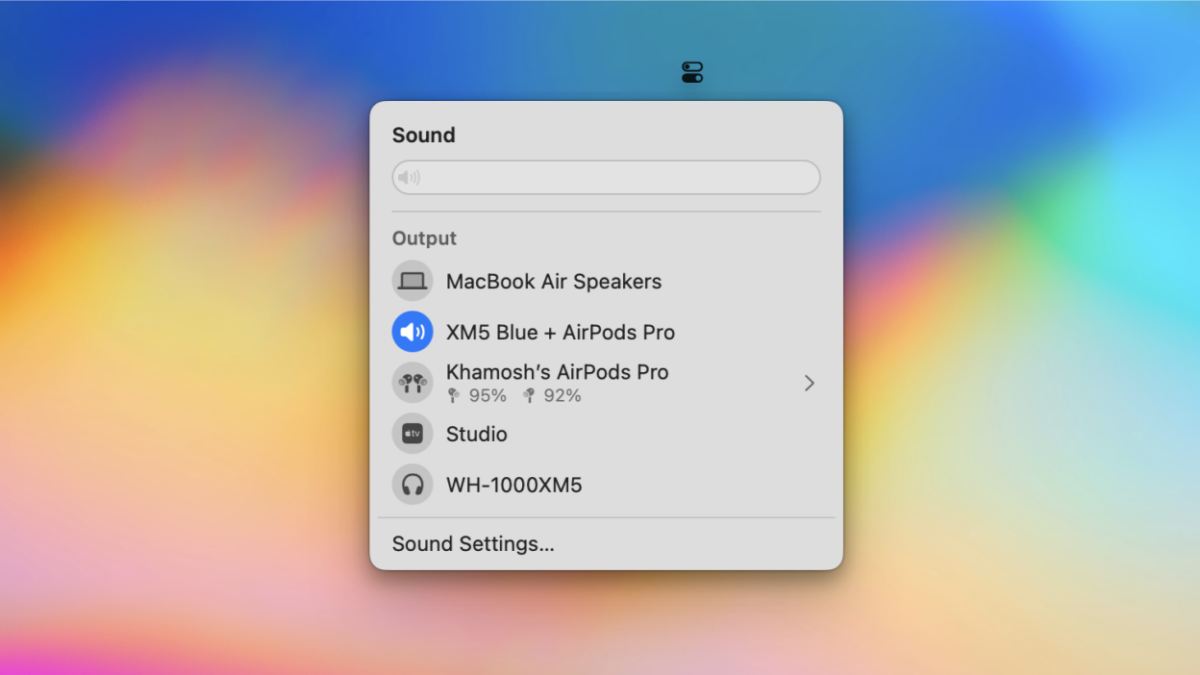
- After connecting, set the device as audio output: open Sound settings and pick your headphones for Output and Input if supported.
If your headphones don’t appear, turn Bluetooth off and on again on the Mac, or restart the headphones and repeat these steps. Practicing these steps a couple of times will make the process second nature and help you recall how to pair bluetooth headphones with mac quickly.
Troubleshooting common pairing problems
If your Mac doesn't find or connect to headphones, try these fixes.
Issue: Headphones don’t appear in the list
- Turn Bluetooth off and on in System Settings.
- Reset your headphones’ Bluetooth memory per the manual.
- Move closer to the Mac and remove obstructions.
Issue: Headphones show connected but no sound
- Open Sound settings and select your headphones as the output device.
- Quit apps that control audio and restart them.
- Check for multiple audio outputs and disable one if needed.
Issue: Frequent dropouts or low audio quality
- Turn off other Bluetooth devices nearby.
- Reduce Wi-Fi interference by switching routers from 2.4 GHz to 5 GHz.
- If supported, change codecs in audio settings or use wired mode for critical listening.
If these steps fail, reset macOS Bluetooth by removing the device and re-pairing, or restart the Mac. Knowing how to pair bluetooth headphones with mac and how to troubleshoot makes recovery fast when things go wrong.
Advanced tips and settings for the best experience
Small settings can improve audio and connection quality.
- Use Handoff and Continuity features if you switch between iPhone and Mac often.
- For voice calls, pick the headphone as both Input and Output in Sound settings to enable the built-in mic.
- If your headphones support noise cancellation, enable it on the headphone controls or companion app for better call quality.
- Check for firmware updates for headphones in the manufacturer app to fix bugs and improve compatibility.
To optimize battery life, turn off features you don't need and lower volume slightly. These steps boost reliability and show why learning how to pair bluetooth headphones with mac is more than a one-time task.

Battery, codecs, and audio quality considerations
Audio performance depends on codecs and power. Macs generally support common Bluetooth audio codecs, but exact behavior varies by model and macOS version.
- Codecs like AAC and SBC are widely supported. Some headphones and third-party adapters support aptX or LDAC, which can offer higher fidelity on compatible devices.
- Using higher-quality codecs can drain battery faster. Decide if you need higher fidelity or longer battery life.
- For studio work, consider a wired connection to avoid Bluetooth latency and compression.
Understanding these trade-offs helps you pick the right headphones and settings. When you know how to pair bluetooth headphones with mac and how codecs affect sound, you’ll make better choices for your needs.
Personal experience and lessons learned
I once paired three different headphones with my MacBook in one day while testing audio for a project. The key lessons I learned were simple and repeatable.
- Always reset a problematic headphone before troubleshooting. A fresh start fixes most pairing bugs.
- Keep firmware updated. I had one model that solved frequent dropouts after a firmware patch.
- Label devices in Bluetooth settings when you own many gadgets. It avoids connecting the wrong headset mid-meeting.
I trust these small habits. They save time and keep audio reliable. If you want quick wins, practice the step-by-step pairing flow and store a short checklist on your phone.

Frequently Asked Questions of how to pair bluetooth headphones with mac
How do I put my headphones into pairing mode?
Most headphones enter pairing mode by holding the power or Bluetooth button for 3–5 seconds until a light blinks or a voice prompt plays. Check the headphone manual if the button combination is different.
Why won't my Mac find my Bluetooth headphones?
Interference, exhausted headphone battery, or an active connection to another device usually cause this. Turn Bluetooth off and on, charge the headphones, and make sure they are in pairing mode near your Mac.
Can I connect multiple Bluetooth headphones to my Mac?
You can pair multiple headphones, but macOS usually allows only one audio output at a time. For shared audio, use specific apps or hardware that support multiple simultaneous outputs.
How do I improve audio quality after pairing?
Choose the correct output in Sound settings and, if available, enable higher-quality codecs or update firmware. Reducing interference and keeping devices close also helps.
What if my headphones connect but the mic doesn't work?
Select the headphones as the Input device under Sound settings. If the mic still fails, check headphone permissions for apps and try reconnecting or updating drivers.
Conclusion
Pairing Bluetooth headphones with Mac is usually quick if you follow a clear process and know the right fixes. Start by preparing devices, follow the step-by-step pairing guide, and use the troubleshooting tips when needed. Practice these steps and keep firmware updated to reduce problems and get better audio.
Take action today: try pairing now, note any hiccups, and use the troubleshooting checklist above. If this guide helped, subscribe for more tips or leave a comment sharing your headphone model and pairing story.

Jamie Lee is a seasoned tech analyst and writer at MyTechGrid.com, known for making the rapidly evolving world of technology accessible to all. Jamie’s work focuses on emerging technologies, product deep-dives, and industry trends—translating complex concepts into engaging, easy-to-understand content. When not researching the latest breakthroughs, Jamie enjoys exploring new tools, testing gadgets, and helping readers navigate the digital world with confidence.