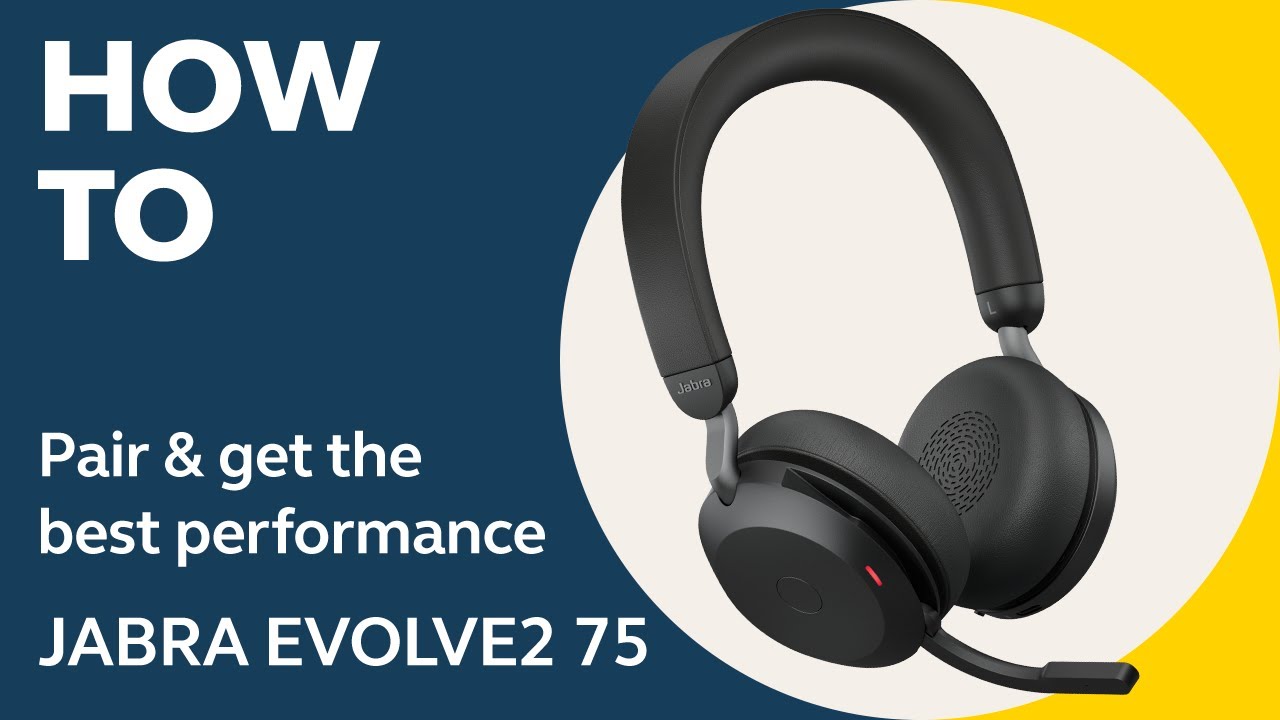
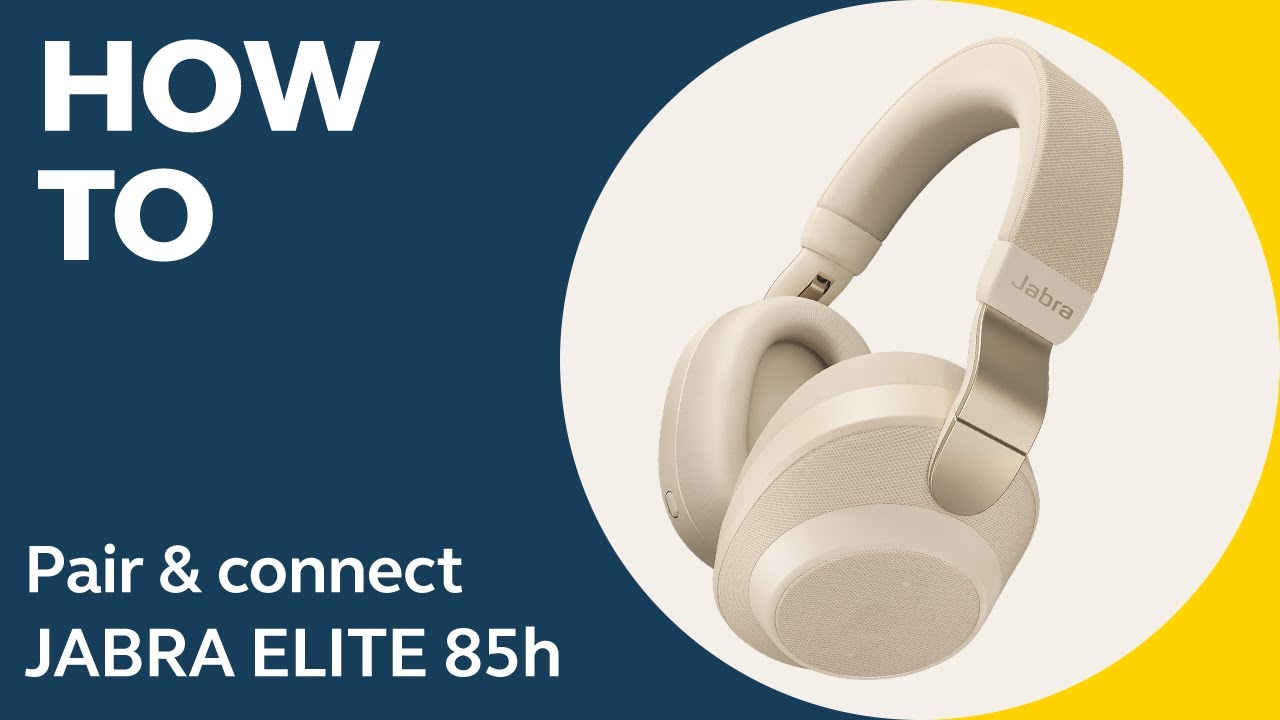
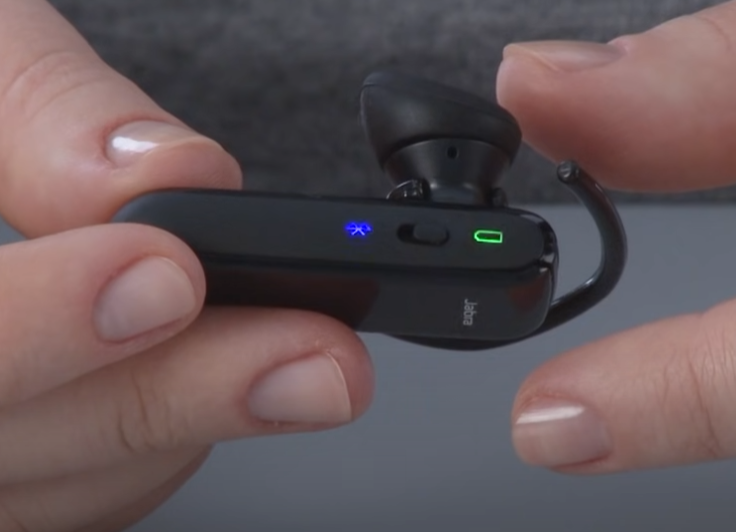
Press and hold the Bluetooth button on your Jabra until the LED flashes, then select it in your device’s Bluetooth menu.
I’ve been pairing Jabra headphones for years, testing models from Jabra Elite to Evolve. In this guide I’ll walk you through how to pair Jabra headphones with phones, tablets, and computers. You’ll get clear steps, troubleshooting tips, and real-world tricks I’ve used to solve the most common pairing headaches. Read on to pair your Jabra quickly and reliably.
How Bluetooth pairing works and why it matters
Bluetooth pairing creates a secure link between your Jabra headphones and another device. The headphones broadcast a name and wait for a device to request connection. Once paired, devices exchange keys so they reconnect automatically later.
Pairing matters because it controls audio quality, call reliability, and battery use. Knowing the basics helps you troubleshoot fast. This section keeps things simple so you understand what happens behind the scenes.
Prepare your Jabra headphones before pairing
Follow these quick checks to avoid common problems.
- Charge the headphones fully before pairing. Low battery can block pairing.
- Power off any device already connected to the headphones. This avoids auto-reconnect conflicts.
- Turn on Bluetooth on the device you want to pair with and have its Bluetooth settings open.
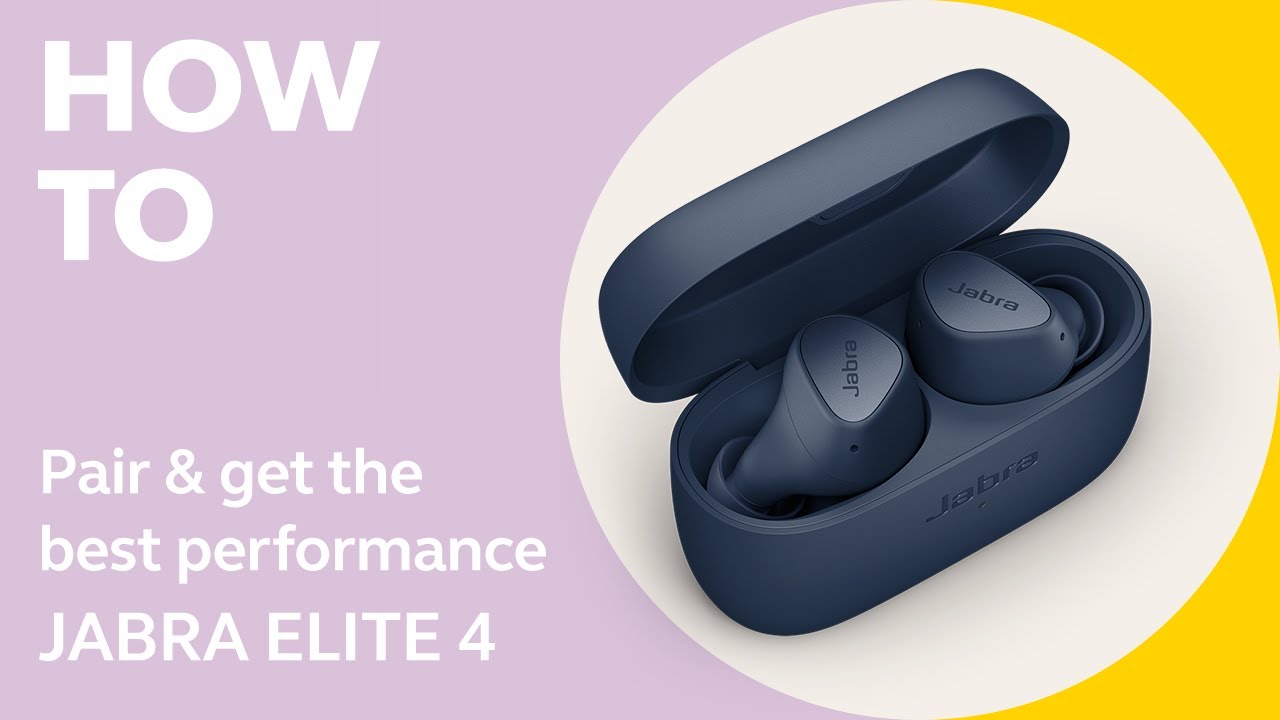
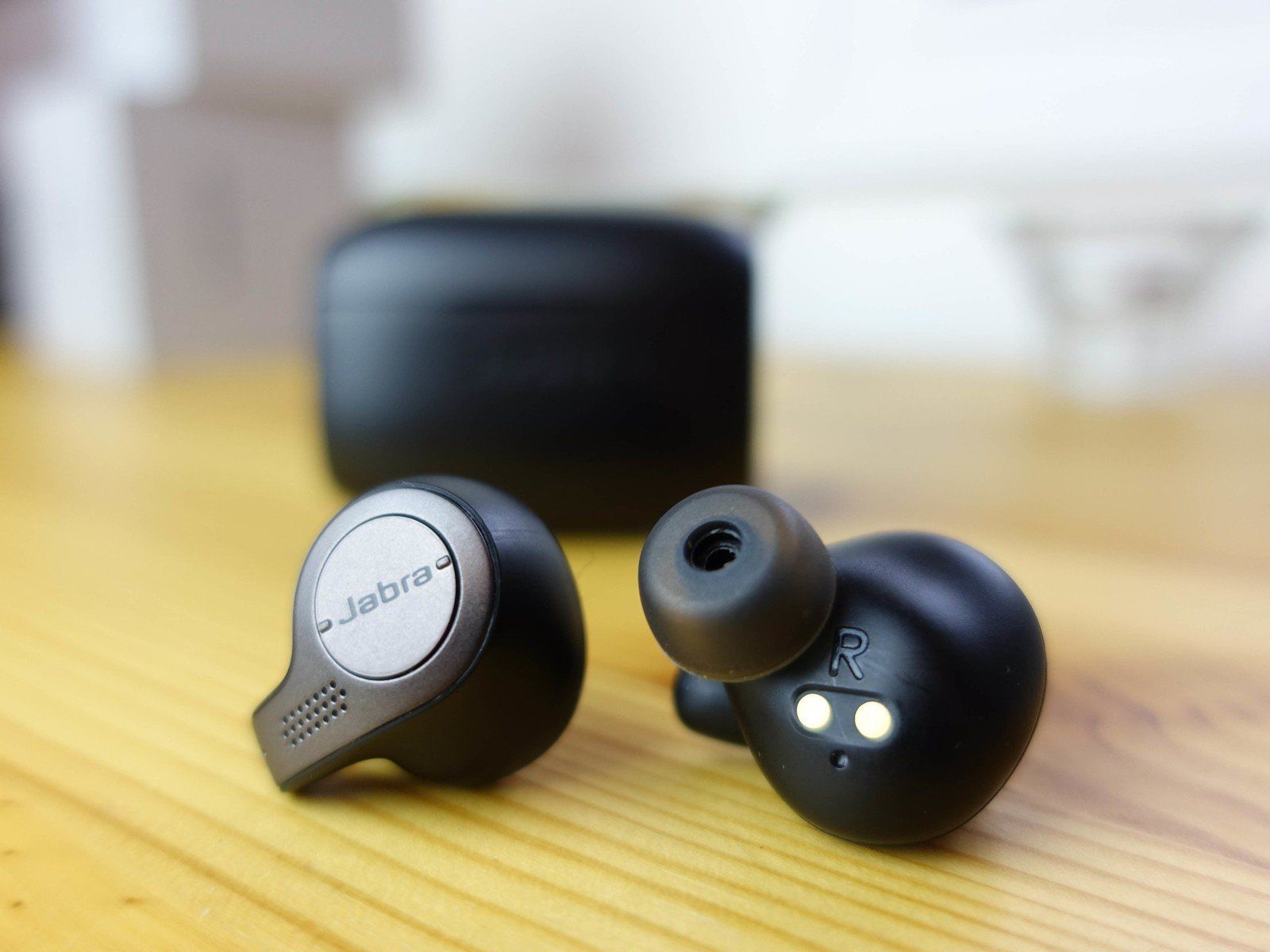
- For true wireless models, place both earcups in pairing mode if required by the model.
I once tried pairing in a crowded café and forgot to close the Jabra Sound+ app. The app took control and blocked pairing. Close companion apps before you start.
Pairing with an iPhone (iOS)
These steps work for most Jabra models on iPhone.
- Open Settings > Bluetooth and keep the screen visible.
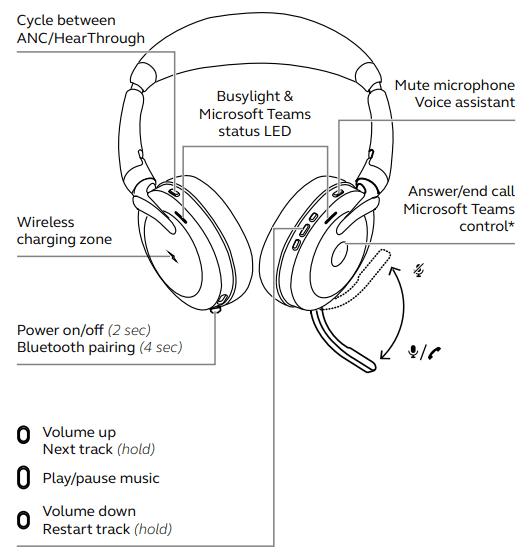
- Turn on your Jabra headphones. If they don’t enter pairing mode automatically, press and hold the Bluetooth or multi-function button until the LED flashes blue and/or you hear “Pairing.”
- Watch the iPhone’s list for your Jabra name (for example, Jabra Elite 65t). Tap it to connect.
- Wait for the status to show Connected. Test audio or calls.
If you see “Not Connected,” tap the info icon and choose Forget This Device, then try pairing again. I paired a Jabra Elite 75t with an iPhone in under a minute using these steps.
Pairing with Android phones and tablets
Android steps vary slightly by brand, but the process is similar.
- Open Settings > Connections or Bluetooth and enable Bluetooth.
- Turn on your Jabra and enter pairing mode by holding the Bluetooth or power button until the indicator flashes or you hear the voice prompt.
- In the Bluetooth list, tap the Jabra device name to pair.
- If prompted for a PIN, enter 0000 or 1234 (rarely needed).
On Samsung and Pixel phones, you may see a permissions pop-up for contacts and audio. Allow these for full call and media features. I’ve paired Jabra devices across several Android models with no trouble using these steps.
Pairing with Windows PC and Mac
Pairing to a computer is slightly different depending on the OS.
Windows 10 / 11
- Open Settings > Bluetooth & devices and turn on Bluetooth.
- Click Add device > Bluetooth.
- Put your Jabra in pairing mode and wait for it to appear. Click it to pair.
- Choose the appropriate profile if asked (Hands-free for calls, Stereo for music).
macOS
- Open System Settings or System Preferences > Bluetooth.
- Turn Bluetooth on, put Jabra in pairing mode, and click Connect for the Jabra name.
- Set the Jabra as the audio input/output in Sound settings.
If audio is low quality on calls, switch the output device in your meeting app settings to the Jabra stereo profile. I once fixed choppy audio on Windows by updating the Bluetooth driver and re-pairing the Jabra.

Pairing multiple devices and using multiuse or multipoint
Jabra models often support pairing with multiple devices. Multipoint allows two active connections, such as phone and laptop.
- Pair the Jabra to device A first, then repeat pairing on device B while the headset is on.
- For multipoint, ensure your model supports it. Jabra Elite and Evolve lines commonly do.
- To switch devices manually, pause audio on one device and press play on the other. The Jabra should switch automatically.
Limitations: Multipoint usually supports two devices only. Some older models may reconnect to the last device automatically. I keep my phone and laptop paired to a Jabra Elite 85t; it switches smoothly between calls and music.
Troubleshooting common pairing problems
Here are fixes for the issues you’ll most likely meet.
- Problem: Jabra not entering pairing mode
- Solution: Fully power off, then press and hold the Bluetooth/multi-function button for 5–10 seconds until LED flashes. Try a factory reset if it still fails.
- Problem: Device won’t see Jabra name
- Solution: Turn Bluetooth off and on again on your device. Move closer and remove obstacles. Turn off other nearby Bluetooth devices.
- Problem: Dropped audio or frequent disconnects
- Solution: Update firmware via the Jabra Sound+ or Jabra Direct app. Check for Windows Bluetooth driver updates.
- Problem: Headphones pair but no sound
- Solution: On your device, select Jabra as the audio output. Restart the app or browser.
PAA-style Q: How do I put my Jabra in pairing mode?
- Press and hold the Bluetooth or power/multi-function button until the LED flashes blue or you hear “Pairing.” Exact steps vary by model.
PAA-style Q: How do I factory reset Jabra headphones?
- Hold the power/Bluetooth button for a long reset sequence or follow model-specific steps in the manual. Reset clears pairings and often fixes persistent issues.
I once fixed a Jabra Evolve 65 that wouldn’t pair by updating firmware via Jabra Direct and then re-pairing. Firmware updates solve many odd issues.
Tips, best practices, and mistakes to avoid
Follow these guidelines to make pairing smoother every time.
- Keep firmware up to date using Jabra Sound+ or Jabra Direct.
- Remove old pairings from devices you no longer use.
- Avoid pairing near Wi‑Fi routers on the 2.4 GHz band if you have interference.
- Use the official app for model-specific settings and firmware.
- Don’t assume a single button press is enough; some models need longer holds for pairing mode.
Mistake to avoid: Trying to pair multiple new devices simultaneously. Pair one device at a time. This reduces conflicts and speeds setup.
Frequently Asked Questions of how to pair jabra headphones
How do I put my Jabra into pairing mode?
Press and hold the Bluetooth or multi-function button until the LED flashes blue or the voice prompt says “Pairing.” Exact timing depends on the model.
Why won’t my phone find my Jabra headphones?
Turn Bluetooth off and on, ensure the headset is in pairing mode, and move closer. Delete old pairings on both devices and try again.
Can Jabra headphones pair with two devices at once?
Many Jabra models support multipoint pairing, allowing two devices to connect simultaneously. Check your model specs for multipoint support.
How do I reset my Jabra headphones?
Model-specific steps exist, but usually holding the power or Bluetooth button for an extended time or following the app’s reset option will clear pairings. Refer to the manual for exact steps.
What if I hear one side only after pairing?
Make sure both earbuds are charged and paired. Reinsert both into the case (for true wireless), then take out and re-pair. If problem persists, reset the earbuds.
Why does my PC show low call quality with Jabra?
Windows may use the headset hands-free profile which limits audio quality. Switch to the stereo profile for music or update Bluetooth drivers for better call performance.
Conclusion
You now have a clear, practical path for how to pair Jabra headphones with phones, tablets, and computers. Follow the step-by-step pairing instructions, keep firmware updated, and use the troubleshooting tips when things go wrong. Try pairing one device at a time and use the official app for updates.
Take action now: pair your Jabra using the steps above, update the firmware, and leave a comment about which Jabra model you used and how pairing went.

Everett Ashford is a tech reviewer at mytechgrid.com specializing in SSDs, cameras, TVs, earbuds, headphones, and other consumer electronics. He provides honest, data-driven reviews based on hands-on testing and real-world performance analysis. Everett simplifies complex tech details to help readers make smart, confident buying decisions.