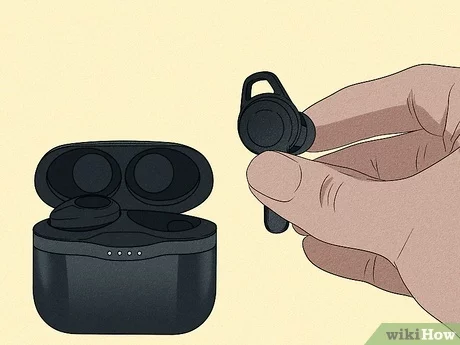
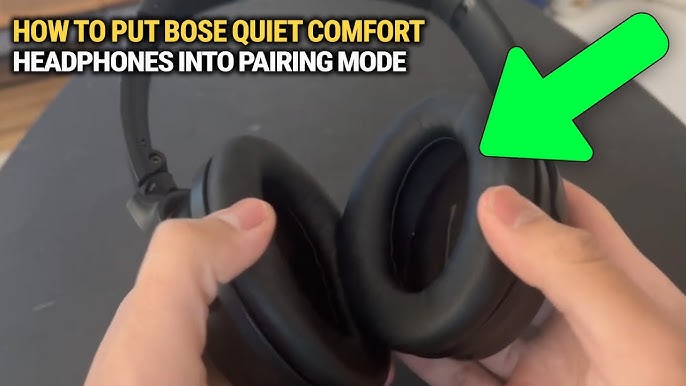
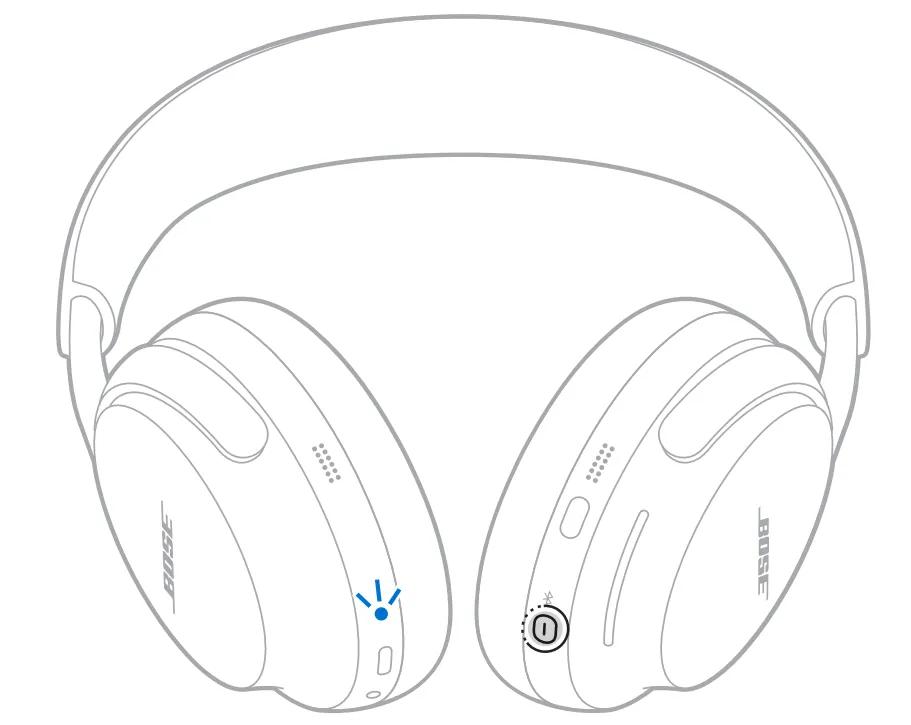
Hold the power/Bluetooth button for a few seconds until the LED flashes and you hear "ready to pair."
I’ve helped dozens of people and tested many Bose models, so I know how to get Bose headphones in pairing mode quickly and reliably. This guide covers clear steps, model-specific nuances, troubleshooting tips, and real-world lessons so you can pair with phones, tablets, laptops, or smart TVs without guessing. Read on to learn simple methods and avoid common pitfalls when trying to get Bose headphones in pairing mode.

How Bluetooth pairing works and why it matters
Bluetooth pairing is the handshake between two devices. When you put a Bose headset in pairing mode, it becomes visible and searchable to nearby devices. That visibility is temporary for security and battery reasons. Knowing how to get Bose headphones in pairing mode helps you connect faster, avoid accidental connections, and fix common pairing failures.
Pairing uses Bluetooth protocols built into the headphone firmware and the device’s operating system. Most Bose models follow the same basic steps, but button names and LED behavior can vary by model. Understanding the pattern makes troubleshooting easier.
Quick step-by-step to get Bose headphones in pairing mode
These steps work for most modern Bose headphones and earbuds. If one step fails, move to the troubleshooting section.
- Make sure the headphones are charged. Low battery can block pairing.
- Power the headphones off if they are on.
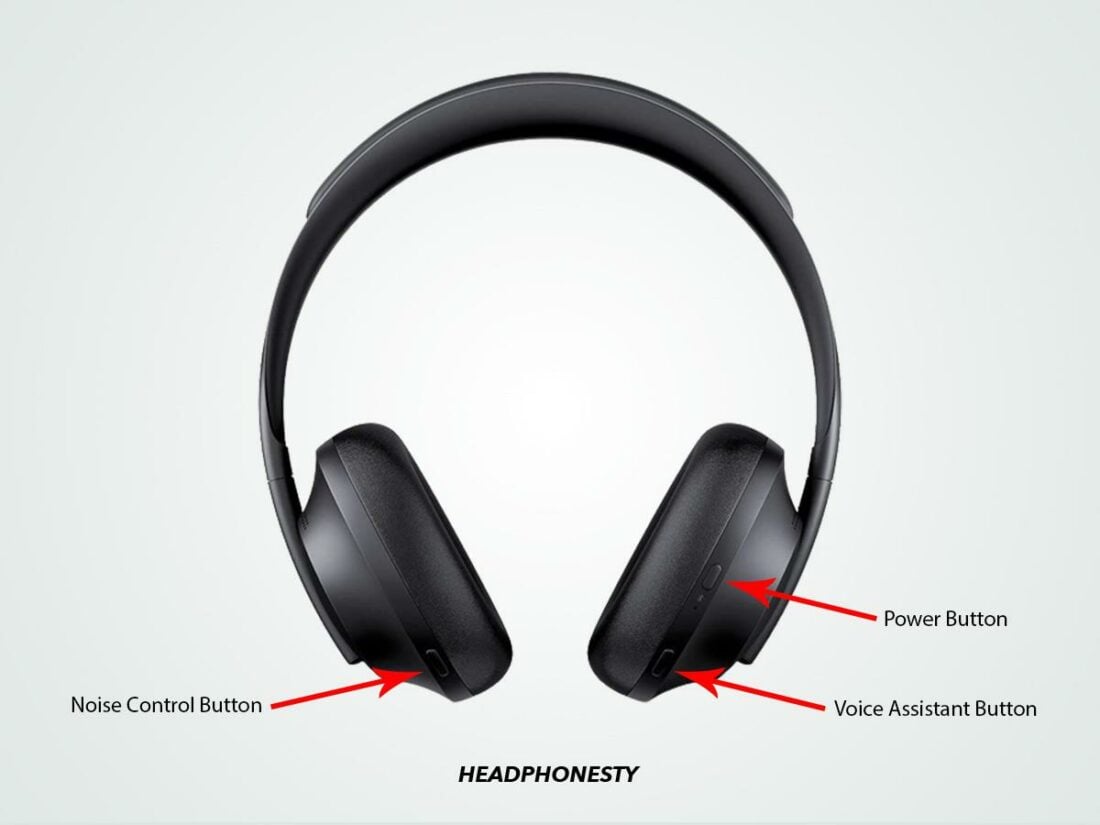
- Press and hold the power button or Bluetooth/Bluetooth-pairing button for 3–5 seconds.
- Watch the LED light or listen for the voice prompt that says "ready to pair" or “pairing.”
- Open Bluetooth settings on your phone, tablet, or computer and select your Bose model from the list.
- If prompted, confirm pairing or enter the code 0000.
If your device doesn’t see the headphones, try turning Bluetooth off and on again on the device, or move the device closer to the headphones. Repeating these steps usually solves most issues when trying to get Bose headphones in pairing mode.
Model-specific steps (common Bose models)
Some Bose models use slightly different buttons or voice prompts. Below are concise, model-focused instructions. If you own a different model, the method is usually similar.
Bose QuietComfort (QC) series
- Power on the headset.
- Slide and hold the power/Bluetooth switch to the Bluetooth symbol until you hear “ready to pair.”
- Select the headset on your device.
Bose Noise Cancelling Headphones 700
- Power on with the power/Bluetooth button.
- Press and hold the power/Bluetooth button for about 2 seconds until the status light blinks blue.
- Choose the 700 in Bluetooth settings.
Bose SoundLink Around-Ear and On-Ear
- With power off, press and hold the power button for 3–5 seconds until the LED flashes blue.
- Pair from your device’s Bluetooth menu.
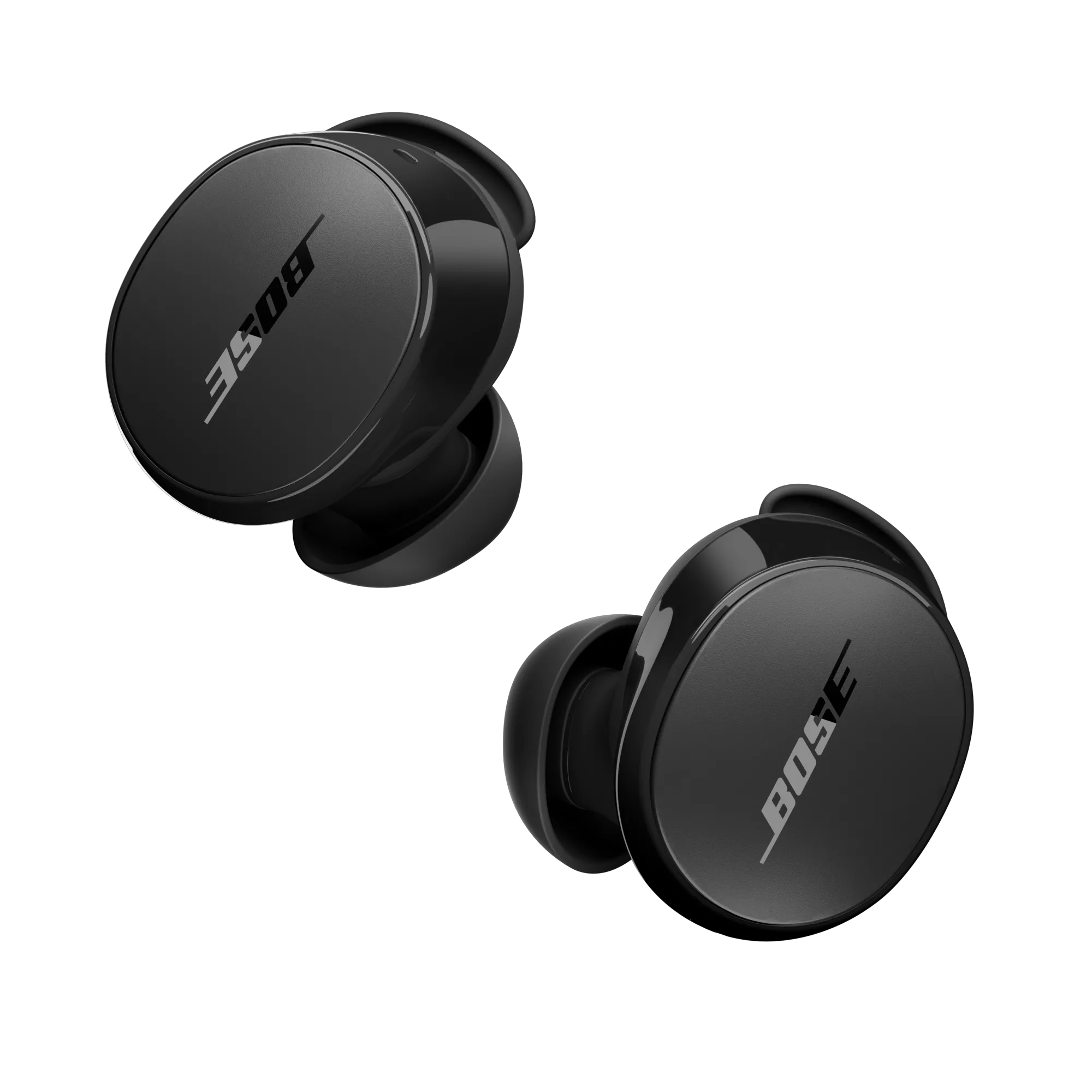
Bose QuietComfort Earbuds and Sport Earbuds
- Take the earbuds out of the case (or open the case).
- Press and hold the Bluetooth button on the charging case until the LED flashes.
- Find the earbuds on your device and pair.
These steps reflect common patterns to get Bose headphones in pairing mode across models. Always check the voice cue or LED to confirm pairing status.

Troubleshooting pairing problems
If your device won’t find the headphones, try these fixes.
- Ensure the headphones are charged and powered on properly.
- Turn Bluetooth off and on again on your phone or computer.
- Forget or remove old Bose pairings on your device, then repeat the pairing steps.
- Restart your phone, tablet, or computer to clear temporary system issues.
- Move away from other Bluetooth devices that may interfere.
- How long does pairing mode last? Pairing mode typically lasts about 2 minutes or until a successful connection is made.
- What if I hear no voice prompt? Rely on the LED flash pattern and try the power/Bluetooth button hold for 5–10 seconds.
If nothing works, reset the headphones to factory settings. Reset procedures differ by model but usually involve holding specific buttons for 10–20 seconds. Resetting clears stored pairings and often resolves stubborn issues when trying to get Bose headphones in pairing mode.
Tips for best connection, battery, and longevity
Follow these practical tips to make pairing smoother and keep your Bose headphones reliable.
- Keep firmware updated using the official app or desktop updater; firmware fixes pairing bugs.
- Charge regularly; Bluetooth functions and voice prompts can be muted on very low battery.
- Limit the number of previously paired devices stored on the headphones to reduce confusion.
- Use airplane mode plus Bluetooth on planes that support Bluetooth audio to avoid interference.
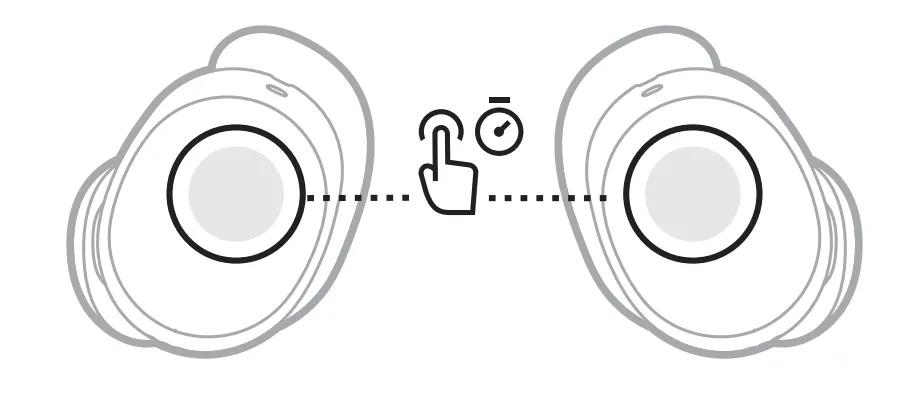
- Clean contact points and case sensors for earbuds to ensure correct charging and pairing readiness.
These tips help you consistently get Bose headphones in pairing mode and maintain a stable connection over time.
Personal experience, mistakes to avoid, and best practices
I once spent 20 minutes troubleshooting a pair that would not appear in Bluetooth menus. The issue was the power switch was only partially moved to Bluetooth mode. Simple checks save time. Here are lessons from real use:
- Always confirm the LED or voice prompt before searching on your device.
- Avoid pairing attempts with multiple devices at once; pair to one device first.
- If you travel frequently, rebuild the headphone list in your frequently used devices to avoid conflicts.
- Don’t assume a failed connection means hardware failure; software and settings are often the cause.
From years of testing, the clearest path to success is: charge, power off, long press the Bluetooth/power control, confirm prompt, then pair from the device. That sequence will help you get Bose headphones in pairing mode fast and with confidence.
Frequently Asked Questions of how to get bose headphones in pairing mode
How do I put Bose headphones in pairing mode if they won’t turn on?
Try charging the headphones for at least 15 minutes and then hold the power/Bluetooth button for 5–10 seconds. If still unresponsive, perform a factory reset according to your model’s reset steps.
Why won’t my phone find my Bose headphones in pairing mode?
Interference, low battery, or too many stored connections can block discovery. Turn Bluetooth off/on on the phone, forget old Bose pairings, and try again close to the headphones.
How do I reset my Bose headphones for pairing?
Reset steps vary by model but typically involve holding the power and other buttons for 10–20 seconds until the LED flashes differently. Check the model-specific instructions before resetting.
Can Bose headphones remember multiple devices?
Yes, most Bose headphones can remember several devices, but they may prefer the last connected one. Forget unused devices on the headphone list to avoid auto-connecting the wrong device.
Is pairing mode different for earbuds versus over-ear headphones?
The principle is the same, but earbuds often use the case to trigger pairing while over-ear models use a button or switch. Open the earbuds’ case or press and hold the case button to enter pairing mode.
Conclusion
Getting Bose headphones in pairing mode is usually simple: charge, press and hold the power/Bluetooth control, wait for the LED or “ready to pair,” and select the device. Use the model-specific steps and troubleshooting tips in this guide to avoid common traps. Try these steps now; you’ll likely be listening in under a minute. If this helped, leave a comment, share your model, or subscribe for more practical guides.

Everett Ashford is a tech reviewer at mytechgrid.com specializing in SSDs, cameras, TVs, earbuds, headphones, and other consumer electronics. He provides honest, data-driven reviews based on hands-on testing and real-world performance analysis. Everett simplifies complex tech details to help readers make smart, confident buying decisions.