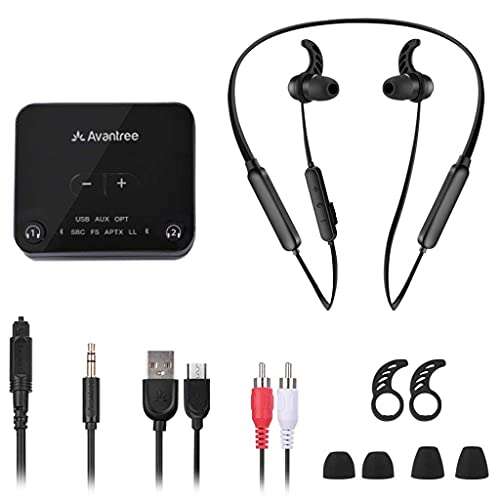
Adjusting earbud volume is usually as simple as using your phone’s volume buttons, earbud controls, or voice assistant.
Learning how to adjust volume on earbuds helps you hear music, calls, podcasts, and videos clearly without risking discomfort. The exact steps vary by device, but this guide covers iPhone, Android, Windows, Mac, wireless, wired, touch-control, and app-based earbuds. It also explains why volume controls sometimes fail and how to listen more safely.
How to adjust volume on earbuds
The fastest way to adjust volume on earbuds is to use the device connected to them. Press the volume-up or volume-down button on your phone, tablet, computer, or music player while the earbuds are connected.
Most devices show an on-screen volume bar. This confirms that the earbuds are receiving the volume command. If the bar changes but the sound does not, the problem may involve the earbuds, Bluetooth connection, app settings, or audio balance.
Many modern earbuds also have built-in controls. Depending on the brand, you may need to tap, swipe, press, or hold one earbud to change the sound level.
Try these basic methods:
- Press the volume-up button on your phone or computer to make the sound louder.
- Press the volume-down button to reduce the sound.
- Use the earbud’s touch or button control if the feature is enabled.
- Ask your voice assistant to raise or lower the volume.
- Open the earbud brand’s app and check its control settings.

How to adjust volume on wireless earbuds
Wireless earbuds use Bluetooth to send sound from your device to the earbuds. In many cases, the phone controls the volume, while the earbuds provide optional volume commands.
First, make sure the earbuds are connected. Then play audio and adjust the volume with your phone’s side buttons. On Android phones, you can also open the volume panel to change media volume. On an iPhone, press the side volume buttons or use the volume slider in Control Center.
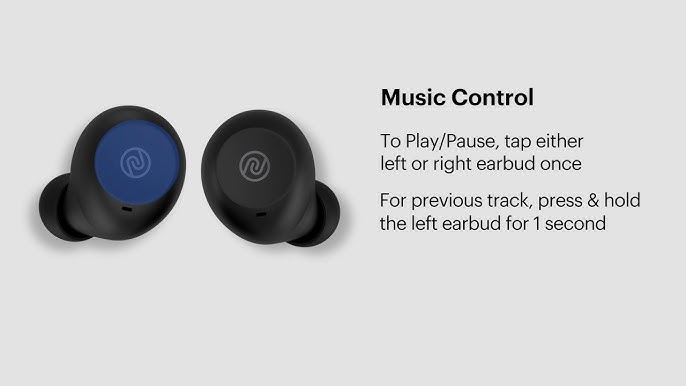
Some wireless earbuds have independent volume controls. Common gestures include:
• Swipe up or down on the stem or outer panel.
• Tap one earbud several times.
• Press and hold the left or right earbud.
• Rotate a control ring or stem.
• Use a voice command through Siri, Google Assistant, or another supported assistant.
Earbud controls differ by model. For example, one brand may use a double tap to skip tracks, while another may use a swipe to change volume. Check the control guide in the manufacturer’s app or user manual before changing gestures.
A common mistake is assuming that every wireless earbud supports volume control. Some models only offer play, pause, track, and call controls. In that case, you must adjust volume from the connected device.
How to adjust volume on AirPods
AirPods can adjust volume through an iPhone, Apple Watch, Siri, or compatible touch controls. The method depends on the AirPods model and the software version on your Apple device.
Use iPhone volume controls
Connect your AirPods and start playing audio. Press the volume buttons on the side of the iPhone. You can also open Control Center and drag the volume slider up or down.
On newer iPhones without a Home button, swipe down from the upper-right corner. On older iPhones, swipe up from the bottom edge to open Control Center.
Use Siri
You can say:
• “Hey Siri, turn the volume up.”
• “Hey Siri, lower the volume.”
• “Hey Siri, set the volume to 40 percent.”
Siri may interpret volume as a percentage of the current device range. The actual loudness can still vary by song, app, and recording quality.
Use the AirPods controls
Some AirPods Pro models let you swipe up or down on the stem to change volume. AirPods Max uses a Digital Crown that you rotate to raise or lower the sound.
If your AirPods do not respond to a volume gesture, open the Bluetooth settings and confirm the model’s available controls. Also check for firmware and iOS updates.
How to adjust volume on Android earbuds
Android devices offer several ways to control earbud volume. The simplest method is to press the phone’s volume buttons while audio is playing.
When you press a volume button, tap the three-dot menu or expand the volume panel if available. This may show separate controls for media, calls, notifications, and alarms. Make sure you are changing media volume rather than ringtone volume.
You can also use Google Assistant. Try saying:
• “Hey Google, increase the media volume.”
• “Hey Google, lower the volume.”
• “Set media volume to 50 percent.”
Some Android earbuds work with a companion app. The app may let you assign volume commands to taps, swipes, or presses. It may also include an equalizer, hearing protection setting, or maximum volume limit.
Android phones use different menus based on the manufacturer. Samsung, Google Pixel, Motorola, OnePlus, and other brands may label their settings differently. If the earbuds connect but sound remains quiet, search Settings for “media volume,” “absolute volume,” or “Bluetooth volume.”

How to adjust volume on earbuds with a computer
You can adjust volume on earbuds connected to a Windows PC or Mac by using the computer’s sound controls.
Windows
On Windows 11, select the speaker icon near the clock. Drag the volume slider to the desired level. Select the arrow beside the slider to confirm that your earbuds are the selected output device.
You can also use the keyboard volume keys if your keyboard has them. Some wireless earbuds include their own volume gestures, but Windows may still control the main output level.
If the volume is low, check these settings:
• Confirm that the earbuds are selected under Sound output.
• Open the Volume Mixer and check the individual app level.
• Make sure the app is not muted.
• Disconnect other Bluetooth audio devices.
• Update the Bluetooth and audio drivers if needed.
Mac
On a Mac, select Control Center in the menu bar and choose Sound. Select your earbuds, then move the volume slider.
You may also use the keyboard volume keys. If the keys do not work, check whether the selected audio output is the earbuds rather than the Mac’s built-in speakers.
When using video meeting apps, check the app’s audio settings too. Zoom, Microsoft Teams, and similar tools may have their own speaker volume controls.
How to adjust volume on earbuds without a phone
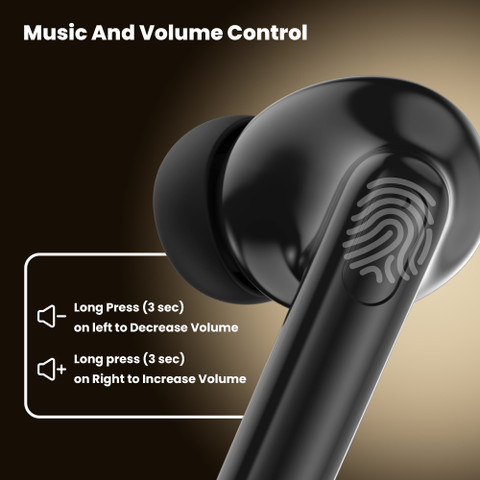
You may adjust volume without touching your phone if your earbuds support touch controls, physical buttons, a smartwatch, or a voice assistant.
Earbuds with physical buttons often use a long press or repeated press. Touch models may use swipes or taps. A smartwatch can also control media volume when it is connected to the same phone or audio system.
Voice control is useful when your hands are busy. For example, you can say, “Raise the volume,” while cooking or walking. However, voice commands may not work if the assistant is disabled, the microphone is blocked, or the earbuds are not connected to the phone’s assistant.
If your earbuds have no volume controls and you have no connected device, you may not be able to change the volume. Earbuds do not always contain a separate amplifier control. In many models, the phone or computer remains the main volume source.

How to adjust volume on wired earbuds
Wired earbuds may have an in-line remote with volume-up and volume-down buttons. Press the plus button to increase volume and the minus button to reduce it.
Some wired earbuds only have play and pause buttons. In that case, use the connected phone, tablet, computer, or music player to adjust the sound.
If the buttons do not work, check whether the plug is fully inserted. A loose connection can cause poor sound, one-sided audio, or unresponsive controls. USB-C and Lightning earbuds may also need permission, an adapter that supports audio, or a compatible device.
Older three-point-five-millimeter earbuds can behave differently across phones. Some remote controls use wiring standards that are not fully compatible with every device. If the audio works but the buttons fail, the earbuds and device may use different remote layouts.
How to adjust volume when one earbud is louder
If one earbud sounds louder than the other, changing the overall volume may not solve the problem. First, clean both earbuds carefully. Earwax, dust, or a blocked speaker mesh can make one side sound quieter.
Next, check the left and right audio balance:
• On iPhone, open Accessibility settings and look for Audio and Visual.
• On Android, open Accessibility settings and search for audio balance.
• On Windows, open Sound settings and review the left and right channel levels.
• On Mac, open Sound settings and check the balance slider.
Place the balance control in the center unless you have a hearing reason to use another position. Also test the earbuds with another device. If one side remains quiet, the issue may be a damaged driver, blocked mesh, moisture, or a failing battery.
Avoid pushing sharp objects into the speaker mesh. A soft, dry brush is safer. Do not pour liquid into the earbud or use excessive pressure.

Why earbud volume controls may not work
Volume controls can fail for several reasons. The earbuds may not support volume commands, the gesture may be disabled, or the Bluetooth connection may be incomplete.
Try this troubleshooting process:
- Confirm that the earbuds are connected to the correct device.
- Play audio and test the phone or computer volume buttons.
- Check the earbud app for custom control settings.
- Charge both earbuds and the charging case.
- Restart the earbuds and connected device.
- Forget the Bluetooth connection, then pair the earbuds again.
- Install available device, app, or earbud firmware updates.
- Test the earbuds with another phone or computer.
I once spent several minutes trying to swipe on a pair of earbuds that only supported tap controls. The audio was fine, but the gesture was never available on that model. Checking the control map in the app would have solved the issue much faster.
Another common problem is separate volume behavior. Some earbuds and phones do not synchronize their volume levels correctly. Turning Bluetooth off and on, then reconnecting the earbuds, often restores normal control.
How loud should earbuds be?
A comfortable volume is safer than a loud volume. The World Health Organization recommends keeping personal listening devices at no more than about 60 percent of maximum volume and taking regular breaks. The safe level also depends on how long you listen and how much background noise surrounds you.
A useful everyday test is the conversation check. If you cannot hear someone speaking near you, or if people nearby can hear your music, the volume may be too high.
Watch for warning signs:
• Ringing in your ears after listening.
• A muffled feeling when you remove the earbuds.
• Ear pain or pressure.
• Needing to raise the volume in noisy places.
• Trouble hearing normal conversation.
Noise-canceling earbuds can help because they reduce outside sound. They should not be used as a reason to play music louder. If ringing or muffled hearing continues, stop listening and consider speaking with a qualified health professional.
How to use volume limits and hearing protection
Many phones and earbud apps offer tools that limit maximum volume. These tools help prevent sudden loud sounds and make safe listening easier.
On iPhone, headphone safety settings can reduce loud audio exposure and provide notifications. Android phones may include media volume limits, hearing protection alerts, or manufacturer-specific safety controls. The names and features vary by phone.
You can also improve comfort by:
• Using noise cancellation in busy areas.
• Choosing well-fitting ear tips.
• Taking a five-minute break every hour.
• Lowering volume before removing or reconnecting earbuds.
• Avoiding sleep with loud earbuds playing.
A volume limit is helpful, but it is not a complete safety system. A sound level that feels fine for ten minutes may be too much after several hours. Listening time matters as much as the volume number.
Practical tips for better earbud volume control
Small habits can make volume adjustment easier and safer. Set the volume before starting a podcast or song, because recordings can have different loudness levels.
Keep the earbud app installed if it provides control customization. Save a volume gesture that feels natural, but avoid assigning too many functions to the same tap or press.
Use these tips:
• Start at a low volume and increase it slowly.
• Keep both earbuds at a similar level.
• Clean the speaker mesh often.
• Store earbuds in their case when not in use.
• Avoid maximum volume when traveling or exercising.
• Check the volume after switching from a quiet podcast to a loud video.
• Turn down audio before answering a call.
Audio quality also affects perceived volume. A poorly mixed recording may sound quiet, while another track may sound much louder at the same device setting. Adjust the sound for comfort rather than relying only on a percentage.
Frequently Asked Questions About How to Adjust Volume on Earbuds
How do I adjust volume on earbuds?
Use the volume buttons or on-screen slider on the connected phone, tablet, or computer. If the earbuds support volume gestures, use the assigned tap, swipe, or button command.
Why can’t I adjust volume directly from my earbuds?
Your earbuds may not support onboard volume control, or the feature may be disabled in the companion app. Check the model’s control settings and use the connected device if necessary.
How do I adjust volume on AirPods?
Use the iPhone volume buttons, Control Center, Siri, or the AirPods control gesture available on your model. AirPods Pro and AirPods Max may offer additional built-in volume controls.
Why is one earbud louder than the other?
A blocked speaker mesh, incorrect audio balance, poor fit, or damaged hardware can cause uneven sound. Clean the earbuds, center the balance setting, and test them with another device.
Is 100 percent volume safe for earbuds?
Maximum volume can expose your ears to harmful sound levels, especially during long listening sessions. Start lower, use breaks, and follow your device’s hearing safety alerts.
Do wireless earbuds have their own volume?
Some wireless earbuds have independent volume controls, while others rely on the connected phone or computer. The product app or manual will show whether your model supports this feature.
Conclusion
Adjusting earbud volume is usually easy once you know which device controls the sound. Use your phone or computer buttons first, then check for touch gestures, physical buttons, voice commands, or companion app settings. If one earbud is quiet, inspect the mesh, audio balance, connection, and battery before assuming the hardware has failed.
Keep listening comfortable by starting low, taking breaks, and using built-in volume limits. Try the steps above with your earbuds today, and share your model or troubleshooting experience in the comments.

Everett Ashford is a tech reviewer at mytechgrid.com specializing in SSDs, cameras, TVs, earbuds, headphones, and other consumer electronics. He provides honest, data-driven reviews based on hands-on testing and real-world performance analysis. Everett simplifies complex tech details to help readers make smart, confident buying decisions.