Hold your HMD for VR first‑person or change an avatar’s View Position in Unity for third‑person.
I’ve spent years building and testing avatars and worlds, so I know how to change camera perspective in VRChat from both player and creator sides. This guide breaks down every practical method, from quick desktop tweaks and spectator cameras in worlds to editing an avatar’s View Position in Unity with the VRChat SDK. Read on to learn clear steps, real tips I learned the hard way, and safe options so you can get the camera angle you want without breaking rules or your immersion.
Understanding camera perspectives in VRChat
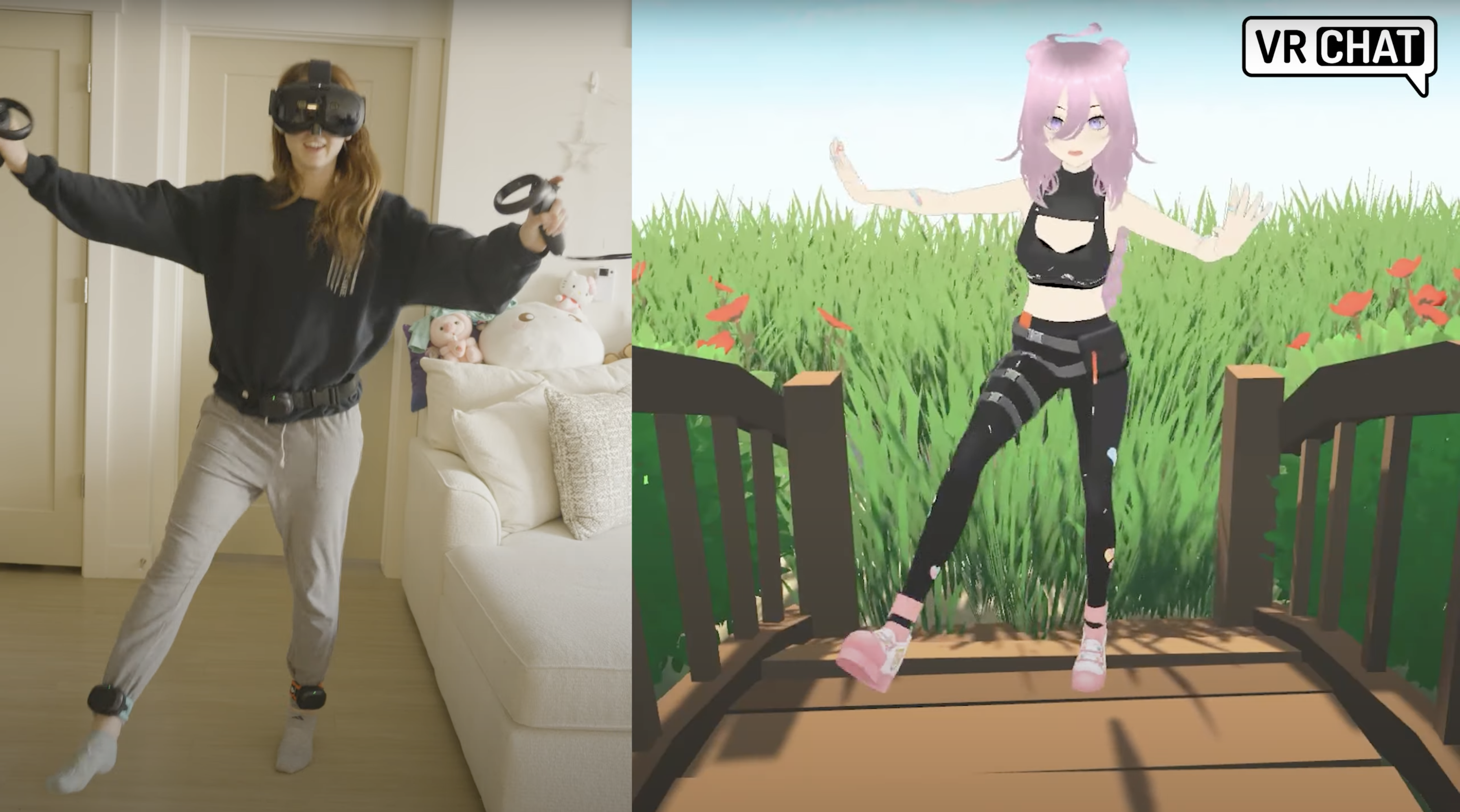
Camera perspective in VRChat means the point of view shown to you and other users. Most users see in first‑person through their HMD in VR or through the desktop camera when on PC. Third‑person and cinematic shots are possible but usually require special avatar settings, world cameras, or creator tools.
Key terms to know:
- View Position: A setting in an avatar’s descriptor in Unity that defines the player’s camera offset.
- First‑person: Default view locked to your avatar’s head position.
- Third‑person: Camera placed behind or away from the avatar so you see the body and surroundings.
- Spectator/Photo cameras: World objects or tools that let you move the camera without moving your avatar.
Knowing these terms makes it easier to follow steps on how to change camera perspective in VRChat as either a player or creator.

How to change camera perspective in VRChat — player methods
If you play in VRChat and want to change camera perspective without rebuilding an avatar, try these practical player-side methods.
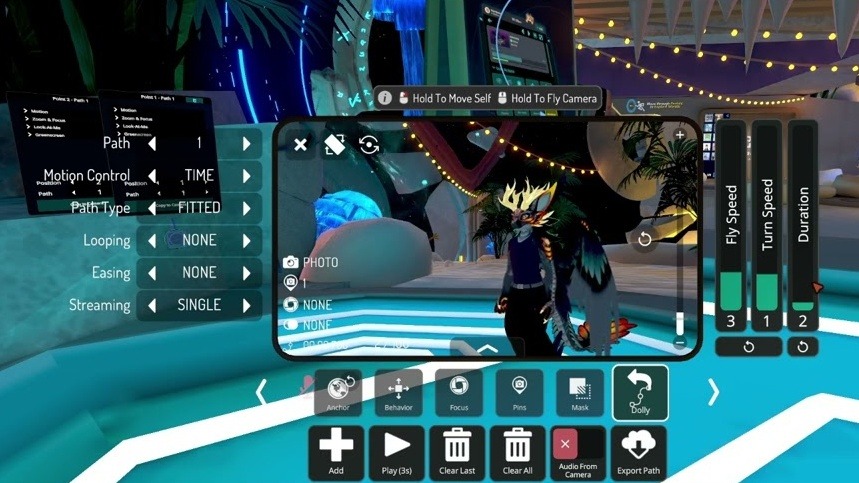
Use a world camera or photo booth
- Many public worlds include photo booths or cinematic cameras that switch you to third‑person or free camera.
- Walk up to the camera prop, follow the on‑screen prompt, and use the controls shown to pan and zoom.
- This is the safest way to get third‑person shots without editing avatars.
Switch between VR and Desktop for different control options
- VR mode uses your headset for first‑person view; desktop mode gives mouse and keyboard control of the camera.
- If you want a detached camera feel, launch VRChat in desktop mode and use the mouse to look around while sitting still.
- Desktop mode works well for streaming and screenshots if you can’t modify the avatar.
Look for spectator features in the world
- Some worlds offer spectator positions or director tools to move cameras around players.
- Ask world owners or look for a “director” or “photobooth” sign in the world to access these tools.
Tips I learned
- If you need regular third‑person shots, join worlds designed for photography.
- Respect other users and avoid using camera modes that invade privacy.
How to change camera perspective in VRChat — creator (avatar) methods
For creators and avatar editors, changing the camera perspective is best done in Unity with the VRChat SDK. This gives precise control and works for every user who equips the avatar.
Steps to change the avatar camera using View Position
- Open your avatar project in Unity with VRChat SDK 3.
- Select your avatar prefab in the Hierarchy.
- Find the VRC_AvatarDescriptor component.
- Adjust the View Position transform to move the camera up, down, forward, or back.
- Test in Unity and iterate until the view matches your intended perspective.
- Upload the avatar using the SDK control panel.
Advanced options
- Create animation-driven camera shifts by toggling a parameter that moves the View Position. This allows in-game toggles between first‑ and third‑person.
- Use empty child GameObjects as multiple view anchors and switch them via scripts or avatar parameters.
Common pitfalls
- Setting the View Position too far from the head can cause clipping or weird collisions.
- Some HUDs and first‑person-only avatars may not behave well if you force third‑person.

Practical examples and workflows
Example 1: Quick third‑person avatar edit
- Open the avatar in Unity.
- Move the View Position back by 0.5–1.0 meters on the Z axis.
- Test locally and adjust height for better framing.
Example 2: Cinematic shots in a world
- Place a camera prop in the world that users can sit in.
- Add scripted key binds or UI to pan, zoom, and switch to locked third‑person positions.
- Provide instructions so players know how to exit the camera safely.
Example 3: Streamers and content creators
- Use desktop mode and a world with camera props to stage shots.
- Capture with OBS or your streaming software and switch scenes between first‑person and cinematic camera windows.

Troubleshooting and limitations
Common issues and fixes when changing camera perspective in VRChat:
- Camera clipping into geometry
- Move the View Position slightly up and forward, or adjust collider sizes on the avatar.
- Other players still see your default view
- Avatar View Position affects only your local camera; other players see their own perspective unless you create a synced camera system in a world.
- Controls don’t behave as expected in desktop mode
- Check your key bindings in the Controls menu and remap them if needed.
- Risk of ToS violations
- Avoid using unauthorized client mods to change camera behavior. These can breach VRChat rules and risk account action.

Personal experience: tips I picked up
I’ve built avatars and tested view positions across dozens of worlds. My top practical tips:
- Start with small adjustments to View Position; large jumps feel jarring.
- Use a test world with simple geometry so you can see clipping and fix quickly.
- Add a toggle parameter in your avatar for photographers who want both first‑ and third‑person.
- When streaming, coordinate with friends or world owners to ensure camera props are available.
Lessons learned
- Don’t rely on one method. Combining a well‑set View Position with world camera props gives the best flexibility.
- Always test on both desktop and VR. Headset and desktop views can feel very different.

Best practices and safety
When changing camera perspective in VRChat, keep these practices in mind:
- Respect consent and privacy. Don’t use camera modes to follow or film people without permission.
- Follow VRChat terms of service. Avoid unauthorized client mods or tools.
- Test thoroughly before public use. Fix clipping and awkward angles before uploading avatars.
- Provide clear instructions if you release an avatar with multiple camera positions.
People also ask (quick answers)
- What is the View Position in VRChat avatars?
- The View Position is the avatar descriptor setting in Unity that sets where the user’s camera sits relative to the avatar’s body.
- Can I get third‑person view in VR mode?
- Native VR mode is designed for first‑person, but creators can provide third‑person via avatar View Position changes or world cameras; it’s not a built‑in general toggle in headset mode.
- Are there built‑in camera tools in VRChat worlds?
- Yes, many worlds include photo booths, spectator cameras, and cinematic rigs that let you change perspective safely and easily.
- Will changing my avatar’s View Position affect others?
- No, View Position adjusts your own camera. Other users keep their own viewpoints unless a world syncs a shared camera.
- Is it safe to use mods to change camera perspective?
- Using unofficial mods can violate VRChat rules and may put your account at risk; avoid mods and use built‑in or creator-approved methods.
Frequently Asked Questions of how to change camera perspective in vrchat
How do I switch between first‑person and third‑person in VRChat?
You can switch by using an avatar that has a changed View Position or by using world cameras. Native headset mode does not include a global third‑person toggle.
Can I change the camera for everyone in a world?
Yes, world creators can add cameras that change the view for all viewers if they design a shared camera system or spectator view.
Do I need Unity to change the camera perspective?
To edit an avatar’s personal camera (View Position), yes—you need Unity and the VRChat SDK. For player-side changes, use world cameras or desktop options.
Will changing the View Position break avatar animations?
It can if the new camera position causes clipping or unexpected offsets. Test animations thoroughly after making changes.
Is third‑person camera allowed in VRChat?
Yes, third‑person camera perspectives are allowed when implemented through avatars or world tools. Avoid hacks or unauthorized client changes.
Conclusion
Changing camera perspective in VRChat is doable from both the player and creator sides. Use world cameras and photo booths for quick third‑person shots, and edit an avatar’s View Position in Unity if you want a permanent or toggled camera change. Test often, respect other users, and avoid risky mods. Try one change today—adjust a View Position in a test avatar or locate a photo booth in a world—and see how it improves your screenshots or streams. If this guide helped, leave a comment, ask a question, or subscribe to follow more practical VRChat tips.

Jamie Lee is a seasoned tech analyst and writer at MyTechGrid.com, known for making the rapidly evolving world of technology accessible to all. Jamie’s work focuses on emerging technologies, product deep-dives, and industry trends—translating complex concepts into engaging, easy-to-understand content. When not researching the latest breakthroughs, Jamie enjoys exploring new tools, testing gadgets, and helping readers navigate the digital world with confidence.