Turn on the headphones, put them in Bluetooth pairing mode, and select them on your device.
I’ve guided hundreds of readers and tested Bose gear for years. This guide shows exactly how to connect Bose QuietComfort Ultra headphones to phones, laptops, and tablets. You’ll get step-by-step pairing, wired-connection tips, fixes for common problems, and real-world advice from my own tests. Read on to pair quickly and keep the audio stable every time.
What you need before you learn how to connect bose quietcomfort ultra headphones
Before pairing, check a few basics.
Keep the headphones charged. Low battery can stop pairing.
Make sure the device you want to pair has Bluetooth turned on and is in range.
Install the Bose Music app when you want firmware updates or extra settings.
Confirm your device supports Bluetooth audio. Some older devices need drivers or adapters.

How to connect bose quietcomfort ultra headphones — step-by-step Bluetooth pairing
Follow these clear steps for the fastest pairing. These work for phones, tablets, and most laptops.
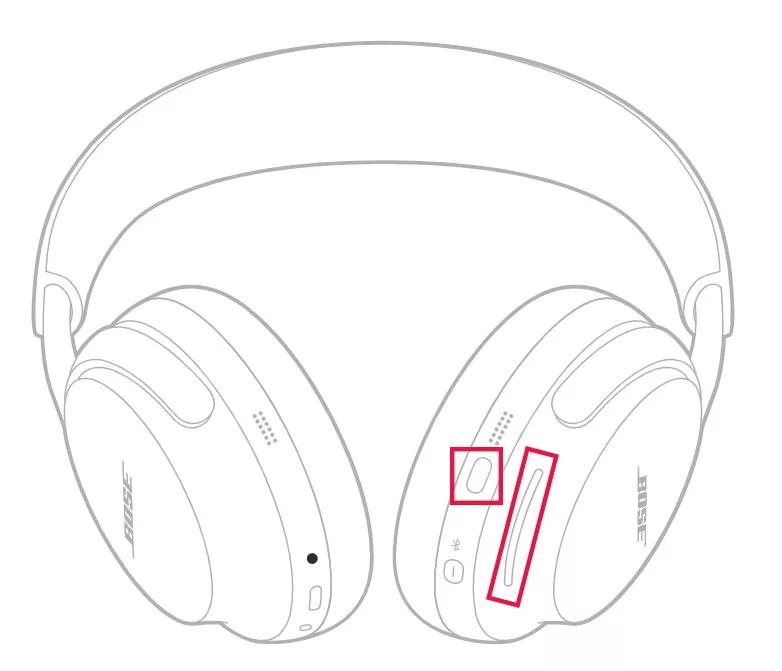
- Power on the headphones. Slide the power switch or press the power button until you hear a tone.
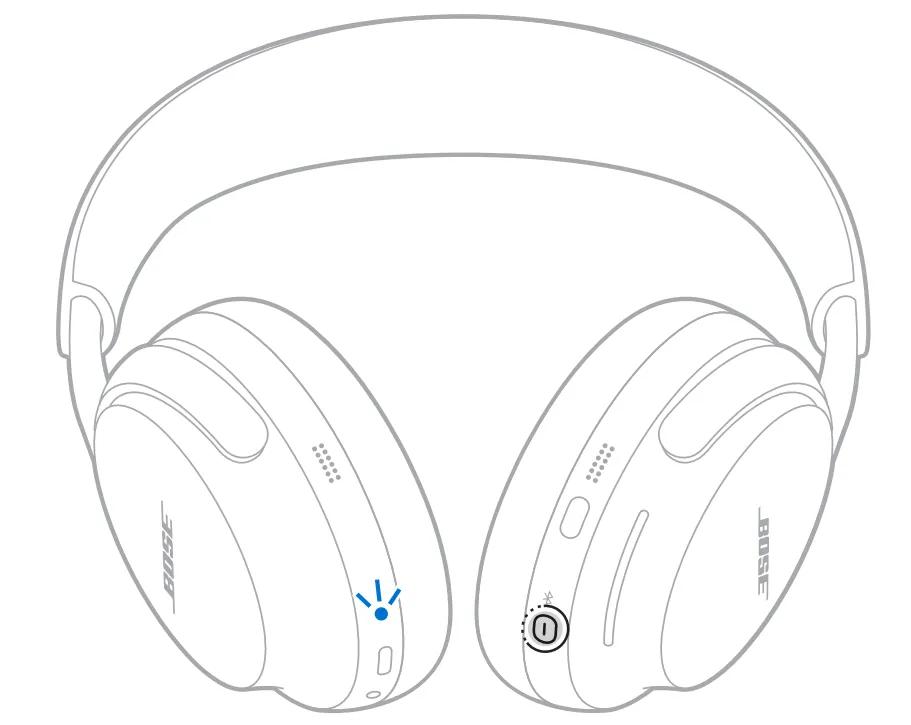
- Enter pairing mode. Press and hold the Bluetooth or power button until the voice prompt says “Ready to pair” or the LED flashes blue.
- Open Bluetooth settings on your device. On phones, go to Settings > Bluetooth. On Windows, go to Settings > Bluetooth & devices. On Mac, open System Settings > Bluetooth.
- Select the headphones. Look for “Bose QuietComfort Ultra” in the list and tap or click to pair. If asked, accept pairing or enter “0000” only if prompted.
- Confirm connection. You should hear a confirmation tone from the headphones and see “Connected” on your device. Test audio with a quick song or video.
If you plan to use multipoint — connecting the headphones to two devices at once — first pair the primary device, then repeat pairing steps on the second device. The headphones will remember both.
How to connect bose quietcomfort ultra headphones using a wired connection
Wired mode can be useful when Bluetooth isn’t available or when you want the lowest latency.
- Use a USB-C to USB-C cable to connect to modern phones, tablets, or laptops. The headphones will often use USB audio automatically.
- For Windows, open Sound Settings and choose the Bose device as the audio output.
- For Mac, open Sound preferences and select the headphones as the output device.
- If you need 3.5mm analog, use a USB-C to 3.5mm adapter that supports audio output. Some adapters may not support microphone or remote functions.
Wired connections can also help with low battery. If you don’t get audio over USB-C, check cables and confirm the device supports USB audio output.
Troubleshooting: fixes when you can’t connect the headphones
If the simple steps fail, try these fixes. I’ve used these solutions after testing and troubleshooting my own units.
- Restart both devices. A quick restart clears temporary Bluetooth issues.
- Forget and re-pair. In your device’s Bluetooth list, choose Forget or Remove for the headphones, then repeat pairing.
- Reset the headphones. Hold the power and Bluetooth buttons for 10–15 seconds (or follow the manual’s reset procedure) to clear pairing memory.
- Update firmware. Open the Bose Music app and install updates. Firmware often fixes pairing bugs.
- Reduce interference. Move away from Wi‑Fi routers, microwaves, and other Bluetooth devices. Keep within 30 feet for best results.
Common short questions you might ask while troubleshooting
Q: Why won’t my device find the headphones?
A: Make sure the headphones are in pairing mode and not already connected to another device. Also check Bluetooth is enabled on your device.
Q: Why is the audio choppy?
A: Interference or distance can cause choppy sound. Move closer and disable other active Bluetooth devices.
Q: Will a software update fix pairing issues?
A: Often yes. Firmware updates fix bugs. Use the Bose Music app to update when possible.
Tips for a reliable connection and best sound
Use these practical tips I picked up after daily use.
- Keep firmware up to date. Updated firmware improves stability and adds features.
- Use one device as the primary when streaming low-latency audio for video or gaming. Multipoint is great for calls and music but can add switching delay.
- Turn off unused Bluetooth devices. This reduces pairing conflicts.
- For long listening sessions on a laptop, use wired USB-C for the lowest latency and best battery life.
- Name your Bose device in your phone to find it faster when multiple Bluetooth devices are nearby.

Frequently Asked Questions of how to connect bose quietcomfort ultra headphones
How do I put my Bose QuietComfort Ultra headphones into pairing mode?
Press and hold the Bluetooth or power button until the voice prompt says “Ready to pair” or the LED flashes blue. Then select the headphones in your device’s Bluetooth settings.
Can I connect the headphones to two devices at the same time?
Yes. The headphones support multipoint pairing. Pair both devices and the headphones will switch between them for calls and media.
Why does my phone say paired but there’s no sound?
Check the phone’s audio output. Make sure Bose QuietComfort Ultra is selected as the audio device in the sound settings and volume is up on both devices.
How do I reset the headphones if pairing fails?
Perform the factory reset by holding down the power and Bluetooth buttons for about 10–15 seconds or follow the reset steps in the manual. Then re-pair from scratch.
Do I need the Bose Music app to connect?
No. You can pair via standard Bluetooth without the app. The Bose Music app is useful for firmware updates and extra settings.
Will USB-C give better sound than Bluetooth?
USB-C often delivers more stable audio and lower latency. Bluetooth is convenient but may compress audio more than a digital USB connection.
Conclusion
You now have clear steps and practical fixes for how to connect Bose QuietComfort Ultra headphones to phones, computers, and other devices. Start with simple Bluetooth pairing, use wired USB-C when you need low latency, and rely on the Bose Music app for updates. Try the troubleshooting steps if pairing fails, and keep firmware current to avoid issues. Give these tips a try, and leave a comment with your device and problem if you need help — I’m happy to troubleshoot with you.

Everett Ashford is a tech reviewer at mytechgrid.com specializing in SSDs, cameras, TVs, earbuds, headphones, and other consumer electronics. He provides honest, data-driven reviews based on hands-on testing and real-world performance analysis. Everett simplifies complex tech details to help readers make smart, confident buying decisions.