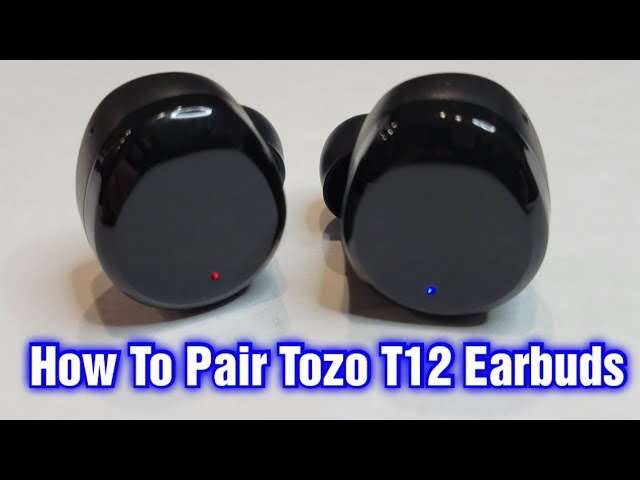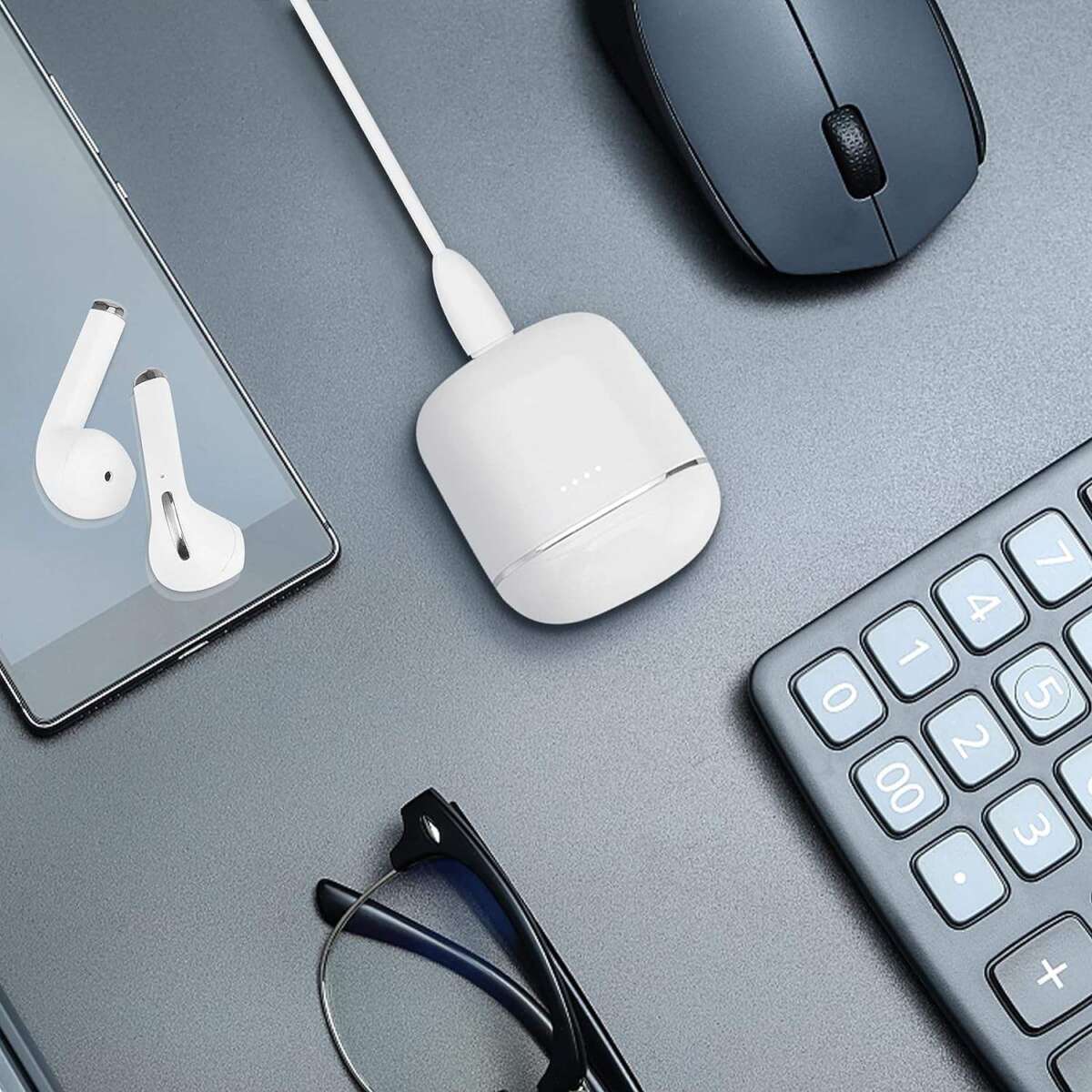
Put earbuds into pairing mode, enable Bluetooth on your device, and select Brookstone from the list.
I’ve paired and troubleshooted Brookstone wireless earbuds across phones, tablets, and laptops. This guide on how to connect Brookstone wireless earbuds walks you through clear, tested steps, common problems, and smart tips so you can get audio fast and keep it working. Read on for step-by-step instructions, troubleshooting, and real-world tips from my experience pairing these earbuds.

Step-by-step: How to connect Brookstone wireless earbuds
Follow these simple steps to pair your Brookstone earbuds with most devices. Each step is short and easy to follow.
- Charge both the earbuds and the charging case fully before first use.
- Remove the earbuds from the case. Most Brookstone models power on automatically when removed.
- Put the earbuds into pairing mode. Usually this means holding the touch area or the power button for 3–5 seconds until the LED flashes.
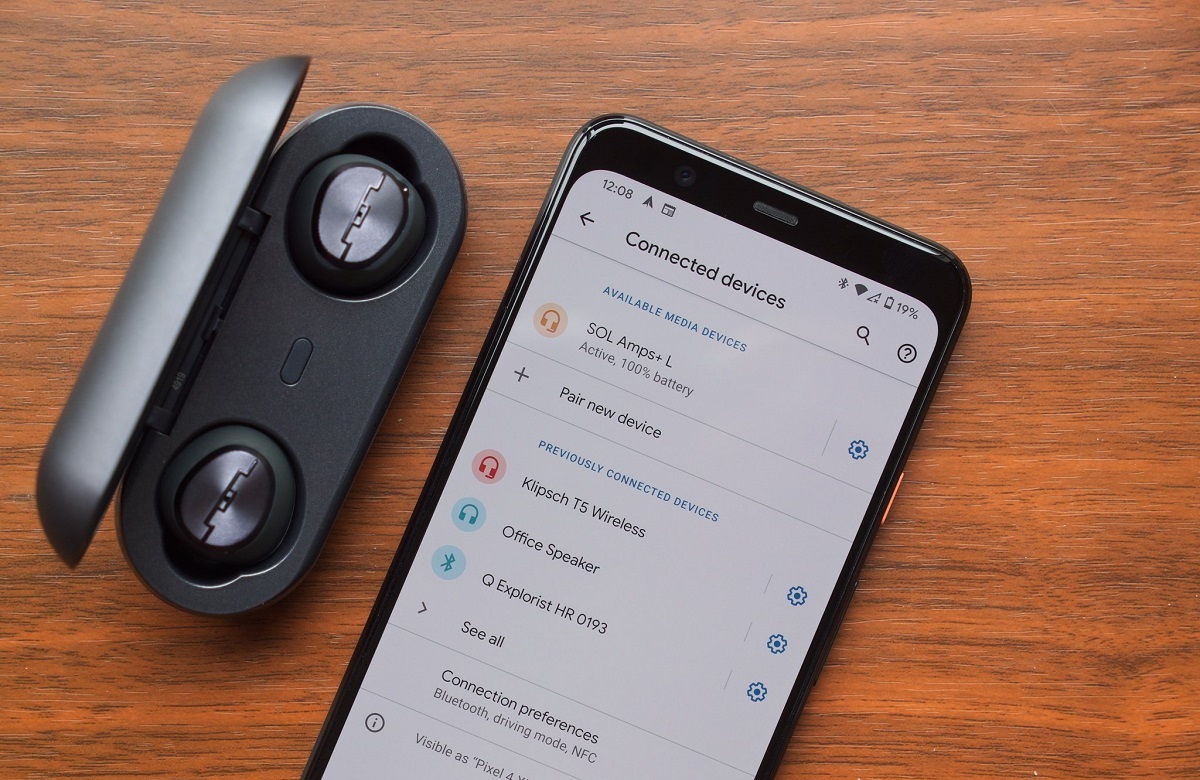
- Open Bluetooth on your phone, tablet, or computer and scan for new devices.
- Select the Brookstone device name from the list. It may appear as "Brookstone" or a model code.
- Confirm pairing if prompted. You should hear a tone or voice prompt when pairing succeeds.
- Return the earbuds to the case to power down, or leave them out and enjoy audio.
If you need to pair a single earbud in mono mode, power on that bud and follow the same Bluetooth steps. If the earbuds don’t appear, try resetting them (see the troubleshooting section). Practicing these steps a few times makes the process fast and familiar.

Pairing modes, LED indicators, and resets
Understanding the simple signals makes pairing predictable and easy.
- LED flashes slowly often mean ready or discoverable mode.
- Rapid flashing usually indicates active pairing.
- Solid lights commonly show a full charge.
- A red light may signal low battery.
To reset most Brookstone earbuds:
- Place both earbuds in the case.
- Hold the case button or press and hold the earbuds’ touch area for 10–15 seconds.
- Wait for LEDs to blink or change color, then remove and retry pairing.
Knowing the reset and LED meanings speeds up fixes. The exact lights can vary by model, so check your manual if the pattern seems different. Learning this helps avoid repeated pairing attempts.

Why won’t my earbuds show up on Bluetooth?
Many times the earbuds are paired to a different device. Turn off Bluetooth on other devices, reset the earbuds, and try again. Low battery can also prevent discoverability.
Can I use Brookstone earbuds with an iPhone or Android phone?
Yes. Brookstone earbuds use standard Bluetooth and work with both iPhone and Android. Pairing steps are the same: enable Bluetooth, put the earbuds in pairing mode, and select them.
How long does pairing usually take?
Pairing typically takes 5–30 seconds once the earbuds are in pairing mode and your device scans. If it takes longer, reset both the earbuds and your phone’s Bluetooth and retry.
Troubleshooting common pairing issues
When pairing fails, a short checklist will solve most problems quickly.
- Ensure earbuds and case are charged. Low power often blocks pairing.
- Turn Bluetooth off and on again on your device.
- Forget or remove any old Brookstone entry from your device’s Bluetooth list, then search again.
- Reset the earbuds using the method for your model.
- Restart your phone or computer.
- Keep earbuds close to the device during pairing and remove other nearby Bluetooth devices.
From my experience, the most common mistake is impatience. People try pairing while the case is half-open or with one earbud low on charge. I once spent 20 minutes troubleshooting only to find the right earbud had under 5% battery. A full charge fixed it instantly.
Advanced tips: firmware, multi-point, and sound settings
Use these tips to get the most from your earbuds after you connect them.
- Firmware updates can fix bugs and improve connection. Check if your model supports updates via an app or manufacturer instructions.
- Multi-point pairing lets earbuds connect to two devices at once. If your model supports it, pair to device A first, then device B following the specific sequence in the manual.
- Use mono mode if you want to use a single earbud for calls. Most Brookstone earbuds support this automatically after pairing.
- Adjust equalizer settings on your phone or music app to tune sound without hardware changes.
- Keep the earbuds’ firmware and your device OS up to date for the best compatibility.
I recommend testing updates in a quiet setting. Once, updating earbuds mid-commute caused a temporary disconnect. Now I update at home and keep old firmware notes handy in case rollback is needed.

Care, battery, and best practices
A little care keeps connections stable and batteries healthy.
- Store earbuds in the case when not in use to avoid dust and accidental pairing.
- Avoid extreme heat and moisture. High temperatures can shorten battery life.
- Clean charging contacts with a soft, dry cloth to maintain power transfer.
- Charge the case and earbuds regularly. Don’t let them sit fully drained for long periods.
- If you won’t use them for months, charge to about 50% and store in a cool place.
These steps protect your investment and keep the process of how to connect Brookstone wireless earbuds smooth over time. Treat them like glasses or keys—consistent care reduces surprises.
 brookstone wireless earbuds”
style=”max-width: 100%; height: auto; border: 2px solid black; border-radius: 10px; display: block; margin: 0 auto;”
loading=”lazy”
/>
Frequently Asked Questions of how to connect brookstone wireless earbuds
How do I put Brookstone earbuds into pairing mode?
Hold the power or touch button for 3–5 seconds until the LED flashes, then enable Bluetooth on your device and select the Brookstone name. If this fails, reset the earbuds and try again.
My device says “paired” but there’s no sound. What should I do?
Make sure the earbuds are selected as the audio output in your device’s Bluetooth or sound settings. Also check app volume and phone media volume; sometimes call and media volumes are separate.
Can I pair Brookstone earbuds with two devices at once?
Some Brookstone models support multi-point pairing. Check your model specs and pair to the first device, then follow the model’s sequence to add a second device.
How do I reset Brookstone wireless earbuds?
Place earbuds in the case and hold the case button or press and hold the earbuds’ touch areas for 10–15 seconds until LEDs change. Then remove them and attempt pairing again.
Why do my earbuds keep disconnecting?
Common causes include low battery, wireless interference, or distance from the device. Keep earbuds charged, minimize obstacles, and reduce the number of active Bluetooth devices nearby.
Conclusion
You now have clear steps to connect, troubleshoot, and maintain Brookstone wireless earbuds. Start by charging fully, use the pairing mode and reset steps when needed, and follow the practical tips to avoid common problems. Act now: pair your earbuds using the step-by-step guide, try one quick reset if needed, and leave a comment with your model if you want model-specific help.

Everett Ashford is a tech reviewer at mytechgrid.com specializing in SSDs, cameras, TVs, earbuds, headphones, and other consumer electronics. He provides honest, data-driven reviews based on hands-on testing and real-world performance analysis. Everett simplifies complex tech details to help readers make smart, confident buying decisions.