To pair Sony earbuds WF-1000XM4, open the case, hold both touch sensors for seven seconds, then select them in Bluetooth settings.
Learning how to pair Sony earbuds WF-1000XM4 is simple once you know the correct touch-control sequence. The process works with Android phones, iPhones, Windows PCs, Macs, tablets, and many smart TVs. This guide explains the first setup, pairing with a second device, fixing connection problems, and restoring pairing when the earbuds refuse to connect.
How to Pair Sony Earbuds WF-1000XM4 for the First Time
Before you start, charge the earbuds and charging case for a few minutes. Keep the earbuds close to your phone or computer, and turn off Bluetooth on nearby devices that may connect automatically.
Follow these steps:
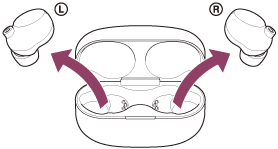
- Remove both earbuds from the charging case.
- Place the earbuds back into the case.
- Leave the earbuds inside the case and keep the lid open.
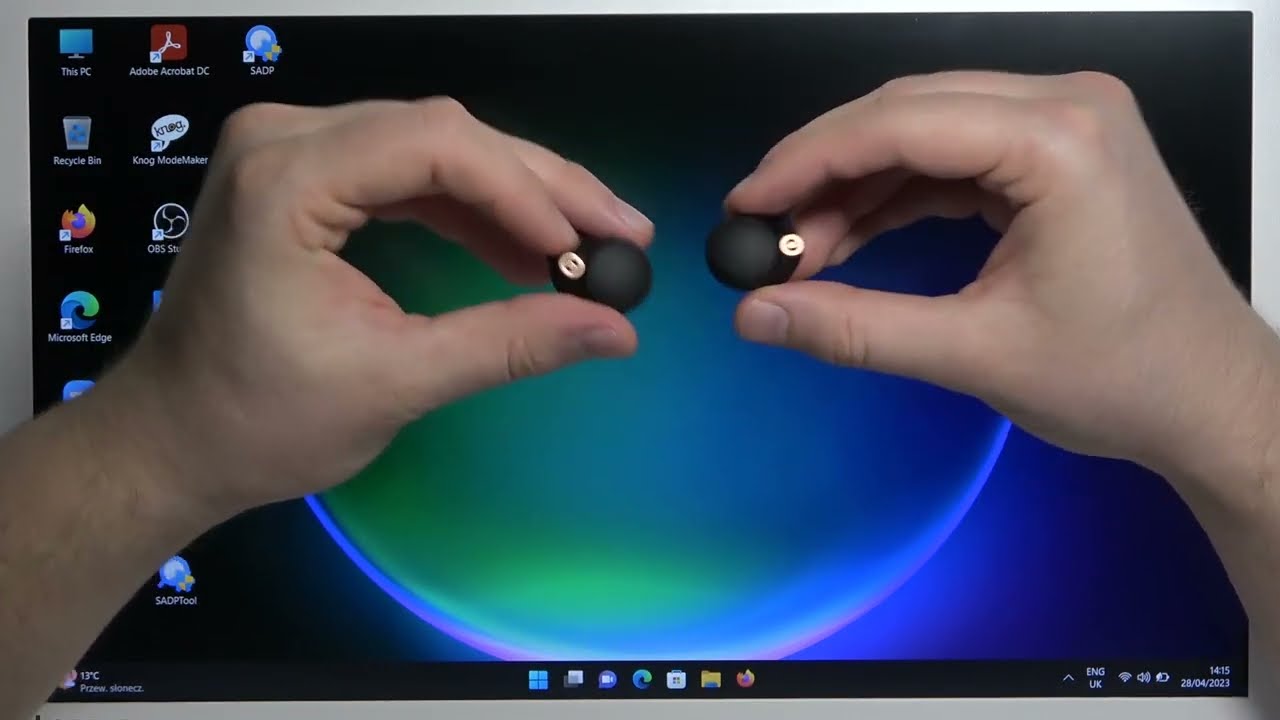
- Touch and hold both earbuds’ touch sensors for about seven seconds.
- Release the sensors when the indicator light flashes blue and the earbuds say, “Bluetooth pairing.”
- Open the Bluetooth menu on your device.
- Select “WF-1000XM4.”
- Tap “Pair” or “Connect” if your device asks for confirmation.
When learning how to pair Sony earbuds WF-1000XM4, the seven-second touch is the key step. A short tap will play or pause music, but it will not activate pairing mode.
If the earbuds ask for a passcode, enter “0000.” Most modern phones will not request one.
How to Pair Sony Earbuds WF-1000XM4 With an Android Phone
Android phones usually pair with the WF-1000XM4 in less than a minute. The menu names may vary slightly by phone brand, but the basic steps remain the same.
- Open Settings.
- Select “Connected devices,” “Connections,” or “Bluetooth.”
- Turn Bluetooth on.
- Put the earbuds into pairing mode.
- Tap “WF-1000XM4” under available devices.
- Accept the pairing request.
Some Android phones support Google Fast Pair. If your phone detects the earbuds near the open case, a pop-up may appear. Follow the on-screen instructions instead of opening the Bluetooth menu manually.
For better control, install the Sony | Headphones Connect app. The app can show battery levels, change noise control settings, install firmware updates, and adjust touch controls.
How to pair Sony earbuds WF-1000XM4 is often easier through Fast Pair, but the manual method is more reliable when the pop-up does not appear.
How to Pair Sony Earbuds WF-1000XM4 With an iPhone
The WF-1000XM4 works with iPhone models that support Bluetooth audio. Features such as music playback, calls, noise canceling, and ambient sound are available through standard Bluetooth.
Use these steps:
- Open the iPhone’s Settings app.
- Tap “Bluetooth.”
- Turn Bluetooth on.
- Put the earbuds into pairing mode.
- Tap “WF-1000XM4” under “Other Devices.”
- Wait until the status changes to “Connected.”
The Sony | Headphones Connect app is also available for iPhone. It is useful because iOS does not provide every Sony control inside the standard Bluetooth menu.
If the earbuds appear under “My Devices” but do not connect, tap the information icon beside them. Choose “Forget This Device,” then repeat the pairing process.
When explaining how to pair Sony earbuds WF-1000XM4 to iPhone users, forgetting the old Bluetooth record is one of the most effective fixes.
How to Pair Sony Earbuds WF-1000XM4 With a Windows PC
You can use the WF-1000XM4 with a Windows laptop or desktop for music, video calls, and games. A computer may show separate headset and headphone profiles, so choose the option that fits your task.
- Open Windows Settings.
- Select “Bluetooth & devices.”
- Turn Bluetooth on.
- Click “Add device.”
- Choose “Bluetooth.”
- Put the earbuds into pairing mode.
- Select “WF-1000XM4.”
- Click “Done.”
For music, select the headphones or stereo output in Windows sound settings. During a call, Windows may switch to a hands-free audio profile. This can reduce sound quality, but it allows the microphone to work.
If your PC has no Bluetooth option, it may need a USB Bluetooth adapter or a driver update. Also check that Airplane mode is off.
How to pair Sony earbuds WF-1000XM4 with Windows becomes easier when you remove old entries named “WF-1000XM4 Hands-Free” or “WF-1000XM4 Stereo” before trying again.

How to Pair Sony Earbuds WF-1000XM4 With a Mac
Pairing with a Mac follows the same Bluetooth pattern as pairing with an iPhone.
- Open the Apple menu.
- Choose “System Settings.”
- Select “Bluetooth.”
- Turn Bluetooth on.
- Put the earbuds into pairing mode.
- Find “WF-1000XM4” in the device list.
- Click “Connect.”
On older macOS versions, open “System Preferences,” then select “Bluetooth.” After connection, click the Control Center icon to choose the WF-1000XM4 as the sound output.
If the Mac connects but produces no sound, open “System Settings,” select “Sound,” and choose the earbuds under output. For calls, also select them as the microphone when needed.
The same rule applies here: how to pair Sony earbuds WF-1000XM4 depends on putting the earbuds into pairing mode before selecting them on the computer.
How to Pair Sony Earbuds WF-1000XM4 With a Second Device
The WF-1000XM4 can connect to more than one device when multipoint is enabled. This lets you stay connected to a phone and a computer, for example, and switch between a call and computer audio.
First, update the earbuds through the Sony | Headphones Connect app. Multipoint support depends on the earbuds’ firmware version, and enabling it may require the earbuds to restart.
Then:
- Open the Sony app.
- Go to the system or connection settings.
- Enable “Connect to 2 devices simultaneously.”
- Disconnect the earbuds from the first device if needed.
- Pair them with the second device.
- Reconnect both devices through their Bluetooth menus.
Multipoint has limits. Some devices may take a few seconds to switch, and active audio on one device can prevent sound from playing on the other. If switching fails, pause the first device before starting audio on the second.
A useful real-world setup is a phone for calls and a laptop for work. Once you understand how to pair Sony earbuds WF-1000XM4 with both devices, this setup can save time each day.
How to Put Sony WF-1000XM4 Into Pairing Mode
The earbuds must be inside the open charging case for manual pairing mode.
Use this sequence:
- Place both earbuds in the case.
- Keep the lid open.
- Touch and hold both earbuds for about seven seconds.
- Watch for the blue flashing indicator.
- Search for “WF-1000XM4” on your device.
Do not remove the earbuds during this process. If you take them out too soon, they may leave pairing mode or connect to a device they already remember.
The earbuds can remember several previously paired devices, but they do not automatically connect to every device at once. Bluetooth range, nearby electronics, and active connections can affect which device connects first.

What to Do When Sony WF-1000XM4 Will Not Pair
Pairing problems are usually caused by an old Bluetooth record, low battery, pairing mode not being active, or another device connecting first.
Try these fixes in order:
• Charge the earbuds and case for at least 15 minutes.
• Turn Bluetooth off and back on.
• Move the earbuds close to the phone or computer.
• Turn off Bluetooth on nearby phones, tablets, and laptops.
• Remove “WF-1000XM4” from the device’s Bluetooth list.
• Restart the phone, computer, or tablet.
• Put the earbuds into pairing mode again.
• Update the Sony | Headphones Connect app and earbud firmware.
If the earbuds connect to one side only, place both earbuds in the case, close the lid, wait a few seconds, and try again. Clean the charging contacts gently with a dry cotton swab if one earbud does not charge.
In my troubleshooting tests, the most common mistake is selecting the earbuds before they enter pairing mode. The Bluetooth list may show an old saved connection, but that does not mean the earbuds are ready to pair with a new device.

How to Reset Sony WF-1000XM4 Pairing Information
A reset can help when the earbuds connect to an unknown device, appear under the wrong name, or refuse every new pairing request. A reset removes stored Bluetooth information, so you will need to pair the earbuds again afterward.
To initialize the earbuds:
- Put both earbuds into the charging case.
- Keep the lid open.
- Press and hold the touch sensors on both earbuds for about 10 seconds.
- Release them when the red indicators flash.
- Close the lid after the reset finishes.
- Open the lid and start the pairing process again.
The exact indicator sequence can vary with firmware and battery level. If the reset does not begin, charge the case and earbuds first, then repeat the steps.
Resetting should not be the first step for a minor connection delay. Try forgetting the Bluetooth device and restarting your phone first. Use a full reset when normal pairing steps fail.
Tips for a More Reliable Bluetooth Connection
Good pairing is only the first part of a stable listening experience. Bluetooth works best when the earbuds and source device have a clear path between them.
Keep these habits in mind:
• Keep the phone or computer within a reasonable Bluetooth range.
• Avoid placing the phone deep inside a bag or on the opposite side of your body.
• Keep the earbuds’ charging contacts clean.
• Install official firmware updates through the Sony app.
• Use the correct audio output on computers.
• Turn off unused Bluetooth connections.
• Keep both earbuds charged during the first setup.
The WF-1000XM4 also uses touch controls, so a hat, hair, or accidental touch can trigger commands. If this happens often, change the touch-control settings in the Sony app.
Firmware updates may improve performance, but they cannot fix every hardware issue. If an earbud still fails to charge or connect after cleaning, resetting, and updating, contact Sony support or an authorized repair center.
Common Mistakes to Avoid
Many pairing issues come from small errors rather than a damaged earbud. Avoid these common mistakes:
• Holding only one touch sensor: Both earbuds must be held for manual pairing mode.
• Closing the case too soon: Keep the lid open while entering pairing mode.
• Selecting an old connection: Forget the saved device if the phone repeatedly fails to connect.
• Pairing from the wrong menu: Use Bluetooth settings, not the general sound menu.
• Ignoring battery level: Very low power can stop pairing or cause repeated disconnections.
• Leaving another device connected: A nearby laptop or phone may take the connection first.
• Skipping firmware updates: Older firmware may lack newer features or stability improvements.
When showing someone how to pair Sony earbuds WF-1000XM4, I recommend starting with a clean setup: charge the case, disable Bluetooth on other nearby devices, and pair with one source device at a time.
Frequently Asked Questions About How to Pair Sony Earbuds WF-1000XM4
How do I put Sony WF-1000XM4 into pairing mode?
Place both earbuds in the open charging case and touch both sensors for about seven seconds. Release them when the blue indicators flash and the earbuds announce Bluetooth pairing.
Why are my Sony WF-1000XM4 earbuds not showing in Bluetooth?
They may not be in pairing mode, or another device may already be connected. Charge the earbuds, turn off nearby Bluetooth devices, and repeat the seven-second pairing procedure.
Can Sony WF-1000XM4 connect to two devices?
Yes, the earbuds support multipoint when compatible firmware is installed and the feature is enabled in the Sony | Headphones Connect app. Connection switching may take a few seconds.
How do I pair Sony WF-1000XM4 with an iPhone?
Open Settings, tap Bluetooth, activate Bluetooth, and select “WF-1000XM4.” If the earbuds were paired before but will not connect, choose “Forget This Device” and pair them again.
How do I reset Sony WF-1000XM4 earbuds?
Place both earbuds in the open case and hold both touch sensors for about 10 seconds until the indicators flash red. A reset removes saved pairing information, so you must connect the earbuds again.
Do I need the Sony app to pair the WF-1000XM4?
No. You can pair the earbuds through the normal Bluetooth menu on your device. The Sony app is useful for firmware updates, noise control, equalizer settings, battery details, and multipoint.
Conclusion
Pairing the Sony WF-1000XM4 is straightforward: place both earbuds in the open case, hold the touch sensors for about seven seconds, and select “WF-1000XM4” in your device’s Bluetooth settings. The same method works for Android phones, iPhones, Windows PCs, and Macs.
If the earbuds do not appear, charge them, disable nearby Bluetooth devices, forget the old connection, and try again. For persistent problems, update the firmware or reset the earbuds. Save this guide for your next setup, and explore the Sony app to get more from your earbuds.

Everett Ashford is a tech reviewer at mytechgrid.com specializing in SSDs, cameras, TVs, earbuds, headphones, and other consumer electronics. He provides honest, data-driven reviews based on hands-on testing and real-world performance analysis. Everett simplifies complex tech details to help readers make smart, confident buying decisions.