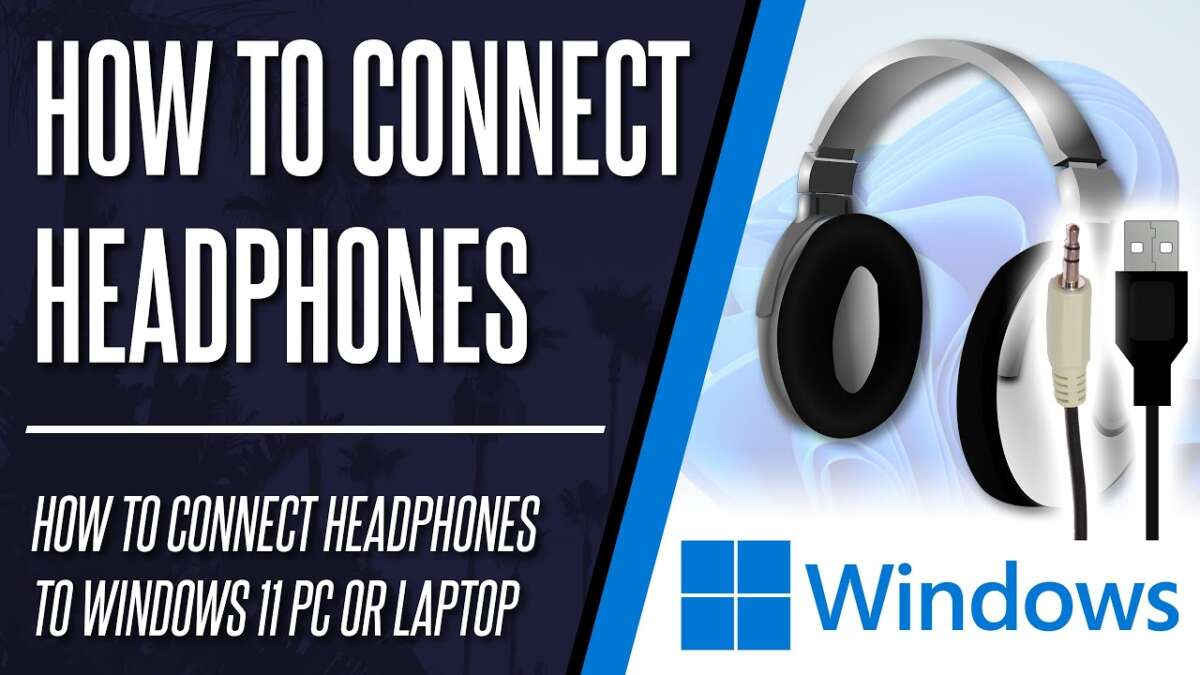
Plug your headphones into the headphone jack or pair them via Bluetooth; use an adapter if needed.
I’ve spent years helping people connect audio gear to laptops, testing many ports and pairing quirks. This guide walks you through exactly how to connect headphones to laptop, step by step, for wired 3.5mm, USB-C/USB-A, and Bluetooth options. You’ll learn simple setup, clear troubleshooting, sound and mic tips, and real-life fixes I’ve used when things went wrong. Read on to get reliable audio fast.
Understanding headphone connections and laptop ports
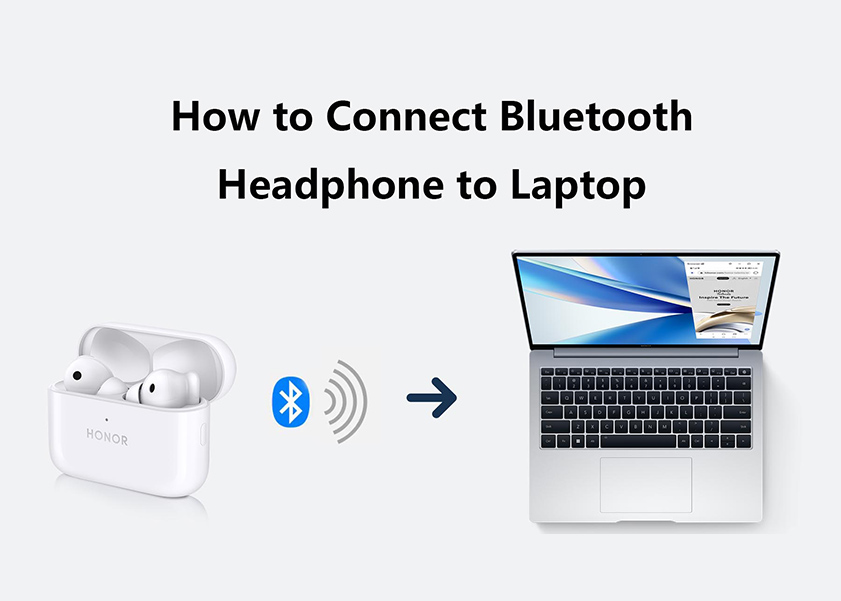
Knowing your port type makes connecting simple. Common options are 3.5mm analog jacks, USB-C or USB-A digital ports, and Bluetooth wireless. Each works a bit differently and may need adapters or drivers.
Why this matters
- Different ports affect sound quality and mic support.
- Some laptops have combo jacks. Others separate headphone and mic.
- USB and Bluetooth can use built-in digital audio processing.
I test gear at home and in the field. I’ve seen a laptop with a broken jack but perfect Bluetooth sound. That helps me choose the best method for most users.

How to connect headphones to laptop: Wired 3.5mm steps
Most wired headphones use a 3.5mm plug. Follow these steps for quick setup.
Step-by-step
- Locate the jack. It is usually on the side or back of the laptop.
- Plug the 3.5mm plug in firmly until it clicks.
- Open sound settings on your laptop to confirm output is set to headphones.
- Play a short audio file to test volume and stereo balance.
Notes and tips
- If audio sounds one-sided, fully insert the plug. Dirt or partial insertion causes channel loss.
- Combo jacks accept headphones and mic in one plug. If your mic doesn’t work, check if your headset requires a TRRS plug.
Common mistakes to avoid
- Using a microphone-only port on some monitors or adapters.
- Forgetting to adjust volume in both the app and system settings.
Practical example from my experience
- I once fixed a muted laptop by switching from the front jack to the rear jack. The front jack was disabled in BIOS for power saving.
How to connect headphones to laptop: USB-C and USB-A options
USB headphones work differently than analog ones. Many modern headsets use USB-C or USB-A. Here’s how to set them up.
USB-C headset steps
- Plug the USB-C connector into a compatible laptop port.
- Wait for the system to recognize the device. It may show as “USB Audio” or the headset brand.
- Select the headset in sound output settings.
USB-A headset steps
- Plug the USB-A connector into a free USB port.
- If the headset has drivers, install them when prompted.
- Choose the USB headset in playback and recording devices.
Why use USB headphones
- Built-in DACs can improve sound.
- Many USB headsets offer better mic quality and software controls.
- Useful when the 3.5mm jack is missing or broken.
Real-life tip
- If your USB-C port only supports charging, use a USB-C to USB-A adapter or a powered hub. I once lost audio because the port was data-disabled in BIOS.

How to connect headphones to laptop: Bluetooth pairing
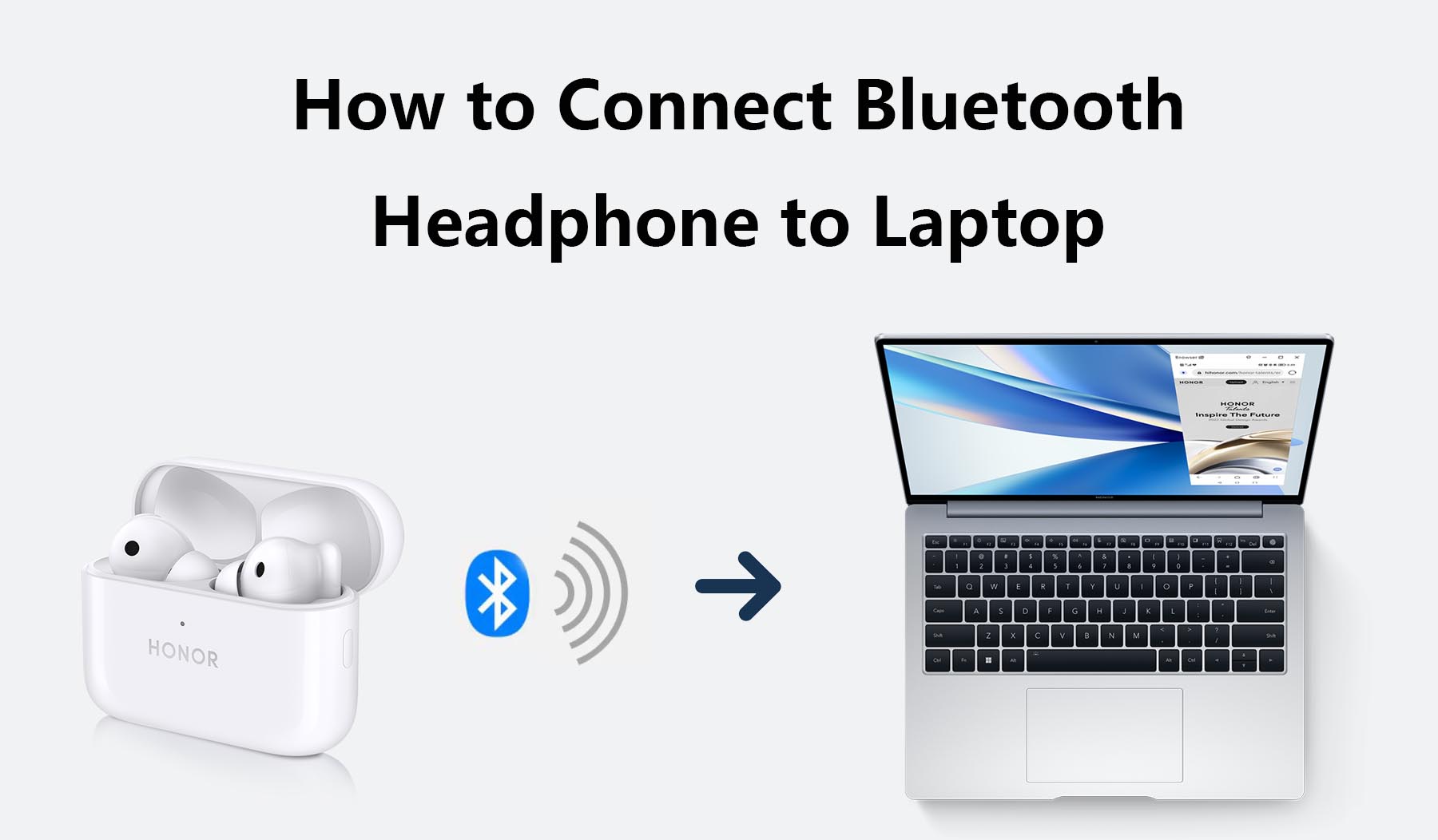
Bluetooth is great for wireless freedom. Here is a short, clear pairing guide.
Pairing steps (typical)
- Turn on your headphones and enable pairing mode.
- Open Bluetooth settings on your laptop and turn Bluetooth on.
- Select the headset name in the device list and pair.
- Confirm the headset is set as the default audio output.
Troubleshooting pairing issues
- Restart Bluetooth on both headset and laptop.
- Remove old pairings that may conflict.
- Update Bluetooth drivers if pairing fails consistently.
Practical note
- For low-latency audio during video or gaming, use headsets that support aptX Low Latency or similar codecs. I switch to a low-latency headset for streaming to avoid audio lag.
Troubleshooting common connection problems
If audio does not work, check each layer quickly. These checks save time.
Quick checklist
- Is the headset charged or plugged in?
- Is the correct output device selected in sound settings?
- Are volume levels up in both system and app?
- Is the plug fully inserted?
- For USB: are drivers installed or does a different USB port work?
Specific fixes
- No sound from wired headphones: try another headset to test the jack.
- Bluetooth won’t pair: remove device from list and re-pair.
- Microphone not detected: check privacy settings and app permissions.
From my work
- I once fixed a no-sound issue by disabling “audio enhancements” in Windows. That restored normal output.
Tips for best sound and microphone use
Optimize settings to get the best audio from your setup. Small changes make a big difference.
Sound tips
- Use the laptop’s equalizer or headset software for tuning.
- For best bass, choose headphones with a snug seal.
- Avoid cheap adapters; they can reduce audio quality.
Microphone tips
- Set the headset mic as the default input device.
- Position the mic 1–2 inches from your mouth.
- Use noise suppression features if available for clearer voice.
Practical gear tip
- I carry a small USB sound card for meetings. It gives consistent mic quality when laptop jacks fail.

Common quick questions
What if my laptop has no headphone jack?
- Use USB-C or USB-A headphones, or a USB-C-to-3.5mm adapter. Bluetooth is also a solid option.
Will an adapter change sound quality?
- A good adapter with a proper digital-to-analog converter keeps quality high. Cheap adapters may degrade sound.
Do I need drivers for USB headphones?
- Many work plug-and-play. Some models need drivers for full features or mic control.
Why does Bluetooth audio lag during video?
- Latency comes from codecs and device syncing. Use low-latency codecs or a wired connection for tight sync.
How do I know if my jack is combo or separate?
- Check your laptop’s manual or port icon. A headset icon usually means a combo jack.
Frequently Asked Questions of how to connect headphones to laptop
How do I switch audio output to my headphones?
Open sound settings, find output devices, and select your headphones. Some apps have their own audio output option too.
My laptop won’t detect USB headphones. What do I do?
Try a different USB port, install drivers if prompted, and check Device Manager for hardware issues. A reboot often helps.
Why does only one headphone work?
This is usually a loose plug or a damaged cable. Reinsert the plug fully and test another headset to isolate the problem.
How can I use my headphone mic with a laptop?
Set the headset mic as the default recording device in sound settings. Ensure app permissions allow mic access.
Bluetooth connects but no sound plays. How to fix?
Make sure the headset is set as the default output and the app volume is up. Remove and re-pair the device if needed.
Conclusion
You can connect headphones to laptop quickly by matching the right port and following simple steps. Wired 3.5mm is fast and reliable. USB-C and USB-A give digital clarity and mic control. Bluetooth frees you from cables but needs pairing and may add latency. Try the method that suits your gear and use-case, and use the troubleshooting checklist if things go wrong. Now pick your preferred method, connect your headphones, and enjoy clear sound — leave a comment below with your setup or questions.

Jamie Lee is a seasoned tech analyst and writer at MyTechGrid.com, known for making the rapidly evolving world of technology accessible to all. Jamie’s work focuses on emerging technologies, product deep-dives, and industry trends—translating complex concepts into engaging, easy-to-understand content. When not researching the latest breakthroughs, Jamie enjoys exploring new tools, testing gadgets, and helping readers navigate the digital world with confidence.