To connect Heyday earbuds to iPhone, enable Bluetooth, open the case, and tap their name.
Heyday earbuds use standard Bluetooth, so pairing them with an iPhone is usually quick. The main steps are simple, but pairing mode, saved connections, low battery, and iPhone settings can cause trouble. This guide explains how to connect Heyday earbuds to iPhone, fix common errors, and keep the connection stable.
How to connect Heyday earbuds to iPhone
Before you begin, charge the earbuds and their charging case. Keep the earbuds close to your iPhone, ideally within a few feet. Bluetooth pairing works best when no other nearby phone or tablet is trying to connect.
Follow these steps:
- Unlock your iPhone and open the Settings app.
- Tap Bluetooth.
- Turn on the Bluetooth switch if it is off.
- Place both Heyday earbuds in the charging case.
- Open the case lid.
- Remove the earbuds, or press and hold the pairing button if your model has one.
- Wait for the earbuds’ indicator light to flash. This usually means they are ready to pair.
- Look under Other Devices on your iPhone.
- Tap the name of your Heyday earbuds.
- Wait until the status changes to Connected.
Your Heyday earbuds should now play audio from your iPhone. You can test them by opening Music, Podcasts, YouTube, or another audio app.
Some Heyday models may appear as “Heyday Earbuds,” “Heyday TWS,” or a similar product name. The exact name and light pattern can vary by model, so check the small guide included with your earbuds if the name does not appear.

Put Heyday earbuds into pairing mode
Pairing mode allows your iPhone to find the earbuds. Without it, the earbuds may stay connected to an older phone or remain inactive inside the case.
Most Heyday wireless earbuds enter pairing mode in one of these ways:
- Open the charging case and remove both earbuds.
- Press and hold the button on the case for several seconds.
- Touch and hold both earbuds at the same time.
- Turn the earbuds off, then hold their power controls until the lights begin to flash.
A flashing light often signals pairing mode, but light colors differ across Heyday products. A steady light may mean the earbuds are already connected. If your earbuds do not flash, place them back in the case, close the lid, wait a few seconds, and try again.
One common mistake is taking out only one earbud. Some models need both earbuds active before they appear in the iPhone Bluetooth list. Keeping both earbuds together during the first setup can make the process smoother.
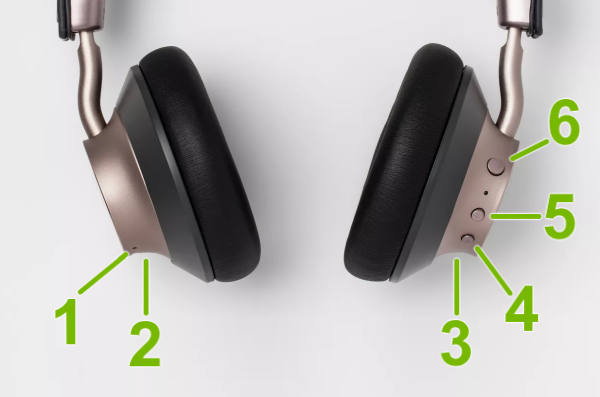
How to connect Heyday earbuds to iPhone for the first time
The first connection creates a Bluetooth pairing record between your iPhone and the earbuds. After that, the earbuds often reconnect automatically when Bluetooth is on and the earbuds are removed from the case.
For a clean first setup, use this order:
- Turn off Bluetooth on nearby phones, tablets, laptops, and smart TVs.
- Charge the Heyday earbuds for at least a short time.
- Open the iPhone Settings app instead of using the Control Center alone.
- Tap Bluetooth and leave that screen open.
- Place the Heyday earbuds into pairing mode.
- Select the earbuds when their name appears.
- Accept any pairing request shown on the iPhone.
The Bluetooth menu is helpful because it shows the full connection status. The Control Center can turn Bluetooth on or off, but it does not always provide the same pairing view as the Settings app.
After pairing, play music for a few seconds. Check that sound comes from both earbuds. If only one side works, put both earbuds back in the case and remove them together.

How to reconnect Heyday earbuds to iPhone
Once you know how to connect Heyday earbuds to iPhone, reconnecting them is usually automatic. Turn on Bluetooth, open the charging case, and remove the earbuds. Your iPhone should connect to the last paired Heyday device.
If they do not reconnect, use these steps:
- Open Settings and tap Bluetooth.
- Find the Heyday earbuds under My Devices.
- Tap the device name.
- Wait for the word Connected to appear.
- If the earbuds show Not Connected, place them in pairing mode and tap the name again.
The earbuds may connect to another device first. For example, they may remember a laptop used earlier in the day. Turn off Bluetooth on that device or move it farther away before trying to reconnect to your iPhone.
Some Heyday earbuds do not support multipoint Bluetooth. That means they may not switch smoothly between two devices. This is a limitation of many basic wireless earbuds, not always a problem with your iPhone.
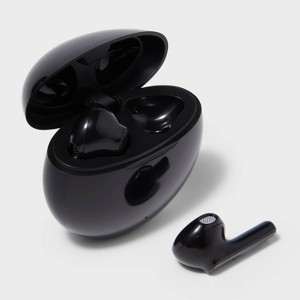
How to connect Heyday earbuds to iPhone after a failed attempt
If your Heyday earbuds appear in Bluetooth but will not connect, start with simple fixes. Put both earbuds in the charging case, close the lid, and wait about 10 seconds. Then open the lid and try pairing again.
You can also refresh the Bluetooth connection:
- Go to Settings.
- Tap Bluetooth.
- Turn Bluetooth off.
- Wait about 10 seconds.
- Turn Bluetooth back on.
- Put the Heyday earbuds into pairing mode.
- Select them from the device list.
If the earbuds still fail to connect, remove the old pairing record. On the Bluetooth screen, tap the information button next to the Heyday earbuds. Tap Forget This Device, confirm the choice, and then pair the earbuds again as if they were new.
This step often solves a “connected but no sound” problem. It removes outdated Bluetooth data and gives the iPhone a fresh connection record.
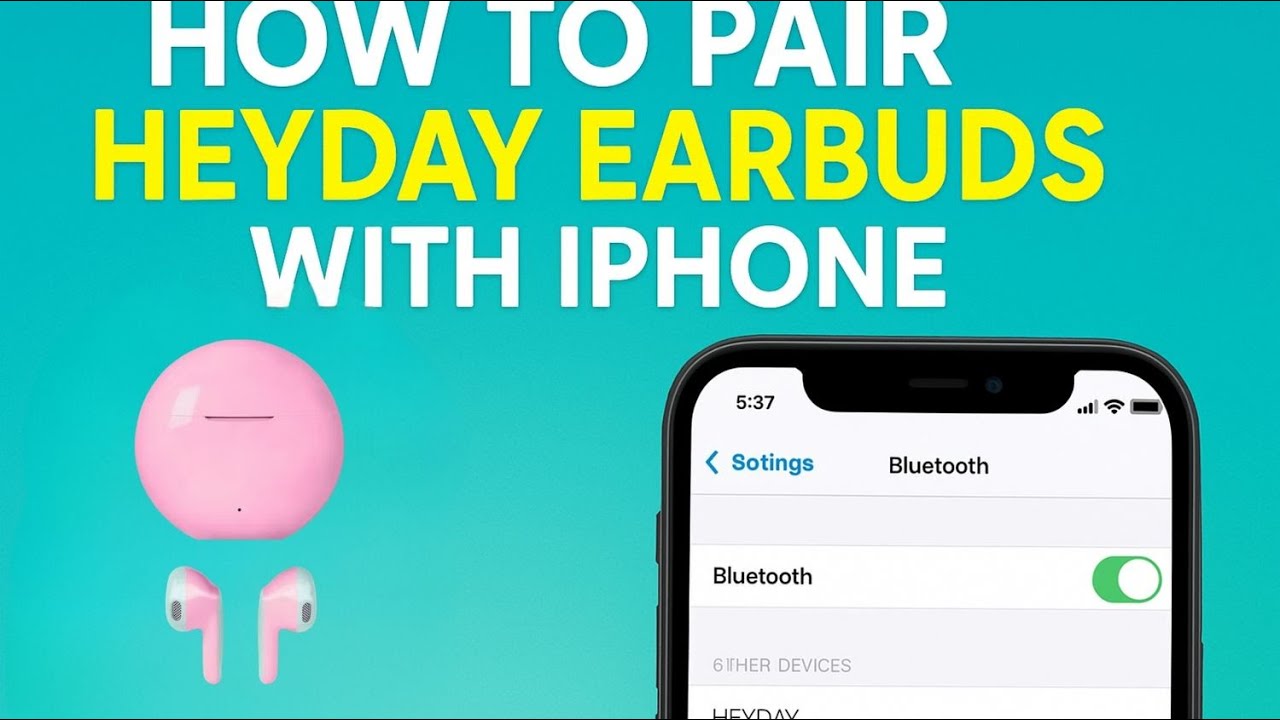
Reset Heyday earbuds and start over
A reset can help when the earbuds connect to one side only, appear under the wrong name, or refuse to enter pairing mode. Reset instructions are not identical for every Heyday model, so avoid assuming that one button pattern works for all products.
A common reset process is:
- Forget the Heyday earbuds in iPhone Settings.
- Turn off Bluetooth on nearby devices.
- Put both earbuds in the charging case.
- Press and hold the case button, if available.
- Continue holding until the indicator light changes or flashes.
- Remove the earbuds and place them into pairing mode.
- Search for them again on the iPhone.
Some models reset when you touch and hold both earbuds while they are outside the case. Others use a case button. If the manual gives different instructions, follow the manual because model design matters.
Resetting usually removes old pairing information. It does not repair a damaged battery, broken charging port, or water damage. If the lights never turn on after charging, the issue may be power related rather than Bluetooth related.

Fix common Heyday earbud connection problems
Knowing how to connect Heyday earbuds to iPhone is useful, but troubleshooting matters when the normal steps fail. Use the symptom below to choose the best fix.
Heyday earbuds do not appear on the iPhone
Make sure the earbuds are in pairing mode. Keep the Bluetooth settings screen open, charge the earbuds, and move other Bluetooth devices away.
If the earbuds are connected to another device, disconnect them there first. You can also restart the iPhone and repeat the pairing process.
Only one Heyday earbud works
Place both earbuds in the case and confirm that each one is charging. Dirty metal contacts can stop one earbud from charging, so gently wipe the contacts with a dry cotton swab.
Then forget the earbuds on the iPhone and reset the pair. Removing both earbuds from the case at the same time can also help them sync with each other.
The earbuds connect but no sound plays
Check the audio output on the iPhone. While audio is playing, open the playback controls and select the Heyday earbuds as the output device.
Also raise the volume using the iPhone buttons. If another speaker, car system, or headset is selected, the earbuds may show as connected while the sound goes somewhere else.
The connection keeps dropping
Keep the iPhone near the earbuds and avoid thick walls or crowded wireless areas. Low battery can also cause unstable performance.
Restart both the iPhone and earbuds. If the problem happens only with one app, test another app to see whether the issue is with the app rather than the Bluetooth connection.
The earbuds connect to the wrong device
Turn off Bluetooth on devices that were paired with the earbuds before. Many Heyday models reconnect to the last available device, even when you want to use the iPhone.
For a lasting fix, forget the earbuds on the unwanted device or disable its automatic Bluetooth connection.

Check iPhone settings after pairing
After you connect Heyday earbuds to iPhone, a few settings can improve the experience. Tap the information button beside the earbuds in Settings > Bluetooth to view available options.
Depending on the Heyday model, you may see options for:
- Device name
- Automatic ear detection
- Microphone selection
- Call audio routing
- Device type
- Forget This Device
Not every option appears for every earbud. Basic Bluetooth earbuds usually offer fewer controls than AirPods.
For phone calls, open Settings > Accessibility > Touch > Call Audio Routing if you want the iPhone to direct calls to a preferred audio device. The menu names can change slightly with iOS updates, so the exact path may differ on older iPhone software.
Keep iOS updated when possible. Apple regularly improves Bluetooth support, security, and device compatibility through software updates. An update will not fix damaged earbuds, but it can resolve some connection bugs.

Improve sound and battery performance
A reliable connection is only part of a good listening experience. Clean the earbud speaker openings with a soft, dry brush. Avoid water, sharp tools, and cleaning fluid inside the earbuds.
To protect battery life:
- Store the earbuds in their charging case.
- Avoid leaving the case in direct sun or extreme heat.
- Charge with a compatible cable and power source.
- Do not force the earbuds into the case if they are not seated correctly.
- Keep the charging contacts clean.
Bluetooth range is affected by walls, your body, and other wireless signals. If the sound cuts out during a walk, keep the iPhone on the same side of your body as the stronger earbud connection when possible.
In hands-on troubleshooting, the most overlooked issue is charging. An earbud can sit in the case without charging if its contacts are dirty or misaligned. Always confirm that both earbuds show signs of charging before trying a reset.
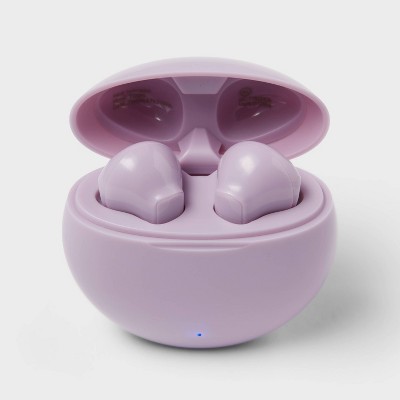
Heyday earbuds and iPhone compatibility
Most Heyday wireless earbuds connect to iPhone through standard Bluetooth audio. They generally work with modern iPhone models, including devices running recent versions of iOS.
Compatibility can still vary by product. Some features may not work on iPhone if they depend on a Heyday app, a special codec, or controls designed for another platform.
Here are the main limits to remember:
- Standard music and call audio usually work through Bluetooth.
- Advanced controls may depend on the earbud model.
- Battery percentage may not appear on every Heyday product.
- Automatic switching between devices may not be supported.
- Firmware updates may require a specific app or may not be available.
The safest approach is to check the model number printed on the case or packaging. This matters because “Heyday earbuds” describes many products, and the buttons, light patterns, and reset steps may differ.
Safety and privacy tips for Bluetooth pairing
Pair your earbuds in a private place when possible. Bluetooth pairing is designed to be secure, but you should not accept an unexpected pairing request from an unknown device.
Use these simple habits:
- Pair only with the device name you recognize.
- Forget old devices you no longer use.
- Keep your iPhone updated.
- Do not share your earbuds with someone while a private call is active.
- Check the audio output before playing sensitive content in public.
Apple and other major device makers recommend keeping wireless software updated and removing devices that you no longer trust. These steps reduce confusion and help protect your connected devices.
Frequently asked questions about how to connect Heyday earbuds to iPhone
Why are my Heyday earbuds not showing on my iPhone?
They may not be in pairing mode, may be out of battery, or may already be connected to another device. Charge them, turn off Bluetooth on nearby devices, and hold the pairing control until the indicator light flashes.
How do I put Heyday earbuds in pairing mode?
Open the case and remove both earbuds, or press and hold the case button if your model has one. The light usually flashes when the earbuds are ready, but the exact pattern varies by model.
Can Heyday earbuds connect to an iPhone without an app?
Yes. Most Heyday earbuds use standard Bluetooth and can connect through Settings > Bluetooth without an app. An app may be needed only for special features or firmware updates on certain models.
Why do my Heyday earbuds connect but have no sound?
Your iPhone may be sending audio to another device. Start playing audio, open the playback controls, and choose the Heyday earbuds as the output device.
How do I forget Heyday earbuds on an iPhone?
Open Settings, tap Bluetooth, tap the information button beside the Heyday earbuds, and choose Forget This Device. Pair them again after the old connection is removed.
How do I connect Heyday earbuds to iPhone after connecting them to Android?
Turn off Bluetooth on the Android device, then put the earbuds into pairing mode. On the iPhone, open Settings > Bluetooth and select the Heyday earbuds from Other Devices.
Do Heyday earbuds work with every iPhone?
Most Bluetooth Heyday earbuds work with iPhones that support Bluetooth audio. However, advanced features and control options can vary by model and iOS version.
Conclusion
Learning how to connect Heyday earbuds to iPhone takes only a few minutes: charge the earbuds, place them in pairing mode, open the iPhone Bluetooth menu, and select the Heyday name. If pairing fails, forget the old device, restart Bluetooth, check the charge, and reset the earbuds when needed.
The best first step is to try the process with other nearby devices disconnected. Once your Heyday earbuds connect, test both sides, choose the correct audio output, and save the troubleshooting steps for later. If this guide helped, explore more iPhone and Bluetooth tips or share your experience in the comments.

Everett Ashford is a tech reviewer at mytechgrid.com specializing in SSDs, cameras, TVs, earbuds, headphones, and other consumer electronics. He provides honest, data-driven reviews based on hands-on testing and real-world performance analysis. Everett simplifies complex tech details to help readers make smart, confident buying decisions.