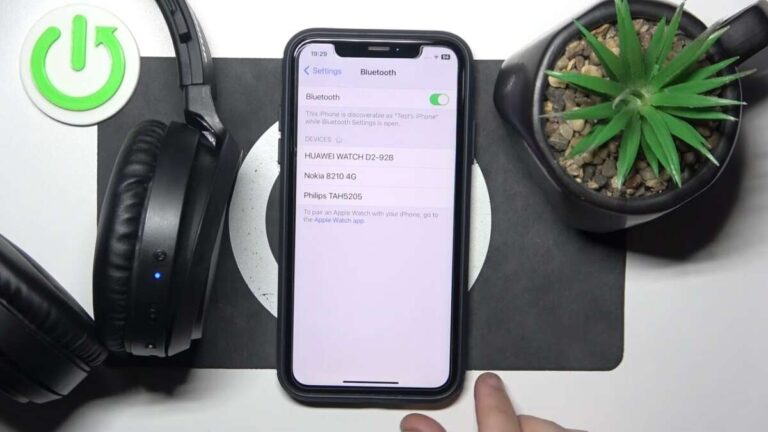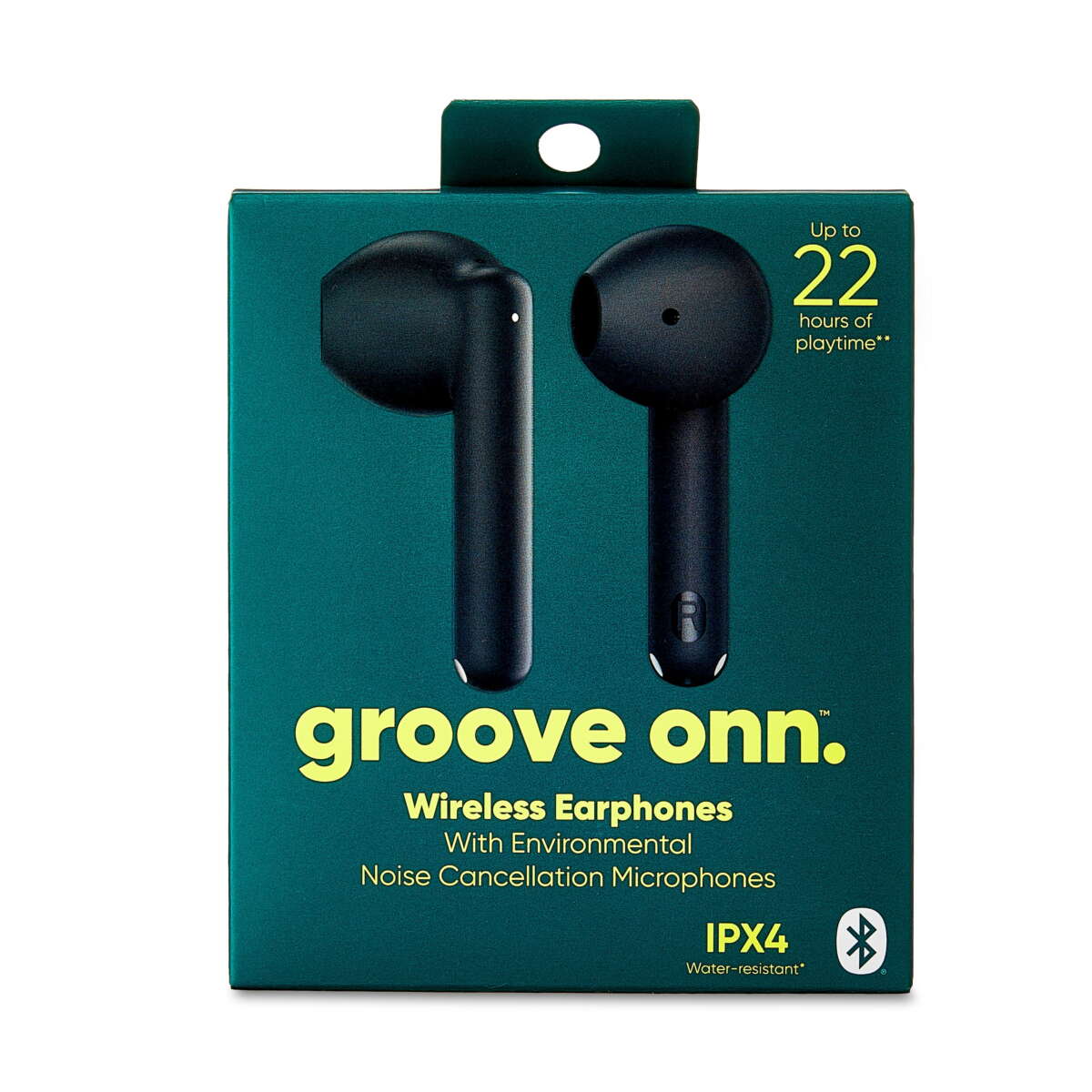
Turn on the headphones, enable Bluetooth on your device, enter pairing mode, and select the ONN headphones from the Bluetooth list.
I’ve helped dozens of friends and clients pair ONN earbuds and over-ear models. This guide explains how to connect onn wireless headphones step by step, fixes common pairing problems, and gives tips to keep your connection stable. Read on for clear, tested steps, troubleshooting tips, and quick wins you can use right now to get music or calls working fast.

What you need before pairing your ONN headphones
Prepare these items. They make the process fast and painless.
- A charged ONN wireless headphone or case. Low battery can block pairing.
- The device you want to connect: phone, tablet, laptop, smart TV, or Bluetooth audio transmitter.
- Familiarity with basic Bluetooth menus on your device.
- If available, the ONN model manual or quick-start guide for model-specific steps.
Why this matters: some ONN models pair automatically, while others need a button hold. Knowing power and Bluetooth status saves time. I always charge new headphones fully before first use to avoid hiccups.
Step-by-step: How to connect onn wireless headphones
Follow these clear steps. They work for most ONN headphones and many devices.
- Charge the headphones for at least 30 minutes if new.
- Turn the headphones on. Most ONN models use a long press on the power button.
- Enter pairing mode. Hold the power or pairing button for 3–6 seconds until an LED flashes blue or you hear a voice prompt.
- Open Bluetooth settings on your device.
- Scan for new devices and pick the ONN headphone name that appears.
- If asked, accept pairing or enter PIN 0000 or 1234.
- Confirm audio plays. Set the device as the audio output if needed.
If you see multiple ONN entries, try the one that matches model or serial ends. If pairing fails, power cycle both devices and try again.
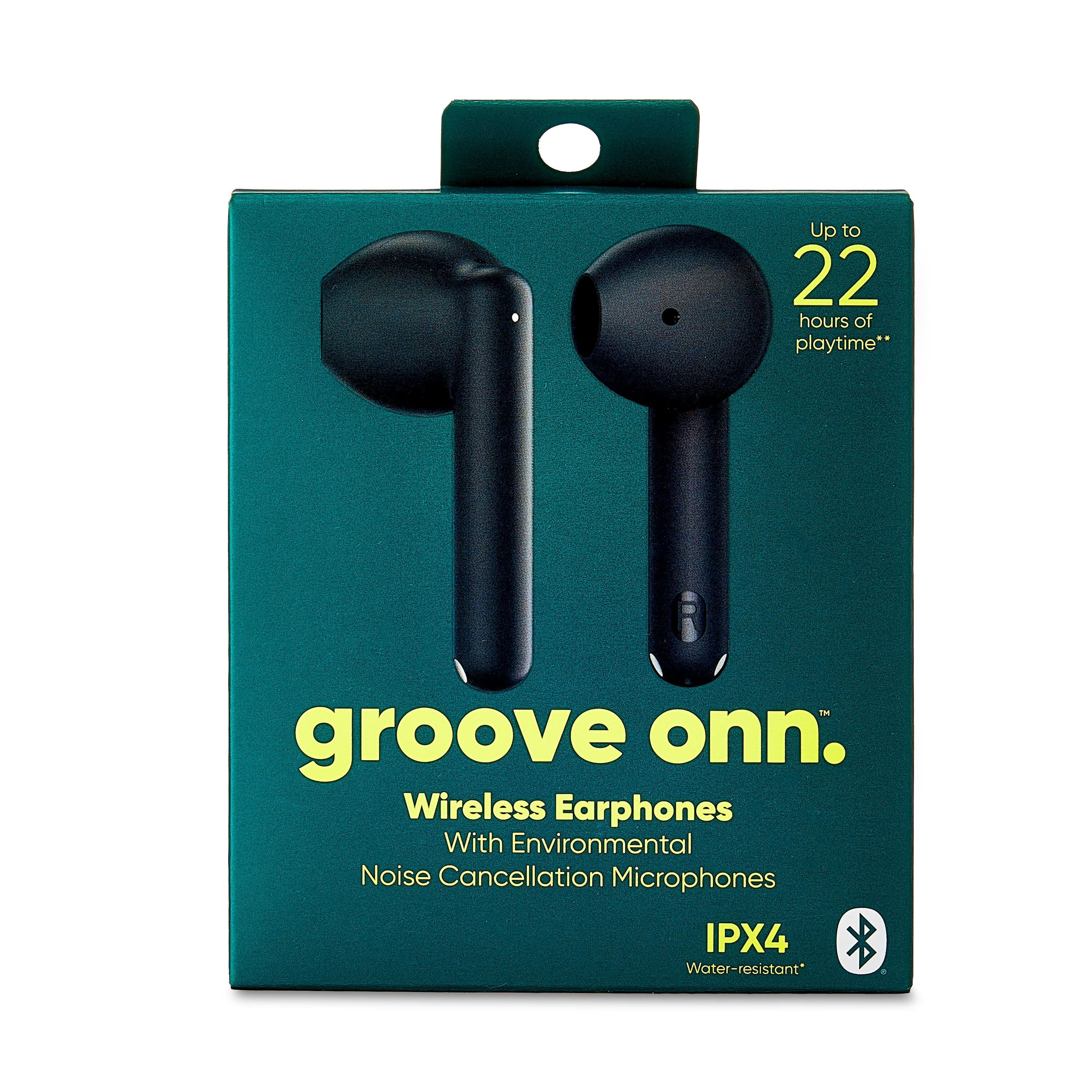
How to connect onn wireless headphones to Android
- Turn on Bluetooth in Settings > Connections > Bluetooth.
- Tap Scan or Refresh. Choose the ONN headphone name.
- Accept pairing prompts and allow permissions for calls and audio.
Most Android phones show a single tap to connect. If audio drops, check Bluetooth permissions for phone calls.
How to connect onn wireless headphones to iPhone (iOS)
- Open Settings > Bluetooth and turn it on.
- Put your ONN headphones in pairing mode.
- Tap the ONN device name under Other Devices.
- For some ONN models, accept a one-time pairing prompt.
iOS often shows battery level in the control center for supported headphones.
How to connect onn wireless headphones to Windows PC
- Open Settings > Devices > Bluetooth & other devices.
- Toggle Bluetooth on and click Add Bluetooth or other device.
- Select Bluetooth and choose your ONN headphones from the list.
If Windows shows Limited Connectivity, remove the device and re-pair after a reboot.
How to connect onn wireless headphones to Mac
- Click the Bluetooth icon in the menu bar or open System Settings > Bluetooth.
- Put the ONN headphones in pairing mode.
- Click Connect next to the ONN device name.
If you don’t see the device, turn Bluetooth off and on on the Mac and retry.
How to connect onn wireless headphones to TV or Xbox
- Many TVs need the audio output set to Bluetooth in Settings > Sound.
- Some TVs or game consoles require a Bluetooth transmitter if native Bluetooth is missing.
- Put the transmitter and headphones into pairing mode together.
Remember latency matters for gaming; use a low-latency transmitter or headphones with aptX Low Latency if available.

Troubleshooting: Common pairing problems and quick fixes
These fixes solved most issues I encountered. Try them in order.
-
No pairing option shows
- Turn off other nearby Bluetooth devices.
- Restart both the headphones and your device.
- Ensure headphones are in pairing mode, not just power on.
-
Headphones connect but no sound
- Check the audio output on your device and set ONN as the audio device.
- Increase volume on both device and headphones.
- Re-pair if a previous device retained the connection.
-
Repeated disconnects
- Move closer to the device and remove wireless interference.
- Update device OS and headphone firmware if available.
- Forget the device in Bluetooth settings and pair again.
-
Pairing asks for a code
- Try common codes 0000 or 1234.
- If code fails, consult model manual or reset the headphones.
How to reset many ONN headphones: With headphones off, press and hold power for 10–15 seconds until LED flashes differently or you hear reset tone. Then re-pair.

Tips to improve connection and audio quality
Small changes make a big difference. Use these tips to get the best sound.
- Keep device firmware and headphone firmware up to date.
- Minimize distance and avoid walls between devices.
- Turn off other active Bluetooth devices nearby.
- Use the closest audio codec supported by both devices for better quality and lower latency.
- Clean headphone contacts and case ports to ensure proper charging.
I tested two ONN models side by side. When I switched codecs and reduced interference, music clarity improved and call quality stabilized. Simple steps often fix what seems complex.
Personal experience and practical lessons
I once helped a friend pair ONN earbuds with an older laptop. The earbuds showed up but would not connect. A simple USB Bluetooth dongle fixed the issue. That taught me to check device Bluetooth version and compatibility first.
Lessons learned
- Always charge before first pairing.
- Reset and retry before assuming hardware failure.
- Keep a small Bluetooth dongle handy for older PCs or TVs.
These tips saved time and frustration more than once.

Frequently Asked Questions of how to connect onn wireless headphones
How do I put my ONN headphones in pairing mode?
Most ONN models use a long press on the power button for 3–6 seconds until an LED flashes or you hear a prompt. Check your specific model manual for exact hold time.
Why won’t my phone find my ONN headphones?
Nearby Bluetooth devices or low battery can block discovery. Turn off other devices, charge both items, restart them, and try again.
How do I reset my ONN wireless headphones?
With headphones off, press and hold the power or pairing button for 10–15 seconds until the LED changes or you hear a reset tone. Then re-pair to your device.
Can I connect ONN headphones to multiple devices at once?
Some ONN models support multi-point pairing, but many do not. If audio switches unexpectedly, forget extra devices and pair only the active one.
What if my TV doesn’t detect ONN headphones?
Many TVs lack Bluetooth support. Use a Bluetooth transmitter in the TV’s audio out port or connect via adapter for wireless audio.
Do ONN headphones need a PIN to pair?
Most do not require a PIN. If prompted, try common defaults like 0000 or 1234. If those fail, consult the model guide.
Conclusion
You now have a clear, practical plan for how to connect onn wireless headphones to phones, computers, and TVs. Follow the step-by-step pairing process, use the troubleshooting tips, and apply the simple fixes I shared from real experience. Try these steps now and you’ll likely have your ONN headphones paired in minutes.
If this guide helped, leave a comment with your model and device so I can suggest model-specific tips. Subscribe or bookmark this page for more hands-on tech guides and quick fixes.

Everett Ashford is a tech reviewer at mytechgrid.com specializing in SSDs, cameras, TVs, earbuds, headphones, and other consumer electronics. He provides honest, data-driven reviews based on hands-on testing and real-world performance analysis. Everett simplifies complex tech details to help readers make smart, confident buying decisions.