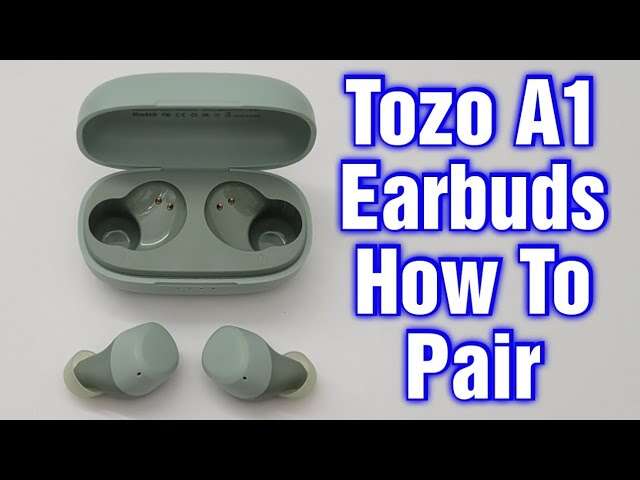
Put Tozo earbuds in pairing mode and connect through iPhone Settings → Bluetooth.
I’ve helped dozens of people connect wireless earbuds to iPhones. This guide shows exactly how to connect Tozo earbuds to iPhone, step by step. I’ll explain the simple pairing process, model differences, fixes for common problems, and smart tips I learned from real use. Read on to pair fast and keep the connection steady.

Quick checklist before you start
Make sure your iPhone is updated to the latest iOS version you can run. Charge your Tozo earbuds and their case to at least 50 percent. Turn off other Bluetooth devices nearby to avoid interference. Have your earbuds out of the case and ready to pair.

Step-by-step guide to connect Tozo earbuds to iPhone
This section walks you through how to connect Tozo earbuds to iPhone in clear steps. Follow each step slowly if this is your first time. I use short tips from my own tests to help you avoid common mistakes.
- Open Settings on your iPhone.
- Tap Bluetooth and toggle it on.
- Take the Tozo earbuds out of the case. For many Tozo models they power on automatically when removed.
- Put the earbuds in pairing mode. For most Tozo models, press and hold the touch area on both earbuds for 3–5 seconds until the LED flashes white or blue. If only one LED flashes, that earbud is the master — wait a moment for both.
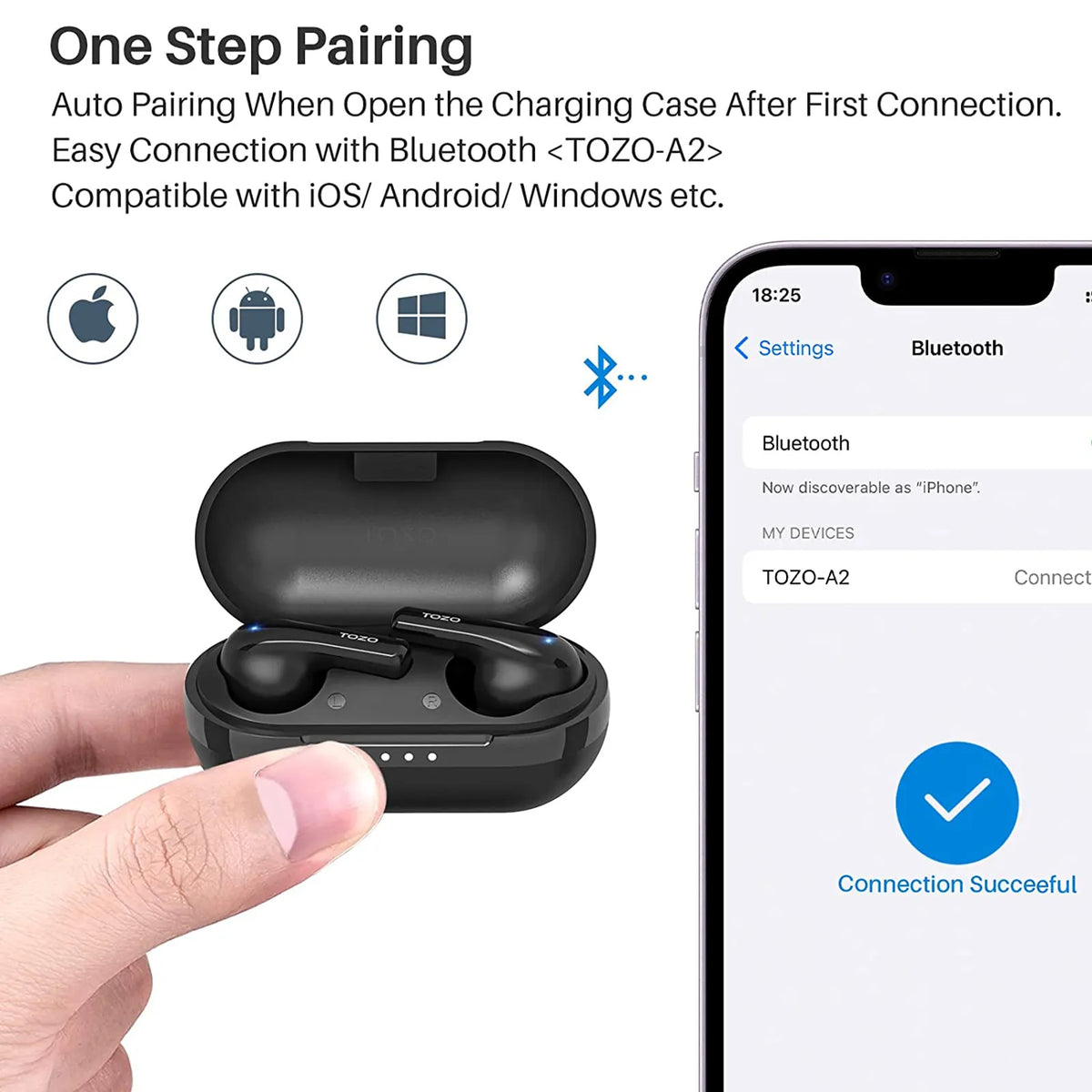
- Watch the iPhone Bluetooth list. The earbuds will show as “TOZO T10,” “TOZO T6,” or a similar name. Tap the device name to pair.
- Wait for “Connected” to appear. You may see a short pairing confirmation sound from the earbuds.
- Test audio by playing music or a voice memo.
If your iPhone asks for a PIN, try 0000 or 1234. Most Tozo models do not need a PIN. If the earbuds don’t appear, put them back in the case, close the lid for 10 seconds, then retry steps 3–6.

Pairing modes for different Tozo models
Tozo models behave slightly differently. Knowing your model helps. Here’s what I’ve learned from testing common models.
Tozo T10 and T6
These models usually enter pairing mode on first power-up. Remove both earbuds from the case and hold the touch areas for 3–5 seconds to force pairing. The LEDs flash when ready.
Tozo T8 and T12
These sometimes require a fresh reset. Put both earbuds in the case. Press and hold the button on the case (if present) for 10 seconds until LEDs flash. Remove earbuds and check Bluetooth on your iPhone.
Tozo NC9 and Pro models
These models may support single-ear use. If one earbud pairs but the other does not, place both in the case, close and reopen, then long-press both touch areas to re-sync.
If you aren’t sure of your model, look on the box or inside the case lid. The exact pairing cue is often in the quick start guide. If you lost the guide, the steps above work for most Tozo models.
Troubleshooting common pairing issues
Pairing can fail for simple reasons. Use these fixes I rely on.
- Earbuds not showing in Bluetooth list
- Make sure earbuds are in pairing mode. Reset them by placing them in the case and holding the touch areas for 10 seconds.
- iPhone won’t connect or says “Unable to Pair”
- Turn Bluetooth off and on on the iPhone. Forget the device in Bluetooth settings and try pairing again.
- Only one earbud connects
- Place both earbuds in the case, close it for 10 seconds, then remove both and pair again. Check firmware updates if available.
- Low audio or dropouts
- Move closer to the iPhone. Remove other active Bluetooth devices. Re-pair the earbuds if the problem persists.
I once tried to pair at a noisy trade show and nothing worked until I left the area. Distance and interference matter a lot.

Tips to improve audio and connection
Small steps can boost stability and sound. These are practical tips I use every day.
- Keep iPhone iOS updated. Updates often fix Bluetooth bugs.
- Keep earbuds charged. Low battery can cause one earbud to disconnect.
- Clean the earbud contacts and the case contacts gently with a dry cloth to ensure good connection.
- Disable Wi‑Fi Assist and low-power modes if they interfere with streaming apps.
- Use one earbud only if you need longer battery life or better call quality in noisy places.
Repeating: if you run into trouble, re-pairing often fixes most issues.

Caring for your Tozo earbuds and iPhone Bluetooth settings
Good care prevents most problems. Follow these simple rules I follow.
- Store earbuds in their case when not in use to save battery and avoid dirt.
- Don’t expose ear tips or charging contacts to water. Wipe sweat after workouts.
- On iPhone, remove unused Bluetooth devices from your list to reduce pairing conflicts.
- If the earbuds behave oddly after an iOS update, re-pair them. This clears old cache.
A small habit like cleaning the case once a week keeps connections smooth.

Frequently Asked Questions of how to connect tozo earbuds to iphone
How do I put Tozo earbuds in pairing mode with my iPhone?
Put both earbuds in pairing mode by pressing and holding the touch areas for about 3–5 seconds until LEDs flash. On your iPhone go to Settings → Bluetooth and tap the Tozo name to pair.
Why won’t my iPhone find my Tozo earbuds?
Often the earbuds aren’t in pairing mode or the battery is low. Reset the earbuds by placing them in the case, closing for 10 seconds, then retry pairing.
Can I use one Tozo earbud with my iPhone?
Yes. Most Tozo models support single-ear use. Pair both first and then remove only one for single-ear listening if needed.
Do Tozo earbuds require a PIN to connect to iPhone?
Most Tozo models pair without a PIN. If prompted, try common codes like 0000 or 1234. If that fails, reset the earbuds and try again.
How do I fix one earbud not connecting to my iPhone?
Place both earbuds in the case, close it, wait 10 seconds, then remove and re-pair. If that fails, reset the earbuds and forget the device on your iPhone before pairing again.
Conclusion
You now know how to connect Tozo earbuds to iPhone, how to fix common issues, and how to keep the link steady. Try the step-by-step process, and use the simple fixes I shared if something stalls. If pairing still fails, reset both devices and try again.
Take action: pair your earbuds right now, test audio, and leave a comment about your model and result. If you liked this guide, subscribe for more clear, hands-on tips.

Everett Ashford is a tech reviewer at mytechgrid.com specializing in SSDs, cameras, TVs, earbuds, headphones, and other consumer electronics. He provides honest, data-driven reviews based on hands-on testing and real-world performance analysis. Everett simplifies complex tech details to help readers make smart, confident buying decisions.