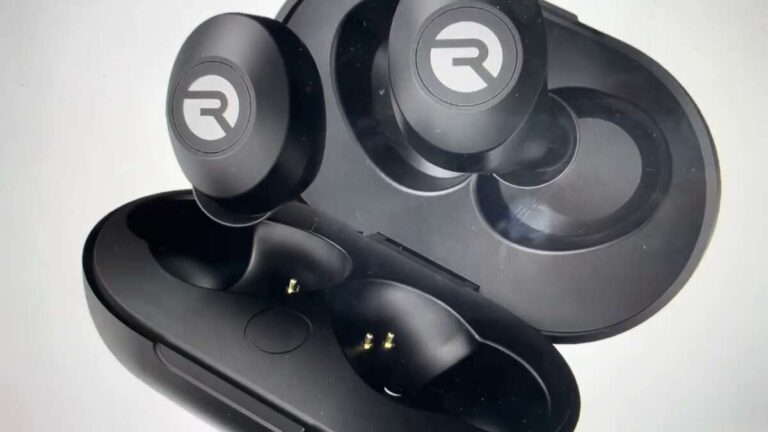
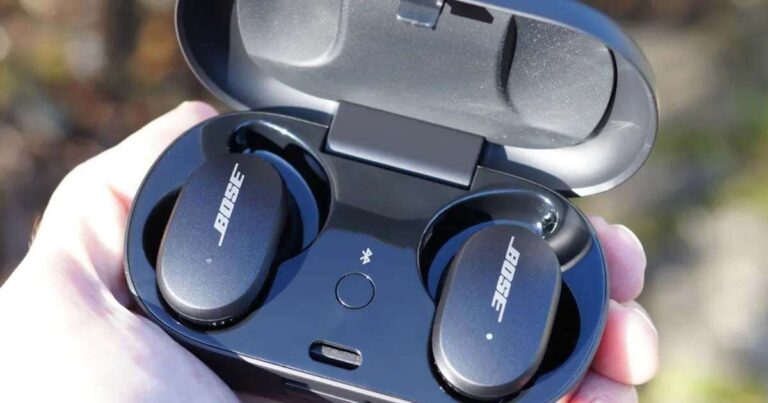
Hold the right earbud touch and reset with the case for 10 seconds.
I’ve spent years troubleshooting earbuds and helping users fix pairing, audio, and firmware hiccups. This guide explains how to factory reset Bose QuietComfort earbuds clearly, with step-by-step instructions, common causes, and real-world tips so you can get back to quiet, reliable listening fast. Read on to learn exact reset steps for different QuietComfort models, what to do before and after a reset, and how to avoid common mistakes.
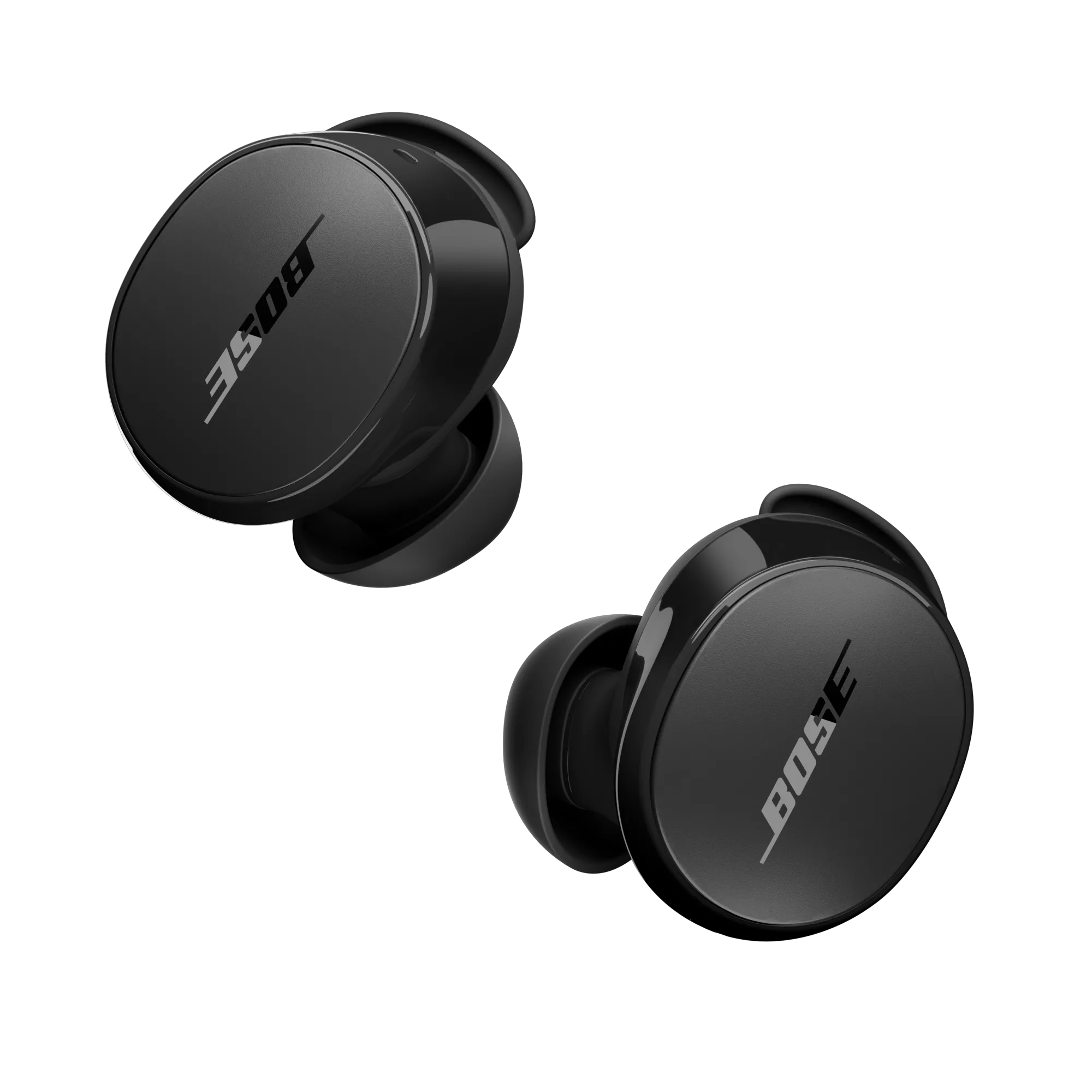
Why and when to factory reset your Bose QuietComfort earbuds
Factory resetting restores earbuds to their original settings. It clears pairings, software glitches, and odd behavior. You should consider a reset when Bluetooth won’t connect, sound is distorted, one earbud is silent, or firmware updates fail repeatedly.
Benefits of a reset
- Resolves persistent pairing errors and connection drops.
- Clears corrupted settings that cause odd audio behavior.
- Removes all paired devices so you can start fresh.
Limitations of a reset
- A reset removes saved pairings and custom settings.
- It won’t fix physical damage or battery degradation.
- Firmware issues may require an update after the reset.
I often recommend a reset as a clear next step. It’s faster than prolonged troubleshooting. If you’ve tried simple fixes and the earbuds still misbehave, learning how to factory reset Bose QuietComfort earbuds is usually the fastest way to restore normal function.

Precautions before you reset your Bose QuietComfort earbuds
A reset erases pairings and settings. Take a couple of quick steps to save time after the reset.
Do this first
- Charge both earbuds and the case to at least 50% to avoid interruptions.
- Open the Bluetooth list on your phone and “forget” the earbuds to clean up pairings.
- Note any custom EQ or button settings you want to restore after the reset.
Safety and backup tips
- If you use the Bose Music app, check for firmware updates before resetting.
- Remove the earbuds from any device accounts or find-my-device services if applicable.
- Keep the charging case handy; many reset sequences need the case to be open or closed.

Source: youtube.com
Step-by-step: how to factory reset Bose QuietComfort earbuds
Below are clear steps for the main QuietComfort models. Follow the steps that match your earbuds. If you’re unsure which model you have, check the case label or the Bose Music app.
Factory reset for Bose QuietComfort Earbuds (original)
- Place both earbuds in the charging case. Close the lid for 30 seconds.
- Open the lid and wait 2 seconds.
- Press and hold the Bluetooth button on the case for 10 seconds until the LED blinks blue and then amber.
- Remove the earbuds and power them on. They should be reset and unpaired.
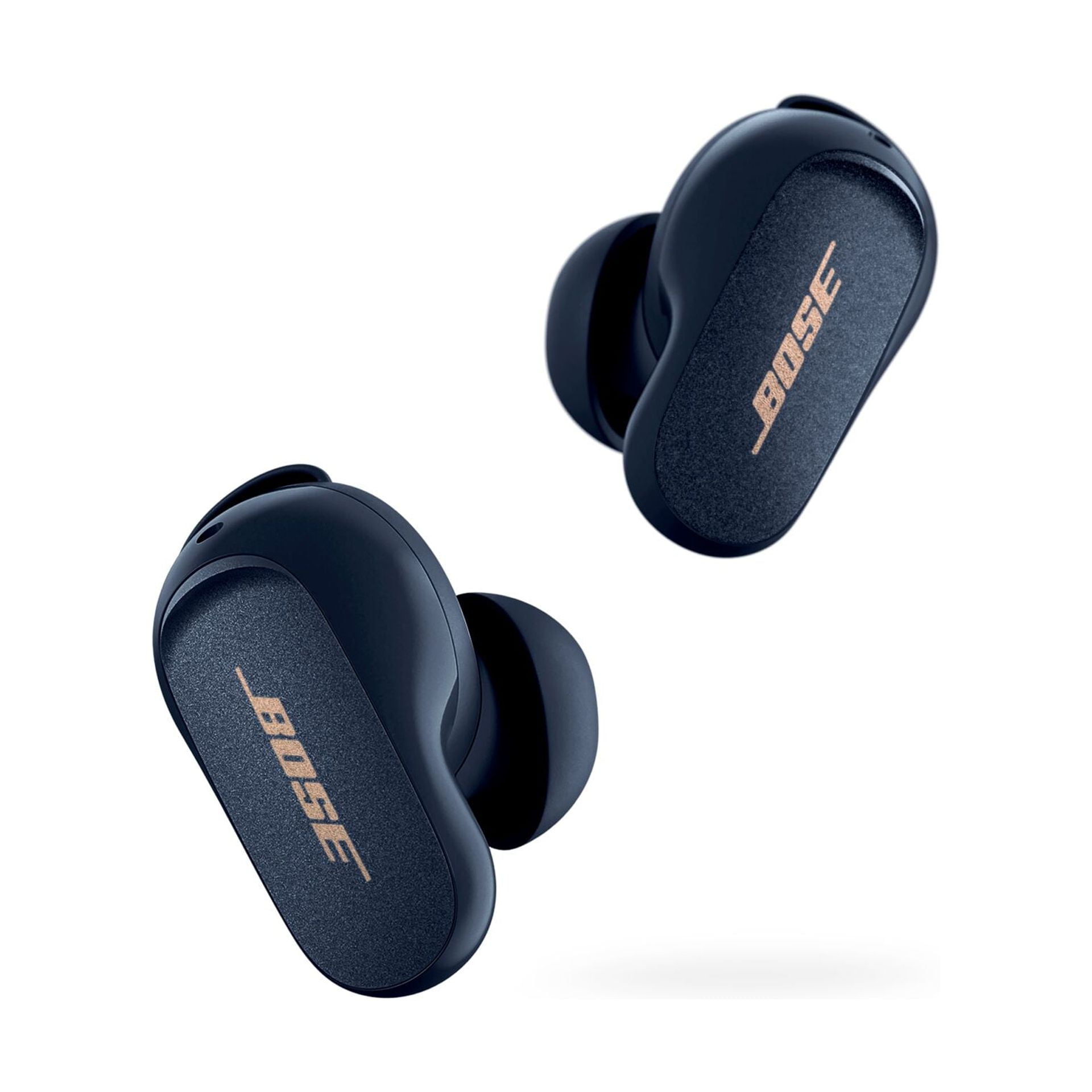
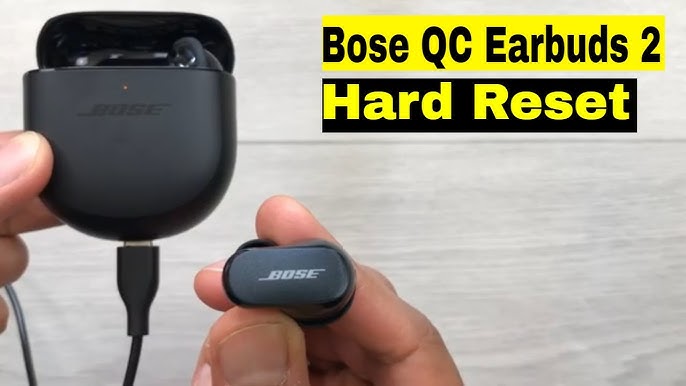
Factory reset for Bose QuietComfort Earbuds II
- Put both earbuds in the charging case and close the lid for 10 seconds.
- Open the case and press and hold the left earbud’s button for about 10 seconds until the light pulses.
- Repeat with the right earbud if needed. Both earbuds will revert to factory settings and disconnect from devices.
Alternative method using the Bose Music app
- Open the Bose Music app and select your QuietComfort earbuds.
- Go to Settings > Product Info or Device Settings.
- Choose “Factory Reset” or “Remove Device” if available and confirm.
- Follow any on-screen steps to complete the process.
What to watch for
- LEDs and app prompts confirm a successful reset.
- If LEDs don’t blink as described, retry with a full case charge.
Source: palmesano.com
Troubleshooting if a reset doesn’t work
Sometimes a reset seems to fail. Here are common reasons and fixes.
Common causes and fixes
- Low battery: Fully charge earbuds and case, then try again.
- Firmware corruption: Use the Bose Music app to reinstall or update firmware after resetting.
- Stuck pairing: Remove the device from your phone’s Bluetooth list before retrying the reset.
- Physical issues: If one earbud won’t reset, check charging contacts for dirt, debris, or obstructions.
When to contact support
- If LEDs won’t respond after multiple attempts and a full charge.
- If the earbuds fail to charge or have swelling or heat.
- If one bud remains silent after reset and other troubleshooting.
From my experience, the most common problem is low battery during reset attempts. Always charge fully first. If problems persist, the app’s diagnostic tools or a support chat can save time.

After reset: reconnecting, firmware, and settings
Once the reset is complete, you’ll pair and reconfigure the earbuds.
Pairing steps
- Open the charging case with earbuds inside to make them discoverable.
- On your phone, open Bluetooth and select the earbuds from the available devices list.
- If pairing fails, restart your phone and try again.
Update firmware and personalize
- Open the Bose Music app and check for firmware updates. Download any pending updates.
- Reapply EQ, touch controls, and noise cancellation settings inside the app.
- Recreate any custom presets or saved settings.
Practical tips I use
- Re-pair one device first, then add others to avoid repeating the setup.
- If you use multiple devices, name the earbuds in the app for easy identification.
- Keep firmware current to reduce the need to learn how to factory reset Bose QuietComfort earbuds again.
 quietcomfort earbuds”
style=”max-width: 100%; height: auto; border: 2px solid black; border-radius: 10px; display: block; margin: 0 auto;”
loading=”lazy”
/>Source: youtube.com
Quick PAA-style questions about how to factory reset bose quietcomfort earbuds
How long does a factory reset take?
A factory reset typically takes less than a minute, plus any time to fully charge the case and earbuds. Firmware updates after a reset may add several minutes.
Will resetting fix one-sided audio?
Resetting often fixes one-sided audio if the issue is pairing or software-related. If a hardware fault or poor charging contact causes the issue, a reset may not help.
Do I lose firmware updates after a reset?
A reset does not remove firmware updates. It restores settings but firmware remains unless you manually revert it. Always check for updates after resetting.
Frequently Asked Questions of how to factory reset bose quietcomfort earbuds
How do I tell if my Bose QuietComfort earbuds reset successfully?
You will see LED flashes or app prompts indicating the reset. The earbuds will be removed from paired device lists and appear as a fresh device for pairing.
Can I reset my Bose QuietComfort earbuds without the charging case?
Most reset methods require the case to manage power and pairing state. A few app-based resets may work, but the case is usually necessary.
Will a factory reset delete my Bose Music app settings?
A reset clears settings on the earbuds, not the app. You may need to reapply presets and device names inside the app after pairing again.
How often should I factory reset my Bose QuietComfort earbuds?
Only reset when you face persistent issues that basic troubleshooting cannot fix. Frequent resets are not necessary and won’t improve battery lifespan.
Is a factory reset the same as a software update?
No. A factory reset restores default settings. A software update changes the device’s firmware and can add fixes or new features.
Conclusion
Resetting your earbuds is a fast, effective way to resolve many issues and get clean, reliable sound again. Follow the steps above that match your QuietComfort model, charge fully, and use the Bose Music app for updates and personalization. If a reset doesn’t solve the problem, check charging contacts, update firmware, and contact support if needed. Try the reset now if you’re stuck, and leave a comment sharing what worked or didn’t — your experience might help the next reader.

Everett Ashford is a tech reviewer at mytechgrid.com specializing in SSDs, cameras, TVs, earbuds, headphones, and other consumer electronics. He provides honest, data-driven reviews based on hands-on testing and real-world performance analysis. Everett simplifies complex tech details to help readers make smart, confident buying decisions.