Disable needless startup items, update firmware/drivers, and optimize BIOS/UEFI for the SSD.
I’ve spent years diagnosing slow systems and teaching fixes that actually work. If you’re wondering how to fix slow boot time even with ssd installed, this guide walks you through clear checks, practical steps, and advanced tweaks that cut boot time and stop false expectations. I’ll show why an SSD can still boot slowly, what to check first, step-by-step fixes, and real-world tips I learned while troubleshooting dozens of PCs and laptops. Read on and you’ll have a faster boot without guessing.

Why an SSD doesn't always mean fast boot
An SSD speeds disk access, but many other parts affect boot time. Firmware, drivers, OS settings, startup programs, and storage configuration all matter. Poor BIOS/UEFI settings or an outdated NVMe driver can easily add tens of seconds. Understanding these causes helps you target fixes rather than swapping hardware. If you want a smooth outcome, follow systematic checks and fixes for how to fix slow boot time even with ssd installed.

Initial checks: quick things to verify
Start simple and rule out easy causes. These checks save time and avoid unnecessary changes.
- Confirm SSD health and connection
- Use a SMART tool to check drive health and reported errors.
- Ensure SATA cable is fast-rated or NVMe drive is properly seated.
- Verify drive is set as the boot device
- Open BIOS/UEFI and confirm the SSD is first in boot order.
- Check for firmware and driver updates
- Update SSD firmware and OS storage/NVMe drivers if available.
- Scan for malware
- Run a full antivirus scan to rule out malicious slowdowns.
These steps cover the most common, low-friction causes of slow boot. I always start here when helping clients fix slow boot time even with ssd installed.

Step-by-step fixes you can apply now
Follow these ordered steps to improve boot speed. Test boot time after each change to see what helps.
1. Optimize BIOS/UEFI settings
* Enable UEFI mode rather than Legacy/CSM when supported.
- Turn on fast boot or quick POST options.
- Disable unused boot devices to reduce boot-time scanning.
These changes often yield immediate wins for how to fix slow boot time even with ssd installed.
2. Set correct SATA/NVMe mode
- For SATA SSDs, use AHCI mode instead of IDE.
- For NVMe drives, ensure the system recognizes NVMe in UEFI.
Wrong mode creates slow handshakes and driver issues.
3. Update firmware and drivers
- Apply latest SSD firmware from the vendor.
- Install the operating system’s recommended NVMe or storage controller driver.
Updated firmware and drivers remove compatibility delays and stability problems.
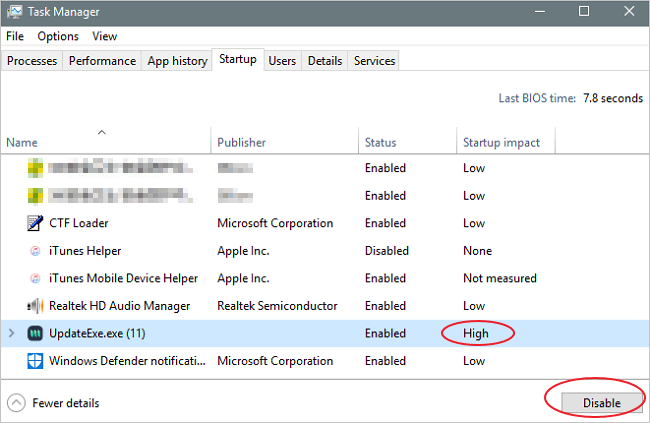
4. Trim startup programs and services
- Use Task Manager (Windows) or System Preferences (macOS) to disable nonessential startup apps.
- Check scheduled tasks and background services that trigger at boot.
A lean startup reduces time spent loading unnecessary software.
5. Repair system files and boot configuration
- On Windows, run sfc /scannow and DISM commands to fix system files.
- Repair boot records (bootrec /fixmbr, /fixboot) if boot loader issues exist.
Corrupt system files cause unpredictable delays during boot.
6. Verify TRIM and SSD settings
- Confirm TRIM is enabled on Windows using the command fsutil behavior query DisableDeleteNotify.
- Ensure power plans do not aggressively park or throttle the SSD.
TRIM keeps SSD performance stable and prevents write slowdowns.
7. Check for encryption and heavy security suites
- Full-disk encryption adds time to unlock drives during boot.
- Security suites can scan startup processes and add delays.
If you use encryption, consider hardware-based unlock (TPM) or accept a small trade-off.
8. Reinstall or reset the OS as last resort
- Back up data and reinstall the OS if software corruption persists.
A fresh OS install often eliminates hidden software causes of slow boot.
I repeat: tackle one step at a time and measure boot time after each. That way you know which fix worked. This method is how I reliably help others fix slow boot time even with ssd installed.

Advanced fixes and hardware considerations
If basic steps don’t help, these advanced areas may be the problem.
- Check motherboard and chipset compatibility
- Older motherboards may not optimally support modern NVMe throughput.
- Review PCIe lane allocation
- Some systems share lanes between sockets. Install SSD in optimal slot.
- Replace problematic cables or adapters
- Cheap SATA cables or faulty M.2 adapters can bottleneck speeds.
- Upgrade to a faster SSD type
- SATA SSDs are limited by SATA bus; NVMe drives are faster but need platform support.
- Consider RAM and CPU bottlenecks
- If the system is starved of RAM, pagefile activity on boot can slow the process despite SSD performance.
I once fixed a laptop that had an SSD but booted slowly because the NVMe slot limited the drive to legacy speeds. A BIOS update and slot change cut boot time in half. These are typical advanced scenarios when learning how to fix slow boot time even with ssd installed.
Prevention and best practices
Keep your system fast by following routine habits.
- Keep firmware and drivers current
- Set a monthly check cadence for critical updates.
- Maintain a lean set of startup apps
- Uninstall software you don’t need and disable autostart entries.
- Monitor SSD health
- Check SMART metrics quarterly and replace drives showing wear.
- Use modern hardware standards
- Prefer motherboards with robust NVMe support for future-proofing.
- Back up before major changes
- Always have a reliable backup before firmware updates or OS reinstalls.
Adopt these habits and you will rarely need to troubleshoot slow boots again. This approach ensures you know how to fix slow boot time even with ssd installed before it becomes a problem.

Frequently Asked Questions of how to fix slow boot time even with ssd installed(make it h2 tag)
What causes slow boot even with an SSD?
Slow boots can come from firmware, drivers, BIOS settings, startup apps, disk health, encryption, or malware. Address each area systematically to find the cause.
Can a bad SSD cause slow boot?
Yes. A failing SSD or one with firmware bugs can slow reads and cause timeouts. Check SMART data and firmware updates to confirm.
Does reinstalling Windows help with slow boot?
Reinstalling the OS often helps when corruption or problematic drivers are the cause. Back up data first and try other fixes before a reinstall.
Will switching to UEFI speed up boot?
Yes. Using UEFI with fast boot and the correct disk mode can reduce POST and boot-loader delays. Make sure your drive and OS support UEFI.
Do startup programs really matter for boot time?
They do. Many apps set themselves to start on boot and that adds load. Disable nonessential startups to shorten boot times.
Is TRIM important for SSD boot speed?
TRIM helps maintain SSD performance over time, which indirectly affects boot speed. Ensure TRIM is enabled and working.
Conclusion
You don’t need to swap hardware to solve slow boot issues. Start with simple checks, fix BIOS/UEFI and driver settings, trim startup software, and update firmware. If problems remain, investigate hardware compatibility, cables, and OS integrity. Take action one step at a time, measure results, and back up before big changes. Try the checklist above and leave a comment with your system details if you want more tailored advice or step-by-step help.

Everett Ashford is a tech reviewer at mytechgrid.com specializing in SSDs, cameras, TVs, earbuds, headphones, and other consumer electronics. He provides honest, data-driven reviews based on hands-on testing and real-world performance analysis. Everett simplifies complex tech details to help readers make smart, confident buying decisions.