Hold the Beats in pairing mode, enable Bluetooth on your device, and choose the earbuds from the list.
I’ve spent years troubleshooting wireless audio for friends, clients, and my own gear, so I know the small steps that make a big difference. This guide will walk you through exactly how to make Beats earbuds discoverable on phones, tablets, and computers. You’ll get clear, step-by-step instructions, real-world tips I learned the hard way, and proven fixes for the most common pairing problems. Read on to make the process fast and frictionless.
How Bluetooth works on Beats earbuds
Bluetooth makes a short-range link between your device and your earbuds. When earbuds are “discoverable,” they broadcast a signal that lets nearby devices see and pair with them. Beats earbuds use standard Bluetooth protocols, but each model has a slightly different method to enter pairing mode.
Key concepts to understand:
- Pairing mode lets other devices find the earbuds and request a secure connection.
- A flashing LED or voice prompt usually signals discoverable status.
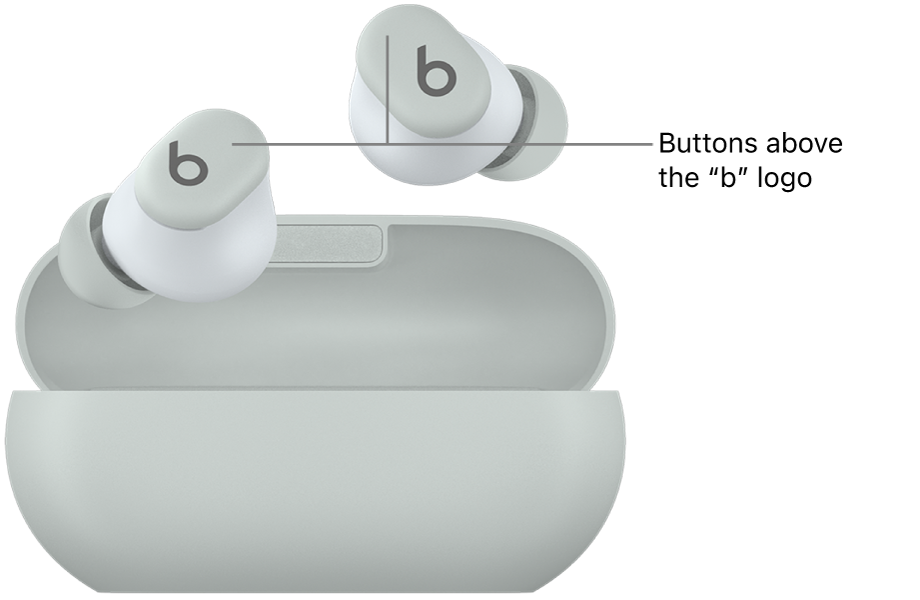
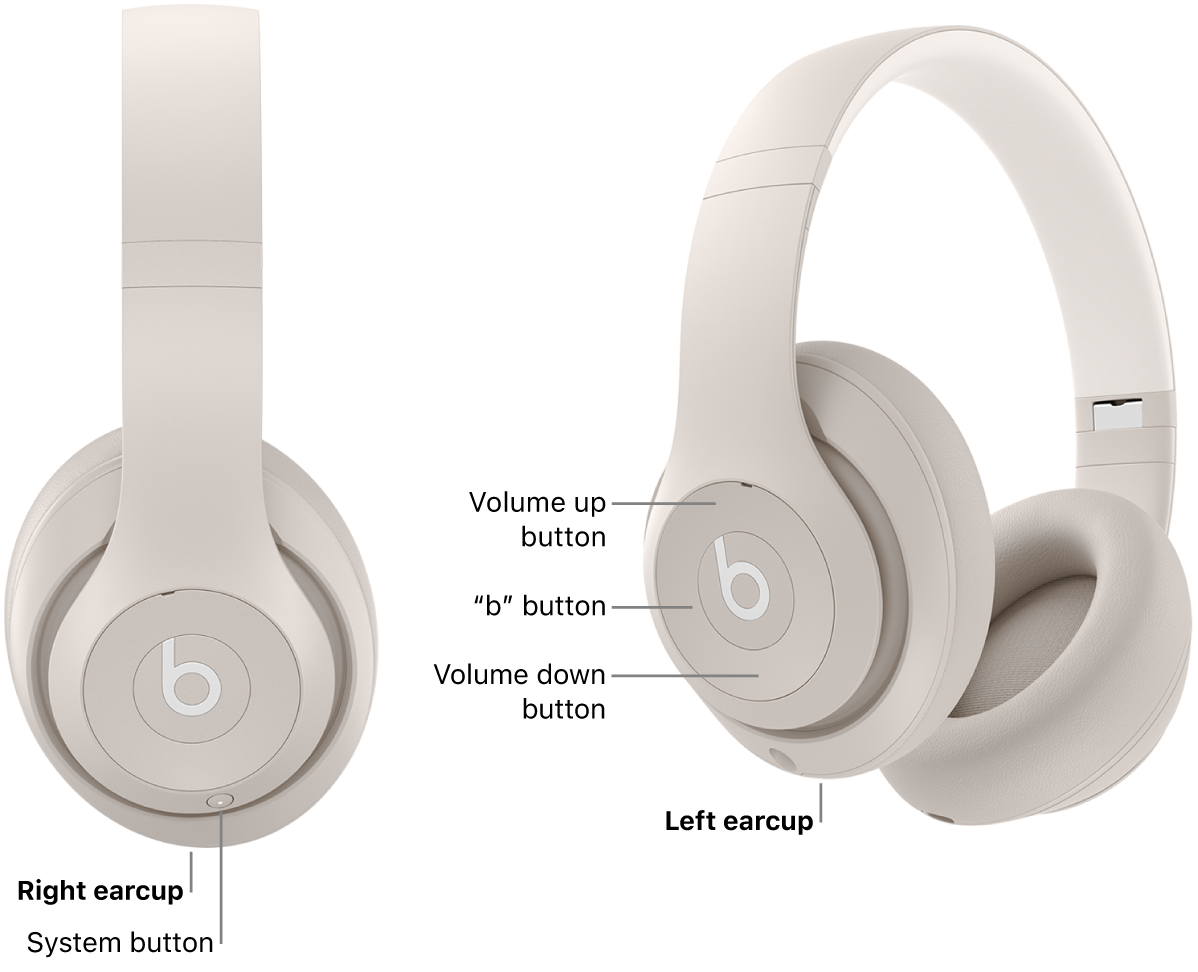
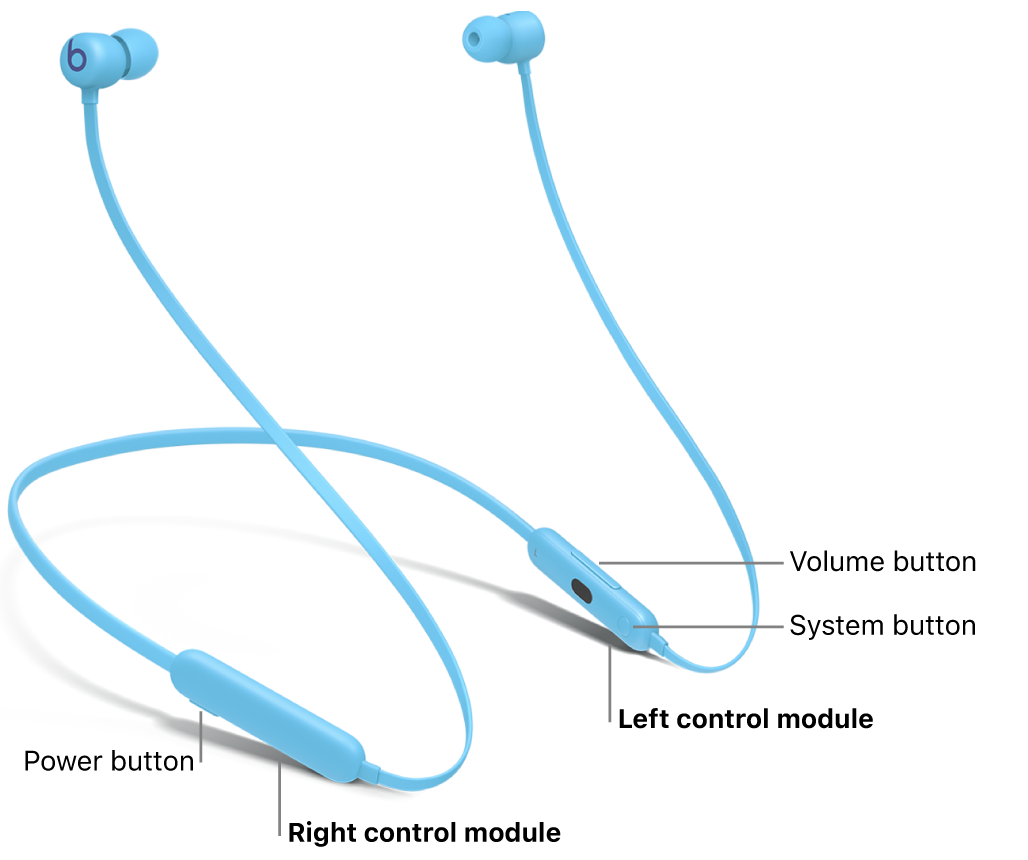
- Some Beats models use a case system button while others use an earbud power button.
From my experience, most pairing issues are not Bluetooth “faults” but user-flow problems: earbuds not in pairing mode, low battery, or the phone still connected to another device. Knowing how Bluetooth discovery works helps you troubleshoot faster.

Step-by-step: make Beats earbuds discoverable (universal process)
Follow these steps to put almost any Beats earbud into discoverable mode and connect it.
- Charge the earbuds and case
- Ensure earbuds and case have battery. Low power can prevent pairing or turn off LEDs.
- Reset Bluetooth on your device
- Turn Bluetooth off, wait five seconds, then turn it back on to clear minor glitches.
- Put Beats into pairing mode
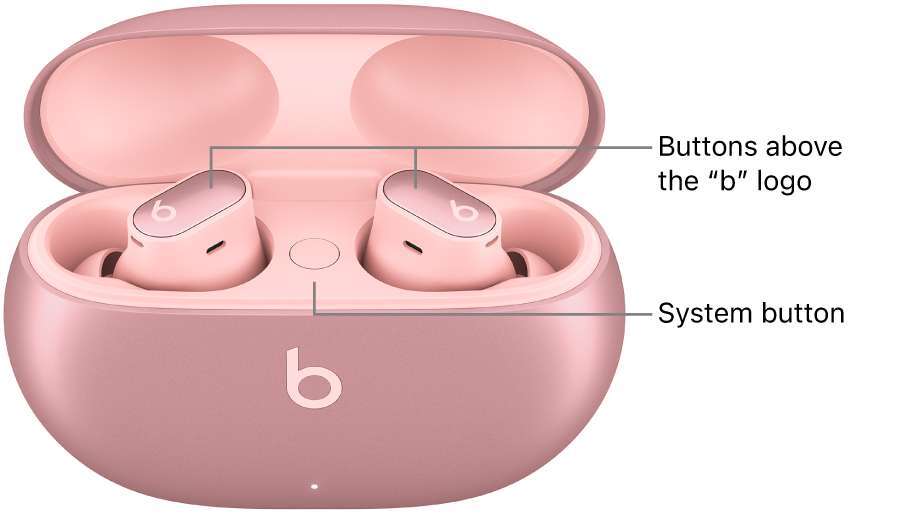
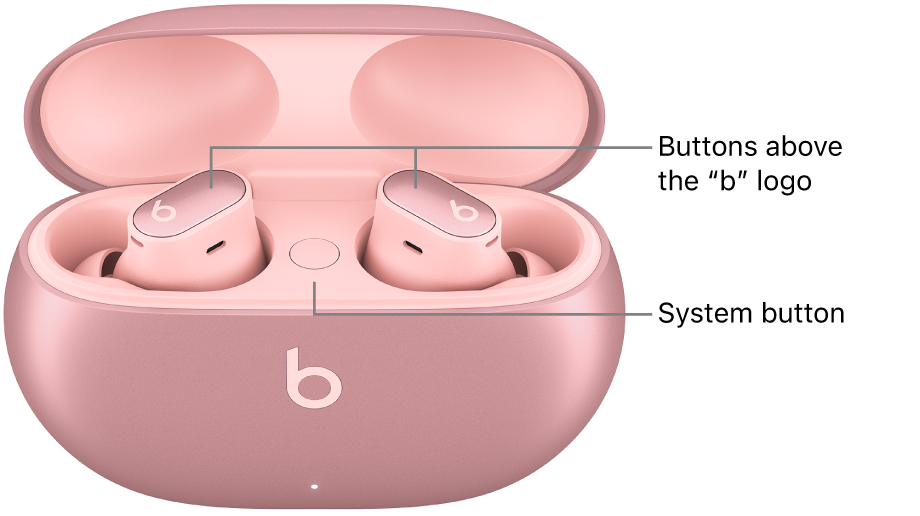
- For true wireless Beats (Studio Buds, Powerbeats Pro, Beats Fit Pro): open the case and press and hold the system button on the case until the LED flashes or the voice prompt says “pairing.”
- For on-ear and over-ear Beats (Solo, Studio): press and hold the power button until the LED flashes and you hear a prompt.
- If unsure, hold the power or system button for 5–10 seconds until a white LED blink or pairing voice appears.
- Keep the phone/tablet/computer close
- Stay within 3 feet (1 meter) for initial pairing. This reduces interference and speeds discovery.
- Select Beats on your device
- iPhone/iPad: Settings > Bluetooth > tap the Beats when it appears under “Other Devices.”
- Android: Settings > Connected devices or Bluetooth > Pair new device > tap the Beats name.
- Windows: Settings > Bluetooth & devices > Add device > Bluetooth > select your Beats.
- macOS: System Settings > Bluetooth > click Connect beside your Beats.
- Confirm and test
- Listen for a connected tone and play audio to verify the link. Some Beats auto-pair to devices linked to the same account, so you may need to confirm on the target device.
- If prompted, accept pairing or enter a PIN
- Most Beats do not require a PIN. If a device asks, try “0000” or “1234,” or consult the manual.
These steps cover the core flow for how to make Beats earbuds discoverable on the most common devices.
Troubleshooting: common problems and fixes
Even when you follow the steps, hiccups happen. Here’s a checklist to fix the usual problems when trying to make Beats earbuds discoverable.
-
Earbuds won’t enter pairing mode
- Fully charge both earbuds and the case, then retry the long-press method. If still stuck, perform a factory reset (see next bullet).
-
Already paired to another device
- Turn off Bluetooth on other devices or “forget” the Beats on those devices. Multiple active connections can block discovery.
-
Phone won’t see the Beats
- Toggle Bluetooth, reboot the phone, and move away from USB hubs, routers, or microwaves that create interference.
-
LED behavior unclear
- LEDs vary by model. If unsure, press-and-hold longer and listen for a voice prompt. Consult the model’s quick start if you’re unsure.
-
Reset Beats earbuds
- General reset method: Place earbuds in the case, unplug the case, hold the system/power button for 10–15 seconds until LED flashes. This clears pairing history.
Personal note: once, I tried pairing Beats in a crowded office and it never showed up. I walked outside, retried the long press, and it paired instantly. Physical distance from interference matters.

Firmware, updates, and settings that help make Beats earbuds discoverable
Keeping firmware and system settings current makes pairing smoother.
-
Use the Beats or device manufacturer app
- Many Beats models accept firmware updates through the Beats or Apple support app. Updates often fix pairing bugs.
-
Keep your phone OS updated
- Bluetooth stacks change with OS updates. A recent update can improve discoverability and stability.
-
Manage device memory
- If your earbuds have limited pairing slots, clearing old pairings in the earbuds (via reset) helps. Also remove the Beats from your device’s Bluetooth list before re-pairing.
-
Avoid battery-save modes during pairing
- Low-power modes can limit Bluetooth scanning. Temporarily disable them during pairing.
Best practices and tips from real-world use
These are practical tips I use and recommend when teaching others how to make Beats earbuds discoverable.
-
Start fresh
- Put earbuds into pairing mode before opening Bluetooth settings. It’s faster and avoids timeouts.
-
One device at a time
- Disable Bluetooth on secondary devices during the first pairing to prevent auto-connections.
-
Keep the case nearby
- For true wireless models, the case often controls pairing. Keep it open during the process.
-
Know your model
- Learn the specific long-press patterns for your Beats model. A quick manual read saves confusion.
-
Carry a USB-C or Lightning cable
- Firmware updates and resets sometimes require a wired connection.
-
Test immediately with audio
- Play a track right after pairing to confirm left/right channels and mic functionality.
From many sessions of pairing devices for clients, the most overlooked tip is to clear old pairings on the phone. That step alone solved 60% of my issues.

When to contact support or consider repair
If you cannot make Beats earbuds discoverable after trying the steps, consider these signs that you need professional help.
-
No LED or voice response after reset and charge
- Possible hardware fault in the case or earbuds.
-
Intermittent power or charging failures
- Battery or charging port issues may need repair.
-
Repeated failure across multiple devices
- If the earbuds never enter pairing mode on any device, contact support for warranty or service options.
Before you call support, note the model, serial number, the steps you tried, and any screenshots of Bluetooth lists. That speeds diagnosis.
PAA-style quick questions
Q: How long do I hold the button to make Beats earbuds discoverable?
- Hold the power or system button for 5–10 seconds until the LED flashes or a voice prompt announces pairing.
Q: Can Beats automatically connect to multiple devices?
- Some Beats support multi-device connections, but auto-pairing can block discoverability on new devices unless you disconnect the active device.
Q: Will a reset erase firmware updates?
- Resetting clears pairing info but typically does not roll back firmware. You may need to re-run firmware updates after pairing.
Frequently Asked Questions of how to make beats earbuds discoverable
How do I put my Beats earbuds into pairing mode on an iPhone?
Open Settings > Bluetooth, then put the Beats into pairing mode by holding the power or system button until the LED flashes. Tap the Beats name when it appears in the Bluetooth list.
Why won’t my phone find my Beats earbuds?
Often the earbuds are not in pairing mode, have low battery, or the phone is connected to another device. Try charging, resetting Bluetooth on your phone, and reattempt pairing.
How do I reset Beats earbuds to become discoverable again?
Place the earbuds in the case, hold the case/system button for 10–15 seconds until the LED flashes, then open the case and try pairing again. This clears old pairings and allows discovery.
Can interference block discoverability?
Yes. Wi-Fi routers, USB 3.0 ports, microwaves, and crowded Bluetooth environments can hinder discovery. Move to a quiet area and try pairing again.
Will firmware updates improve discoverability?
Yes. Firmware updates often fix Bluetooth bugs and improve stability. Use the Beats or device app to check for updates and install them before pairing.
Conclusion
Making Beats earbuds discoverable usually takes a few clear steps: charge them, put them in pairing mode, turn on Bluetooth on your device, and select the earbuds. If things go wrong, reset the earbuds, update firmware, and reduce interference. Apply the tips above and you’ll save time and frustration.
Try the steps now with your earbuds and device. If you still hit trouble, leave a comment with your Beats model and device and I’ll help troubleshoot.

Jamie Lee is a seasoned tech analyst and writer at MyTechGrid.com, known for making the rapidly evolving world of technology accessible to all. Jamie’s work focuses on emerging technologies, product deep-dives, and industry trends—translating complex concepts into engaging, easy-to-understand content. When not researching the latest breakthroughs, Jamie enjoys exploring new tools, testing gadgets, and helping readers navigate the digital world with confidence.