Move the OS by cloning or clean installing, then set SSD as boot drive and enable TRIM.
I’ve helped dozens of users and fixed many upgrade hiccups while moving an operating system from an HDD to an SSD. This guide explains how to move OS from HDD to SSD step by step, with clear choices, tools, and real tips from my own experience so you can finish the migration fast and safely. Read on to learn which method fits you, how to avoid common mistakes, and how to get the best performance from your new SSD.
Why move your OS from HDD to SSD?
Moving the OS from HDD to SSD speeds up boot times and app load times a lot. SSDs use flash memory, so they read and write data much faster than spinning disks. That means your system feels new again.
Benefits include:
- Faster startup and shutdown.
- Quicker program launches and file access.
- Lower power use and less heat for laptops.
- Improved overall responsiveness.
Limitations and trade-offs:
- SSDs cost more per gigabyte than HDDs.
- You may need to resize or delete data if the SSD is smaller.
- Some old systems may need BIOS/UEFI settings updated.
I’ve moved systems on both desktops and laptops. Small SSDs require cleaning out old files before migrating. Larger SSDs let you migrate a full system with fewer changes. Knowing these trade-offs helps you plan the best move.

Prepare before you move the OS from HDD to SSD
Good prep prevents headaches. Follow these steps before you start moving the OS from HDD to SSD.
Backup first
- Make a full backup of your important files to an external drive or cloud. A system image is ideal.
- Test that backup if possible.
Check SSD compatibility
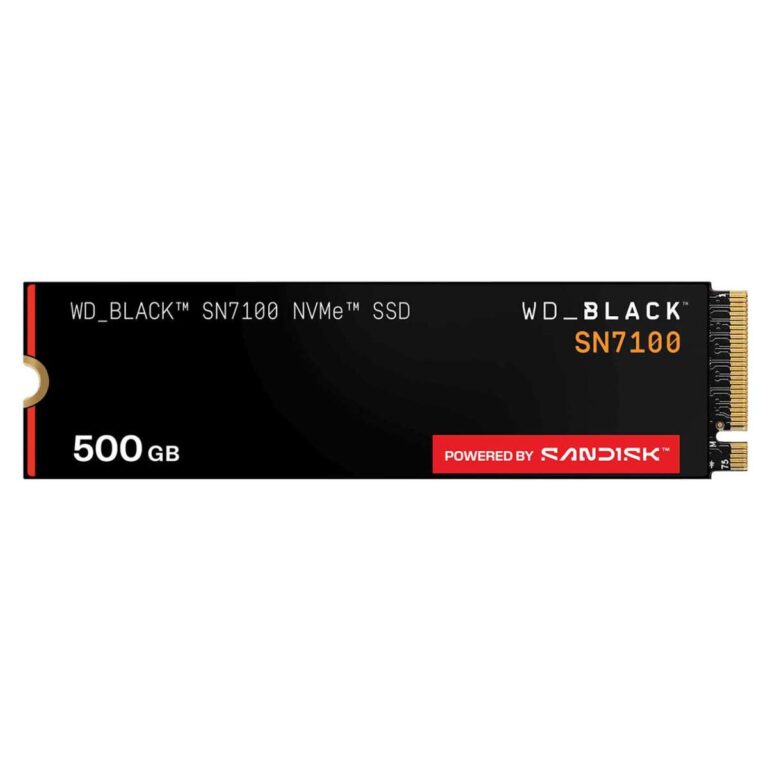
- Confirm the SSD type: SATA, M.2 SATA, or NVMe.
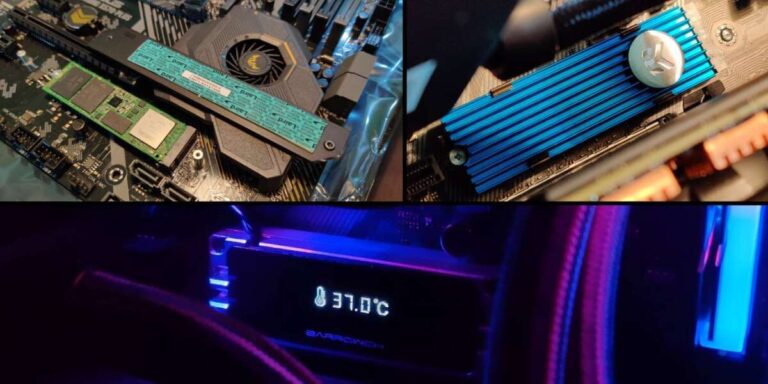
- Check your PC supports the SSD interface and connection.
Free up space and clean your HDD
- Remove unnecessary files and uninstall unused programs.
- Use disk cleanup tools and empty the recycle bin.
Disable encryptions and security features
- Turn off BitLocker or other disk encryption.
- Deactivate any third-party disk locks.
Update firmware and drivers
- Update your SSD firmware after install.
- Update your system BIOS/UEFI and storage drivers.
Note your system setup
- Is Windows using UEFI or Legacy BIOS?
- Is the current disk partition scheme GPT or MBR?
- Record drive letters and partition layout for reference.
These steps make the actual migration smoother and lower the risk of boot problems.

Two main methods: cloning vs clean install
You can move the OS from HDD to SSD using two main methods. Choose based on time, cleanliness, and how much you want to keep.
Method 1 — Cloning the drive
- Copies the entire OS and partitions as-is.
- Faster and keeps all settings and apps.
- Good for immediate copy-and-boot needs.
- Risks: old clutter and driver conflicts get carried over.
Method 2 — Clean install
- Installs a fresh OS on the SSD and moves data manually.
- Results in a cleaner, faster system.
- Takes longer and requires reinstalling apps.
- Best for long-term performance and stability.
My experience: cloning is ideal when you want a direct and fast swap. Clean install is best when you want the cleanest system and won’t miss reinstalling apps. Either way, plan for license reactivation and driver updates.

Step-by-step: Cloning the OS from HDD to SSD
Cloning is often the fastest way to move the OS from HDD to SSD. Here’s a dependable cloning workflow.
What you need
- An SSD with enough space for used OS data.
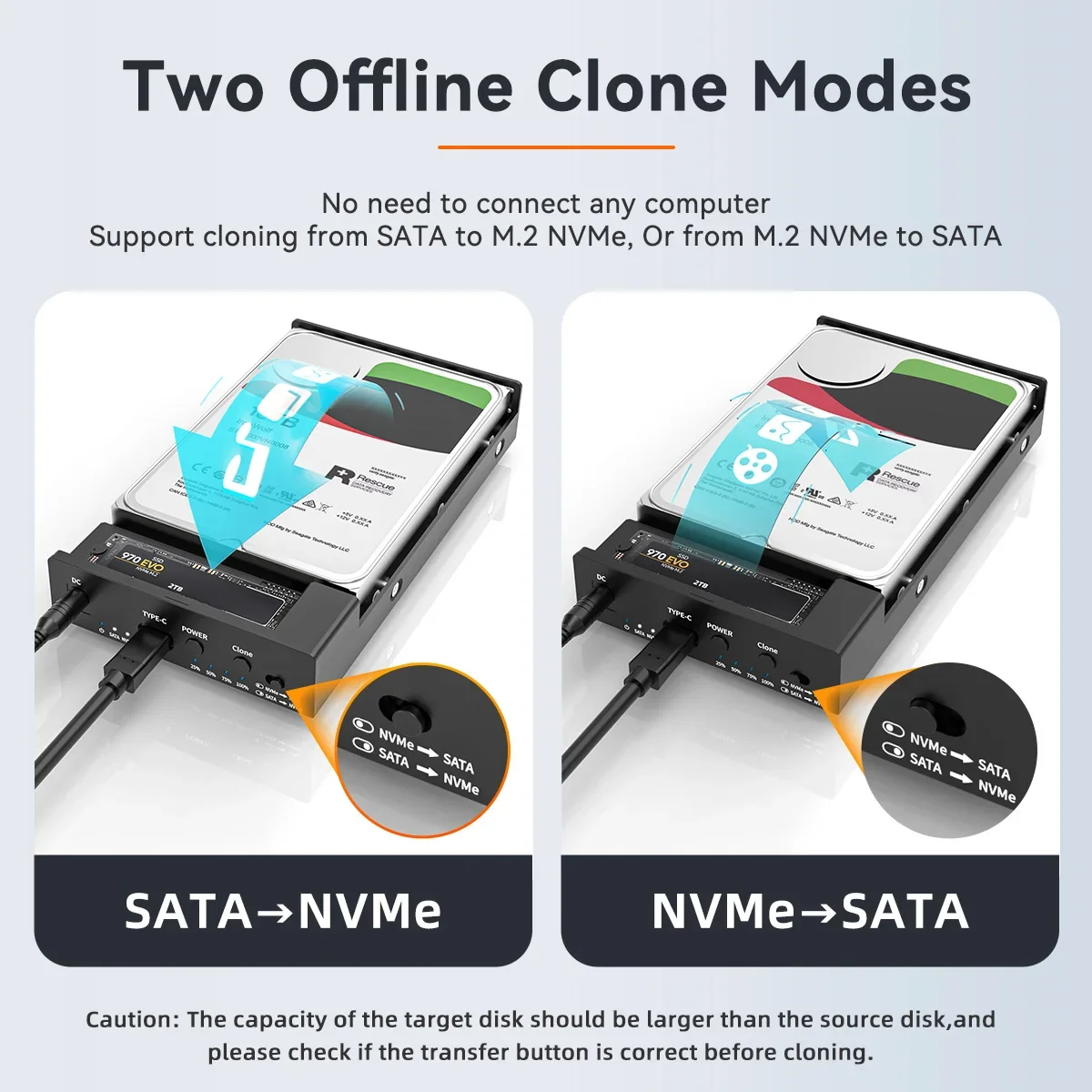
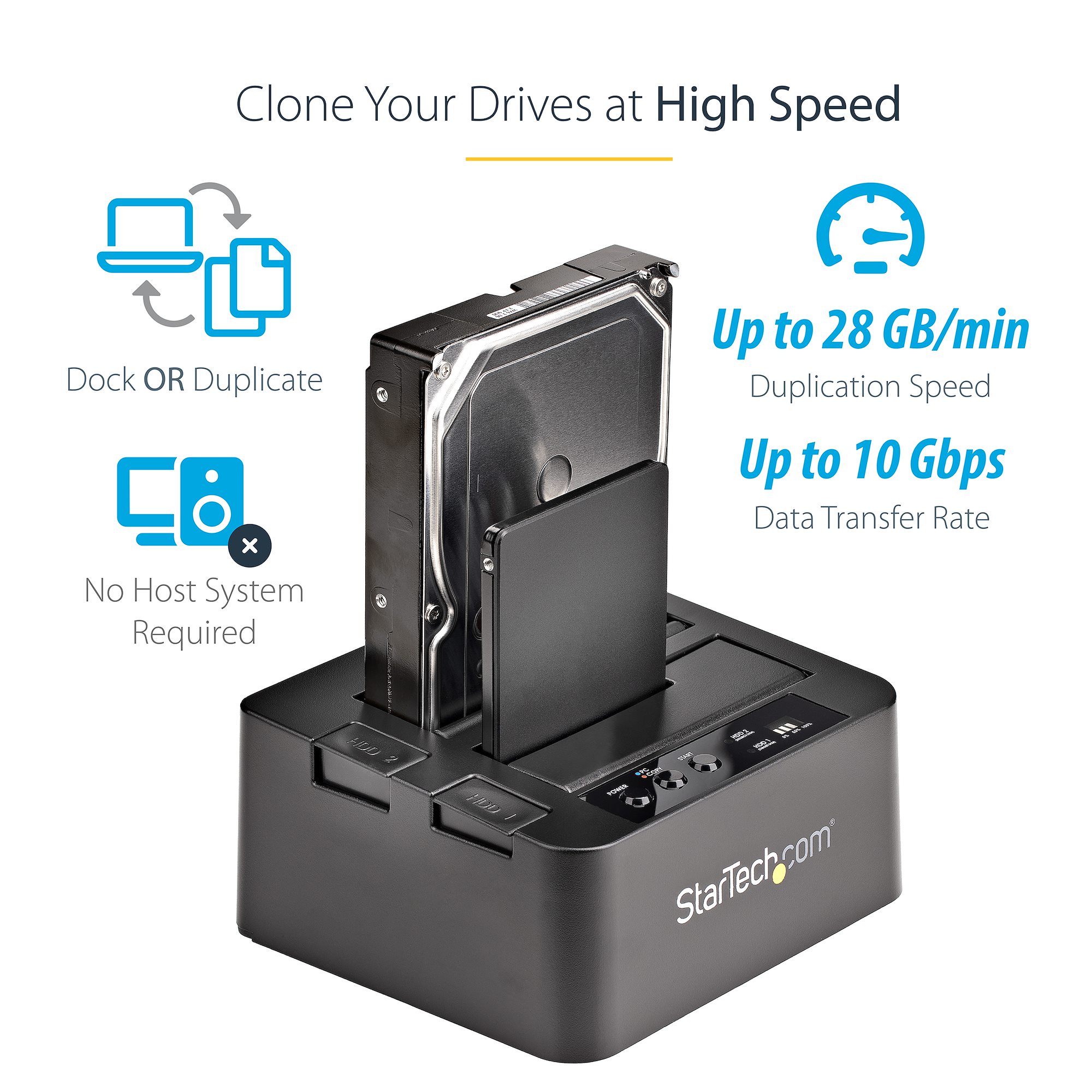
- External enclosure or SATA-to-USB cable if no spare internal slot.
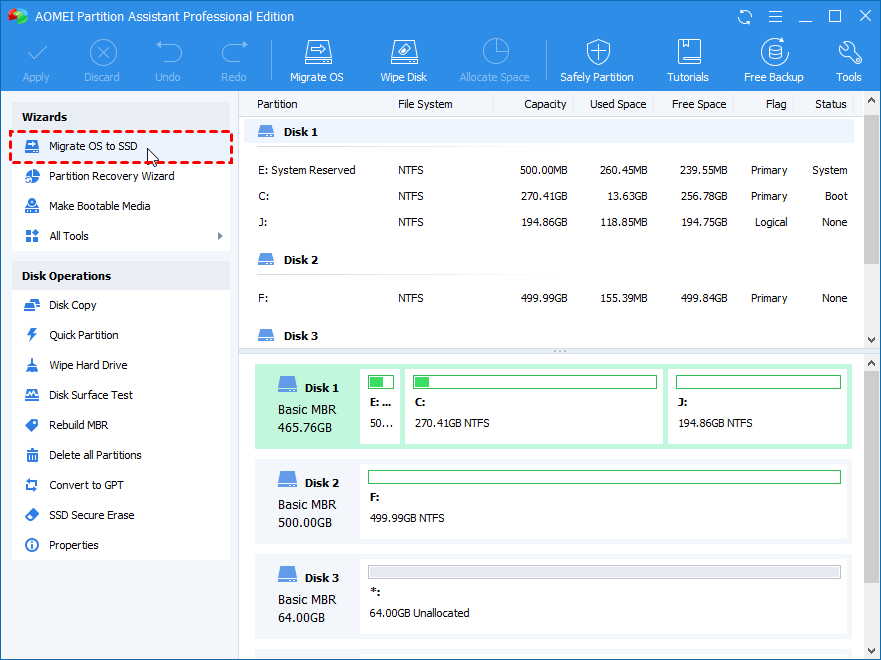
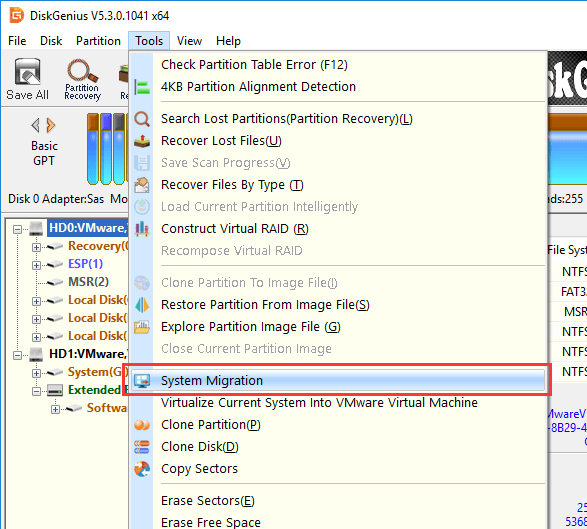
- Reliable cloning software (commercial or free).
- Backup of your files.
Cloning steps
- Connect the SSD to your PC via internal slot or external cable.
- Initialize the SSD in Disk Management. Match partition style: GPT for UEFI, MBR for Legacy BIOS.
- Run your cloning software. Select the HDD as source and SSD as target.
- Choose “copy all partitions” and enable “align partitions” for SSD performance.
- Start cloning. Wait until it completes and verify no errors.
- Shut down the PC and remove or disconnect the HDD, or change boot order to the SSD.
- Boot the PC from the SSD. If it fails, re-enter BIOS/UEFI and set SSD as first boot device.
- After booting, check partition sizes. Use disk management to expand the system partition if needed.
- Enable TRIM and AHCI, and install the SSD driver or firmware updates.
Quick tips from experience
- If the SSD is smaller, shrink the source partition before cloning.
- Disable virtualization or VMs during cloning to avoid locked files.
- If BitLocker was on, suspend it before cloning to avoid issues.

Step-by-step: Clean install and migration of data
A clean install gives the best long-term performance. This is how to move the OS from HDD to SSD by reinstalling the OS.
What you need
- Windows installation media or recovery USB.
- Backup of user files and a list of apps and licenses.
- Drivers for network and storage saved to USB.
Clean install steps
- Backup all data and export browser bookmarks and app settings.
- Create Windows installation media using the Windows Media Creation Tool or your OS installer.
- Disconnect the HDD or set the target SSD as the first drive in BIOS.
- Boot from the installation media. Choose Custom install and install to the SSD.
- Format or delete partitions on the SSD as needed. Select the SSD and install.
- Complete the Windows setup. Install storage drivers first if needed.
- Install updates, then restore your data and reinstall apps from your list.
- Optionally reconnect the HDD for extra storage. Format the old Windows partition to reclaim space.
Personal note: I once spent extra hours because I forgot to save my product keys. Make a checklist before you start.
Post-migration checklist and SSD optimization
After you move the OS from HDD to SSD, do these steps for peak performance and longevity.
Essential steps
- Enable TRIM: ensures SSD manages free space well.
- Set AHCI mode in BIOS for SATA SSDs before installing OS.
- Turn off defragmentation for SSDs but keep scheduled optimization that runs TRIM.
- Check partition alignment (should be 1 MB alignment or sector multiple).
- Install the SSD manufacturer’s toolbox and firmware updater.
Settings to adjust
- Power plan: use Balanced or High Performance to avoid sleeping issues.
- Pagefile: let Windows manage it unless you have special needs.
- System restore: configure so it does not use excessive space.
Maintenance tips
- Keep firmware and drivers updated.
- Avoid filling SSD beyond 75-85% for performance and lifespan.
- Monitor health with SMART tools.
Troubleshooting common issues when you move the OS from HDD to SSD
Here are fixes for problems I’ve seen when moving an OS from HDD to SSD.
PC won’t boot from SSD
- Enter BIOS/UEFI and set SSD as boot device. Check UEFI vs Legacy mode.
- If still not booting, repair startup using Windows repair media.
Windows asks for reactivation or drivers fail
- Reactivate Windows online or phone. Some OEM licenses are tied to motherboard.
- Install updated storage and chipset drivers.
Cloned SSD shows wrong size or missing space
- Expand the main partition in Disk Management.
- If SSD is smaller, you may need to resize partitions before cloning.
Performance is not better
- Ensure TRIM is enabled and AHCI is active.
- Check firmware. Some SSDs need firmware fixes for speed.
I encountered a cloned laptop that booted slowly because the SATA mode had switched to IDE. Changing it back to AHCI solved it in minutes. Small BIOS settings often cause big headaches.
PAA-style questions (common quick answers)
How long does it take to move the OS from HDD to SSD?
Time varies. Cloning typically takes 30–120 minutes depending on data size and connection speed. Clean installs take longer because you reinstall apps and updates.
Can I move the OS from HDD to SSD without reinstalling Windows?
Yes. Cloning copies the OS and keeps settings. Make sure the SSD has enough space and you use reliable cloning software.
Do I need to change BIOS settings after moving the OS to an SSD?
Often yes. Set the SSD as the first boot device and enable AHCI for SATA SSDs. For UEFI systems, ensure secure boot and boot order are correct.
Frequently Asked Questions of how to move os from hdd to ssd
What is the safest way to move the OS from HDD to SSD?
Clone the drive after making a full backup. Use trusted cloning software and verify the clone before switching boot drives.
Will I lose programs and files when I move the OS from HDD to SSD?
If you clone the OS, you keep programs and files. With a clean install, you must reinstall programs and restore files from backup.
Can I move Windows 10 or 11 from HDD to SSD without a product key?
Yes. If your PC was previously activated, Windows will usually reactivate after cloning or reinstalling. Digital licenses tied to hardware should reactivate automatically.
Do I need special cables or adapters to move my OS from HDD to SSD?
You may need a SATA-to-USB cable or an M.2 adapter if you lack an internal slot. External enclosures make cloning easy.
How do I check if TRIM is enabled after moving the OS from HDD to SSD?
Open a command prompt and run "fsutil behavior query DisableDeleteNotify". A result of 0 means TRIM is enabled.
Conclusion
Moving the OS from HDD to SSD can revive an old machine in hours. Choose cloning if you want a quick copy. Choose a clean install if you want a fresh, lean system. Back up, check compatibility, and follow the steps above to avoid common pitfalls.
Take action now: pick your method, gather the tools, and schedule a quiet hour to migrate your OS. Share your experience or questions below, or subscribe for more practical upgrade guides.

Everett Ashford is a tech reviewer at mytechgrid.com specializing in SSDs, cameras, TVs, earbuds, headphones, and other consumer electronics. He provides honest, data-driven reviews based on hands-on testing and real-world performance analysis. Everett simplifies complex tech details to help readers make smart, confident buying decisions.