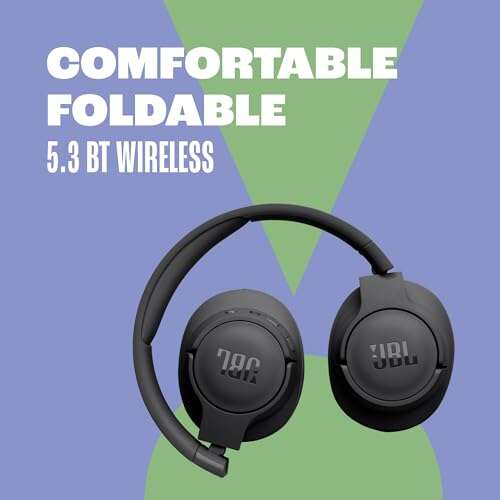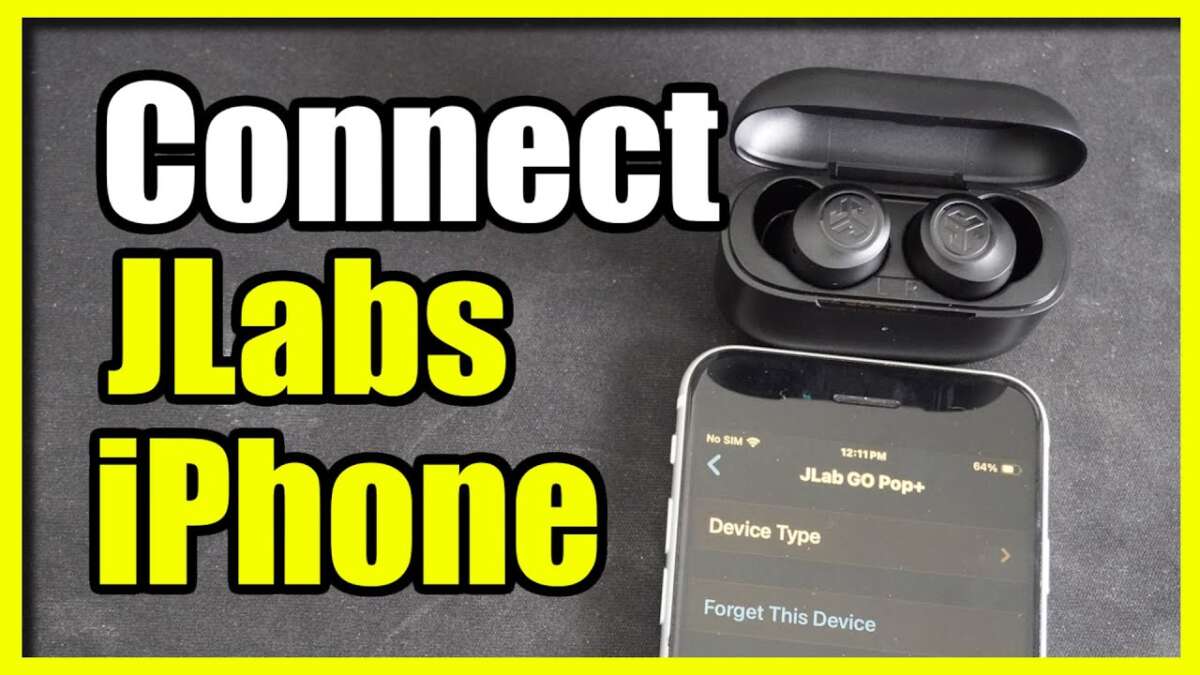
Turn on JLab pairing mode, open iPhone Bluetooth, then select your JLab headphone to connect.
I’ve spent years testing earbuds and pairing dozens of Bluetooth models with iPhones. In this guide I’ll walk you through how to pair JLab headphones with iPhone step by step, explain model differences, offer troubleshooting fixes I’ve used in real life, and share tips to keep connections stable. Read on to pair confidently and get the best sound from your JLab gear.

Why pairing properly matters and what to expect
Pairing is how your iPhone and JLab headphones create a secure wireless link. Good pairing gives stable audio, correct media controls, and accurate battery reporting. Learning how to pair JLab headphones with iPhone also helps you fix common issues fast and avoid repeated reconnecting.
Pairing behavior varies by model. True wireless JLab buds behave slightly different than on-ear Bluetooth or ANC over-ear models. Knowing those differences saves time. I’ve paired JLab buds with multiple iPhones and will share clear steps and tips from that hands-on experience.

Step-by-step: how to pair jlab headphones with iphone (general method)
Follow these simple steps to pair most JLab Bluetooth models with your iPhone. This covers the common pairing flow for how to pair JLab headphones with iPhone in under two minutes.
- Charge both devices
- Make sure your JLab headphones have charge. Low battery can prevent pairing.
- Verify your iPhone has Bluetooth enabled and enough battery.
- Turn on Bluetooth on your iPhone
- Open Settings > Bluetooth and toggle Bluetooth on.
- Keep the Settings screen open so you can see new devices appear.
- Put JLab headphones into pairing mode
- True wireless: Remove both buds from the case. Press and hold the button on each bud (or the touch area) for about 3–6 seconds until the LED flashes white or alternates white/blue.
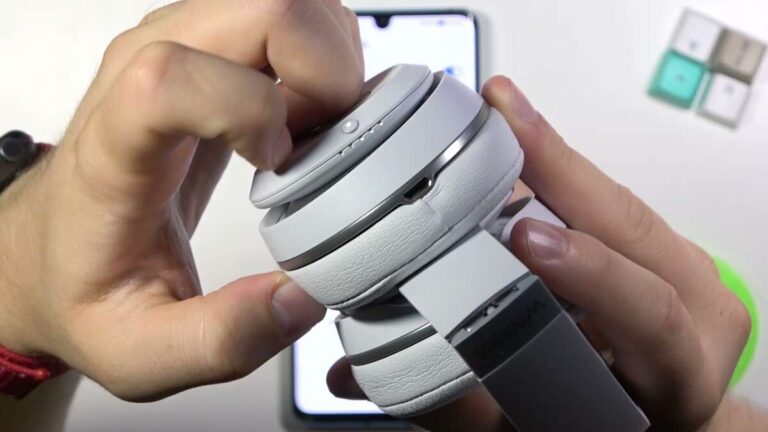
- On-ear or over-ear: Press and hold the power/pairing button until the LED flashes or you hear “pairing.”
- If you aren’t sure, hold the main button for 7–10 seconds to force pairing mode.
- Select the JLab device on your iPhone
- Watch the “Other Devices” list in Bluetooth settings.
- Tap the displayed JLab name (for example, “JLab JBuds Air” or “JLab Go Air”).
- Wait a few seconds. Status will change to “Connected.”
- Confirm and test
- Play audio to confirm left and right channels and volume controls work.
- Check the iPhone status bar or lock screen for battery level if supported.

How to pair jlab headphones with iphone — model-specific tips
Some JLab models need small adjustments. These tips helped me avoid mistakes while testing multiple JLab products.
-
True wireless (Go Air, JBuds Air, etc.)
- Use the case to reset pairing: put both buds back, then remove them to enter pairing mode.
- If only one bud connects, hold that bud’s button to re-sync it to the other.
-
On-ear or over-ear Bluetooth
- Long press the power button until you hear “pairing mode.” Then find the device on your iPhone.
-
Wired JLab plus Lightning adapter
– Wired models don’t pair. Use Lightning or 3.5mm adapter and set iPhone audio output manually if needed. -
Using the JLab app
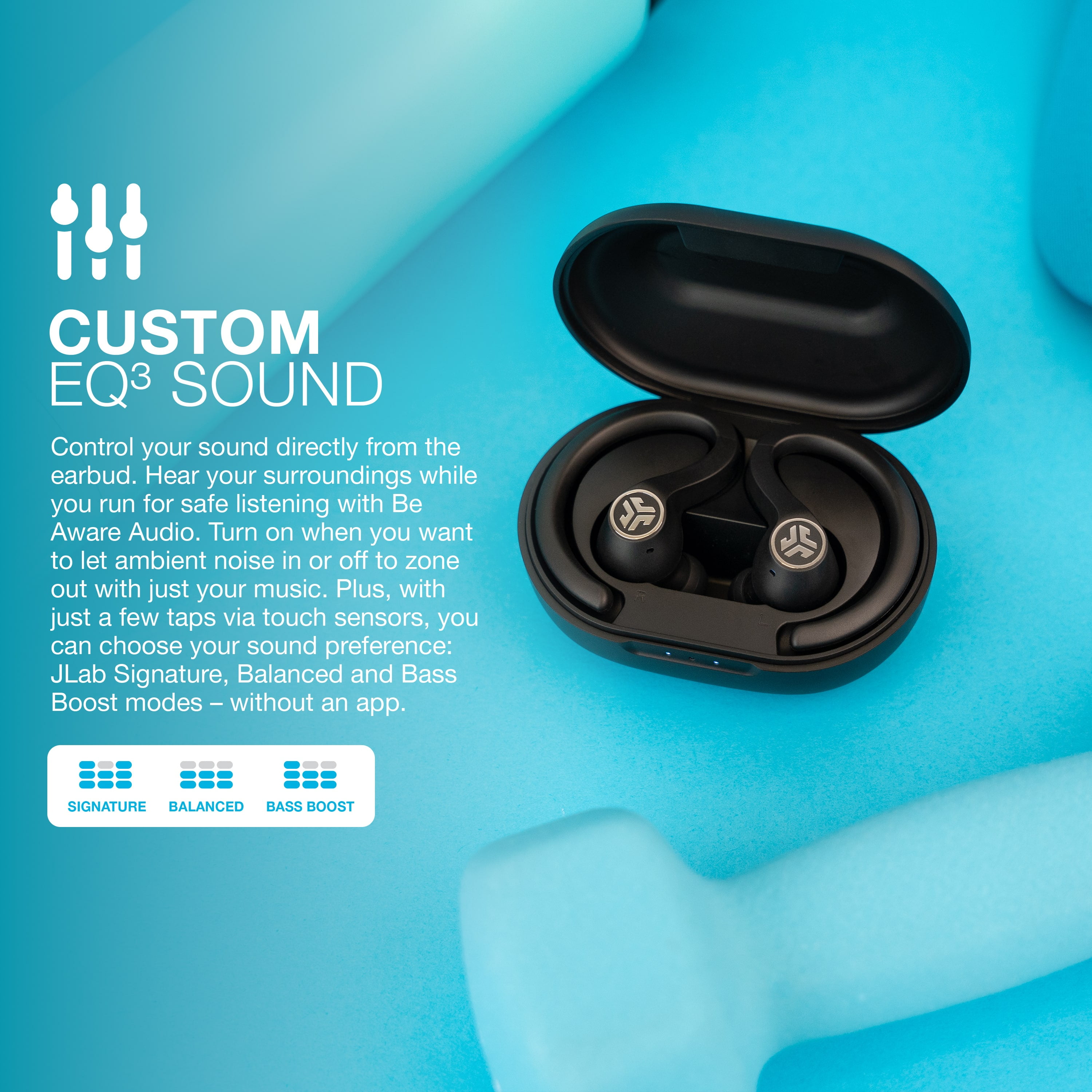
- Some JLab models support firmware updates via the JLab app. Update firmware before pairing if prompted.

Quick PAA-style questions (short answers)
How long does pairing take?
- Pairing usually takes 10–30 seconds once both devices are in pairing mode.
What if only one earbud pairs?
- Reset the earbuds by placing them in the case, removing them, or holding buttons as the manual instructs to re-sync both buds.
Does iPhone automatically reconnect?
- Yes, iPhones typically reconnect automatically to the last paired JLab device if Bluetooth is on and the headphones are powered.

Troubleshooting: common pairing problems and fixes
If pairing fails, these quick fixes solve most issues. I used these steps to recover stubborn JLab connections several times.
-
Device not appearing in Bluetooth list
- Turn Bluetooth off and on again on the iPhone.
- Power cycle the JLab headphones and try pairing mode again.
-
Stuck on “Connecting” or “Not Connected”
- Tap the “i” next to the device in iPhone Bluetooth settings and choose “Forget This Device,” then retry pairing.
- Move away from sources of interference (Wi‑Fi routers, microwaves, crowded Bluetooth environments).
-
Only one bud plays sound
- Reset the bud set by following the JLab reset procedure: place both buds in the case, hold buttons for 10 seconds, then try pairing again.
- Make sure both buds are charged and not in mono mode.
-
Low or no audio even when connected
- Check iPhone volume and app volume.
- Ensure the correct audio output is selected on the iPhone Control Center.
-
Firmware or app issues
- Install the JLab app and update firmware if available. Firmware updates can fix pairing bugs.
Best practices for connection stability and audio quality
These practical tips improve your day-to-day experience after you learn how to pair JLab headphones with iPhone.
-
Keep firmware up to date
- Firmware fixes improve battery life and Bluetooth reliability.
-
Maintain line of sight when possible
- Bluetooth works best without walls or pockets between devices.
-
Use AAC codec when available
- iPhones prefer AAC for better audio quality. JLab models compatible with AAC will deliver improved clarity.
-
Avoid crowded Bluetooth spaces during initial pairing
- Pair first in a quiet environment, then use anywhere.
-
Store paired devices correctly
- For true wireless, always return buds to their case when not in use to avoid accidental re-pairing or battery drain.

Compatibility, limitations, and security notes
Knowing limits prevents surprises when you pair JLab headphones with iPhone. Here’s what to expect.
-
iOS version
- Most modern iPhones support standard Bluetooth profiles used by JLab. Older iPhones may have limited features.
-
Multi-point pairing
- Some JLab models do not support simultaneous connections to two devices. Check your model’s feature list for multi-point support.
-
Range and interference
- Bluetooth range is roughly 30 feet (10 meters) without obstacles. Walls and other electronics reduce range.
-
Security
- Pairing uses standard Bluetooth security. Always use pairing in private locations to avoid accidental pairing with unknown devices.

Frequently Asked Questions of how to pair jlab headphones with iphone
How do I put JLab earbuds into pairing mode?
Most JLab earbuds enter pairing mode by holding the touch area or button for about 3–6 seconds until an LED flashes or you hear “pairing.” If that fails, consult the model-specific reset procedure or use the charging case method.
My iPhone won’t find my JLab headphones. What should I do?
Turn Bluetooth off and on, power cycle the headphones, and put them in pairing mode again. If the problem continues, tap “Forget This Device” on your iPhone and retry the pairing steps.
Only one earbud connects. How can I fix stereo audio?
Reset both earbuds by placing them in the case, holding the pairing button for several seconds, and then removing them to auto-sync. If needed, re-pair the set to your iPhone after the reset.
Do I need the JLab app to pair with my iPhone?
No, you can pair directly via iPhone Bluetooth settings. The JLab app is optional and helps with firmware updates and sound customization for supported models.
How do I update JLab headphone firmware using iPhone?
Install the JLab app, open it, and follow in-app instructions for firmware updates. Make sure your headphones are charged and near the iPhone during updates to avoid interruptions.
Can I connect JLab headphones to multiple iPhones?
Some models support multi-point connections; many do not. If multi-point is not supported, the headphones will only reliably connect to one active device at a time.
Conclusion
Pairing JLab headphones with iPhone is usually quick when you know the right steps: enable Bluetooth, enter pairing mode on the JLab device, and select it on your iPhone. Follow the model-specific tips, keep firmware up to date, and use the simple troubleshooting checklist I shared to solve most issues fast. Try pairing now and test audio, controls, and battery reporting to confirm everything works. If this guide helped, leave a comment with your JLab model and iPhone model, or subscribe for more practical audio tips and how-tos.

Everett Ashford is a tech reviewer at mytechgrid.com specializing in SSDs, cameras, TVs, earbuds, headphones, and other consumer electronics. He provides honest, data-driven reviews based on hands-on testing and real-world performance analysis. Everett simplifies complex tech details to help readers make smart, confident buying decisions.