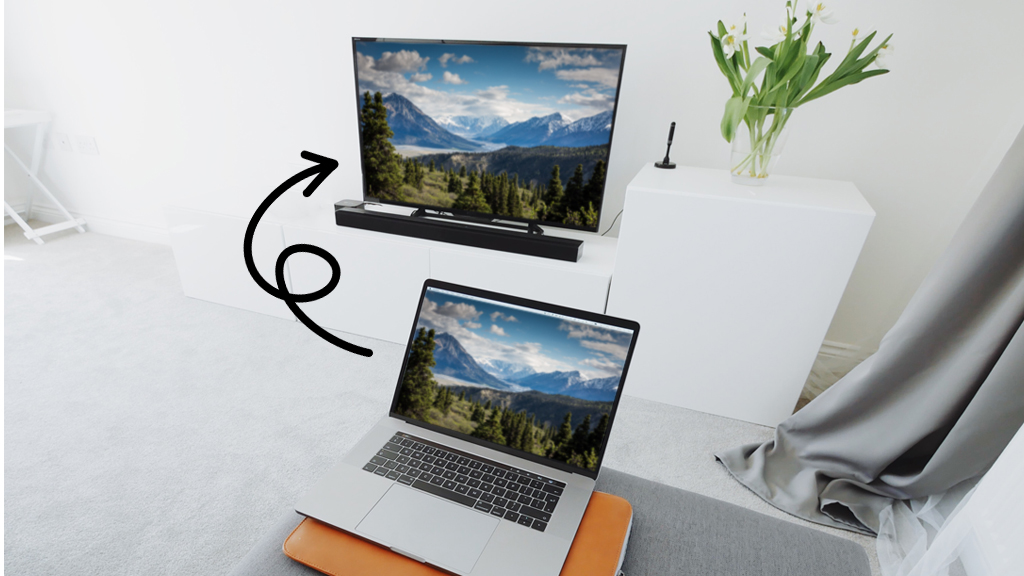
Pair a laptop with a smart TV using HDMI, wireless casting, AirPlay, or a compatible streaming device.
Learning how to pair a laptop with a smart TV can turn a small computer screen into a comfortable home theater, work display, or gaming monitor. The best method depends on your laptop, TV brand, operating system, Wi-Fi network, and the image quality you need. This guide explains each reliable option, including setup steps, common problems, privacy tips, and ways to improve picture and sound.
What you need before pairing your laptop and smart TV
Before you learn how to pair a laptop with a smart TV, check the ports and wireless features on both devices. Most newer smart TVs support screen mirroring, casting, AirPlay, or a dedicated casting app. Most laptops can connect through HDMI, USB-C, Wi-Fi, or Bluetooth.
Have these items ready:
• A laptop running Windows 10, Windows 11, macOS, or ChromeOS
• A smart TV connected to power and turned on
• The same Wi-Fi network for both devices when using wireless pairing
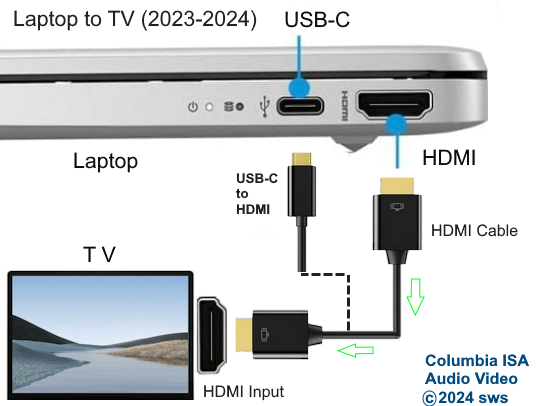
• An HDMI cable and the correct adapter for a wired connection
• Updated TV, laptop, and casting software
• The TV remote, so you can choose the right input or approve a connection
HDMI is usually the most stable choice. Wireless pairing is more flexible, but it can suffer from delay when the Wi-Fi signal is weak or crowded. Bluetooth can connect some audio devices, but it usually does not mirror a laptop screen.
A useful tip from real-world setup testing is to check the laptop’s ports first. Many slim laptops have only USB-C ports, so you may need a USB-C-to-HDMI adapter. Using the wrong adapter is one of the most common reasons a TV shows a “No Signal” message.
How to pair a laptop with a smart TV using HDMI
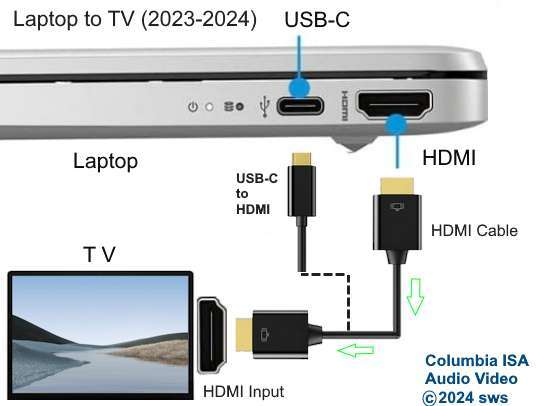
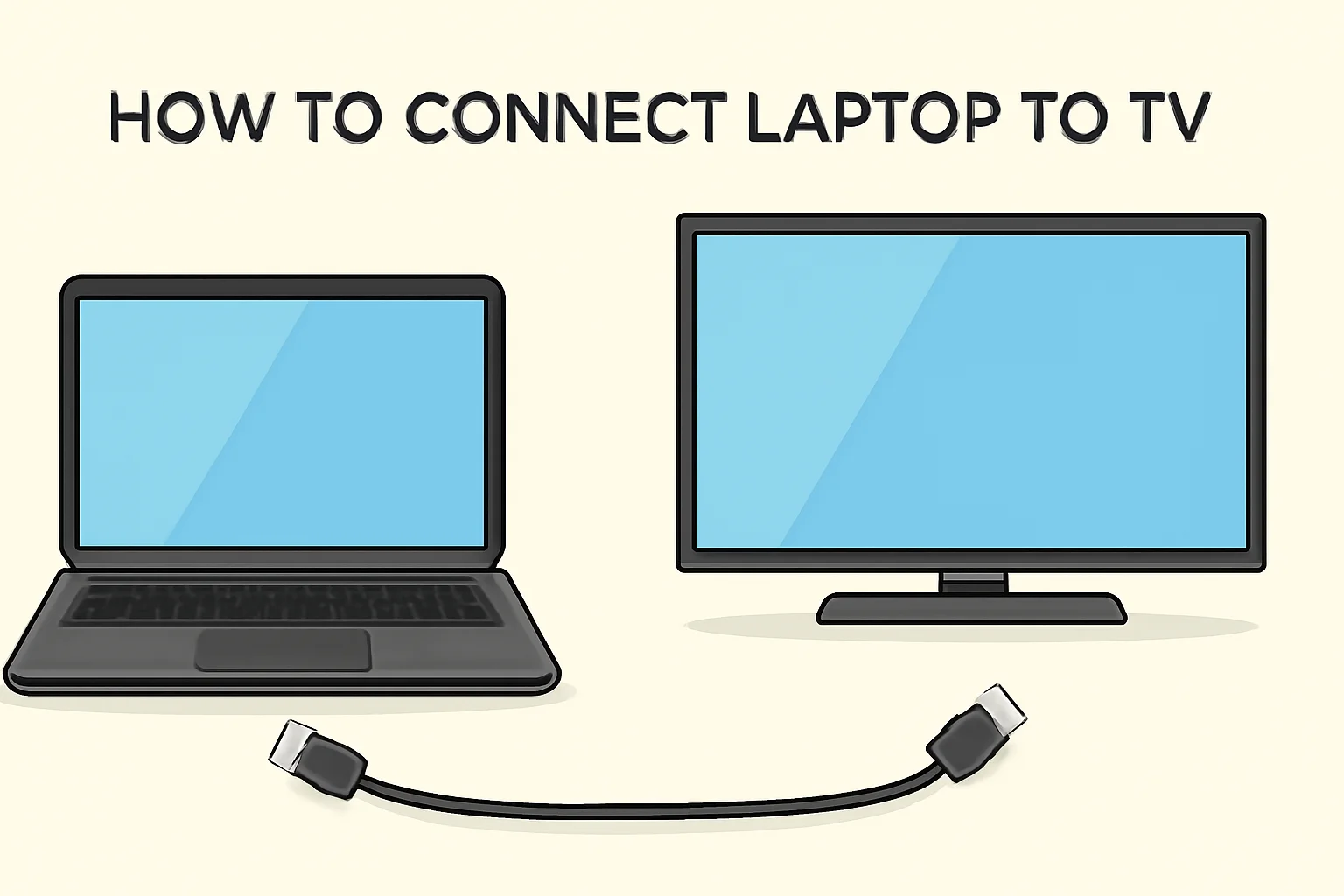
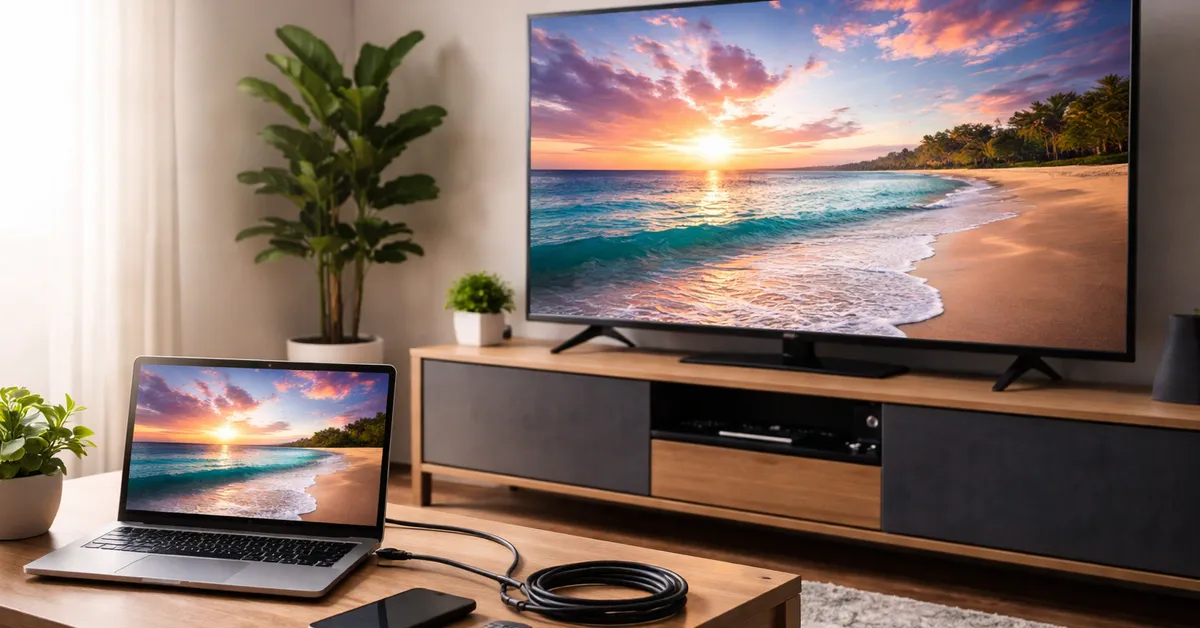
An HDMI connection sends both video and sound through one cable. It is the simplest way to pair a laptop with a smart TV, especially for movies, presentations, gaming, and live events.
Follow these steps:
-
Find the HDMI port on your laptop.
-
Find an available HDMI port on the smart TV.
-
Connect one end of the HDMI cable to the laptop and the other end to the TV.
-
Turn on the TV and use the remote to open the Input or Source menu.
-
Select the HDMI port that matches the connection.
-
On Windows, press Windows + P and select Duplicate, Extend, or Second screen only.
-
On a Mac, open System settings, select Displays, and choose how you want to use the TV.
Duplicate shows the same image on both screens. Extend gives you a second desktop, which is useful for work. Second screen only turns off the laptop display and uses the TV as the main screen.
If your laptop has USB-C but no HDMI port, use a USB-C-to-HDMI adapter that supports video output. Not every USB-C port carries video. Look for a small DisplayPort symbol near the port or check the laptop manual.
For sound, open your laptop’s audio settings and select the TV or HDMI device. On Windows, click the speaker icon in the taskbar. On a Mac, open System Settings, select Sound, and choose the TV.

How to pair a laptop with a smart TV wirelessly on Windows
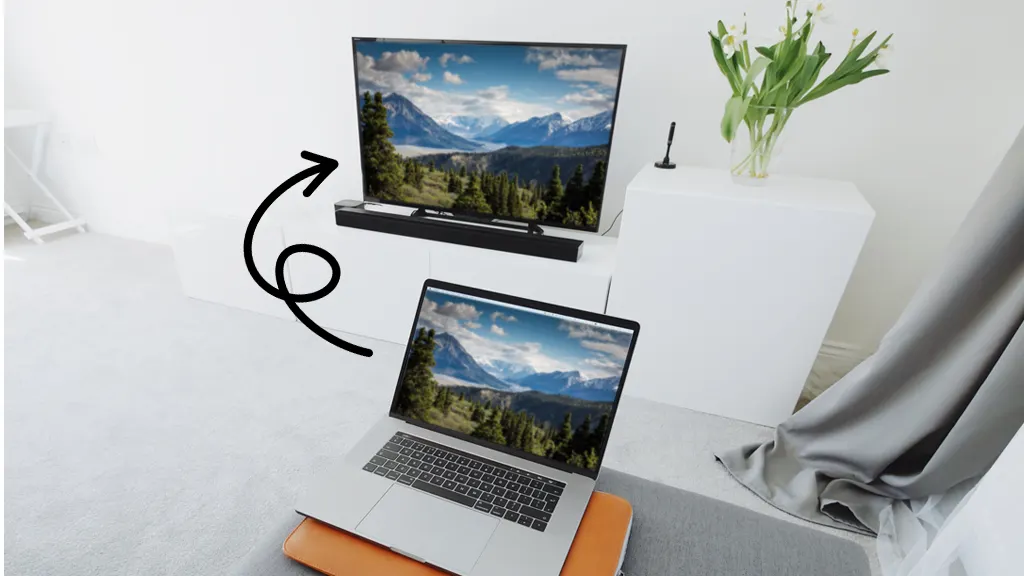
Windows laptops can connect wirelessly to many smart TVs through Miracast. This method mirrors your laptop screen without a cable. The TV must support Miracast or offer a similar screen-mirroring feature.
To pair a Windows laptop with a compatible smart TV:
-
Turn on the TV and enable Screen Mirroring, Wireless Display, or a similar setting.
-
Connect the laptop and TV to the same Wi-Fi network.
-
Press Windows + K on the laptop.
-
Choose your smart TV from the list of available devices.
-
Approve the connection on the TV if a permission message appears.
You can also open Settings, select System, choose Display, and click Multiple displays. Select Connect to a wireless display if that option is available.
Wireless screen mirroring may look slightly different across TV brands. Samsung TVs may use Smart View or a wireless display setting. LG TVs often use Screen Share. Sony and other Android TV models may list Chromecast or wireless display tools.
If the TV does not appear, restart both devices and check that they use the same Wi-Fi band or network. Guest networks often block device discovery, so connect both devices to the main home network.

How to pair a MacBook with a smart TV using AirPlay
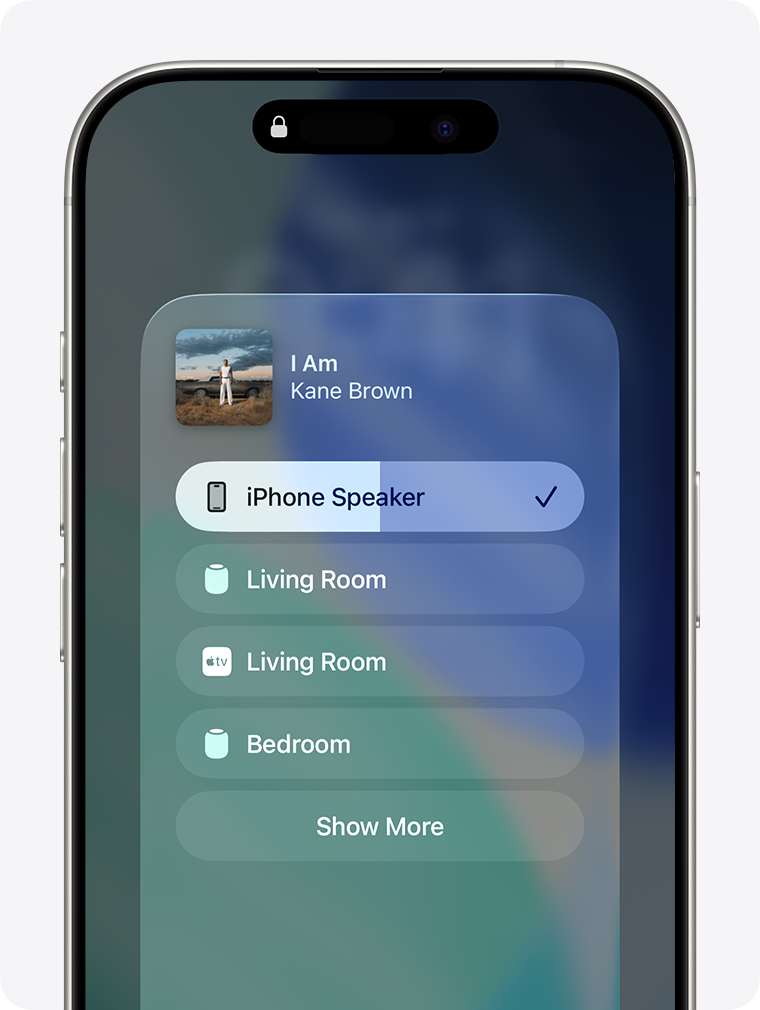
AirPlay is the easiest way to connect many MacBook models to an Apple TV or AirPlay-compatible smart TV. Several modern televisions support AirPlay, but the feature may need to be turned on in the TV settings.
Here is how to pair a MacBook with a smart TV using AirPlay:
-
Turn on the TV and enable AirPlay.
-
Connect the MacBook and TV to the same Wi-Fi network.
-
Click the Control Center icon in the Mac menu bar.
-
Select Screen Mirroring.
-
Choose the smart TV or Apple TV.
-
Enter the AirPlay code shown on the TV if requested.
To stop mirroring, open Control Center, select Screen Mirroring, and click the connected TV again. You can also adjust whether the TV mirrors the MacBook display or acts as a second screen.
AirPlay works well for photos, presentations, music, and video. However, some protected streaming content may behave differently because of digital rights management. If a video appears black while the rest of the desktop shows correctly, use the streaming service’s TV app or connect through HDMI.
How to pair a laptop with a smart TV using Chromecast
Chromecast lets you cast browser tabs, websites, videos, and supported apps to a compatible smart TV or Chromecast device. Google Chrome is usually the easiest browser for this method.
To cast from a laptop:
-
Open Google Chrome.
-
Make sure the laptop and TV use the same Wi-Fi network.
-
Select the three-dot menu in the upper-right corner.
-
Choose Cast, Save, and Share, then select Cast.
-
Pick the TV or Chromecast device.
-
Choose whether to cast the current tab, the full desktop, or a supported video.
Casting a tab is useful for websites and browser-based video. Casting the full desktop mirrors more of the laptop screen, but it may use more network bandwidth. When possible, use the cast button inside the video player because it often provides smoother playback.
Chromecast is different from traditional screen mirroring. The TV may receive the video directly from the internet instead of relying on the laptop to send every frame. This can reduce laptop battery use and improve playback.
How to pair a laptop with a smart TV through a streaming device
A streaming device can help when the smart TV does not support your laptop’s wireless connection. Common options include Apple TV, Chromecast, Roku, and Amazon Fire TV devices. Each platform has different casting and mirroring support.
The basic process is similar:
-
Connect the streaming device to an HDMI port on the TV.
-
Complete the device setup and connect it to Wi-Fi.
-
Install or enable the matching casting feature.
-
Connect your laptop and streaming device to the same network.
-
Select the device from AirPlay, Cast, or wireless display settings.
This approach can be helpful in homes with older TVs or mixed devices. For example, a MacBook may work smoothly with Apple TV, while a Chromebook may work best with Chromecast.
A streaming device does not always support complete laptop mirroring. Some devices only cast supported apps or browser content. Check the device’s current compatibility details before buying one.

How to adjust the picture and sound after pairing
After you pair a laptop with a smart TV, the screen may look stretched, blurry, or too small. These problems are usually caused by resolution, scaling, refresh rate, or display mode settings.
Try these adjustments:
• Set the TV to its recommended resolution, such as 1920 × 1080 or 3840 × 2160.
• Use Duplicate for presentations and Extend for multitasking.
• Set the TV as the main display when watching content on the larger screen.
• Adjust scaling if text looks too small or too large.
• Choose the correct HDMI input and enable enhanced HDMI mode if needed.
• Select the TV as the audio output device.
For movies, a 16:9 display mode usually works best. Some TVs have picture settings such as Cinema, Movie, Game, or Standard. Game mode can reduce input delay, while Cinema mode may produce a more natural image.
If the picture looks soft, avoid stretching a low-resolution video across a large 4K screen. The TV can enlarge the image, but it cannot create missing detail. A good internet connection and a high-quality source usually matter more than changing random picture settings.
How to fix common laptop-to-TV connection problems
Even when you follow the correct steps, the connection may fail. Most problems come from the cable, input selection, Wi-Fi network, permissions, or outdated software.
Use this troubleshooting checklist:
• No signal: Select the correct HDMI input and reconnect both ends of the cable.
• TV not found wirelessly: Confirm that both devices use the same Wi-Fi network.
• No sound: Select the TV as the audio output device on the laptop.
• Lag or freezing: Move closer to the router, reduce network traffic, or use HDMI.
• Black screen: Restart both devices and check for content protection limits.
• Wrong screen size: Change the laptop’s resolution and TV picture mode.
• Connection drops: Update the TV firmware, laptop operating system, and graphics drivers.
• USB-C adapter fails: Confirm that the adapter supports video output, not only charging.
In my experience, restarting the TV fully is often more useful than simply turning it off with the remote. Some smart TVs remain in a low-power mode, so unplugging the TV for about 30 seconds can clear a temporary connection fault.
If wireless mirroring works but video playback remains choppy, switch to HDMI. Wireless display technology compresses and sends screen data over the network, so it is more sensitive to interference than a cable.
Is HDMI or wireless pairing better?
The right choice depends on what you plan to do. HDMI is best when you want a steady connection, low delay, and reliable sound. Wireless pairing is better when you want a clean setup without cables.
Choose HDMI for:
• Gaming
• Long movies
• Video editing
• Online classes
• Business presentations
• High-resolution work
Choose wireless pairing for:
• Sharing photos
• Browsing the web
• Casual streaming
• Presenting without cables
• Using the laptop from across the room
Wireless connections can be convenient, but they are not always private or stable. Only connect to TVs you recognize, and avoid mirroring sensitive work in public places. Also remember that anyone near the TV may see notifications, open tabs, or private messages while the screen is mirrored.
Security and privacy tips for screen mirroring
Screen mirroring sends the laptop display to another device, so privacy deserves attention. Before connecting, close private documents, password managers, email windows, and personal messages.
Use these simple safeguards:
• Connect only to a trusted TV and Wi-Fi network.
• Approve pairing requests only when you started the connection.
• Turn off screen mirroring when you finish.
• Disable automatic AirPlay or casting if you do not use it.
• Avoid mirroring private information in hotels, offices, or shared spaces.
• Keep your laptop, TV, router, and streaming device updated.
Public Wi-Fi can prevent pairing, but that restriction is often a security benefit. Hotel and guest networks may isolate connected devices from one another. If you need to present in such a place, HDMI is usually safer and more dependable.
How to pair a laptop with a smart TV for gaming
For gaming, how to pair a laptop with a smart TV depends on input delay and graphics performance. HDMI usually provides the most responsive experience, especially when the laptop has a dedicated graphics card and the TV includes a Game mode.
Connect the laptop with HDMI, select the correct input, and enable Game mode on the TV. Set the TV to its native resolution and choose a supported refresh rate, such as 60 Hz or higher.
Wireless mirroring can add noticeable delay. It may be fine for turn-based games or casual play, but fast racing, sports, and action games usually feel better through HDMI.
Also check the laptop’s power settings. Some laptops reduce graphics performance when running on battery. Plug the laptop into power and select a performance mode when appropriate.
How to pair a laptop with a smart TV for presentations
A smart TV can replace a projector for many small meetings and classrooms. HDMI is the safest option because it does not depend on Wi-Fi discovery or app compatibility.
For a smooth presentation:
-
Connect the laptop before the audience arrives.
-
Select Duplicate if everyone needs to see the laptop screen.
-
Select Extend if you want speaker notes on the laptop.
-
Set the TV to the correct resolution.
-
Turn off notifications and close unrelated apps.
-
Test sound if the presentation includes video.
If you use wireless casting, keep the presentation file open before pairing. This reduces delays and helps you recover quickly if the connection drops.
A practical lesson is to carry a small USB-C-to-HDMI adapter when presenting from a modern laptop. It is a simple backup that can prevent a last-minute technical problem.
Frequently asked questions about how to pair a laptop with a smart TV
Can I pair any laptop with any smart TV?
Not always. Most laptops can connect through HDMI with the correct port or adapter, but wireless pairing depends on support for AirPlay, Miracast, Chromecast, or another compatible system.
Why is my smart TV not showing up on my laptop?
Check that both devices are on the same Wi-Fi network and that screen mirroring or AirPlay is enabled on the TV. Restarting both devices and disabling a VPN can also help the TV appear.
Can I connect a laptop to a smart TV without Wi-Fi?
Yes. An HDMI cable can connect the laptop directly to the TV without Wi-Fi or internet access. Wireless methods usually require both devices to communicate through the same local network.
Why do I have video but no sound on my TV?
Your laptop may still be using its built-in speakers. Open the sound settings and select the TV, HDMI output, AirPlay device, or casting device as the audio source.
Can I use a smart TV as a second monitor for my laptop?
Yes. Choose Extend display in Windows or use the display arrangement settings on macOS. A wired HDMI connection usually provides a more stable second-monitor experience than wireless mirroring.
Does pairing a laptop with a smart TV use internet data?
HDMI does not use internet data. Wireless casting may use the local Wi-Fi network, and some casting services may stream content directly from the internet through the TV.
Conclusion
Knowing how to pair a laptop with a smart TV gives you several useful options. HDMI offers the most stable connection, while Windows wireless display, AirPlay, Chromecast, and streaming devices provide cable-free flexibility.
Start by checking your laptop ports and TV features. Use the same Wi-Fi network for wireless pairing, select the correct display and sound settings, and switch to HDMI when you need better stability or lower delay. Try the method that fits your setup today, then share your experience or explore more device connection guides for your home technology setup.

Everett Ashford is a tech reviewer at mytechgrid.com specializing in SSDs, cameras, TVs, earbuds, headphones, and other consumer electronics. He provides honest, data-driven reviews based on hands-on testing and real-world performance analysis. Everett simplifies complex tech details to help readers make smart, confident buying decisions.