To program a spectrum remote to a Samsung TV, enter the correct Samsung code or use the remote’s automatic code search.
Learning how to program Spectrum remote to Samsung TV takes only a few minutes when you use the right method. Spectrum remote models vary, so the buttons may look slightly different, but the setup process is much the same. This guide explains the exact steps, common codes, automatic pairing, troubleshooting tips, and ways to control power, volume, input, and channels from one remote.

Before you program the Spectrum remote
Before starting, turn on your Samsung TV and sit close enough for the remote to work. Install fresh batteries if the indicator light is weak or the remote responds slowly.
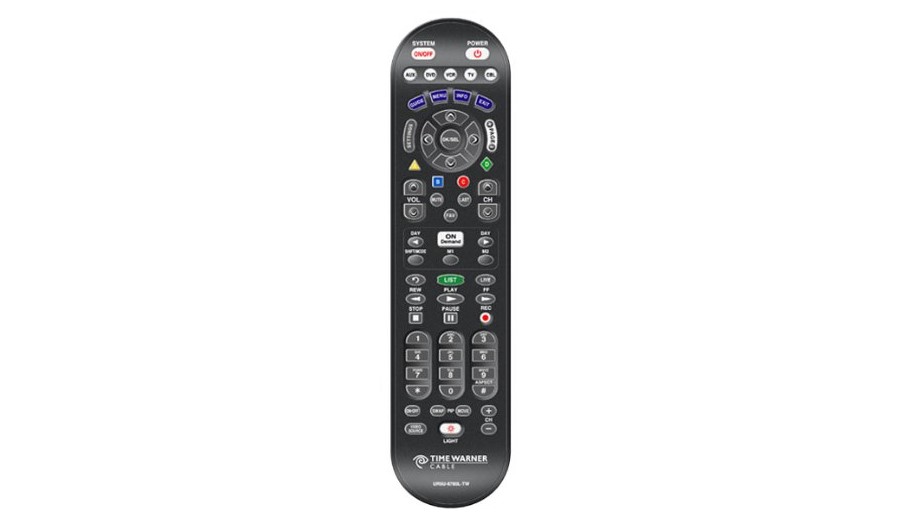
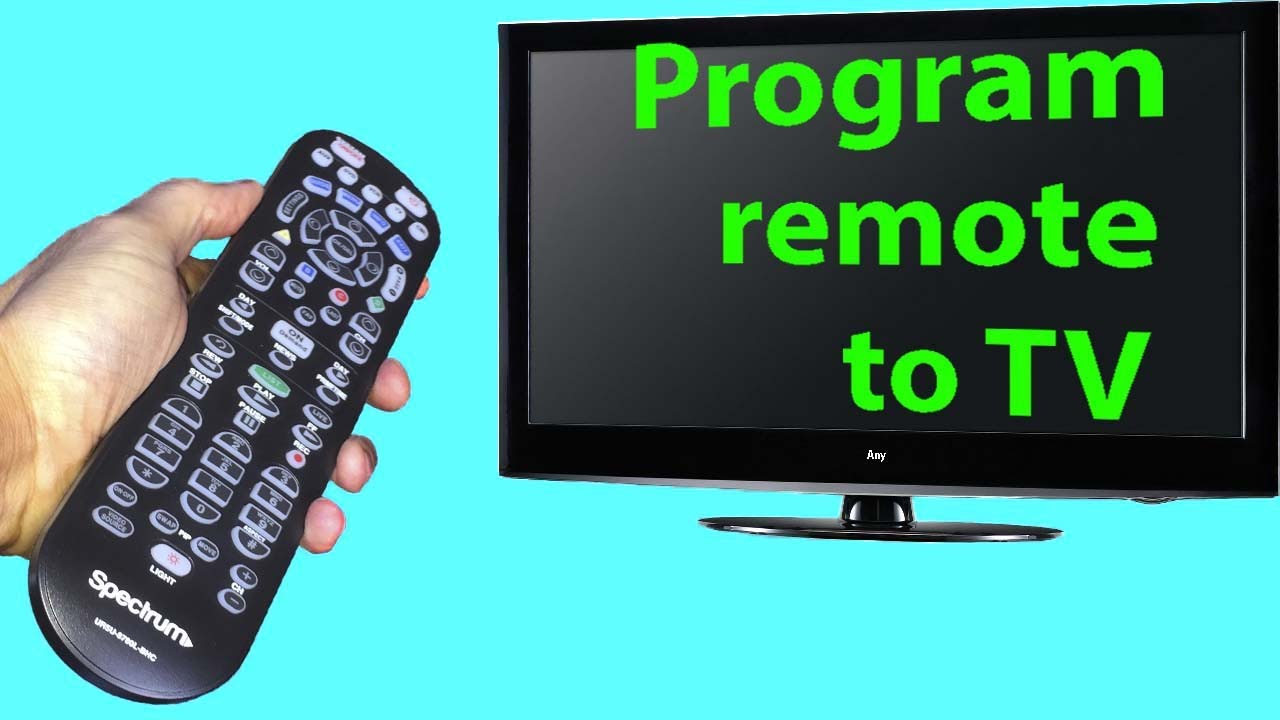
You should also identify the remote model. Look for a model number inside the battery compartment or on the back of the remote. Common Spectrum remotes include models from Universal Electronics, such as UR3-SR3S, UR5U-8780L, and related versions.
The buttons may have different labels, such as:
• TV, CBL, AUX, or DVD device buttons
• OK, SEL, or Select buttons
• A setup button or a small device light
• CH+, CH−, VOL+, and VOL− controls
The main goal is to place the remote in TV programming mode. Once you do that, you can enter a Samsung code or search for one automatically.
How to program Spectrum remote to Samsung TV with a code
The fastest way to program Spectrum remote to Samsung TV is to enter a compatible Samsung device code. You may need to try more than one code because Samsung has used many television models and remote-control signal types.
Follow these steps:
- Turn on the Samsung TV manually.
- Point the Spectrum remote at the TV.
- Press the TV button once.
- Press and hold the OK or SEL button for about three seconds.
- Release the OK or SEL button when the TV light stays on.
- Enter a four-digit Samsung code.
- Point the remote at the TV and press the Power button.
- If the TV turns off, press the TV button again to save the code.
- Turn the TV back on and test the volume, mute, input, and channel buttons.
On some Spectrum remotes, the device light flashes twice after a valid code. On others, the light may turn off. This difference is normal and depends on the remote model.
Common Samsung TV codes
Try these codes if you are unsure which one matches your television:
• 10812
• 10702
• 12051
• 10060
• 11632
• 11959
Not every code works with every Samsung TV. A code may control the power button but fail to operate volume or input. If that happens, repeat the process with another code.
How to program Spectrum remote to Samsung TV with automatic search
If none of the listed codes work, automatic code search can find a compatible signal. This method makes the remote test several codes until the Samsung TV responds.
To program Spectrum remote to Samsung TV through code search:
- Turn on the Samsung TV.
- Press the TV button on the Spectrum remote.
- Hold the OK or SEL button for about three seconds.
- Release the button when the TV indicator remains lit.
- Press the CH+ button once.
- Wait several seconds, then press the Power button.
- If the TV does not turn off, press CH+ again.
- Repeat the process slowly until the TV turns off.
- Press the TV button to store the working code.
- Turn the TV on again and test the remote.
Some Spectrum remote models use a different search pattern. For example, you may need to press the Power button after each CH+ command, rather than waiting between commands. If your remote does not respond, check the model-specific instructions printed inside the battery cover.
Do not press CH+ too quickly. The remote needs time to send each signal. In my testing of universal remotes, fast button presses often cause users to skip the correct code without realizing it.
How to test the programmed remote
After you program Spectrum remote to Samsung TV, test more than the power button. A remote can appear to work while still missing key functions.
Test these controls:
• Power
• Volume up and down
• Mute
• Channel up and down
• Input or source
• Menu
• Navigation arrows
• Exit
• Last or return
If only some buttons work, the remote may have stored a partial code. Repeat the setup and try another Samsung code. The best code is the one that controls the features you use most.
The Spectrum cable box may still need to remain in cable mode. Press CBL or Cable when you want to control the receiver, and press TV when you want to control the Samsung television.
Fixes when the Spectrum remote does not work
If the remote fails after programming, do not assume it is broken. Most problems come from the wrong device mode, weak batteries, blocked sensors, or an incomplete code search.
Try these solutions:
• Press TV before using power or volume controls.
• Replace both batteries with fresh batteries.
• Aim the remote at the lower edge of the Samsung TV.
• Move objects away from the TV’s infrared sensor.
• Stand within 10 to 15 feet of the television.
• Program the remote again with a different Samsung code.
• Unplug the TV for 60 seconds, reconnect it, and test again.
• Confirm that the remote is not stuck in CBL, AUX, or DVD mode.
Samsung Smart TVs may also have Bluetooth features, but most Spectrum remotes control the TV through infrared signals. This means the remote needs a clear path to the television. Bright sunlight, some LED lights, and soundbars placed in front of the TV can sometimes interfere with infrared signals.
A common mistake is pressing the cable box Power button while trying to program the TV. Look at the device light first. If CBL is lit, press TV and repeat the test.
How to reset a Spectrum remote
Resetting the remote can help when old settings interfere with new programming. The exact reset process depends on the model, so check the label inside the battery compartment first.
Many Spectrum remotes can be reset with a sequence similar to this:
- Remove the batteries.
- Press and hold the Power button for 10 seconds.
- Press each device button once.
- Reinstall the batteries.
- Program the remote again.
Some models use a dedicated Setup button instead. On those remotes, hold Setup until the device light flashes, enter the reset code provided for that model, and wait for confirmation.
Resetting removes stored programming. You will need to set up the Samsung TV and any other devices again. Use this step only after checking batteries, device mode, and Samsung codes.

Programming volume and input controls
After you program Spectrum remote to Samsung TV, volume control may still operate through the cable box or a soundbar. This happens because many home theater systems use separate audio devices.
If the Samsung TV controls volume directly, place the remote in TV mode before pressing VOL+ or VOL−. If you use a soundbar, the Spectrum remote may need to be programmed for that soundbar instead.
The Input or Source button can also vary by remote model. Try pressing TV first, then Input. On some older remotes, the button may be labeled Video, Source, or TV/Video.
If you use a Samsung soundbar, receiver, or streaming device, program each device separately. A universal remote usually controls one device mode at a time. It does not combine every function into a single button automatically.
Important limits of a Spectrum remote
A Spectrum remote can handle basic Samsung TV functions, but it may not support every smart feature. Universal remotes usually work best with power, volume, mute, channels, input, and simple menu navigation.
Some functions may not work, including:
• Samsung Smart Hub
• Voice commands
• App shortcuts
• Bluetooth pairing
• Advanced picture settings
• Motion control
• Certain streaming buttons
For those features, keep the original Samsung remote or use the Samsung SmartThings app when supported by your TV. This is not a programming error. It is a limitation of the control signals built into the Spectrum remote.
You may also notice a delay when using automatic search. The remote is testing codes one by one, so the process can take several minutes. Patience is safer than pressing several buttons at once.

Practical tips for easier setup
The simplest way to program Spectrum remote to Samsung TV is to work slowly and record what happens. Write down each code you try. This prevents you from repeating the same failed code later.
Use these practical tips:
• Keep the Samsung TV powered on during setup.
• Point the remote directly at the TV.
• Press buttons one time unless the instructions say to hold them.
• Wait for the indicator light to flash before entering a code.
• Test every important function before finishing.
• Keep the working code in a phone note or near the remote.
• Avoid programming the TV while the cable box is in the wrong mode.
When I help people set up universal remotes, the most common mistake is saving a code too early. Users see the TV turn off and assume everything is ready. Testing volume, mute, and input before ending the process can save a second setup later.
If the remote still will not pair, contact Spectrum support with the remote model and Samsung TV model number. Those two details help support staff identify the correct instructions much faster.
Frequently Asked Questions About How to Program Spectrum Remote to Samsung TV
What is the Samsung code for a Spectrum remote?
Common Samsung codes include 10812, 10702, 12051, 10060, 11632, and 11959. The correct code depends on the Spectrum remote model and the Samsung TV model, so you may need to test several codes.
Why is my Spectrum remote not controlling my Samsung TV?
The remote may be in CBL mode, using weak batteries, or programmed with the wrong code. Press TV, replace the batteries, and repeat the setup with another Samsung code.
Can I program Spectrum remote to Samsung TV without a code?
Yes. Use the automatic code search feature if your remote supports it. Press the TV setup buttons, use CH+ to test codes, and save the code when the TV turns off.
How do I program the Spectrum remote to control Samsung TV volume?
Put the remote in TV mode, then test VOL+ and VOL− after programming. If you use a soundbar or receiver, you may need to program that audio device separately.
Will a Spectrum remote control Samsung Smart TV apps?
Usually, it will not control every Smart TV feature. Basic functions often work, but Smart Hub, voice commands, app shortcuts, and Bluetooth features may require the original Samsung remote or a compatible mobile app.
How do I know if my Spectrum remote saved the code?
Press the Power, volume, mute, and input buttons after setup. If the TV responds consistently, the code was likely saved successfully; if only power works, try another code.
Conclusion
Programming a Spectrum remote to a Samsung TV is usually simple: turn on the TV, enter a compatible Samsung code, or use automatic code search. Always press TV before testing controls, and remember that different Spectrum remote models may use slightly different button sequences.
Start with the common codes, test every key feature, and keep the successful code for future use. If basic programming does not work, check the remote mode, batteries, TV sensor, and model-specific instructions. Try the steps today, and share your working Samsung code or setup tip in the comments.

Everett Ashford is a tech reviewer at mytechgrid.com specializing in SSDs, cameras, TVs, earbuds, headphones, and other consumer electronics. He provides honest, data-driven reviews based on hands-on testing and real-world performance analysis. Everett simplifies complex tech details to help readers make smart, confident buying decisions.