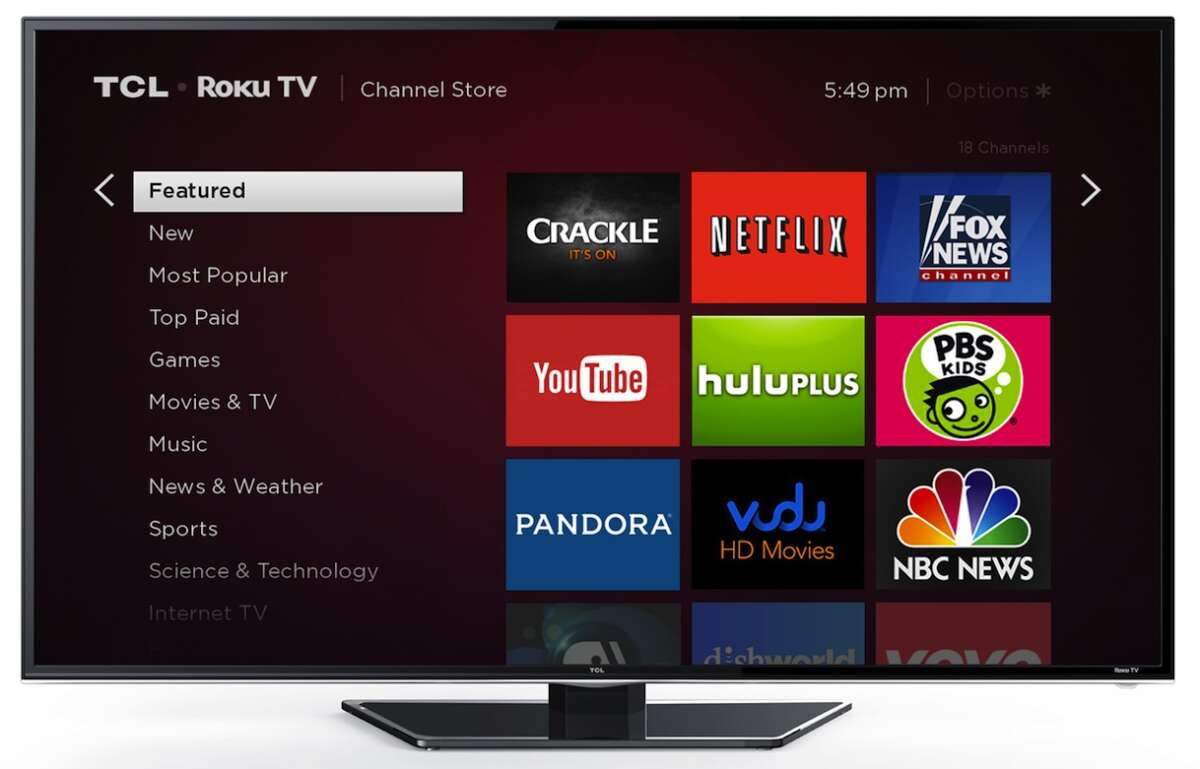
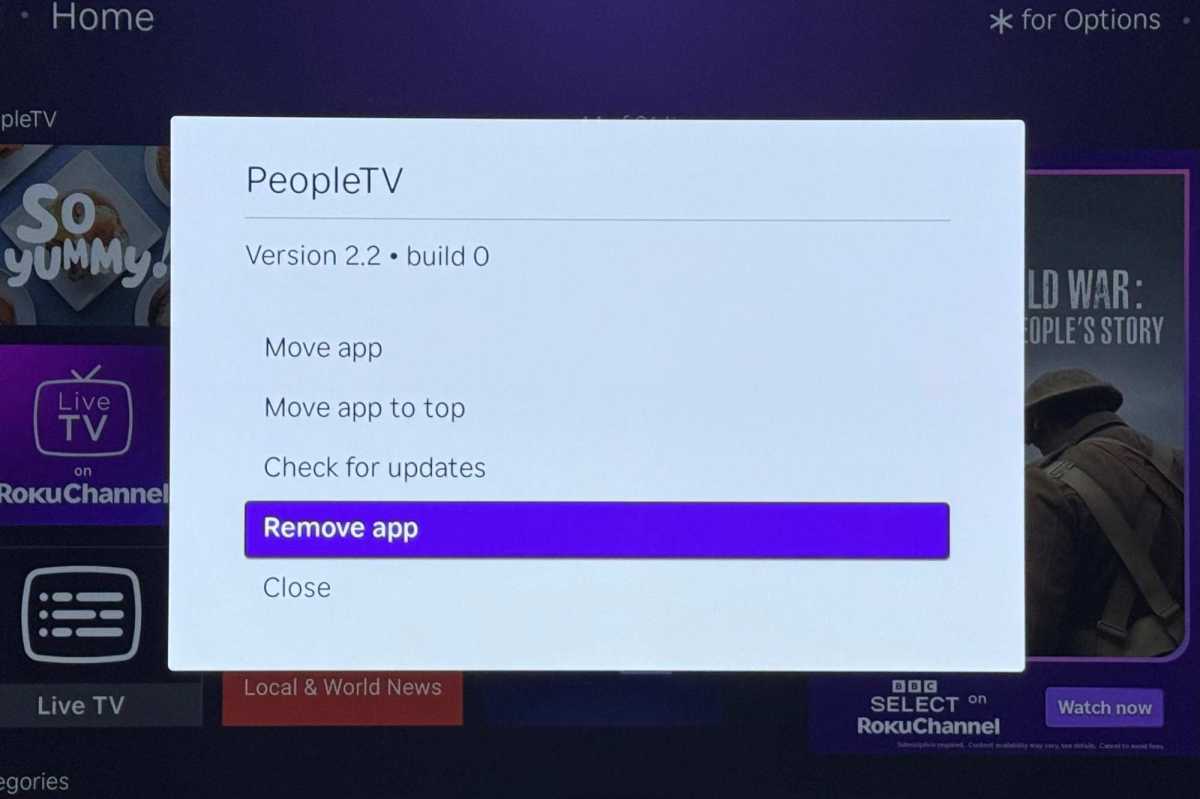
On your Roku TV, highlight the app, press the Star button, choose Remove app, and confirm.
Knowing how to remove an app on Roku TV helps you clear clutter, fix app problems, and make room for channels you actually use. The process is quick, but the menu can look slightly different by Roku model and software version. This guide explains the safest steps, common mistakes, subscription limits, and simple fixes if the Remove app option is missing.
:max_bytes(150000):strip_icc()/vlcsnap-2024-03-03-12h16m02s133-990d59719bb44d198bebe9938b7848a7.png)
How to remove an app on Roku TV with the remote
The fastest way to remove a Roku app is through the Home screen. Roku often calls apps “channels,” so do not worry if you see both terms in the menus.
Follow these steps:
- Press the Home button on your Roku remote.
- Move to the app you want to delete.
- Highlight the app without opening it.
- Press the Star (*) button on the remote.
- Select Remove app or Remove channel.
- Choose Remove or Confirm when Roku asks.
- Wait a few seconds for the app to disappear.
This is the main answer to how to remove an app on Roku TV. You do not need to open the app first. In fact, opening it may make the process slower because you must exit back to the Roku Home screen.
If you accidentally select the wrong app, press the Back button before confirming. Roku normally asks for confirmation, which gives you one last chance to stop the removal.
What happens when you remove a Roku app?
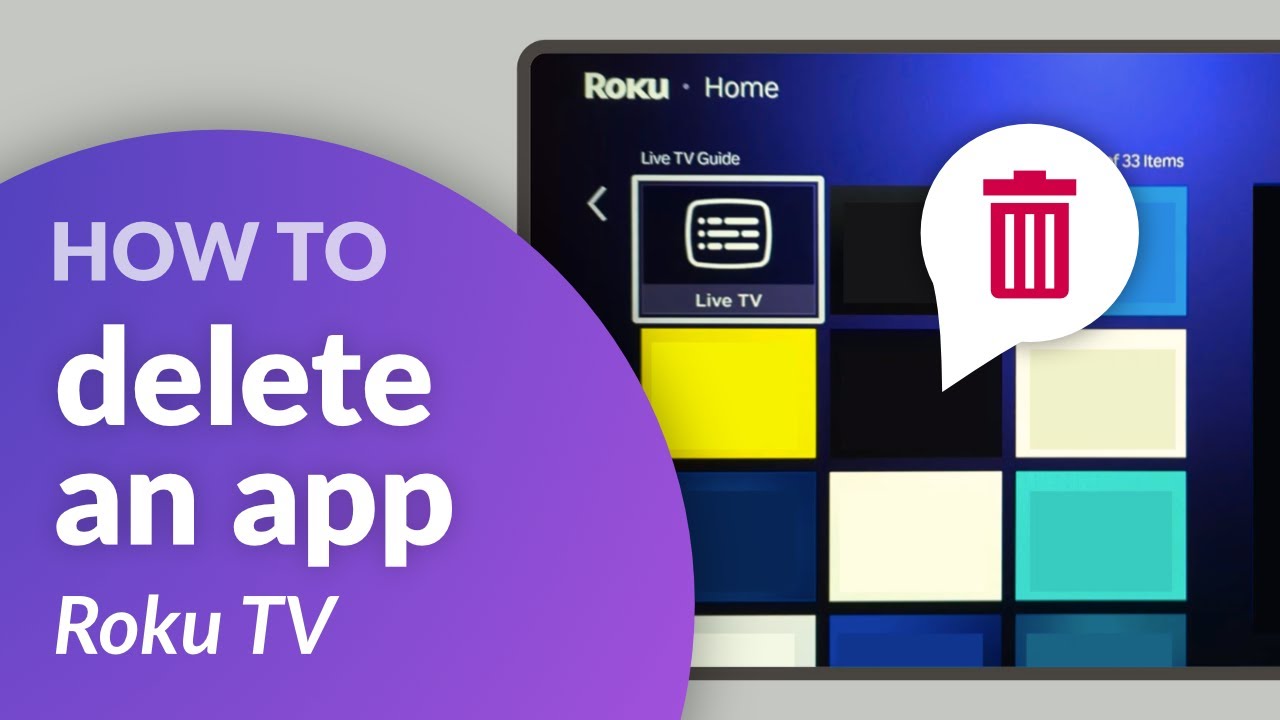
Removing an app deletes the channel from that Roku device. It also removes the app’s icon from your Home screen, which makes your channel list easier to browse.
However, removing an app does not always cancel a paid subscription. For example, deleting a streaming channel does not necessarily stop billing through Roku, the app provider, Apple, Google, or another service.
Before removing a paid app, check how you subscribed:
• Subscriptions billed through Roku may appear under your Roku account subscription settings.
• Subscriptions billed through a streaming company must usually be canceled through that company.
• Subscriptions started through Apple or Google must be managed in the related account settings.
Think of app removal as taking a book off your shelf. It removes the book from view, but it does not always cancel a magazine subscription connected to it.
If you reinstall the app later, you may need to sign in again. Some apps keep your account data online, while others may reset local settings on the Roku device.
:max_bytes(150000):strip_icc()/B4-DeleteAppsonRoku-annotated-8a9b6982b6d940a790e514c16d2611c3.jpg)
How to remove an app on Roku TV from the Channel Store
You can also manage Roku apps through the Streaming Store or Channel Store. The exact name depends on your Roku software version and device type.
This method is useful when you want to find an app, check whether it is installed, or reinstall it after removing it.
- Press Home on the remote.
- Open the Streaming Store or Channel Store.
- Search for the app you want to remove.
- Select the app.
- Choose Remove app or Remove channel.
- Confirm your choice.
This answers how to remove an app on Roku TV when you prefer browsing through the store instead of the Home screen. Still, the Star button method is usually faster.
If the store shows an option such as Open rather than Add app, the channel is already installed. Look for a menu button or removal option on the app’s information page.

How to remove an app on Roku TV using the Roku mobile app
The official Roku mobile app can act as a remote when your physical remote is lost or not working. Your phone and Roku device must normally be connected to the same Wi-Fi network.
To use the mobile app:
- Install and open the Roku mobile app on your iPhone or Android phone.
- Select your Roku TV from the device list.
- Tap the remote control option.
- Use the on-screen remote to press Home.
- Highlight the app you want to delete.
- Tap the Star button.
- Select Remove app and confirm.
This is another practical way to learn how to remove an app on Roku TV without using the original remote.
The phone app does not bypass Roku’s normal menus. It simply gives you a digital version of the remote, so the same removal steps apply.
If your Roku TV does not appear in the mobile app, check these points:
• Your phone and Roku TV are on the same Wi-Fi network.
• The Roku TV is powered on and connected to the internet.
• The Roku mobile app has permission to access your local network.
• You are not using a guest Wi-Fi network that blocks device communication.
How to remove an app on Roku TV when the option is missing
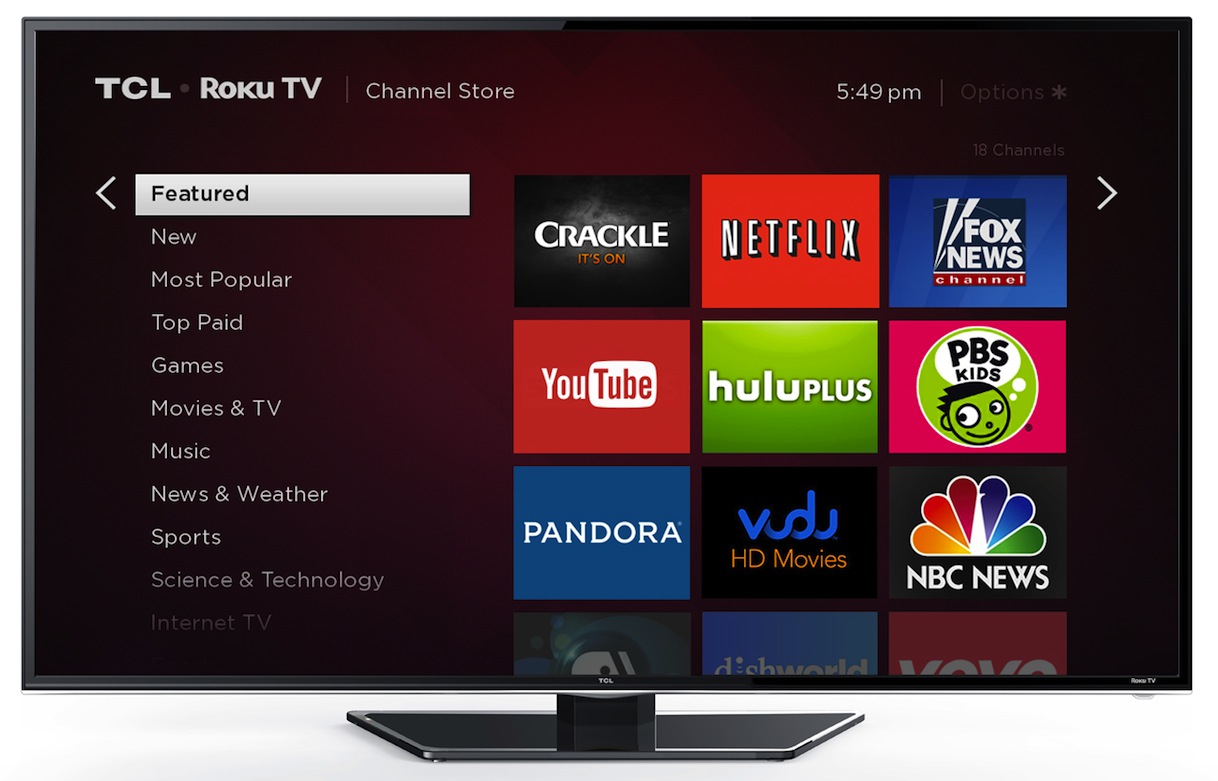
Sometimes the Remove app option does not appear. This can happen if the app is highlighted incorrectly, the menu has not loaded, or the app is connected to an active subscription.
Try these fixes in order:
- Return to the Home screen.
- Highlight the app again.
- Press the Star button once.
- Wait for the options menu to load.
- Check for Remove app or Remove channel.
- Restart the Roku TV if the option is still missing.
- Check for a Roku software update.
To restart the TV, open Settings, choose System, select Power, and choose System restart if that option is available. Some Roku TV models place the restart setting under System restart without a separate Power menu.
You can also unplug the TV for about one minute, then plug it back in. This clears temporary system errors without deleting your apps or settings.
A common mistake is pressing the Star button while an app is open. Roku needs the app to be highlighted on the Home screen. Once I noticed this was the cause of many failed removal attempts when helping people set up their TVs.
How to remove an app on Roku TV with a slow or frozen menu
A slow Roku menu can make app removal seem impossible. Weak internet service, low system resources, or a temporary software error may cause delayed responses.
Try the following steps:
• Press Home and wait several seconds.
• Avoid pressing the same button many times.
• Restart the Roku TV.
• Restart your Wi-Fi router.
• Check for system updates under Settings, System, and Software update.
• Remove the app again after the TV finishes restarting.
Do not unplug the TV while it is installing an update. Interrupting an update can cause additional problems.
If only one app freezes, the issue may be with that app rather than the Roku TV. Removing and reinstalling the app can often refresh its files. If every app is slow, check the network connection and Roku system software first.

How to remove an app on Roku TV and reinstall it later
Removing an app does not permanently prevent you from using it. You can usually add it again through the Streaming Store or Channel Store.
To reinstall a removed app:
- Press Home.
- Open the Streaming Store or Channel Store.
- Search for the app.
- Select Add app or Add channel.
- Wait for the installation to finish.
- Return to the Home screen.
- Open the app and sign in.
This is helpful when an app crashes, shows a blank screen, or refuses to play videos. Removing the app clears its local installation, while reinstalling it downloads a fresh version.
Keep your login details nearby. Reinstallation may require your email address, password, activation code, or two-step verification.
If the app is no longer available in the Roku store, you may not be able to reinstall it. Streaming companies sometimes end support for older devices or remove apps from certain regions.
How to remove an app on Roku TV without canceling your account
Roku apps often connect to separate streaming accounts. Removing an app from the TV only removes access from that device. It does not automatically delete your streaming account.
For example, removing a video app may leave your user profile, watch history, and payment plan active online. You can reinstall the app later and sign in again.
To avoid unwanted charges:
- Find the service that bills you.
- Open its account or subscription page.
- Review the plan and next billing date.
- Cancel the subscription if you no longer want it.
- Save the confirmation email or cancellation number.
Roku’s account settings can show some subscriptions, but not every subscription connected to an app is billed by Roku. Always check the payment receipt or bank statement if you are unsure.
This distinction is one of the most important parts of how to remove an app on Roku TV safely. Deleting an icon is not the same as ending a paid plan.

How to remove multiple apps from a Roku TV
Roku does not always offer a single “remove all apps” button. In most cases, you must remove apps one at a time from the Home screen.
For each unwanted app:
- Highlight the app.
- Press the Star button.
- Select Remove app.
- Confirm the removal.
- Repeat the process for the next app.
Take care when cleaning up a large channel list. Some apps may look similar, and removing an app does not always free a large amount of storage. Roku manages storage automatically, so the main benefit is usually a cleaner Home screen.
A useful approach is to remove apps you have not used in several months. Keep apps that you share with family members, even if you rarely open them yourself.
Common mistakes to avoid when removing Roku apps
The process is simple, but a few mistakes can create confusion.
• Opening the app first: You must highlight the app on the Home screen rather than open it.
• Choosing the wrong menu item: The Star menu may include Move app, Check for updates, and Remove app. Read each option before selecting it.
• Assuming removal cancels billing: App removal and subscription cancellation are separate actions.
• Forgetting account details: Reinstalling an app may require you to sign in again.
• Removing a shared family app: Ask other household members before deleting an app used by someone else.
• Using an unofficial remote app: Choose the official Roku mobile app or a trusted replacement remote.
• Ignoring software updates: An outdated Roku system may cause menu errors or app installation problems.
A small amount of care prevents most problems. I recommend checking the app name twice before pressing Confirm, especially when several similar streaming services appear next to each other.
How to remove an app on Roku TV from your Roku account
Most people should use the TV remote because it is the simplest method. Roku account management can help with channel access and subscriptions, but the exact online options may differ by account and software version.
If you manage channels from your Roku account, sign in through the official Roku account page and review your channel or subscription settings. Look for options related to installed channels, subscriptions, or account management.
Removing a channel from an account may not immediately remove it from every Roku device. The TV may need to connect to the internet, restart, or refresh its channel list.
For this reason, the Home screen method remains the most dependable answer to how to remove an app on Roku TV. It gives you direct control over the device in front of you.
How to remove an app on Roku TV for better privacy
Removing an app can help reduce clutter, but it does not erase every piece of account information. Your streaming provider may still retain your profile, watch history, or billing records according to its privacy policy.
For a stronger privacy cleanup:
• Sign out of the app before removing it, if possible.
• Remove saved payment details from the service account when appropriate.
• Review active devices in the provider’s account settings.
• Change your password if you used the account on a shared TV.
• Use a separate Roku profile or account arrangement for shared households when available.
If you are giving away or selling the Roku TV, do not rely only on app removal. Perform a factory reset through Settings, System, Advanced system settings, and Factory reset. A factory reset removes personal settings and account links from the device, but it cannot close your streaming accounts.
Frequently asked questions about how to remove an app on Roku TV
Can I remove an app from Roku TV without a remote?
Yes. You can use the official Roku mobile app if your phone and Roku TV are connected to the same Wi-Fi network. A compatible replacement remote can also provide access to the Home and Star buttons.
Why can’t I see the Remove app option on Roku TV?
Make sure the app is highlighted on the Home screen and not open. If the option is still missing, restart the TV, check for software updates, and try again.
Does removing a Roku app cancel the subscription?
No. Removing an app usually removes it from the device but does not cancel a paid plan. Cancel the subscription through the company or payment service that bills you.
Can I reinstall an app after removing it from Roku TV?
Yes, in most cases. Search for the app in the Streaming Store or Channel Store and select Add app or Add channel, then sign in again if required.
Will removing an app delete my account?
No. Removing an app does not normally delete your streaming account. Your account, profile, watch history, and payment plan may remain active online.
How do I remove an app from the Roku Home screen?
Highlight the app, press the Star button, select Remove app, and confirm. This is the standard way to remove an app on Roku TV.
Can I remove Roku apps in bulk?
Usually, no. Roku generally requires you to remove unwanted apps one at a time, although the exact options can vary by software version and device model.
Conclusion
Learning how to remove an app on Roku TV takes only a few steps: highlight the app on the Home screen, press the Star button, choose Remove app, and confirm. Remember that deleting an app does not always cancel its subscription, and you may need to sign in again after reinstalling it.
If the option is missing, restart the TV, check for updates, and make sure the app is highlighted rather than open. Clean up your Roku Home screen today, then explore the Streaming Store for apps that better fit your viewing needs.

Everett Ashford is a tech reviewer at mytechgrid.com specializing in SSDs, cameras, TVs, earbuds, headphones, and other consumer electronics. He provides honest, data-driven reviews based on hands-on testing and real-world performance analysis. Everett simplifies complex tech details to help readers make smart, confident buying decisions.