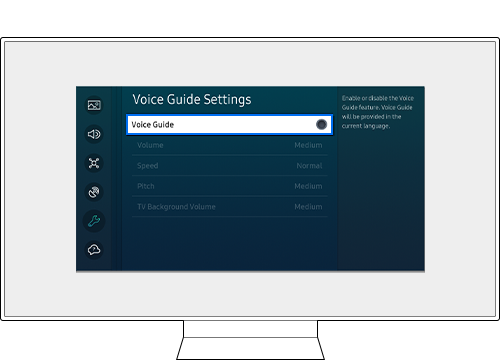
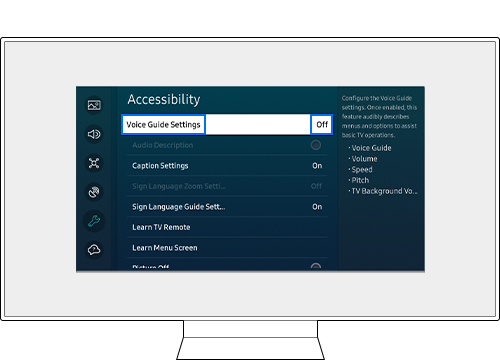
To turn off Voice Guide on a Samsung TV, open Accessibility settings and switch Voice Guide to Off.
If your Samsung TV reads menus, channel details, or volume changes aloud, the Voice Guide feature is enabled. This guide explains how to turn off voice over on Samsung TV models from recent years, including what to do when the menu looks different, the remote shortcut does not work, or spoken audio continues after Voice Guide is disabled.

What Is Voice Guide on a Samsung TV?
Voice Guide is a Samsung accessibility feature that reads screen text and menu actions aloud. It can announce the current channel, volume level, input source, program information, and settings as you move through the TV interface.
Many people turn it on by accident. This often happens when someone holds the volume button too long or explores the Accessibility menu. The voice can sound like a program narrator, but it is usually the TV’s built-in Voice Guide.
It is also important to separate Voice Guide from Audio Description. Voice Guide reads the TV’s menus and controls. Audio Description explains visual action during a show or movie. Each feature has a different setting.
Knowing this difference saves time. If the TV talks only while you browse menus, follow the steps for how to turn off voice over on Samsung TV. If it describes scenes during a movie, skip to the Audio Description section below.
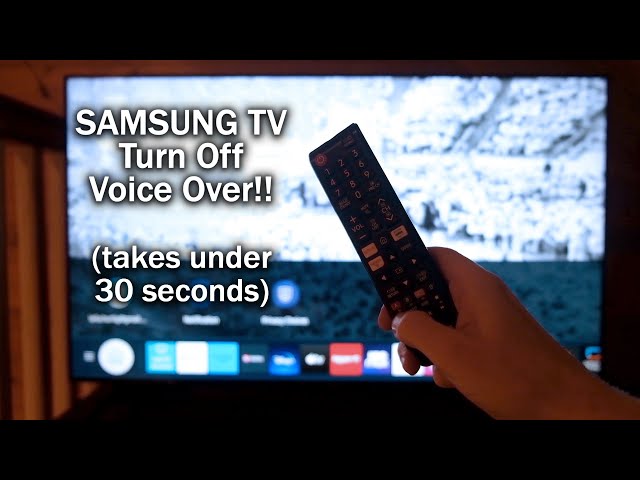
How to Turn Off Voice Over on Samsung TV Through Settings
The most reliable method is to use the full Settings menu. Menu names can vary slightly by model, year, and software version, but the path is usually very similar.
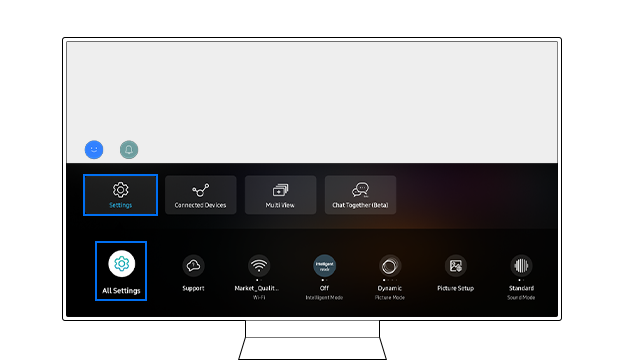
- Press the Home button on your Samsung remote.
- Move to Settings.
- Select All Settings if that option appears.
- Choose General & Privacy.
- Select Accessibility.
- Open Voice Guide Settings.
- Set Voice Guide to Off.
On some older Samsung TVs, the path may be:
- Press Menu on the remote.
- Select System.
- Choose Accessibility.
- Select Voice Guide.
- Change the setting to Off.
Some models use this route instead:
- Open Settings.
- Select General.
- Choose Accessibility.
- Open Voice Guide Settings.
- Turn Voice Guide off.
After you change the setting, move through the Home screen or adjust the volume. The TV should stop reading menu items aloud right away. If it does not, wait a few seconds and test the remote again.
This is the standard solution for how to turn off voice over on Samsung TV because it works even when the shortcut is unavailable.
How to Turn Off Voice Guide With the Remote Shortcut
Many Samsung remotes provide a faster way to disable Voice Guide. Press and hold the Volume button for about two seconds. This may open the Accessibility Shortcuts menu.
When the shortcut menu appears:
- Highlight Voice Guide.
- Press the Select or OK button.
- Change Voice Guide to Off.
On some remote models, pressing and holding the volume button opens a list of accessibility tools. On others, it may display a small menu near the bottom of the screen.
The shortcut can work with Samsung Smart Remotes and some standard remotes. However, the button layout differs across models. If holding Volume does nothing, use the Settings method instead.
Be careful not to press Volume Up or Volume Down only once. A short press changes sound level. A longer press may open accessibility options. This simple difference causes much of the confusion around how to turn off voice over on Samsung TV.

How to Disable Voice Guide on Older Samsung TVs
Older Samsung televisions may not use the same menu labels as current models. You may see Terms such as Audio Guidance, Voice Guide, Narration, or Accessibility Voice Guide.
Try these menu paths:
• Menu > System > Accessibility > Voice Guide
• Menu > Smart Features > Accessibility > Voice Guide
• Settings > System > Accessibility > Audio Guidance
• Settings > General > Accessibility > Voice Guide Settings
Once you find the setting, choose Off. If your TV has an Audio Guidance volume or speed option, changing those values will not disable the feature. You must switch the main Voice Guide or Audio Guidance control off.
If you cannot find Accessibility, check whether the TV is in Basic Mode or Store Demo Mode. Some retail display settings can change the way menus appear. Returning the TV to Home Mode may restore the usual settings.
For older models, the exact steps can depend on the TV’s model number and software version. Look for the model number in Settings > Support > About This TV. It may also appear on a label on the back of the television.
Voice Guide Is Off, but the Samsung TV Still Talks
If the TV still speaks after you disable Voice Guide, another audio feature may be active. Check these settings one at a time.
Turn off Audio Description
Audio Description provides spoken details about visual events in movies and shows. It may be controlled by the TV, a cable box, a streaming device, or the app itself.
On the Samsung TV, check:
- Open Settings.
- Select General & Privacy.
- Choose Accessibility.
- Look for Audio Description or Video Description.
- Turn it off if it is enabled.
If you use a cable receiver, open that device’s audio or accessibility settings. The same applies to Roku, Apple TV, Fire TV, game consoles, and streaming apps.
Check the streaming app
Some apps include their own audio track choices. Start the video, open the Audio, Languages, or Subtitles menu, and choose the regular audio track instead of Audio Description.
Check the cable or satellite box
Your TV may be silent while the cable box provides the narration. Use the cable remote to search for SAP, Secondary Audio Program, Descriptive Audio, or Audio Description. Turn that option off.
Restart the TV
Unplug the TV from the wall for about 60 seconds. Plug it back in and test it again. A full power cycle can clear a temporary software issue.
These checks are essential because how to turn off voice over on Samsung TV depends on which device is generating the speech.

How to Stop Voice Guide From Turning On Again
Voice Guide should remain off after you disable it. If it comes back, try the following fixes.
• Check the remote for a stuck Volume button.
• Replace weak remote batteries.
• Remove objects that may press buttons on the remote.
• Restart the TV after changing the accessibility setting.
• Update the TV software through Settings > Support > Software Update.
• Check whether another household member enabled the feature.
• Review accessibility settings on connected streaming devices.
A stuck or overly sensitive remote button is easy to overlook. In one common troubleshooting pattern, the TV appears to enable Voice Guide by itself, but the remote’s volume control is sending repeated commands.
You can test this by removing the remote batteries and using the buttons on the TV. If the voice does not return, inspect or replace the remote.
Do not reset the entire television as your first step. A factory reset removes Wi-Fi details, apps, picture settings, and account information. Use it only after simpler solutions fail.
How to Turn Off Voice Over on Samsung TV Without a Remote
You may still be able to change the setting without the original remote.
Use the Samsung SmartThings app
If the TV is already connected to your Wi-Fi network, install the SmartThings app on a compatible smartphone. Add the TV, open the remote control, and use it to reach Accessibility settings.
The phone and TV usually need to be on the same network. If the TV is offline, the app may not detect it.
Use the buttons on the TV
Some Samsung TVs have a small control button or joystick under the logo or along the rear panel. Use it to open the menu and move through Settings and Accessibility.
The controls are less convenient than a remote, but they can help in an emergency.
Buy a compatible replacement remote
A Samsung replacement remote or a compatible universal remote can restore full menu access. Check that it supports your TV model before buying it.
The remote-free method is useful when learning how to turn off voice over on Samsung TV after losing, damaging, or pairing the wrong remote.

How to Turn Off Audio Description on a Samsung TV
If narration describes people, actions, or scenes in a show, you likely need to disable Audio Description rather than Voice Guide.
Start with the TV:
- Press Home.
- Open Settings.
- Select General & Privacy.
- Choose Accessibility.
- Look for Audio Description, Video Description, or Accessibility Audio.
- Set it to Off.
Then check the device or app playing the content. Open the playback controls and select the audio track without “Descriptive,” “Audio Description,” or “AD.”
For example, an English track may appear as “English,” while the narrated track may appear as “English Audio Description.” Select the plain English option.
If narration occurs on only one app, the app is the most likely source. If it occurs on every channel and menu, check both Voice Guide and the TV’s audio accessibility settings.

Why Samsung Includes Voice Guide
Voice Guide is designed to help people who are blind, have low vision, or need spoken feedback when using a TV. It can make menus easier to understand and improve independent access to television features.
Turning it off is a personal choice. If someone in your home benefits from spoken guidance, consider using the Accessibility Shortcut so the feature can be turned on or off quickly.
Samsung also offers other accessibility tools, including high contrast, screen enlargement, captions, sign language support on some content, and separate audio settings. These options can help family members use the same TV in different ways.
The goal is not to remove accessibility features. It is to choose the settings that fit the person watching at that moment.
Common Mistakes to Avoid
Several small mistakes can make the process seem harder than it is.
• Do not confuse Voice Guide with Audio Description. They control different types of speech.
• Do not change only the Voice Guide volume. Set Voice Guide to Off.
• Do not assume every Samsung TV has identical menus.
• Do not reset the TV before checking the remote and connected devices.
• Do not forget to check a cable box or streaming player.
• Do not press random remote buttons for a long time, since this can open other accessibility settings.
The best approach is to identify when the voice occurs. Menu speech points to Voice Guide. Scene narration points to Audio Description. Speech from only one app points to that app’s audio track.
This quick diagnosis makes how to turn off voice over on Samsung TV much easier.
Frequently Asked Questions About How to Turn Off Voice Over on Samsung TV
Why is my Samsung TV talking when I press buttons?
Voice Guide is probably enabled. Go to Settings > General & Privacy > Accessibility > Voice Guide Settings and set Voice Guide to Off.
How do I turn off the voice on my Samsung TV with the remote?
Press and hold the Volume button for about two seconds to open Accessibility Shortcuts. Select Voice Guide and change it to Off.
Why does my Samsung TV describe scenes but not menus?
Audio Description is likely enabled instead of Voice Guide. Check the TV, streaming app, cable box, or media player for an Audio Description or Descriptive Audio setting.
What if I cannot find Voice Guide in Settings?
Look under System, General, Accessibility, or Smart Features. Older Samsung TVs may call the feature Audio Guidance or use a different menu path.
Can I turn off Voice Guide without a Samsung remote?
Yes. You can try the SmartThings app, the TV’s built-in control button, or a compatible replacement remote. The app works best when the TV is already connected to the same Wi-Fi network as your phone.
Why does Voice Guide keep turning back on?
A stuck remote button, accidental shortcut, software issue, or another household user may be responsible. Test the TV without the remote batteries, restart the TV, and check for software updates.
Conclusion
Turning off Voice Guide is usually quick: open Accessibility settings, select Voice Guide Settings, and switch Voice Guide to Off. If the TV still speaks, check Audio Description, the streaming app, cable box, and remote before considering a factory reset.
The key is to identify what the TV is saying and when it says it. Use the steps above to turn off voice over on Samsung TV, then explore Samsung’s accessibility tools so every person in your home can enjoy the TV comfortably.

Everett Ashford is a tech reviewer at mytechgrid.com specializing in SSDs, cameras, TVs, earbuds, headphones, and other consumer electronics. He provides honest, data-driven reviews based on hands-on testing and real-world performance analysis. Everett simplifies complex tech details to help readers make smart, confident buying decisions.