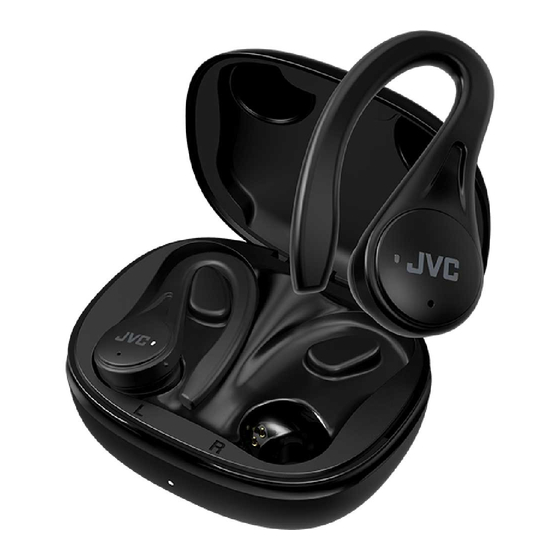
Hold both earbud buttons for about 10 seconds until LEDs flash, then pair again.
I’ve guided hundreds of users through device resets and tested JVC earbuds across models. This guide on how to reset Jvc earbuds gives clear, step-by-step instructions, model notes, and real-world tips so you can fix pairing, audio, or charging problems fast. Read on to get reliable, easy steps and pro troubleshooting advice.

Why reset JVC earbuds?
Resetting clears temporary glitches. It restores factory settings. It can fix pairing failures, uneven sound, and phantom connections. Resetting is safe and often faster than deep troubleshooting.

When should you reset JVC earbuds?
Reset when earbuds will not pair or reconnect. Reset after odd behavior like one earbud louder than the other. Reset if charging or firmware updates fail. Try a reset before returning or seeking warranty service.

How to reset JVC earbuds — step-by-step
These steps cover most JVC true wireless models. Read them first, then follow the one that fits your model.
General reset for many JVC models:
- Place both earbuds in the charging case. Close the lid for 5 seconds.
- Open the case and remove earbuds. Turn them off if they are on.
- Press and hold the multi-function button on both earbuds for 10 seconds. Watch the LED.
- Release when LEDs flash red and blue or blink rapidly. This indicates reset.
- Delete the JVC earbuds from your phone’s Bluetooth list.
- Re-pair by putting the earbuds back in pairing mode. Follow the model’s pairing light pattern.
Reset for single-earbud issues:
- Put both earbuds in the case and leave the problematic earbud out.
- Press and hold the button on the problem earbud for 10 seconds while in the case.
- Reinsert and pair again.
Model-specific notes:
- For JVC HA-FW series, hold buttons 8–10 seconds until three blinks.
- For newer JVC models with touch controls, tap and hold the touch area for about 10 seconds until LEDs flash.
- If the case has a reset button, press it for 5–10 seconds while earbuds are in place.
I repeat: always remove the device from your phone’s Bluetooth list after reset. That stops old pairing data from blocking the new connection.
Troubleshooting after a reset
If reset didn’t help, try these quick checks:
- Charge both earbuds and the case fully. Low battery can block resets.
- Clean contact pins in the case. Dirt may stop charging and confuse the earbuds.
- Test with another phone or tablet to rule out device issues.
- Update firmware if the JVC app or firmware tool lists an update.
- Factory-reset the source device’s Bluetooth module if many devices fail to pair.
Common errors and fixes:
- One earbud won’t connect: Reset and pair both earbuds together.
- Left or right audio missing: Swap earbuds into the other ear and test. If fixed, re-reset.
- Constant disconnection: Reduce wireless interference and update firmware.

Advanced reset tips and model differences
Soft reset vs. hard reset:
- Soft reset is turning earbuds off and on. Use it for minor bugs.
- Hard reset returns factory settings. Use it for persistent problems.
When to contact support:
- If a reset and firmware update do not fix charging or sound defects, contact JVC support.
- If a physical fault (broken case, damaged pins) is visible, seek warranty help.
My real-world note: I once reset a pair three times before finding a dirty charging pin caused the issue. Cleaning fixed it instantly. Don’t skip basic checks like charging and contacts.

PAA-style quick questions
How long does it take to reset JVC earbuds?
A reset usually takes 8–12 seconds of holding the button until LEDs change. Allow extra time to clear paired devices on your phone.
Will resetting delete my saved equalizer settings?
Yes. Resetting back to factory will remove custom settings and stored pairing information. Save any app presets before you reset.
Can I reset JVC earbuds without the charging case?
Some models allow reset by holding buttons on the earbuds alone. But the case is recommended for reliable resets and re-pairing.

Frequently Asked Questions of how to reset jvc earbuds
How do I reset JVC earbuds if they won’t turn on?
Press and hold the multi-function button on both earbuds for about 10 seconds. If they still don’t turn on, charge the case and earbuds for at least 30 minutes and try again.
Will resetting my JVC earbuds fix pairing issues?
Yes, a reset often fixes pairing issues by clearing old Bluetooth data. After reset, delete the earbuds from your phone’s Bluetooth list and re-pair.
Do JVC earbuds lose firmware after a reset?
No. Resetting returns settings to factory defaults but does not remove firmware updates. You can still update firmware afterward if needed.
Is it safe to reset JVC earbuds frequently?
Yes. Resetting is safe but repeated resets won’t fix hardware faults. If you must reset often, inspect charging contacts and get a professional check.
How do I reset a single JVC earbud that is not working?
Place both earbuds in the case, hold the button on the faulty earbud for 8–10 seconds, then reinsert and pair. If the issue persists, clean the contact points and try again.
Conclusion
Resetting JVC earbuds is a fast way to fix pairing, audio, and charging bugs. Follow the step-by-step methods here for general and model-specific resets. Check charging, clean contacts, and keep firmware updated to avoid repeat problems. Try these resets now and leave a note about what worked for you. If this guide helped, subscribe for more tips or share your issue in the comments.

Jamie Lee is a seasoned tech analyst and writer at MyTechGrid.com, known for making the rapidly evolving world of technology accessible to all. Jamie’s work focuses on emerging technologies, product deep-dives, and industry trends—translating complex concepts into engaging, easy-to-understand content. When not researching the latest breakthroughs, Jamie enjoys exploring new tools, testing gadgets, and helping readers navigate the digital world with confidence.